Redwood Supplier Portal Invoice Submission and Status Tracking
A new Redwood experience is available for Supplier Portal invoices and payments, replacing the corresponding classic Supplier Portal pages when the feature is enabled. The Redwood experience preserves existing Payables business rules, validations, purchase order matching, approvals, tax calculation, payment processing, and supplier security while providing an enhanced supplier experience.
Suppliers can create and track purchase order-backed and non-purchase order invoices and review payment information using the Redwood Supplier Portal. The new experience simplifies navigation and invoice entry, introduces enhanced search and filtering, organizes invoice information into clearly defined sections, improves purchase order and line selection, and provides consistent status visibility.
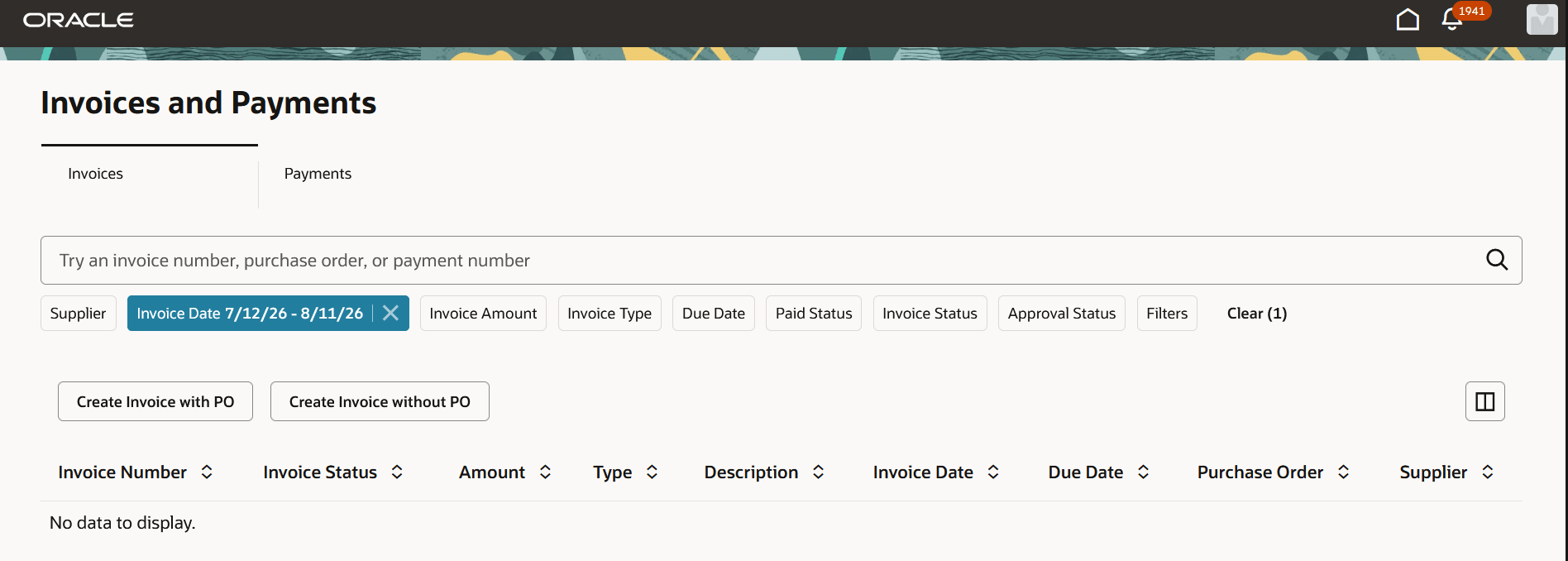
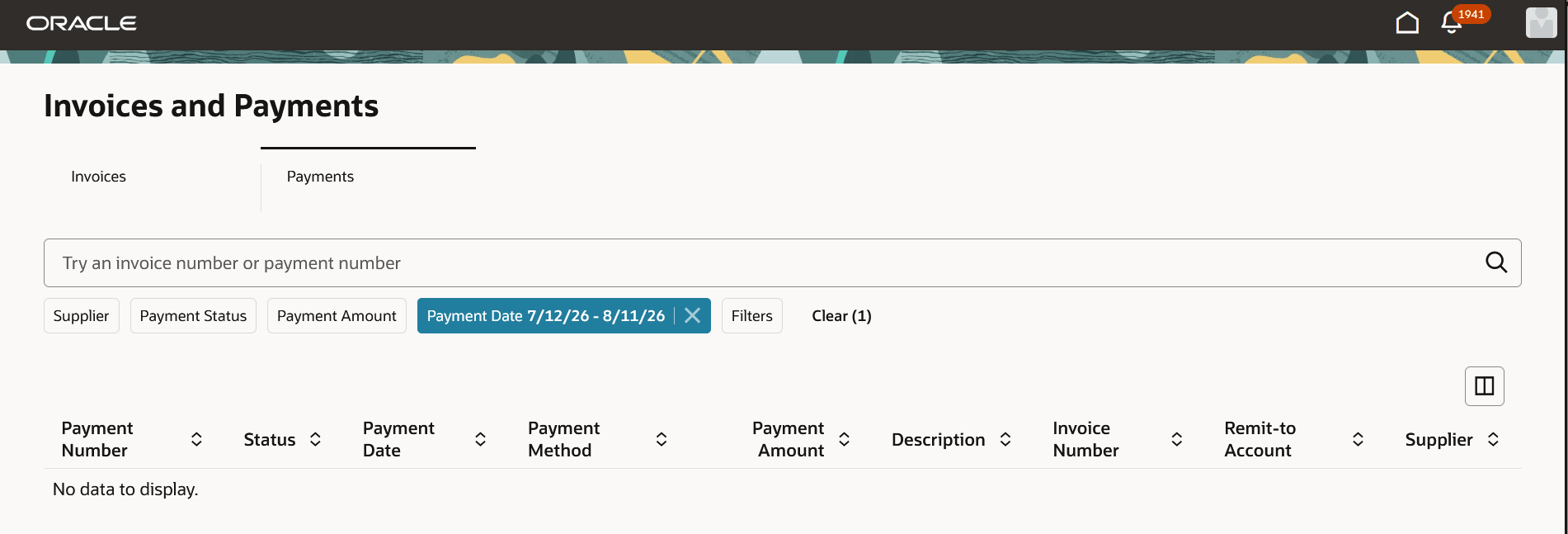
The Invoices and Payments navigation card provides a single entry point to these activities. The Invoices tab is displayed by default and enables suppliers to create, search, and review invoices. Suppliers use the Payments tab to search and review payments and related invoices.
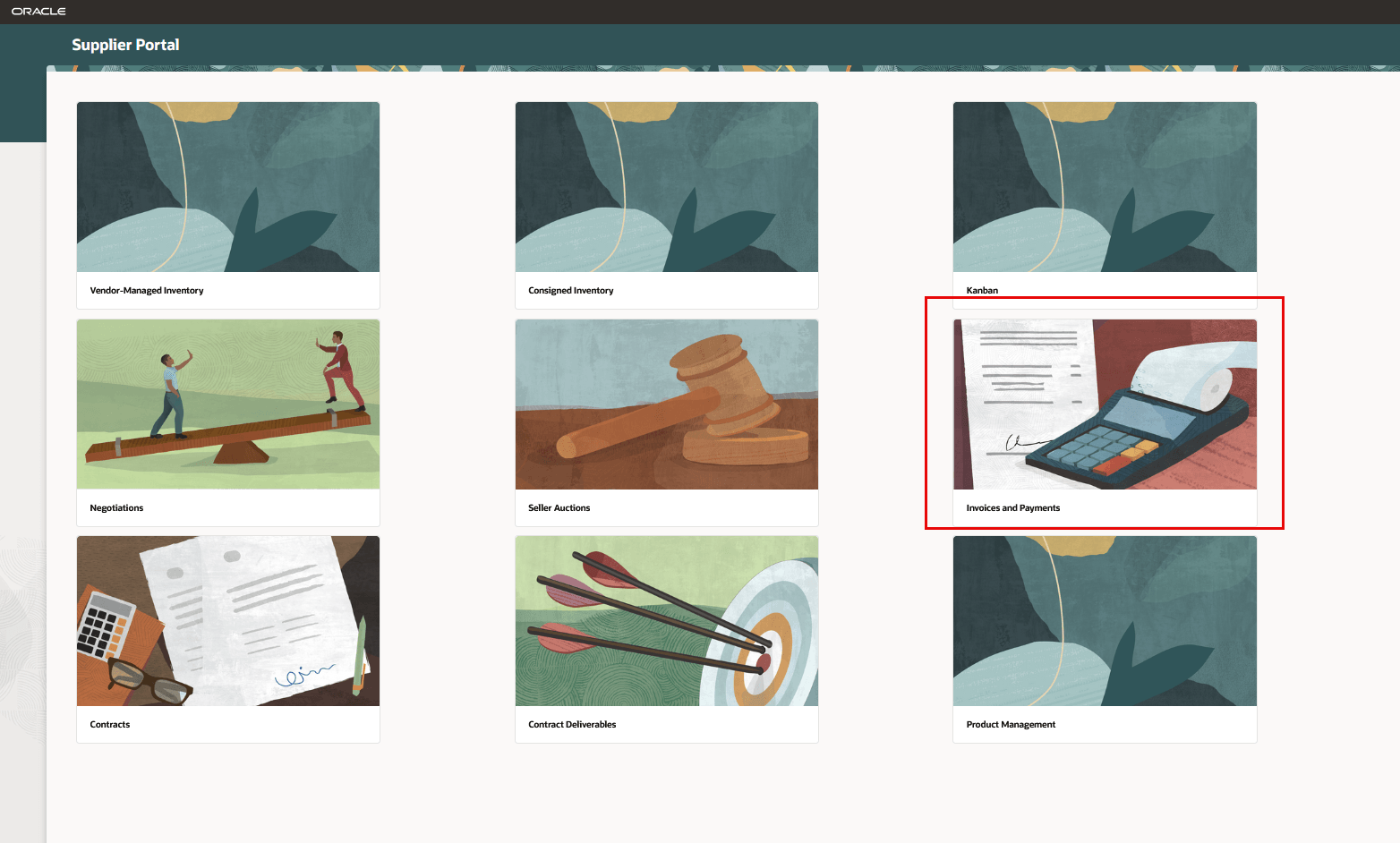
Invoices and Payments
From the Invoices tab, suppliers can search and filter invoices, create purchase order-backed or non-purchase order invoices, save and resume eligible drafts, delete eligible drafts, correct and resubmit eligible rejected invoices, and cancel eligible invoices when existing functional validations allow. Invoice details provide applicable header, line, tax, status, purchase order, receipt, consumption advice, and payment information.
Invoices
From the Payments tab, suppliers can search and filter payment information, review payment details and associated invoices, and open related invoice details when their access permits.
Payments
What changes in the Redwood experience
The following table summarizes the key differences between the classic Supplier Portal invoice and payment experience and the new Redwood experience.
| Area | Classic Supplier Portal | Redwood Invoices and Payments |
|---|---|---|
| Navigation and inquiry | Suppliers use separate Invoices and Payments navigation cards and separate View Invoices and View Payments pages. Create Invoice and Create Invoice without PO are available under Additional Links. | Suppliers use one Invoices and Payments navigation card with separate Invoices and Payments tabs. Create Invoice with PO and Create Invoice without PO are available from the Invoices tab. |
| Search and filters | Suppliers use search regions, table controls, and saved searches to find invoices and payments. | Suppliers use keyword search, filter chips, and the Filters panel. Invoice searches support invoice number, purchase order, payment number, date, amount, currency, status, supplier and supplier site, consumption advice, paid status, due date, and other criteria. Payment searches support invoice or payment number, date, amount, status, supplier, and other criteria. |
| Saved searches and transaction history | Seeded and supplier-created saved searches are supported. Inquiry pages can return older transactions based on available application data. | Saved searches aren't available in this release, and existing seeded or supplier-created saved searches aren't carried forward to the Redwood experience. Suppliers can use keyword search, filter chips, and the Filters panel instead. Search returns the most recent 12 months of indexed supplier invoice and payment data. Older transactions remain in Payables but aren't returned in Redwood search results. |
| Search data updates | Transaction information is available through the classic inquiry experience. | Online invoice and payment changes are reflected in search in real time after search setup is complete. Applicable bulk or offline changes are kept current through bulk ingest. |
| Invoice entry and page organization | Invoice information is presented in a compact multicolumn layout containing purchase order, supplier, remittance, invoice, customer, attachments, lines, tax, and totals. | Information is organized into Purchase Order, Invoice, Supplier, Customer, Attachments, Lines, Shipping and Handling, Summary Tax Lines, and Totals sections, as applicable. |
| Purchase order-backed invoice entry | Suppliers enter purchase order, supplier and supplier-site, remittance, invoice, and customer information in the header, then use the Select and Add Purchase Orders dialog to find and add lines. | Suppliers select an identifying purchase order, complete invoice, supplier, customer, and attachment information, add eligible lines and schedules through Add Lines from PO, enter shipping and handling charges, calculate tax, review totals, and submit the invoice. |
| Non-purchase order invoice entry | Supplier, remittance, requester, customer, invoice, attachment, and line information appears in the classic multicolumn layout. | Suppliers complete the applicable Invoice, Supplier, Customer, Attachments, Lines, Shipping and Handling, Summary Tax Lines, and Totals sections. |
| Supplier, customer, and attachment information | Supplier site, remit-to bank account, tax registration, remittance, customer, requester, and attachment information is primarily available from the invoice header and associated dialogs. | Supplier details, including taxpayer ID, supplier site and address, tax registration, remit-to bank account, remittance identifier, and check digit, are available in the Supplier section. Customer taxpayer, name, address, and requester information are available in the Customer section; displayed fields vary by invoice type. Supported files and URLs are added in Attachments, and configured mandatory attachment requirements continue to apply. |
| Charges, tax, and totals | Item, freight, and miscellaneous charges are entered through the Lines table. Calculate Tax is available from Invoice Actions; tax and totals appear in the general page layout. | Item lines are entered in Lines, while freight and miscellaneous charges are entered in Shipping and Handling. Calculate Tax and calculated tax information are available in Summary Tax Lines, with a dedicated Totals section. |
| Status visibility | Classic pages display invoice, approval, and payment statuses. | Status badges provide a consistent visual summary of invoice, approval, and payment statuses. |
| Supplier access and security | Supplier and supplier-site security determines accessible transactions, including for contacts authorized for multiple supplier relationships. |
Existing supplier and supplier-site security remains in effect; enabling Redwood doesn't grant additional transaction access. For users authorized for multiple supplier relationships, the selected supplier context determines the invoices and payments displayed. Supplier filters or columns may appear to clarify the transaction context. |
Note: After you enable the Redwood Invoices and Payments experience, suppliers use the new Invoices and Payments navigation card and Redwood pages instead of the classic View Invoices, View Payments, Create Invoice, and Create Invoice without PO entry points. Existing Payables business rules and supplier security continue to apply; however, navigation, search, page organization, and some user interactions change as described above.
These are the business benefits:
-
Simplified navigation and faster follow-up: The Invoices tab is displayed by default, giving suppliers immediate access to create, search, and review invoices. Suppliers can use the Payments tab to review payments and related invoices, reducing navigation and the steps required to identify transactions that need attention.
-
Improved transaction visibility: Keyword search, filters, and status badges help suppliers quickly find invoices and payments and understand their current status.
- Timely search updates: After search is configured, online invoice and payment changes are reflected automatically without requiring a scheduled process for each transaction.
- Streamlined invoice entry: Dedicated sections organize invoice, supplier, customer, attachment, line, shipping and handling, tax, and total information for easier review and completion.
- Focused purchase order selection: Contextual purchase order and line information helps suppliers identify the correct purchase order and add eligible lines and schedules.
- Efficient invoice follow-up: Suppliers can resume eligible drafts and correct and resubmit eligible rejected invoices.
- Modern experience with existing business controls: Suppliers gain the Redwood user experience while existing Payables validations, matching rules, approvals, holds, tax rules, payment processing, and supplier security continue to apply.
Steps to enable and configure
Review these considerations before enabling the Redwood Invoices and Payments experience.
- Existing customer environments. Existing customers continue to use the classic Supplier Portal invoice and payment pages until an administrator enables the Redwood Invoices and Payments experience. Before enabling it in production, validate the experience and search results in a nonproduction environment and prepare supplier communications, training, and onboarding.
- Newly provisioned customer environments. The Payables Redwood and Payables Search profile options are enabled by default for newly provisioned environments. Complete any remaining prerequisite and search-initialization steps described below that aren’t already provisioned before making the experience available to suppliers.
- Check for Web Application Firewall enablement. Don’t enable this feature in an environment with Web Application Firewall (WAF) enabled for this update. Required Tax, Payables, and Payments dependencies aren’t yet WAF compliant.
- Understand the searchable transaction-history period. Redwood invoice and payment search provides a rolling 12 months of indexed supplier transaction data. Older transactions remain in Payables but aren’t returned in Redwood Supplier Portal search results.
- Prepare suppliers for the saved-search change. Saved searches aren’t available on the Redwood Invoices and Payments pages. Suppliers can use keyword search, filter chips, and the Filters panel instead.
- Communicate the change to classic-page access. After the Payables Redwood profile is enabled, suppliers can no longer access the classic View Invoices, View Payments, Create Invoice, or Create Invoice without PO entry points.
For newly provisioned customer environments, complete only the steps that aren’t already enabled or provisioned by default.
1. Enable the Redwood Supplier Portal Home Page
Skip this step if the Redwood Supplier Portal home page is already enabled.
- Go to Navigator > My Enterprise > Offerings.
- On the Offerings page, select Procurement, and then select Opt In Features.
- Enable the Supplier Portal functional area.
- On the Opt In Procurement page, select the Features icon for the Supplier Portal functional area.
- Enable Redwood: Enable the New Supplier Portal Home Page Experience.
- Select Done.
2. Enable the Redwood Invoices and Payments Page
This profile option determines whether suppliers use the Redwood Invoices and Payments pages or the classic Supplier Portal invoice and payment pages.
- In the Setup and Maintenance work area, search for and open the Manage Administrator Profile Values task.
- Search for the profile option shown below.
- Set the profile value to Yes at the site level, and then save your changes.
- Redwood Page for Supplier Portal Invoices and Payments Enabled (ORA_AP_INVOICES_PAYMENTS_SUPPLIER_PORTAL_REDWOOD_ENABLED): Required site value: Yes
After this profile is enabled, the single Invoices and Payments navigation card replaces the corresponding classic invoice and payment entry points. Suppliers can no longer access the classic View Invoices, View Payments, Create Invoice, or Create Invoice without PO pages and links.
3. Enable Search for Supplier Invoices and Payments
The Payables Search profile enables the invoice and payment indexing required by the Redwood search experience and is managed separately from the Redwood page profile.
The Redwood Invoices and Payments page uses Oracle Search indexes for invoice and payment search.
- In the Manage Administrator Profile Values task, set the Payables Search profile to Yes at the site level.
- Confirm that the common Search Extension Framework profile is also set to Yes.
- Save your changes.
Payables Search Profile Option:
Elastic Search for Supplier Portal Invoices and Payments Enabled
ORA_AP_SUPPLIER_PORTAL_ELASTIC_SEARCH_ENABLED
Required site value: Yes
Search Framework Profile Option:
Enable/Disable Search Ext Framework
ORA_FND_SEARCH_EXT_ENABLED
Required site value: Yes
The Redwood page profile configured in Step 2 and both Search profile options configured in this step must be set to Yes at the site level for the complete Redwood Invoices and Payments experience.
4. Perform the One-Time Initial Search Data Ingestion
When enabling the Redwood experience for the first time, initialize the invoice and payment search indexes with the most recent 12 months of supplier transaction data. This is a one-time setup activity and isn’t the process used to keep search data current after initialization.
After enabling the required profile options, go to Scheduled Processes and run ESS job to create index definition and perform initial ingest to OSCS once for each index.
-
Supplier invoices: Set Index Name to Reingest to fa-fin-ap-invoices, and run the process once.
-
Supplier payments: Set Index Name to Reingest to fa-fin-ap-payments, and run the process once.
The initial ingest loads the most recent 12 months of supplier invoice and payment information into the search indexes. Don’t schedule the initial-ingest process to run repeatedly.
5. Keep Search Data Current
After the one-time initial ingestion is complete, online invoice and payment changes are reflected in Redwood Search in real time. No scheduled search process is required for individual online transactions.
Invoice and payment changes created through applicable bulk or offline processes are updated through recurring Bulk Ingest processes. Schedule these processes at a frequency that aligns with the corresponding Payables invoice and payment bulk-processing cadence.
-
Supplier invoices: Set Program Name to run Bulk Ingest to fa-fin-ap-invoices.
-
Supplier payments: Set Program Name to run Bulk Ingest to fa-fin-ap-payments.
Oracle automatically maintains a rolling 12-month search-data window and removes older entries from the search indexes. You don’t need to configure or schedule a purge process. Removing an entry from a search index doesn’t delete the underlying Payables transaction.
Tips and considerations
Review these considerations before enabling the Redwood Invoices and Payments experience for an existing Supplier Portal deployment.
Plan the Supplier Rollout
- Validate before production. Test the Redwood experience and supplier invoice and payment search results in a nonproduction environment.
- Verify search readiness. Confirm that the invoice and payment indexes are initialized, online changes appear as expected, and bulk-processed data is refreshed according to the applicable ingestion schedule.
- Test security and access. Verify supplier roles, supplier and supplier-site security, and data access, including access for users authorized for multiple supplier relationships.
- Pilot the experience. Consider a pilot with a representative supplier group before a broader rollout.
- Prepare support and training. Update supplier communications, training materials, and internal support procedures before enabling the feature in production.
Prepare Suppliers for the New Experience
- Navigation and inquiry. Explain that suppliers start from the Invoices and Payments navigation card, use the Invoices tab to create, search, and review invoices, and use the Payments tab to search and review payment information.
- Classic entry points. Inform suppliers that the classic View Invoices, View Payments, Create Invoice, and Create Invoice without PO entry points are no longer available after enablement.
- Invoice-entry flows. Demonstrate both the purchase order-backed and non-purchase order flows, including identifying purchase order selection and the Add Lines from PO page where applicable.
- Page organization and key actions. Explain that invoice information is organized into dedicated Invoice, Supplier, Customer, Attachments, Lines, Shipping and Handling, Summary Tax Lines, and Totals section. Location of key information and actions:
- Supplier Site, Remit-to Bank Account, tax registration, and remittance information appear in the Supplier section.
- Requester and customer information appears in the Customer section where applicable.
- Files and URLs are added in the Attachments section.
- Freight and miscellaneous charges are entered in the Shipping and Handling section.
- Calculate Tax is available in the Summary Tax Lines section.
Search, Saved Searches, and Older Transactions
- Saved searches. Saved searches from the classic invoice and payment pages aren’t available in the Redwood experience. Suppliers can use keyword search, visible filter chips, the Filters panel, and sortable result columns where available.
- Search-history period. Redwood Search maintains a rolling 12 months of indexed supplier invoice and payment data. This differs from the classic inquiry experience, where suppliers may be able to search older transaction history.
- Older transactions. Transactions older than 12 months aren’t deleted from Payables. They’re removed only from the Redwood Search indexes and therefore aren’t returned in Redwood Supplier Portal search results.
- Plan for historical inquiries. Before enabling Redwood, define and communicate an Accounts Payable support or reporting process for suppliers who need invoice or payment information older than 12 months.
Multiple Supplier Access
This feature doesn’t change how supplier access is granted. For users separately authorized to access multiple supplier relationships:
- The selected or derived supplier and supplier-site context determines invoice creation and which invoices and payments are displayed.
- Supplier filters or columns may appear to clarify the current transaction context.
- Invoice and payment results remain limited to authorized supplier and supplier-site data.
Guided Journeys and Page Configuration
- Guided Journeys. Configure Guided Journeys on the Invoices and Payments - Search in Supplier Portal page to provide supplier-specific instructions, policies, tutorials, and support information. Oracle doesn’t seed Guided Journey content for this feature.
- Suggested guidance. Consider guidance for creating invoices, selecting purchase order lines, entering freight and miscellaneous charges, correcting rejected invoices, interpreting statuses, using search and filters, requesting older transaction information, and contacting Accounts Payable.
- Visual Builder Studio. Use Visual Builder Studio to configure supported business rules, field visibility, and layout behavior on the Invoices and Payments - Search in Supplier Portal page.
Web Application Firewall
Don’t enable this feature in an environment with Web Application Firewall (WAF) enabled in Update 26D. Required Tax, Payables, and Payments dependencies aren’t yet WAF compliant.
Key resources
Related Help:
Oracle Fusion Cloud Financials: Using Payables
Redwood: Enable the New Supplier Portal Home Page Experience
Enable Search Extension Framework
Allow External Users to Access Guided Journeys
Extending Redwood Applications Using Visual Builder Studio
Access requirements
There are no new supplier-user access requirements for this feature.
Use the predefined Supplier Accounts Receivable Specialist job role (ORA_POS_SUPPLIER_ACCOUNTS_RECEIVABLE_SPECIALIST_JOB).
When creating a custom job role, enable permission groups using the ‘Enable Permission Groups’ button in the first screen of role creation. Further, add the Self Service Payables Invoice Entry duty role (ORA_AP_SELF_SERVICE_PAYABLES_INVOICE_ENTRY_DUTY) on both the Roles and Privileges and Roles and Permission Groups tabs of the Role Hierarchy section. Below are the privilege details appearing as a part of the Self Service Payables Invoice Entry duty role (ORA_AP_SELF_SERVICE_PAYABLES_INVOICE_ENTRY_DUTY) on the Roles and Privileges tab of Role Hierarchy section:
| Sr# | Privilege Name | Privilege Code | Comments |
|---|---|---|---|
| 1 | Enter Matched Payables Invoice As Supplier | AP_ENTER_MATCHED_PAYABLES_INVOICE_AS_SUPPLIER_PRIV | Existing in the duty role Self Service Payables Invoice Entry to support ADF page |
| 2 | Enter Unmatched Payables Invoice As Supplier | AP_ENTER_UNMATCHED_PAYABLES_INVOICE_AS_SUPPLIER_PRIV | Existing in the duty role Self Service Payables Invoice Entry to support ADF page |
| 3 | View Payables Invoice as Supplier | AP_VIEW_PAYABLES_INVOICE_AS_SUPPLIER_PRIV | Existing in the duty role Self Service Payables Invoice Entry to support ADF page |
| 4 | View Payables Payment as Supplier | AP_VIEW_PAYABLES_PAYMENT_AS_SUPPLIER_PRIV | Existing in the duty role Self Service Payables Invoice Entry to support ADF page |
| 5 | Review Inventory Consumption Advice | INV_VIEW_INVENTORY_CONSUMPTION_ADVICE_PRIV | Existing in the duty role Self Service Payables Invoice Entry to support ADF page |
| 6 | Review Receiving Receipt Summary | RCV_REVIEW_RECEIVING_RECEIPT_SUMMARY_PRIV | Existing in the duty role Self Service Payables Invoice Entry to support ADF page |
| 7 | View Receipt Summary and Transaction History using Responsive Receiving | RCV_VIEW_RECEIPT_SUMMARY_TXN_HISTORY_PWA | Added to the duty role Self Service Payables Invoice Entry to support Redwood page |
| 8 | Review Consumption Advice as Supplier Using Responsive Inventory | INV_REVIEW_CONSUMPTION_ADVICE_AS_SUPPLIER_PWA | Added to the duty role Self Service Payables Invoice Entry to support Redwood page |
| 9 | Use REST Service - Locations List of Values | PER_REST_SERVICE_ACCESS_LOCATIONS_LOV | Added to the duty role Self Service Payables Invoice Entry to support Redwood page |