Allow Performers to Reopen Journey Tasks and Add Comments
You can now configure journey tasks to support multiple comments. When enabled, task performers, owners, line managers, and HR specialist can add and review multiple comments on a journey task, giving them a clearer interaction history for the task.
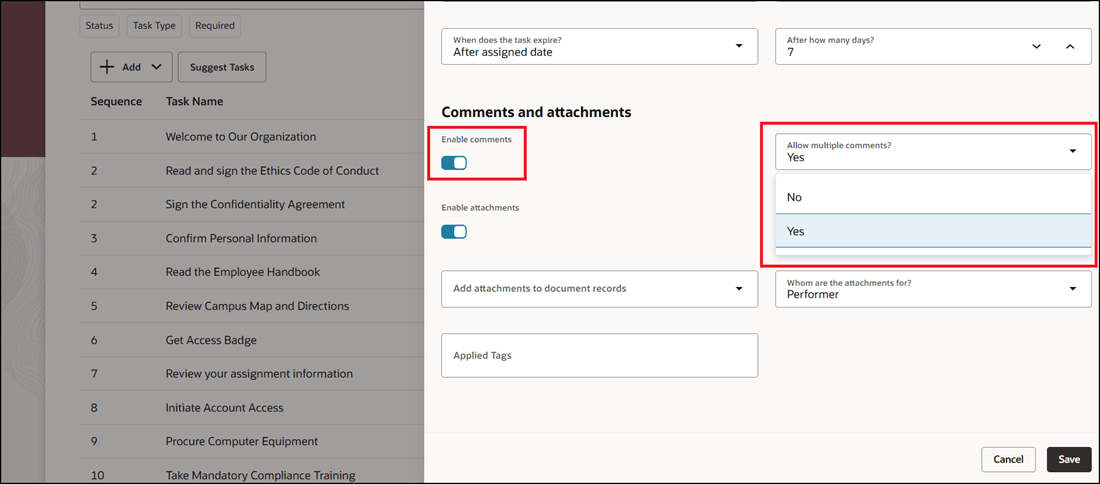
Configure Task to Allow Multiple Comments
You can also add comments when a completed task is reopened. When the task configuration allows comments, a text box appears in the reopen panel drawer so the user can enter additional context for reopening the task. Existing comments are retained, including when a task is reassigned to another person.
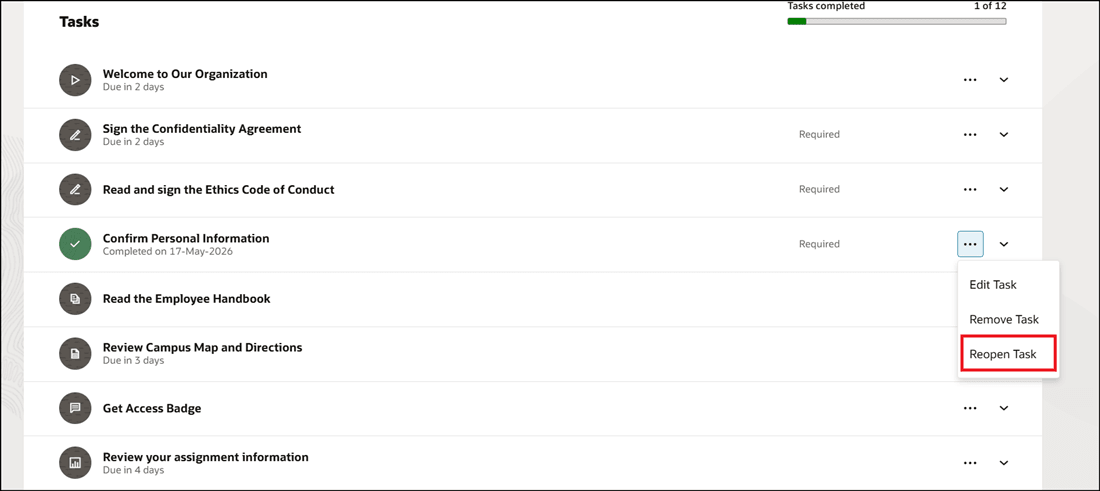
Reopen Task to Add Comments
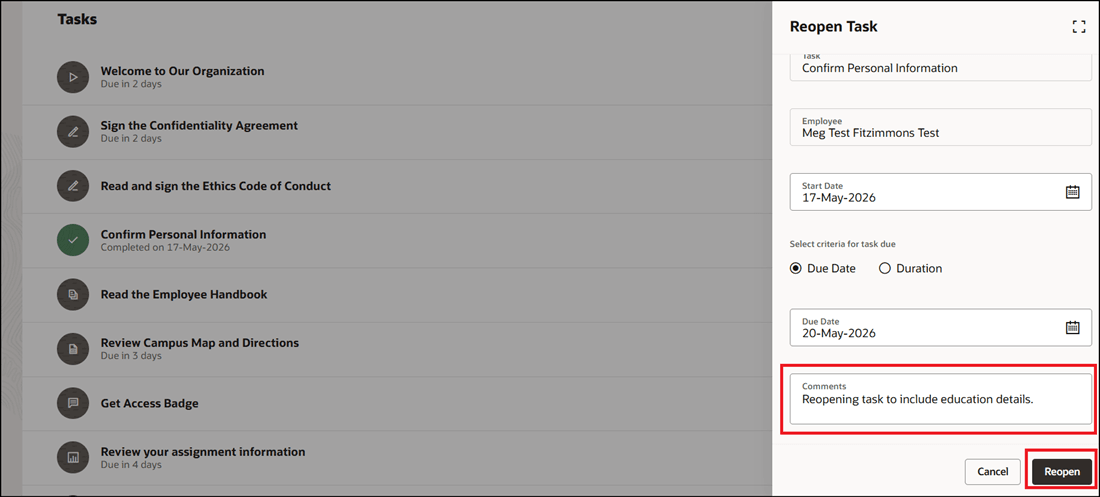
Add Reason in Comments for Reopening Task
This feature also supports scenarios where multiple performers are assigned to a single task. Instead of using the existing single comment area, users see a Comments button next to More Actions. Selecting this button opens a panel drawer where users can view existing comments and add new comments.
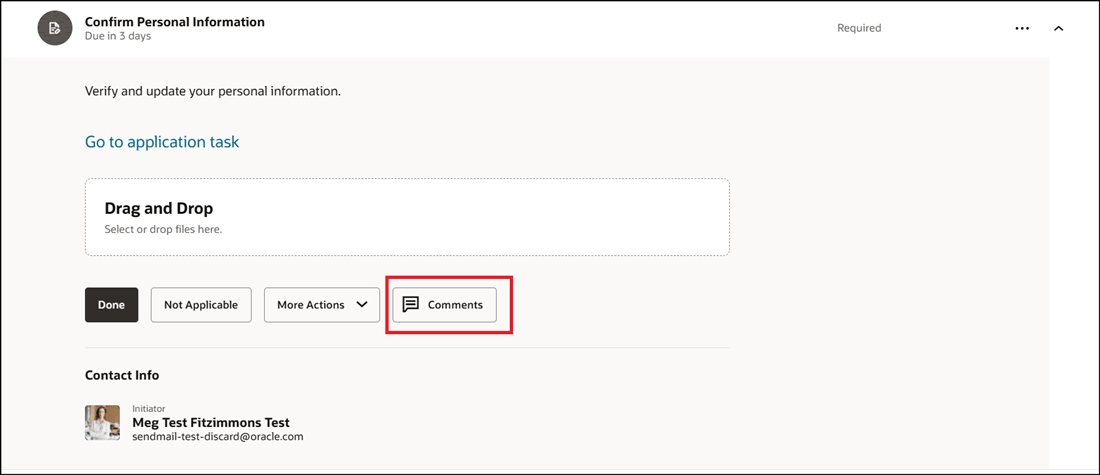
Select Comments After Making Changes for Reopened Task
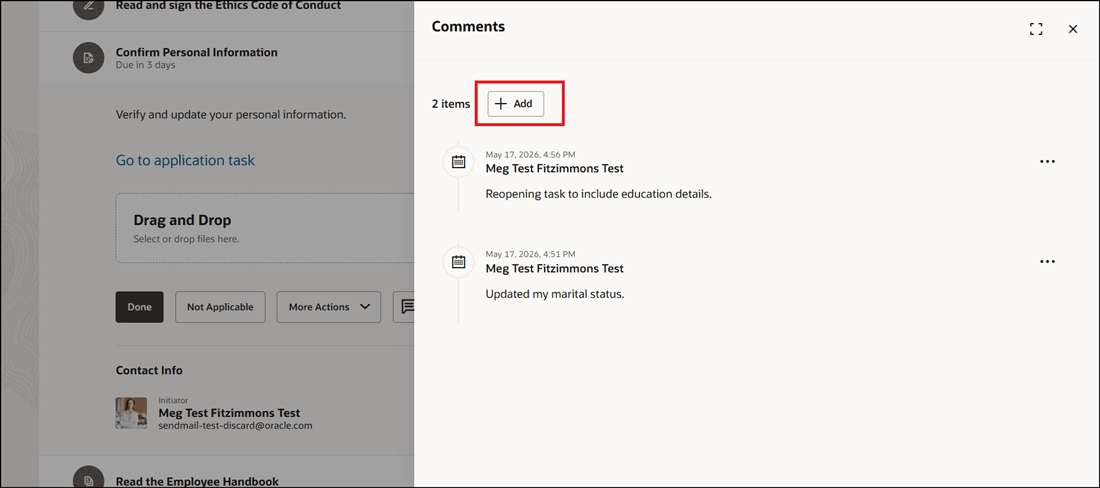
Add Comments for Changes Made After Reopening Task
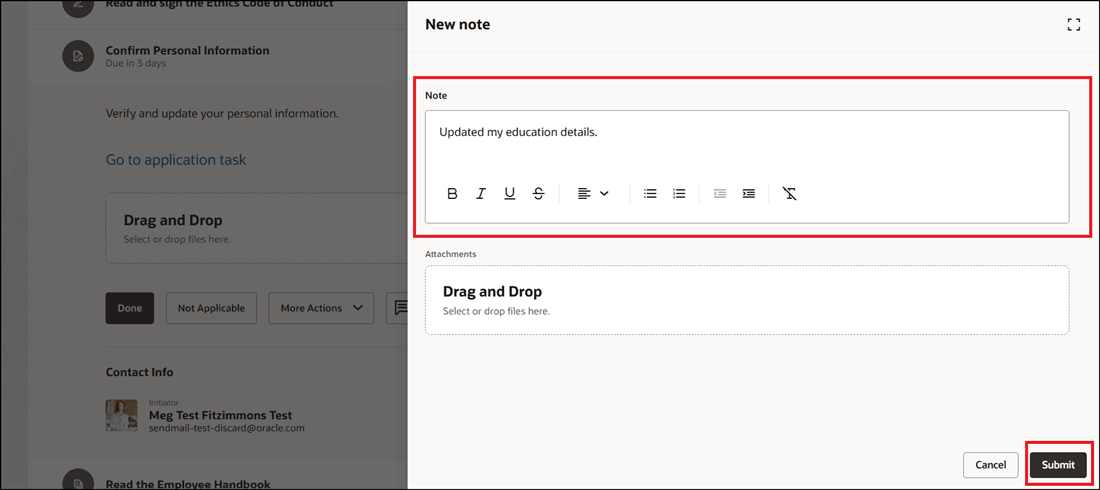
Enter Notes and Submit
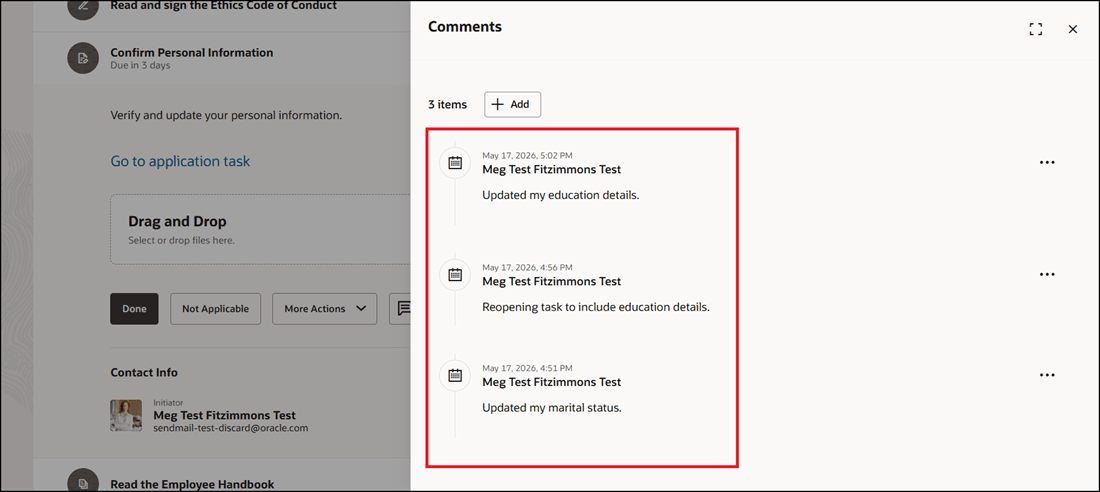
History of Comments for the Reopened Task
Here are a few examples of how this feature can be used:
-
Leave of absence correction: An employee submits a journey task for leave and later realizes that some information needs correction. When reopening the task, the employee can add a comment explaining what was corrected and why.
-
HR review and follow-up: An HR specialist or line manager can add comments to a task to document clarification requests, decisions, or follow-up instructions without overwriting prior comments.
-
Multi-performer task collaboration: When more than one performer is involved in a task, each participant can add comments, so the full task discussion is preserved.
-
Reassignment continuity: If a journey task is reassigned, previous comments remain available, helping the new performer understand the earlier context before acting on the task.
-
Audit and history tracking: Organizations can retain a clearer history of comments and interactions on tasks, especially when tasks are completed, reopened, or reassigned.
These are some key benefits of this feature:
-
Preserves a comment history instead of relying on a single comment field.
-
Improves collaboration among employees, managers, HR specialists, task owners, and multiple performers.
-
Gives users a way to explain why a task is being reopened.
-
Reduces support effort caused by unclear task updates or missing reopen rationale.
-
Improves continuity when tasks are reassigned.
-
Helps high-volume processes, such as onboarding or leave intake, where employees often need to correct or clarify submitted information.
This enhancement helps users add more complete task context and reduce ambiguity in journey processes.
Steps to enable and configure
For more information, see this topic: Add Comments for Reopened Journey Tasks
Tips and considerations
-
You need to configure multiple comments for each task separately. The configuration is available for journey templates, task library, and task groups.
-
Existing comments are retained when a task is reassigned.
-
Existing data remains available for reopened tasks, such as questionnaire responses, configurable form data, attachments, and comments.
-
Existing display properties of the original task apply to reopened tasks.
-
Reopening a task doesn’t re-evaluate activation criteria for dependent tasks. If dependent tasks were already activated or completed based on earlier responses, that state isn’t recalculated when the original task is reopened.
-
If a reassigned task is reopened, the performer of the reopened task is the person to whom the task is reassigned, not the original assignee.
-
You can't reopen journey tasks and add comments for these task types: Native Electronic Signature, DocuSign, I-9 Verification, Advanced Task, and Oracle Process Automation
Key resources
- Implementing and Using Journeys guide
- Single Task with Multiple Performers in Journeys, What's New 26C
Access requirements
You must be granted the Manage Journey (ORA_PER_MANAGE_JOURNEY_TEMPLATE) aggregate privilege to work on journey templates.