Enhance Employment Information and Team Insights AI Agents with Document Tool and Expanded Deep Link Support
Enhance Employment Information and Team Insights AI Agents with a document tool and deep-link business object support. Improves guided access to employment information
Document Tool for Employment Information and Team Insights Agents
The Document tool has now been added to both agents. This essentially means both agents are smart enough to consider policies or any documents that you upload into the Document tool while generating responses.
Another important point is that once you upload the documents, you should also adjust the agent prompt so that the agent knows to refer to the Document tool while answering.
When you attach a document to the tool, you have to change the prompts to fetch the details from the document tool.
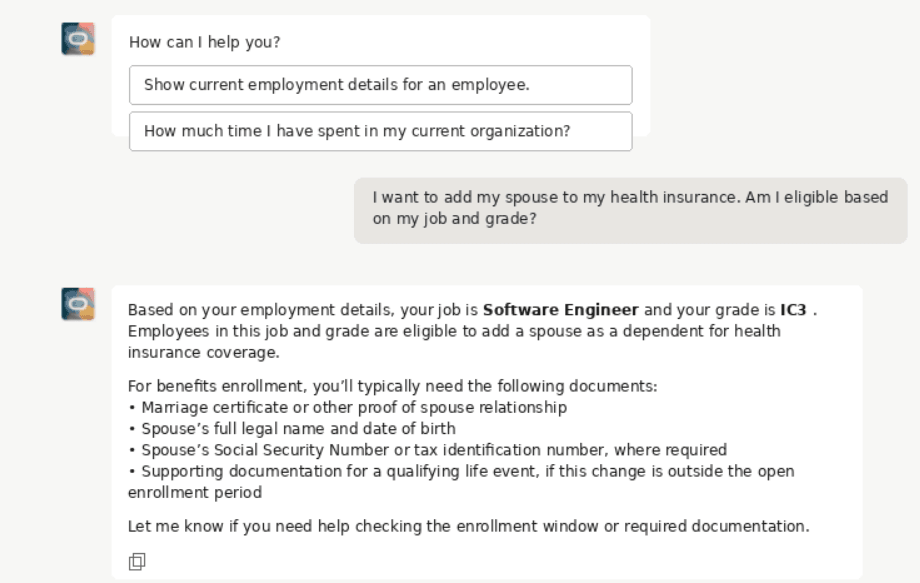
Employment Information agent Response Using Document Tool
Enhanced Deep Links Generator Tool
The enhanced Deep Link Generator tool now supports additional deep links for employment processes. It generates process-specific deep links based on the logged-in user’s security privileges; for example, a Work Relationship deep link is generated for an HR Specialist who has access to update work relationship details, but not for an employee who does not have that access.
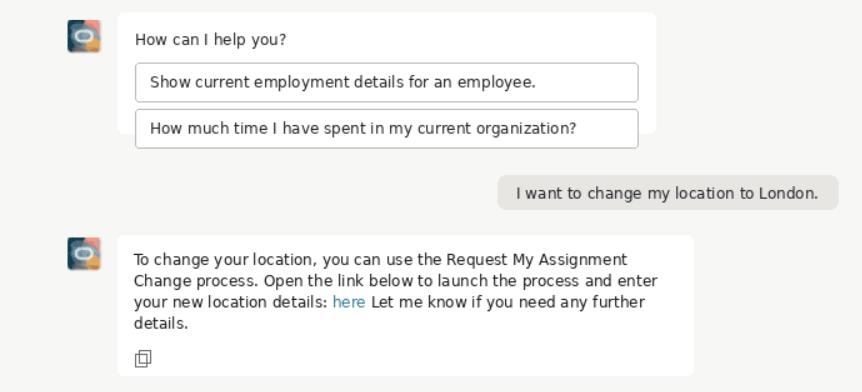
Deep link for Request My Assignment Change in Employment Information Agent
These enhancements improve HR service efficiency by helping agents provide more accurate, customer-specific responses using uploaded policies and documents, while also guiding users directly to the employment processes they are authorized to access.
They reduce manual lookup, navigation effort, and support dependency, while strengthening consistency, security, and compliance by ensuring responses and deep links are aligned with the user’s role and security privileges.
Steps to enable and configure
- Your environment must have certain necessary configurations. Ask your help desk to contact Oracle Support, who can verify what your environment has and address any gaps. For more information, see FAQ2521 on My Oracle Cloud Support.
- Set the Enable Security Console External Application Integration (ORA_ASE_SAS_INTEGRATION_ENABLED) profile option to Yes, and enable permission groups for the appropriate roles. See Access Requirements for AI Agent Studio.
-
To learn how to set up AI agents, see Create AI Agents Using Preconfigured Agent Team Templates.
You need to configure security to use this feature. See the Access Requirements section.
Key resources
For more information, refer to these resources on the Oracle Help Center.
- Employment Processes in the Using Global Human Resources guide
- How do I use AI Agent Studio?
Also, check these What's New announcements
- 26A: Analyze Team Composition with AI Assistance
- 25D:Manage Employment Information with AI Assistance
s
Access requirements
The agents you can view depend on the roles and privileges assigned to you. To access this agent, your role must be explicitly granted access to it by an AI Studio Administrator. See How can I give users access to AI agents and Access Requirements for AI Agent Studio.