Enhancements to Team Sync Check-Ins and Team Sync Summary
Team Sync provides a focused way to summarize employee-manager interactions using the information captured during a check-in. You can:
- Customize the agent, which is now delivered as runnable
- Extend the Team Sync page by using page properties
Specify the date range
On the Team Sync tab, navigate to Edit Page in Visual Builder Studio to open the page properties. A new Date Criteria (Days) page property lets you specify the number of days to include in the summarization period.
- The default value is 14 days.
- The maximum value is 365 days.
- The end date is the current date.
- The start date is calculated based on the configured number of days.
- For example, if today’s date is April 20 and value in the Date Criteria (Days) field is set to 14 days, then Team Sync Advisor agent includes check-ins from April 7 through April 20 to generate the team summary.
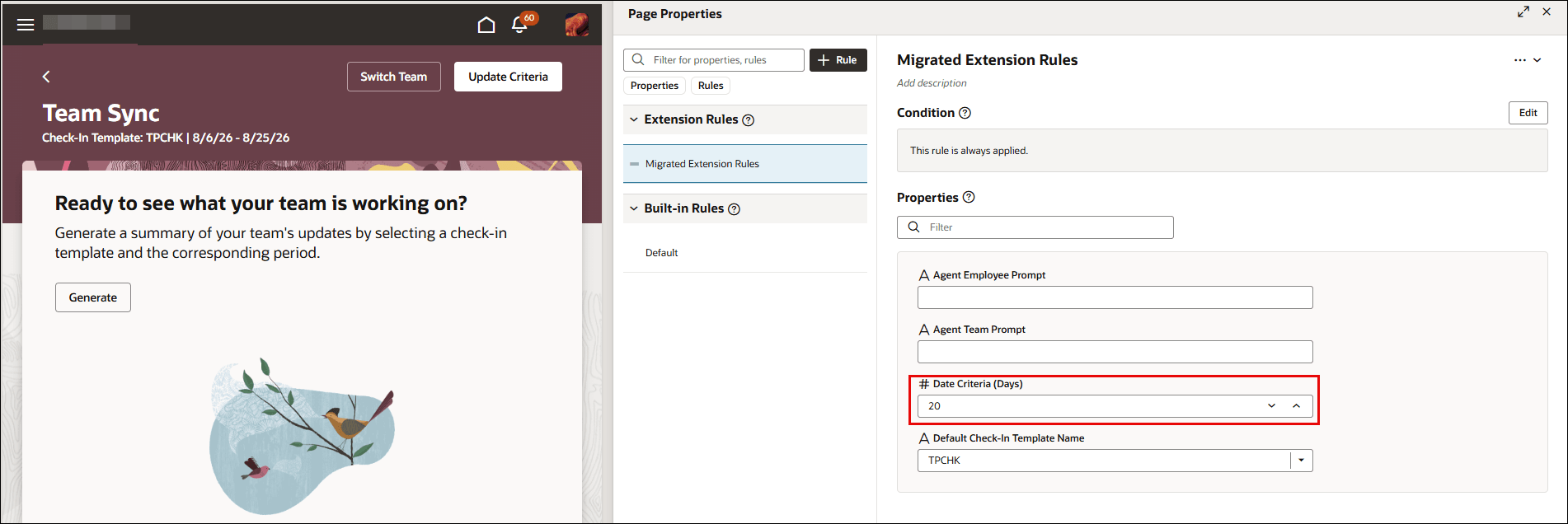
Team sync date criteria
Note: The date no longer defaults to a fixed 7-day range.
The Team Sync check-in template defaults in the Default Check-In Template Name page property. If a team sync template isn't available, then the default Touchpoints template is displayed. If no template is listed, you can update the value in the above field using the extension rules for the page property.
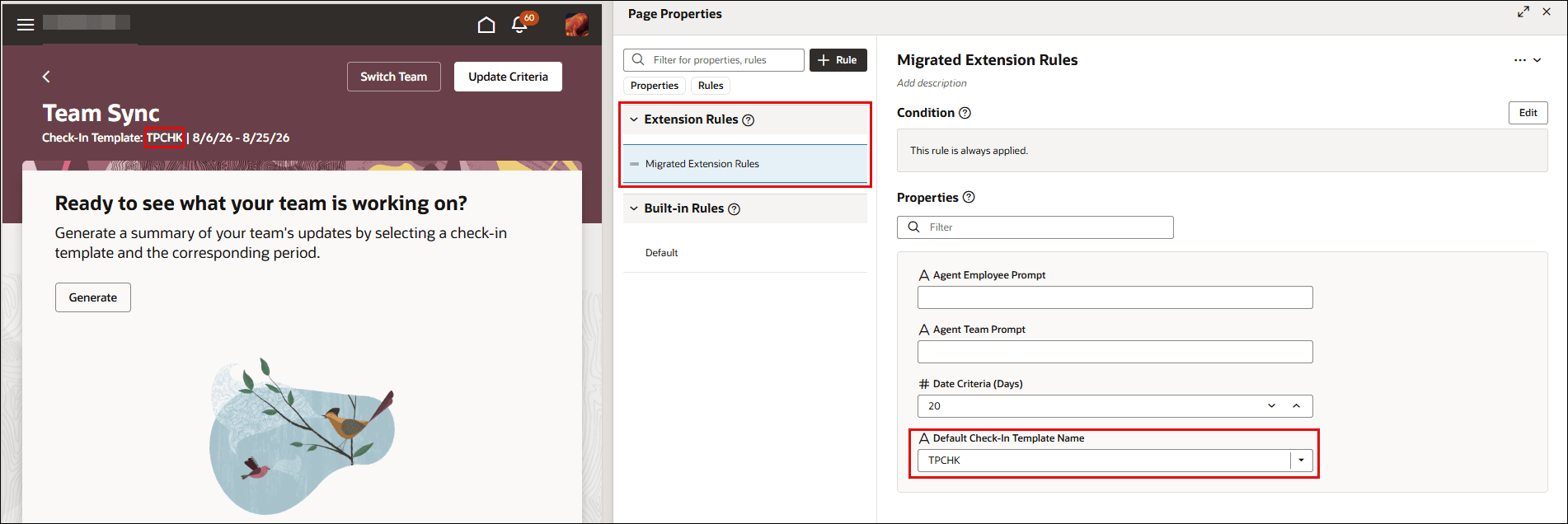
Team sync default template
Viewing team sync check-ins
Team Sync check-ins are displayed on the Team Check-Ins page and Touchpoints Employee dashboard.
On the Touchpoints Employee dashboard, a team sync check-in is displayed in the Events and interactions area similar to a normal check-in. However, the number of discussion topics isn’t displayed for a team sync check-in.
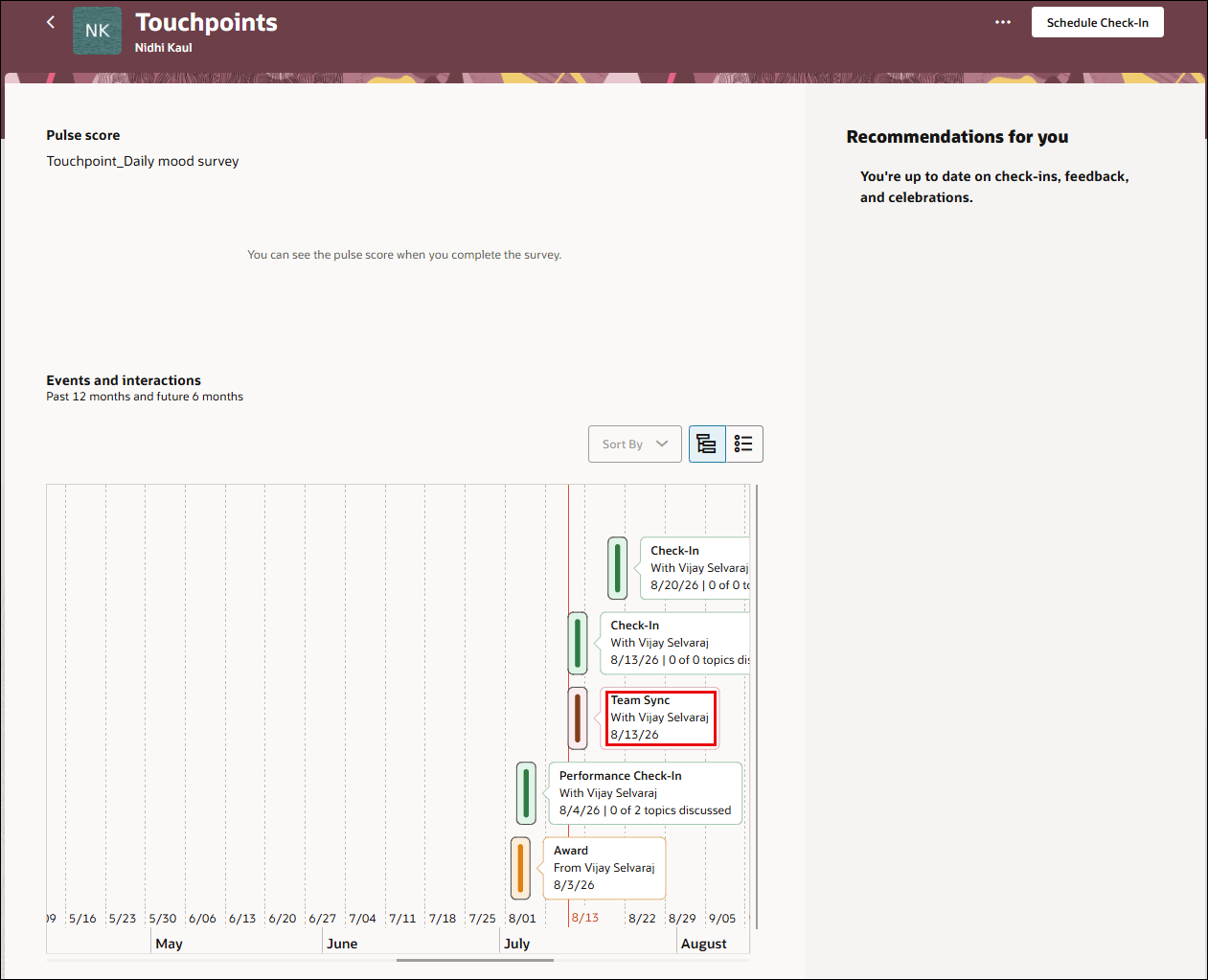
Team sync check-in employee dashboard
Exclude team sync from analytics
Team Sync check-ins don't contribute to the Touchpoints interaction analytics. These check-ins are excluded from:
- Team and organization interaction analytics in the scoreboard
- Events and interactions charts on the main Touchpoints Summary page
- Upcoming and overdue check-ins
- Nudges (when check-ins haven’t been scheduled between a manager and employee for a specific period)
Business benefit
The Team Sync Advisor agent can now be customized and is delivered as runnable. Use the page properties to specify the inputs for generating the summary. Team sync check-ins are handled separately so they don’t affect Touchpoints interactions and check-in analytics.
Steps to enable and configure
- Your environment must have the appropriate services for Oracle Applications Platform deployed. For more information, see FAQ2521 on My Oracle Cloud Support.
- Set the Enable Security Console External Application Integration (ORA_ASE_SAS_INTEGRATION_ENABLED) profile option to Yes and enable permission groups for the appropriate roles. See Access Requirements for AI Agent Studio.
To learn how to set up AI agents, see Create AI Agents Using Preconfigured Agent Team Templates.
Tips and considerations
- Use the date criteria to control how much historical team sync check-in information must be included when generating the summary. A greater number of days includes more check-in information which in turn provides granular details about the team and team members.
Key resources
- Team Sync Tab
- Enhancements to Team Sync Agent
- Questionnaire visibility rules in Check-Ins
- Explore AI Agents for Oracle Fusion Cloud Applications
- How do I use AI Agent Studio?
Access requirements
The agents you can view depend on the roles and privileges assigned to you. To access this agent, your role must be explicitly granted access to it by an AI Studio Administrator. See How can I give users access to AI agents and Access Requirements for AI Agent Studio.
To access all applicable Touchpoints features, managers must have appropriate user roles.
| Duty Roles | Role Code | Job or Abstract Role | Privileges |
|---|---|---|---|
| Access Touchpoints by Manager | ORA_HRE_ACCESS_TOUCHPOINTS_BY_MANAGER | Line Manager | HRE_ACCESS_TOUCHPOINTS_BY_MANAGER_PRIV |