AI Agent: Negotiation Surrogate Response Assistant
Deploy the Surrogate Response Assistant to automate creation of supplier negotiation responses. This new AI Agent template enables category managers to create surrogate responses from supplier response documents received in email.
You can forward the supplier's email with the attached quote document to an email account monitored by the AI agent. The agent reads the email, parses the attachment to extract key response details such as supplier information, response price, response quantity, promised delivery date, and any note to the buyer. It identifies the negotiation and creates the draft response. The agent then composes an email and sends the draft response for approval with links. If approved, the agent validates and submits the response. If rejected, the agent deletes the draft response. You have the option to drill down into the draft response, make edits and submit it yourself from the application.
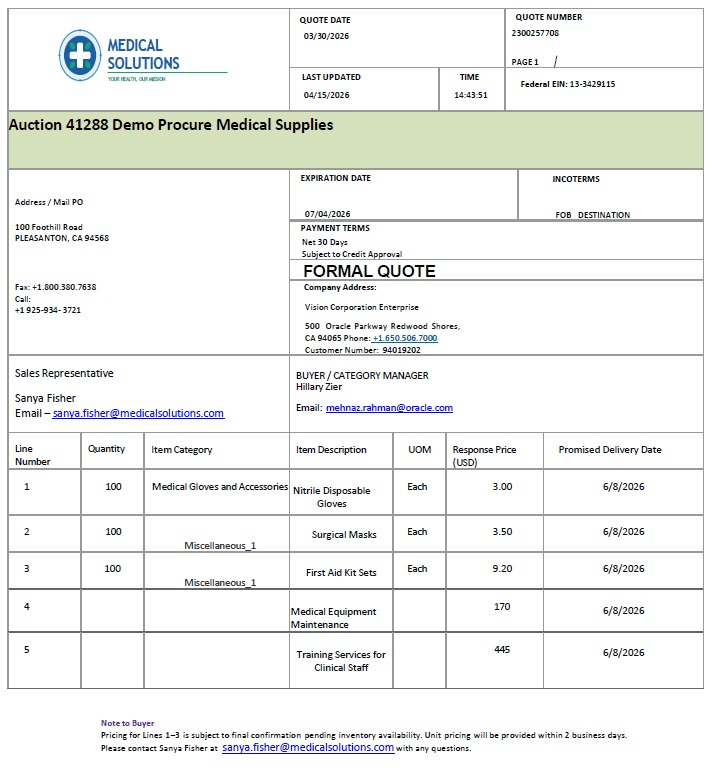
Sample Supplier Quote
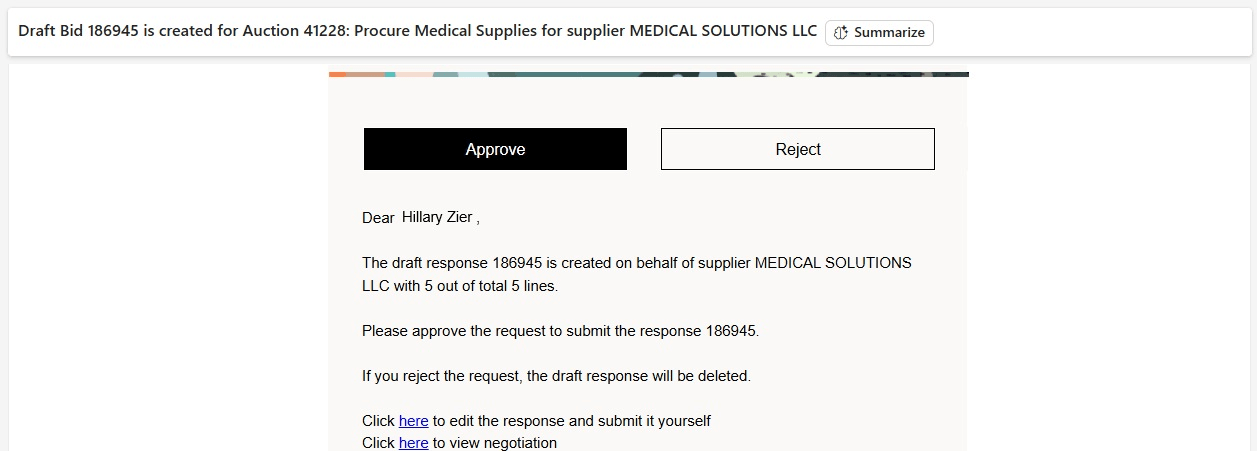
Email notification with draft response details
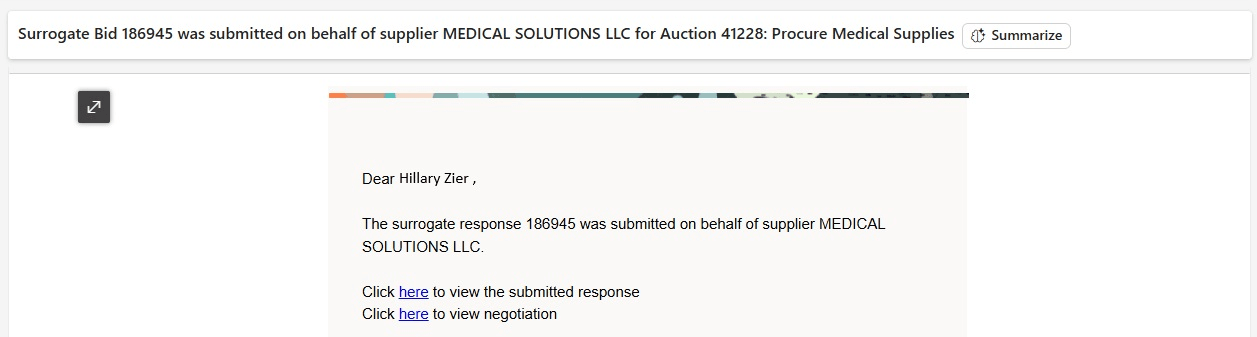
Email notification with submitted response
This agent improves the productivity of category managers by automating the creation, validation, and submission of surrogate supplier responses from non-standard quote documents in different file types and formats. It reduces manual effort and data entry errors. Human-in-the-loop approval ensures control and compliance while supporting the broader autonomous sourcing process.
Steps to enable and configure
To use this feature, you must enable this profile option:
- Redwood Pages for Sourcing Enabled (ORA_PON_SOURCING_REDWOOD_ENABLED), if not already enabled.
For instructions on enabling a profile option, refer to the Set Profile Option Values topic.
Complete the required configurations:
- Use the template or create a copy of the Surrogate Response Assistant template to create your AI agent.
- Set up the monitored email account in AI Agent Studio by following the steps mentioned here, Add Email Accounts in AI Studio
- Set up folders and triggers:
- Configure separate folders for Inbound emails and approval emails. Verify that the correct folders are mapped for the monitored email account.
- In the draft workflow agent in Agent Teams, navigate to the Triggers tab, select Inbound Email account and update.
- In the main workflow, Human-in-the-Loop node Send Approval Request to Submit Response set the trigger to Outbound email account and update.
- Save and Close and test the flow.
- Maintain separate folders for both incoming emails that trigger the agent and approval-related emails if you are using same email provider.
Tips and considerations
- Ensure the user configured as the scheduler in AI Studio has the required Integration User privilege.
- When replying to the Approve or Reject action, you can add additional comments above the designated response section in the draft email.
- After configuring triggers, always Save and Close the workflow agent, then test the flow before publishing it.
- Only one attachment is supported per email. If multiple attachments are included and the first attachment is not a valid response file, the agent will return an error.
- Surrogate response creation by agent are currently supported only for RFQ, RFI, and Auction negotiations with a maximum of ten lines. Supported attachment formats are PDF and CSV.
- For the responses submitted by uninvited suppliers, the response attachment the supplier name and supplier site should match exactly as saved in supplier model.
- These features are not supported in this update: Acknowledge amendments, accept terms, two-stage RFQ, sealed negotiations, requirements, line children, lots and groups, control line access, alternate lines, multi currency, high volume requirements, large negotiations, and upload response attachments via AI agent window.
Key resources
- Overview of AI Studio - https://docs.oracle.com/en/cloud/saas/fusion-ai/aiaas/overview.html
- Access Requirements of AI Studio - https://docs.oracle.com/en/cloud/saas/fusion-ai/aiaas/access-ai-agent-studio.html#u30259447
- Configure AI Agents in Oracle Fusion Cloud Procurement - https://docs.oracle.com/en/cloud/saas/fusion-ai/aiaas/access-to-configure-ai-agents-in-oracle-fusion-cloud-procurement-prc.html#To-give-access-to-users-with-the-Procurement-Application-Administrator-Job-Role%3A
- Configuring and Connecting Email Accounts in AI Studio - https://docs.oracle.com/en/cloud/saas/fusion-ai/aiaas/add-email-accounts.html
Access requirements
Scheduler: Create an integration user (a new user with the Associated Person Type set to None) and assign it a configured job role that includes the following duties or privileges.
- PRC Intelligent Agent Management Duty (ORA_PO_PRC_AI_AGENT_MANAGEMENT_DUTY)
- PRC Intelligent Agent Management Duty (ORA_PO_PRC_AI_AGENT_MANAGEMENT_DUTY_HCM)
- Fai Genai Agent PRC Administrator Duty (ORA_DR_FAI_GENERATIVE_AI_AGENT_PRC_ADMINISTRATOR_DUTY)
- Supplier Negotiation Viewing Using REST Service (ORA_PON_USE_REST_SERVICE_VIEW_NEGOTIATION)
- Supplier Negotiation Response Viewing Using REST Service (ORA_PON_USE_REST_SERVICE_VIEW_NEGOTIATION_RESPONSE)
- Supplier Negotiation Response Management Using REST Service (ORA_PON_USE_REST_SERVICE_MANAGE_NEGOTIATION_RESPONSE)
Email sender: Users who are assigned a configured job role that contains these existing privileges and who meet any of the following data security conditions can be the email sender:
- Create Supplier Negotiation Response as Surrogate (PON_CREATE_SURROGATE_SUPPLIER_NEGOTIATION_RESPONSE_PRIV)
- Negotiation Management (ORA_PON_NEGOTIATION_MANAGEMENT_DUTY)
These privileges were available prior to this update.
Data security conditions (any of the following):
- They are the owner of a negotiation.
- They are a member of the collaboration team with full, view, or scoring-only access.
- They have procurement agent access (full or view) to manage negotiations.
Note: Do not assign the Procurement REST Service Duty (ORA_PO_PROCUREMENT_REST_SERVICE_DUTY) or aggregate privileges to user-defined, duty, or abstract roles that are granted to end users as it grants unrestricted access to all data and may lead to unauthorized access by individuals. You can copy the Procurement REST Service Duty Role, remove all privileges except those specifically required, and assign the resulting custom duty role to the integration user through their job role.