Manage Price Lists
Set up a price list that sets the price for each item that you sell.
A price list is a collection of prices for items that you target for a set of customers, and for a period of time. Use it to set the base list price and make other adjustments for each item:
-
Associate more than one price list with more than one pricing strategy.
-
Create more than one price list, then use pricing profiles, pricing segments, and pricing strategies to reference your prices lists to one or more customers.
-
If you add a charge to an approved price list, then Pricing automatically approves the pricing entities that the charge references. It approves them for use in the price list.
-
Set up the pricing charges that a price list contains for each item that the list references. You can set up a variety of charges. For example:
Type of Charge
Description
One Time Charge
A one-time charge for an item, such as a one-time fee to establish a phone service.
Recurring Charge
A periodic charge, such as the monthly recurring charge for a phone service.
-
Learn about the technologies that you can use to manage price lists. For details, see Select a Technology to Manage Your Pricing Data.
Try It
You will add a price list that sets the base price for the AS54888 Desktop Computer:
-
$2,500 for each computer
-
$10,000 for a box of five computers
You use the Price List page in the Pricing Administration work area at design time to calculate price on the New Sales Order page in the Order Management work area at run time:
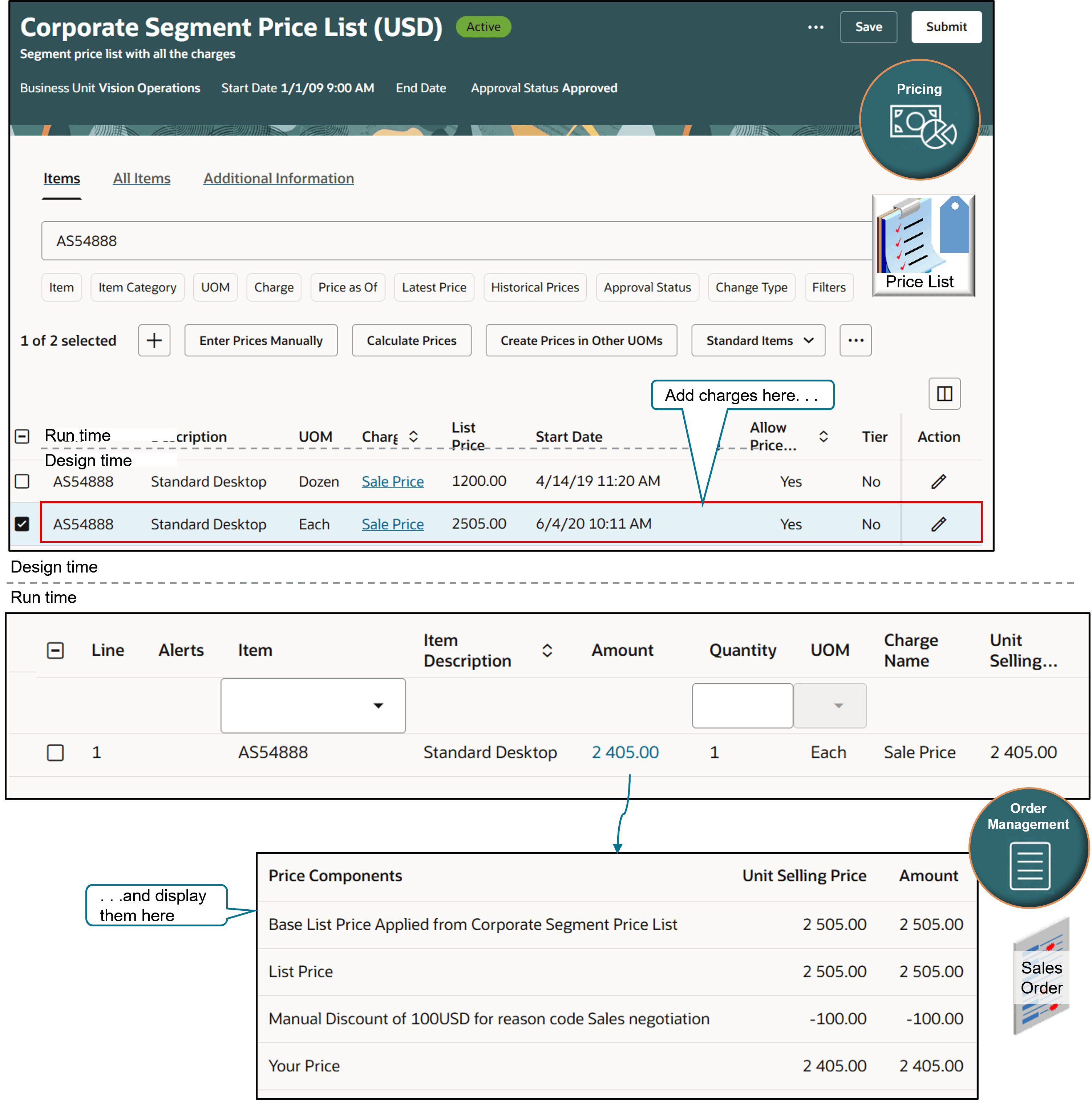
This topic uses example values. You might need different values, depending on your business requirements.
This topic describes how to create a pricing rule. For details, see Pricing Rules.
-
Go to Home > Order Management > Pricing Administration > Price Lists.
-
On the Price Lists page, click Create Price Lists, set these values, then click Create:
Attribute
Description
Name
Price List for Computer Service and Rentals
Business Unit Vision Operations Currency USD Start Date Any day before today Default Charge Sale Price - On the Price List for Computer Service and Rentals (USD) page, click
Add, then add the AS54888 item.
Note
- You can select one or more items, then add them all to your price list with a single click.
- Use keywords and filters to search for the items that you want to add.
- If you set up the Primary Catalog pricing parameter, then the dialog will display all the items that are in the catalog. See Set Up Oracle Pricing.
- Add items that are in the primary UOM.
- If you already added the item to your price list, then the Add Items dialog won't display it.
- Select the line that you just added, click Calculate Prices, then modify charges, as necessary. For example, modify the Sale Price charge, add a recurring charge, an activation fee, and so on.
-
Add your price list to the Corporate Pricing Strategy. You only add the price list to a pricing strategy the first time you create the price list. Pricing automatically adds any changes that you make after you add the price list. See Manage Pricing Strategies.
Mass Actions
You can apply a mass action on your price list:
- Calculate price according to cost that you specify in the cost list.
- Calculate price according to price in another price list.
- Add items and calculate price across more than one price list.
- Report errors across price lists.
- Add an item that has a nonprimary UOM to your price list.
- Create price in a nonprimary UOM on your price list.
- Use descriptive flexfields with your items and charges.
Oracle Pricing uses the Process Mass Actions for Pricing scheduled process to manage a large volume of data on your price lists when you do an action in Pricing Administration or when you import batches of price lists or discount lists. For example, when you:
- Click Update on the Calculate Prices dialog.
- Select more than one item in a price list and then do an action.
- Add items and calculate price across price lists.
Note
- You can do a mass action across more than one price list.
- Filter according to the item's category, then select one or more items in that category.
- Add items to more than one price list in a single step.
- Calculate price according to cost. Set up a calculation according to the item’s cost in a cost list, then apply an amount, a percent markup, or percent discount.
- Calculate price according to the price on another price list.
- Add an item that has a nonprimary UOM. Add the item manually or through a UOM conversion.
- Use a flexfield to store more details about the charge.
Consider
| Object | Description |
|---|---|
| Reference Date | Applies when you do a mass action that calculates price according to an item’s cost in a cost list or price in another price list. The action will pick that item’s cost or the price that's in effect on the reference date. |
| Start Date | Use it to decide when the update goes into effect. If you don't enter a start date, then pricing assumes it's a direct update for that item’s price. If you enter a start date, then pricing will end date the existing price and create a new one. |
| Enter Prices Manually | The grid that you use when you click Enter Prices Manually can have a maximum of 1,500 rows. If you receive an error when you click it, then refine your search. |
| Calculate Prices | Pricing will immediately calculate up to 500 records when you click Calculate Prices. If there's more than 500, pricing automatically uses a scheduled process to calculate them. |
| Add Items | You can use the Add Items action across more than one price list only if the price lists are in the same business unit. |
| Calculate Prices | You can use the Calculate Prices dialog to calculate price for more than one price list only if the price lists are in the same business unit and have the same currency. |
| Mass Action Report | The Mass Action Report provides a summary of the process. It gives details about the errors. You can download the report from the Notifications Summary or from the Scheduled Processes work area. |
| Nonprimary UOM | To add it, go to the Add Items dialog, search for the item, select the nonprimary UOM, then add it to the item. |
More
See these topics to get more detail about how you can manage your price list: