Agent Builder
Use the Agent Builder or Workflow Builder to build, test, and deploy intelligent agents for any use case. Automate complex processes by combining modular components such as language models, data connectors, APIs, and specialized agents, all without extensive programming.
Agent Factory includes the following features:
- Drag-and-drop interface: Construct workflows visually by connecting nodes that represent specific actions, tools, or data sources.
- AI and automation integration: Build intelligent workflows using components such as large language models (LLMs), chat agents, and data processing tools.
- Custom agent creation: Define agents that autonomously perform tasks, make decisions, or interact with systems according to workflows.
- Multi-agent orchestration: Set up hierarchical agent flows, allowing a manager agent to delegate work to multiple specialist sub-agents.
- Connectivity: Integrate with enterprise systems, third-party services, cloud APIs, and databases.
- Reusable templates: Access adaptable workflow templates to meet various business requirements.
- Conversational context: Converse with the context of the previous 10 queries or messages retained within the conversational history.
- Validation and error messaging: Use enhanced workflow validation and improved error messages to construct workflows efficiently.
- Diagnostics collection: Collect application logs as a ZIP file for troubleshooting and support. See Collect Diagnostics.
Build Agents
An Agent Builder workflow is a graph of nodes connected by typed inputs and outputs. At runtime, Agent Factory evaluates the graph, passes values between connected nodes, invokes model or tool calls when a node requires them, and returns the final output through an output node.
Common output and input types include message, language model, dataframe, JSON, markdown, tool, embedding, agent, and Select AI. When a node cannot connect to another node, verify that the source output type matches the target input type. See Agent Builder Nodes and Sample Workflows to learn about the nodes available in Agent Builder and how to use them to build your custom workflows.
Use these practices when building workflows:
- Keep each node’s purpose narrow and explicit.
- Name prompts, tools, and agents with action-oriented descriptions.
- Use parser and type conversion nodes when a model response must become JSON, text, or another structured type.
- Restrict REST and MCP tools to the operations the workflow actually needs.
- Test in Playground after each major change instead of building a large graph all at once.
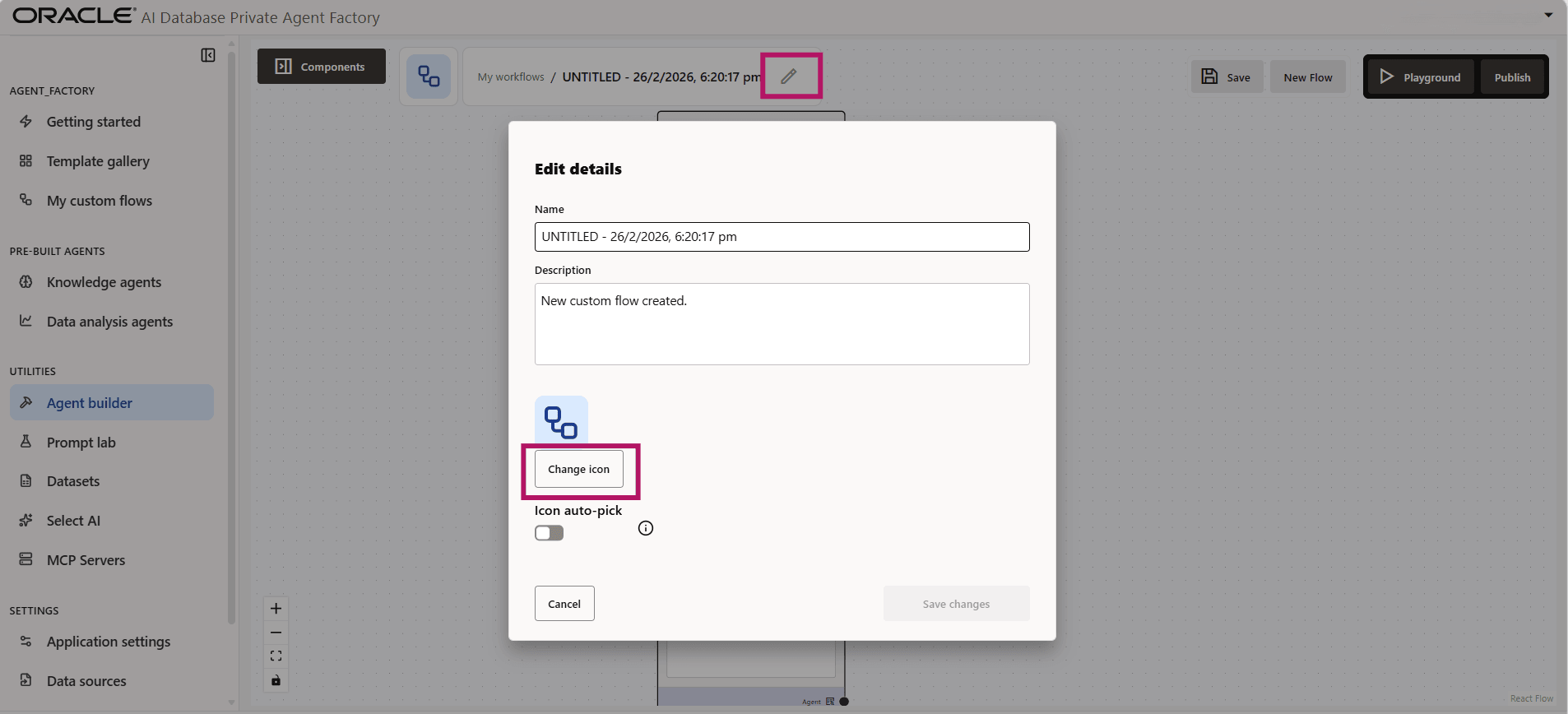
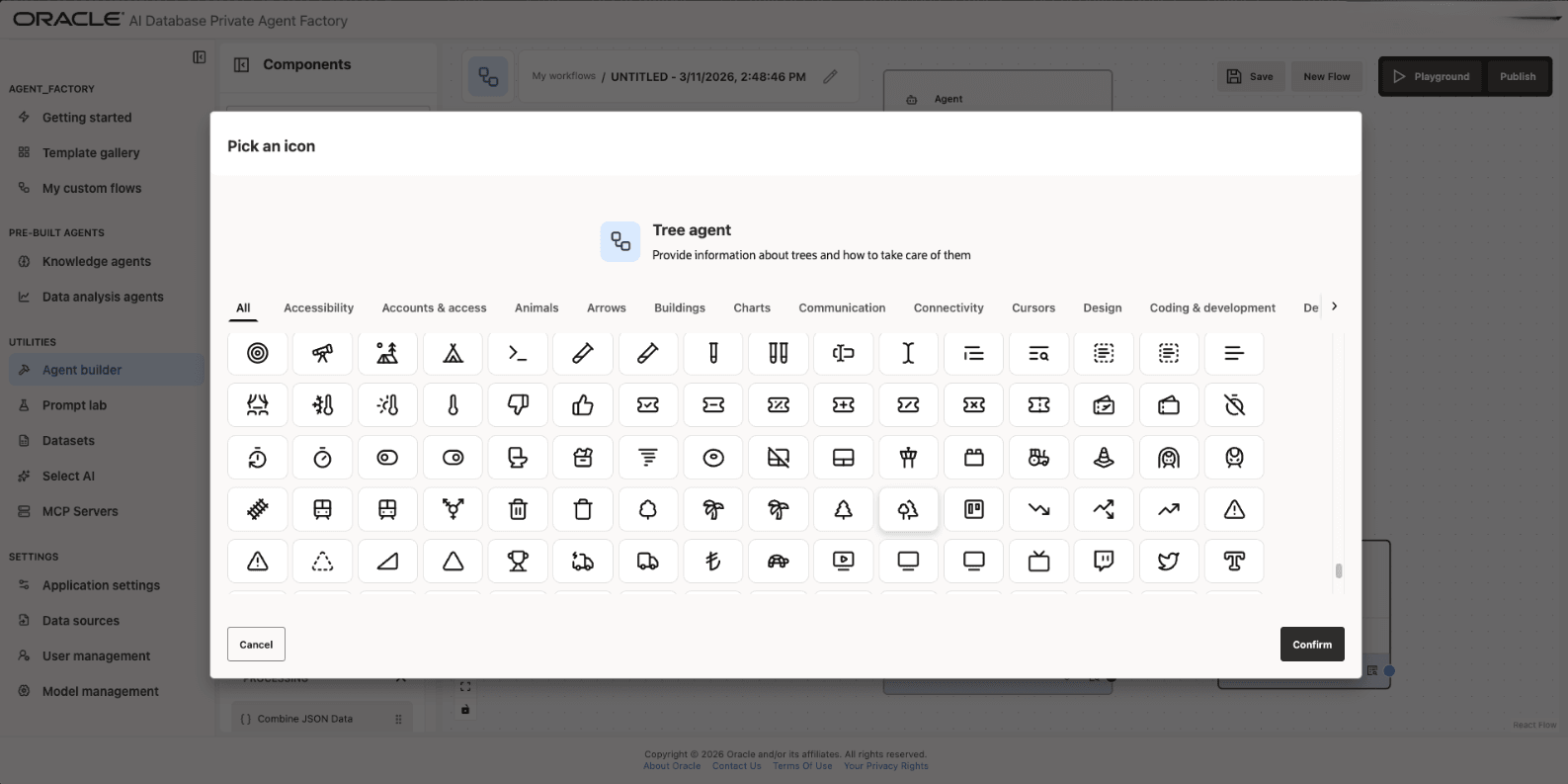
Provide a Name and Description for your custom flows by clicking the Edit icon. To personalize your agent, select an icon of your choice by clicking Change Icon and choosing from the full icon library. Enable Icon auto-pick to automatically select an icon based on the agent’s name and description.
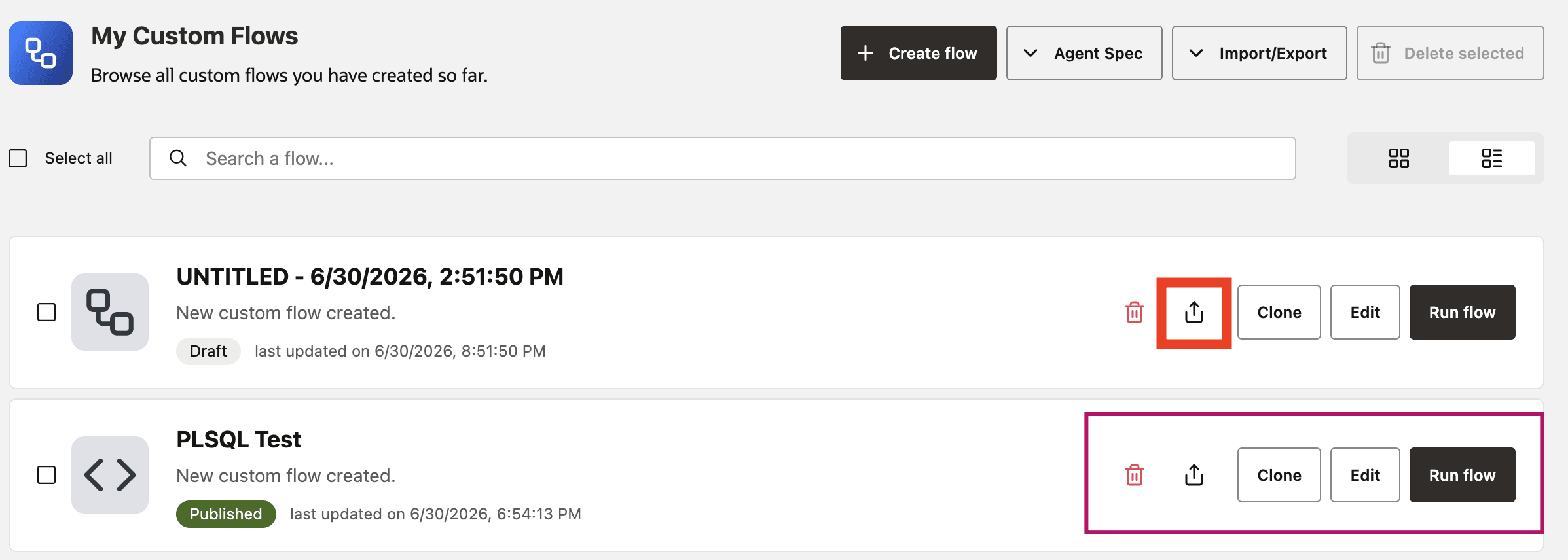
You can view your workflows under My Custom Flows in the left navigation menu. From there, you can edit, delete, share, run (to execute and validate), or clone a workflow to create a copy.
Select an Execution Database for DB Agent Engine Workflows
Select an authorized Oracle AI Database to run a compatible workflow inside the database.
Before you begin, ensure that an administrator or editor has configured the database and model and that both pass the readiness check. See Configure DB Agent Engine.
- Open an existing workflow or create a workflow in Agent Builder.
-
Select the information icon next to DB Agent Engine, and then select Configure DB Agent Engine.
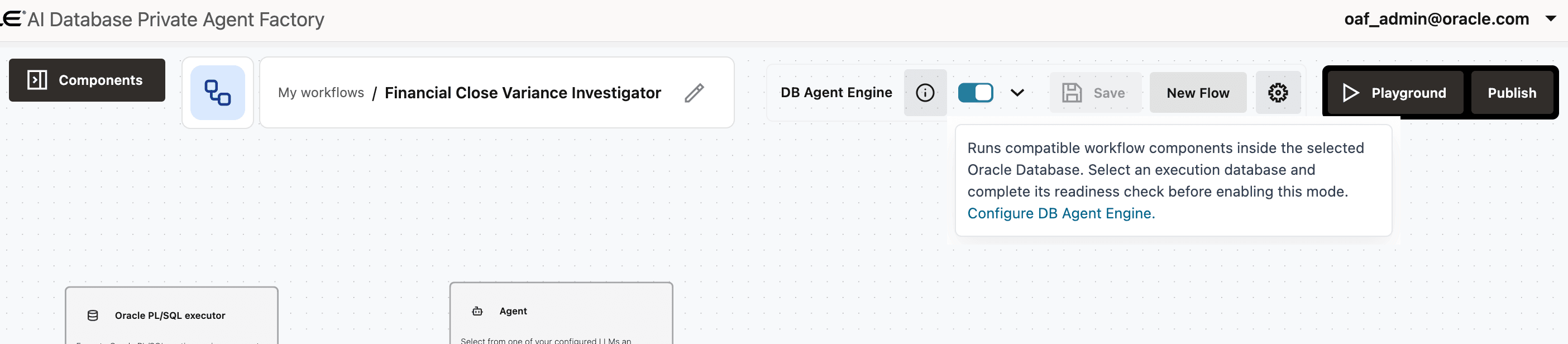
Description of the illustration run-db-agent-engine-info-clickable.png
-
Return to the workflow, turn on DB Agent Engine, open the execution database selector, and select the database.
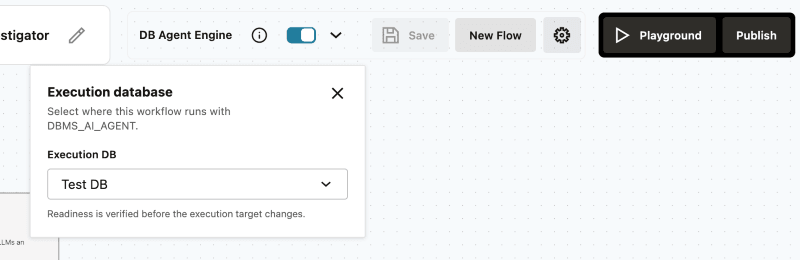
Description of the illustration run-in-db-toggle-and-database-selection.png
When you enable DB Agent Engine on an empty canvas, Agent Builder shows the supported components. Sticky Notes remain available on the canvas but are not included in the Agent Spec sent to the database. See Use Supported Agent Builder Nodes for the complete list and requirements.
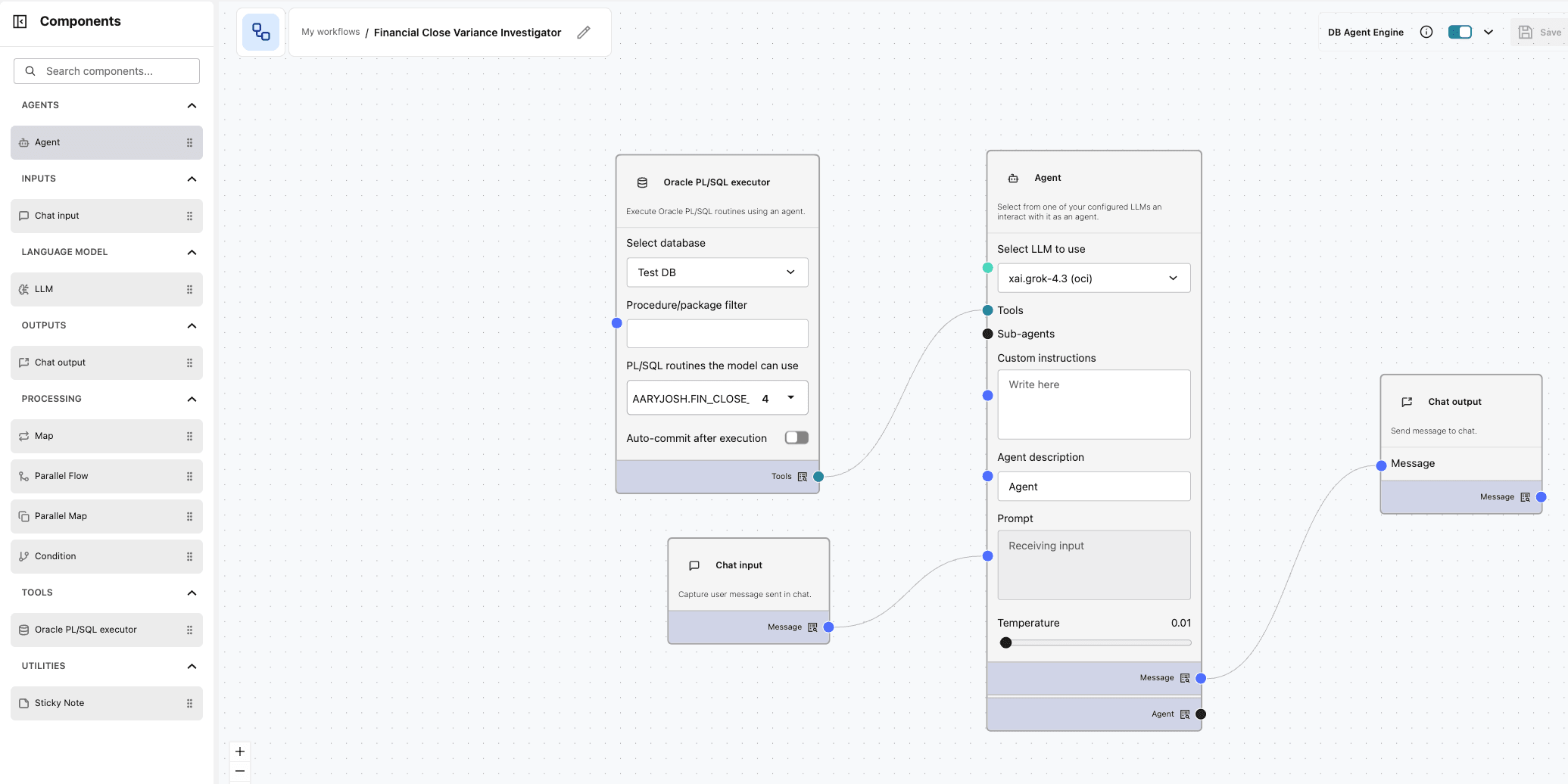
Description of the illustration run-in-db-supported-components.png
- Add and configure the workflow components.
- Select Save.
- Open Playground and test the workflow.
Agent Factory labels workflows by their execution mode as DB Agent Engine or Near-DB.

Description of the illustration in-db-execution-mode-tags.png
To return a workflow to the application runtime, turn off DB Agent Engine and save the workflow. Changing the mode does not delete the workflow or its Agent Memory records.
If an existing workflow contains unsupported configured components, Agent Factory identifies those components and does not enable DB Agent Engine. Remove or replace the components, or continue to run the workflow in Near-DB mode.
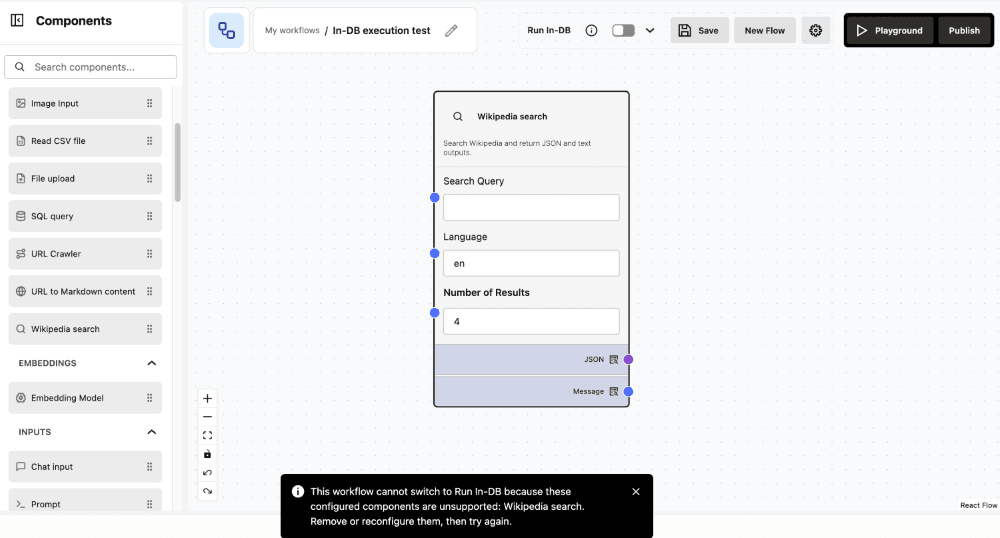
Description of the illustration db-agent-engine-unsupported-components.png
For runtime details, limitations, and troubleshooting, see Run Agent Builder Workflows with DB Agent Engine.
Undo and Redo Canvas Changes
Use Undo and Redo to revert or reapply canvas changes while you build a workflow. The controls apply to graph changes such as adding nodes, deleting nodes, moving nodes, and connecting nodes.
- Click Undo in the canvas controls or press
Ctrl/Cmd+Zto restore the previous canvas state. - Click Redo in the canvas controls, press
Ctrl/Cmd+Y, or pressShift+Ctrl/Cmd+Zto reapply an undone canvas state. - Use Undo and Redo before saving the workflow. The restored canvas state is persisted only when you save the workflow.
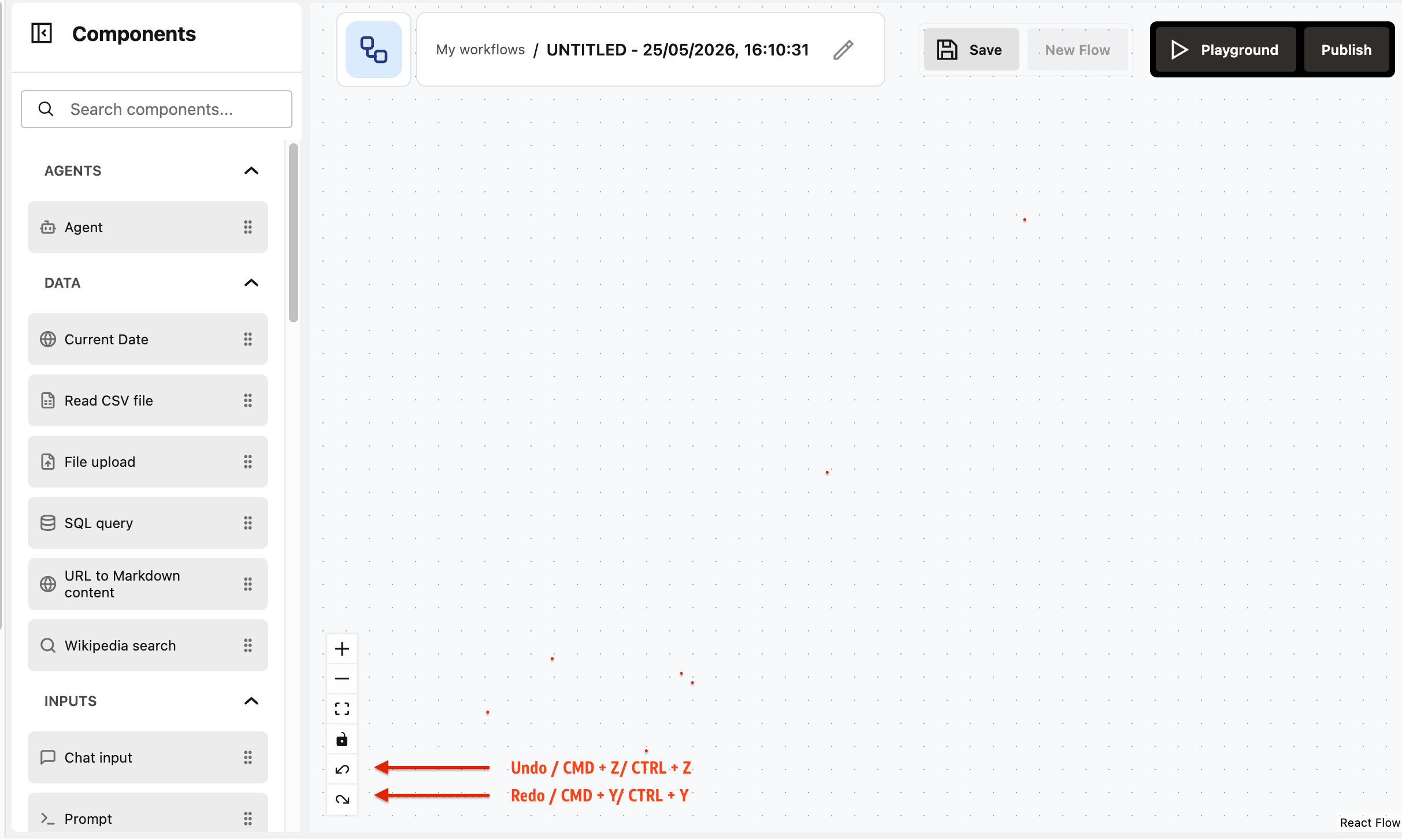
Undo and Redo operate on local canvas history for the current Agent Builder session. History is cleared when you switch workflows, load a workflow, create a new workflow, or reset the workspace. The buttons are disabled when no previous or future canvas state is available. Keyboard shortcuts do not override native text editing in editable fields. The canvas history stores up to 100 previous states.
Share a Custom Flow
You can share a custom flow that you own or for which you have the Can manage access level.
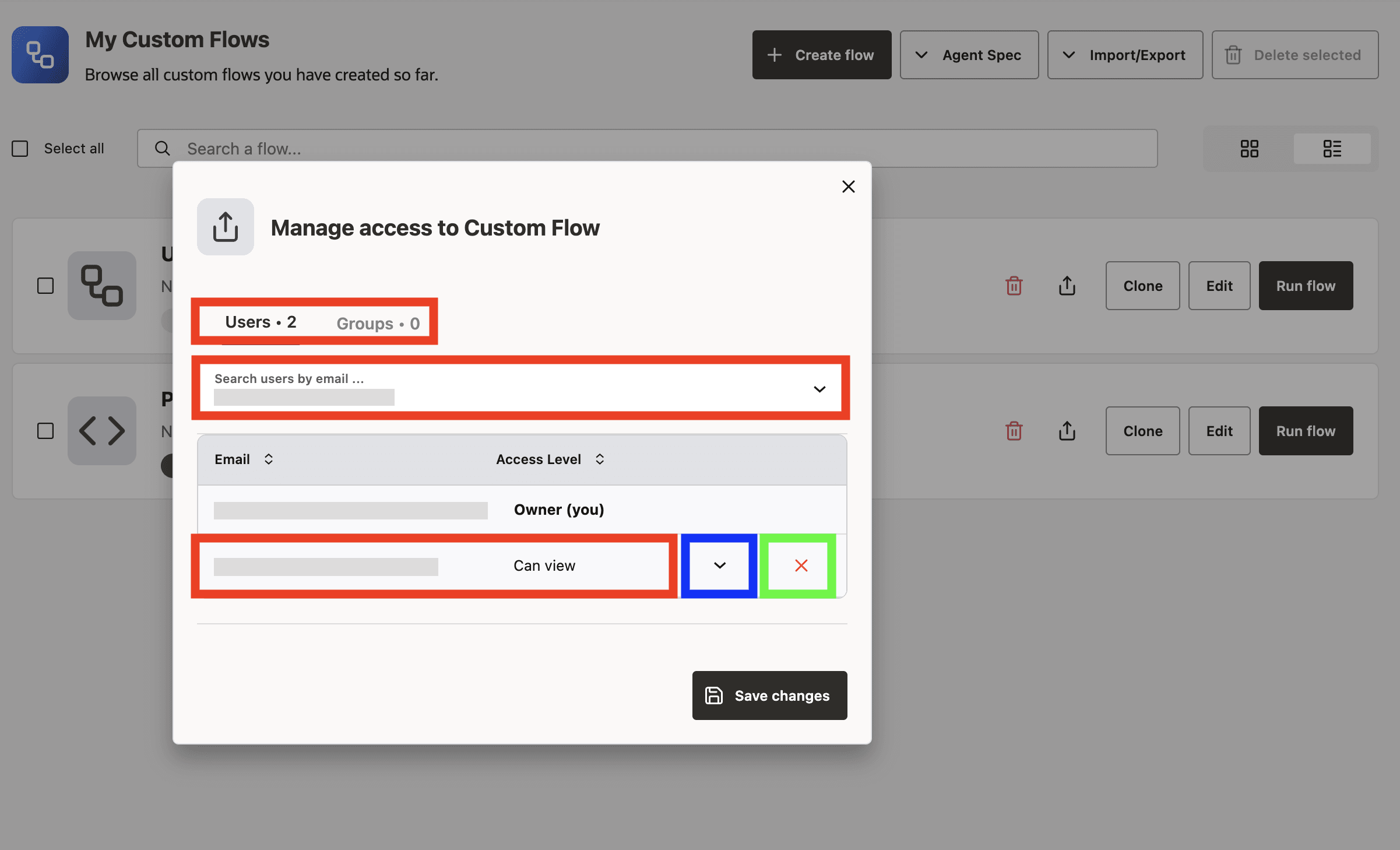
- Open My Custom Flows and select the Share action for the flow.
- In the Share dialog, review the users and groups that have access and their current access levels.
- Search for and select users or groups to add. You can also change an existing access level or remove a user or group.
- Click Save changes to apply the changes.
The Share dialog identifies the resource owner as Owner. You cannot change or remove the owner’s access. See Manage Identity and Access for access-level definitions.
Enable Agent Memory for a Workflow
Use the Agent Settings drawer to control memory for each workflow.
Important: If you upgrade Agent Factory from release 26.4 to any later release and use a database release earlier than 23.26.1.0, run the following commands before you enable Agent Memory in Agent Builder. This requirement applies to both Quick Start and Production installation modes. It does not apply when upgrading from release 26.7 to 26.10.
-
Connect to the database container as the
oracleuser:podman exec -it -u oracle oracle-database bash -c "sqlplus / as sysdba" -
Run the following SQL commands:
SHOW CON_NAME;

ALTER SESSION SET CONTAINER = CDB$ROOT;
ALTER SYSTEM SET vector_memory_size = 512M SCOPE=SPFILE SID='*';

SHUTDOWN IMMEDIATE;
STARTUP;

ALTER PLUGGABLE DATABASE ALL OPEN;

ALTER SESSION SET CONTAINER = FREEPDB1;
ALTER SYSTEM SET vector_memory_size = 256M SCOPE=BOTH;
SELECT value FROM v$parameter WHERE name = 'vector_memory_size';
-
Open Agent Builder.
-
Open an existing workflow or create a new workflow.
-
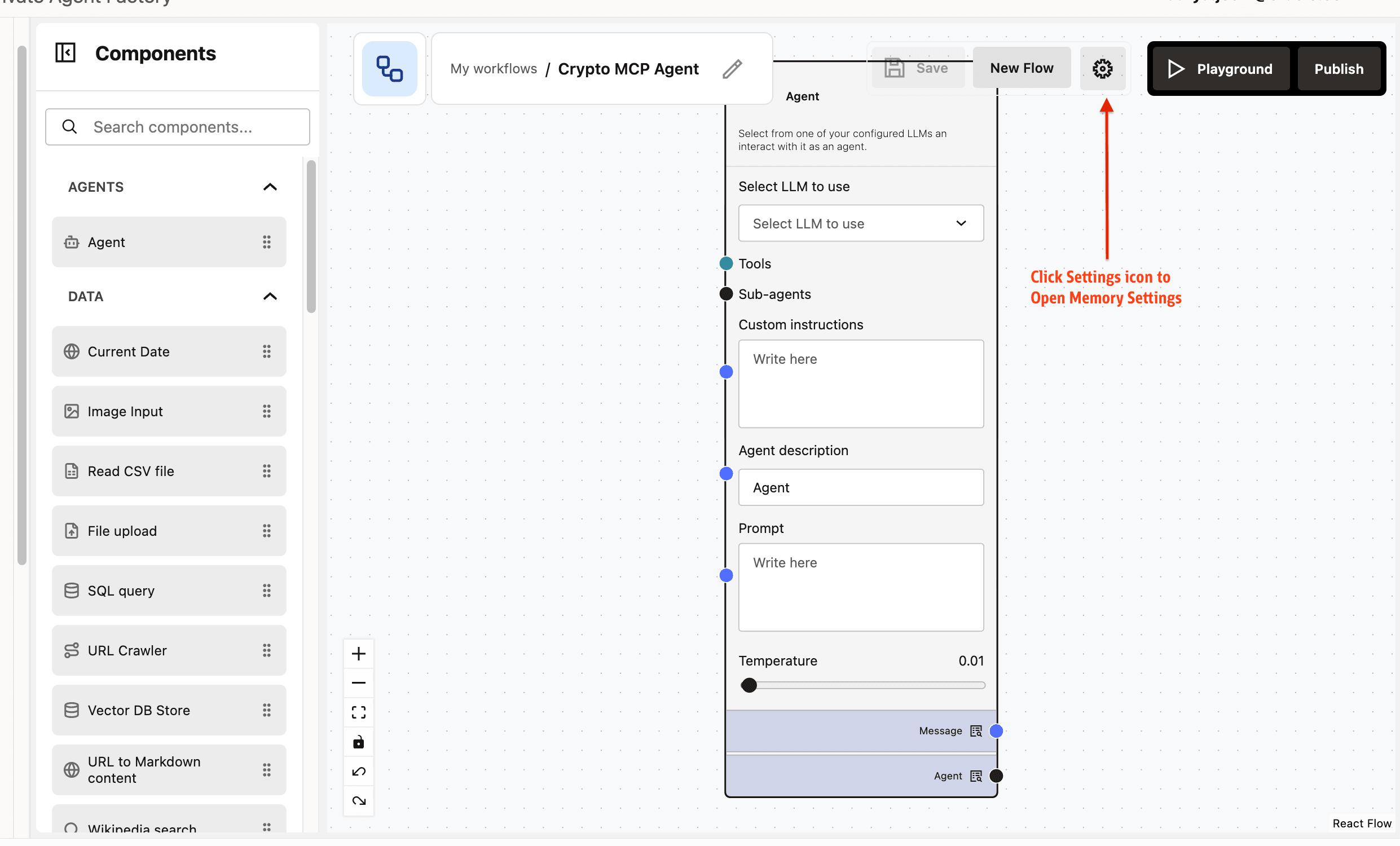
Click the settings icon in the Agent Builder toolbar.
-
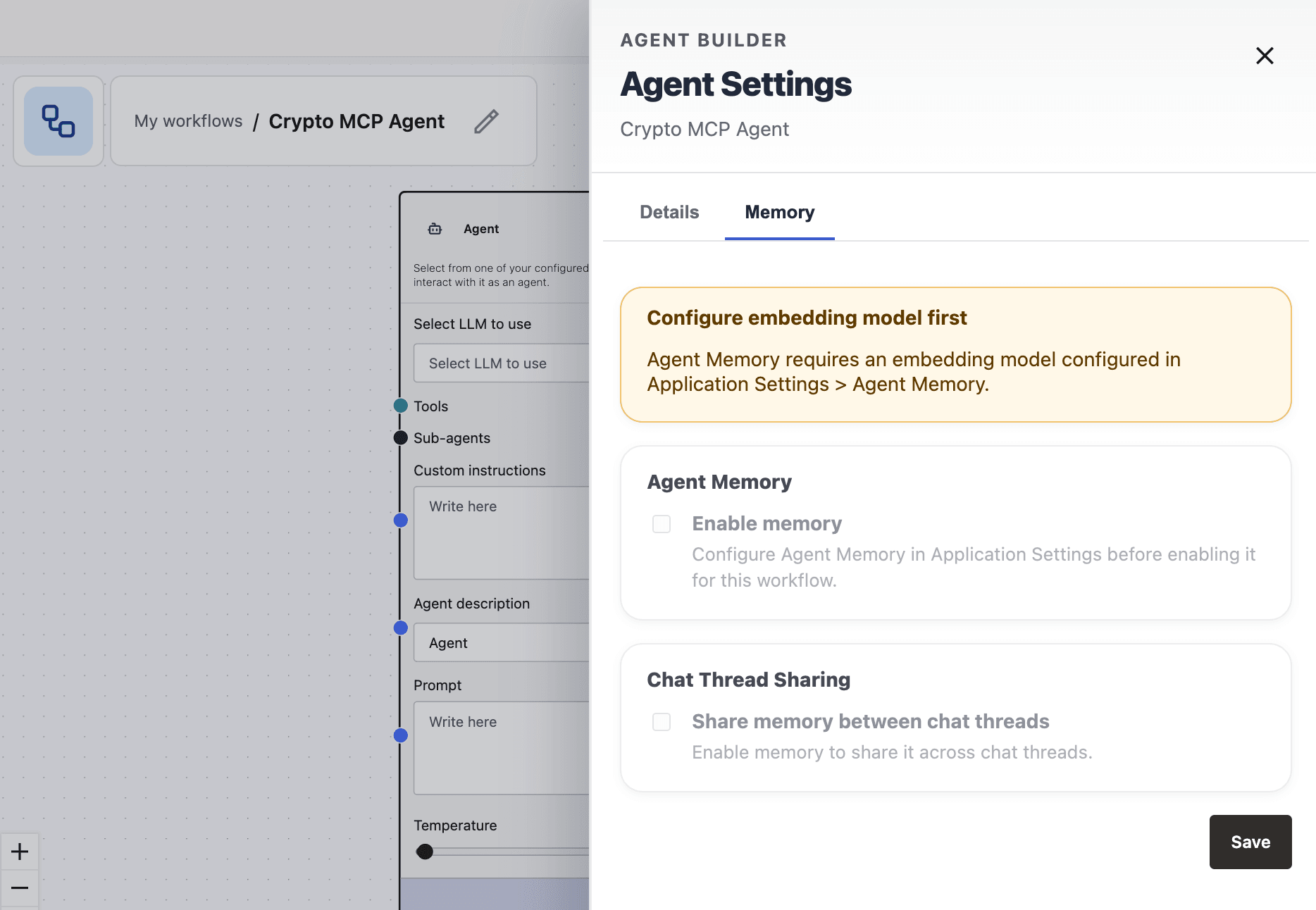
In the Agent Settings drawer, select the Memory tab.
Note: If the embedding model for Agent Memory is not configured, the Memory tab shows a warning, and the memory controls are disabled. See Configure Agent Memory Embedding Model.
-
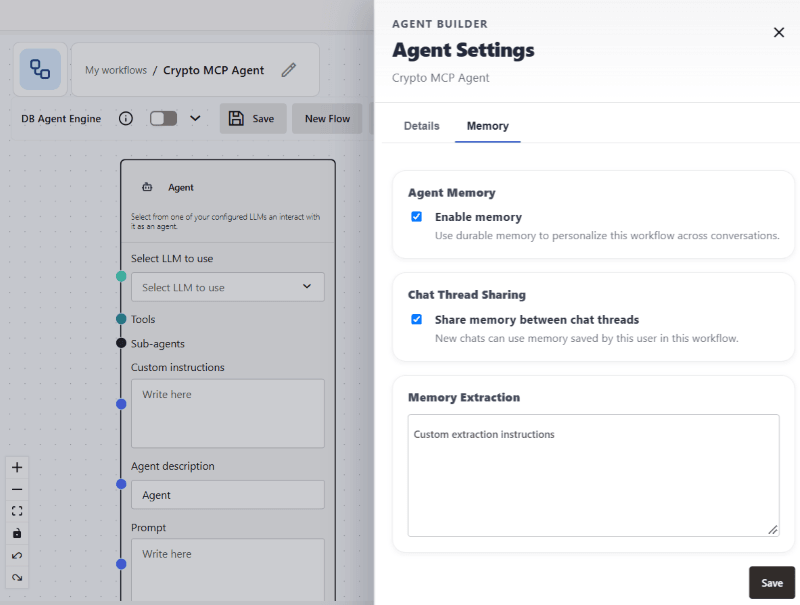
Turn on Enable memory.
-
To let new chats use memories from earlier chats for the same user and workflow, keep Share memory between chat threads turned on. To limit retrieval to the current chat thread, turn off Share memory between chat threads. You must turn on Enable memory before you can set this option.
Note: Turning sharing off does not delete, migrate, or rewrite existing memories. Turning sharing back on can make earlier same-user, same-workflow memories retrievable again.
-
Optional: In Custom extraction instructions, enter guidance for the durable details this workflow should remember. You can enter up to 4,000 characters. For example, guide extraction toward customer preferences, identifiers, operational constraints, or compliance guidelines. Leave the field empty to use the default extraction behavior.
Only a workflow builder can configure these instructions. Chat messages and tool output cannot change them.
-
Save the settings.
When memory is enabled, Agent Factory retrieves eligible durable memories for the user and workflow before a response. After a successful chat, it submits messages for background durable-memory extraction. The response does not wait for extraction, so new memories may appear in Inspect Memory later. Failed workflows and chats paused for MCP authorization are not submitted for extraction.
Security Note: Agent Memory is constrained by existing Agent Builder authorization checks.
- Memory is scoped to the current user and workflow.
- Cross-user memory sharing is not supported.
- Cross-workflow memory sharing is not supported.
Inspect Agent Memory
Use Inspect Memory to review the durable memories and source summaries associated with a chat.
-
Open the workflow in Agent Builder.
-
Open Playground.
-
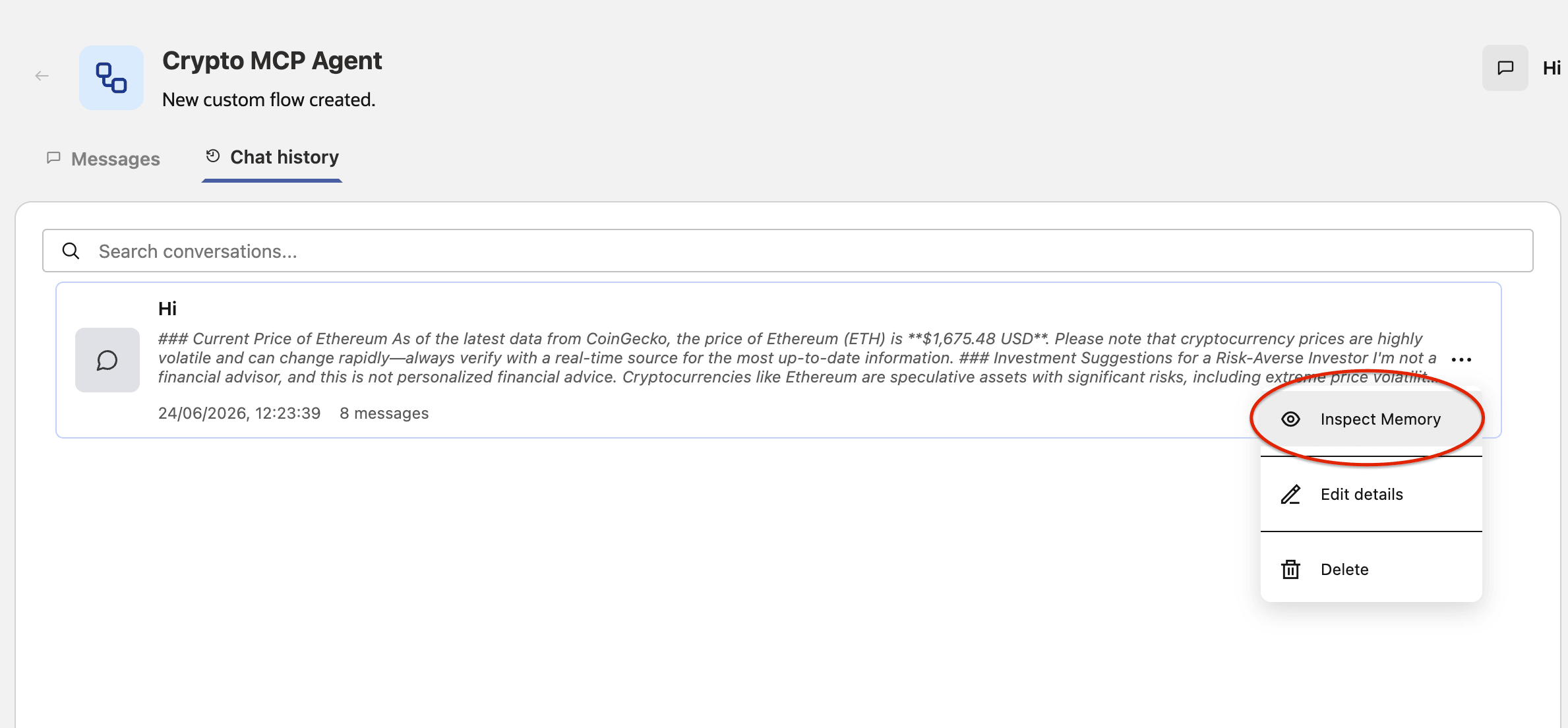
Open Chat History.
-
From the row menu for a chat, select Inspect Memory.
-
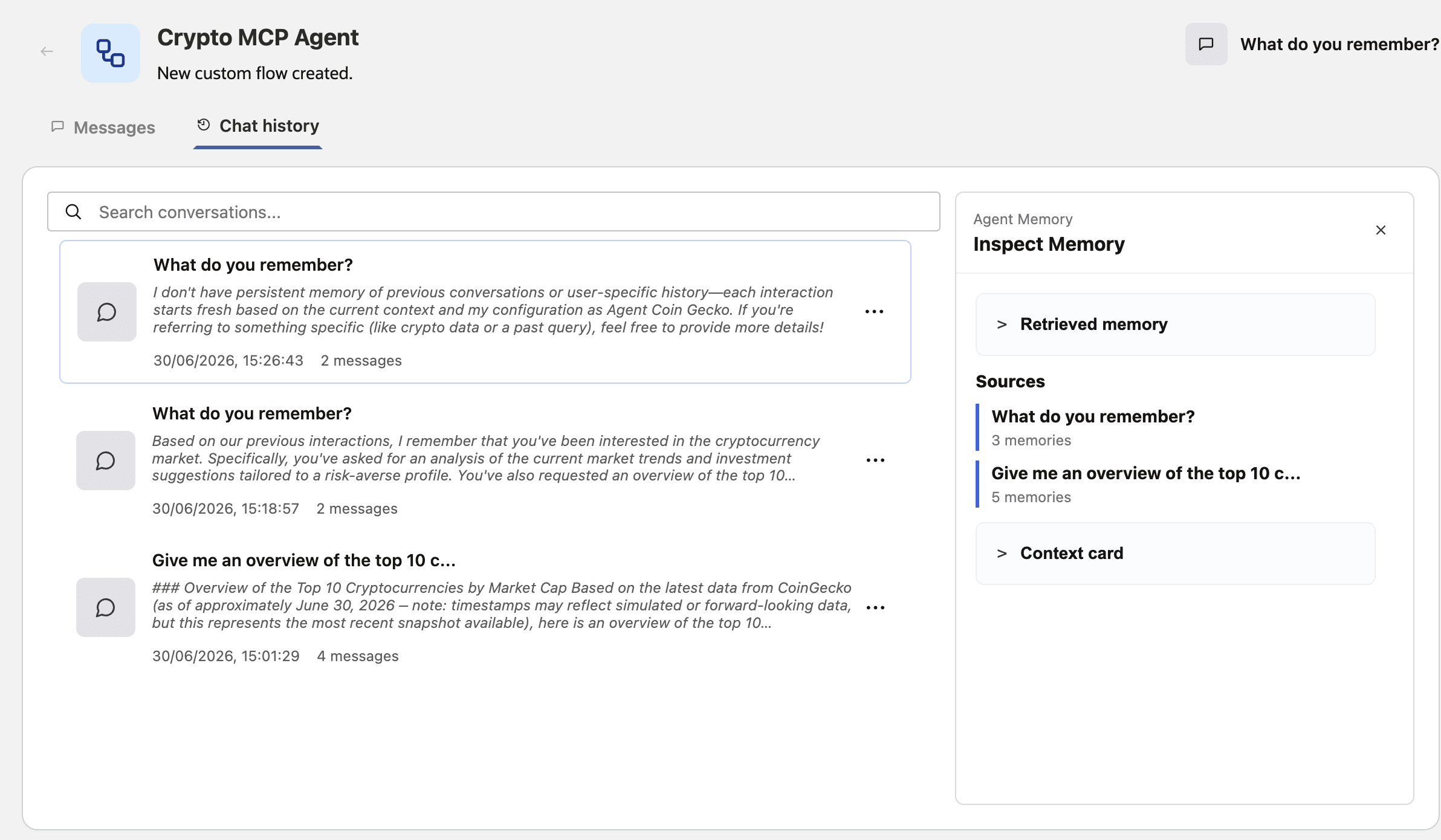
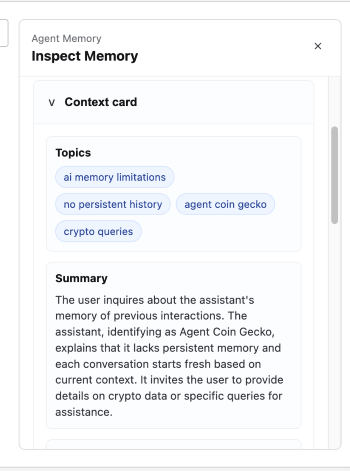
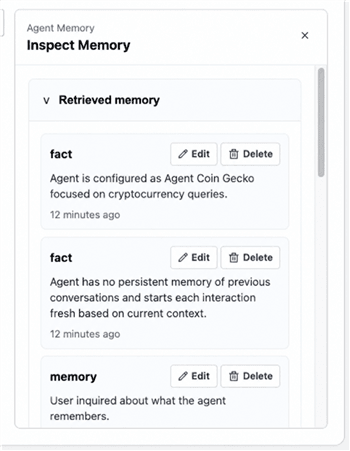
Inspect Memory displays memory records as cards with the record type, content, and timestamp. Source summaries are grouped by source chat or thread. Review retrieved memories, stored messages, sources, and context card details. Context card details load only when you expand the context card section.
-
To change a durable memory, use Edit on its memory card, update the content, and save it. The change applies to the logical memory even when it has multiple stored records.
-
To remove a durable memory, use Delete on its memory card.
Note: Agent Factory handles chat deletion and memory deletion separately.
- Editing or deleting a durable memory from Inspect Memory requires access to the current user, workflow, and chat scope. Deleting a logical memory also removes its duplicate records.
- Deleting a single chat message deletes the raw memory package message for that chat message, but does not delete durable memories that were already extracted from it.
- Deleting a full chat conversation deletes memory package records associated with that chat thread.
Tip:
- Durable memory extraction runs asynchronously, so a newly stated fact may not be available immediately.
- Memory retrieval has a four-second budget. If retrieval is slow or fails, the workflow runs without memory context for that turn.
- If semantic search finds no matching durable memory, Agent Factory can search for exact terms within the same authorized scope.
- Similar durable records can be created from repeated evidence. Agent Factory deduplicates retrieved memories for display and prompt use.
- Inspect, edit, and delete actions verify Agent Builder access, chat ownership, and workflow binding.
- The context card is shown in Inspect Memory for debugging and transparency. Chat responses do not show raw context cards or internal memory instructions.
Test and Debug Agents
After you build your custom workflow, save the workflow by clicking Save. You can then quickly test the agent by clicking the Playground button. This will run your workflow so you can verify that the behavior is as expected or edit the workflow as needed. You can also run any of your agents by clicking Run Flow on the “My Custom Flows” page.
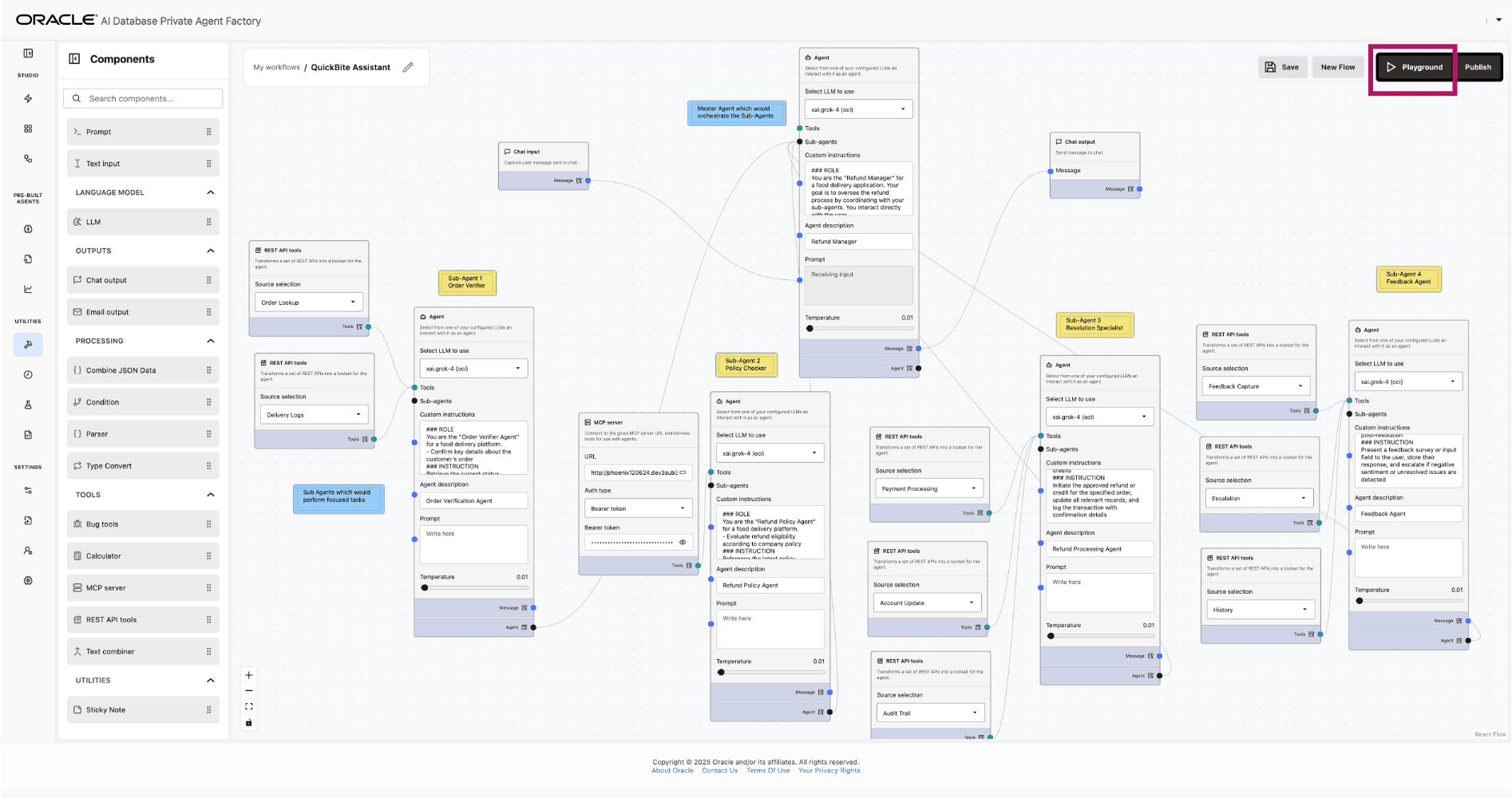
When you open Playground for a workflow with no chat messages, Agent Factory can show suggested questions that help you test the workflow. The suggestions are based on workflow metadata, node types, prompts, tool summaries, and available workflow capabilities. You can type and send your own prompt while suggestions are loading.
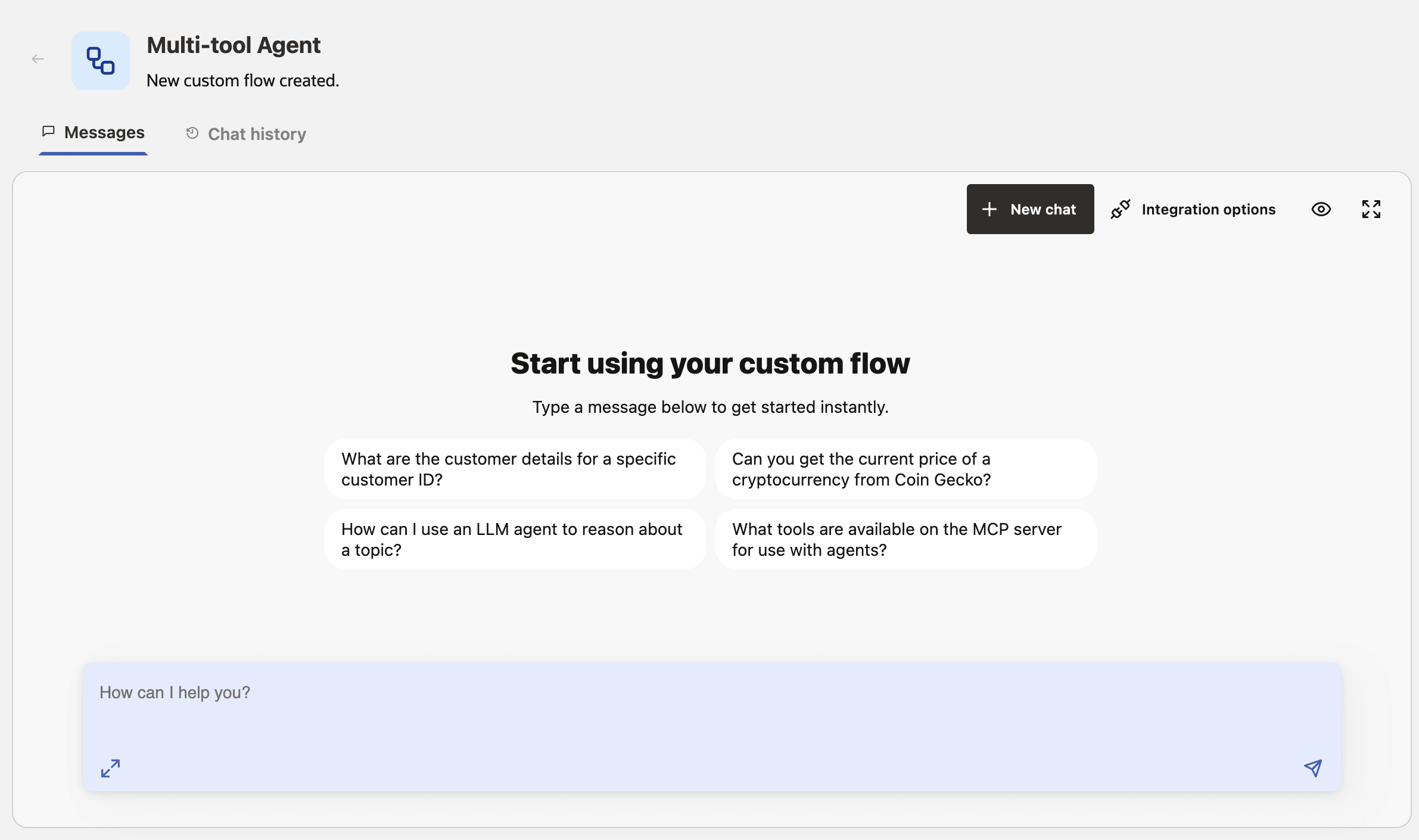
Suggested questions are starter prompts, not agent responses. Click a suggestion to send it through the same chat path as a manually entered prompt. Suggestions disappear after the chat contains messages, and they are disabled while the chat is loading or waiting for a response.
When a workflow fails:
- Confirm that the workflow saves without validation errors.
- Check node connections for type mismatches.
- Test model, REST API, MCP, database, or Select AI configurations outside the workflow.
- Simplify the workflow to the smallest failing path.
- Inspect tool descriptions and allowed-tool selections if the agent calls the wrong tool.
- Increase a tool timeout only after confirming the target service receives the request.
- Collect diagnostics if the UI error is not enough to identify the cause.
See Configure Observability and Collect Diagnostics for debugging and support.
Publish and Chat With Your Agents Outside the Application
Use Integration options in the chat window to obtain the agent ID for SDK or REST API integration, or to connect through the A2A protocol. Before connecting, publish the workflow: go to My Custom Flows, open the workflow, and select Publish.
Agent ID for SDK
Use the agent ID to run a published agent from a Python application with the Agent Factory SDK. The SDK authenticates as an Agent Factory user and applies that user’s access permissions.
- Open the published agent in the chat window and select Integration options.
- Select Agent ID SDK and copy the agent ID.
- Pass the agent ID to the SDK client when you run the agent. See Use the Agent Factory Python SDK for installation, authentication, and a Python example.
REST APIs
Use REST APIs to run supported agents and automate model and data source operations. Integration endpoints support a resource-scoped agent integration API key, HTTPS Basic Authentication for an enabled local user, or a deployment-scoped Service Account API key, depending on the operation.
See Use Agent Factory REST APIs for the supported operations, authentication choices, Service Account key lifecycle, and a request example.
Agent Integration API Key
Use a resource-scoped agent integration API key to invoke its associated Custom Workflow, Data Analysis Agent, Deep Research RAG Agent, or RAG Agent without an agent_factory_session cookie. Custom Workflows must be published before external API-key execution.
Who Can Create and Manage API Keys
Administrators and editors can access API-key functionality in the user interface. Both roles see the API Key and Sample Code tabs in Integration options and can generate keys. Workflow owners who are neither administrators nor editors do not see these tabs, even when they can create or edit workflows.
Administrators can manage keys for all supported agents from Settings > Resource Management > API keys.
Create and Use an API Key
- Open the agent in the chat window and select Integration options.
- Select the API Key tab.
-
Click Generate API key. Agent Factory displays the generated API key in the user interface.
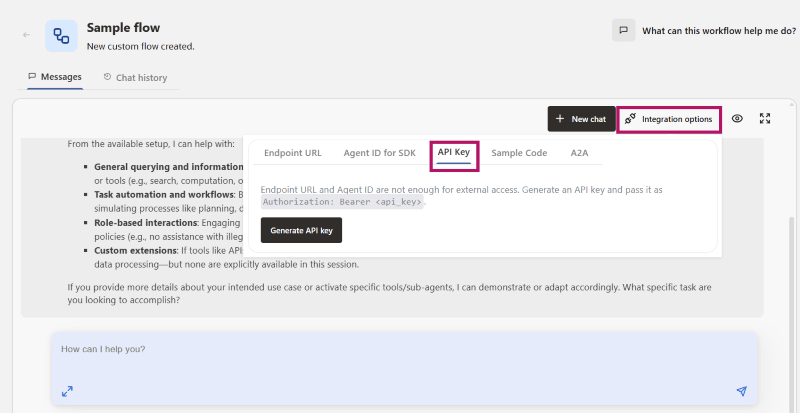
- Copy and securely store the generated key. Agent Factory displays the full value only at creation. You cannot view it later.
-
Use the API key to connect to the workflow or agent from an external application. For a request example, see the Sample Code tab. To send the request directly, use the agent ID and API key as a Bearer token in a
POSTrequest to the integration endpoint:curl -k --location 'https://<host_name>/agentFactory/v1/integrations/agents/<agent_id>/run' \ --header 'Authorization: Bearer <api_key>' \ --header 'Content-Type: application/json' \ --data '{"message":"what tools are available?"}'The service also accepts the
x-api-keyheader. IncluderoomIdin the request body to continue an existing conversation. A key is bound to one agent and runs requests as the user who created it.The procedure for using RAG Agents, Deep Research RAG Agents, and Data Analysis Agents, outside the application remains the same. The URLs will be in the following format:
RAG Agent:
https://<hostname>/agentFactory/v1/knowledge/run/<agentId>Data Analysis Agent:https://<hostname>/agentFactory/v1/dataAnalysis/run/<agentId>Deep Research RAG Agent:https://<hostname>/agentFactory/v1/deepResearch/run/<agent_id>
Manage the API Key Lifecycle
In Settings > Resource Management > API keys, administrators can review the agent or workflow, type, owner, key prefix, expiry, status, creation date, and last-use date. Full key values are never displayed.
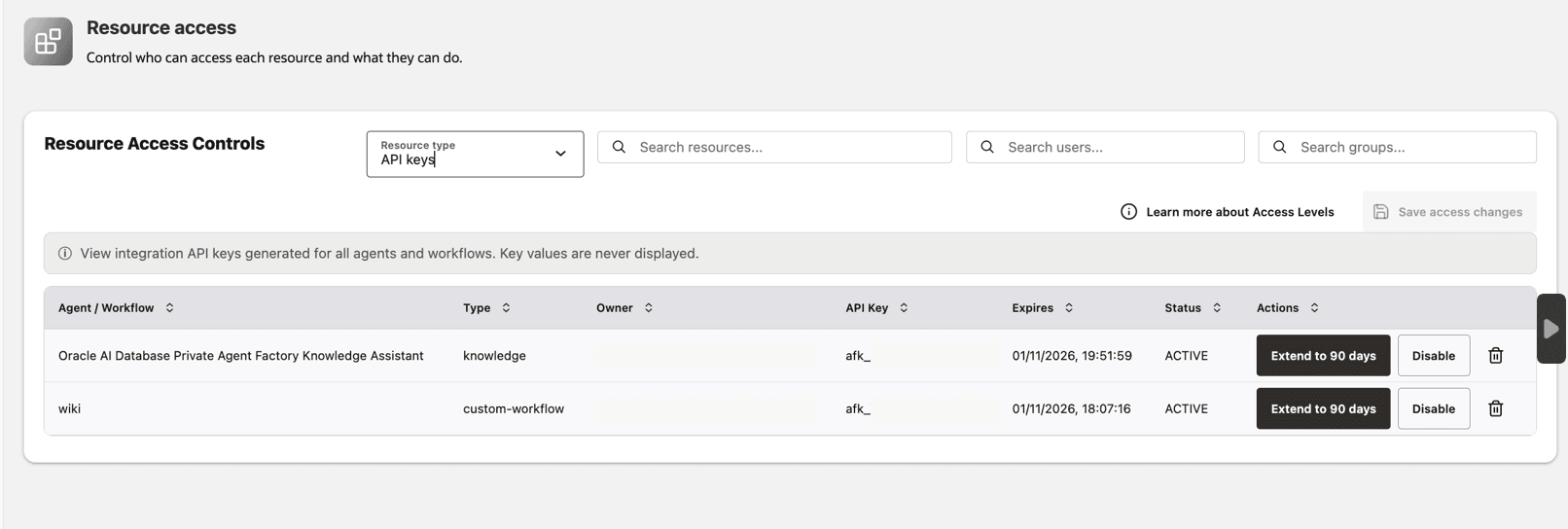
| Action | Result |
|---|---|
| Extend | Sets an active key expiry to 90 days from the current time. The expiry must be future-dated and cannot be more than 90 days ahead. |
| Disable | Changes an active key to revoked. Requests made with the key are rejected. |
| Enable | Reactivates a revoked key when the key is still unexpired. |
| Delete | Permanently marks the key deleted and removes it from the inventory. You cannot restore a deleted key. |
Resolve Integration Validation Errors
Use the error code in the integration response to resolve API-key validation issues.
| HTTP status | Error code | Action |
|---|---|---|
| 400 | INTEGRATION_REQUEST_INVALID |
Verify the request body and key expiry value. |
| 400 | INTEGRATION_AGENT_NOT_PUBLISHED |
Publish the Custom Workflow before invoking it through the integration endpoint. |
| 401 | INTEGRATION_KEY_INVALID |
Verify that you supplied a valid API key in the authorization header. |
| 401 | INTEGRATION_KEY_INACTIVE |
Generate a new key or use an active key. |
| 401 | INTEGRATION_KEY_EXPIRED |
Generate a new API key. |
| 403 | INTEGRATION_KEY_NOT_AUTHORIZED_FOR_TARGET |
Use the agent ID that is bound to the API key. |
| 403 | INTEGRATION_AGENT_NOT_AUTHORIZED |
Sign in as an administrator before managing keys. |
| 404 | INTEGRATION_AGENT_NOT_FOUND |
Verify that the agent ID identifies a supported agent. |
| 404 | INTEGRATION_ENDPOINT_NOT_FOUND |
Verify the integration endpoint URL. |
A2A
Enable A2A when you want another agent or application to call a workflow you’ve built in Agent Builder.
- Save and publish the workflow.
- Open the published agent’s chat window.
- Select Integration options, then A2A.
- Enable A2A access and copy the Agent Card URL.
- Generate an agent-specific API key using an Administrator or Editor account that has access to the workflow. Store the key securely; you’ll only see its full value when you create it.
- Give the client the card URL and provide the key through a secure channel.
The Agent Card contains the connection details a client needs, including the agent’s address and the message formats it accepts. The client sends Authorization: Bearer <api_key> when reading the card and calling the agent.
Requests use the permissions of the person who created the key. That account must remain enabled and keep access to the workflow.
Enabling A2A automatically turns off Share memory between chat threads. This keeps each external conversation’s memory separate while allowing the agent to remember details within that conversation.
Turning cross-thread sharing on disables A2A; turning A2A off turns cross-thread sharing on.
You can review the agent’s card and status in Utilities > A2A Agents. For a first request, an example workflow that exchanges JSON, and instructions for checking a result later, see Manage A2A Agents.
A workflow containing an External Agent node cannot be enabled for inbound A2A. It can still use that node to call a trusted remote agent.