Deep NL2SQL
For the recommended path, configure a data source and AI Knowledge Store, create and enrich a Business Knowledge Graph, evaluate and publish the graph, create the agent, then review responses and improve the graph as needed.
Workflow
- Configure the data source and Business Knowledge Graph.
- Evaluate the Business Knowledge Graph.
- Create Deep NL2SQL.
- Ask questions with the agent and review its SQL and activity.
- Provide feedback, then update and republish the graph when a business assumption needs correction.
What Is Deep NL2SQL
Deep NL2SQL accepts questions in natural language and generates and runs SQL to answer them. Users can review the tabular results, generated SQL, and query-processing steps in the Agent activity panel. In the Agent Factory interface, Deep NL2SQL appears under Pre-Built Agents.
Prerequisites
- Use Oracle Database 19c or later, and have access to the database.
- The recommended LLM is OpenAI 5.5. Other LLMs available in Agent Factory are also supported.
- The recommended embedding model is
openai.text-embedding-3-small. Other embedding models are also supported.
Configure the Data Source and Business Knowledge Graph
Use the TaskForge Project Management System as the example data source. A Business Knowledge Graph is optional, but highly recommended because it can improve accuracy and performance. If you use one, complete the graph setup and evaluation before creating the agent. The TaskForge example asks Which projects have overdue tasks?; confirm the intended business definition with the data owner before treating any generated answer as correct.
Configure a Database Data Source
-
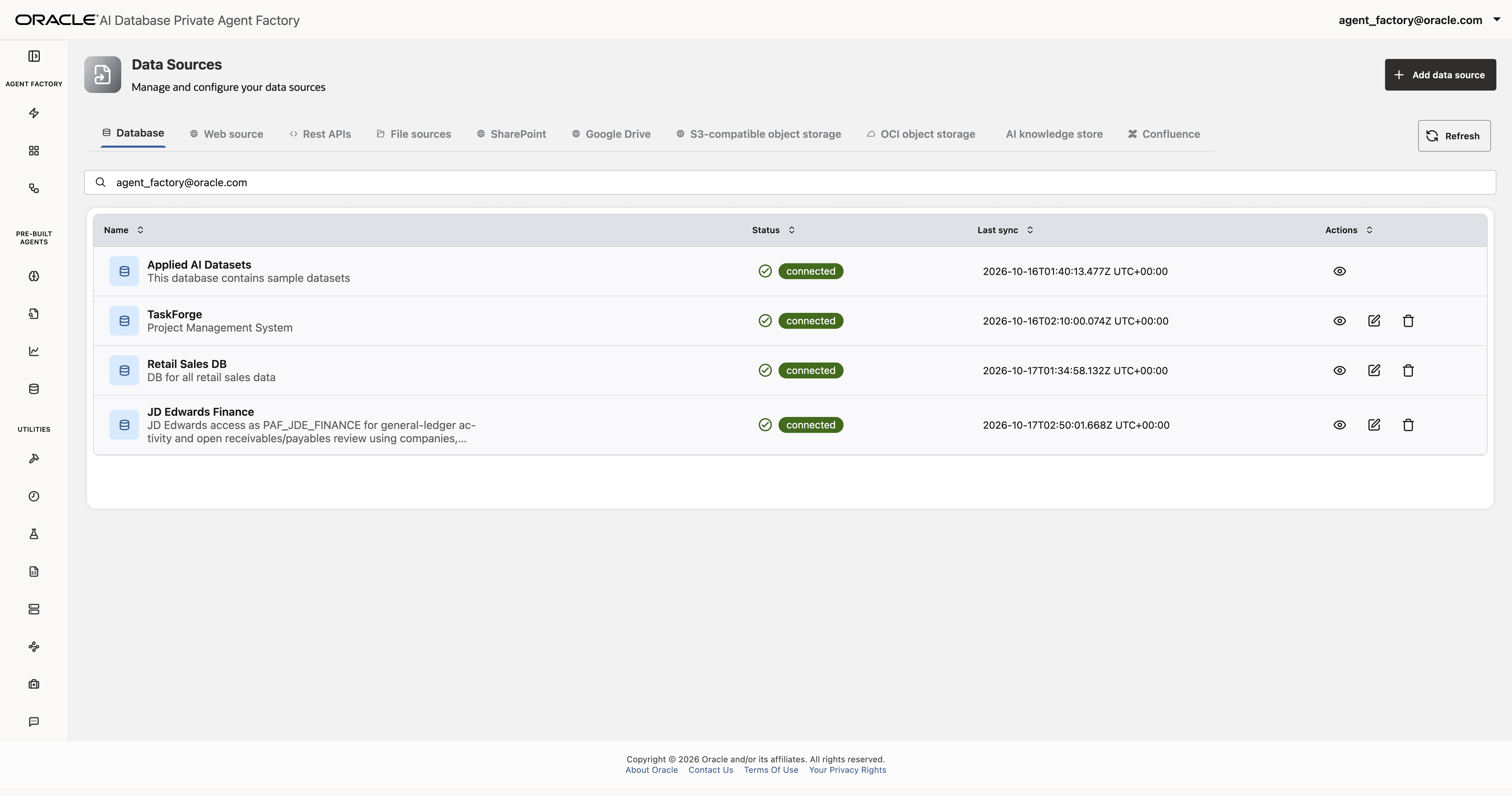
In Data Sources, review the available database connections and their status. Select the action to add a database source.
-
In the connection form, enter the source name and description, choose the connection type, and provide the required database connection details. The form also displays an AI Knowledge Store selector; associate the store after you create it if it is not available yet.
-
After saving the source, open its details and verify the saved connection information.
-
To change editable source information or its associated store, open the source actions and select Edit. Review the available fields before saving.
-
If you need to remove a source, select its delete action and verify the source name in the confirmation dialog before continuing.
Create and Manage an AI Knowledge Store
-
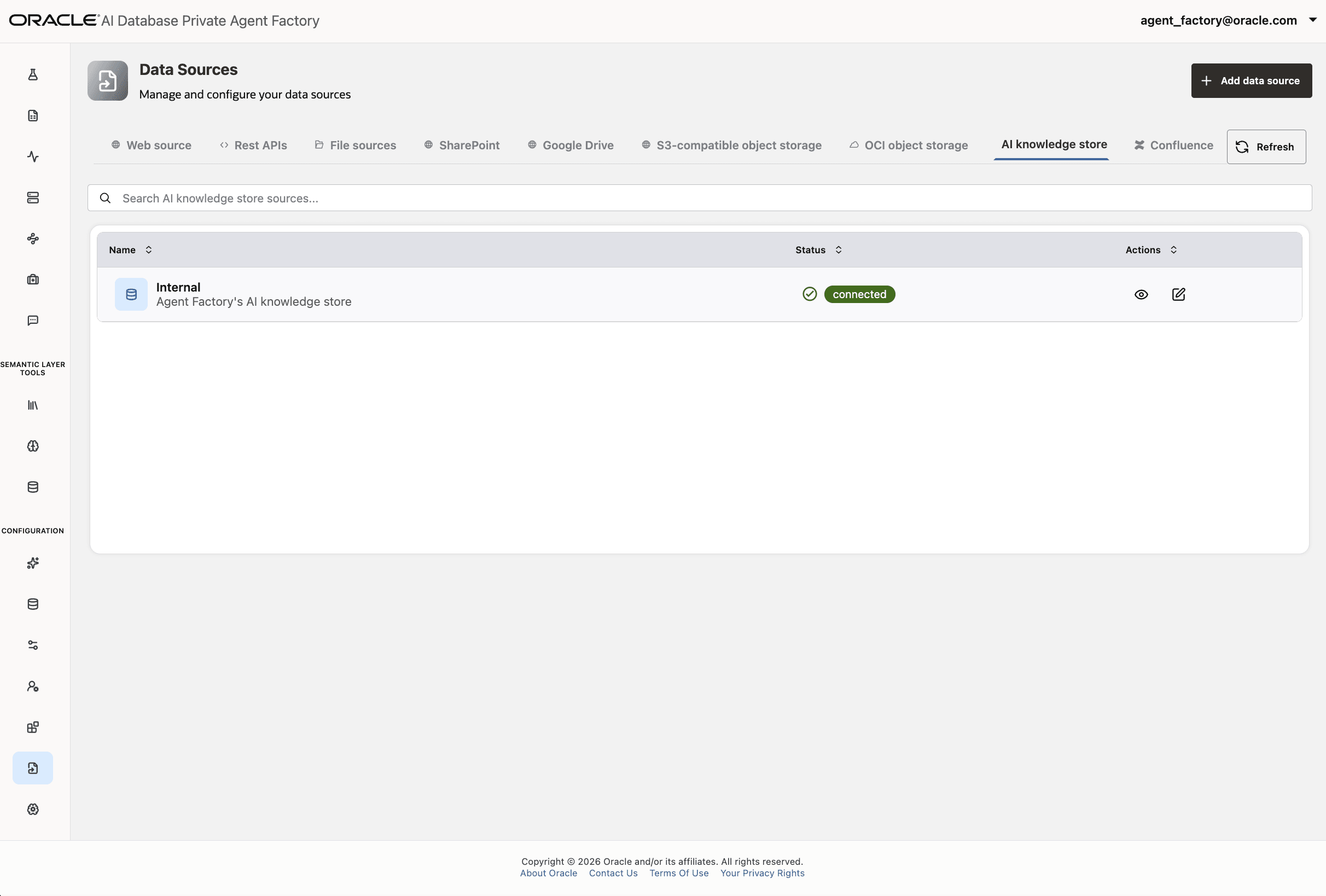
Open AI Knowledge Stores and review existing stores. Select the action to create a store.
-
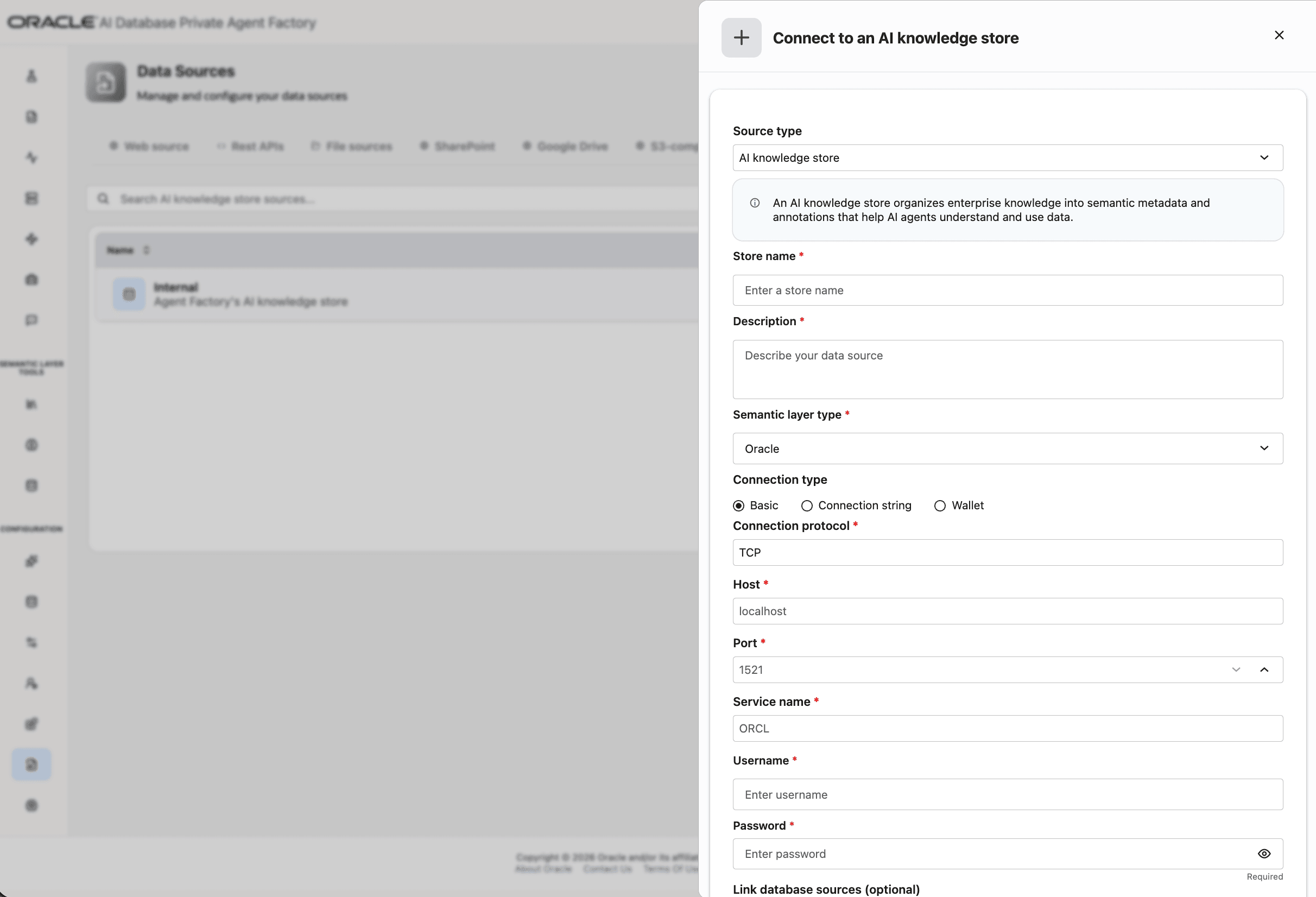
Enter the store name and description, select the semantic layer type, provide the connection details, and associate the database source. The selected store organizes the semantic context used with the database.
-
After saving, open the store details to verify its saved connection metadata.
-
To revise editable store information or its linked database source, open the store actions and select Edit.
Create and Enrich the Business Knowledge Graph
-
In Knowledge Workbench, start by selecting the action to add a Business Knowledge Graph.
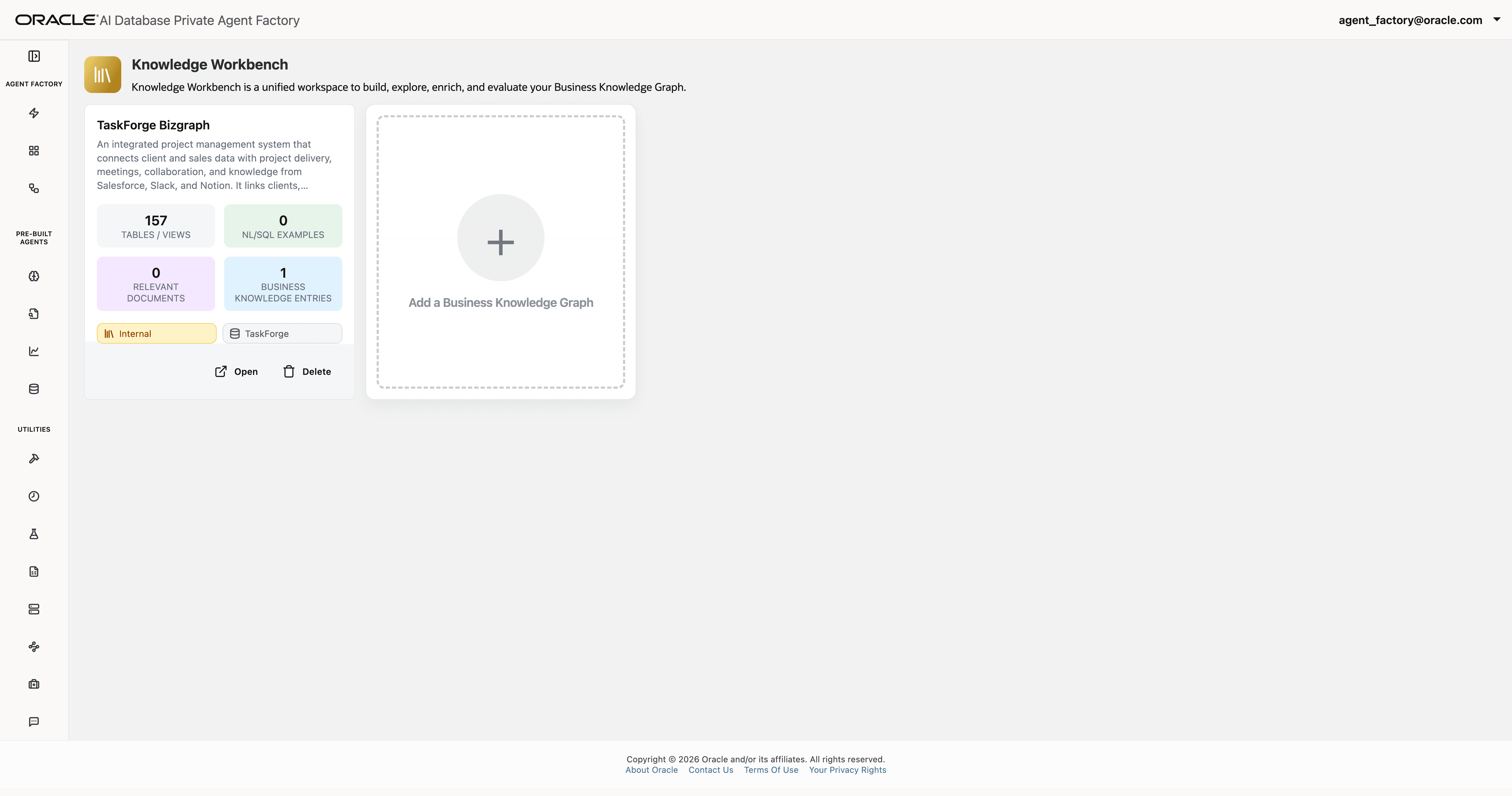
Description of the illustration deep-nl2sql-graph-list-empty.png
-
Enter the graph overview and select the AI Knowledge Store, database, and embedding model for the graph.
For the full graph setup procedure, see Create a Business Knowledge Graph.
-
After creating the graph, return to the graph list and open the graph you created.
-
Review the graph visualization and topic details. Add business context in focused topics, including the relevant tables and views, business knowledge entries, natural-language and SQL examples, and documents.
-
When editing a published graph, review the warning before continuing. Editing creates an unpublished version that must be evaluated and published before you use the updated graph.
-
In the graph editor, review the overview, database objects, business knowledge entries, example uploads, and supporting documents. Add only context that helps answer the questions in scope.
-
Add focused topics under the appropriate parent topic. Provide a description and select relevant tables and views; add business knowledge, examples, or documents where useful.
For detailed topic and business-context steps, see Add Business Context.
-
After changing the graph, verify that the page shows the expected unpublished state. Use the available review, discard, evaluate, or publish controls as appropriate to continue the workflow.
-
Inspect how the topics and business context are connected in the graph visualization.
Review the graph visualization as described in Add Business Context.
-
Open graph information when you need to verify metadata such as the embedding configuration and schema.
Add Schema Annotations and Table Groups
Annotations can clarify database terminology and help ground the graph. Use Annotation Workbench to inspect the schema and add descriptions or group related tables.
-
Open the schema list and select the database schema you want to review.
-
Use the object-type tabs to navigate to the relevant schema objects.
-
Open an object’s annotation panel to review or enter its description and annotation, then save the changes.
-
To work with tables, open the Tables view and locate the relevant table.
-
Open Table Groups to review existing groups before creating or changing one.
-
Create a group by entering its name and description, then selecting the tables that belong together.
-
After saving, confirm that the group appears in the list and review its available actions.
-
To update a group, select Edit, revise its description or table selection, and save the changes.
-
If removing a group, select its delete action and verify the group name in the confirmation dialog.
-
Review the schema overview to see annotation coverage across its objects.
Evaluate the Business Knowledge Graph
Evaluate the graph with representative questions before you use Deep NL2SQL with the graph. This lets you check whether the graph supports accurate answers and refine it before publication.
-
In the graph’s NL/SQL Collection, add validated examples that pair a natural-language question with its reference SQL. You can enter examples manually or upload a CSV file.
For detailed steps to add examples and evaluate the graph, see Evaluate and Publish the Graph.
After adding examples, review the saved question and SQL pairs in the collection. For the TaskForge question
Which projects have overdue tasks?, confirm the meaning of overdue and the expected SQL with the data owner before adding it to the evaluation set. -
Open the graph’s Evaluation tab and choose representative questions from the evaluation set.
-
Select the graph and set the number of evaluation repetitions for this run.
-
Start the evaluation and monitor its progress.
-
Review the completed result. Deterministic rules assess semantic similarity; semantically correct SQL counts as a passing result. Select Analyze to compare expected and generated SQL, inspect differences and related agent activity, and review suggestions about where to add knowledge, such as the graph or an annotation.
For details about reviewing evaluation results, see Evaluate and Publish the Graph.
-
Update the relevant topic, business knowledge entry, or annotation as needed, then evaluate the graph again. Publish the graph before you select it for an agent.
Create Deep NL2SQL
Create an agent by selecting its database context, configuring its behavior, and reviewing its settings before you make it available.
-
Under Pre-Built Agents, open Deep NL2SQL. The page lists existing agents and provides the Create agent action.
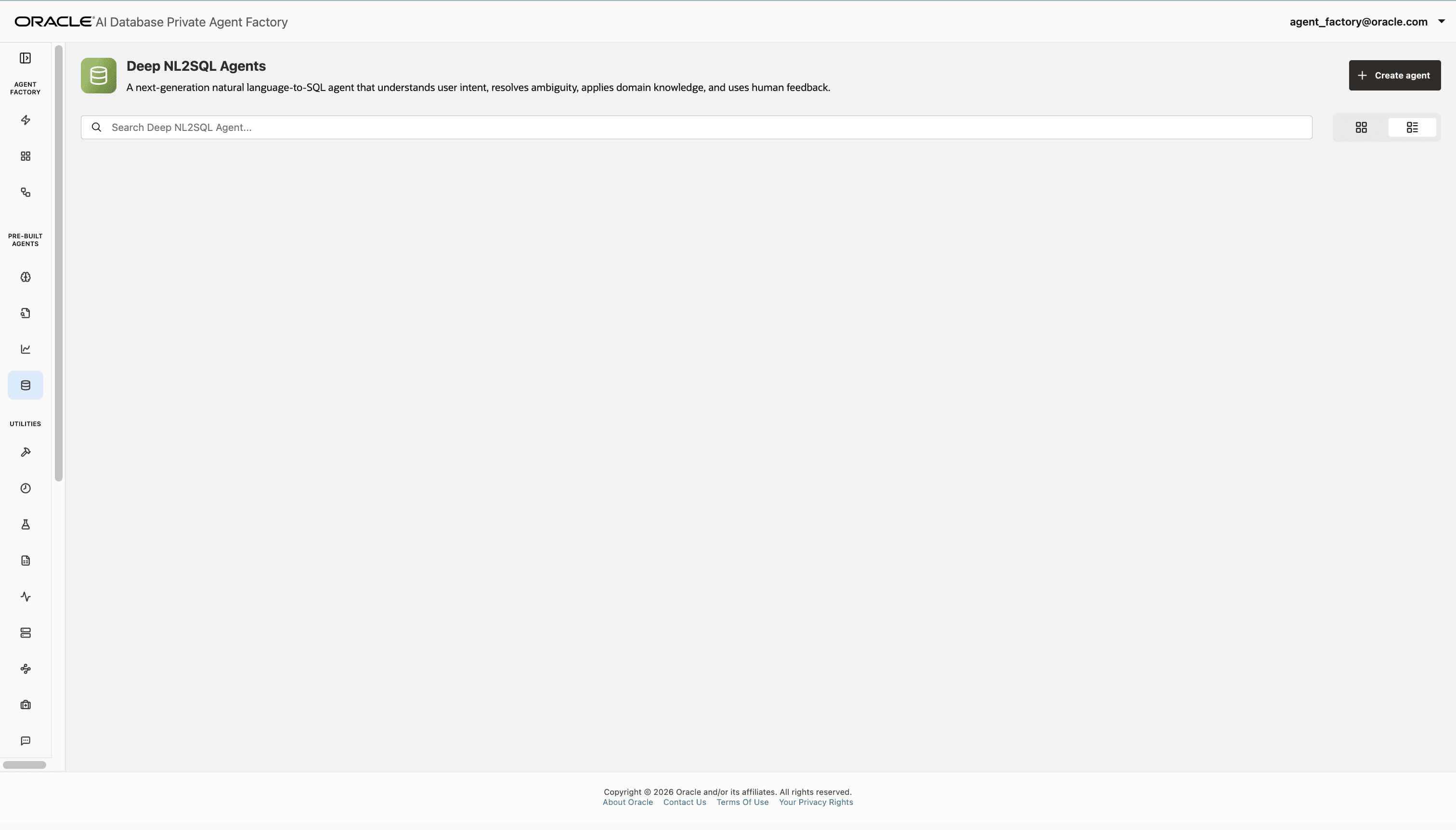
Description of the illustration deep-nl2sql-agent-list-empty.png
-
Select Create agent, then choose a database data source and schema. Choose the tables and views that the agent can use, or choose Include all when the full schema is appropriate. Optionally select the published Business Knowledge Graph for the selected database. The graph does not replace the database object scope selection.
-
Enter the agent name and description. Optionally add an Agent overview for users and Agent instructions to guide the agent’s behavior. Choose the Business Data User or SQL Database User persona, a clarification level, and an LLM model. Memory is enabled by default; you can turn it off in the configuration.
-
Review the configuration and create the agent. Confirm that the Business Knowledge Graph is available and enabled, if selected, and that memory is available, enabled, and private.
-
After creation, return to the Deep NL2SQL list and confirm that the agent appears.
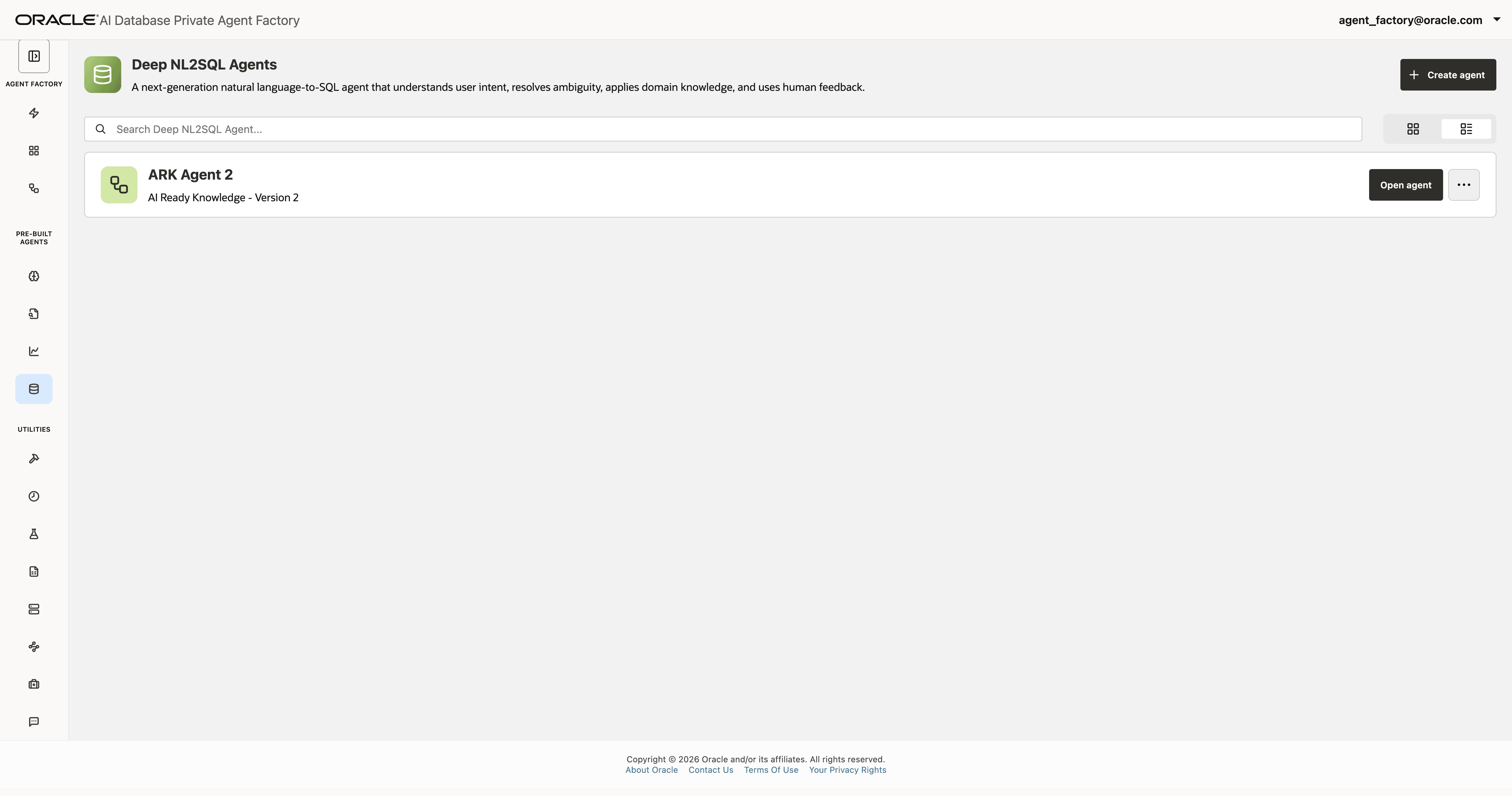
To reproduce the clarification example in this guide, set Clarification Level to Low. The setting controls how deeply the agent reasons before asking for clarification and how quickly it asks.
The Agent overview is user-facing guidance, such as the agent’s purpose and suggested questions. Agent instructions configure the agent’s behavior.
Ask Questions with Deep NL2SQL
- Open the agent’s Messages tab. Select New chat if you want a separate conversation, then enter a natural-language question about the data configured for the agent. For example, ask
Which projects have overdue tasks?. - If the agent asks for clarification, select one of its suggested options or enter a custom response.
- Review the answer and result table. The agent can access only the tables and views configured for it.
- Ask a related follow-up in the same conversation when you want to continue the discussion.
The screenshot shows a separate recorded-revenue conversation, including its generated SQL.
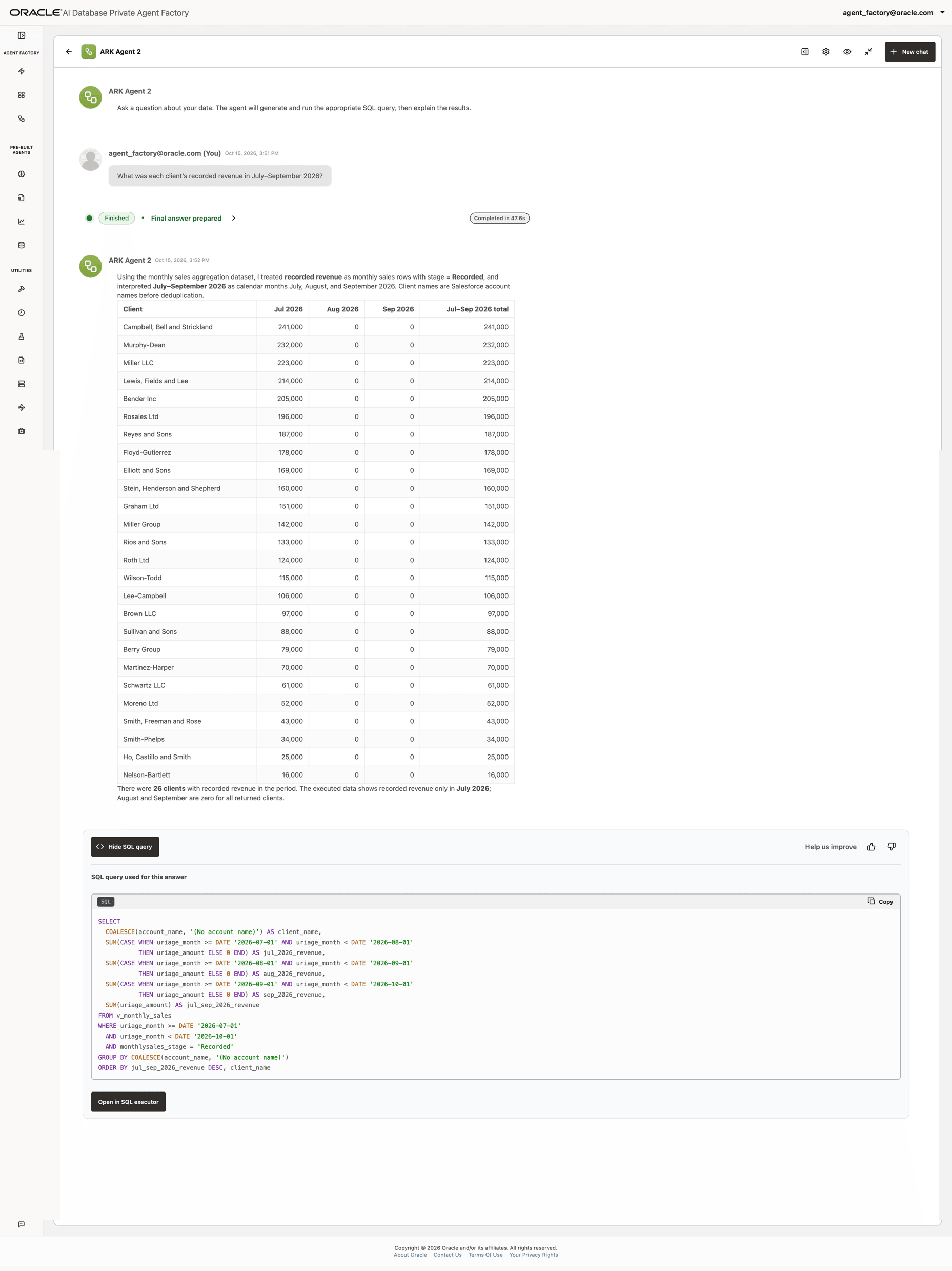
When grounding information is available in the schema, a Business Knowledge Graph, or annotations, the agent can make assumptions based on that information. If a request is unclear, the agent asks follow-up questions so that you can steer it.
Use the History tab to find and reopen previous conversations with the agent. Select a conversation to review it, then return to Messages to continue or start a conversation.
Open the Agent overview tab to review the agent’s purpose and any usage guidance or suggested questions provided by its creator.
Review Generated SQL and Agent Activity
If an answer provides Review SQL Query, select it to inspect the SQL used to produce the answer. The SQL Executor tab is available for the SQL Database User persona. When it is available, use View configuration to review the configured database scope, then run a read-only query and review the returned rows.
Open Agent activity to review the processing steps for the interaction. Depending on the run, the panel can show model calls, milestones, and tool calls. Expand an entry to inspect the details it provides, such as its description, inputs, outputs, status, or timing. Use Expand all or Collapse all to change the view. Activity entries and their details vary by run.
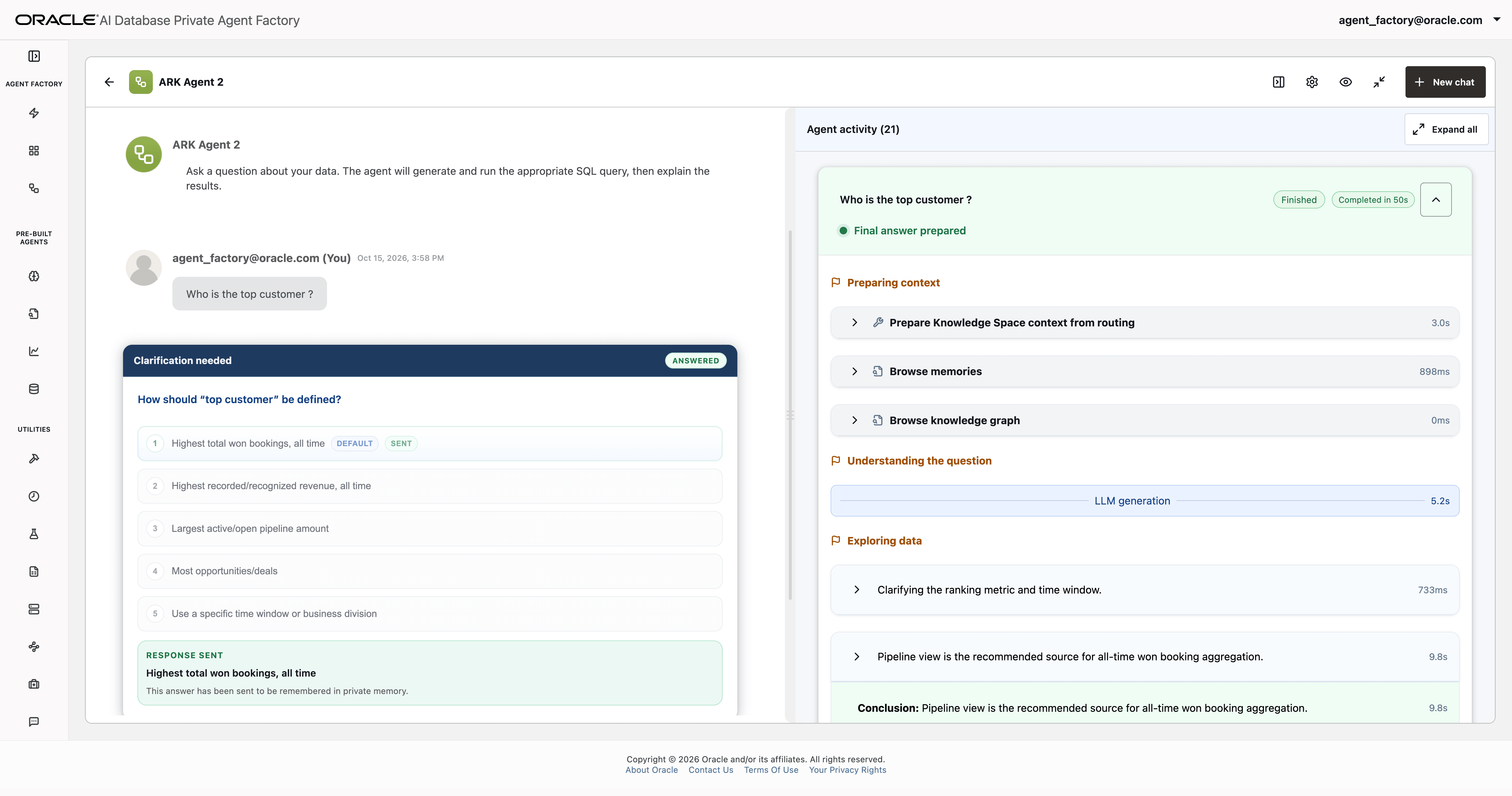
Description of the illustration deep-nl2sql-agent-activity.png
Provide Feedback
On a completed answer, select the positive or negative feedback control, if it is shown. In the feedback form, optionally select a reason and enter a comment, then select Send. Select Cancel to close the form without sending feedback. The feedback is sent to the agent creator, who can review the session and its agent activity.
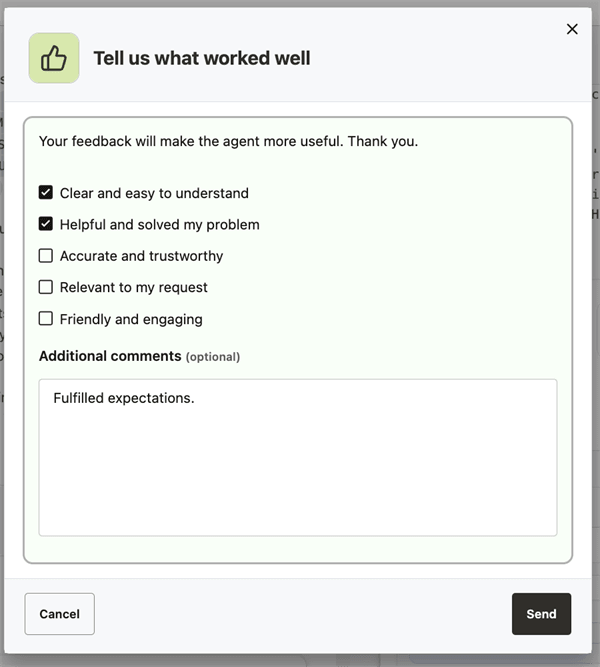
Description of the illustration deep-nl2sql-feedback-form.png
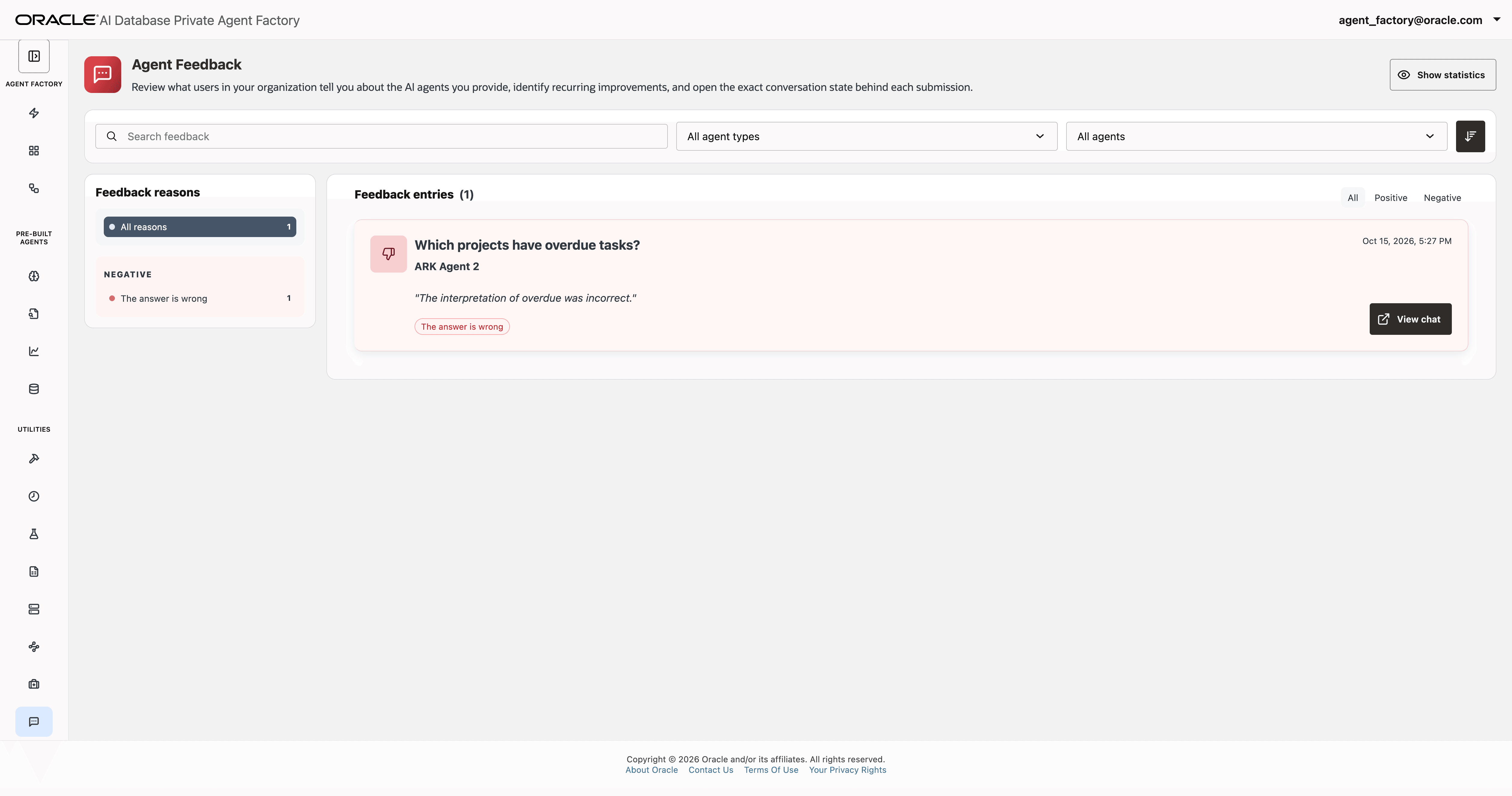
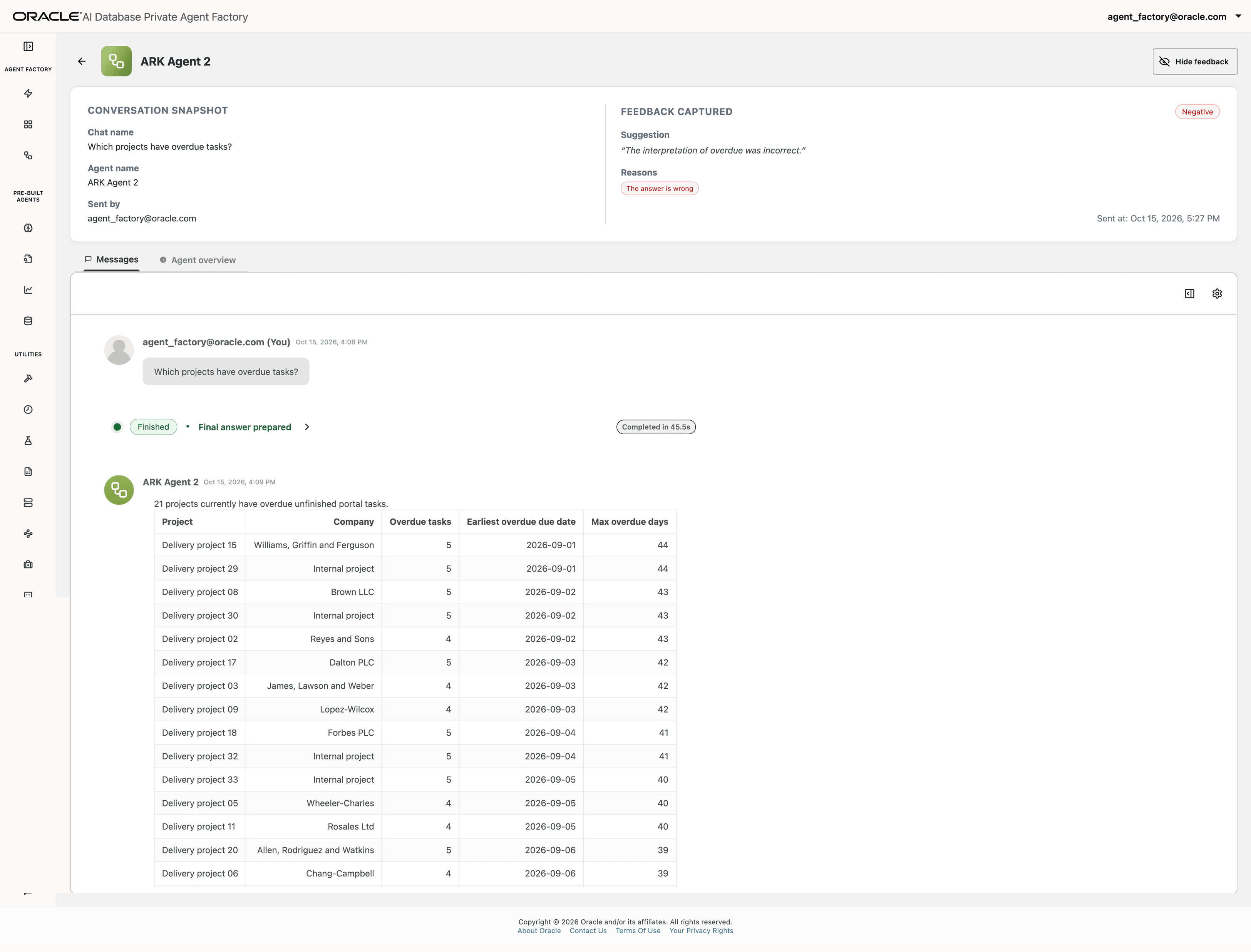
In the TaskForge example, negative feedback says that the interpretation of overdue was incorrect. Review the linked conversation, then confirm the intended definition with the data owner before changing graph knowledge or evaluation SQL. The response shown in the conversation is the answer that received negative feedback; it is not a validated expected result.
Improve the Business Knowledge Graph
The agent creator can review the session and agent activity for feedback. After confirming the intended business meaning, update the relevant topic or business knowledge entry in Knowledge Workbench. Add the question and data-owner-approved reference SQL to the evaluation set, evaluate the graph again, and publish it before using the updated context. Then ask the question again to review the response.
Use Memory with Deep NL2SQL
Memory is enabled by default. On the Review agent step, confirm that memory is available, enabled, and in private mode. Set Clarification Level to Low to display the clarification card.
When the agent asks for clarification, keep Remember this answer selected. Choose a suggested response or enter a custom response. The agent saves the response as a memory so it can avoid asking the same clarification again.
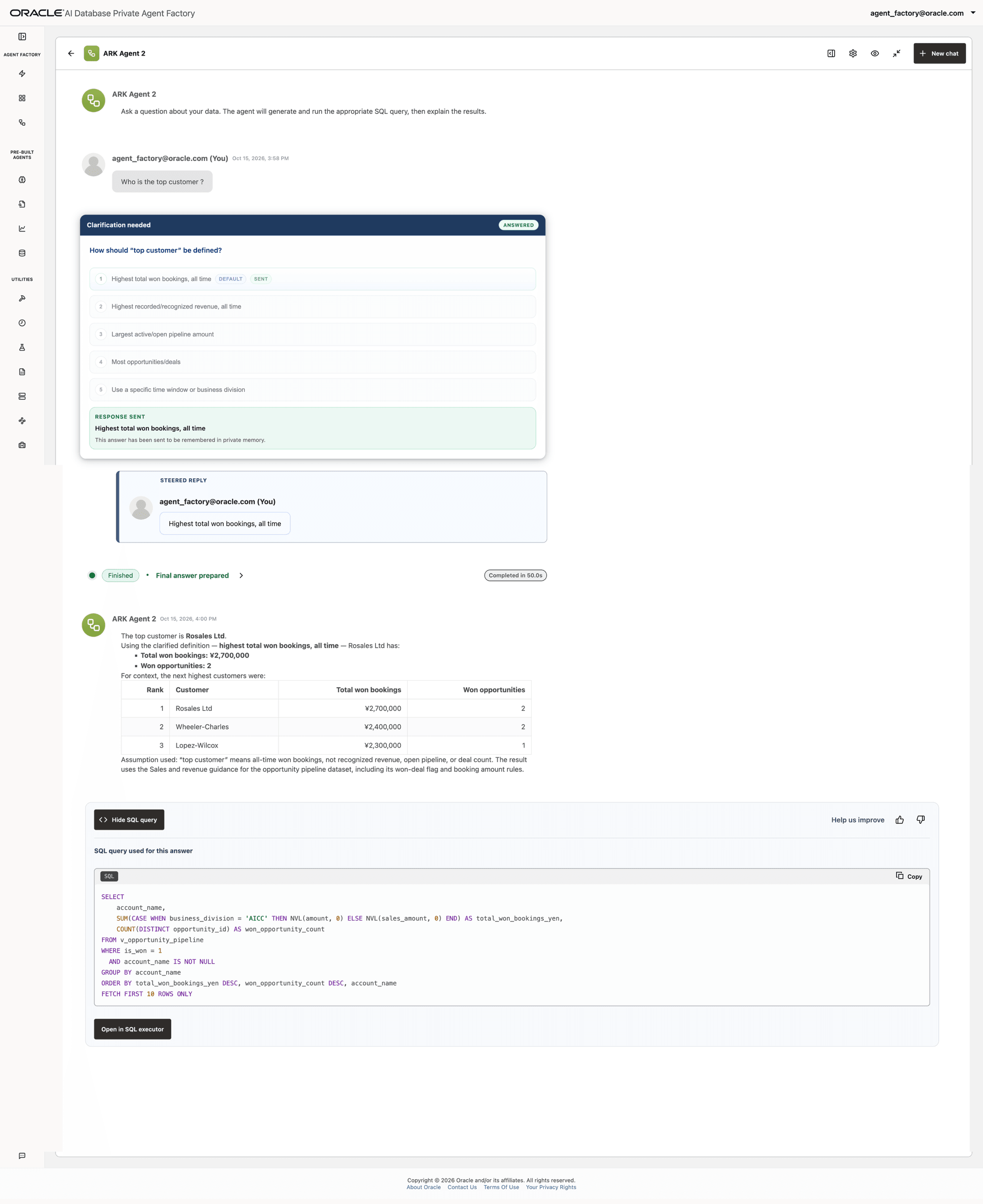
After you submit the response, open Agent activity and look for the Save user preference tool call.
Open Memory Workbench to review saved clarification cards and their answers. Memory Workbench lists answered clarifications across conversations with NL2SQL agents. You can delete one memory or delete all memories. After deleting a memory, the agent can ask about that ambiguity again so that you can clarify it again.
The workbench also provides a form for adding a memory directly. Enter a title and details, then select the agent for the memory. This is a separate way to add a memory from the clarification-response flow described above.
To store a memory directly, follow Store a Memory.
After saving, review the memory in the workbench list. The list provides controls for managing an individual memory or all memories.
To review or delete saved memories, see View Saved Memories.
Edit or Remove Deep NL2SQL
- Under Pre-Built Agents, open Deep NL2SQL.
- To edit the agent, open its actions menu and select Edit agent. You can also open the agent’s Messages view and select the settings icon.
- Update the available details or configuration, then select Save changes. Select Cancel to close the settings without saving.
- To remove the agent, select Remove, review the confirmation, and select Delete. Removing an agent cannot be undone.
Observability
Like other Agent Factory agents, Deep NL2SQL supports sending OpenTelemetry information to the observability sink configured in Agent Factory. For configuration steps, see Configure Observability.