Adding the First Step to a Process Guide
After you create a process guide, the OGL Editor appears over the URL you entered. You are prompted to select an element or to create a Splash step:
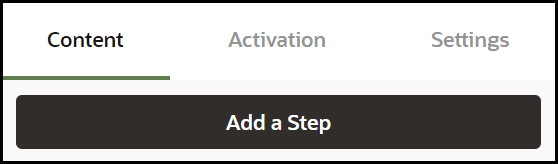
- Select Add a Step to capture the screen element for your first
step.
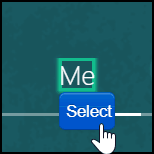
- Place the cursor on the element which you want it to be the first step
and then select the Select icon.
 ).
).
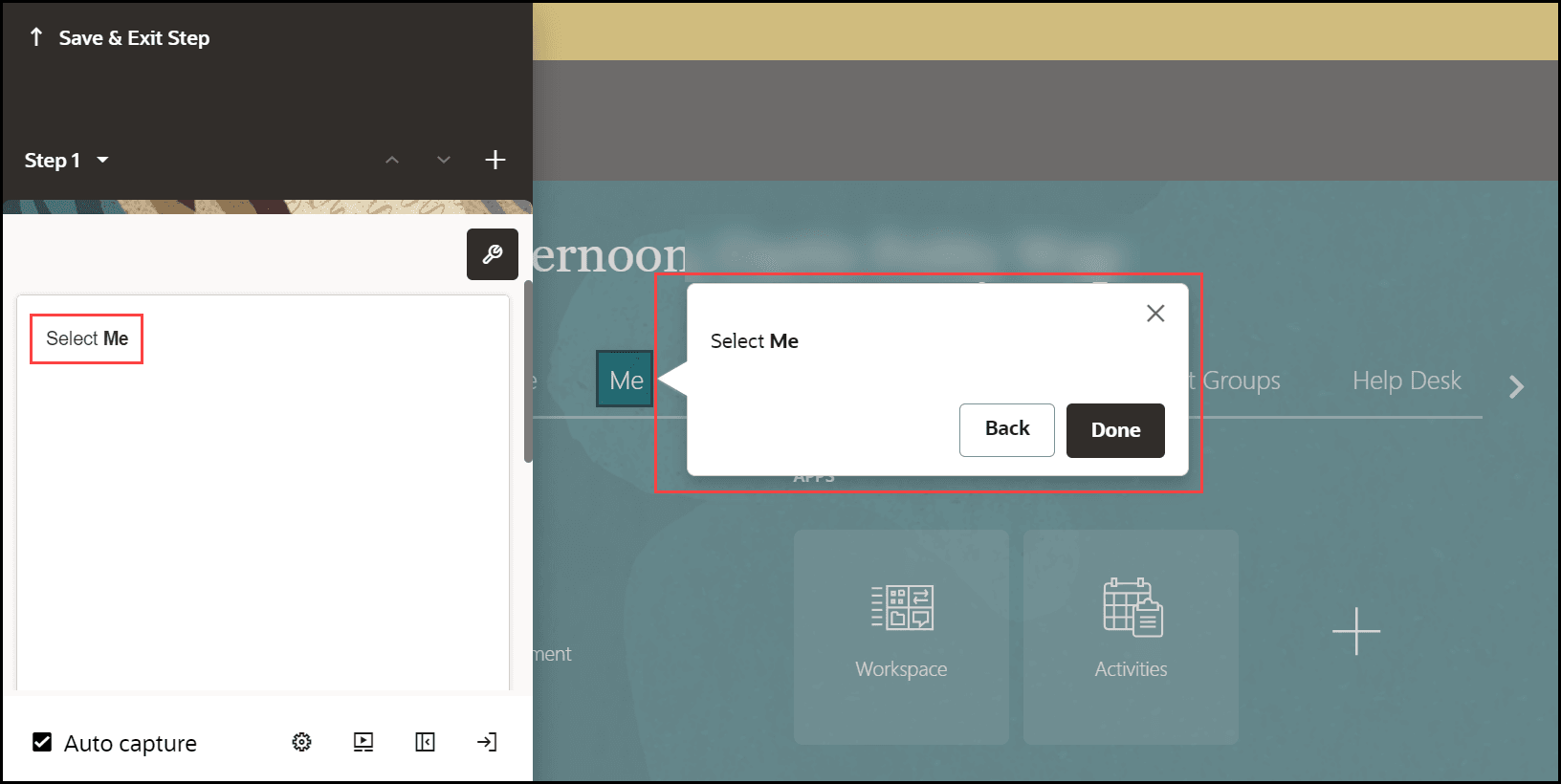
The OGL now fills the step command automatically and displays a real-time preview of the guide.
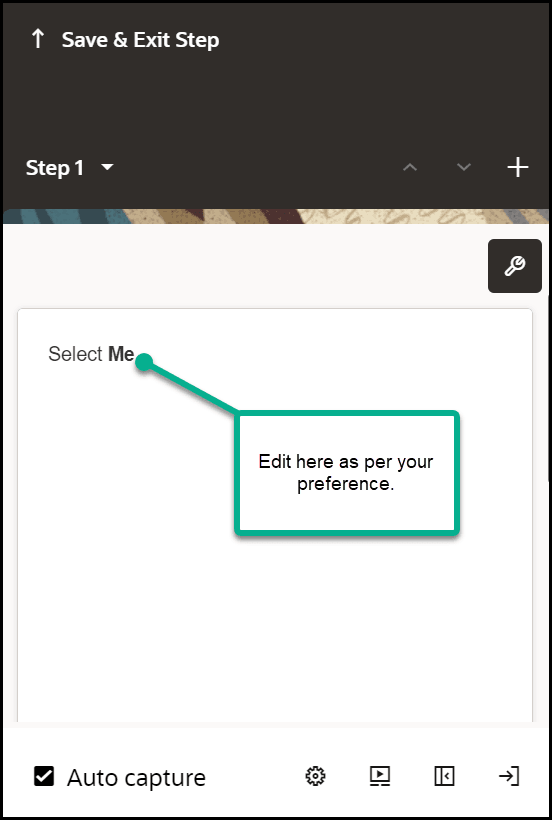
You can modify the automatically generated step commands according to your preferences.
- Select the Step Settings icon (
 ).
).
The Step Settings now appears below the editor.
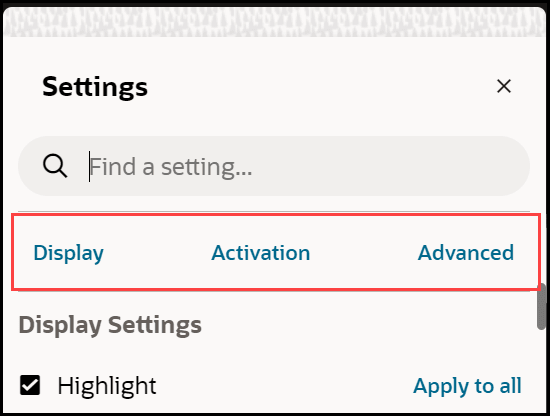
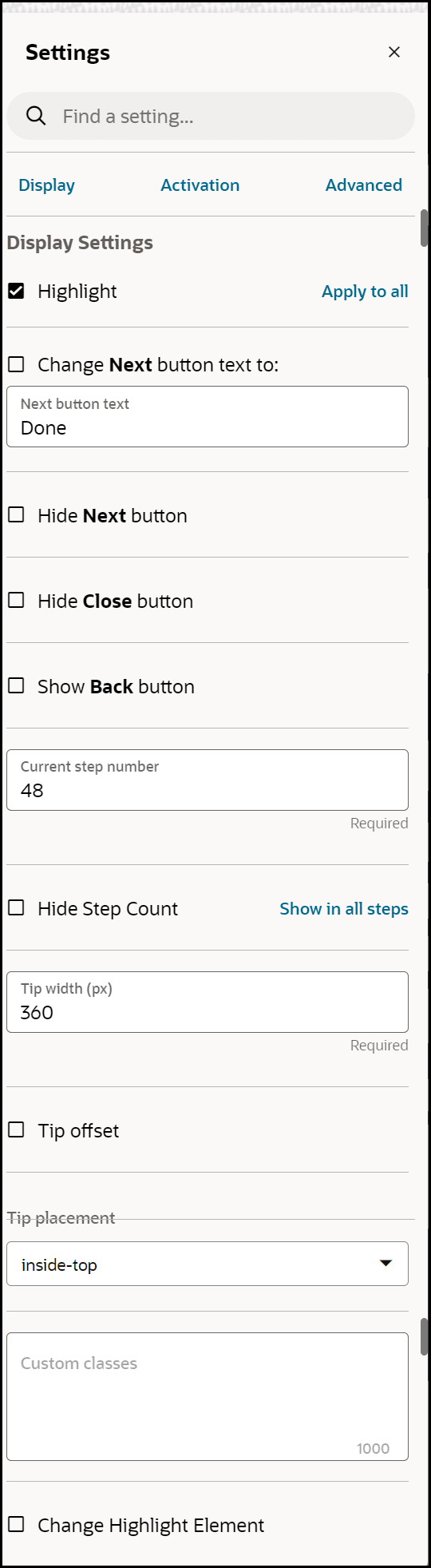
- Edit the Display Settings as per your preferences.
Learn more about Display Settings.
Proceed to add an Interactive Step.
