Advanced Search
An advanced search enables the search on specific attributes or a combination of attributes.
Behavior
In the UI (User Interface), click Advanced to display the Advanced Search dialog.
The advanced search dialog displays one or more field combinations of search property and search value.
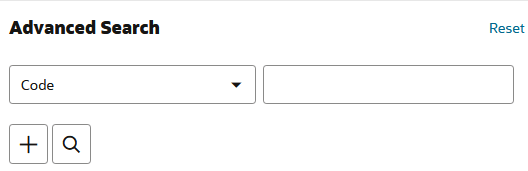
The advanced search supports searching on strings (enums, booleans), integers, dates, date-times, and referenced types. See properties for more details on these field types.
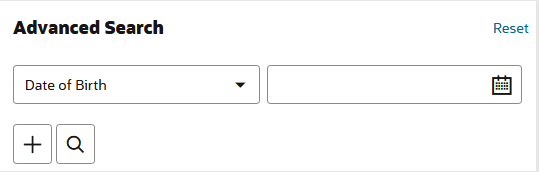
For search properties of type date, the dialog offers a date picker.
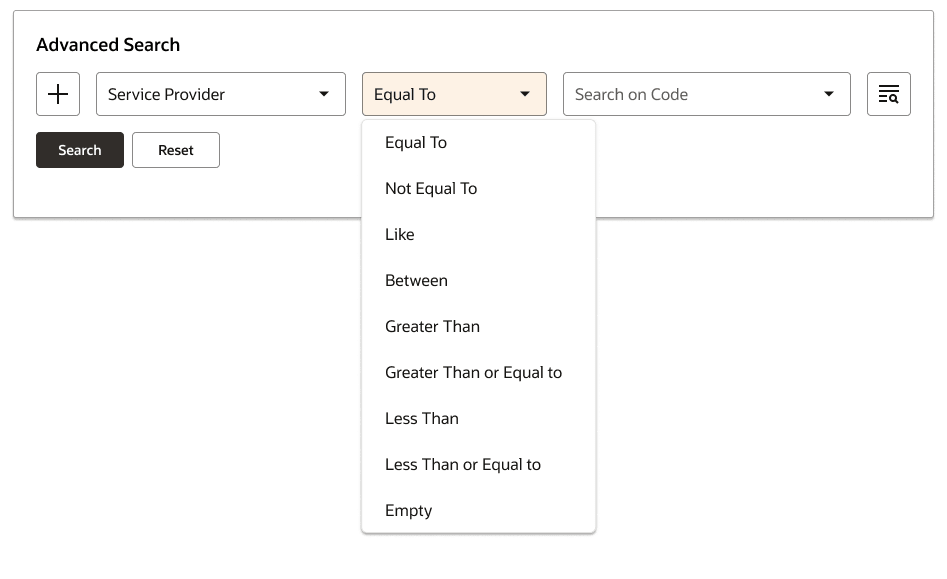
For a specific search, use the operator dropdown to build the required conditions.
For search properties of type reference, the pick button opens a pop-up. In the following image, the advanced search in the Persons UI will search persons assigned to a specific provider.
Enter a value to search for a specific provider, then click Search. Pick the desired provider using the pick icon in the table row.
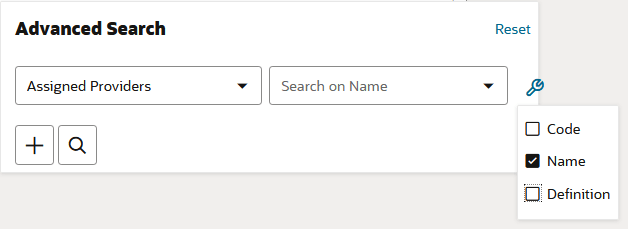
In the following image, the list of providers is restricted to those with the name Smith.
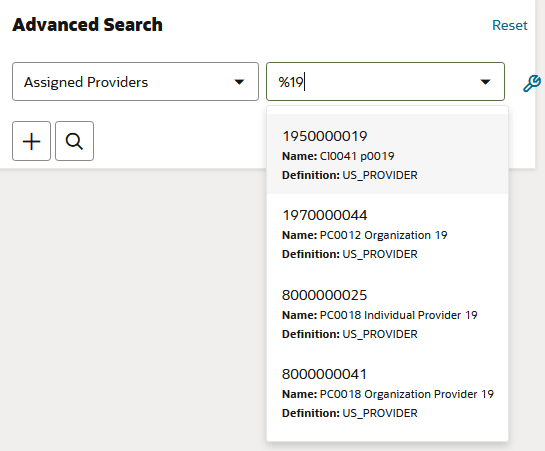
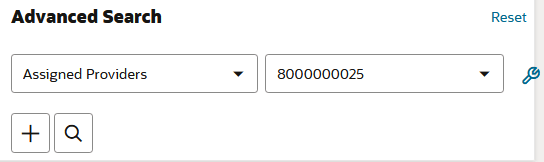
To select a value from the list, click the entry.
Multiple Criteria
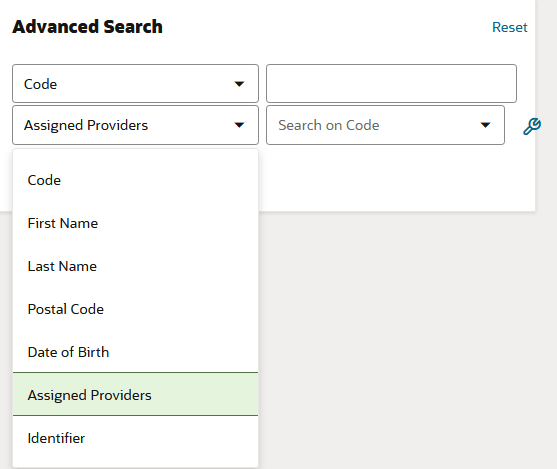
The dialog provides the option to add search criteria by using the + sign [1] and selecting the search property from the dropdown list.
In the following image, the advanced search supports searching on a combination of person code and assigned provider.
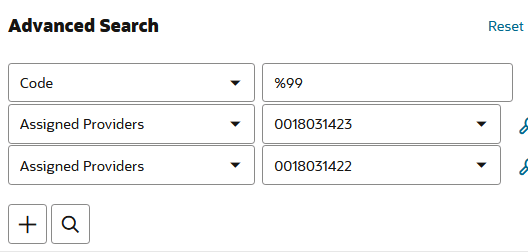
Multiple search criteria are combined using an AND statement.
OR search is implemented between the various values of a property when the same search property is added multiple times.
For example, it is possible to search for persons with code like 001234 and AND (Assigned Provider=0000000001).
An Advanced Search allows you to search based on specific or multiple attributes, using various operators:
An Advanced Search enables search specific attributes or multiple attributes with a combination of operators.
Operators
-
Equal To: Returns results that match the specified value.
-
Not Equal To: Excludes results that match the specified value and returns results that match all other values.
-
Like: Returns results that match similar values (ignore case), not necessarily exact ones. It is for matching similar or partial text values.
-
Between: Returns results within the specified date range (from-date to to-date). At least one date input is required.
-
If no to-date is provided, results from the from-date onwards are returned.
-
If no from-date is provided, results up to the to-date are returned.
-
-
Greater Than: Returns results greater than the specified value.
-
Greater Than or Equal to: Returns results that are greater than or equal to the specified value.
-
Less Than: Returns results that are less than the specified value.
-
Less Than or Equal to: Returns results that are less than or equal to the specified value.
-
Empty: Fetches records having a null value.
-
Not Empty: Fetches records having a value.
Operator Functionality
The following operators are included by default for each property type:
-
String/Text
-
Like (Case Insensitive)
-
Default Pick
-
-
Like
-
Equal To
-
Not Equal To
-
Empty
-
Not Empty
-
-
Referenced Property
-
Equal To
-
Default Pick
-
-
Empty
-
Not Empty
-
-
Enums/Booleans
-
Equal To
-
Default Pick
-
-
Not Equal To
-
Empty
-
Not Empty
-
-
Date / Date Time
-
Between
-
Default Pick
-
-
Equal To
-
Empty
-
Not Empty
-
-
Amount
-
Between
-
Default Pick
-
-
Equal To
-
Not Equal To
-
Greater Than
-
Less Than
-
Empty
-
Not Empty
-
-
Number/Integer
-
Equal To
-
Default Pick
-
-
Not Equal To
-
Like
-
Between
-
Greater Than
-
Less Than
-
Empty
-
Not Empty
-
The following image illustrates how to configure the Advanced Search:
Searching
When a user selects the search criteria, enters search values, and click Search (Magnifier glass) icon [2], the dialog closes and a search is performed based on all entered search values.
If a criterion is entered, but no value is given when the operator is not empty, then the criterion is not considered for the search.
|
Wildcard searches are not supported for specific columns due to their text index configuration (for example, on a person’s last name). When a wildcard search is performed on these columns, it is treated as an empty (null) search, resulting in no returned rows.
|
The selected criteria and entered search values are remembered until the user changes them, clicks the Reset link, or signs out of the application (or the user session expires).
Closing the Dialogue
The dialog can be closed by clicking anywhere outside the dialog.
The selected criteria and entered search values are remembered until the user changes them, clicks the Reset link or signs out of the application (or the user session expires).
Floor Plan Payload
In the floor plan payload, the advanced search component looks as follows:
"advancedSearch": {
  "criteriaMandatory":true|false,
  "properties": [
   {  "name":"name of the property"
      "sequence": 1,
      "queryOperator":"bet|gte|lt|like|likeic|eq|neq", // default pick override
      "mandatory":true|false,
      "toUpperCase":false|true
      "includeOperator": ["neq"] // applicable for referenced property,
      "emplyListSearch": "true" // default false.

    },
    { "name":" name of the property"
      "sequence": 2
      "queryOperator":"bet|gte|lt|like|likeic|eq|neq"
    },
    ...
  ]
}
Specifying criteriaMandatory as true restricts a user from performing a search with none of the criteria having a value.
When not specified, the system considers it as false.
Individual criteria can be marked as mandatory by setting the mandatory property to true at the property level.
When a query operator is specified, the specified value becomes the default instead of the default pick.
Special Settings
"Not Equal To" criteria can be added for referenced property by including "includeOperator ["neq"].
In the context of Widgets, if quick search is not specified and the advanced search specifies only one property in the payload, the Advanced link is omitted, and the property is displayed directly on the page. Selecting the value triggers the advanced search.
| Floorplan configuration must ensure that minimum one valid property is specified. (When a specified property does not exist, the system ignores that property.) |
Example
Consider the following example for configuring advanced search on the persons object:
"advancedSearch": {
      "criteriaMandatory": true,
      "properties": [
           {
             "name": "code",
             "sequence": 1
           },
           {
             "name": "firstName",
             "sequence": 2
           },
           {
              "name": "name",
              "sequence": 3
           },
           {
              "name": "addressList",
              "sequence": 4,
              "properties": [
                  {
                     "name": "postalCode",
                     "sequence": 1,
                     "label": "REL_PERSON_FIELD_ADDRESSLIST_POSTALCODE_DEFAULT"
                  }
              ]
           },
           {
              "name": "dateOfBirth",
              "sequence": 5
           },
           {
              "name": "assignedProviderList",
              "sequence": 6,
              "properties": [
                  {
                     "name": "provider",
                     "sequence": 1,
                     "refType": {
                        "type": "providers"
                     }
                  }
              ]
           },
           {
              "name": "relationIdentifierList",
              "sequence": 7,
              "properties": [
                  {
                     "name": "identifier",
                     "sequence": 1,
                     "toUpperCase": true,
                     "queryOperator": "like",
                     "label": "REL_RELATIONIDENTIFIER_FIELD_IDENTIFIER_DEFAULT"
                  }
              ]
           }
       ]
    }
This displays an advanced search dialog with the following options:
| UI Field | Search on Property | Input |
|---|---|---|
Code |
person.code |
Free field |
First Name |
person.firstName |
Free field |
Last Name |
person.name |
Free field |
Postal Code |
person.addressList.postalCode |
Free field |
Date off Birth |
person.dateOfBirth |
Date picker |
Assigned Providers |
person.assignedProvidersList.code |
LOV on providers |
Identifier |
person.relation.relationIdentifier.identifier |
Free field |