3 Application Navigator Setup
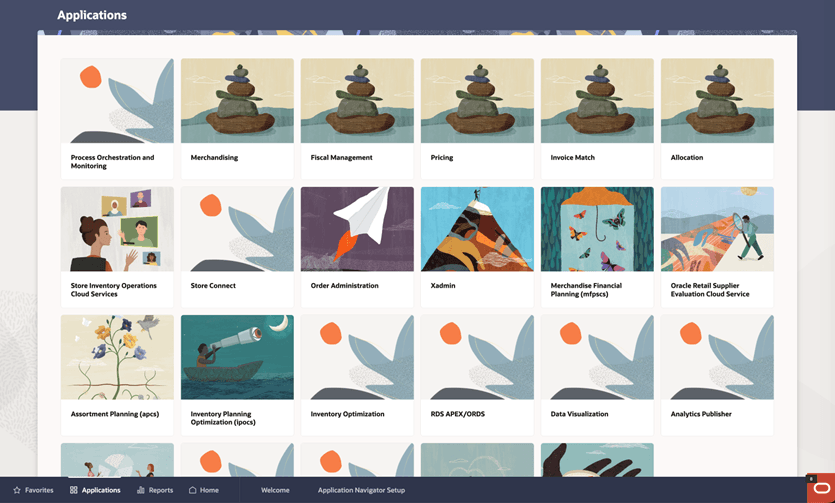
The Retail Home Application Navigator Setup page gives administrators the ability to configure applications within Retail Home. Retail Home uses these applications to populate its application navigator menu in Retail Home and other Retail Applications and to define dashboard tiles within Retail Home dashboards.
Launch: The Application Navigator Setup page can be accessed from:
- Ask Oracle menu → Application Administration
- Legacy UI → Settings → Application Administration
Figure 3-1 Applications in Retail Home
Application Initialization and Seeding
Retail Home initializes and configures applications using two related mechanisms:
- System Generated Application Navigator Entries - Automatically created baseline entries for known applications
- Seeding Data from Applications - Optional configuration provided by applications to enhance these entries
Together, these mechanisms ensure that applications are both registered and configured within Retail Home.
System Generated Application Navigator Entries
Retail Home automatically creates an initial set of application entries for known Retail applications during initial installation or when upgrading to a newer version. These entries contain only the application name and application code and are disabled by default. They do not include dashboards, tiles, or any additional configuration.
During upgrades, if an entry for a known application already exists, Retail Home does not create a duplicate entry. Instead, the oldest existing entry for that application is flagged. These system-generated entries serve as a baseline registration of applications within Retail Home.
Seeding Data from Applications
Applications can provide a standard configuration for Retail Home through platform services. When this seed data is available and successfully loaded, Retail Home can automatically create or update dashboards, tiles, and additional application entries as defined by the application.
During routine patching, Retail Home preserves customer-modified application values when applying seed data updates. If administrators have changed application-level values such as the application name, short name, or feature-related settings, those customer changes are not overwritten by patch seed data.
Retail Home distinguishes routine patching from migration processing when merging application seed data. Customer-modified values are preserved during patching, while migration flows can still overwrite application values when that behavior is required for the migration.
Seeding can occur in two ways. Retail Home automatically attempts to load seed data when a new application is created or when an existing application entry is updated with platform services enabled. In addition, administrators can manually trigger seeding using the Refresh Seed Data action available in the toolbar.
If an application provides valid seed data, the configuration is applied automatically. If the application does not provide seed data or does not support the required platform services, no updates are made. In such cases, failures are logged silently during automatic attempts, while an error message is displayed when seeding is triggered manually.
System-generated entries and seeding are closely related. The system-generated entries provide the initial registration of applications, while seeding enhances these entries with full configuration such as dashboards, tiles, and related settings.
For full details on the behavior of importing seed data, refer to Seeding Application Dashboards.
Application Navigator Setup Screen
The Application Navigator Setup page shows a table of all the application navigator entries currently configured in Retail Home. After application entries are created by the system and optionally enhanced through seeding, administrators can also add, edit, delete, and manage these entries using the Application Navigator Setup page.
Figure 3-2 Application Navigator Setup Screen
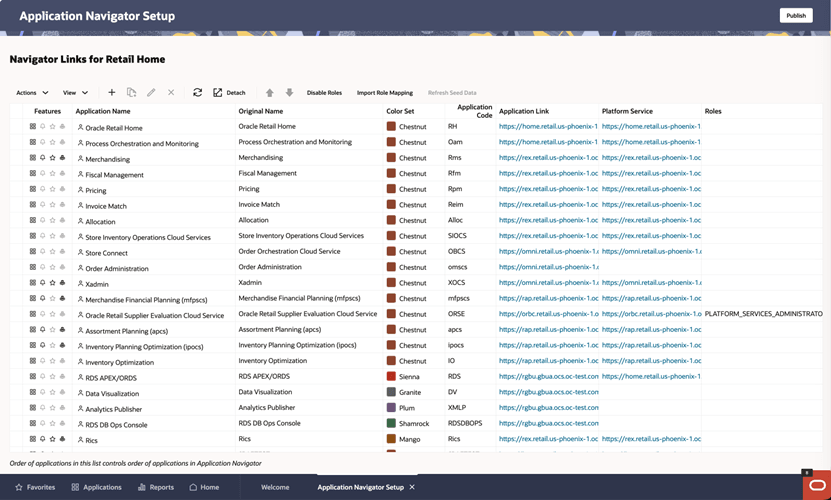
The following information is shown for each application:
Application Navigator, Notifications, Favorites, and Resource Bundle Customizations.
The table toolbar gives users the ability to add, duplicate, edit, delete, refresh and reorder applications, as well as manage roles associated with each application.
Figure 3-3 Application Navigator Setup - Toolbar Actions

Add an Application
The Add icon  on
the table toolbar allows users to add a new Application Navigator entry in Retail Home.
on
the table toolbar allows users to add a new Application Navigator entry in Retail Home.
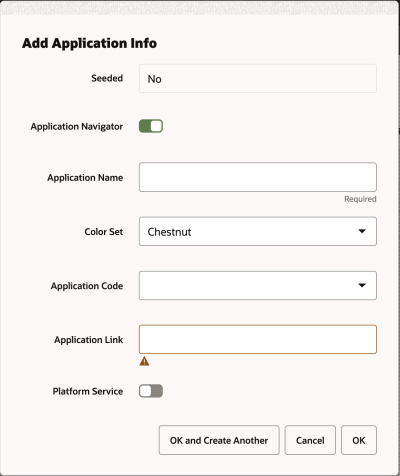
To add an application navigator entry, users enter the following information in the Add Application Info dialog:
-
Application Navigator Switch - Controls whether the application will be displayed in the Retail Home Application Navigator menu.
-
Application Name - A unique name for the application that will be displayed in the Application Navigator menus and in the Retail Home Dashboard Tile header.
-
Application Short Name - A unique short name for the application.
-
Color Set - The color scheme used to display this application in the Retail Home Application Navigator menu and for the background of the Retail Home Dashboard Tile.
-
Application Code - The unique code associated with a Retail Application. This is required to support features such as Favorites, Notifications and Resource Bundle Customization.
-
Application Link - The URL used to launch the application from Application Navigator menus or from the header of a dashboard tile.
-
Platform Service Switch - Controls the display of options under platform services (URL & sup-ported features).
-
Platform Service URL - The URL used to access Platform ReST Services. This is required to support features such as Favorites, Notifications and Resource Bundle Customization.
-
Required to support features such as Favorites, Notifications and Resource Bundle Customization for the application.
-
-
Import Role Mapping - Upload file to map a role to the application.
-
OK and OK and Create Another buttons - save all entered values in the dialog into the Application Navigator Setup table.
Figure 3-4 Add Application Info Dialog
Edit, Duplicate or Delete an Application
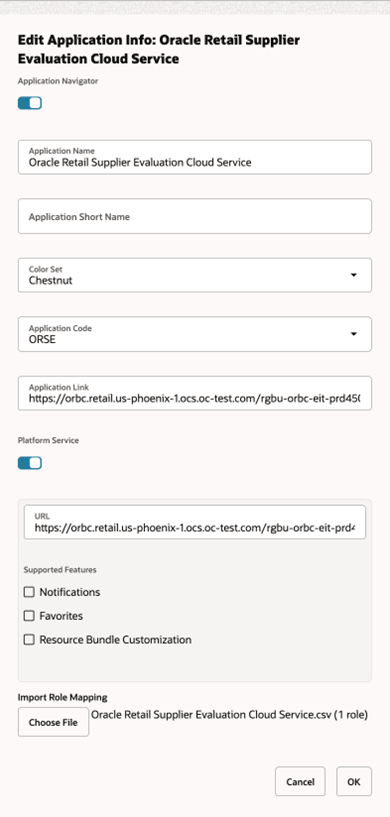
The Edit icon  on the table toolbar allows users to change the details of an existing
application navigator entry (including seeded applications) in Retail Home.
on the table toolbar allows users to change the details of an existing
application navigator entry (including seeded applications) in Retail Home.
The Duplicate
 icon on the table toolbar allows users to create a new application navigator
entry using the selected application navigator entry as a starting point. Users can
modify the details in the Add Application Info dialog. See the section above titled
Add an Application for details about adding a new
application navigator entry.
icon on the table toolbar allows users to create a new application navigator
entry using the selected application navigator entry as a starting point. Users can
modify the details in the Add Application Info dialog. See the section above titled
Add an Application for details about adding a new
application navigator entry.
The Delete icon  on the table toolbar allows users to delete the selected application navigator
entry (including seeded applications) from Retail Home.
on the table toolbar allows users to delete the selected application navigator
entry (including seeded applications) from Retail Home.
Figure 3-5 Edit Application Info Dialog
Reordering Application Navigator Entries
The order of the application navigator entries in the Manage Application Navigator table is the order that the applications will be displayed in the Application Navigator menus in Retail Home and in other Retail Applications.
The Move Up icon  and the Move Down icon
  on the table toolbar allow users to move the selected application navigator
entry up or down in the table.
on the table toolbar allow users to move the selected application navigator
entry up or down in the table.
Managing Roles
Roles can be associated with each application navigator entry to restrict which users will have access to the application through the application navigator menus outside of Retail Home. Users who do not have access to the application will not see it in the application navigator menus.
Enabling Roles
Roles are disabled by default and all users will see links to all applications in the application navigator menus. Use the Enable Roles button in the table toolbar to enable role mappings.
Mapping Roles to Applications
Mapping roles to applications is accomplished through the upload of a CSV formatted file containing a mapping of applications to roles. The CSV file is required to have columns “App Name" and “Role Name". Any other columns included in the file will be ignored. The “App Name" column should contain the name of the application currently shown in the Application Name column. The keyword “all" may be used in the “App Name" column in place of an application name to map a role to all applications currently in the table. The “Role Name" column should contain a valid enterprise role name.
Publishing Application Navigator Entries
Application navigator entries can be published to the applications through their PSRAF URLs. These applications are represented by the system-generated application navigator entries. Data that is published includes the details of each application including links and role mappings. Only applications that have an application link will be published. Use the Publish button located in the page footer to publish this data.
Once the application navigator entries have been published, if further changes are made to the application navigator entries or the role mappings it will be necessary to publish again in order for those changes to be pushed out to the applications.
Note:
If the application navigator entries for an application are currently managed through ORAAC (Oracle Retail Application Admin Console) then this Publish action will replace the application navigator entries that were configured through ORAAC.