Publishing Content Using Content Presenter
Publish content from Content Server on a portal page using the Content Presenter task flow.
See Also: For an overview of the different options available in WebCenter Portal for working with portal content and adding content to a portal, see Introduction to Working with Content in a Portal.
Permissions: To perform the tasks in this chapter, you must be a portal manager or a portal member with the portal-level permissions
Basic Services: Edit Page Access and Structure,Assets: Edit Assets, andDocuments: View Documents(standard permissions) orPages: Edit PagesandTask Flows: Edit Task Flows, andDocuments: View Documents(advanced permissions).
See About Roles and Permissions for a Portal.
Topics
-
Previewing Content in the Content Presenter Configuration Dialog
-
Authoring Site Studio Content to Optimize Presentation in Content Presenter
-
Creating or Editing Site Studio Content in the Content Presenter Configuration Dialog
-
Creating and Editing Files In-Context in a Content Presenter Task Flow
About Content Presenter
The Content Presenter task flow enables you to precisely customize the selection and presentation of content from Content Server.
The Content Presenter task flow is available only if your system administrator has completed the prerequisite Content Server configuration. For more information, see Managing Connections to Oracle WebCenter Content Server in Administering Oracle WebCenter Portal.
See Also: “Creating and Using Templates for the Content Presenter Task Flow” tutorial (http://www.oracle.com/technetwork/middleware/webcenter/portal/learnmore/wcp-cp-templates-1555892.pdf) on the Oracle Technology Network
In the Content Presenter task flow, you can select a single item of content, contents under a folder, a list of items, or query for content, and then select a display template to render that content on a page in a portal.
Note: - Content Presenter is intended to render (present) content; not to host HTML content. To host HTML content, use the Web Page component to render the HTML content from Content Server. For more information, see Working with the Web Page Component.
- Content Server exposes a content item only after it has a revision status of Released. If a content item does not have Released status, you will not be able to configure Content Presenter to show the item. You can find the status of a content item in Content Server on the Content Information Page, as described in Revision Status in Using Oracle WebCenter Content.
In addition to displaying the folders and files in Content Server, Content Presenter integrates with Oracle Site Studio to allow you to create, access, edit, and display Site Studio contributor data files. For more information, see Understanding Site Studio Integration.
Content Presenter has no dependency on the Documents tool for adding or managing the content it displays.
Understanding Site Studio Integration
Oracle Site Studio is a powerful, flexible web development application suite that offers a comprehensive approach to designing, building, and maintaining enterprise-scale web sites. Site Studio uses Oracle WebCenter Content Server as the main repository for a web site.
Content Presenter integrates with Site Studio to allow you to create, access, edit, and display Site Studio contributor data files in a custom Content Presenter display template that makes use of region definitions.
Tip: Although Content Presenter also supports Site Studio region templates, it is recommended that you use Content Presenter display templates (that use region definitions) to integrate Site Studio and Oracle WebCenter Portal. The region templates display the details of the contributor data file rather than the contributed content. For more information, see Developing Content Presenter Display Templates in Developing for Oracle WebCenter Portal.
Before you can display Site Studio contributor data files in Content Presenter, the system administrator must enable the following components in WebCenter Content Server:
-
Site Studio components. The system administrator must also configure the cookie path to the context root of your application to prevent losing your session when editing Site Studio content. For more information, see Configuring Oracle WebCenter Content Server and Setting Up Site Studio in Administering Oracle WebCenter Portal
-
WebCenterConfigureandPortal VCRHelpercomponents. This allows for adding and editing Site Studio documents from within Content Presenter. For more information, see Enabling the WebCenterConfigure Component in Administering Oracle WebCenter Portal.
For proper surfacing in Content Presenter, the following link types can be used in a Site Studio contributor data file (or in a Site Studio region template):
-
Links to nodes in the portal navigation (for more information, see Adding Links from Content to Navigation Nodes)
-
Links to inline images
-
Links to documents (except for absolute or relative path links)
When clicking the link at runtime, it renders within the context of the application and displays the document using the Default View display template.
-
Absolute HTTP links, whether created in Site Studio contributor mode or in Site Studio Designer region template HTML
The following Site Studio link types are not supported in Content Presenter:
-
Links to Site Studio sections
-
Absolute or relative path links to Site Studio documents
For guidelines on authoring recommendations for displaying a Site Studio contributor data file in Content Presenter, see Authoring Site Studio Content to Optimize Presentation in Content Presenter.
You can create and edit Site Studio contributor data files from the Content Presenter Configuration dialog (see Creating or Editing Site Studio Content in the Content Presenter Configuration Dialog) or in-context when displayed in Content Presenter at runtime (see Creating and Editing Files In-Context in a Content Presenter Task Flow).
For more information about creating and using Site Studio contributor data files and Site Studio region templates, refer to the Oracle WebCenter Content documentation library (http://docs.oracle.com/cd/E28280_01/webcontent.htm).
About Content Presenter and Workflow
You can view content items displayed in Content Presenter while they are in a workflow, including Site Studio contributor data files displayed in a Site Studio region template.
In order for a content item in workflow to display in Content Presenter, it must have had Released status at some point. If the content item has never had Released status, it will not display in Content Presenter.
As long as the content item has at some point had Released status in Content Server, if a revision of the content item is pending in workflow, Content Presenter allows approvers for the content item to toggle between the published version and the version in workflow in the page editor (Figure 33-1) or in contribution mode, and also provides links to approve or reject the item in workflow, and view additional details about the item (including workflow name, steps performed, action performed, date of action, and who performed the action).
Figure: Preview File in Workflow to Approve or Reject in Content Presenter

Description of the illustration wcsug_dcmnts_wflowcp_prev.gif
For more information about working with files in workflow in Content Presenter, see Viewing Workflow Files in a Content Presenter Task Flow.
Working with the Content Presenter Task Flow
In the Content Presenter task flow, you can select a single item of content, contents under a folder, a list of items, or query for content, and then select a display template to render that content on a page in a portal.
Adding a Content Presenter Task Flow to a Page
To display content from your Content Server on a page, add and configure a Content Presenter task flow.
To add a Content Presenter task flow to a page:
-
Open the page in the page editor.
For more information, see Opening a Page in the Page Editor.
-
Click Add Content in the area of the page where you want to add the Content Presenter task flow to open the resource catalog.
-
In the resource catalog, navigate to the Content Presenter task flow, or search for it.
Tip: The presence or location of this task flow depends on how the resource catalog is configured. For example, in the default resource catalog, open the Content Management folder to locate the Content Presenter task flow.
-
Add the Content Presenter task flow to the page in one of the following ways:
-
Click the task flow in the resource catalog to add it to the area where you clicked Add Content.
-
Drag the task flow from the resource catalog to the target location on the page.
A new empty region appears on your page.
-
-
After adding the empty Content Presenter task flow to the page, edit it to select the content that you want to display.
For more information, see Selecting Content.
Selecting Content
After you add a Content Presenter task flow to a page, you must configure it to select the content that you want to display.
Note:
Content Presenter does not support non-ASCII characters in files that are encoded using non-UTF-8 character encoding. When users preview such files in Content Presenter, non-ASCII characters appear garbled.
This section includes the following topics:
Displaying the Content Presenter Configuration Dialog
The Content Presenter Configuration dialog enables you to easily configure the Content Presenter task flow to select or change content, or select a different display template.
To display the Content Presenter Configuration dialog:
-
Open the page in the page editor.
For more information, see Opening a Page in the Page Editor.
-
Click anywhere in the Content Presenter task flow.
-
In the toolbar, click Edit (Figure 33-2).
Figure: Component Toolbar for Content Presenter Task Flow
Description of the illustration wcsug_dcmnts_cpedit.gif
The Content Presenter Configuration dialog opens ([Figure 33-3](publishing-content-using-content-presenter.html#GUID-07EEFE6C-0A87-406C-B50C-85F4F724E46C__CONTENTPRESENTERCONFIGURATIONDIALOG-591D9192)).
**Figure: Content Presenter Configuration Dialog**

Description of the illustration wcsug_dcmnts_cpwiz.png
> **Tip:** A check mark alongside an item indicates that the required information is complete and valid.
Selecting a Single Content Item
You can display a single item from your Content Server (including a Site Studio contributor data file) in a Content Presenter task flow
To select a specific item:
-
Content Presenter is intended to render (present) content; not to host HTML content. To host HTML content, use the Web Page component to render the HTML content from Content Server. For more information, see Working with the Web Page Component.
-
Content Server exposes a content item only after it has a revision status of Released. If a content item does not have Released status, you will not be able to configure Content Presenter to show the item. You can find the status of a content item in Content Server on the Content Information Page, as described in Revision Status in Using Oracle WebCenter Content.0
After choosing your content, you must select a Content Presenter display template. For more information, see Selecting a Display Template.
Selecting the Contents of a Folder
You can display the contents of a folder from Content Server in a Content Presenter task flow. The contents of the folder are displayed in the order stored in the folder.
To select a folder:
-
Content Presenter is intended to render (present) content; not to host HTML content. To host HTML content, use the Web Page component to render the HTML content from Content Server. For more information, see Working with the Web Page Component.
-
Content Server exposes a content item only after it has a revision status of Released. If a content item does not have Released status, you will not be able to configure Content Presenter to show the item. You can find the status of a content item in Content Server on the Content Information Page, as described in Revision Status in Using Oracle WebCenter Content.2
After choosing your content, you must select a Content Presenter display template. For more information, see Selecting a Display Template.
Selecting Content Based on the Results of a Query
You can display content in a Content Presenter task flow based on a query conducted against the Oracle WebCenter Content Server repository.
All query criteria are optional. If you leave all options empty, all documents in the WebCenter Content Server repository will be returned by the search.
Note:
To select content based on the results of a query against the connected repository, full-text search must be enabled in WebCenter Content Server through OracleTextSearch, as described in Configuring OracleTextSearch for Content Server in Administering Oracle WebCenter Content.
To specify a content query:
-
Content Presenter is intended to render (present) content; not to host HTML content. To host HTML content, use the Web Page component to render the HTML content from Content Server. For more information, see Working with the Web Page Component.
-
Content Server exposes a content item only after it has a revision status of Released. If a content item does not have Released status, you will not be able to configure Content Presenter to show the item. You can find the status of a content item in Content Server on the Content Information Page, as described in Revision Status in Using Oracle WebCenter Content.4
After choosing your content, you must select a Content Presenter display template. For more information, see Selecting a Display Template.
Selecting a List of Content Items
You can create a list of content items to display in a Content Presenter task flow.
To browse or search for any number of items to add to a list, and delete or reorder the items before adding the list to a page in a Content Presenter display template:
-
Site Studio components. The system administrator must also configure the cookie path to the context root of your application to prevent losing your session when editing Site Studio content. For more information, see Configuring Oracle WebCenter Content Server and Setting Up Site Studio in Administering Oracle WebCenter Portal
-
WebCenterConfigureandPortal VCRHelpercomponents. This allows for adding and editing Site Studio documents from within Content Presenter. For more information, see Enabling the WebCenterConfigure Component in Administering Oracle WebCenter Portal.1
After choosing your content, you must select a Content Presenter display template. For more information, see Selecting a Display Template.
Selecting a Display Template
By default, WebCenter Portal selects an appropriate Content Presenter display template based on the type of content selected. You can change the default template as required.
Note:
Although Site Studio region templates are supported, it is recommended that for Site Studio contributor data files, you use Content Presenter display templates that use region definitions instead. Site Studio region templates display the details of the contributor data file rather than the contributed content. For information about Site Studio region templates, refer to the Oracle WebCenter Content documentation library (
http://docs.oracle.com/cd/E28280_01/webcontent.htm).
To change the display template for the selected content:
-
Site Studio components. The system administrator must also configure the cookie path to the context root of your application to prevent losing your session when editing Site Studio content. For more information, see Configuring Oracle WebCenter Content Server and Setting Up Site Studio in Administering Oracle WebCenter Portal
-
WebCenterConfigureandPortal VCRHelpercomponents. This allows for adding and editing Site Studio documents from within Content Presenter. For more information, see Enabling the WebCenterConfigure Component in Administering Oracle WebCenter Portal.3
Previewing Content in the Content Presenter Configuration Dialog
You can get an idea of how your selected content will look using the selected display template before exiting the Content Presenter Configuration dialog.
To preview content in the Content Presenter Configuration dialog:
In the Content Presenter Configuration dialog, click Preview or the Preview tab.
The appearance of the content on the Preview tab is dependent on whether the selected display template uses a stretch or flow layout. While the final view of the task flow can be configured to use either a stretch layout or a flow layout, the Preview tab only uses a flow layout. As a result, the preview of content using templates that were designed for a stretch layout displays unstretched at a fixed default size. This is the normal behavior of stretchable content when displayed in non-stretching flow layout. To allow stretchable content to stretch to its full size and fill the task flow space entirely, click the View Actions icon in the task flow toolbar, and select Display Options. In the Advanced tab of the Display Options dialog, from the Stretch Content list, select true.
See Setting Component Display Options Properties.
Note:
Content Presenter does not support non-ASCII characters in files that are encoded using the non-UTF-8 character encoding. When users preview such files in Content Presenter, non-ASCII characters appear garbled.
If the file is in workflow, you will see a workflow notification area at the top, as described in About Content Presenter and Workflow.
Using Responsive Templates
The Articles View and Full Article View Content Presenter display templates use responsive layouts to display their content.
-
Site Studio components. The system administrator must also configure the cookie path to the context root of your application to prevent losing your session when editing Site Studio content. For more information, see Configuring Oracle WebCenter Content Server and Setting Up Site Studio in Administering Oracle WebCenter Portal
-
WebCenterConfigureandPortal VCRHelpercomponents. This allows for adding and editing Site Studio documents from within Content Presenter. For more information, see Enabling the WebCenterConfigure Component in Administering Oracle WebCenter Portal.5
About Responsive Templates
Responsive templates enable you to display content that adjusts to the width of the browser.
Responsive templates include different layouts based on the width of the browser.
Oracle WebCenter Portal provides two built-in responsive Content Presenter display templates as samples for you to use as a starting point for creating your own:
-
Site Studio components. The system administrator must also configure the cookie path to the context root of your application to prevent losing your session when editing Site Studio content. For more information, see Configuring Oracle WebCenter Content Server and Setting Up Site Studio in Administering Oracle WebCenter Portal
-
WebCenterConfigureandPortal VCRHelpercomponents. This allows for adding and editing Site Studio documents from within Content Presenter. For more information, see Enabling the WebCenterConfigure Component in Administering Oracle WebCenter Portal.6
Articles View Template
As well as providing different layouts, the Articles View template also uses different font and image sizes depending on the width of the browser.
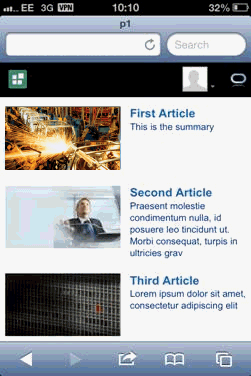
If the browser is narrow (up to 480 pixels, for example, an iPhone), then the template lists the articles in a single column (Figure 33-13).
Figure: Articles View Single Column Layout
Description of the illustration articlesview_iphone.png
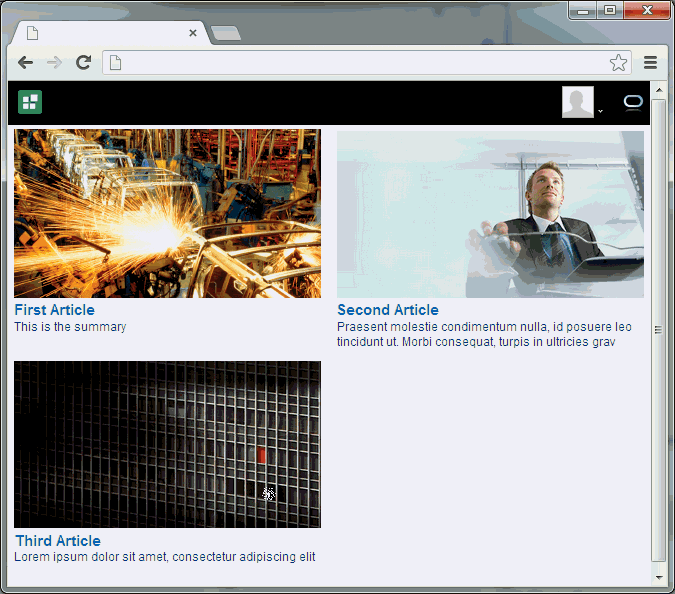
If the browser is slightly wider (up to 780 pixels, for example, an iPad in portrait orientation), then the template lists the articles in two columns (Figure 33-14).
Figure: Articles View Two Column Layout
Description of the illustration articlesview_2columns.png
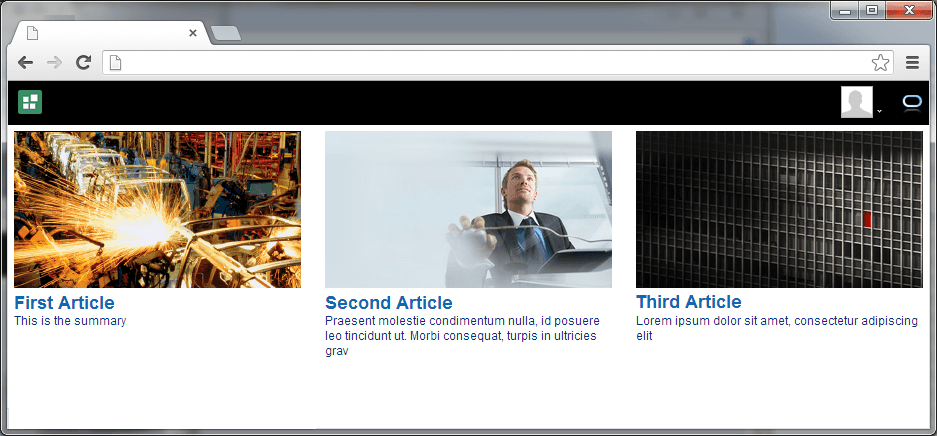
If the browser is wide (over 780 pixels), then the template lists the articles in three columns (Figure 33-15).
Figure: Articles View Three Column Layout
Description of the illustration articlesview_3columns.png
Full Article View Template
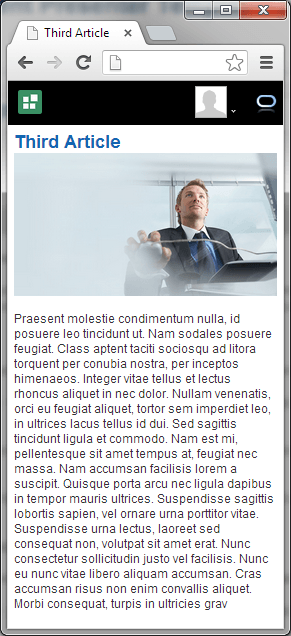
With the Full Article View template, if the browser is narrow (up to 480 pixels, for example, an iPhone), then the template displays an article with the image taking up the full width of the template (Figure 33-16).
Figure: Full Article View Template Narrow View
Description of the illustration fullarticle_narrow.png
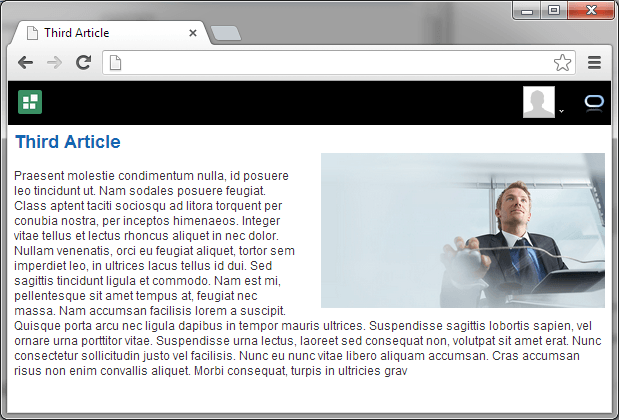
If the browser is wider (over 480 pixels), then the template displays an article with the image displayed to the right (Figure 33-17).
Figure: Full Article View Template Wide View
Description of the illustration fullarticle_wider.png
Using a Responsive Template
Use a responsive Content Presenter display template if you want the layout of your content to change depending on the size of the browser.
The following example shows how to use one of the built-in responsive templates, but you can use any custom template.
The Articles View and Full Article View templates rely on the Site Studio RD_ARTICLE region definition, so Site Studio must be enabled in Content Server to seed the RD_ARTICLE region definition:
-
Site Studio components. The system administrator must also configure the cookie path to the context root of your application to prevent losing your session when editing Site Studio content. For more information, see Configuring Oracle WebCenter Content Server and Setting Up Site Studio in Administering Oracle WebCenter Portal
-
WebCenterConfigureandPortal VCRHelpercomponents. This allows for adding and editing Site Studio documents from within Content Presenter. For more information, see Enabling the WebCenterConfigure Component in Administering Oracle WebCenter Portal.7
Note:
To create appropriate content for the Articles View template, see Creating or Editing Site Studio Content in the Content Presenter Configuration Dialog.
To use a responsive template:
-
Site Studio components. The system administrator must also configure the cookie path to the context root of your application to prevent losing your session when editing Site Studio content. For more information, see Configuring Oracle WebCenter Content Server and Setting Up Site Studio in Administering Oracle WebCenter Portal
-
WebCenterConfigureandPortal VCRHelpercomponents. This allows for adding and editing Site Studio documents from within Content Presenter. For more information, see Enabling the WebCenterConfigure Component in Administering Oracle WebCenter Portal.8
If you use the Articles View or Full Article View template on a page and want to optimize the layout for a mobile device, you must use a page template with the correct viewport. For more information, see Optimizing Display on Mobile Devices.
Optimizing Display on Mobile Devices
If you use the Articles View or Full Article View template on a page and want to optimize the layout for a mobile device, you must use a page template with the correct viewport.
You can use either the Skyros Top Navigation (Mobile) page template, Skyros Side Navigation (Mobile) page template, or a custom page template with the viewport parameter.
To set the viewport parameter for a page template:
-
Links to nodes in the portal navigation (for more information, see Adding Links from Content to Navigation Nodes)
-
Links to inline images
-
Links to documents (except for absolute or relative path links)
When clicking the link at runtime, it renders within the context of the application and displays the document using the Default View display template.
-
Absolute HTTP links, whether created in Site Studio contributor mode or in Site Studio Designer region template HTML1
Adding Links from Content to Navigation Nodes
You can include links to portal navigation nodes in your content to enable users to quickly navigate from a piece of content to another part of the portal.
When the content displays in Content Presenter at runtime, an end user can click the links to navigate to the desired portal navigation node.
You can create a link in the following content items:
-
Links to nodes in the portal navigation (for more information, see Adding Links from Content to Navigation Nodes)
-
Links to inline images
-
Links to documents (except for absolute or relative path links)
When clicking the link at runtime, it renders within the context of the application and displays the document using the Default View display template.
-
Absolute HTTP links, whether created in Site Studio contributor mode or in Site Studio Designer region template HTML2
To add a link to a node in the portal navigation from a content item:
-
Links to nodes in the portal navigation (for more information, see Adding Links from Content to Navigation Nodes)
-
Links to inline images
-
Links to documents (except for absolute or relative path links)
When clicking the link at runtime, it renders within the context of the application and displays the document using the Default View display template.
-
Absolute HTTP links, whether created in Site Studio contributor mode or in Site Studio Designer region template HTML3
Authoring Site Studio Content to Optimize Presentation in Content Presenter
Content Presenter integrates with Oracle Site Studio to allow you to create, access, edit, and display Site Studio contributor data files in a Content Presenter display template.
For more information, see Understanding Site Studio Integration
Tip: Although Content Presenter also supports Site Studio region templates, it is recommended that you use Content Presenter display templates (that use region definitions) to integrate Site Studio and Oracle WebCenter Portal. Site Studio region templates display the details of the contributor data file rather than the contributed content. For more information, see Creating Content Presenter Display Templates in Developing for Oracle WebCenter Portal.
To optimize the presentation of Oracle Site Studio content in Content Presenter, follow the guidelines provided in the following sections:
-
Links to nodes in the portal navigation (for more information, see Adding Links from Content to Navigation Nodes)
-
Links to inline images
-
Links to documents (except for absolute or relative path links)
When clicking the link at runtime, it renders within the context of the application and displays the document using the Default View display template.
-
Absolute HTTP links, whether created in Site Studio contributor mode or in Site Studio Designer region template HTML5
Best Practices for Images
There are several guidelines to consider as you work with images in Site Studio contributor data files that will be displayed using Content Presenter.
-
Links to nodes in the portal navigation (for more information, see Adding Links from Content to Navigation Nodes)
-
Links to inline images
-
Links to documents (except for absolute or relative path links)
When clicking the link at runtime, it renders within the context of the application and displays the document using the Default View display template.
-
Absolute HTTP links, whether created in Site Studio contributor mode or in Site Studio Designer region template HTML6
Best Practices for Defining Styles
There are several guidelines to consider as you work with style definitions in Site Studio contributor data files that will be displayed using Content Presenter.
-
Links to nodes in the portal navigation (for more information, see Adding Links from Content to Navigation Nodes)
-
Links to inline images
-
Links to documents (except for absolute or relative path links)
When clicking the link at runtime, it renders within the context of the application and displays the document using the Default View display template.
-
Absolute HTTP links, whether created in Site Studio contributor mode or in Site Studio Designer region template HTML8
Best Practices for JavaScript
There are several guidelines to consider as you work with JavaScript in Site Studio contributor data files that will be displayed using Content Presenter.
Recommended: Do not use JavaScript within web content that is rendered within Oracle WebCenter Portal.
If your web content uses JavaScript, follow these guidelines:
-
Links to Site Studio sections
-
Absolute or relative path links to Site Studio documents1
Creating or Editing Site Studio Content in the Content Presenter Configuration Dialog
You can create and edit Site Studio contributor data files from within the Content Presenter Configuration dialog.
To create or edit Oracle Site Studio content in a seamless interface within Oracle WebCenter Portal, WebCenter Portal must be connected to a Content Server repository, with the webContextRoot parameter set to the Content Server path, for example /cs.
For information on setting webContextRoot, see Registering Content Repositories in Administering Oracle WebCenter Portal.
To set webContextRoot through WLST, see createContentServerConnection and setContentServerConnection in WebCenter WLST Command Reference Reference.
Without this configuration, it is still possible to create or edit Site Studio content from within Content Presenter, but the create and edit actions launch new browser windows (or tabs) rather than opening within the Content Presenter task flow.
To create or edit Oracle Site Studio content in the Content Presenter Configuration dialog:
-
Links to Site Studio sections
-
Absolute or relative path links to Site Studio documents3
Creating and Editing Files In-Context in a Content Presenter Task Flow
With appropriate permissions, end users can edit HTML and Site Studio content in-context in a Content Presenter task flow.
In-context editing refers to editing content directly in Oracle WebCenter Portal at runtime, where the editor opens in a separate window.
Note:
Users must have the
Contribute Page Contentportal-level permissions or theContributepage-level permission on the portal or page containing the Content Presenter task flow, as well as being assigned a role with write permissions on Content Server. For more information, see Administering Security in a Portal and Managing Oracle WebCenter Portal Security in Administering Oracle WebCenter Portal.
The following sections describe how to perform in-context editing:
-
Links to Site Studio sections
-
Absolute or relative path links to Site Studio documents8
Editing Site Studio Files In-Context
With appropriate permissions, end users can edit Site Studio contributor data files in-context in a Content Presenter task flow.
To edit a Site Studio file in-context:
-
Links to Site Studio sections
-
Absolute or relative path links to Site Studio documents9
Creating New Site Studio Content In-Context
With appropriate permissions, users can create new web content in Site Studio during in-context editing in a Content Presenter task flow.
In-context creation of Site Studio files is slightly different than creating Site Studio files in the Content Presenter Configuration dialog, as described in Creating or Editing Site Studio Content in the Content Presenter Configuration Dialog. When creating a new Site Studio file in-context, you are limited to creating content that is of the same region definition, file location, security group, and document type as the content selected in the Content Presenter task flow. Additionally, the region definition must have been previously created in the Site Studio application.
To create a new Site Studio file in a Content Presenter task flow:
Changing the Contribution Mode Key Sequence
You can change the key sequence used to enter contribution mode.
To change the key sequence used to enter contribution mode:
    ******** Content Contributor Mode adf-config.xml entries ***************

    <page-editor-config xmlns="http://xmlns.oracle.com/adf/pageeditor/config">
           <content-contribution>
             <enabled>true</enabled>
             <key-sequence>ctrl shift C</key-sequence>
           </content-contribution>
    </page-editor-config>
Working with Content Presenter Task Flow Properties
The Content Presenter task flow has associated properties, which users with sufficient privileges can access.
The following sections provide information about properties of the Content Presenter task flow and describe the task flow parameters.
Setting Content Presenter Task Flow Properties
The View Actions menu in the toolbar of the Content Presenter task flow in the page editor provides access to the properties dialogs: Parameters, Access, Display Options, Style, and Content Style.
Note:
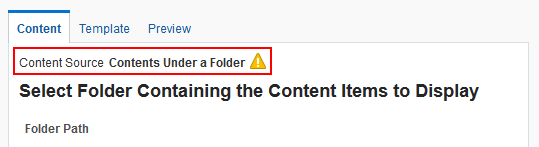
The Content Presenter properties are intended for use by advanced users who want to bind a parameter to an EL expression. If you modify a property value in the properties dialogs, the new value overrides the value specified in the Content Presenter Configuration dialog, and that value becomes read-only in the Content Presenter Configuration dialog (Figure 33-29).
Figure: Read-Only Property Value in Content Presenter Configuration Dialog
Description of the illustration dcmnts_cppropor.gif
To set Content Presenter task flow component properties:
Content Presenter Task Flow Parameters
There are several parameters that are unique to the Content Presenter task flow.
Table 33-1 describes the Content Presenter task flow parameters.
Table 33-1 Content Presenter Task Flow Parameters
| Parameter | Description |
|---|---|
|
|
The data source of the content. The value depends on the value of Data Source Type:
|
Data Source (cont)
|
where:
|
|
|
The data source type of the content. Corresponds to the Content Source value in the Content Presenter Configuration dialog. Valid values are:
|
|
|
The maximum number of results to display when Data Source Type is Query Expression. Default:
500Note: The custom attributewcpResultsOfAQueryMaxResults is introduced
to handle the maximum range of results being
displayed.
|
|
|
Specifies whether the display template is a Site Studio region definition template. This value is valid only with Content Server 11g or higher:
For information about creating and using Site Studio region templates, see Understanding Site Studio Integration and the Oracle WebCenter Content documentation library ( |
|
|
The unique identifier of this task flow instance, used internally to maintain the association of the task flow instance with its customization and personalization settings. Do not edit this value. Note: Using a CMIS query as the Data Source requires a valid Task Flow Instance ID. |
|
|
The display template category ID to use in rendering results for multiple content items. This ID may reference the default template category for an out-of-the-box display template (Table 19-2) or a custom category created for a display template for multiple content items (see Creating a Content Presenter Display Template in Developing for Oracle WebCenter Portal). |
|
|
The display template view ID to use in rendering results for single content items. Enter the view ID of a template that is configured in the Assets or Shared Assets page for a specific content type, or for list-based templates by category ID. This ID may reference one of the out-of-the-box display templates (Table 19-1), a custom display template (see Creating a Content Presenter Display Template in Developing for Oracle WebCenter Portal), or set to the contentID of a region template if the content is a region. |