27 Performing Advanced Composer Configurations
This chapter contains the following topics:
27.1 Configuring a Keyboard Shortcut to Access Composer
Typically, users enter page Edit mode by clicking the Edit link or button on the page. You can now configure your application to enable users to enter page Edit mode using keyboard shortcuts. Further, you can configure your application to run some other event on using the shortcut keys. This section explains how to enable a keyboard shortcut to Composer and configure an event handler for the shortcut keys. It contains the following subsections:
27.1.1 How to Enable Linkless Entry Into Edit Mode
You can configure linkless entry into page Edit mode by adding a <pe:mode-switch-key> element to the application's adf-config.xml file. The default keyboard shortcut configured when you set the <pe:mode-switch-key> element is ctrl+shift+E. Users can use this key sequence to toggle between page View and Edit modes. However, you can configure a key of your choice by adding a <pe:key-sequence> property.
To add the <pe:mode-switch-key> property:
27.1.2 How to Configure an Event Handler for the Shortcut Key
Use the <pe:mode-switch-handler> element to specify the event that must be triggered on using the shortcut keys, as shown in the following example:
<pe:mode-switch-key>
  <pe:enabled>true</pe:enabled>
  <pe:mode-switch-handler>#{PageEditorBean.handleModeSwitch}</pe:mode-switch-handler>
</pe:mode-switch-key>
where handleModeSwitch uses the ModeChangeEvent method to provide the logic to toggle between two modes, as shown in the following sample:
public void handleModeSwitch(ModeChangeEvent editMode)
  {
    // Your implementation to handle mode change goes here
  }
27.2 Creating Event-Enabled Task Flows
Composer provides a means of contextually wiring task flow events. You can wire a contextual event to an action handler to enable the passing of values from a producer component to a consumer component when the event is triggered on the producer.
For events to be available at runtime, event capability must be included in the task flow at design time. When you add event-enabled task flows to your customizable page, each task flow's Component Properties dialog includes an Events tab, where much of the wiring activity takes place. For information about including event capabilities, see the Creating Contextual Events section in Oracle Fusion Middleware Developing Fusion Web Applications with Oracle Application Development Framework.
27.3 Configuring an Application Page to Display in Structure View by Default
When a user invokes Composer by clicking the Edit button or link on a page, the page opens in Add Content or Design view by default. If your business so requires, you can configure your application pages to display in Composer Structure view by default.
27.3.1 How to Configure an Application Page to Display in Structure View by Default
The Edit Mode view attribute on the Page Customizable component enables you to specify the default page view in Edit mode.
To open a page in Structure view by default:
Setting the Structure View Position and Size
By default, the component navigator in Structure view is displayed on the right side of the page, and its default width is 200 pixels. You can specify a different position or size for the component navigator using the sourceViewPosition and sourceViewSize attributes respectively on the Page Customizable component. For more information about these attributes, see Page Customizable Component.
27.4 Disabling Structure View for the Application
By default, Structure view is enabled in Composer-enabled pages. You can disable Structure view if you want to prevent users from being able to edit any page components other than task flows, portlets, and layout components. This section describes how. It contains the following subsections:
Note:
For information about the editing capabilities in Structure view, see Editing Capabilities in Structure View in Page Edit Mode.
27.4.1 How to Disable Structure View
You can disable Structure view by setting the <pe:enable-source-view> entry to false in the application's adf-config.xml file.
Note:
For information about the Composer-specific configurations you can make in adf-config.xml, see
To disable Structure view:
27.4.2 What Happens at Runtime
When a user switches to page Edit mode, the page is rendered in Add Content or Design view and Structure view is not displayed to the user, as shown in Figure 27-1.
Figure 27-1 Add Content View of a Page without the Structure Tab
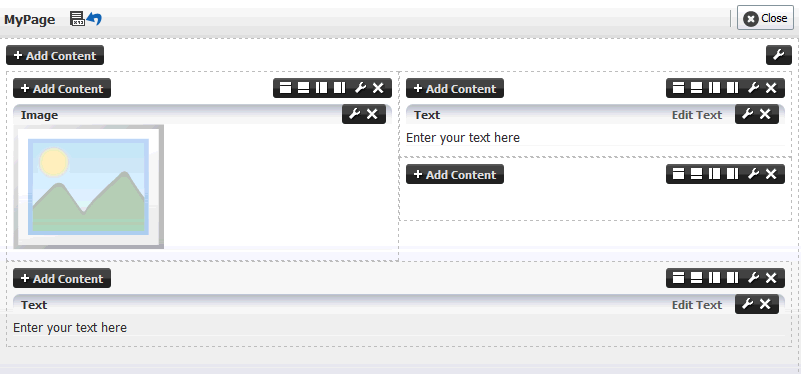
Description of "Figure 27-1 Add Content View of a Page without the Structure Tab"
27.5 Disabling Task Flow Zoom Capability
You can disable the capability to zoom into task flows in the application by setting the <pe:enable-zoom> property to false in the application's adf-config.xml file.
Note:
For information about the Composer-specific configurations you can make in adf-config.xml, see
To disable task flow zoom capability:
The ability to zoom into task flows is disabled in the entire application.
27.6 Applying Styles to Components
You can change the look and feel of Composer components by applying different styles to the component header and content using one of the following methods:
-
Build a skin using style selectors, and apply the skin to a Framework application. For more information about style selectors and skins, see the Customizing the Appearance Using Styles and Skins chapter in Oracle Fusion Middleware Developing Web User Interfaces with Oracle ADF Faces.
-
Use JDeveloper style properties to specify style information through the Property Inspector. For more information, see Understanding contentStyle and inlineStyle Properties.
Note:
Using JDeveloper style properties overrides the style information from the skin CSS. However, when you define a style property using JDeveloper, this style overrides styles for the selected component only—child components continue to use the styles specified in the skin.
You can adjust the look and feel of
Page Customizable,Panel Customizable,Layout Customizable, andShow Detail Framecomponents at design time by changing the style-related propertiesinlineStyleandstyleClass.Show Detail Framecomponents have another associated style property,contentStyle, which defines the style for the content inside the component. ThestyleClassproperty enables you to select an extra style from the skin, whereas theinlineStyleandcontentStyleproperties override the comparable styles specified in the application skin for that particular instance of the component.The
inlineStyleproperty overridesstyleClass. Additionally, properties set on a component instance affect only that instance of the component. Other component instances in the application are not affected.Note:
The
backgroundproperty is also useful in adjusting the look and feel ofShow Detail Framecomponents. It is used to provide a dark, medium, or light color scheme for the component instance. UnlikeinlineStyle,contentStyle, andstyleClassproperties, thebackgroundproperty works with skins. Depending on which value is specified for a component instance'sbackgroundproperty, the skin applies the relevant style.
Understanding contentStyle and inlineStyle Properties
The style properties inlineStyle and contentStyle are alike in the types of attributes they support. They differ in their range of influence. While inlineStyle provides style information for the entire component, contentStyle provides style information only for component content. The contentStyle property is available to Show Detail Frame components but not to Panel Customizable components.
The inlineStyle property applies CSS to the root of the component, that is, the topmost DOM element. It does not override styles on child elements that are picking up color, font, and so on from a skin. For example, if a component header is skinned, then setting inlineStyle does not affect the component header. The contentStyle applies CSS to the DOM element that surrounds the content part of the component. In a Show Detail Frame, content refers to the area below the header.
On component content, the value specified for contentStyle takes precedence over the value specified for inlineStyle. Additionally, contentStyle on a component instance takes precedence over both inlineStyle and the contentStyle values of a parent component (such as a portlet nested in a Panel Customizable component).
Figure 27-2 Defining Styles for contentStyle and inlineStyle in the Property Inspector
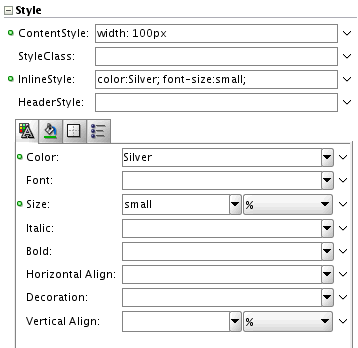
Description of "Figure 27-2 Defining Styles for contentStyle and inlineStyle in the Property Inspector"
27.7 Configuring the Persistence Change Manager
To persist user and application customizations across sessions, your application must be configured to use the change persistence framework. When you add Composer components to a customizable page, Composer configures the application to use ComposerChangeManager so that changes made to a page at runtime are persisted appropriately. This section describes the default change manager configuration in new Framework applications containing Composer-enabled pages.
The first time you add a Composer component to your application page, Composer does the following to enable change persistence:
-
Adds the
CHANGE_PERSISTENCEcontext parameter to theweb.xmlfile, and sets the value toComposerChangeManager. This context parameter registers theChangeManagerclass to be used to handle persistence, as shown in the following example:<context-param> <param-name>org.apache.myfaces.trinidad.CHANGE_PERSISTENCE</param-name> <param-value>oracle.adf.view.page.editor.change.ComposerChangeManager</param-value> </context-param>
-
Sets the
persistent-change-managerelement in theadf-config.xmlfile to theMDSDocumentChangeManager. Composer configuresMDSDocumentChangeManagerwithin theadf-faces-configsection as follows:<adf-faces-config xmlns="http://xmlns.oracle.com/adf/faces/config"> <persistent-change-manager> <persistent-change-manager-class> oracle.adf.view.rich.change.MDSDocumentChangeManager </persistent-change-manager-class> </persistent-change-manager> . . . </adf-faces-config>The
taglib-configsection in the file lists component tags and attributes that are persisted by default, as shown in the following example:<adf-faces-config xmlns="http://xmlns.oracle.com/adf/faces/config"> ... <taglib-config> <taglib uri="http://xmlns.oracle.com/adf/faces/customizable"> <tag name="showDetailFrame"> <persist-operations>all</persist-operations> <attribute name="expansionMode"> <persist-changes>true</persist-changes> </attribute> <attribute name="contentStyle"> <persist-changes>true</persist-changes> </attribute> </tag> <tag name="panelCustomizable"> <persist-operations>all</persist-operations> </tag> </taglib> <taglib uri="http://xmlns.oracle.com/adf/pageeditor"> <tag name="layoutCustomizable"> <persist-operations>all</persist-operations> <attribute name="type"> <persist-changes>true</persist-changes> </attribute> </tag> </taglib> </taglib-config> </adf-faces-config>You can further enable change persistence for other tags and attributes by defining them in this section and setting the
persist-changesattribute totrue. For more information, see How to Define Change Persistence at the Component Level.If you want to persist changes to operations as well as attributes, include the
persist-operationsattribute and set the value toall. When thepersist-operationsattribute is included in a tag, the tag persists changes such as adding, moving, reordering, and removing children, and adding and removing facets.For a list of ADF Faces components and attributes that are implicitly persisted, see the Allowing User Customizations at Runtime chapter in Oracle Fusion Middleware Developing Fusion Web Applications with Oracle Application Development Framework.
ComposerChangeManager
A ChangeManager class is required for persisting application customizations performed by end users. ComposerChangeManager handles change persistence both within a session and across sessions (to MDS). It delegates a user's changes to the appropriate change manager as follows:
-
View mode changes are routed to
FilteredPersistenceChangeManagerto ensure that implicit customizations, such as column resizing and header collapse, work according to the filter rules configured in the application'sadf-config.xmlfile. -
Edit mode changes are routed to
MDSDocumentChangeManagerto ensure that both implicit and explicit customizations are always persisted and available across sessions.
Note:
When you add Composer components to your application page, the option to enable customizations for the duration of the session (in the Project Properties dialog) is disabled. This is because changes in Composer-enabled application pages must be persisted across sessions, to MDS.
27.8 Configuring Runtime Resource String Editing
Component properties edited in Composer are available only in the current language. For example, if you add a task flow to your page, the task flow title you enter in Composer is available only in the current language. As a result, users in different locales do not see the translated values for such properties. To provide language support for component properties edited at runtime, Composer now provides users the option to edit resource strings for component display options that can take String values. This is similar to the resource string editor feature provided by ADF Faces in JDeveloper. Changes made to resource strings in Composer are saved into an override bundle, which gets translated along with other resource bundles in the application. The translated versions are then imported back into the application. This way, users are able to see the property values in their language.
Note:
Composer supports creation of around 500 resource strings at runtime. Beyond this number, application performance slows down.
This section describes the steps to enable resource string editing. It contains the following sections:
27.8.1 Overview of the Resource String Editor
At runtime, for component display options that can take String values, the Edit menu next to the property field provides a Select Text Resource option. Clicking this option opens the resource string editor, which provides options to search existing resources, edit or delete resource keys, and add new resource key/value pairs. For information about editing resource strings at runtime, see Edit Resource Strings.
Changes made to resource strings in Composer are saved into an application override bundle. This bundle is sent for translation and the translated versions are imported back into the application. This way, users are able to see the property values in their language.
The ComposerOverrideBundle.xlf is an empty XLIFF file that is packaged with Composer libraries. This bundle becomes available to the application when you add Composer components to the page at design time. At runtime, Composer uses this bundle internally to read from and write to the application override bundle while editing resource strings.
New and updated property values are saved into the override bundle. A user must specify a key, value, and description for each string being created or modified. All resource string changes made in an application are saved in a single override bundle. To distinguish runtime changes made in different layers, the key value is prefixed with the MDS layer name and value and must be in the format, RT_<MDS Layer Name><MDS Layer Value>_Key Name. For example, RT_sitewebcenter_WELCOME_MESSAGE. For a selected property, users can search and use resource strings created in any MDS layer. However, they can edit only those resource strings that were created in the same MDS layer. In addition to searching the override bundle, users can also search for strings created and used in the JSPX page at design time. Internally, Composer searches for all resource bundles defined using c:set tags in the JSPX file.
Runtime resource string changes in English are saved to the default application override bundle. Users can change the language and create or edit a resource string in that language. A separate override bundle is created for each language in which a user writes a resource string and the file name is suffixed with the initials for that language. For example, resource strings edited in French in Application1 are saved in a bundle named Application1OverrideBundle_fr.xlf.
Current Limitations of the Resource String Editor
-
Composer supports creation of around 500 resource strings at runtime. Beyond this number, application performance slows down
-
The search criteria in the resource string editor is case-sensitive.
-
To search for the description of a resource string, the user must provide the complete string value in the search criteria.
-
The resource string editor does not display string descriptions for entries created in Properties bundle or List Resource bundle formats in JDeveloper.
-
The option to edit resource strings is disabled for properties on the Parameters and Events tabs.
If the EL value for an ADF resource is referenced in a page definition parameter, such as page parameter, task flow parameter, or portlet parameter, then the binding EL returns an empty value. Users must avoid referencing ADF resource EL values in page definition parameters.
27.8.2 How to Enable the Resource String Editor in Your Application
To enable resource string editing in your application, you must add a <pe:resource-string-editor> element in the <pe:page-editor-config> section of your application's adf-config.xml file, as follows:
<pe:page-editor-config>
  <pe:resource-string-editor>
    <pe:enabled>true</pe:enabled>
  </pe:resource-string-editor>
</pe:page-editor-config>
If you want to enable resource string selectively, based on specific criteria, such as the page being edited or the user or role, you can use an EL value for the enabled attribute.
27.8.3 How to Configure the Override Bundle
If you enable resource string editing in your application, you must configure your application to use the override bundle, oracle.adf.view.page.editor.resource.ComposerOverrideBundle.xlf, if it is not already being used. This override bundle is available in the pageeditor.jar file, and is used for reading and writing to the application override bundle when users create or edit resource strings at runtime.
To configure the override bundle:
- In the Application Properties dialog, select the Overridden check box (Figure 27-3).
This ensures that the file is available to users at runtime.
Figure 27-3 Application Properties Dialog
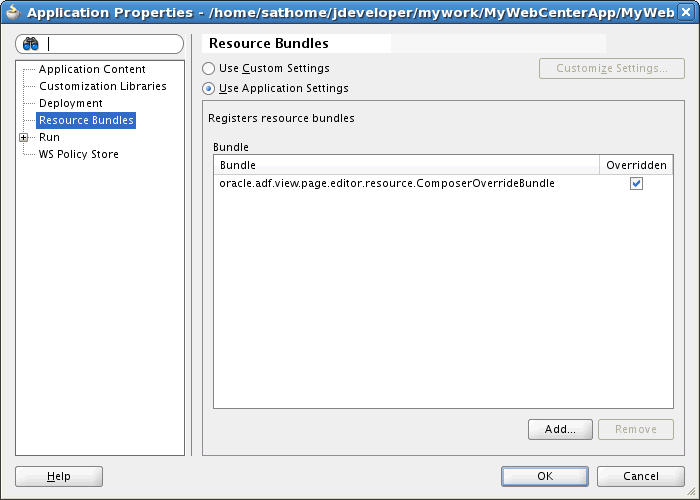
Description of "Figure 27-3 Application Properties Dialog"
Repeat the steps in this section to expose any of the resource bundles in your application to users at runtime.
Note:
To make a resource bundle accessible for runtime read and write operations, you must ensure that the Override option is selected for that bundle in the Application Properties dialog.
You can make properties bundles, list resource bundles, and XLIFF resource bundles accessible at runtime.
27.8.4 What Happens at Runtime
When a user clicks the Edit icon next to a property that takes a String value, the Select Text Resource option is available. Clicking this option opens the resource string editor in which the user can create, modify, or delete resource strings. For more information, see Edit Resource Strings.
27.9 Troubleshooting Problems with Advanced Composer Configurations
This section provides information to assist you in troubleshooting problems you may encounter on performing advanced Composer configurations.
For information about configuring logging, see Configuring ADF Logging for Composer.
Problem
You added a global- or instance-level Custom Action. However, it neither displays on the chrome nor in the Action menu on the Show Detail Frame.
Solution
Ensure the following:
-
The first child of the
Show Detail Framemust beaf:region. -
The view currently displayed on the task flow must have an outcome in its task flow definition file that matches the action of
CustomAction. -
If the action has the prefix
dialog:, the outcome in the task flow definition must also have the same prefix.
For information, see Adding a Custom Action on a Show Detail Frame Enclosing a Task Flow.
Problem
Composer is not working on ADF application pages. Errors are reported in the logs when using Oracle WebCenter Portal's Resource Catalog or Component Properties dialog. None of the customizations are saved. Objects are not getting added from the catalog.
Solution
Composer is compatible with the MDSDocumentChangeManager and ComposerChangeManager. You must set the CHANGE_PERSISTENCE context parameter in the web.xml file to either of these. The following example shows how to set CHANGE_PERSISTENCE to MDSDocumentChangeManager:
<context-param>
 <param-name>org.apache.myfaces.trinidad.CHANGE_PERSISTENCE</param-name>
 <param-value>oracle.adf.view.rich.change.MDSDocumentChangeManager</param-value>
</context-param>
When you configure Composer, the value of CHANGE_PERSISTENCE is changed to oracle.adf.view.page.editor.change.ComposerChangeManager.