28 Performing Composer-Specific MDS Configurations
This chapter contains the following topics:
28.1 Introduction to MDS
Most industries customize their enterprise applications to serve different audiences and domains. Problems can arise when an application is modified at the site level. For example, upgrading an application with application-level customizations may lead to data loss or data-merge errors. Consequently, a new version of the application cannot be deployed until all merge conflicts are reconciled.
In the metadata domain, MDS provides the customization feature to address such problems. The customization feature allows for the creation of nonintrusive customization layers that are applied on top of the base application definitions. Customization layers, or layered changes, are described in their own documents and are stored separately from the base application definition. At runtime, applicable customizations are loaded from the metadata store and layered over the base metadata definition to produce the desired effect. Product upgrades and patches affect only the base metadata definition, so customizations continue to function properly.
Customization Layers
MDS enables clients to specify multiple customization types. For example, you can add customizations to runtime modes, application or user roles, application states, or any client specified criteria. Each such customization type is called a customization layer and is depicted using a CustomizationClass. A CustomizationClass is the interface MDS uses to identify the customization layer to be overlaid on the base definition. For example, you can configure your application to save customizations based on the departments to which users belong. You can create a customization layer called DepartmentCC in which application customizations made by users in different departments are stored in different folders within the layer. Another example would be to configure MDS to save View mode changes as user customizations in one layer and Edit mode changes as application customizations in another layer or vice versa.
Customization layers are applied in order of precedence, that is, if the same change is made in two different layers that apply to the given user and session, the change defined in the higher precedence layer is applied first.
When you implement a CustomizationClass, you must register it with the MDS. The MDS provides a means of associating a list of CustomizationClass types with a single MetadataObject. This is called the fine-grained association. The MDS also provides the means of associating a list of CustomizationClass types with a set of MetadataObjects. This is called the coarse-grained association. For information about the CustomizationClass and about creating a customization layer, see Adding Customization Layers to View and Edit Modes: Example.
Composer Sandbox
Typically, in a Framework application, runtime customizations are saved immediately in the JDEV_HOME/jdev/system_directory/o.mds.dt/adrs/application_name/AutoGeneratedMar/mds_adrs_writedir directory. Changes made in both View and Edit modes are saved in this way. However, in certain circumstances, users might first want to apply customizations in their own view and evaluate whether to keep or cancel the changes before actually saving them to the back end. You can configure Composer to create a sandbox if you are using a database repository to store customizations. For information about creating a sandbox, see Using Composer Sandbox.
28.2 Using Composer Sandbox
A sandbox is a temporary storage layer for saving runtime page customizations until they are committed to the back end. If you configure a sandbox, a Save button is displayed on the Composer toolbar to enable users to save their changes. In a sandbox-enabled application, if a user clicks Close without first saving changes, a Close Confirm dialog prompts the user to save or cancel changes before closing Composer.
User customizations made in View mode are saved immediately. As such changes are available only to the user modifying the page, there is no particular value in reviewing such changes before saving.
Since Edit mode customizations are available to all users who access the page, you can enable a sandbox so that a user can experiment with page customizations and assess them before committing them. If you enable a sandbox for the application, a Save button is displayed on the Composer toolbar in page Edit mode.
This section discusses the steps you can take to enable sandbox creation and describes runtime behavior of a sandbox-enabled application. It contains the following subsections:
28.2.1 How to Enable Composer Sandbox Creation
You can enable a sandbox only if your application uses a database store. Therefore, you must ensure that you have configured a database store before performing the steps in this section. For information about setting up a database store, see Introduction and Roadmap in Oracle Fusion Middleware Administering JDBC Data Sources for Oracle WebLogic Server.
This section describes how to enable the creation of a Composer sandbox. It contains the following subsections:
28.2.1.1 Updating Your Application's adf-config.xml File
By default, sandbox creation is enabled for all namespaces that are mapped to the default customization store (defined in the <mds-config> section of the adf-config.xml file). You can, however, enable sandbox for a selected number of namespaces only. To do this, you must add a <pe:sandbox-namespaces> element to the adf-config.xml file, and then define the namespaces for which you want to support sandbox creation.
Note:
For information about the Composer-specific configurations you can make in adf-config.xml, see adf-config.xml.
To configure sandbox creation in adf-config.xml:
Example 28-1 Metadata Store Configuration in the adf-config.xml File
<metadata-store class-name="oracle.mds.persistence.stores.db.DBMetadataStore">
  <property name="jdbc-userid" value="userone"/>
  <property name="jdbc-password" value="userone123"/>
  <property name="jdbc-url" value="jdbc:oracle:thin:@host_name:1521:orcl"/>
  <property name="partition-name" value="partitionName"/>
</metadata-store>
<!-- <metadata-store class-name="oracle.mds.persistence.stores.file.FileMetadataStore">
  <property name="metadata-path" value="C:\JDeveloper\mywork\Application2\ViewController\public_html"/>
</metadata-store> -->
28.2.1.2 Updating Your Application's web.xml File
To ensure that a sandbox is configured when you are in Edit mode of a page, you must create a filter in your application's web.xml file and set the appropriate filter mappings. All requests are then routed through this filter, and a sandbox is created for all Edit mode customizations. If you are using a file system metadata store, then there is no action performed on a filtered request.
Note:
For information about the Composer-specific configurations you can make in web.xml, see web.xml
This section provides the example of defining a Composer-specific filter and its relevant filter mappings in your application's web.xml file. It describes how to add the filter, WebCenterComposerFilter.
To define a Composer-specific filter and the filter mappings:
28.2.1.3 Migrating Metadata to a Database Store
If you are not using a database store in your target server, then you must first migrate your application metadata from the file system to a database store by using Metadata Services (MDS).
You must do this because Composer can create a sandbox only if your application's metadata is stored in a database store. If the application does not have a database metadata store configured, then the sandbox will not be created and customizations made to the page are immediately committed to the MDS back end.
MDS provides the mdstransfer tool to migrate customizations from the file system to a database store. To use this tool, you must first create a parameter file, which contains information about the source store and target store, as shown in Example 5–14.
Example 28-2 Parameter File Used for Migration
<parameters version="11.1.1.000" xmlns="http://xmlns.oracle.com/mds/config">
<source-store>
<metadata-store class-name="oracle.mds.persistence.stores.file.FileMetadataStore">
<property name="metadata-path" value="C:\JDeveloper\mywork\Application2\ViewController\public_html"/>
</metadata-store>
</source-store>
<target-store>
<metadata-store class-name="oracle.mds.persistence.stores.db.DBMetadataStore">
<property name="jdbc-userid" value="composerqa"/>
<property name="jdbc-password" value="composerqa"/>
<property name="jdbc-url" value="jdbc:oracle:thin:@10.177.254.62:1521:orcl"/>
<property name="partition-name" value="partitionName"/>
</metadata-store>
</target-store>
</parameters>
Pass this file name, along with the source directory name, while running the mdstransfer tool, as shown in the following example:
mdstransfer "/test/**" --paramfile ToolsParamFile1.xml
where test is the name of the directory that contains your application metadata files and folders.
For more information, refer to the MDS documentation. <<Need to add a cross reference to MDS documentation.>>
Note:
-
It is recommended that you run the
mdstransfertool by referring to the MDS documentation as there may be certain prerequisites to running this tool that are not discussed here. -
If you want to migrate the runtime resource catalog metadata to the database store, then you can move the
mds\oracle\webcenter\rc\default-catalog.xmlfile to the source directory that you are migrating. For example,application_root/ViewController/public_html/test/.
28.2.1.4 Selecting a Database Store for Your Application
To enable sandbox creation, your application must be configured to use a database store. Therefore, while deploying your application to a WebLogic Managed Server, ensure that you select a database repository and specify a partition name for the application.
28.2.1.5 Enabling a Full Page Refresh at Runtime
When you enable sandbox creation in your application, you must ensure that a full page refresh is performed on entering and exiting page Edit mode. For the detailed steps to be performed, see How to Redirect the Servlet to Enable Switch Between MDS Customization Layers.
28.2.2 What Happens at Runtime
When a user switches to page Edit mode, the presence of a Save button on the Composer toolbar indicates that sandbox creation is enabled for the application. Changes made to the page or shared components on the page are not saved until the user clicks Save. Once saved, the customizations are available to all application users. If the Save button is not rendered, then sandbox is not available and each change is committed immediately.
When editing component properties in the Component Properties dialog, clicking Apply results in the following:
-
If the sandbox is not available, then the page is refreshed to display the changes made to component properties and changes are saved to the back end.
-
If the sandbox is available, then the page is refreshed to display the changes made to component properties. To save changes, user must click Save.
Clicking Save or Close on the page results in the following events:
-
On clicking Save, the sandbox is committed and a new sandbox is created. The page remains in Edit mode.
-
On clicking Close, either of the following two events can occur:
-
If there are no changes since the last Save operation, then the sandbox is destroyed and Composer is closed, taking the user back to View mode.
-
If there are unsaved changes, then a Close Confirmation dialog lists the page name and unsaved task flow names, as shown in Figure 28-1.
Figure 28-1 Confirm Close Dialog in Composer
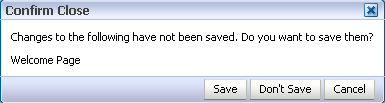
Description of "Figure 28-1 Confirm Close Dialog in Composer"Users can select from the following options:
-
Click Save to commit the sandbox and close Composer.
-
Click Don't Save to destroy the sandbox and close Composer.
-
Click Cancel to close the dialog and return to Composer without saving the changes.
Note:
If a user navigates away from a page while editing it and then returns to the page, any unsaved changes are lost.
-
-
What Happens During Concurrent Edits
If two or more users are editing the same page or task flow using the same customization layer, then the page displays a message to each user that another user is editing the page or task flow, as shown in Figure 28-2.

If two or more users have zoomed into a task flow at the same time in the same customization layer and are editing it, then a concurrency message appears, as shown in Figure 28-3.
Figure 28-3 Task Flow Concurrency Message

Description of "Figure 28-3 Task Flow Concurrency Message"
Note:
If a user zoomed into a task flow, made some customizations, and zoomed out of the task flow, then the task flow concurrency message continues to display to other users until that user saves the customizations.
Changes that are saved last overwrite prior changes. For example, if users A and B are editing a page or task flow simultaneously, then concurrency issues are handled as follows:
-
If A saves the page or task flow first, then A's changes are committed to MDS. Later, when B saves the page or task flow, A's changes are overwritten with B's changes.
-
If A deletes a component while B is trying to personalize (say move) that same component in View mode, a WebCenter error page is displayed to B. B has to simply navigate back to the original page. The deleted component does not appear, and B can continue working on other components.
28.2.3 How to Disable Sandbox for an Application
To ensure that changes are committed to the back end immediately, you can disable the sandbox.
To disable sandbox:
- Open the
adf-config.xmlfile located in theADF META-INFfolder underDescriptorsin the Application Resources panel. - Under the
<pe:page-editor-config>element, add the<pe:disable-sandbox>attribute and set it totrue. - Save
adf-config.xml.
28.2.4 How to Destroy Stale Sandboxes
When users edit a page at runtime, if the browser closes unexpectedly or the user navigates away from the page, the sandbox used in that session is still available. Any other user accessing the same page continues to see a concurrency message that another user is editing the same page. You can destroy such stale sandboxes to free some space in the database store and enhance performance.
You can ensure that a stale sandbox is destroyed when:
-
A session times out.
The
<session-timeout>element in the application'sweb.xmlfile defines the time duration after which the sandbox is destroyed. To ensure this happens, you must configureWebCenterComposerSessionListenerin your application'sweb.xmlfile. This listener is called when a session times out. It creates a new sandbox when the same user enters page Edit mode. -
The user logs in to Edit mode of the page again, with the same user name.
In this case, a new sandbox is created when the same user switches to Edit mode.
To configure WebCenterComposerSessionListener:
For information about the Composer-specific configurations you can make in web.xml, see web.xml
28.3 Adding Customization Layers to View and Edit Modes: Example
You can apply customizations to a metadata object based on client-defined criteria. For example, you can customize an application and the metadata objects that it uses based on an end user's permissions, an application's deployment location (also called localization), or a specific industry domain. Each such category—permissions, localization, and domain—denotes a customization layer, and each is depicted using a CustomizationClass. A CustomizationClass is the interface MDS uses to identify the customization layer to be overlaid on the base definition. See How to Create a Custom UserCC Tip Layer for an example.
When you implement a CustomizationClass, you must also register it with the MDS. The MDS provides the ability to associate a list of CustomizationClass types with a single MetadataObject. This is called fine-grained association. The MDS also provides the ability to associate a list of CustomizationClass types with a set of MetadataObjects. This is called the coarse-grained association.
A customizable application can have multiple customization layers. You can select the layer to which you want to apply customizations. The layer you choose to customize is called the tip layer. When you drop Composer components onto a JSF page, the ADF configures a default SiteCC (site) tip layer in the application. Consequently, the adf-config.xml file is updated to include the SiteCC customization class. This tip layer stores all customizations made to the page.
This section explains through example how adding customization tip layers to View and Edit runtime modes provides user customization capabilities to all users and application customization capabilities to selected users. To enable application customizations in the Edit mode, the site tip layer is added. To enable user customization in View mode, the user tip layer is added. By default, the user tip layer is applied on top of the site tip layer. The user tip layer stores all user customizations made in View mode in a specific location created for the user who made them. Such changes are visible only to that user. The site tip layer stores all application customizations made in the Edit mode and are visible to all users.
To enable tip layers at runtime, Composer provides the WebCenterComposerFilter filter and supplies a means of defining an abstract factory for creating the MDS SessionOptions object. This object provides applicable customization layers at runtime and enables users to perform user customizations (View mode) or application customizations (Edit mode) based on their role. When creating a new MDS session, the MDSSession.createSession method of this object is used to specify the session options.
This section provides an example exercise for creating, implementing, and registering customization layers, configuring WebCenterComposerFilter, and switching between MDS customization layers. It contains the following subsections:
28.3.1 How to Add Composer to a JSF Page
This section describes how to add the Page Customizable component to a JSF page. The purpose of this exercise is to provide Composer in the Edit mode at runtime so that the admin user can perform customizations at the site level. This section includes the addition of a Change Mode Link to enable switching from View mode to Edit mode at runtime.
To add Composer to a JSF Page:
28.3.2 How to Create a Custom SiteCC Tip Layer
This section describes how to create a custom SiteCC tip layer, site, in which all application-level customizations performed in Edit mode are stored. In this sample application, application-level customizations are stored in the /mds/mdssys/cust/site/webcenter/pagename.jspx.xmldirectory.
To create the site tip layer:
28.3.3 How to Create a Custom UserCC Tip Layer
This section describes an example showing how to create a custom user tip layer for a user, scott. This layer is applied on top of the site layer. The user customizations that a user performs in View mode are saved in this user tip layer in a folder created specifically for the logged-in user. In this example, the user customizations performed in View mode are saved in the /mds/mdssys/cust/user/scott/pagename.jspx.xml directory.
Note:
For illustration purpose, this example describes a simple scenario where a UserCC tip layer is created for just one user, scott. In a real life application, you can configure the UserCC layer to return the name of the user who requested the page.
To create the user tip layer:
28.3.4 How to Implement the ComposerSessionOptionsFactory Class
In this section, the ComposerSessionOptionsFactory class provided by the ADF is implemented to supply MDS SessionOptions for each HTTP request.
To implement the ComposerSessionOptionsFactory class:
-
From the File menu, choose New.
-
In the New Gallery dialog, expand General, select Java, then Java Class, and click OK.
The Create Java Class dialog opens.
-
In the Name field, enter
AppsSessionOptionsFactoryImpl. -
Click OK.
The
AppsSessionOptionsFactoryImpl.javafile is rendered in the Source view. -
Import the following libraries:
import oracle.adf.view.page.editor.mds.ComposerSessionOptionsFactory; import oracle.adf.view.page.editor.mode.ModeContext; import oracle.mds.config.CustClassListMapping; import oracle.mds.config.CustConfig; import oracle.mds.core.SessionOptions; import oracle.mds.cust.CustClassList; import oracle.mds.cust.CustomizationClass;
-
Add the following code to implement the
ComposerSessionOptionsFactoryclass and provideSessionOptions:public class AppsSessionOptionsFactoryImpl implements ComposerSessionOptionsFactory { public SessionOptions createSessionOptions(SessionOptions defaultSessionOptions, String mode) { CustomizationClass[] custLayer; CustConfig custConfig = null; if (ModeContext.EDIT_MODE.equals(mode)) { //Mode is Edit, change to SiteCC custLayer = EDIT_LAYER; } else { //Mode is View, change to UserCC + SiteCC custLayer = VIEW_LAYER; } try { CustClassList custClassList = new CustClassList(custLayer); CustClassListMapping custClassListMapping = new CustClassListMapping("/", null, null, custClassList); custConfig = new CustConfig(new CustClassListMapping[] { custClassListMapping }); } catch (Exception e) { e.printStackTrace(); } if(defaultSessionOptions.getServletContextAsObject() != null){ return new SessionOptions(defaultSessionOptions.getIsolationLevel(), defaultSessionOptions.getLocale(), custConfig, defaultSessionOptions.getVersionContext(), defaultSessionOptions.getVersionCreatorName(), defaultSessionOptions.getCustomizationPolicy(), defaultSessionOptions.getServletContextAsObject()); } else { return new SessionOptions(defaultSessionOptions.getIsolationLevel(), defaultSessionOptions.getLocale(), custConfig, defaultSessionOptions.getVersionContext(), defaultSessionOptions.getVersionCreatorName(), defaultSessionOptions.getCustomizationPolicy()); } } //Edit mode SiteCC private static final CustomizationClass[] EDIT_LAYER = new CustomizationClass[] { new SiteCC() }; //View mode SiteCC + USerCC private static final CustomizationClass[] VIEW_LAYER = new CustomizationClass[] { new SiteCC(), new UserCC() }; } -
Save the
AppsSessionOptionsFactoryImpl.javafile.
28.3.5 How to Register the Implementation with Composer
For the site and user customization layers to function, you must register the ComposerSessionOptionsFactory class with Composer. For example, if the concrete class is view.AppsSessionOptionsFactoryImpl, the following snippet must be added to the adf-config.xml file located in the /.adf/META-INF folder in your application directory:
<pe:page-editor-config xmlns="http://xmlns.oracle.com/adf/pageeditor/config"> <pe:session-options-factory>view.AppsSessionOptionsFactoryImpl</pe:session-options-factory> </pe:page-editor-config>
28.3.6 How to Configure WebCenterComposerFilter
You must configure the WebCenterComposerFilter filter in the web.xml file located in the Portal/public_html/WEB-INF folder in your application directory. This filter registers Composer's concrete SessionOptionsFactory with the ADF for every HTTP request. When the filter receives a call from the ADF, it forwards the request to the application and gets the SessionOptions with the new customized layer. If you have not set the Sandbox or VersionContext in the SessionOptions, then Composer sets its own Sandbox and returns it to the ADF. For more information on Sandbox, see How to Enable Composer Sandbox Creation.
The composerFilter and its filter mapping must be configured before ADFBindingFilter. For example, see the following web.xml file:
....
<!-- WebCenterComposerFilter goes here -->
<filter>
  <filter-name>composerFilter</filter-name>
   <filter-class>oracle.adf.view.page.editor.webapp.WebCenterComposerFilter</filter-class>
</filter>
<filter>
<filter-name>adfBindings</filter-name>
<filter-class>oracle.adf.model.servlet.ADFBindingFilter</filter-class>
</filter>
.....
<!-- WebCenterComposerFilter mapping goes here -->
<filter-mapping>
  <filter-name>composerFilter</filter-name>
  <servlet-name>Faces Servlet</servlet-name>
  <dispatcher>FORWARD</dispatcher>
  <dispatcher>REQUEST</dispatcher>
</filter-mapping>
<filter-mapping>
<filter-name>adfBindings</filter-name>
<servlet-name>Faces Servlet</servlet-name>
<dispatcher>FORWARD</dispatcher>
<dispatcher>REQUEST</dispatcher>
</filter-mapping>
....
Note:
The order in which you define filters is important. Requests pass through these filters sequentially and if they are not defined in the correct order, the application will not run as designed. Your web.xml file must have the WebCenterComposerFilter implementation first, followed by the AdfBindingFilter implementation.
For information about the Composer-specific configurations you can make in web.xml, see web.xml.
28.3.7 How to Redirect the Servlet to Enable Switch Between MDS Customization Layers
To redirect the servlet, that is, to refresh the full page at runtime, you must create:
-
The
AppNavigationUtilsclass, which calls theAppNavigationUtils.redirectToSamePage()method -
The
AppCloseHandlerCloseListener, which uses theAppNavigationUtilsclass -
The
AppModeBean, which displays Edit mode
This section describes how to create these objects. It contains the following subsections:
28.3.7.1 How to Create the AppNavigationUtils Class (start here)
To create the AppNavigationUtils class:
28.3.7.3 How to Register the AppCloseHandler
After creating AppCloseHandler, you must register it in the Composer extension file, pe_ext.xml.
To register the event handler:
For more information about event handlers, see Configuring Event Handlers for Composer UI Events.
28.3.8 What Happens at Runtime
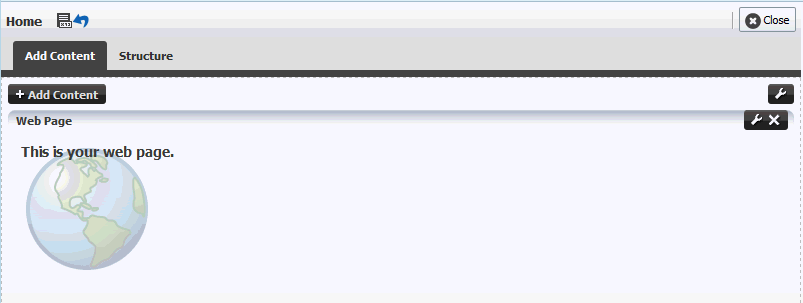
To see how the site customization layer functions, first run the JSF page in a browser. Then log in to the page as admin, and click the Edit link to switch to Edit mode. At runtime, customize the page. For example, drop a Web page, movable box, or an image onto the page. The page should look like Figure 28-4.
Go to /mds/mdssys/cust/site/webcenter in your application directory, and open the pagename.jspx.xml file. This is where the application-level customizations that you made to the page are stored.
To use the user customization layer, log in to the page as scott and personalize the page in View mode. Then go to /mds/mdssys/cust/user/scott in your application directory, and open the pagename.jspx.xml file. This is where the user-level customizations that you made to the page are stored.
28.4 Troubleshooting MDS-Related Problems with Composer
This section provides information to assist you in troubleshooting MDS-related problems you may encounter while using Composer.
For information about configuring logging, see Configuring ADF Logging for Composer.
Problem
Your application is configured to use MDS sandbox. When you run the application, the sandbox either does not work or generates exceptions.
Solution
Ensure the following:
-
A database repository is used. Sandbox works only with a database-based repository, and not with a file-based repository.
-
Ensure that the order of filters in
web.xmlis correct. The<filter>entries must be in the correct order for sandbox to work correctly.
For information, see Using Composer Sandbox.