
Defining Procurement Controls for General Ledger Business Units
Once you have defined the general ledger business units, you must define the procurement accounting controls for each general ledger business unit that is associated with the PeopleSoft Payables business units. These settings determine how the PeopleSoft Payables business units interfaces with the general ledger. You define these controls in the Procurement Control component.
To set up your procurement controls, use the Procurement Control component (BUS_UNIT_INTFC2).
To load data into the tables for the Procurement Control component, use the EM_BUS_UNIT_INTFC component interface.
This section provides an overview of discount accounting controls, lists prerequisites, and discusses how to:
Select general controls.
Set up nonmerchandise charges.
Define general ledger templates.
Select evaluated receipt settlement (ERS) options.
Select withholding options.
Specify withholding ChartFields.
Note: The Document Types page appears only if document sequencing is enabled for the general ledger business unit.
Pages Used to Define Procurement Controls for General Ledger Business Units
|
Page Name |
Definition Name |
Navigation |
Usage |
|---|---|---|---|
|
Procurement Control - General Controls |
BUS_UNIT_INTFC1 |
|
Specify how accounting entries are processed. |
|
Procurement Control - Non-Merch Charges (procurement control - nonmerchandise charges) |
BUS_UNIT_INTFC3 |
|
Define proration, allocation, and expensing options for nonmerchandise charges. |
|
Procurement Control - GL Templates (procurement control - general ledger templates) |
BUS_UNIT_INTFC6 |
|
Specify the payables journal templates. |
|
Procurement Control - ERS Options (procurement control - evaluated receipt settlement options) |
BUS_UNIT_INTFC5 |
|
Enable ERS processing for the general ledger business unit and select the self-billed invoice (SBI) document option. |
|
Procurement Control - Withholding |
BU_WTHD_JUR |
|
Specify general ledger business unit withholding setup options. The withholding process uses this information to determine the withholding entities to which you report or for which you act as a collection agent. |
|
Withholding ChartFields |
WTHD_BU_CF |
Click the ChartFields link on the Procurement Control - Withholding page. |
Set up accounting ChartField parameters. Specify general ledger information for each withholding class; indicate where the withholding amounts are going with respect to general ledger. |
Understanding Discount Accounting Controls
The General Controls page in the Procurement Control component contains numerous options for setting up accounting controls for discounts lost. This section discusses how to use some of these options.
Discount Lost Accrual
The Accrue Discounts Lost check box on the General Controls page in the Procurement Control component enables you to accrue at net but also to accrue the potential discount lost. If you take the discount later, the system reverses the discount lost.
When accounting at net in PeopleSoft Payables, you can account for lost discounts in one of two ways:
Account for lost discounts during payment posting.
Account for lost discounts during voucher posting.
If you account for lost discounts during payment posting, both the accounts payables offset account and the expense distribution accounts are recorded during the accrual entry net of discount. When the payment is made for this voucher, if the discount is still available, no additional entries are necessary beyond the normal payment entries. If the discount is not taken, a discount lost is recorded to a discount lost control account. The system creates accounting entries as follows:
|
Event |
Account |
Debit Amount |
Credit Amount |
|---|---|---|---|
|
Voucher Entry |
Accounts Payables |
|
1,080 |
|
|
Expense |
1,080 |
|
|
Payment with discount taken |
Accounts Payables |
1,080 |
|
|
|
Cash |
|
1,080 |
|
Payment without discount |
Accounts Payables |
1,080 |
|
|
|
Cash |
|
1,100 |
|
|
Discount Lost (Expense) |
20 |
|
If you account for lost discounts during voucher posting, the accounts payable offset account is booked at the gross amount, while the expense distribution accounts are booked at the net amount. This method of accounting is specifically designed to meet German and Austrian accounting requirements, but other countries may need to use it as well. The difference is booked to the discount lost control account. If the discount is not taken, no additional entries are necessary beyond the normal payment entries, because the discount lost has already been booked. If the discount is taken, then an offset to the discount lost must be created to ensure that no discount lost has been booked. The system creates accounting entries as follows:
|
Event |
Account |
Debit Amount |
Credit Amount |
|---|---|---|---|
|
Voucher Entry |
Accounts Payables |
|
1,100 |
|
|
Expense |
980 |
|
|
|
VAT Input |
100 |
|
|
|
Discount Lost (Expense) |
20 |
|
|
Payment without discount |
Accounts Payables |
1,100 |
|
|
|
Cash |
|
1,100 |
|
Payment with discount taken |
Accounts Payables |
1,100 |
|
|
|
Cash |
|
1,078 |
|
|
Discount Expense |
|
22 |
|
|
VAT Adjustment (VIDR) |
|
2 |
|
Discount Adjustment (VIDA) |
2 |
Discount Memo Account
The Record Discount Memo Account check box on the General Controls page in the Procurement Control component enables you to set up the system to post discount entries at the time of payment using memo accounts. Using this method, if users accrue at gross but later lose the discount, the system generates entries to the discount lost and discount lost memo accounts. You can set up the system to generate similar entries to the discount earned and discount earned memo accounts when accruing at net.
You can post discount entries using memo accounts in one of two ways:
Accounting at gross.
Accounting at net.
If you account at gross for a general ledger business unit (using the vouchering general ledger business unit) the system creates accounting entries as follows:
|
Event |
Account |
Debit Amount |
Credit Amount |
|---|---|---|---|
|
Voucher Entry |
Accounts Payables |
1,000 |
|
|
|
Expense |
1,000 |
|
|
Payment without discount |
Accounts Payables |
1,000 |
|
|
|
Cash |
|
1,000 |
|
|
Discount Lost |
20 |
|
|
|
Discount Lost Memo |
|
20 |
|
Payment with discount taken |
Accounts Payables |
1,000 |
|
|
|
Cash |
|
980 |
|
|
Discount Earned |
|
20 |
If you select accounting at net for a general ledger business unit (using the vouchering general ledger business unit), the system uses the Record Discount Memo option in conjunction with the Accrue Discount Lost option to determine the accounting entries:
Example 1: Voucher Entered at Net with 2 Percent Discount:
In this scenario, it is assumed that the Accrue Discount Lost check box is not selected.
|
Event |
Account |
Debit Amount |
Credit Amount |
|---|---|---|---|
|
Voucher Entry |
Accounts Payables |
|
980 |
|
|
Expense |
980 |
|
|
Payment without discount |
Accounts Payables |
980 |
|
|
|
Cash |
|
1,000 |
|
|
Discount Lost |
20 |
|
|
Payment with discount taken |
Accounts Payables |
980 |
|
|
|
Cash |
|
980 |
|
|
Discount Earned |
|
20 |
|
|
Discount Earned Memo |
20 |
|
Example 2: Voucher Entered at Net with 2 Percent Discount:
In this scenario, it is assumed that the Accrue Discount Lost check box is selected.
|
Event |
Account |
Debit Amount |
Credit Amount |
|---|---|---|---|
|
Voucher Entry |
Accounts Payables |
|
1,000 |
|
|
Expense |
980 |
|
|
|
Discount Lost |
20 |
|
|
Payment without discount |
Accounts Payables |
1,000 |
|
|
|
Cash |
|
1,000 |
|
Payment with discount taken |
Accounts Payables |
1,000 |
|
|
|
Cash |
|
980 |
|
|
Discount Lost |
|
20 |
|
|
Discount Earned |
|
20 |
|
|
Discount Earned Memo |
20 |
|
Note: This method of accounting is specifically designed to meet German and Austrian accounting requirements, but other countries may need to use it as well.
Prerequisites
Before defining procurement accounting controls for PeopleSoft Payables business units, you must:
Define a posting method on the Installation Options - Payables page.
Define journal templates on the Journal Generator Templates pages.
Define a combination edit template for vouchers and set up ChartField combination editing.
Define standard cost charges on the Misc Charge / Landed Cost Defn (miscellaneous charge/landed cost definition) page.
Set up withholding entities, types, and jurisdictions, as well as withholding business unit categories
Procurement Control - General Controls Page
Use the Procurement Control - General Controls page (BUS_UNIT_INTFC1) to specify how accounting entries are processed.
Image: Procurement Control – General Controls page
This example illustrates the fields and controls on the Procurement Control – General Controls page. You can find definitions for the fields and controls later on this page.
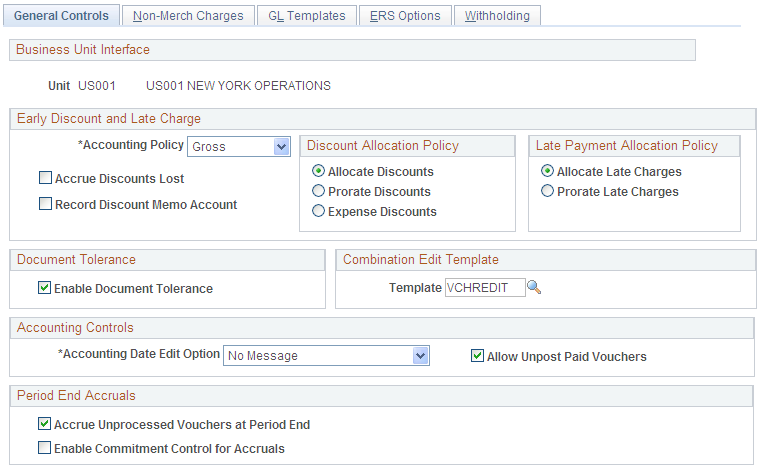
Early Payment Discount and Late Payment Charges
All of the fields in this group box are used during posting and none can be overridden, except the accounting policy, which you can override when you create a voucher.
Discount Allocation Policy
Use the fields in this group box to determine how discounts are charged.
Late Payment Allocation Policy
Use the fields in this group box to determine how late charges are applied.
Document Tolerance
| Enable Document Tolerance |
Select to enable document tolerance checking for the selected general ledger business unit. |
Combination Edit Template
Accounting Controls
See UnPost Voucher Page.
Period End Accruals
Procurement Control - Non-Merch Charges Page
Use the Procurement Control - Non-Merch Charges (procurement control - nonmerchandise charges) page (BUS_UNIT_INTFC3) to define proration, allocation, and expensing options for nonmerchandise charges.
Image: Procurement Control - Non-Merch Charges page
This example illustrates the fields and controls on the Procurement Control - Non-Merch Charges page.
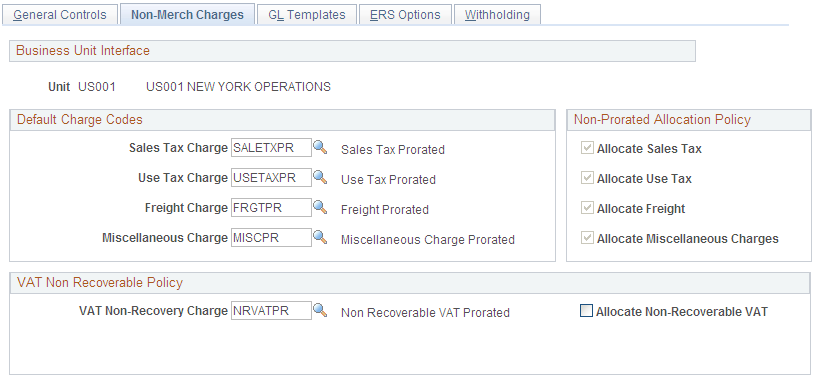
Proration and Allocation of Nonmerchandise Charges
To understand the options on this page, you need to understand how proration and allocation of nonmerchandise amounts work.
During voucher entry, nonmerchandise amounts are prorated to each distribution line based on some ratio of total expense to the merchandise or other value on the distribution lines of the voucher, or they are not prorated. This depends on the charge code, which you set up in the Misc Charge/Landed Cost Defn (miscellaneous charge/landed cost definition) component (CM_LC_COMPONENT). If non merchandise amounts are not prorated, you can specify on the Procurement Control - Non-Merch Charges page whether to allocate them to separate accounting lines or to record them to summary expense accounts. This table describes what happens when you prorate, allocate, or expense (neither prorate or allocate) nonmerchandise charges:
|
Action |
Result |
|---|---|
|
Prorate |
Records the prorated amount along with the merchandise amounts on the distribution line. If you prorate nonmerchandise amounts, the amounts charged to the distribution lines are added to merchandise amounts on the distribution lines, and the total is posted to the distribution ChartFields. |
|
Allocate |
Creates separate accounting entries for the nonmerchandise amount for the distribution line. If you allocate nonmerchandise amounts, the amounts charged to the distribution lines are posted to the appropriate nonmerchandise accounts from the accounting template, and the other ChartField values are based on the inheritance rules. ChartField inheritance is defined at the ledger group level and on the ChartField Inheritance page. |
|
Expense (non-prorate/non-allocate) |
Records the amounts to summary expense accounts. If you use summary control posting, you have two options for nonprorated charges. You can either expense the charges at the header, or allocate them to the distribution lines. You allocate them by selecting the Allocate check box on the Non-Merch Charges page in the Procurement Accounting Controls component. If you use detail offset posting, you have only one option for nonprorated charges. You must allocate them. For this reason, the Allocate check box is selected and unavailable for entry on the Non-Merch Charges page in the Procurement Accounting Controls component. |
Default Nonmerchandise Charge Codes
Use the fields in this group box to set the defaults for the nonmerchandise charges on the voucher. The charge codes that you select here are automatically populated in the vouchers that you create for the business unit. They determine where the nonmerchandise amounts are charged.
Each of the fields in this group box has a drop-down list box that displays the available charge codes for that nonmerchandise charge. You define the codes for these nonmerchandise charges on the Misc Charge/Landed Cost Definition page. When you select a charge code, you define the proration. The available charge codes are prorated (PR) or not prorated (NP), unless you have defined more charge codes on the Misc Charge/Landed Cost Definition page.
Note: The charge codes that you select here are only defaults. You can override these charge codes on the voucher itself.
Non-Prorated Allocation Policy
The fields in this group box determine whether a nonprorated nonmerchandise charge is allocated or charged as a nonprorated expense for a particular general ledger business unit.
If you use detail offset posting, this check box is automatically selected and display-only because you cannot expense nonmerchandise amounts with detail offset posting.
If you use summary control posting, you can select this check box to allocate the nonmerchandise charges to the distribution line, or you can deselect the check box to expense the charges to the header.
Note: Unlike the charge codes, the allocation options cannot be overridden at voucher creation time. If you select a nonprorate option as the default here or on the voucher, the system uses the allocation option that you select here to either allocate or expense the nonmerchandise amount.
VAT Non Recoverable Policy
Use the fields in this group box to set the defaults for the nonrecoverable VAT charges on the voucher. The charge code that you select here automatically appears on the vouchers that you create for the business unit. You can override it on the voucher.
Procurement Control - GL Templates Page
Use the Procurement Control - GL Templates (procurement control - general ledger templates) page (BUS_UNIT_INTFC6) to specify the payables journal templates.
Image: Procurement Control - GL Templates page
This example illustrates the fields and controls on the Procurement Control - GL Templates page. You can find definitions for the fields and controls later on this page.
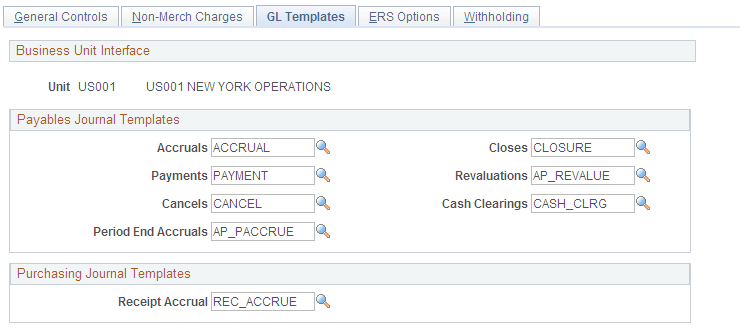
Payables Journal Templates
Specify the PeopleSoft Payables journal templates to use for the general ledger business unit. These templates define the summarization rules for creating journals that are passed to the general ledger. The PeopleSoft Payables system creates one journal each for accruals, payments, payment cancellations, manual closures, revaluations, and cash clearings; you must specify a different journal template for each.
Procurement Control - ERS Options Page
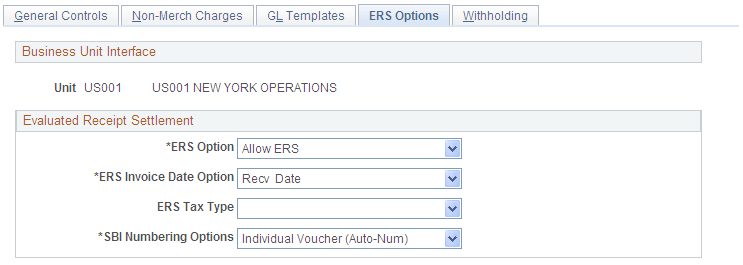
Use the Procurement Control - ERS Options (procurement control - evaluated receipt settlement options) page (BUS_UNIT_INTFC5) to enable ERS processing for the general ledger business unit and select the self-billed invoice (SBI) document option.
Image: Procurement Control - ERS Options page
This example illustrates the fields and controls on the Procurement Control - ERS Options page. You can find definitions for the fields and controls later on this page.
Procurement Control - Withholding Page
Use the Procurement Control - Withholding page (BU_WTHD_JUR) to specify general ledger business unit withholding setup options.
The withholding process uses this information to determine the withholding entities to which you report or for which you act as a collection agent.
Image: Procurement Control - Withholding page
This example illustrates the fields and controls on the Procurement Control - Withholding page. You can find definitions for the fields and controls later on this page.
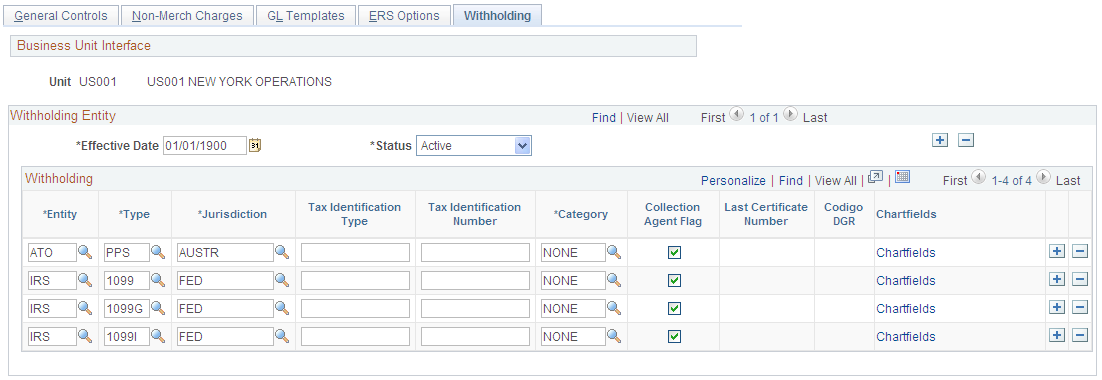
Specify the general ledger business unit's relationship to the various withholding entities for whom you withhold. These tax authorities use this information to determine your relationship with them. Enter the applicable information for each combination of withholding entity, type, jurisdiction, and business unit category.
Note: The withholding entity and class information is related to the information defined on the Withholding Entity page. Therefore, the effective date used on this page must be greater than or equal to the effective date on the Withholding Entity page.
Withholding ChartFields Page
Use the Withholding ChartFields page (WTHD_BU_CF) to set up accounting ChartField parameters.
Specify general ledger information for each withholding class; indicate where the withholding amounts are going with respect to general ledger.
Image: Withholding ChartFields page
This example illustrates the fields and controls on the Withholding ChartFields page. You can find definitions for the fields and controls later on this page.
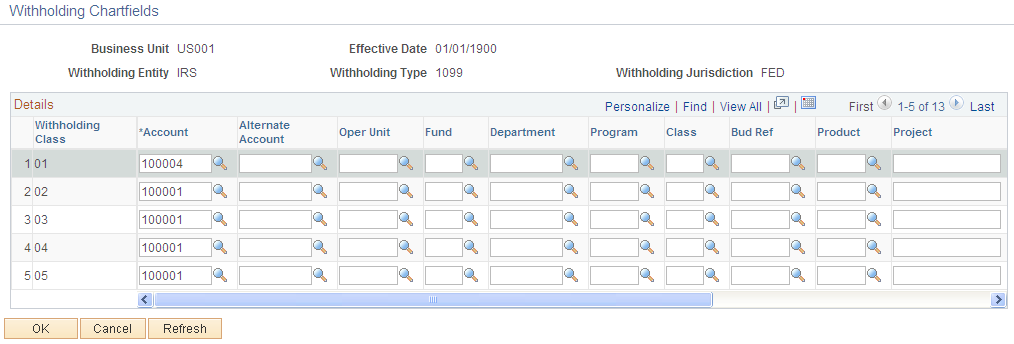
Because withholding ChartFields are defined at the business unit level, you can specify ChartFields for every withholding entity, type, and jurisdiction.
Note: For each withholding class, you must specify the account ChartField. The system displays an error message upon saving if you have not populated the Account field.