
Generating Customer Statements
This section provides an overview of the statement generation process, lists prerequisites, and discusses how to:
Run the Statements multiprocess job (ARSTMT).
(Optional) Select the currency for Open Item statements.
Print statements.
Pages Used to Generate Customer Statements
|
Page Name |
Definition Name |
Navigation |
Usage |
|---|---|---|---|
|
Statements Parameters |
RUN_AR32001 |
|
Run the Statements - Preprocessor (ARSTMT) multiprocess job or the Statements-Parallel/Prnt multiprocess job (STATEMNT). |
|
Currency to Convert |
RUN_AR32001_CUR |
|
Select the type of currency to appear on Open Item statements, and select the effective date. |
|
Statement Print |
RUN_AR32000 |
|
Print statements. |
|
Statements |
CUSTOMER_STMTS |
|
View all statements for a customer. View the total amount of the statement and the customer's current balance. View the statement type. Also, view the balance forward amount for balance forward statements. |
|
Statement Delivery Information |
AR_CUST_STMT_SEC |
Click the Delivery Method button on the Statements or Last Statement page. |
Review the delivery method for a statement, including either the email address, fax number, or printer. |
|
Last Statement |
CUST_STMTS_LAST |
|
View the last statement for a customer. This page displays the same information as the Statements page. |
Understanding the Statement Generation Process
The Statements - Preprocessor multiprocess job (ARSTMT) includes:
The Statement Parallel Preprocessor process (AR_STMTPP).
The Statements - Parallel multiprocess job (AR_STMT).
The Statements - Parallel multiprocess job runs the Statements process (AR_STMTS).
See Setting Up Parallel Processing for Statements.
The Statements process (AR_STMTS) extracts data from customer and item records and populates statement records. The Statements Print multiprocess job (ARSTPRT) merges data from the statement records with predefined layouts and prints both the Open Item Statement (ARX32000 and ARX32A00) and the Balance Forward Statement (ARX32001and ARX32A01). You can also choose to print these statements separately and to print the Draft Customer Statement (ARX32002). You can use the customer statement samples that the PeopleSoft software provides, or use BI Publisher to create your own statements.
Note: The ARX32A00 and ARX32A01 statements print only if you enable acceptgiro processing for the business unit.
The Statements process assigns a process instance number to all items that it processes. When it finishes, it sets the number to zero. Instance numbering enables you to run the process concurrently with other PeopleSoft Application Engine processes that use different run control IDs.
Note: PeopleSoft Receivables also provides the Statements-Parallel/Print multiprocess job (STATEMNT), which runs the Statements multiprocess job (ARSTMT) and prints the Open Item Statement and the Balance Forward Statement.
If you run the Statements - Preprocessor multiprocess job (ARSTMT), each AR_STMT# child process that runs statements uses the same statement ID. Therefore, if you run the statement print processes separately, you use one statement ID for all statements. This feature also enables you to view all statements in the run using the same statement ID.
PeopleSoft Receivables enables you to generate customer statements on a regular schedule for many customers or a single statement for only one customer. When you run the Statements process, you specify the scope of the process at any of the following levels:
SetID level: Generates an invoice or a statement for each correspondence customer in all business units that reference the SetID.
Business unit level: Generates an invoice or statement for each correspondence customer in the business unit.
Correspondence customer level: Generates a single invoice or statement for all customers in the correspondence group.
Customer level: Generates a single invoice or statement for the specified customer's correspondence customer.
Customer statements are based on current customer balances and open item information, which are updated by the Receivable Update Application Engine process (ARUPDATE). Therefore, Oracle suggests that you run Receivables Update before creating statements.
PeopleSoft Receivables enables you to create the types of statements described in this table:
|
Statement Type |
Description |
|---|---|
|
Open Item |
Statements that provide detail information for all open items for the customer. |
|
Balance Forward |
Statements that provide:
Note: Unlike other balance forward systems, PeopleSoft Receivables does not close all open items from the previous statement period and create one new open item for the total of those items. All open items from the previous statement period remain open so that you can determine which items are included in the opening balance. |
Prerequisites
Before you generate statements:
Set up statement IDs.
Assign default statement IDs to each SetID and define the default remit to address that is used on statements (from bank account addresses) on the Receivables Options - General 1 page.
Specify which entry types are included in statements on the Entry Type page.
If you do not select the Include in Statements check box for an entry type, activities with that entry type do not appear in statements.
Override the remit to address and statement ID defaults or place a global hold on customer documents on the Receivable Options - General 1 page.
Specify the destination of statements as either the customer or the correspondence customer on the Correspondence Selection page.
Provide the address and contact for the customer to which you will send the statement on the General Info page.
Specify the contact and address options for statements on the Correspondence Options page.
Set up delivery information for correspondence.
Assign the next available statement number at the installation level.
Set up parallel processing for statements.
(NLD) If the organization uses acceptgiro, enable acceptgiro processing for the appropriate business units on the Bank/Payment Options page and assign the initial acceptgiro reference number.
(NLD) Enter the bank account information for customers that use acceptgiro to make their payments on the Customer Bank page.
Run the Receivable Update process to post pending items.
Statements Parameters Page
Use the Statements Parameters page (RUN_AR32001) to run the Statements - Preprocessor (ARSTMT) multiprocess job or the Statements-Parallel/Prnt multiprocess job (STATEMNT).
Image: Statements Parameters page
This example illustrates the fields and controls on the Statements Parameters page. You can find definitions for the fields and controls later on this page.
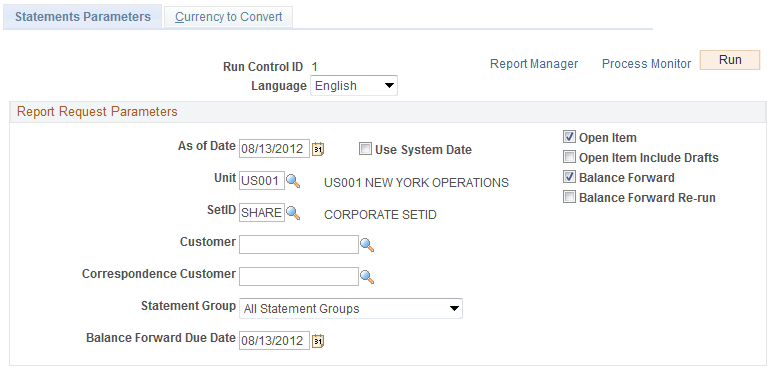
Note: Enter the percent wildcard in the Customer fields if you want to include customer IDs that begin or end with the same characters or numbers. For example, entering 100% includes all customer IDs that start with 100, such as 1001 and 1002.
Provide more than one parameter to tailor statements even further. The following table describes the results of combining different parameters. It assumes that a parameter in the left column is combined with one or more parameters to the right of that parameter:
|
Parameter |
SetID |
Business Unit |
Customer ID |
|---|---|---|---|
|
Business Unit |
One statement for each correspondence customer in the business unit. |
NA (not applicable) |
NA |
|
Customer ID |
A single statement for the customer. If the customer is part of a correspondence customer group, the process addresses the statement to the correspondence customer but includes only items that are for the specified customer. |
A single statement for the customer, containing only items in the business unit. If the customer is part of a correspondence customer group, the process addresses the statement to the correspondence customer but includes only items for the specified customer. |
NA |
|
Correspondence Customer |
A single statement for the correspondence customer, containing items for all customers in the correspondence group. |
A single statement for the correspondence customer, containing items in the business unit for all customers in the correspondence group. |
A single statement that is addressed to the correspondence customer, containing only items for the specified customer. |
Currency to Convert Page
Use the Currency to Convert page (RUN_AR32001_CUR) to select the type of currency to appear on Open Item statements, and select the effective date.
The default values for the fields depend on the values that you enter on the Receivables Options - Currency Display Options page for the business unit. Override the values if you want to use a different display currency on the statements.
Statement Print Page
Use the Statement Print page (RUN_AR32000) to print statements.
On the Process Scheduler Request page, select one of these statement print processes:
|
Process |
Description |
|---|---|
|
Customer Statement Print (ARX32000) Customer Stmt Print w/Agiro (ARX32A00) |
Prints open item statement without draft items. The Open Item statement provides a list of all open items for a customer based on the as of date that is specified when the statement is run. Select Customer Stmt Print w/Agiro only if you want to include the acceptgiro attachment on the statement. |
|
Balance Forward Statement Print (ARX32001) Balance Forward Stmt P w/Agiro (ARX32A01) |
Prints balance forward statements. The Balance Forward statement provides a list of all the items and payments in the current statement period. It also provides a balance forward amount from the previous statement period and the ending balance for the current statement period. Select Balance Forward Stmt P w/Agiro only if you want to include the acceptgiro attachment on the statement. |
|
Draft Customer Statement Print (ARX32002) |
Prints open item statements that include draft items, if Include Drafts is selected on the Statement Parameters page. |
|
PS/AR Statements Print (ARSTPRT) |
Prints both statement types: Open Item statement (ARX32000 and ARX32A00) and Balance Forward statement (ARX32001 and ARX32A01). Note: ARX32001 and ARX32A01 print only if you enabled acceptgiro processing for the business unit. |
Warning! If you print one statement type only, you must print the other statement type before you run the Statements process again.