
Creating Purchase Order Lines
This section discusses how to:
Enter purchase order line information.
Enter purchase order line details.
Search for contracts.
Apply miscellaneous charges to purchase order lines.
Select miscellaneous charges to apply to purchase order lines.
Pages Used to Create Purchase Order Lines
|
Page Name |
Definition Name |
Navigation |
Usage |
|---|---|---|---|
|
Maintain Purchase Order - Purchase Order |
PO_LINE |
|
Enter or change purchase order information online. |
|
Enter Kit Items |
PO_KIT_ITEMS |
Click the Purchasing Kit link on the Maintain Purchase Order - Purchase Order page. |
Order an item by kit ID. The individual items in the kit become new lines on the purchase order. |
|
Order By Catalog |
ORD_BY_ITEM_CAT |
Click the Catalog link on the Maintain Purchase Order - Purchase Order page. |
Search for and select items to order from a catalog. |
|
Item Search Criteria |
ITEM_SEARCH_SP |
Click the Item Search link on the Maintain Purchase Order - Purchase Order page. |
Search for items. |
|
Details for Line |
PO_LINE_DTLS |
Click the Line Details button associated with a purchase order line on the Maintain Purchase Order - Purchase Order page. |
Enter additional information for this line, such as contract and supplier item information, item manufacturer information, price calculation parameters, and you can specify whether the item requires receiving and inspection. Any changes that you make on this page apply only to the selected line. |
|
Item Description |
PO_ITEM_DESCR |
Click the Item Description link on the Details for Line page. The item description link comprises the first 30 characters of the item's description in the Transaction Item Description text box on the Item Description page. |
Enter and view descriptions for a specific item. |
|
Configuration Info |
PO_LINE_CP |
Click the Configuration Info link on the Details for Line page. |
View item configuration codes for configured items. The item that you are querying must be defined as a configured item and have configuration codes created for it. |
|
Item/Product Availability (inquiry) |
ATP_SUMMARY_INV |
Click the Item Availability link on the Details for Line page. |
View the availability of this item. PeopleSoft Inventory must be installed for this link to be active. |
|
PO Line Comments |
PO_COMMENTS_SEC |
Click the Line Comments button associated with a purchase order line on the Maintain Purchase Order - Purchase Order page. |
Enter comments for a transaction. You can enter a unique comment or select from predefined standard comments. |
|
Maintain Purchase Order - Rebate Agreement ID Look Up |
VRBT_SEARCH_SP |
Click the Look Up Rebate ID button associated with a purchase order line under the Contract tab on the Maintain Purchase Order - Purchase Order page |
Search for available vendor rebate agreements. |
|
Category Search |
CAT_SEARCH_SEC |
Select 03 - Category Search in the Go to field on the Maintain Purchase Order - Purchase Order page. |
Search for and select an appropriate category ID for the item when entering an ad hoc item. The search for the category ID is done using a category hierarchy tree. |
|
View Category Hierarchy |
CAT_PARENTAGE_SEC |
Select 04 - View Category Hierarchy in the Go to field on the Maintain Purchase Order - Purchase Order page. |
View information about where a category resides in the entire catalog tree hierarchy. |
|
Contract Search |
CNTRCT_SRCH |
Click the Contract Search button on the Maintain Purchase Order page. |
Searching for contracts. |
|
Header Misc. Charges (header miscellaneous charges) |
PO_MISC_WRK |
Select 13 - Header Misc. Charges in the Go to field on the Maintain Purchase Order - Purchase Order page. |
Apply miscellaneous charges that you add on the Header - Miscellaneous Charges page to the lines of the purchase order. |
|
Header - Miscellaneous Charges |
PO_HDR_MISC |
Click the Miscellaneous Charges link on the Header Misc. Charges page. |
Enter miscellaneous charges that you want to allocate to some or all of the lines on the purchase order using the Maintain Purchase Order - Purchase Order - Miscellaneous page. |
|
Header - 3rd Party supplier |
PO_HDR_MISC_3RD |
Click the Third Party supplier link on the Header - Miscellaneous Charges page. |
Select the third-party supplier pertaining to the miscellaneous charge and specify the amount of the charge. |
|
Exchange Rate Detail |
EXCH_RT_DTL_INQ |
Click the Exchange Rate Detail link on the Header - 3rd Party supplier page. |
View the rules used to calculate exchange rates for the transaction. |
Maintain Purchase Order - Purchase Order Page
Use the Maintain Purchase Order - Purchase Order page (PO_LINE) to enter or change purchase order information online.
Image: Maintain Purchase Order - Purchase Order page(1of2)
This example illustrates the fields and controls on the Maintain Purchase Order - Purchase Order page(1of2). You can find definitions for the fields and controls later on this page.

Image: Maintain Purchase Order - Purchase Order page(2of2)
This example illustrates the fields and controls on the Maintain Purchase Order - Purchase Order page(2of2). You can find definitions for the fields and controls later on this page.

Details
Access the Details tab.


Ship To/Due Date
Access the Ship To/Due Date tab.
| Due Date |
Displays the default due date for the schedule. This is the date the item is due at the ship to location. |
| Ship To |
Displays the business unit to which the item is being shipped. |
Statuses
Access the Statuses tab.


Item Information
Use the Item Information tab to enter item information such as supplier and manufacturing information.
Image: Item Information Page
This example illustrates the fields and controls on the Item Information Page. You can find definitions for the fields and controls later on this page.

The Item Info Tab – shows the new item sub fields:

Note: These 2 fields above can also be found on the Line Details page
 |
The Item Search icon will appear on the Item Information tab if there is a substitute item available. Clicking on this icon will allow the user to manually select substitute items. |
Clicking on the Item Search Icon will bring up the Substitute Item page (SUB_ITM_SRCH) that will allow the user to view all items available to substitute.
Image: Substitute Item page
This example illustrates the fields and controls on the Substitute Item page . You can find definitions for the fields and controls later on this page.
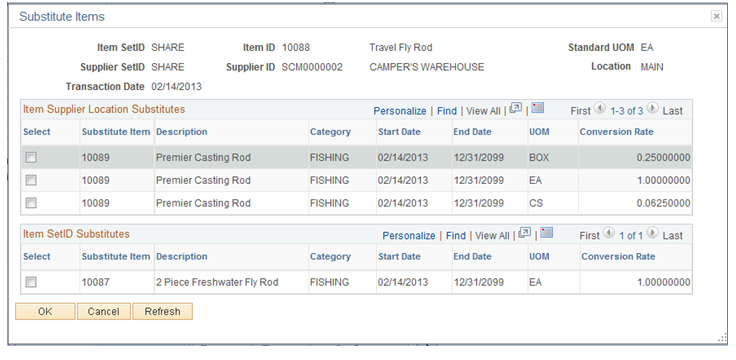
For Information on Substitute Item Search page Field descriptions SeeUnderstanding Item Substitutions in Procurement
Attributes
Use the Attributes tab to enter item pricing information.
| Procurement Group ID |
Select an existing Procurement Group ID for the item (search on partial or full values of the Procurement Group ID, Short Name or Description). When you select a Procurement Group ID, an edit enforces that the Receiving Required option is set. A save-time edit verifies that all items in the Procurement Group ID belong to the same Asset Management Business Unit value when the Allocate Purchasing Group to Assets option is selected on the Purchasing Options page. See Purchasing Options PageSee also,Setting Up Procurement Groups At the time a Purchase Order is copied to create a new Purchase Order, the Procurement Group-related fields ( Procurement Group ID, Primary Unit, Unit Allocation Quantity and Unit Allocation Amount fields) will be cleared on the new purchase order lines. At the time a Requisition line is copied to a Purchase Order, the Procurement Group-related field values found on the corresponding Requisition line populate the new Purchase Order line. When the Procurement Group ID is being copied from the Requisition to a PO, the Receiving Required field is selected for the PO line. Note: When the Allocate Purchasing Group option is in effect, once the composition of a procurement group has been established, it should not be changed. If the composition (items that make up a procurement group) should change, then a new procurement group should be created and utilized instead. Since the Receipt Push process examines all of the purchase order lines and open requisition lines in determining the composition of the procurement group, if you create a new transaction with different items intending that only the new or different items replace those that make up the procurement group, the former items and the new items will be identified later as making up the procurement group. Hence, in the event the composition of a procurement group needs to change (and it is too late to disassociate all former transaction lines in the system from the procurement group), a new procurement group should be created for the new items |
RFQ
Use the RFQ (request for quote) tab to define a quote ID and line when a purchase order line originated from an RFQ.
Contract
You can use this tab to manually enter purchase order contract lines for line group items and to view contract details for the purchase order.
 |
Click the Find Contract button to search for a contract when you are adding a new purchase order line. Contracts returned in the search include the corresponding item. Ensure that the contract effective date is within the purchase order date. The system displays a message if the dates are not compatible. |
| Contract ID |
Displays the contract associated with the corresponding line item. |
| Contract Version |
Select a contract version. Versions enable you to create and maintain multiple versions of the contract in the system and to view information in older contract version. Contracts can only have one current version. The version that appears in this field is the version at the time that it was selected for the purchase order. Versions are only available if the Use Version Control check box is selected on the Contract and supplier Rebate Controls page. |
| Contract Line |
Displays the contract line for this line item. |
| Category Line Number |
Displays the contract line number to which this line item belongs. |
| Release |
Displays the release number for the release. A release is the transaction for the contract. For example, a one-year lease contract with monthly payments would have 12 releases. This field appears for purchase order event types only. |
| Milestone Line |
Identifies the milestone number that is associated with the release line. A milestone is a significant event in the life of a contract. |
| GPO ID (group purchasing organization ID) |
Displays the GPO contract ID associated with the corresponding line item. The ID is a unique alphanumeric code assigned to each group purchasing organization. |
| GPO Contract (group purchasing organization contract) |
Displays the GPO contract associated with the corresponding line item. The contract is a unique alphanumeric code assigned to each contract from a group purchasing organization. |
| Group ID |
Displays the line group to which this line item belongs. A line group is a bundle of items that buyers use in PeopleSoft Sourcing to obtain better pricing for items. The system populates the Group ID field when:
When a purchase order line has a group ID value and the line was awarded by Strategic Sourcing to the purchase order line has a value and at least one of the line's schedules has an event ID, the system displays a warning message if you attempt to cancel the line, change the item ID, UOM, price, quantities, including schedule and distribution quantities that change the displayed quantity. If you select to continue to cancel or change the line, the system cancels the line if the purchase order has been dispatched. The system performs the same process on any other line on the purchase order that has the same group ID value. If the PO has never been dispatched, an error message will be issued to explain the change cannot be made. In this case the other option the user would have is to delete the PO. See Line Groups. |
| Rebate ID |
Depending on the Rebate ID Security Control setting this field will appear or will be hidden. The approved vendor rebate agreement that matches what is being ordered on the purchase order line appears. You can only modify the vendor rebate agreement if the Rebate ID Security Control Setting field value is Update. Otherwise, you will only be able to view the vendor rebate agreement. In addition, once the purchase order line has a receipt transaction or a vendor rebate accrual transaction associated with it the Rebate ID field will no longer be available for modification. At this time you would use the Backdate Supplier Rebates page to modify the vendor rebate agreement association with the purchase order line. Note: vendor rebate agreements cannot be associated with subcontracting purchase orders generated through PeopleSoft Manufacturing. |
 |
Depending on the Rebate ID Security Control setting the Look Up Rebate ID button will appear or will be hidden. This button is only active if the Rebate ID Security Control Setting field value is Update. Click this button next to the Rebate ID field to access the Maintain Purchase Order - Rebate Agreement ID Look Up page. Use this page to search for available vendor rebate agreements for what you are ordering on the purchase order. |
Receiving
| Receiving Required |
Select the value that you want to apply for receiving this line item. Values include: Do Not Receive: Select to indicate that PeopleSoft Accounts Payable matching and receipt accrual are not applicable. Lines with this value are not eligible for closing short. Receiving is Optional: Select to indicate that PeopleSoft Accounts Payable does not match receipt lines and the system does not accrue the receipt. Receiving is Required: Select to indicate that PeopleSoft Accounts Payable matches receipt lines and the system accrues the receipt. Note: Purchase orders generated from a PeopleSoft Services Procurement work order will always have the Receiving Required field set to Do Not Receive regardless of how the setup is defined for the category associated with the service. |
| Inspection Required |
Select to require that this item be inspected upon receipt. When you select the check box, the Inspect ID check box becomes available for entry. |
| Inspect ID |
Select an inspection ID for use with this line item. Inspect IDs contain instruction for inspecting an item. You define the ID using the Inspection Routing page. |
| Close Short |
Select to close short the corresponding purchase order line. Closing purchase order lines short is when you remove the remaining balances on a purchase order and close the order. The system applies the Close Short check box setting from this purchase order line to the receipt line. You can change the value as long as the receipt line has not been processed by the Receipt Push process. When you select this check box, the next time the system runs the Close Short process and all other requirements are met, the system either reduces the quantity of the line's schedule to what has been received or cancels the schedule if there has been no receiving activity. You can select the Close Short check box for a purchase order line if receiving is required for the line. Selecting the check box does not affect the value of the stockless item setting and the replenish code. The system automatically selects the Close Short check box for purchase order lines if the replenish code has a value of stockless. In this case, you cannot deselect the check box manually. You can analyze over due purchase order schedules using the PO Close Short Workbench. Using the workbench, you can also select the Close Short check box on the purchase order line or update the purchase order schedule due date from the workbench. |
| Custom Fields |
The user definable fields in this Custom Fields section are available when you check the Enable Custom Fields checkbox on the Purchasing Installation Options page. You can customize these fields for your use. The custom fields are informational only. . For more information See Understanding User-Definable Fields |
Service Work Order
When a work order is attached to a purchase order, this tab is available for you to review and maintain work order details. When a work order is a multi-resource work order, the system creates the purchase order based on the top-line work order. Multi-resource services support a grouping of multiple unique services and service providers for PeopleSoft Services Procurement requisitions, sourcing, and work orders. Each individual service represents a part of the overall multi-resource service. The feature enables you to manage complex work at a more granular level PeopleSoft Services Procurement work orders have only one purchase order line and schedule. You create the purchase orders by running the Quicksource batch process.
See Understanding Multi-Resource Services.
See Creating Purchase Orders with the Quick Sourcer.
Details for Line Page
Use the Details for Line page (PO_LINE_DTLS) to enter additional information for this line, such as contract and supplier item information, item manufacturer information, price calculation parameters, and you can specify whether the item requires receiving and inspection.
Any changes that you make on this page apply only to the selected line.
Click the Line Details button associated with a purchase order line on the Maintain Purchase Order - Purchase Order page.


Line Details
Item Information
Attributes
Contract


Receiving
Contract Search Page
Use the Contract Search page (CNTRCT_SRCH) to searching for contracts.
Image: Contract Search page - Item Detail tab
This example illustrates the fields and controls on the Contract Search page - Item Detail tab. You can find definitions for the fields and controls later on this page.

Use this page to find a contract and use its prices to populate purchase order values. The system automatically applies the contract price to the purchase order. You can search for individual contracts by contract ID or limit the search to only those contracts for a specific contract process option.
After you define contract search criteria, click the button. The system populates the Contract Details group box with the results. Click the Clear button to remove search criteria. The system searches for active, effective contracts based on the search criteria that you enter and displays the results with the most recent contract first.
Item Detail
To apply the contract item price to the purchase order price, select a value from the returned search and click the OK button. The system overrides the schedule quantity using the contract quantity scheduled for the row of data that you select.
| Contract ID |
Click to access the Maintain Procurement Contract page. You can use the page to view and update the contract. |
Contract Reference
This tab provides information about the source of the item, such as the item or category line number.
Contract Detail
This tab provides details about the contract, such as supplier information, master contract ID and process option.
Header Misc. Charges (header miscellaneous charges) Page
Use the Header Misc. Charges (header miscellaneous charges) page (PO_MISC_WRK) to apply miscellaneous charges that you add on the Header - Miscellaneous Charges page to the lines of the purchase order.
Select 13 - Header Misc. Charges in the Go to field on the Maintain Purchase Order - Purchase Order page.
All Charges
The All Charges group box displays information about the miscellaneous charges selected on the Header Miscellaneous Charges page.
The actions of the these three items apply to the single miscellaneous charge that appears in the All Charges group box.
Current Charge
Use the Current Charge group box to allocate the selected miscellaneous charges to specific purchase order lines. Select the check box for lines to which you want to apply miscellaneous charges.
Header - Miscellaneous Charges Page
Use the Header - Miscellaneous Charges page (PO_HDR_MISC) to enter miscellaneous charges that you want to allocate to some or all of the lines on the purchase order using the Maintain Purchase Order - Purchase Order - Miscellaneous page.