Delivery Management Workbench-Manage Delivery Page
Use the Delivery Management Workbench-Manage Delivery page (IN_DLV_WORKBENCH) to update one individual delivery or create a new delivery.
You can modify the delivery fields, view the demand lines and shipping containers that are currently assigned to the delivery, add or remove demand lines and shipping containers, consolidate deliveries, and do freight processing.
Navigation:
-
-
-
Click the Manage Delivery link at the top of any page in the Delivery Management Workbench.
-
From the Delivery Management Workbench-Deliveries page, click the Delivery ID link.
-
From the Delivery Management Workbench- Demand / Container Activities page, click the Delivery ID link on demand lines or shipping containers already assigned to deliveries.
-
If one delivery for all the shipped lines, select the Delivery Workbench link.
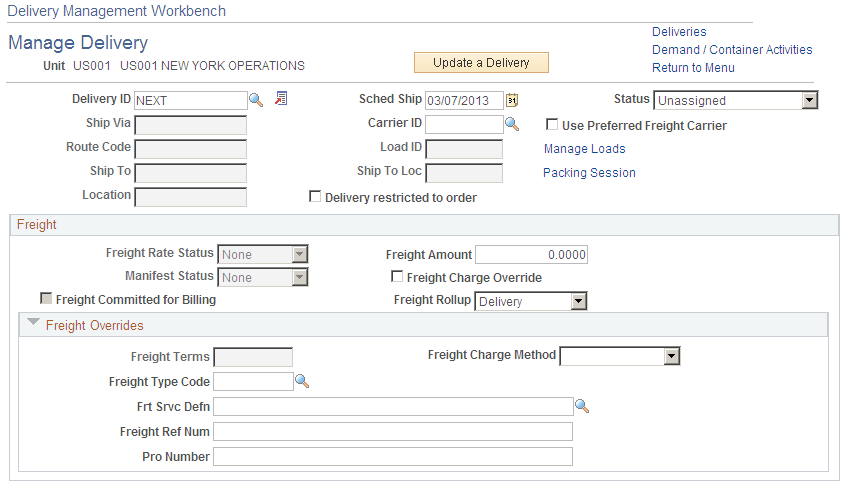
This example illustrates the fields and controls on the The Delivery Management Workbench-Manage Delivery page (part 1 of 3).
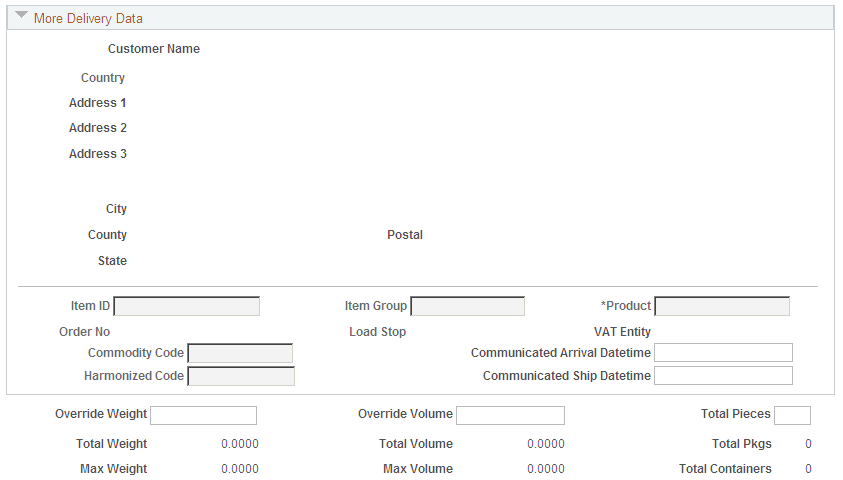
This example illustrates the fields and controls on the The Delivery Management Workbench-Manage Delivery page (part 2 of 3).
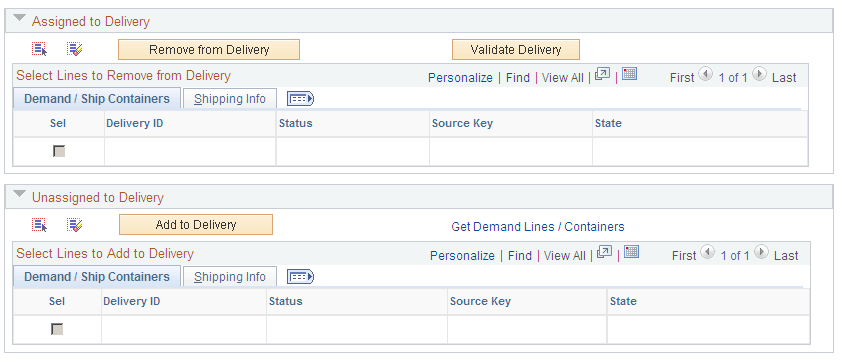
This example illustrates the fields and controls on the The Delivery Management Workbench-Manage Delivery page (part 3 of 3). You can find definitions for the fields and controls later on this page.
The Manage Delivery page of the Delivery Management Workbench provides a place where you can view and update detailed information for a single delivery. Use this page to:
-
Add a new delivery.
-
Modify an existing delivery.
-
View the demand lines and shipping containers that are currently assigned to the delivery.
-
Add or remove demand lines and shipping containers from the delivery.
-
Consolidate deliveries.
-
Perform freight processing.
-
Access the Package page of the Delivery Management Workbench where you can enter detailed information about packages on the delivery.
If creating a new delivery, you have the opportunity to enter values for the delivery level information on this page depending on the delivery key fields defined on the Inventory Definition - Business Unit Options: Delivery Management page. For a new delivery, you can enter the carrier ID, scheduled ship date, and values for any other fields that are selected with the Allow New Entry in Workbench check box on the Inventory Definition-Business Unit Options: Delivery Management page. Alternatively, you can start by selecting demand lines or shipping containers to be assigned to the delivery; assigning demand or shipping containers automatically sets the delivery key values for the new delivery.
If displaying an existing delivery, demand lines and shipping containers are displayed in two separate group boxes on this page. The first group box, Assigned to Delivery, displays demand lines and shipping containers already assigned to the delivery. The second group box, Unassigned to Delivery, displays unassigned demand lines or shipping containers that were retrieved from your search criteria.
| Field or Control | Description |
|---|---|
|
Add a Delivery |
Click this button to add a new delivery using this page. This button is available when the page is in the Update a Delivery mode. |
|
Update a Delivery |
Click this button to work with an existing delivery on this page. This button is available when the page is in the Add a Delivery mode. |
|
Deliveries |
Select this link to access the Delivery Management Workbench- Deliveries page where you can work with one or more deliveries. |
|
Demand / Container Activities |
Select this link to access the Delivery Management Workbench- Demand / Container Activities page where you can view demand lines and shipping containers. |
|
Return to Menu |
Select this link to access the Delivery Management Workbench- Workbench Navigation Menu page where you can change the PeopleSoft Inventory business unit field for the workbench and access the three main pages of the workbench. |
|
Delivery ID |
Select an existing delivery that you want to view, change, or perform freight calculations. The information on this page relates to only one delivery. This field displays the value of NEXT when creating a new delivery that has not yet been saved. For a new delivery, you can manually enter a delivery ID and the system verifies that it is unique when you save the page. |
|
Sched Ship |
Change or view the scheduled shipment date for this delivery. |
|
Delivery Status |
Displays the current status of this delivery. Using this field, the status can be changed. For details on each delivery status, see the delivery status field in the IN_DELIVERY table defined in the Setting Up Delivery Management and Freight Calculations topic. See Using PeopleSoft Tables to Store Delivery and Freight Information. |
|
Ship Via |
Change or view the Ship Via field for this delivery. Use caution when changing this field on an existing delivery since it is often defined as a delivery key fields (Inventory Definition - Business Unit Options: Delivery Management page). |
|
Carrier ID |
Change or view the carrier for this delivery. This field can be blank if you want the external third-party freight system to determine the best carrier for this delivery. |
|
Use Preferred Freight Carrier |
Select to indicate that the customer prefers a particular carrier. The values in the Use Preferred Freight Carrier field and the Carrier ID field may have defaulted from the Order Management default hierarchy (Order Groups page, the customer's General Information - Ship To Options page, Buying Agreement Form-Header Terms page, or manually entered on the sales order). |
|
Route Code |
View the route code assigned to this delivery. |
|
Load ID |
View the load ID for this delivery. |
|
Manage Loads |
Click to access the Manage Loads page where you can review or create shipment loads for orders. You can assign demand lines to newly created loads or you can define the load parameters and then make the actual assignments at other points in the fulfillment process. |
|
Ship To and Ship To Loc |
View the Ship To Customer ID and Ship To Location (customer address sequence number) assigned to this delivery. |
|
Packing Session |
Click to access the Packing Session component where you can:
See PeopleSoft Inventory: Packing Stock Into Shipping Containers. |
|
Location |
Enter to select orders that were entered for a particular location code. Location codes represent the business unit's address, a branch office, or shipping office. Location codes are defined on the Location Definition page (Set Up Financials/Supply Chain, Common Definitions, Location, Location). Search results include the demand lines or deliveries containing the demand lines that meet this search criteria. |
|
Deliveries restricted to order |
Select this check box to restrict the demand lines of this delivery to only one sales order. |
|
Maintain Packages |
Click this link to access the Packages page of the Delivery Management Workbench where you can review existing packages that are part of this delivery or enter new packages. |
Freight group box
You can override and manually enter freight amount and other freight information in the freight group box.
| Field or Control | Description |
|---|---|
|
Freight Rate Status |
Displays the current state of the freight process from the Freight Status field in the IN_DELIVERY table. The options are:
|
|
Freight Amount |
Displays the current freight amount assigned to this delivery. This value can be manually overridden. If a manual entry is made in this field, then the Freight Charge Override check box is automatically selected. |
|
Calculate Freight |
Click the Calculate Freight link to calculate freight for this delivery. If the freight calculation method for the delivery is internal, the system performs the PeopleSoft internal freight calculation and assign the freight amount to the delivery. If the freight calculation method for the delivery is external, the system transfers you to the Freight Management page where you can select freight processing options and initiate a transaction request to the external third-party freight system. |
|
Manifest Status |
Displays the current state of the manifest process from the Manifest Status field in the IN_DELIVERY table. The options are:
|
|
Freight Charge Override |
Select this check box to use the value entered in the Freight Amount field as an override. The freight routines do not change your override freight amount. Note: The inbound EIP transactions do not update your freight amount when this check box is selected. |
|
Auto-Freight |
Click this button to have the system perform best-way freight calculation for an externally-freighted delivery and perform the internal freight calculation for an internally-freighted delivery. The freight is assigned to the delivery depending on the freight calculation performed. |
|
Freight Committed for Billing |
Select this check box to indicate that the freight on this delivery is ready to be processed by PeopleSoft Billing and by PeopleSoft Cost Management. If this check box has already been checked then the freight on this delivery is ready to be processed or has been processed by PeopleSoft Billing and Cost Management. This check box sets the value in the Commit Freight for Billing field of the IN_DELIVERY table. |
|
Freight Rollup |
Select an option to determine which freight amounts to be used. This option applies to both internal and external freight calculations as well as to manual freight entered at the package or shipping container levels. Freight amounts can be received from the external third-party freight system at the delivery-level or at a lower-level. The options are:
Depending on your external third-party freight system, freight amounts could be received at the delivery-level, shipping container level, package level, or all levels. |
|
Reverse Freight |
Click this button to reverse the post-ship actions for the delivery, including clearing out any tracking numbers and freight amounts. Certain restrictions apply when attempting to reverse the Complete Deliveries and Commit Freight for Billing post-ship actions. If any demand lines for the delivery have already been depleted, the complete deliveries post-ship action cannot be reversed. If any freight amount for the delivery has already been sent to PeopleSoft Billing or PeopleSoft Cost Management, then the commit freight for billing post-ship action cannot be reversed. |
Freight Overrides group box
Click the Expand Section icon to display the Freight Overrides group box. Use this group box to change freight settings for this delivery before calculating freight.
| Field or Control | Description |
|---|---|
|
Freight Terms |
Enter a freight terms code to override the default freight terms code. This override value is applied to the entire delivery. The freight terms code determines whether the buyer or the seller pays the freight. If the buyer pays the freight, then freight charges are passed to PeopleSoft Billing. If the seller pays the freight, then charges do not pass to PeopleSoft Billing. Keep in mind that the Freight Bill Type field determines which freight amounts are passed to PeopleSoft Billing; the amounts calculated at order entry or the amounts calculated during shipping. |
|
Freight Charge Method |
Determines how freight charges, received from the external third-party freight system or the internal PeopleSoft freight calculator, are allocated to the order-level. The freight amount is initially stored at the delivery-level in the PeopleSoft delivery ID and then prorated to the order level. You have four options: Order Quantity, Order Value, Volume, and Weight. |
|
Freight Type |
View or change the freight type code to be used by the external third-party freight system. Freight types are defined at the SetID level and are placed on the header level of the outbound message to the third-party provider. The freight type is also used to derive the correct service definition to send with the outbound message. Entering a value here helps to limit the values displayed for the Freight Service Definition field in this group box. For more information about freight type codes, see Setting Up External Third-Party Freight Charges. |
|
Freight Service Definition |
View or override the freight service definition for this delivery. The freight service definition provides a way to cross-reference the third-party freight service with the PeopleSoft carrier and ship-via combinations. The Automated Service Option check box on the Setup Fulfillment- Delivery/Freight page determines if this PeopleSoft Inventory business unit uses the freight service definition with the third-party integration. Some third-party providers require it. Freight service definitions are defined at the SetID level using the Maintain Freight Services page. The freight service definition code is based on the services provided by the third-party provider. Each freight service definition is associated with a combination of carrier ID, ship via code, and freight type in the PeopleSoft system. |
|
Freight Ref Num(freight reference number) |
Enter data in this free form reference field. The value entered here is stored at the delivery level. If a freight reference number is returned on the freight response then it is stored in this field. |
|
Pro Number |
Enter a pro number to be applied as an override to the entire delivery. This entry overrides any previously entered value on an individual demand line. |
More Delivery Data group box
Click the Expand Section icon to display the More Delivery Data group box. This group box displays customer address information, item and product information. In addition, this group box also enables you to override calculated weight and volume of this delivery.
| Field or Control | Description |
|---|---|
|
Override Weight and Override Volume |
If using the internal PeopleSoft freight calculator, these override fields can be used as the weight and volume for the delivery. If using an external third-party freight provider, these override fields are sent out to the third-party freight system at the header level of the outbound transaction. These fields can be updated by the third-party system using the inbound freight response transaction. |
|
Total Pieces |
Enter the number of pieces within the delivery. This is a memo-only field that is passed to the third-party providers system on the header level of the outbound transaction. |
Assigned to Delivery group box
The Assigned to Delivery group box displays demand lines and shipping containers already assigned to the delivery.
| Field or Control | Description |
|---|---|
|
Remove from Delivery |
Click this button to remove selected demand lines or shipping containers from this delivery. |
|
Validate Delivery |
Click this button to verify that the demand lines assigned to the delivery are valid for this delivery definition and that the demand line values correctly match the delivery values according to the delivery key configuration for this PeopleSoft Inventory business unit. |
|
Message Log |
Click to access the Delivery Management Workbench- Message / Error Log page where you can view errors from delivery creation routines generated when this page is saved. This link displays only if there are errors to be viewed. |
|
|
Select the Clear icon to erase any errors on the Delivery Management Workbench- Message / Error Log page. |

Unassigned to Delivery group box
The Unassigned to Delivery group box displays demand lines and shipping containers for which you have recently searched. This grid is empty the first time you display this page, because you first have to search for demand lines or shipping containers to assign to this delivery. In this grid, you can select one or more unassigned demand lines or shipping containers and assign them to this delivery.
To assign demand lines or shipping containers to a delivery, search for the demand lines and shipping containers by clicking Get Demand Lines / Containers link to access the Demand / Container Selection page in the Delivery Management Workbench . Enter your search criteria and search. The demand lines and shipping containers matching your search criteria are displayed in the Unassigned to Delivery grid on this page. Select the demand lines or shipping containers you want to assigned and click the Add to Delivery button. The demand lines and shipping containers are moved to the Assigned to Delivery grid.
| Field or Control | Description |
|---|---|
|
Add to Delivery |
Click this button to add the selected items to the delivery displayed on this page. This button moves the selected demand lines and shipping containers in this group box to the Assigned to Delivery group box. |
|
Get Demand Lines / Containers |
Click this link to access the Delivery Management Workbench- Demand / Container Selection page where you can enter search criteria for demand lines and shipping containers that you want to display in the Unassigned to Delivery group box. |
Common Fields in the Assigned to Delivery group box and the Unassigned to Delivery group box
The following fields are located in both the Assigned to Delivery group box and the Unassigned to Delivery group box.
| Field or Control | Description |
|---|---|
|
Sel |
Select this check box to add the row to the delivery displayed on this page. After selecting one or more rows, click the Add to Delivery button. |
|
Delivery ID |
Displays no value if the demand line or shipping container is not currently assigned to a delivery. The demand line or shipping container is in a delivery if a delivery ID is displayed in this field. |
|
Status |
Displays the status of the delivery for this demand line or shipping container. If the row is not assigned to a delivery, then the system displays the value of Unassigned. |
|
Source Key |
Displays the demand source and source business unit of this demand line or shipping container. |
|
Order Key |
Displays the order number, line number, shipment schedule number, and demand line number for this row. Click this link to access the Stock Request inquiry page where you can view the details for this demand line and each demand line in the order. |
|
Ship Cntr ID |
Displays the ID for the shipping container. Click this link to access the Shipping Container Detail page where you can view the details of this container. |
|
State |
Displays the demand fulfillment state of the demand line. |
|
Shipping Info |
On the Shipping Info tab, the system displays general shipping and freight information for demand lines or shipping containers. |