Fluid Add or Modify Persons, Create Organizational Relationships, and Manage Job Data Architectures
Using the fluid interface, administrators can search for individuals and then quickly create, process, and authorize person and job data transactions without navigating to multiple components throughout the system. The following components in fluid are set up using an activity guide process, where the user is given steps to enter person and job data transactions.
-
Add Person Tile (for commercial and federal)
-
Modify Person Tile (for commercial and federal)
In conjunction with the Page and Field Configurator utility, you can configure the process to display only the relevant steps and fields based on the action of a job transaction. To ease setup, the PeopleSoft application delivers pre-seeded Page and Field Configurator data to display steps and fields for all actions using the Manage Job component. Organizations can choose to use the delivered configuration as a starting point, review and determine if the delivered action-based configuration works, and make updates as needed. You can also easily configure multiple approval flows and view the synopsis of changes as an approver and as a requester.
Add Person, Create Employee, Create Contingent Worker, Create Person of Interest, Modify Person, or Organizational Relationship Flow
Using the fluid interface, administrators can quickly add new persons, create initial job data organizational instances, and maintain person data.
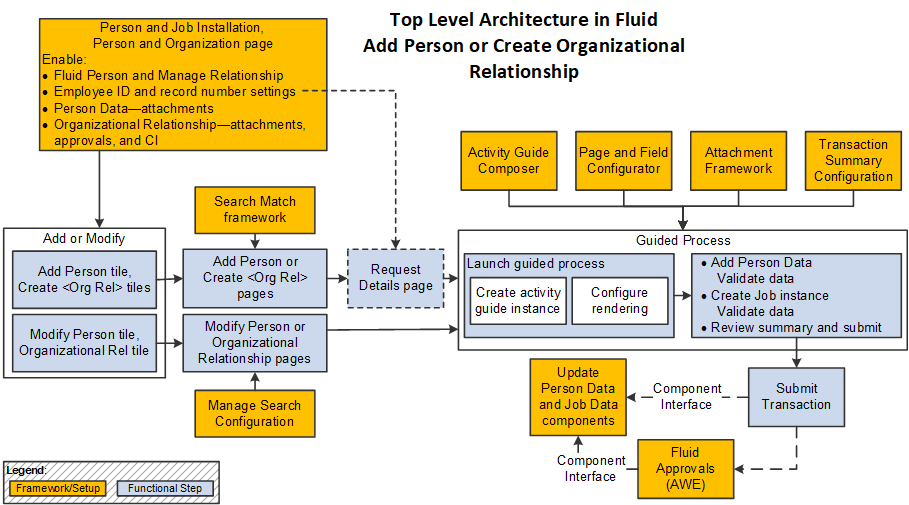
This diagram shows the high-level functional steps administrators will take to add a person, modify a person, or create an organizational relationship, and shows different configurations used to enable the functional steps.
Note:
The light blue of boxes in the diagram show the functional steps while the orange boxes show the different configurations used to enable the functionality.
Prior to accessing and using the fluid Person and Job Data functionality, you need to assign roles and permissions to your users. See the User Roles for Fluid Person and Job Data section in this topic.
The following outlines the configuration and functional steps in the fluid add and modify Person Data and add Job Data (organizational relationship) process:
-
Enable Fluid Person and Manage Relationship functionality using the Person and Job Installation - Person and Organization Page.
Note:
(USF) Federal government agencies have access to Fluid Person Data. The Fluid Job Data features are not yet available to federal agencies.
This is required for HR administrators to access the fluid tiles to add individuals and relationships in the system.
Additionally, you use this page to enable other features like hiding the fields to enter an employee ID or employment record number, Fluid Attachments for person data and organizational relationships, add a customizable Component Interface (CI), and configure approval options.
-
Set up Search/Match functionality to search for potential duplicate person records in the system.
When the HR administrator selects the Add Person or Create <Organizational Relationship> tiles and enters certain criteria, the system will use the Search/Match functionality to identify potential duplicate people in the system.
-
Set up search page configurations using the Manage Search Configuration pages (see Application Fundamentals: Pages Used to Set Up Search Configuration).
When the HR administrator selects the Modify Person or Organizational Relationship tiles, the fluid-based search criteria page appears to locate existing people in the system.
-
If you select to display the Employee ID or Employee Record fields for entry on the Person and Job Installation - Person and Organization Page, the user will be allowed to enter the employee ID or record number on the Request Details page.
-
Update supporting frameworks such as the Activity Guide Composer and Page and Field Configurator, as needed.
When an HR administrator adds a person, with or without a job record, adds an organizational relationship for a person, or modifies existing fluid personal data, the guided process is enabled using the Activity Guide Composer framework. The process references the Page and Field Configurator to control the visibility of steps and fields in the activity guide based on Action. The PeopleSoft HCM system provides the activity guide templates and Page and Field Configurator settings for all delivered Actions.
The fluid-based guided process also includes validation process. If there are any errors or warnings, the user can review and make changes to data before submitting.
See also Understanding the Activity Guide Composer Framework for Person and Organizational Relationship Components in Fluid and Pages Used to Add a Person Using Fluid.
-
Enable Fluid Attachments functionality using the Person and Job Installation - Person and Organization Page page and AWE framework.
The activity guides enable you to include attachments within various sections, leveraging the Fluid Attachments Framework. You can also configure the installation settings to hide Attachment functionality for sections with Person Data or for organizational relationships if you do not want to use the Attachments feature.
-
Set up the Transaction Summary configuration (see Application Fundamentals: Configuring Transaction Summary).
HR administrators use the Summary step to review the information before submitting the person or job data. This step leverages the Transaction Summary configuration where you can configure fields that the HR administrator should review before submitting the action.
-
Configure Approvals functionality using the Person and Job Installation - Person and Organization Page and Approvals framework.
Note:
(USF) Federal government agencies only use Fluid Person Data and therefore do not have access to enable the Approvals feature for Fluid Job Data.
Upon submit, the system checks to see if you have Approvals enabled. If enabled on the Installation pages, the Approval Workflow Engine (AWE Framework) configurations trigger approvals and route Add Employee, Add Contingent Worker, or Add Person of Interest changes for approval.
-
Use the Component Interface (CI) to update Person Data and Job Data.
When an HR administrator submits the activity guide process, the system uses the CI to save data to core records.
Manage Job Flow
Using the fluid interface, administrators can quickly create, process, and authorize ongoing job data requests.
Note:
(USF) Federal government agencies no not currently use the Fluid Job Data feature.
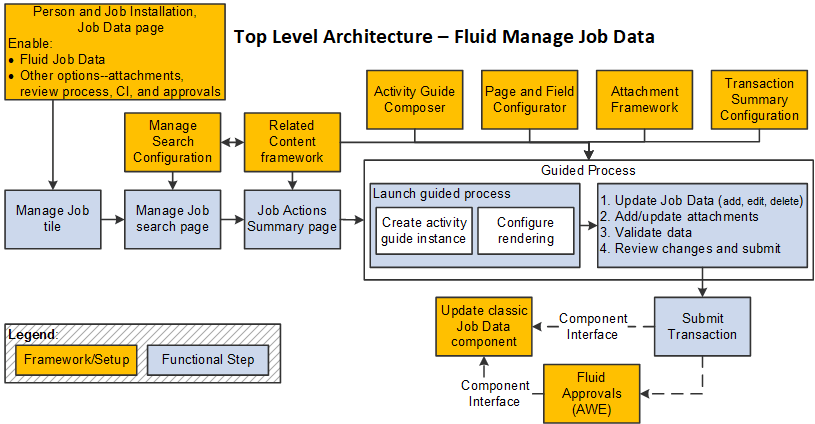
This diagram shows the high-level functional steps administrators will take using the Manage Job functionality and shows different configurations used to enable the functional steps.
Note:
The light blue of boxes in the diagram show the functional steps while the orange boxes show the different configurations used to enable the functionality.
Prior to accessing and using the fluid Job Data functionality, you need to assign roles and permissions to your users. See the User Roles for Fluid Person and Job Data section in this topic.
The following outlines the configuration and functional steps in the fluid Job Data process:
-
Enable Fluid Job Data functionality using the Person and Job Installation - Job Data Page.
This is required for HR administrators to access the fluid Manage Job Tile and ensures the use of the fluid version of Job Data when accessing Job Data links from Position Management and Guided Self Service pages.
Additionally, you use this page to enable features like Fluid Attachments, the Review Process, add a customizable Component Interface (CI), and configure Approval Options. To add a customizable CI, you will first need to set up the Map Job Staging Records Page and Configure Job CI Page.
-
Set up search page configurations using the Manage Search Configuration pages (see Application Fundamentals: Pages Used to Set Up Search Configuration).
When the HR administrator clicks the Manage Job tile, the fluid-based Manage Job search criteria page appears. The PeopleSoft HCM system delivers the Manage Job configurable search configuration.
-
Use the Related Content Framework (RCF) to enable Related Actions in the search results and on the Job Actions Summary Page.
Once HR administrators select an employee from the search results, they can review a summary of all Job Actions performed for an employee using the Job Actions Summary page. They can also initiate actions like add, edit, or view rows from this page, based on their access.
-
Update supporting frameworks such as the Activity Guide Composer and Page and Field Configurator, as needed.
When an HR administrator adds or edits existing fluid Job Data, the guided process is enabled using the Activity Guide Composer framework. The process references the Page and Field Configurator to control the visibility of steps and fields in the activity guide based on Action. The PeopleSoft HCM system provides the JOBDATA activity guide template and Page and Field Configurator settings for all delivered Actions.
The fluid-based guided process also includes a step called Validate Data, which allows HR administrators to validate data using Test CI. If there are any errors or warnings, the user can review and make changes to data before submitting.
See also The Activity Guide Composer Framework for the Manage Job Component and Pages Used to Update Job Data Using Fluid.
-
Enable Fluid Attachments functionality using the Job Data Installation page and AWE framework.
The Manage Job Data activity guide includes an Attachments step (see (Fluid) Job Data - Attachments Page, leveraging the Fluid Attachments Framework. Although the Attachments step is enabled by default in the guided process, you can use Page and Field Configurator to hide the Attachment step if you do not want to use the Attachments feature.
-
Set up the Transaction Summary configuration (see Application Fundamentals: Configuring Transaction Summary).
HR administrators use the (Fluid) Job Data - Summary Page step to review the changes made to job data before submitting the data. This step leverages the Transaction Summary configuration where you can configure fields that the HR administrator should review before submitting the action.
-
Configure Approvals functionality using the Job Data Installation page and Approvals framework.
Upon submit, the system checks to see if you have Approvals enabled. If enabled on the Person and Job Installation table, the Approval Workflow Engine (AWE Framework) configurations trigger approvals and route Manage Job changes for approval and save Job Data.
-
Use the Component Interface (CI) to update Job Data.
When an HR administrator submits the activity guide process, the system uses the CI to save data to core Job Data records.