Creating a Template
Use the Configuration Template Definition page to create a new template, which includes adding configuration plug-ins, editing properties, and defining or importing template variables.
Access the Configuration Template Definition page using the following navigation path:
This example illustrates the fields and controls on the Configuration Template Definition page - Creating Template. You can find definitions for the fields and controls later on this page.
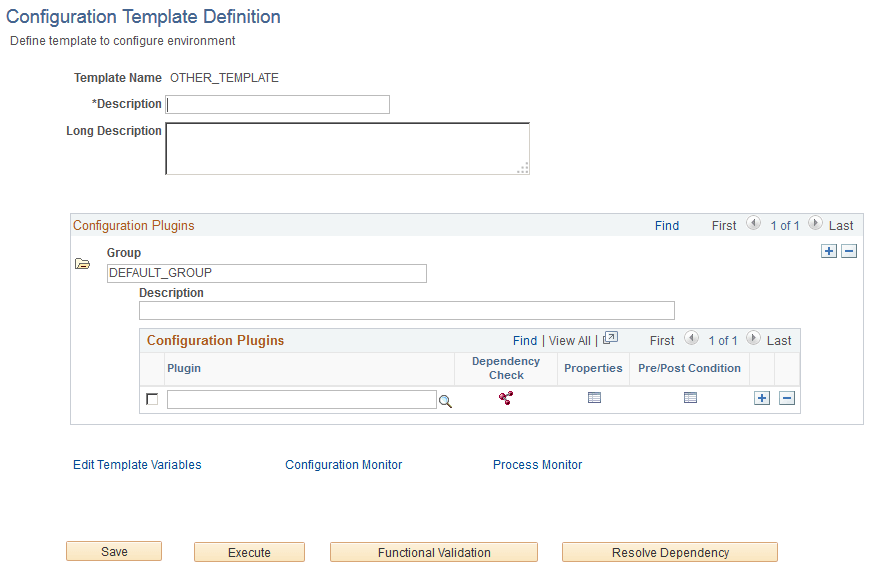
| Field or Control | Description |
|---|---|
|
Template Name |
The name of the template entered on the Template Definition page. You cannot edit the template name on this page (Configuration Template Definition page). |
|
Description |
Enter a short description for the template. |
|
Long Description |
Enter a descriptive comment for the template. |
|
Group |
Enter a name for the group of plug-ins. A group enables you to create a functional grouping of plug-ins related to a configuration. For example, you can group plug-ins related to Integration Broker configuration. You may add multiple groups In a template to configure different products. For example, you can add a group of plug-ins that configure the Search Framework in addition to Integration Broker. DEFAULT_GROUP is the default name for the first group. When you add subsequent groups, these groups do not display a default name. |
|
Description |
Enter a descriptive comment for the group. |
|
Plugin |
Use the Look up Plugin button to list the available plug-ins and choose a plug-in. See Working with Custom Configuration Plug-ins on creating a custom plug-in. |
|
Dependency Check |
Click the Dependency Check icon to review whether any dependencies exist for the current plug-in. If any dependency exists, you must execute the plug-in before you run the current configuration plug-in. |
|
Properties |
Click the Properties icon to review the values that are defined for each property and edit if needed. If you do not edit any of the properties, the default property values will be used in the configuration program run. On the properties window, use the Current values in DB button to view the current value specified for a property of a plug-in in the database. |
|
Pre/Post Condition |
Enables you to add control over the configuration template execution by specifying conditions that may need to be in place prior to a configuration plug-in execution or by specifying how the execution should behave after it has run. This is described in more detail in a subsequent section. For more information on handling errors and setting preconditions and post-conditions, see Handling Errors During Plug-in Execution. |
|
Edit Template Variables |
Click the Edit Template Variables link to review the property values that will be used at run time. The template variables are common to all the groups within a template. For information on defining and importing template variables, see Defining Template Variables and Importing Template Variables. |
|
Configuration Monitor |
After clicking the Execute button to commence a configuration program run, click the Configuration Monitor link to review the configuration program status. |
|
Process Monitor |
Click the Process Monitor link to review the process status. The Process Monitor link is active only if the processing mode is Scheduled. |
|
Save |
Save the template before you execute a configuration program run. |
|
Execute |
Click to execute a configuration program run. After clicking Execute and allowing processing to complete, the system displays the overall status of the request using an icon, such as the Success icon or the Error icon, with the text: Process completed. Click Configuration Monitor for details. The message that you see depends on the processing mode you selected in the ACM Options page. |
|
Functional Validation |
Click to verify the subsystems related to the product configuration. This does not report as to whether the configuration process succeeded. It reports whether the various pieces of the system interrelate successfully. You can access the report using the Configuration Monitor. For more information on this option, see Running Functional Validation. After clicking Functional Validation and allowing processing to complete, the system displays the overall status of the request using an icon, such as the Success icon or the Error icon, with the text: Process completed. Click Configuration Monitor for details. |
|
Resolve Dependency |
Click to resolve dependencies between plug-ins and plug-in groups within the configuration template definition. While this is a dynamic process, meta data related to plug-in dependency needs to have been established. For more information on working with plug-in dependency, see Managing Configuration Plug-in Dependency. |
Related Topics