Configuring Branding System Options
Use the Branding System Options page to specify system-wide branding settings including the branding theme type (family), the branding theme, the default style sheet for classic components, and the default style sheet for fluid components.
Navigation:
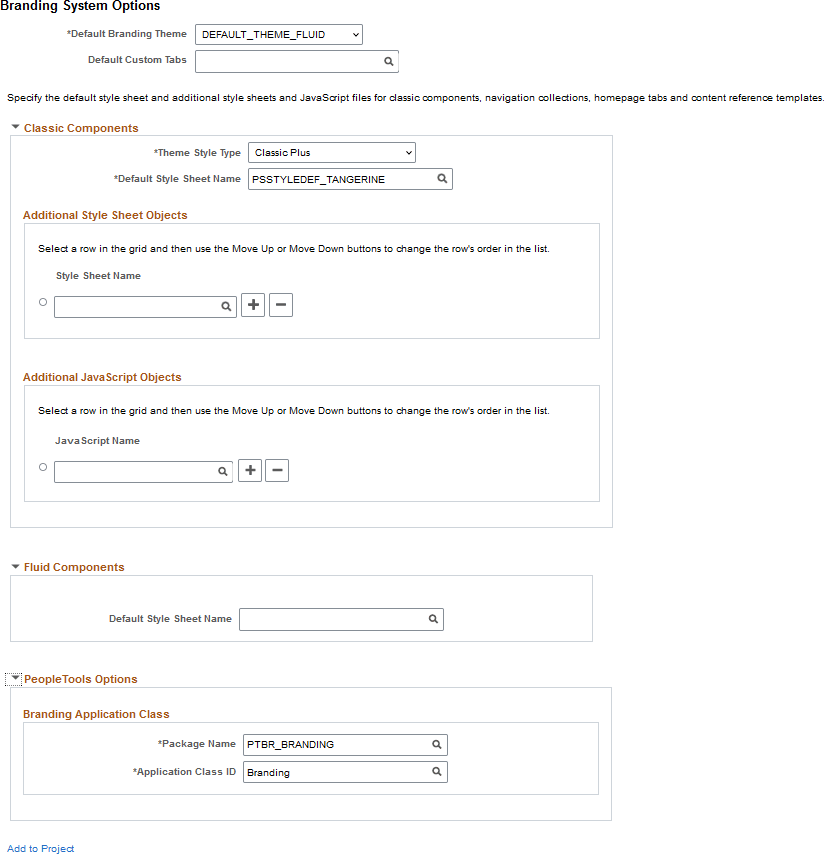
This example illustrates the fields and controls on the Branding System Options page. You can find definitions for the fields and controls later on this page.
| Field or Control | Description |
|---|---|
|
Default Branding Theme |
Select a default, system-wide branding theme. Important: In a cluster environment, ensure that all systems use the same setting for default branding theme. Warning! The branding theme selected must be compatible with the theme family selected in the Theme Style Type field. Otherwise, unexpected and undesirable results can occur. |
|
Default Custom Tabs |
Select a default, system-wide navigation collection that will be used to render custom homepage tabs. Note: Custom tabs are visible from classic homepages only. |
Compatible Branding Themes
Use the following table to determine which branding theme style type (family) is compatible with a specified theme.
| Branding Theme | Description | Compatible Theme Style Types | Classic Navigation | Fluid Navigation |
|---|---|---|---|---|
|
DEFAULT_THEME_FLUID |
The default branding theme for PeopleTools 8.55 (and above) that uses the fluid header on all classic and fluid pages. |
|
NavBar: Menu |
NavBar: Menu |
|
PS_REVERT_TO_PRE858 Note: Do not use this theme. |
For PeopleTools 8.58, an alternative theme that reverts to the original fluid and classic plus styling delivered prior to PeopleTools 8.58. Note: Icons and images such as those found in the fluid banner and classic portal header are not reverted. |
Classic Plus Pre 858 |
NavBar: Menu |
NavBar: Menu |
|
DEFAULT_THEME_TANGERINE* |
The Tangerine theme for PeopleSoft 9.2 applications on PeopleTools 8.53 and PeopleTools 8.54. |
Tangerine |
Drop-down menu* |
NavBar: Menu |
|
DEFAULT_THEME_TANGERINE_ALT* |
For PeopleTools 8.54, an alternate Tangerine theme that includes a portal header that is similar to the look of PeopleSoft fluid pages. |
Tangerine |
|
NavBar: Menu |
|
DEFAULT_THEME_SWAN* |
The default theme for PeopleSoft 9.1 applications on PeopleTools 8.50 to 8.52. |
Swan |
Drop-down menu* |
NavBar: Menu |
|
DEFAULT_THEME_CLASSIC* |
The default theme for PeopleSoft 9.0 applications (and below) on PeopleTools releases prior to 8.50. |
Classic |
Drop-down menu* |
NavBar: Menu |
Important:
* Classic branding themes (DEFAULT_THEME_TANGERINE, DEFAULT_THEME_TANGERINE_ALT, DEFAULT_THEME_SWAN, and DEFAULT_THEME_CLASSIC), their corresponding portal header definitions, the drop-down menu, and other forms of classic navigation are no longer supported. The default navigational interface for PeopleSoft applications in the current release is based on the fluid banner and the fluid-like portal header, both of which contain the NavBar and Menu tile for navigating from both classic and fluid pages. For information on working with the fluid user interface, see Applications User’s Guide: Working with Fluid Pages and Controls.
In addition, the Swan and Classic theme style types are not supported.
Classic Components
| Field or Control | Description |
|---|---|
|
Theme Style Type |
Important: Set the Theme Style Type field first. When the value of this field is changed, a compatible value is automatically specified for the Default Style Sheet Name field; and while other compatible options may be available, the Default Branding Theme field is automatically updated to DEFAULT_THEME_FLUID. Important: In a cluster environment, ensure that all systems use the same setting for the theme style type—that is, all systems must enable the same classic plus setting or disable classic plus using the Tangerine setting. Use this field to specify the theme style type (family):
|
|
Default Style Sheet Name |
Select a default, system-wide style sheet for classic components. The value selected here will also be visible on the PeopleTools Options page. Moreover, if the previous value of the default style sheet was also used on the System Options page or the Registry Options page for one or more portal registries, the value selected here is updated to each of those pages. Warning! The style sheet selected should be compatible with the theme family selected in the Theme Style Type field. Otherwise, unexpected and undesirable results can occur. Therefore, specify the Theme Style Type field first; then retain the automatically selected value of this field or select another style sheet that is compatible within the selected theme family. |
|
Style Sheet Name (Additional Style Sheet Objects) |
Specify zero, one, or more than one style sheet to be loaded with all classic components. |
|
JavaScript Name(Additional JavaScript Objects) |
Specify zero, one, or more than one JavaScript object to be loaded with all classic components. Important: JavaScript objects are stored as HTML objects in the database. The lookup does not differentiate between standard HTML objects and JavaScript objects. Therefore, it is your responsibility to ensure that you have selected valid JavaScript to be loaded with a component. |
|
Move UpMove Down |
Select the row designating a style sheet or a JavaScript object, and then use the Move Up and Move Down buttons to change the order in which the objects are loaded with all classic components. |
Fluid Components
| Field or Control | Description |
|---|---|
|
Default Style Sheet Name |
Select a default, system-wide style sheet for fluid components. Note: If no style sheet is specified, then PSSTYLEDEF_FMODE is used as the default style sheet for all fluid components. The value selected here will also be visible on the PeopleTools Options page. |
PeopleTools Options
The branding application class generates the portal headers, footers, and other aspects of the branding theme. The default branding application class is PTBR_BRANDING:Branding. If this delivered application class does not fully support your requirements, you can create your own by extending the delivered application class.
| Field or Control | Description |
|---|---|
|
Package Name |
Select the name of the application package that contains the application class that defines system-wide branding functions. The default value is: PTBR_BRANDING. The value selected here will also be visible on the PeopleTools Options page. |
|
Application Class ID |
Select the name of the application class that defines system-wide branding functions. The default value is: Branding. The value selected here will also be visible on the PeopleTools Options page. |
Add to Project
Click the Add to Project link to access the Add To Project page to insert the branding system options definition into an ADS project. See Lifecycle Management Guide: Adding Data Set Instances from Object Designer Pages and Migrating Branding Data Using ADSs for more information.