Managing Related Content for Content References
Use the Manage Related Content for Content References page to manage related content and related action configurations for content references.
Navigation:
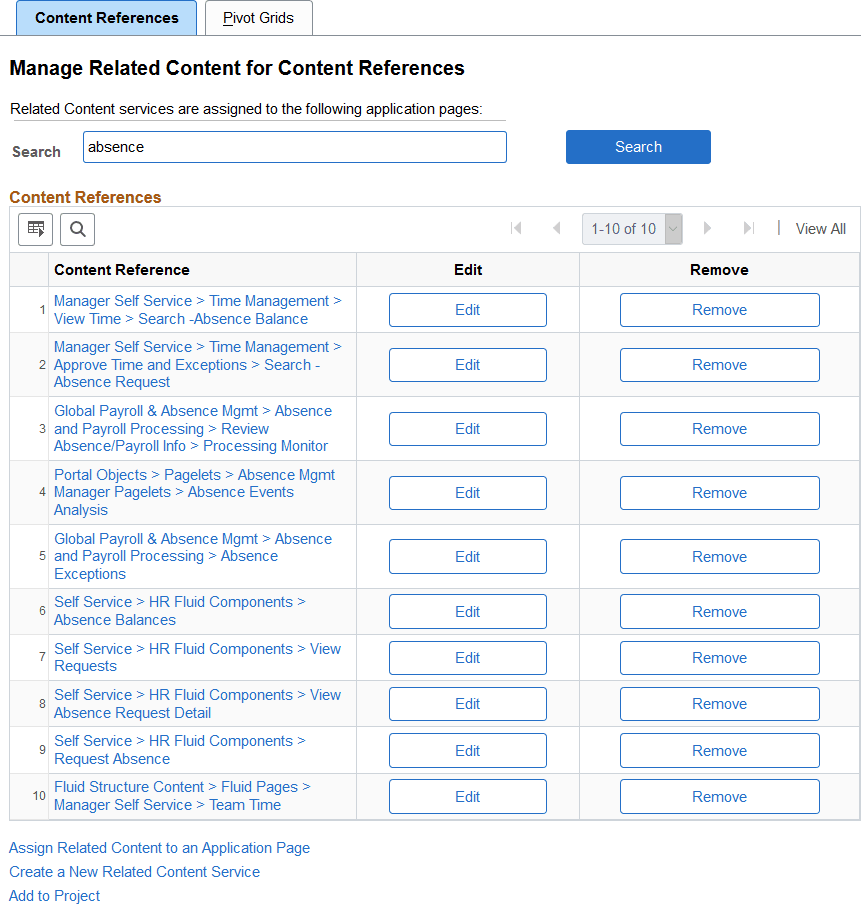
This example illustrates the fields and controls on the Manage Related Content for Content References page. You can find definitions for the fields and controls later on this page.
| Field or Control | Description |
|---|---|
|
Search |
Enter a search term or phrase and click the Search button to filter the list of content references using the search terms. Search terms are case insensitive and results are returned for partial word matches. For example, both dep and dept will match the Department (DEPT_TBL.GBL) content reference. When you click the Search button, a database search is performed on the following values:
See “Content Reference Attributes” in Defining Content References. |
|
Content Reference |
Click a content reference link to access the actual transaction page, which allows you to test any configured related content. |
|
Edit |
Click an Edit button to edit an existing related content configuration. See Assigning Related Content to Classic Components and Pages, Assigning Related Content to Fluid Components and Pages, or Assigning Related Actions to Classic Pages, Fluid Pages, and Pivot Grids. |
|
Remove |
Click a Remove button to remove an existing related content configuration. |
|
Assign Related Content to an Application Page |
Click this link to access the Select a Content Reference page to create a new related content assignment. |
|
Create a New Related Content Service |
Click the link to access the Define Related Content Service page. See Creating and Managing Related Content Service Definitions. |
|
Add to Project |
Click the Add to Project link to access the Add To Project page to insert one or more related content configurations by component into an ADS project. See Lifecycle Management Guide: Adding Data Set Instances from Object Designer Pages for more information. |
Selecting an Application Page (Content Reference)
Use the Select a Content Reference page to select a content reference for configuration.
Navigation:
On the Manage Related Content for Content References page, click the Assign Related Content to an Application Page link.
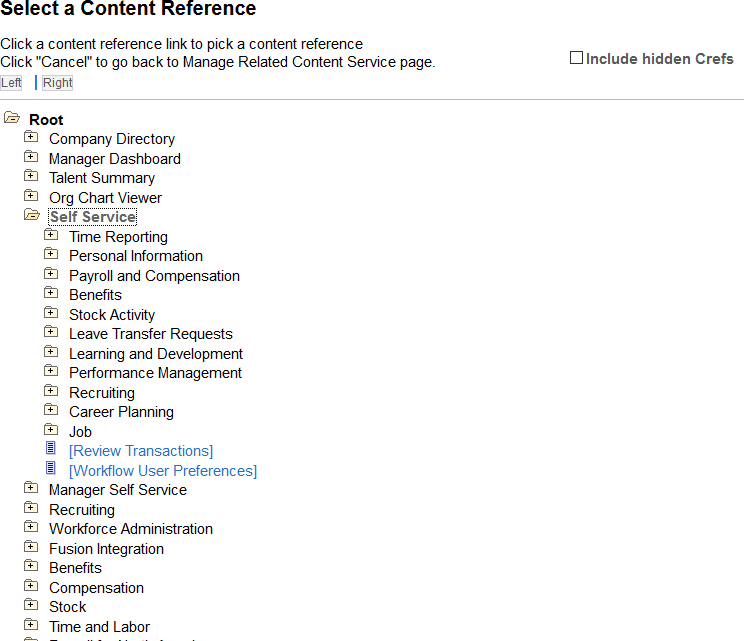
This example illustrates the fields and controls on the Select a Content Reference page. You can find definitions for the fields and controls later on this page.
| Field or Control | Description |
|---|---|
|
Include hidden Crefs |
Select to make hidden content references available for assignment. Note: The tree shows both PeopleSoft component URLs and PeopleSoft component-based generic URLs. |
|
|
Click to expand the folder and display child folders and links. |
|
|
Click to collapse the folder and hide all children. |
|
[link] |
Click a content reference link to select that content reference to which related content will be assigned. |


After selecting a content reference, continue by assigning and configuring related content or related actions.