Visualize Spatiotemporal Datasets
You can visualize spatiotemporal datasets using the Cesium Timeline widget.
The following sections provide more information on the Cesium Timeline widget and the supported visualizations.
Overview of the Cesium Timeline Widget
Spatial Studio provides a new standalone Cesium Timeline widget.
The Cesium Timeline widget in Spatial Studio provides the following capabilities:
-
Dataset filtering.
-
Serves as a hub for controlling all kinds of spatiotemporal data (such as live, historic, moving objects, and so on).
The only exception being the GeoJSON URL based datasets. These datasets do not cater to Cesium timeline as the external URLs may not have the capability to provide GeoJSON corresponding to a time value, but are rather simply refreshed to provide newer values every
xseconds. -
Offers a scalable solution to add multiple layers of different dataset types at once that can be time-synced as required.
The following figure shows the Cesium Timeline Widget on a map visualization in Spatial Studio.

Description of the illustration cesium_timeline_widget.png
The key concepts of the Cesium Timeline are as follows:
-
Cesium Timeline Modes: The timeline supports two modes of operation. If even one layer corresponding to a live dataset is listening to the timeline, then the mode of operation is LIVE. Otherwise, the mode of operation is always HISTORIC.
-
Cesium Clock Start Time: Starting point of the current range of timeline. This is the point in time from which the Cesium clock starts ticking.
-
Cesium Clock Stop Time: Ending point of the current range of timeline. This is the point in time until which the Cesium clock ticks. However upon reaching the end, the timeline behavior depends on the mode:
-
LIVE: The timeline will move ahead by updating the start time and stop time values as per the current time.
-
HISTORIC: The timeline will loop back to the start time.
-
-
Cesium Clock Current Time: The current time frame of the clock. It begins at the Cesium clock start time and ticks every
500ms. Optionally, you can slide the pointer on the timeline manually to set your current time.Also note the following with respect to the type of the spatiotemporal dataset:
-
Live Spatiotemporal Dataset: The Cesium clock current time value for such datasets is configured to always be pointing to current UTC time (unless manually changed).
-
Non-Live Spatiotemporal Dataset: If no other dataset is added to the timeline, then the Cesium clock for such a dataset automatically sets its range to minimum and maximum of the timestamp column, and the Cesium clock current time starts from the minimum value.
-
-
Multiplier: Multiplies to the interval at which the clock ticks (
500ms) in order to make the clock jump ahead or rewind accordingly. -
Timeline Playback Controls:
-
Pause: Stops the timeline from animating and throwing tick events. The timeline pauses at current timeline frame.
-
Forward and Backward Play Buttons: Makes the timeline animate in the chosen direction and includes the multiplier value (
+/- Multiplier * 500ms)
-
-
Cesium Timeline settings: Allows you to control the timeline settings.
Related Topics
Configure Cesium Timeline Settings
You can configure custom settings for the Cesium timeline.
Perform the following steps to configure the Cesium Timeline settings in your map visualization.
The instructions assume that you have a project linked to a spatiotemporal dataset and the project is opened on your Active Project page.
-
Click the Settings icon in your map tool bar.
-
Switch
ONthe Show timeline toggle and click OK.The Cesium Timeline widget appears at the bottom of the map visualization canvas.
-
Click
 on the timeline to configure the Cesium timeline settings.
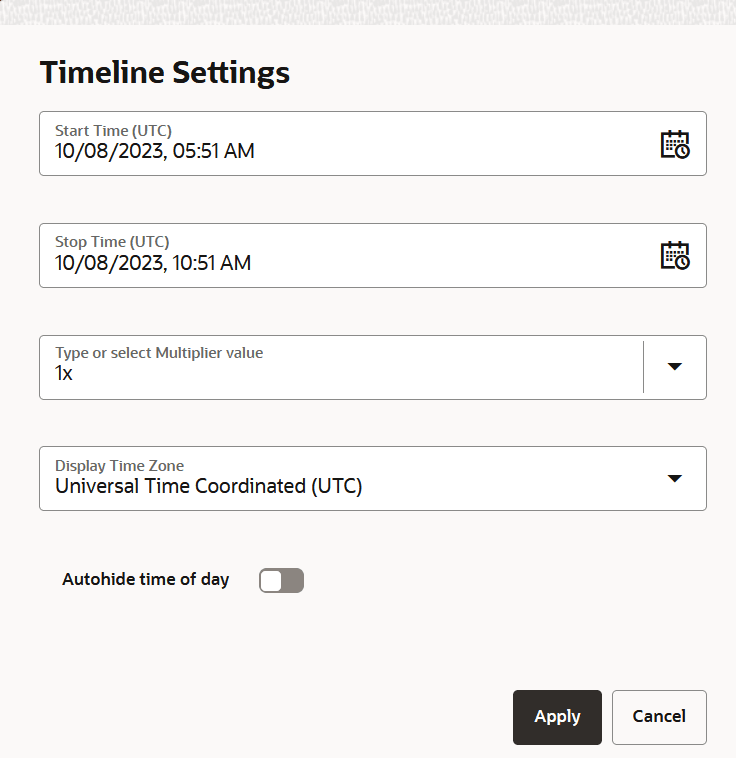
The Timeline Settings dialog opens as shown:
Description of the illustration timeslider_settings.png
-
Select the Start Time and Stop Time to set the timeline range.
-
Enter or select a multiplier value from the Type or select Multiplier value list box.
You can use a preset (Second, Minutes, Hours, Days, Weeks, Month, Year) multiplier or type a value such as
15or15x. -
Select the Display Time Zone in which you want the Cesium timeline to display its current time and timeline labels.
-
Optionally, switch
ONthe Autohide time of day.If you opt to autohide time of day, then the time values from the timeline labels are hidden if the timeline range selected is greater than a week.
-
Click Apply.
-
About Map Layers and the Timeline
Learn more about the spatiotemporal map layers and the Cesium timeline.
-
In order to add a map layer to the timeline, you must first enable spatiotemporal in the underlying dataset for the map layer. See Enable Spatiotemporal for a Dataset for more information.
-
You can then add one or more spatiotemporal map layers to the Cesium timeline by performing the following steps:
-
Click the Settings icon in your map tool bar and switch
ONthe Show timeline toggle to view the Cesium timeline widget at the bottom of the map visualization canvas. -
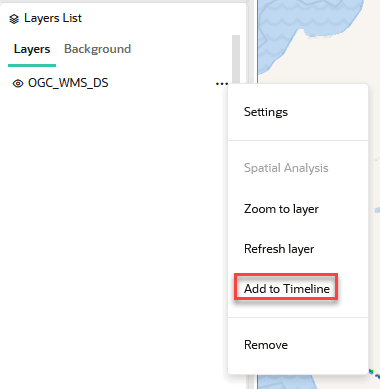
Select the Add to Timeline option in the context menu of the map layer as shown:
Description of the illustration add_to_timeline.png
The map layer gets added to the timeline.
-
-
Note the following if you add multiple map layers to the timeline:
-
Each of these map layers respond to the timeline events independently. Therefore, you can configure each map layer to have its own properties (such as refresh time) and they then accordingly respond to the listener events. As the timeline events are thrown at every
500mstick interval, each layer can have it own refresh time (more than500ms) as to when they want to respond to these events. -
Also, in case of the map layers for datasets with historic timestamp values, all layers will loop back as per the current timeline range. This may either correspond to the first layer added to the timeline or it can be a custom range that you set in the timeline settings.
-
If a layer corresponding to a live dataset is added to the timeline, then irrespective of the historic dataset layers listening to the timeline already, the timeline will never loop back and will keep moving forward.
-
-
If you make any changes to the underlying dataset properties of a map layer, which is already added to the timeline, such as:
-
-
Disabling the Enable Spatiotemporal toggle
-
Toggling Data is Live and Moving Objects
Then, the listener gets removed from the timeline. In such cases, it is recommended that you remove the layer from the timeline and add it again after changing the properties.
-
- If you change the Time Unit property of a standard filtering dataset, then this will take effect immediately and the filtering on the map visualization will adhere to the new Time Unit value.
-
Visualize Live Moving Objects Dataset
You can visualize live moving objects on a map in Spatial Studio.
The following instructions assume that you have enabled spatiotemporal for such a dataset and the dataset is already added to the project in the Active Project page. See Configure Spatiotemporal for Live Moving Objects Dataset for more information.
-
Click the Visualizations tab on the left pane in the Active Project page.
This lists the various visualization options.
-
Click and drag Map from the list to the visualization window on the right to create a map visualization.
A default base map is displayed with no data visualization layers.
-
Click the Data tab on the left pane in the Active Project page.
This lists all the Datasets that are loaded for the project.
-
Click and drag the desired spatiotemporal dataset from the list to the map view on the right.
Two map layers belonging to the dataset are created on the map. The second layer representing the trails of the moving object is added automatically in Spatial Studio. See Characteristics of Spatiotemporal Map Layers for Moving Objects Dataset for more information on the two map layers.
-
Click the Settings icon in your map tool bar.
-
Switch
ONthe Show timeline toggle and click OK.The Cesium timeline widget appears at the bottom of the map visualization canvas. However, the timeline is not operational at this step.
-
Click
 against the primary layer in the Data tab of the Layers list and click Add to Timeline,
Adding a map layer to the timeline will point to the current UTC time and the layer is now listening to the timeline events. However, the timeline is not operational at this step. Optionally, repeat this step to add multiple layers (of different spatiotemporal datasets) to the timeline and listen to its events.
-
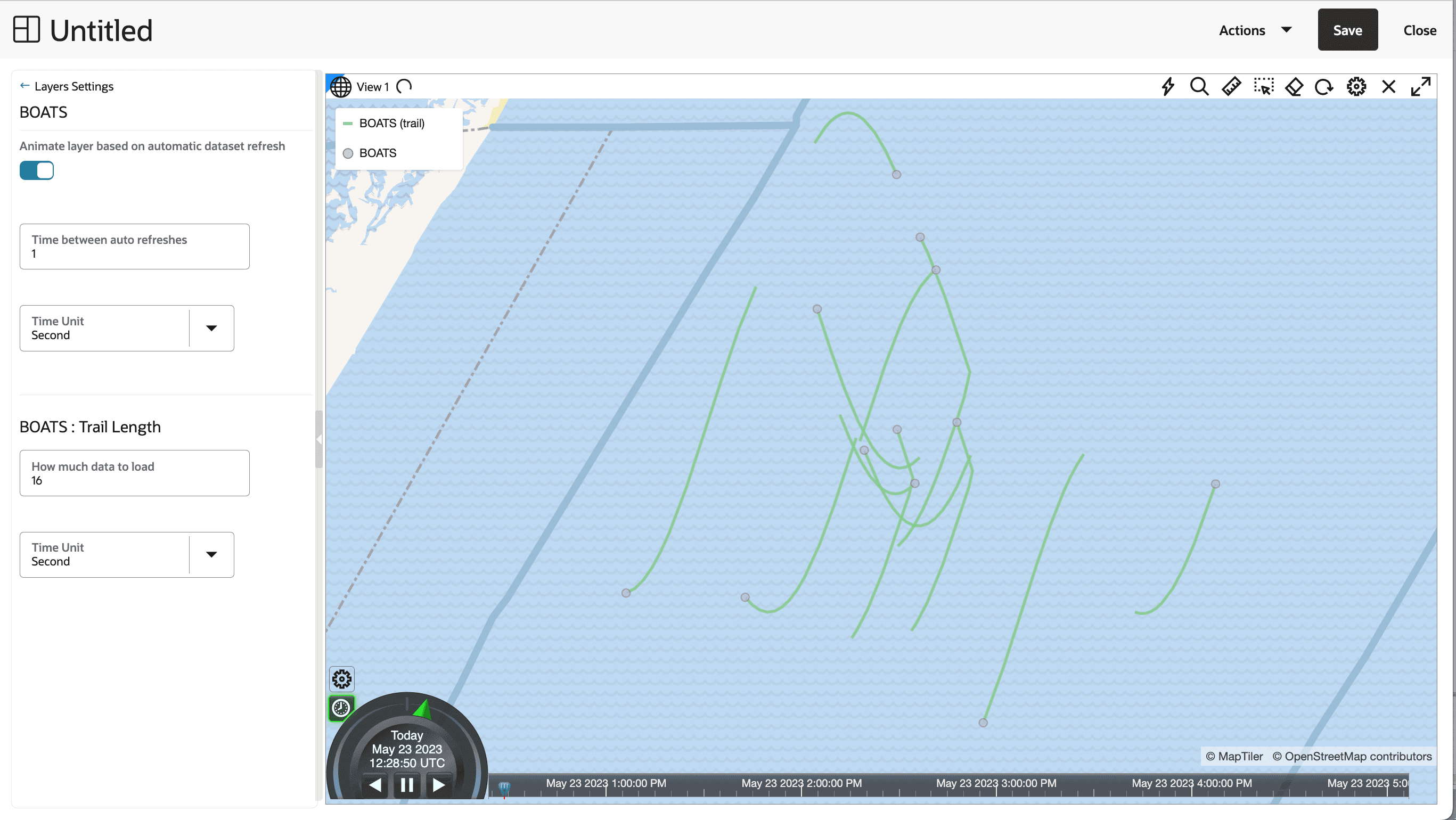
Configure animation for the map layer by following the steps in Configure Animation for Moving Objects Dataset.
-
Select Zoom Timeline to Range in the context menu of the map layer.
The timeline is refocused on current UTC time.
-
Optionally, configure custom Start Time, Stop Time, Multiplier, and so on from the timeline settings. You can also use the Cesium timeline controls and make the current time pointer slide to a different timeframe.
-
Optionally, select Remove from Timeline in the context menu of the map layer if you wish the map layer to stop listening to the Cesium timeline.
Visualize Live and Non-Moving Objects Dataset
You can visualize a spatiotemporal dataset having ongoing inserts of real-time data, but the locations of the data entities do not change.
The following instructions assume that you have enabled spatiotemporal for such a dataset and the dataset is already added to the project in the Active Project page. See Configure Spatiotemporal for Live and Non-Moving Objects Dataset for more information.
-
Click the Visualizations tab on the left pane in the Active Project page.
This lists the various visualization options.
-
Click and drag Map from the list to the visualization window on the right to create a map visualization.
A default base map is displayed with no data visualization layers.
-
Click the Data tab on the left pane in the Active Project page.
This lists all the Datasets that are loaded for the project.
-
Click and drag the desired spatiotemporal dataset from the list to the map view on the right.
Two map layers belonging to the dataset are created on the map.
-
Click the Settings icon in your map tool bar.
-
Switch
ONthe Show timeline toggle and click OK.The Cesium Timeline widget appears at the bottom of the map visualization canvas. However, the timeline is not operational at this step.
-
Click
against the primary layer in the Data tab of the Layers list and click Add to Timeline. -
Select Configure Animation from the context menu of the map layer.
-
Switch ON Animate layer based on automatic dataset refresh.
The dataset animates with the Cesium clock events.
-
Specify Time between auto refreshes to indicate the frequency of data refresh from the backend. This configuration also determines the smoothness and speed of the temporal animation.
Also, note the following:
-
Spatial Studio displays a default frequency value which is same as the Data Change Rate value configured on the Spatiotemporal dataset used for the visualization.
-
Only one dataset layer for the geometry animates (attributes change) as per the Cesium clock’s current time (which points to the present UTC time value) and the multiplier value (default is
1x). Since the dataset is a streaming entity it will not have data ahead of time. Hence you must not change the default Cesium clock values. If you expect the data to be updated everyxminutes, then configure Time between auto refreshes toxminutes, but do not change the Cesium timeline range or the multiplier value.
-
-
Select Zoom Timeline to Range in the context menu of the map layer to make the timeline reset to current clock time and a
1xmultiplier.Upon reaching the set end time, the timeline will keep moving ahead and will not loop back.
-
Optionally, select Remove from Timeline in the context menu of the map layer if you wish the map layer to stop listening to the Cesium timeline.
Visualize Non-Live Moving Objects Dataset
You can visualize moving objects with historic timestamp values on a map in Spatial Studio.
The following instructions assume that you have enabled spatiotemporal for such a dataset and the dataset is already added to the project in the Active Project page. See Configure Spatiotemporal for Non-Live Moving Objects Dataset for more information.
-
Click the Visualizations tab on the left pane in the Active Project page.
This lists the various visualization options.
-
Click and drag Map from the list to the visualization window on the right to create a map visualization.
A default base map is displayed with no data visualization layers.
-
Click the Data tab on the left pane in the Active Project page.
This lists all the Datasets that are loaded for the project.
-
Click and drag the desired spatiotemporal dataset from the list to the map view on the right.
Two map layers belonging to the dataset are created on the map. The second layer representing the trails of the moving object is added automatically in Spatial Studio. See Characteristics of Spatiotemporal Map Layers for Moving Objects Dataset for more information on the two map layers.
-
Click the Settings icon in your map tool bar.
-
Switch
ONthe Show timeline toggle and click OK.The Cesium Timeline widget appears at the bottom of the map visualization canvas. However, the timeline is not operational at this step.
-
Click
against the primary layer in the Data tab of the Layers list and click Add to Timeline.The map layer gets added to the timeline and the timeline will range from minimum value to maximum value of the timestamp column. the current time will point to the min value of the timestamp column and the layer is now listening to the timeline events. However, the timeline is not operational at this step. Optionally, repeat this step to add multiple layers (of different spatiotemporal datasets) to the timeline.
-
Configure animation for the map layer by following the steps in Configure Animation for Moving Objects Dataset.
-
Select Zoom Timeline to Range in the context menu of the map layer.
The timeline is refocused to range from minimum value to maximum value of the timestamp column and current time will point to the minimum value of the timestamp column. This acts as a looping mechanism for a historic dataset.
-
Optionally, configure custom Start Time, Stop Time, Multiplier, and so on from the timeline settings. You can also use the Cesium timeline controls and make the current time pointer slide to a different timeframe.
-
Optionally, select Remove from Timeline in the context menu of the map layer if you wish the map layer to stop listening to the Cesium timeline.
Visualize Non-Live and Non-Moving Objects Dataset
You can visualize a spatiotemporal dataset that simply contains different timestamp values in each row which are not grouped by any entity ids.
The following instructions assume that you have enabled spatiotemporal for such a dataset and the dataset is already added to the project in the Active Project page. See Configure Spatiotemporal for Non-Live and Non-Moving Objects Dataset for more information.
-
Click the Visualizations tab on the left pane in the Active Project page.
This lists the various visualization options.
-
Click and drag Map from the list to the visualization window on the right to create a map visualization.
A default base map is displayed with no data visualization layers.
-
Click the Data tab on the left pane in the Active Project page.
This lists all the Datasets that are loaded for the project.
-
Click and drag the desired spatiotemporal dataset from the list to the map view on the right.
A single map layer is created on the map.
-
Click the Settings icon in your map tool bar.
-
Switch
ONthe Show timeline toggle and click OK.The Cesium Timeline widget appears at the bottom of the map visualization canvas. However, the timeline is not operational at this step.
-
Click
against the primary layer in the Data tab of the Layers list and click Add to Timeline.The map layer gets added to the timeline and the timeline will range from minimum value to maximum value of the timestamp column. The current time will point to the minimum value of the timestamp column and the layer is now listening to the timeline events.
Also, the filtering configured for the spatiotemporal settings will automatically be applied and the map layer will be filtered as per the Cesium clock current time. For example, if the Cesium clock current time is Monday, May 22, 2023 5:13 PM and the configured time unit for filtering is
month, then the map visualization will show all the geometries that have the timestamps between May 1, 2023 and May 31, 2023.The multiplier of the timeline matches the filtering time unit selected. However, you can also change the time unit at which the dataset is currently being filtered (see Configure Spatiotemporal for Non-Live and Non-Moving Objects Dataset).

-
Select Zoom Timeline to Range in the context menu of the map layer.
The timeline is refocused to range from minimum value to maximum value of the timestamp column and the current time will point to the minimum value of the timestamp column. This acts as a looping mechanism for a historic dataset.
-
Optionally, select custom Start Time, Stop Time, Multiplier, and so on from the timeline settings. You can also use the Cesium timeline controls and make the current time pointer slide to a different time frame.
-
Optionally, select Remove from Timeline in the context menu of the map layer if you wish the map layer to stop listening to the Cesium timeline.
Visualize Spatiotemporal Data in OGC WMS Datasets
You can visualize OGC WMS datasets that contain spatiotemporal data.
The following instructions assume that you have enabled spatiotemporal for such a dataset and the dataset is already added to the project in the Active Project page. See Configure Spatiotemporal for OGC WMS Datasets for more information.
-
Click the Visualizations tab on the left pane in the Active Project page.
This lists the various visualization options.
-
Click and drag Map from the list to the visualization window on the right to create a map visualization.
A default base map is displayed with no data visualization layers.
-
Click the Data tab on the left pane in the Active Project page.
This lists all the Datasets that are loaded for the project.
-
Click and drag the desired spatiotemporal dataset from the list to the map view on the right.
A single map layer is created on the map.
-
Click the Settings icon in your map tool bar.
-
Switch
ONthe Show timeline toggle and click OK.The Cesium Timeline widget appears at the bottom of the map visualization canvas. However, the timeline is not operational at this step.
-
Click
against the map layer in the Data tab of the Layers list and select Add to Timeline.The map layer gets added to the timeline. Although the timeline is now listening to the timeline events, it is still not operational.
-
Select Configure Animation from the context menu of the map layer.
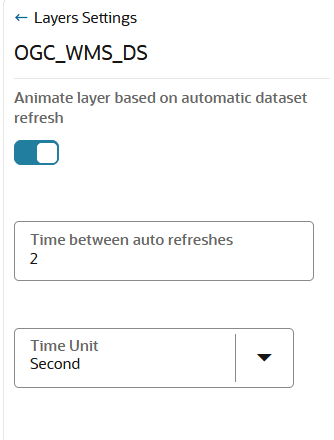
The animation configuration dialog opens as shown:
-
Switch ON Animate layer based on automatic dataset refresh.
The dataset animates with the Cesium clock events.
The dataset will poll the WMS service to fetch the images as per the time value under the Cesium clock current time.
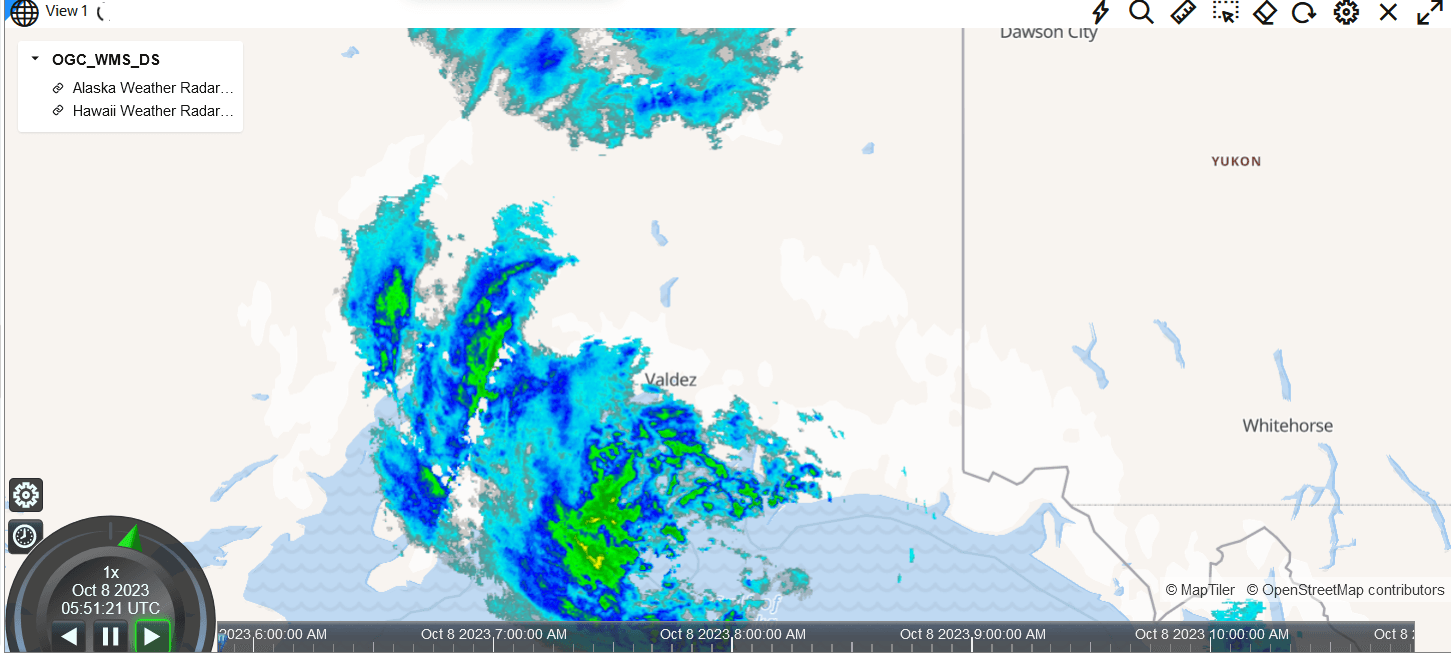
Description of the illustration wms_spatio_temporal_ds_viz.png
-
Specify Time between auto refreshes to indicate the frequency of data refresh from the backend. This configuration also determines the smoothness and speed of the temporal animation.
Also, note the following:
-
Spatial Studio displays a default value of
2 secondsfor WMS datasets. The effective refresh rates depend on how fast images are fetched from the respective WMS service. Empirically, for WMS data, any data change rate less than 2 seconds is not sufficient to retrieve image and refresh the tiles. It can cause incomplete image loading before the new refresh, or the visualization may remain stuck in refresh state. -
The parameter ignores all the tick events from the timeline if the Cesium clock current time is less than
previousRefreshTime + x seconds(or any other time unit). For example, if a dataset is supposed to refresh every 30 seconds, then configure this value in Time between auto refreshes so that even if the Cesium clock continues to throw tick events for all layers, this layer will ignore any such events.
-
-
Specify a Time Unit.
-
Optionally, select custom Start Time, Stop Time, Multiplier, and so on from the timeline settings. You can also use the Cesium timeline controls and make the current time pointer slide to a different time frame.
Note: Zoom Timeline to Range is disabled for an OGC WMS dataset. This is because each WMS dataset may comprise more than one image layers and it will be inaccurate to choose a time range for any one of these layers automatically. Therefore, use the Cesium timeline settings (see Configure Cesium Timeline Settings) to manually set the appropriate range of the timeline for the specific image layer that you wish to animate.
-
Optionally, select Remove from Timeline in the context menu of the map layer if you wish the map layer to stop listening to the Cesium timeline.
Visualize GeoJSON URL Datasets with Spatiotemporal Data
You can visualize GeoJSON URL based datasets that contain spatiotemporal data.
The following instructions assume that you have enabled spatiotemporal for such a dataset and the dataset is already added to the project in the Active Project page. See Configure Spatiotemporal for GeoJSON URL Datasets for more information.
-
Click the Visualizations tab on the left pane in the Active Project page.
This lists the various visualization options.
-
Click and drag Map from the list to the visualization window on the right to create a map visualization.
A default base map is displayed with no data visualization layers.
-
Click the Data tab on the left pane in the Active Project page.
This lists all the Datasets that are loaded for the project.
-
Click and drag the desired spatiotemporal dataset from the list to the map view on the right.
A single map layer is created on the map.
-
Click
against the map layer in the Data tab of the Layers list and select Configure Animation.Note: GeoJSON URL based datasets are not dependent on the time values represented by the Cesium Timeline. They are just required to refresh periodically and therefore you need not enable the Cesium Timeline for such datasets.
-
Switch ON Animate layer based on automatic dataset refresh.
-
Specify Time between auto refreshes to indicate the frequency of data refresh from the backend. This configuration also determines the smoothness and speed of the temporal animation.
The GeoJSON URL map layer is set to refresh periodically based on this configured interval value.
Configure Animation for Moving Objects Dataset
You can animate a spatiotemporal map layer of a moving objects dataset based on Cesium Timeline events.
The instructions assume that the spatiotemporal map layer is already added to the Cesium Timeline.
-
Click
against the primary layer in the Data tab of the Layers list.The context menu of the map layer displays the following options:
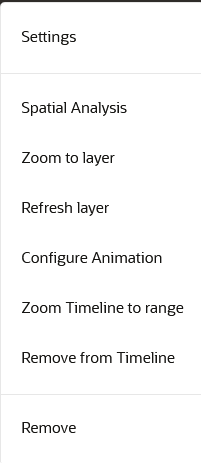
Description of the illustration configure_animation_menu.png
-
Select Configure Animation.
The animation settings for the map layer opens.
-
Switch ON Animate layer based on automatic dataset refresh.
The dataset animates with the Cesium clock events.
-
Specify Time between auto refreshes to indicate the frequency of data refresh from the backend. This configuration also determines the smoothness and speed of the temporal animation.
Also, note the following:
-
Spatial Studio displays a default frequency value which is same as the Data Change Rate value configured on the Spatiotemporal dataset used for the visualization.
-
All the map layers added to the timeline can individually have their own refresh or animation intervals.
-
The parameter ignores all the tick events from the timeline if the Cesium clock current time is less than
previousRefreshTime + x seconds(or any other time unit). For example, if a dataset is supposed to refresh every 30 seconds, then configure this value in Time between auto refreshes so that even if the Cesium clock continues to throw tick events for all layers, this layer will ignore any such events.
-
-
Specify a Time Unit.
-
Specify How much data to load, the trail length of your moving object. A trail length value of
Nindicates that Spatial Studio must fetch the recentNunits (unit value as specified in the following step) of data of the moving object during every refresh.Tip: If the underlying database table or view contains millions of records, you can limit the map animation to display only the most recent
Nunits of data as configured in Trail Length.Note that Spatial Studio displays a default trail length value which is 15 times the Data Change Rate value configured on the Spatiotemporal dataset and is rounded to the nearest integer.
-
Specify a Time Unit for the trail length.
The animation settings are configured and you can view the animation of moving objects on the map.
Note: You can choose a symbol and color for your moving object. However, ensure that the symbol you select adheres to the conditions explained in Characteristics of Spatiotemporal Map Layers for Moving Objects Dataset.
Characteristics of Spatiotemporal Map Layers for Moving Objects Dataset
This section describes the distinct characteristics of the primary and secondary map layers when visualizing a spatiotemporal dataset containing moving objects.
-
The trails map layer is considered the secondary layer to the main layer. If you delete the main layer from the map, then the trails map layer is automatically deleted as well.
-
The main layer which shares the same name as the dataset is always a Point-type layer, that you can visualize using either as circle or using symbols or icons. When you use symbols, Spatial Studio will also automatically rotate the symbol based on the direction your object is moving.
Also note, the current release of Spatial Studio supports only those symbols that naturally point North (or point up) or those that do not represent an inherent direction or angle, such as any rounded symbols.
-
The main layer will keep its animation even when you toggle the secondary layer invisible. However, if you toggle the main layer invisible, the trail layer will remain static as no new data is fetched from the backend.
-
You cannot switch the main layer to Heatmap or Cluster type.
-
You cannot use sticky Tooltip or popup as they cannot stick to the moving object when it moves to new locations.
-
Spatial Studio drives the animation of moving objects and their trails by constantly refreshing the main layer’s data from the backend. This implies that the base table is queried and the last
Nseconds of data is fetched by filtering the records based on theTIMESTAMPcolumn. -
If you are working in a multi-user or multi-visualization environment or both, you must take care to avoid overloading the database with many animating layer’s data refresh queries. For instance, ensure a layer is not refreshing its data too frequently, or fetching too many seconds of data on each refresh, or both.