Working with the Change Management Assistant
The Change Management Assistant is a generative AI–powered chat experience in Oracle Fusion Cloud Enterprise Data Management that helps users interact with, manage, and change data within a view by using natural language.
Benefits
-
The Change Management Assistant enables you to ask questions, run queries, create and modify requests, and review data changes directly within a conversational interface.
-
The assistant interprets your prompts and performs the appropriate actions (for example, retrieving node information, running viewpoint queries, make changes to data in a request, or providing request insights) without requiring you to specify how the task should be completed.
-
After you initiate a task in the assistant, you can navigate to the corresponding areas of the viewpoint to view and refine the results. For example, you can generate and run a viewpoint query in the chat, then open the Viewpoint Query tab to review and modify the query using standard tools (see Querying a Viewpoint). Any updates made outside the chat are reflected back in the conversation.
- The assistant can suggest relevant follow-up actions based on the current context and results. These suggestions help guide you to the next logical step (such as refining a query, exploring related data, or taking action on results) without requiring you to formulate a new prompt from scratch.
Considerations
- GenAI must be enabled in your environment in order to use the assistant. See Enabling AI in Cloud EDM.
- Users with at least Participant (Read) permission on a view can access the assistant. The actions available within the assistant depend on the your data access and permissions. If you attempt a task that you are not authorized to perform, the assistant displays a message indicating that the action is not permitted.
Note:
The Change Management Assistant is supported for English language interactions. Depending on the Language setting in your user preferences (see Setting Your Preferences), the assistant may generate responses in other languages.
Change Management Assistant Overview
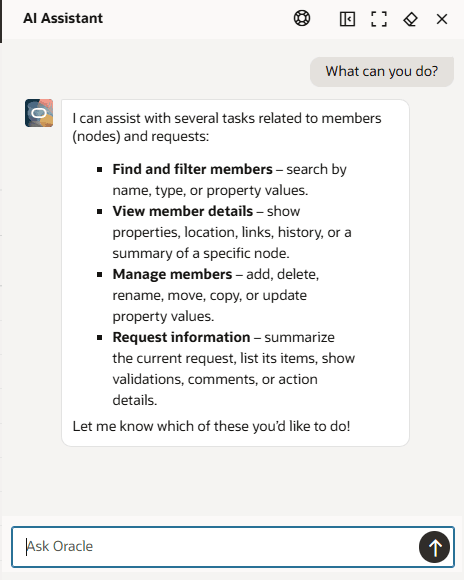
You access the Change Management Assistant from a view. Click Ask Oracle from any open viewpoint within a view to display the assistant.
From the assistant, the following actions are available:
| Icon | Description |
|---|---|
Align
 |
Anchors the assistant to the right or left of the browser window. |
Maximize
 |
Displays the assistant in a larger format. Click
Restore
 to return to the standard format. to return to the standard format.
|
Clear Session
 |
Enables you to clear the previous chat and begin a new
prompt.
Tip: It is a best practice to use Clear Session whenever you change contexts for your prompts (for example, working in a different viewpoint or with a new set of nodes). |
Hide
 |
Hides the assistant.
Note: This does not clear your conversation history. Open the assistant again to continue working with your previous conversation. |
Send
 |
Submits the current prompt to the assistant. You can also press Enter to submit the prompt. |
To use the Change Management Assistant, type your prompt in the assistant and then
click Send
or hit Enter to submit it.
Use Cases
Here are some example use cases for the assistant:
- Querying Viewpoints with the Assistant: Find nodes in a viewpoint that meet certain criteria, and then take action on the nodes returned.
- Exploring Nodes with the Assistant: Get node summary, properties, locations, links, and history.
- Updating Data with the Assistant: Make changes to nodes, properties, and relationships.
- Reviewing Requests with the Assistant: Get request summary, comments, participants, workflow details, and history.
Tip:
Curious about what else the Change Management Assistant can do? Ask it!Sending a prompt like "What can you do?" directly in the Change Management Assistant itself is a good way to get a summary of the tasks that it can perform.