Visualizing Hierarchy Viewpoints as a Chart
For hierarchy viewpoints, you can display the nodes as a chart using a card-based display instead of the folder-based display in tree view.
Business Benefits
- Improved Clarity: Card-based visualization emphasizes parent/child relationships, helping users quickly grasp structure, relationships, and ownership within the hierarchy.
- Faster Navigation: Focused, center-based navigation lets users quickly move between nodes and see contextual relationships, which can be helpful when managing large, complex viewpoints.
- Consistency with Organizational Structures: If your organization is already familiar with organizational charts or diagram-style viewers, this layout provides a familiar alternative to traditional folder trees.
Understanding the Chart Display Type
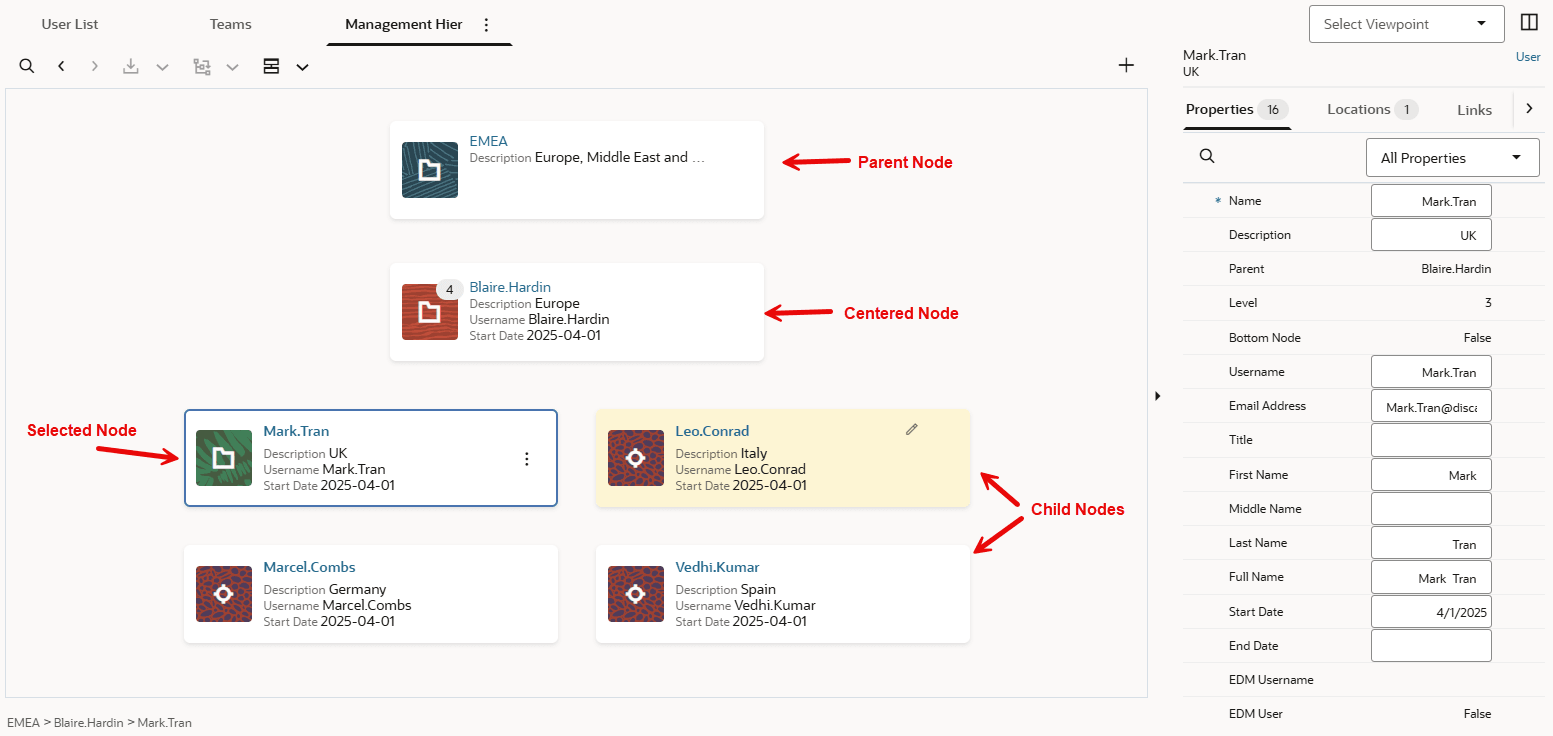
The nodes are displayed in cards with a folder icon if they have children and a node icon if they are bottom nodes.
The cards display the node name and the first three properties that are configured to display as columns (for example, Description, Username, and Start Date in the above screenshot). To manage the properties that are displayed as columns, see Configuring How a Viewpoint Displays Properties)
Key Terms
- Parent Node: The parent of the Centered node. Displayed at the top of the chart. Parent node icons are displayed with a blue background.
- Centered Node: The node in the middle of the display. Parent and Child nodes are displayed in relation to this node. Centered node icons are displayed with a red-orange background.
- Child Nodes: The children of the Centered node. Child node icons are displayed with a green background if they have children and a dark red background if they do not.
- Selected Node: The node currently selected for property edits, actions,
and validations. The selected node can be any of the parent, centered, or child
nodes. It is displayed with an outline around the card.
Tip:
Notice in the above screenshot that while the Blaire.Harden node is the Centered node, the property pane is displaying properties for Mark.Tran, which is the Selected node.
Note:
The Expand/Collapse All Below button is disabled in Chart display.
Navigating the Chart Display
Switching Between Display Modes
By default, hierarchy viewpoints are visualized in Tree display. Click the display
type drop down menu (Tree Display
 or Chart Display
 ) to visualize the data in a tree or chart display.
Selecting and Centering Nodes
- To Select a Node: Click the neutral area of the card (not the node name).
The Selected Node’s details appear in the Property Pane, and relevant request
actions become available using the Action
 menu. If there are validation issues with the selected node, they are
displayed as well.
menu. If there are validation issues with the selected node, they are
displayed as well.
- To Center a Node: Click the hyperlinked node name. The node becomes both Centered and Selected, and the display updates to show its Parent and Child Nodes.
- Using Breadcrumbs: Click the node names in the breadcrumb trail below the viewpoint to quickly select and center those nodes.
Selecting Top Nodes
When the Parent Node is a top node and there are multiple top nodes in the viewpoint, use the Top Node Selector to select a top node. The node that you select becomes both Centered and Selected.
Working with the Chart Display
You can perform most node-related actions in Chart display, including:
- Searching for Nodes: Click Search
 to search for nodes by name. Selecting a search result locates and
highlights the node. If it is already visible, it becomes the Selected node. If
it is not visible, it becomes both Selected and Centered. See Searching for Nodes.
to search for nodes by name. Selecting a search result locates and
highlights the node. If it is already visible, it becomes the Selected node. If
it is not visible, it becomes both Selected and Centered. See Searching for Nodes.
- Locating/Aligning Nodes: In Side by Side layout, use
Locate
 to locate a node in one viewpoint in the other viewpoint, and use
Align
to locate a node in one viewpoint in the other viewpoint, and use
Align
 to align nodes and properties between viewpoints.
- If the source viewpoint uses Chart display, then Locate or Align will cause the Selected Node to be located and aligned in the target viewpoint.
- If the target viewpoint uses Chart display, then Locate or Align will cause the node to be Selected (and Centered if it is not already visible) in the target viewpoint.
See Locating Nodes and Aligning Nodes.
Note:
You can mix Chart and Tree displays in the Side by Side layout. See Displaying Viewpoints Side By Side.
Modifying Nodes in a Request
When working in a request, click Action
on a Selected node to perform a request action on that node. The actions
that you can take depend on the node's position in the chart.
Note:
Drag and Drop operations are not supported in Chart Display.| Node Position | Available Request Actions |
|---|---|
| Parent Node |
|
| Centered Node |
|
| Child Node |
|
Updating node properties and adding or inserting top nodes are performed the same as in Tree Display. See Updating Node Properties, Adding a Top Node, and Inserting a Top Node.
Request visualizations (such as Adds, Deletes, and Moves) and validation issues are displayed using the same colors and icons as in Tree Display.