Registering contacts for a Zoom meeting, webinar or event
Using the Zoom for Eloqua app, you can register contacts for Zoom events directly in your multi-step campaign using the Zoom Register Action service.
Before you begin:
Note: The app supports Zoom Meetings, Webinars as well as the Zoom Events Platform.
- When creating a new meeting or webinar in Zoom, the Required check box for Registration must be checked.


- If the webinar or meeting is recurring, ensure that the Attendees register once and can attend any of the occurrences option is selected.


-
By default, first name and email address are mandatory for the Zoom Register Action step. If these are missing in Eloqua, then the record will fail. The App will display the list of mandatory fields, as configured on the Zoom side.
Note: If these fields are marked as mandatory in Zoom and are missing for the contact record in Eloqua, then the registration will fail.
- When creating a new Zoom Event, both Single session and Recurring session event types are supported. Similar to meetings and webinars, please ensure the "Registration required" checkbox is selected.
To register a contact for a Zoom event:
- Open an existing campaign, or create a new one.
- Drag the Zoom Register Action element from the Actions section onto the campaign canvas.
- Double-click the element to open the configuration screen. The window that opens enables you to do the following:
- Change the name of the step to something more meaningful.
- Configure the element.
- Choose to route contacts that resulted in an error to another step (see: Campaign canvas elements for more information).
- Schedule the action.
- Click Edit
 to configure the action.
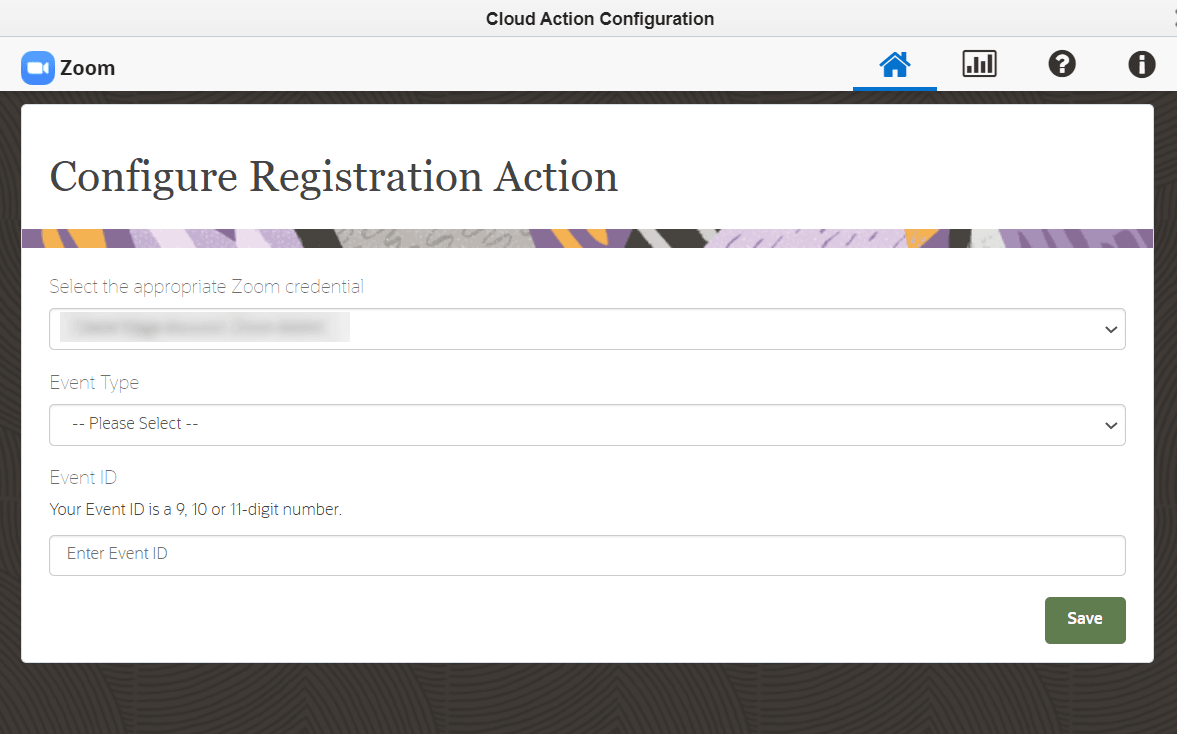
The Configure Registration Action dialog displays.

- Select the Zoom credential you want to use for this action.
- Select the Offering Type: Meetings, Webinars or Events
- Enter the Offering ID for the event you want the contact to be registered for.
- For Zoom Events, enter the Ticket Type ID associated with the event.
-
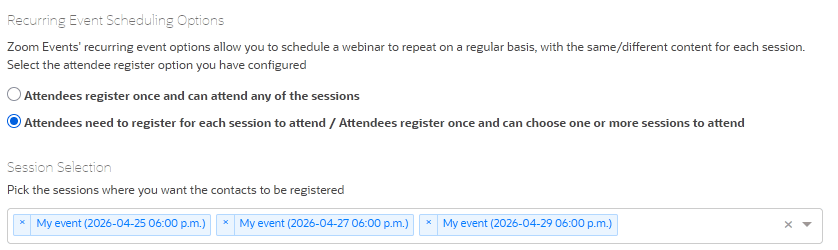
For Zoom recurring events, choose whether attendees can register once to attend all sessions or select specific sessions.
- Click Save.
When a contact flows into the action step, Oracle Eloqua calls out to Zoom to register the contact in the event.
Installing the app from the Oracle Marketplace