To manually change a user's NetSuite password on the entity record
-
Do one of the following:
-
If the user is an employee, go to Lists > Employees > Employees.
-
If the user is not an employee, go to List > Relationships, and then click Customers, Partners, or Vendors.
-
-
Next to the user's name, click Edit.
-
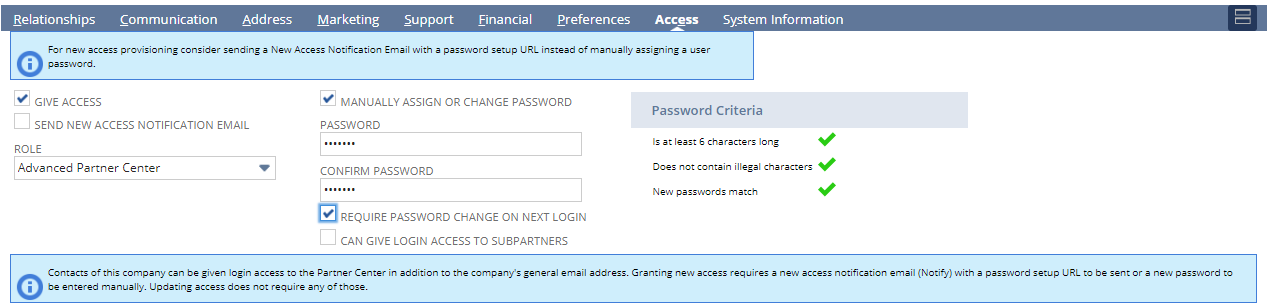
Click the Access subtab.
-
Verify that the Give Access box is checked.
-
Check the Manually Assign or Change Password box.
-
Enter a password in the Password field. As you type, the characters are validated against password policy criteria and the results are displayed.
-
Enter the password in the Confirm Password field.
-
Do not check the Send New Access Notification Email box.
-
To require the user to create and save a new password, check the Require Password Change on Next Login box. For security reasons, you should select this option.
Note:The Require Password Change on Next Login box is not available on Customer records.
-
Click Save.
Important:If a message appears saying that only the user can change this password, click OK to close the message. Some users access multiple NetSuite accounts with the same email address and you might not have management over all of the accounts.
-
You must tell the user the password you created. For security reasons, do not send the password by email or in a chat application.
NetSuite permits each user a maximum of five failed login attempts. When a user exceeds this maximum (usually because of an incorrect password), an email message is sent to notify users with the Administrator role, and the user is locked out of NetSuite for 30 minutes.