FSM Mobile File and Image Fields
Overview
Field Service Management (FSM) Mobile can display existing documents and images within a record. Technicians can also select files or capture photographs for editable file and image fields. These elements can support service records, custom checklists, and transaction lines, depending on the resource's configuration and synchronization behavior.
This topic covers individual file and image elements. The separate FSM Mobile Files Tab provides a list of selected service files, with its own upload, description, and deletion behavior.
How it works
A file or image element presents a value in FSM Mobile. A record mapping determines where an existing value comes from and which NetSuite field receives a saved file reference. The native File Cabinet file holds the document or image content.
For a resource using the standard field upload path, selecting content supplies a local file value. Synchronization creates a native file, saves its ID through the record's mapping, and attaches the newly created file to the saved resource record. The field reference, native attachment, and upload folder are separate relationships. One file can participate in all three.
The following diagram shows the successful standard field upload lifecycle:
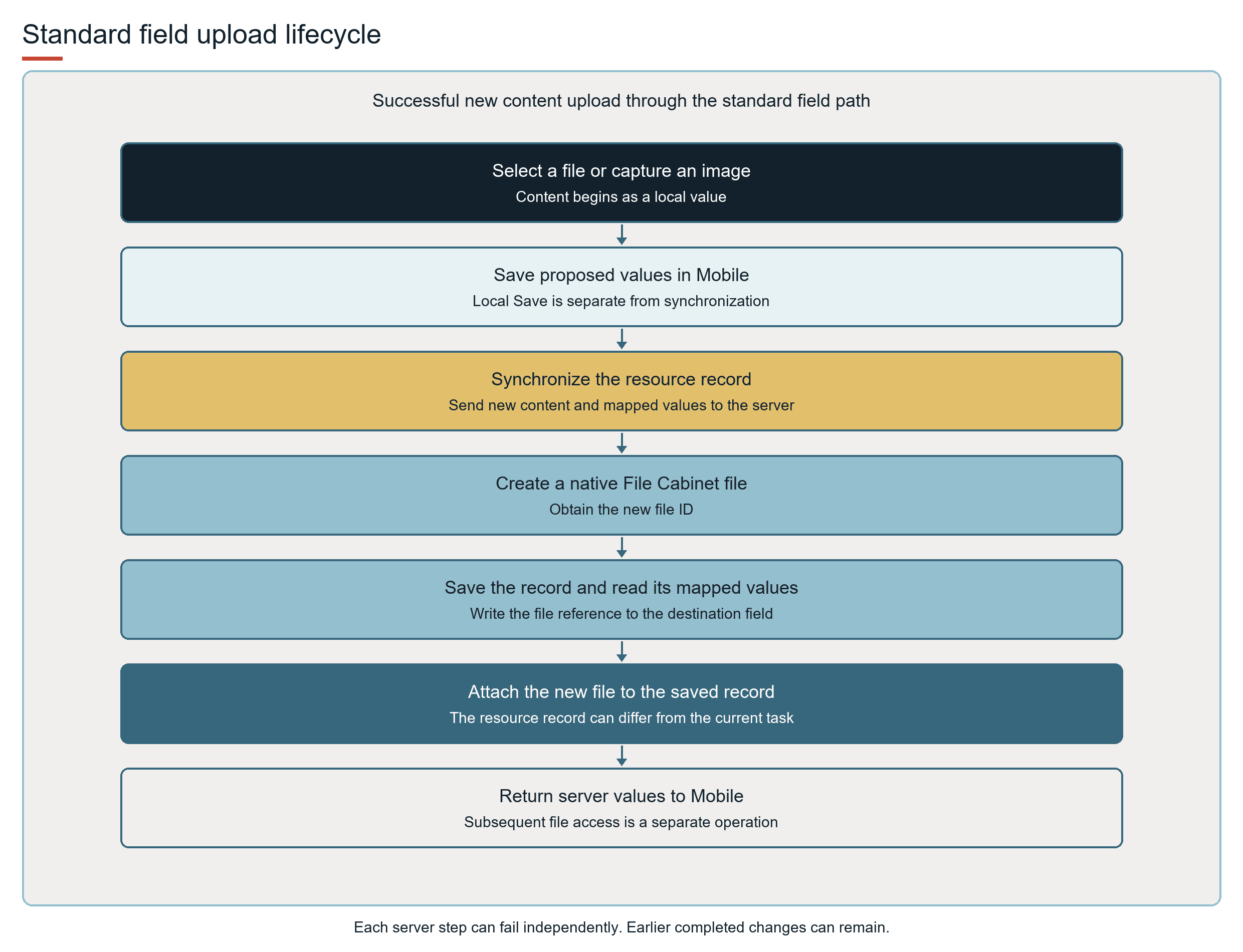
This flow applies to selected content handled by the standard field upload path. Loading an existing file value does not upload another copy. Resources with specialized synchronization can perform different operations.
Adding an element does not create a NetSuite field or establish persistence. A file name, image preview, or successful local Save does not establish that the file and its record relationships reached NetSuite.
The supplied Contact image, Asset image, and expense-line Receipt examples illustrate different display and persistence relationships. For these examples and the relationships among field references, native attachments, and upload folders, see FSM Mobile File References and Relationships.
Prerequisites
Confirm the following prerequisites for the intended display or save outcome:
-
The matching FSM Mobile configuration makes the resource available and supplies its file or image elements.
-
A displayed existing file has a usable value and file address. An editable field intended to persist a reference has a valid write mapping to the destination record or sublist field.
-
For uploads through the standard field path, synchronization must supply the required upload context. The destination record must support native file attachments. The synchronization role must be able to create files, save the record, and attach files. Server uploads and downloads require a connection and applicable access.
See Configuring FSM Mobile File and Image Fields for capability-specific setup. Shared resource selection, form, and mapping guidance remains in the Configuration references.
Key behaviours
The experience depends on whether the element displays existing content or accepts a selected value, and on the resource's editing permissions.
Each element holds one file value. Input type and editing permissions determine display and selection behavior. Mapping and successful synchronization determine the effect of replacement or clearing in NetSuite. For display behavior, selection metadata, validation, and existing-file consequences, see FSM Mobile File and Image Field Behavior.
Record interactions
The mapped field reference, native attachment, and upload folder serve different purposes. Standard field uploads do not automatically create a Field Service File association.
Saving a file reference does not automatically make the file available in Files, History, service reports, or notification attachments. For record roles, file-selection relationships, and supplied examples, see FSM Mobile File References and Relationships.
Processing model and lifecycle
Local Save and synchronization are separate stages. For the standard field upload path, native file creation precedes the resource record's save and read-back. Native attachments for files created during synchronization are added after that record processing returns.
File creation, record saving, and attachment can fail separately, and earlier changes can remain saved. Resource completion does not establish file-upload or attachment completion.
For stage results, failure consequences, operational references, and upload batch guidance, see FSM Mobile Field Upload Lifecycle and Batch Size.
Configuration
Administrators can configure the displayed elements, editing and required-field settings, file-picker and camera behavior, image processing, and mappings to existing NetSuite fields. Configuring FSM Mobile File and Image Fields brings together the capability-specific setup combinations and examples.
For definitions of accept, camera, downsample, and maxsize, see FSM Mobile Element Reference. For form loading and resource properties, see FSM Mobile Resource Properties Reference. For read and write maps and Automap, see FSM Searches and Field Mapping.
Preserve the resource's record identity, record links, mappings, and synchronization dependencies when changing its presentation. Modifying an existing resource and defining another resource ID are different choices. A matching label, record type, or visible JSON definition does not establish that a copied resource retains specialized synchronization or related-record processing. The Files resource, in particular, has its own native file create, description-update, and delete behavior.
A numeric-suffix instance, such as files-1, resolves to the existing base resource definition with the instance's context. This reuse differs from creating an independent resource under another name.
Limitations and constraints
The input controls and server operations impose different boundaries.
As a precaution, aim for no more than about 15 file and image values selected for upload or replacement in one record synchronization. Use smaller groups for large files or complex records. This is planning guidance, not an enforced limit or a guarantee of successful synchronization.
For the scope of this guidance and considerations when saving smaller groups, see FSM Mobile Field Upload Lifecycle and Batch Size. A fixed successful file count is not established, and a failed synchronization can leave earlier changes saved.
Input and file constraints
Selection limits, native file operations, and later access remain separate considerations.
-
The File element's standard selection limit requires files outside the recognized image formats to be smaller than 10240 KB. Files in recognized image formats bypass that check and follow image processing. The Image input does not enforce
maxsize. There is no universal 10 MB limit covering both input types. -
Image dimensions and picker filters do not guarantee successful File Cabinet upload, record validation, attachment, or download. Native file and account restrictions still apply.
-
File replacement or clearing is separate from native file deletion.
-
An existing file entry or previously displayed image is not proof that its content is available offline. Server downloads require access and a connection. Browser caching is not a complete offline file archive.
-
The elements select, display, or replace content. These elements do not provide document annotation, in-place editing of native file content, a file-version history, or a retention policy.
Deleting a file through the supplied Files tab deletes the native file and can affect fields or other uses that reference the file.