FSM Mobile Files Tab
Overview
Field Service Management (FSM) lets technicians view documents and photographs associated with service work. From the Files tab in FSM Mobile, technicians can upload files, add descriptions, and delete selected files. The supplied tab works with native NetSuite File Cabinet files attached to service work. The default CRM Task view includes files and images already attached to the task, as well as FSM Mobile uploads. It does not require a separate Field Service File custom record for each upload.
This topic covers the supplied files resource and its Files-tab experience. File and image elements on individual records or resources display existing files or support uploads associated with a mapped field. That experience is described in FSM Mobile File and Image Fields.
How it works
The Files list combines files in the current job's upload folders for the current employee with files returned by the job's native attachment search. Asset matching then selects the relevant subset. This is not a list of every file in the account.
The default search combines these sources with OR: a native task attachment does not also have to match the FSM Mobile upload folder. Both sources remain subject to the configured search and Asset selection.
Files already attached to a task
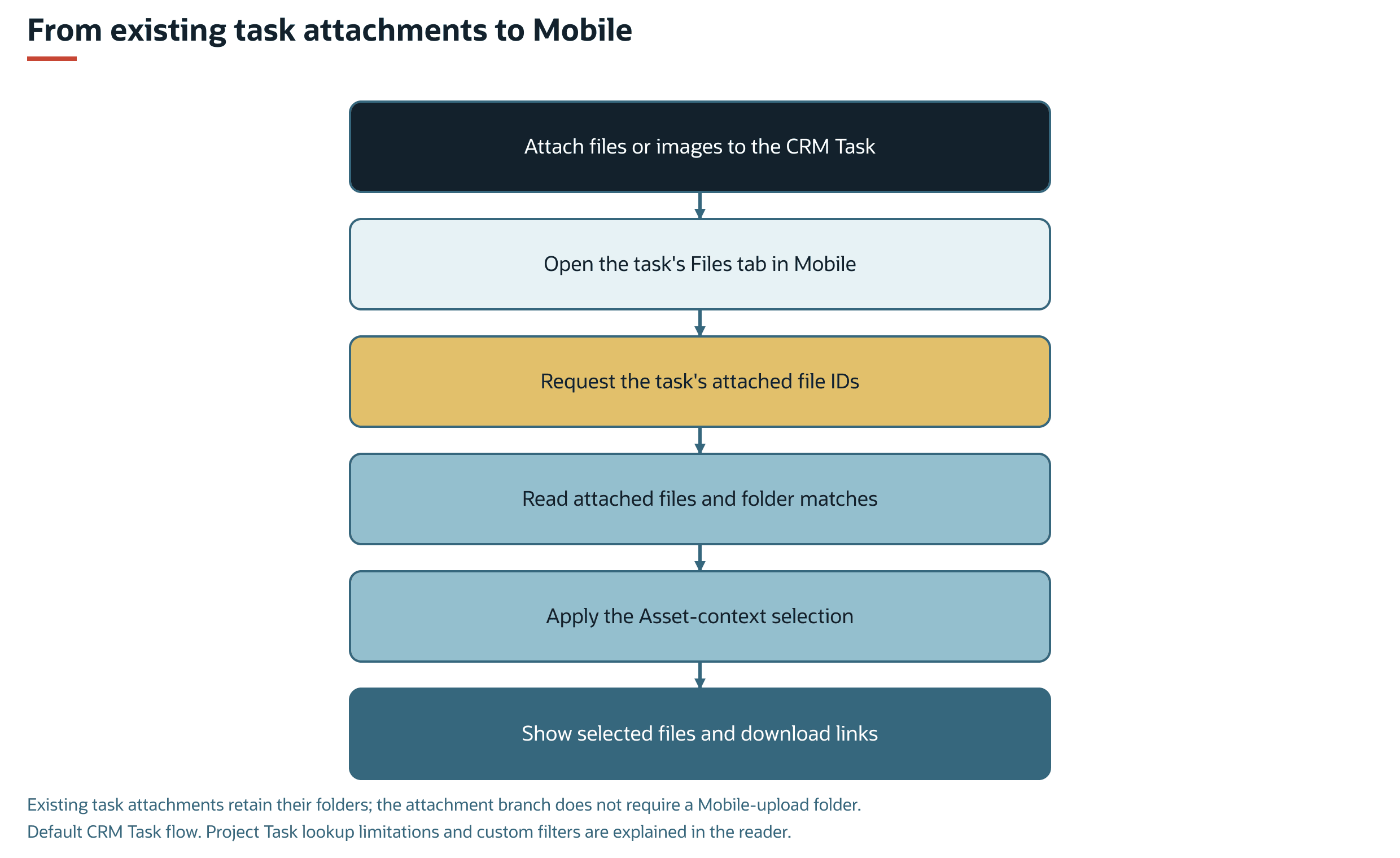
Files and images can be attached to a CRM Task in NetSuite before a technician opens the task in FSM Mobile. For example, a coordinator can attach a work-instructions PDF and site photographs to prepare the visit. When the Files data is retrieved, the supplied search obtains the current task's native attachment IDs, retrieves the matching files, and applies the Asset selection.
These files do not have to be created in FSM Mobile, uploaded by the current employee, or moved into an FSM upload folder. Their existing File Cabinet folders are retained. This provides a task-to-FSM Mobile document flow alongside the FSM Mobile upload flow.
The following diagram shows how existing CRM Task attachments appear in FSM Mobile:
Files uploaded in Mobile
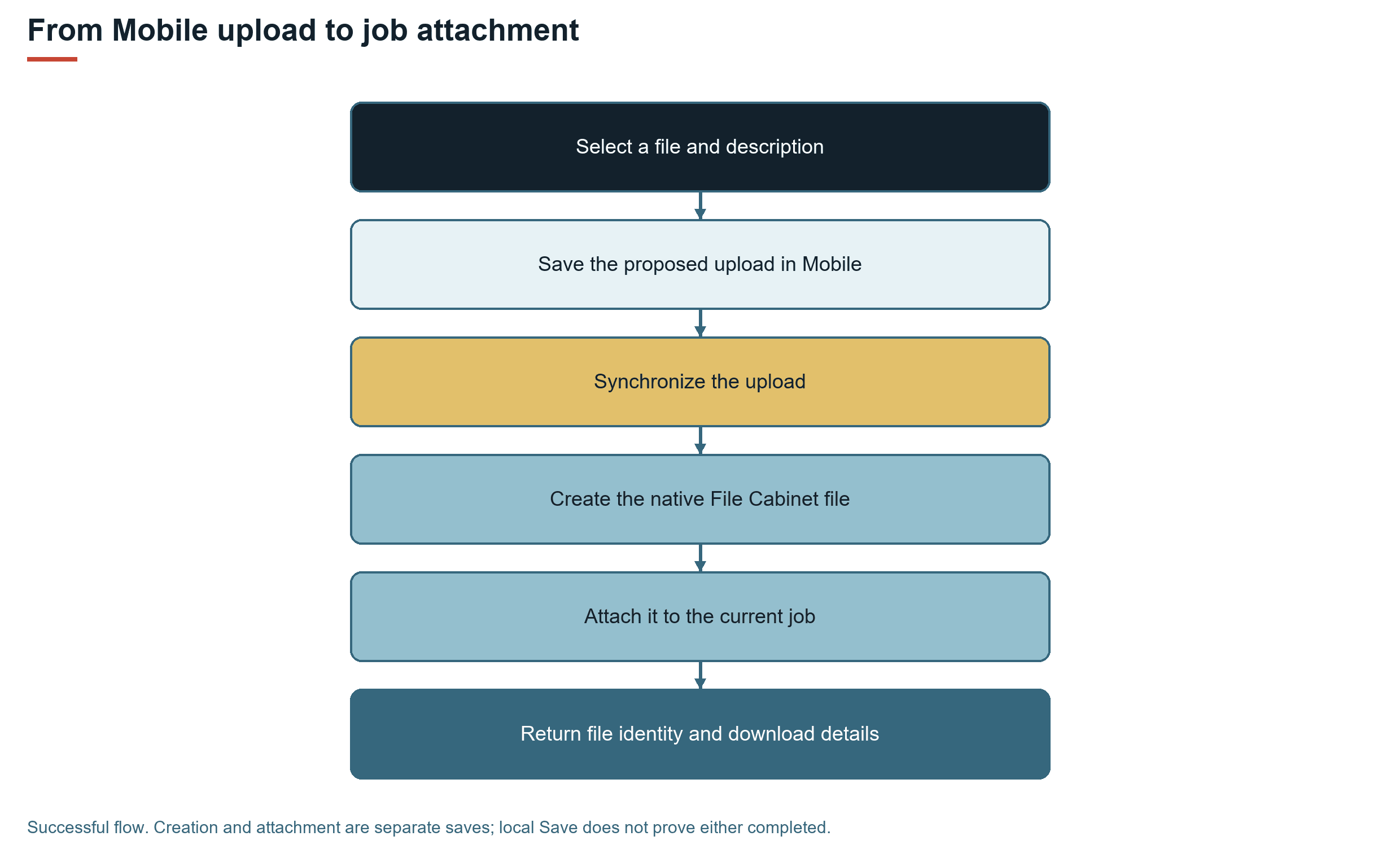
A technician selects a file and enters a description for the current job. When the upload synchronizes, FSM creates the native file in its service-upload folder and attaches it to the current event record. The folder identifies the job, Asset context, and uploading employee.
The following diagram shows how an FSM Mobile upload becomes a native file attached to the current job:
Viewing selected files
Existing files display a file name, description, and size. In the Files tab, you can edit the description but cannot replace the uploaded file content. Downloading uses FSM's file-delivery service, and the device or browser determines how the document opens.
Files uploaded through another FSM Mobile resource can appear here when the files match the selection rules and Asset context. Both upload paths can use the same folder convention. Display in the Files tab is separate from a file reference stored in a record field.
Prerequisites
The Files tab requires the following:
-
The account's FSM Mobile resource rules make
filesavailable for the relevant jobs. -
The current job supplies a record type and internal ID for the native attachment.
-
The user's FSM Mobile setup permits the intended file access and delivery. Uploading and retrieving server files require a connection. A local Save does not confirm successful synchronization.
For setup, see Configuring FSM Mobile File Management.
Key behaviours
File content and description
The supplied form requires a selected file and a description for a new upload. After the server returns the saved file size, the file element becomes a download link. Editing the description does not replace the stored file content or rename it.
FSM appends the selection time and FSM Mobile location coordinates, when available, to the native file's Description. The Files tab removes that trailer from its displayed description and retains it when the description is updated. Capture metadata is separate from the custom Field Service File record's Geolocation field.
PNG, JPG, JPEG, GIF, and BMP images can be resized during selection. Other file types are subject to the File input's size limit. These controls and their defaults are described in the Configuration companion and the shared element reference; a picker filter is not a guarantee that a document is safe or accessible.
Uploads and file matching use the current job, employee, and Asset context. For the default folder pattern and matching rules, including the Project Task attachment limitation, see FSM Mobile Files Tab Selection and Upload Folders.
Deletion
Deleting through the supplied Files tab deletes the native File Cabinet file. It is not merely removing the file from the FSM Mobile list or detaching it from one job. Other uses of that same file can be affected. This deletion applies to existing task attachments and files uploaded in FSM Mobile.
Removing the tab or disabling its Delete action does not delete existing uploaded documents.
Record interactions
The following table summarizes the records and relationships used by the Files tab.
|
Record or Relationship |
Role in This Capability |
|---|---|
|
Native File Cabinet file ( |
Holds the content, file name, description, and file metadata. The FSM Mobile article ID identifies this native file. |
|
Current CRM Task or Project Task |
Supplies the event context and attachment destination. A CRM Task also supplies its existing native attachment IDs to the default Files search. Native attachments and folder-based selection are different relationships. For the Project Task lookup limitation, see FSM Mobile Files Tab Selection and Upload Folders. |
|
FSM Asset |
Supplies the Asset context used in folder naming and list matching. The tab does not create an Asset field on the native file or custom association. |
|
Employee |
Identifies the uploading user's folder context. This is separate from Task assignment. The native task-attachment branch is not restricted to that employee's uploads. |
|
Field Service File ( |
A separate association record used by the Field Service File service. A normal Files-tab upload does not automatically create this association. See FSM File Record. |
Processing model and lifecycle
Retrieving existing task attachments reads the selected native files and their download details. Retrieval does not upload another copy, move the files into the FSM Mobile upload folder, or create another task attachment.
Saving in FSM Mobile records the proposed file data locally. Synchronization sends the upload to the server. Native file creation and attachment are separate operations. An attachment failure can leave a created file without a completed attachment. A local file name or saved row alone does not establish completion of both operations.
The supplied resource uses specialized synchronization to update descriptions and delete files. These operations do not request a scheduled upload processor.
The Field Service Suitelet and Field Service Restlet 2.x support FSM Mobile requests and file delivery. Field Service Scheduled : File (customdeploy_nx_file) creates the FSM file folders and removes expired temporary download copies. This maintenance does not define retention or deletion of uploaded service documents. See FSM Script Reference for deployment identity and monitoring.
Configuration
Administrators can change the supplied tab's presentation, file-picker and size controls, description requirements, and available FSM Mobile actions. The selection maps and attachment defaults determine which files appear and where uploads attach.
Use the existing files definition for these changes. Copying the visible JSON into another resource does not confirm that the resource retains the supplied file operations. These operations include file creation, native attachment, description-metadata handling, and deletion.
Limitations and constraints
The following limitations apply:
-
The tab is not a general File Cabinet browser or a file-retention policy.
-
The supplied edit operation changes the description, not the stored document content.
-
New uploads, native attachments, and custom Field Service File associations are separate operations and identities.
-
A file visible in Files does not automatically qualify for History, a service report, or a notification attachment. Each feature applies its own selection rules.
-
Existing downloads are not guaranteed to be available offline. A previously displayed file entry is not proof that its content is stored on the device.
Related processes and procedures
For instructions to upload, edit, download, or delete a file, see Files Tab in FSM Mobile.