Case Summary
The Case Summary feature uses generative AI to provide a concise overview of each support case, including the history of messages, key actions, attachments, and sentiment analysis. This overview gives support reps a clear understanding of the customer's mood and context, making it easier to resolve cases quickly.
To generate case summaries, the Enable Narrative Insights preference must be enabled on the Narrative Insights tab of the AI Preferences page. This preference is enabled by default. For more information about this preference, see Managing Narrative Insights Preferences.
The generative AI model that creates the summary uses only data linked to the support case for which the summary is generated. Specifically, it uses the full contents, author names, and metadata like ID, creation date etc. from the following parts of the case record:
-
Case title and Primary Information section
-
Messages and User Notes subtabs on the Communication tab
-
Escalations tab
-
Names of the files attached to either the support case or to email messages. It does not use the contents of the files.
The customer sentiment also uses the above data but mainly focuses on incoming messages. Because the sentiment assessments are generated using AI-powered language models, they may not always perfectly capture customer intent or emotions.
The data never leaves Oracle infrastructure and is not used for AI model training or for any purpose other than summary generation. The inputs and the outputs are not stored.
To access Case Summary:
-
Go to Lists > Support > Cases.
-
Click View next to the name of the case for which you want to generate a summary.
-
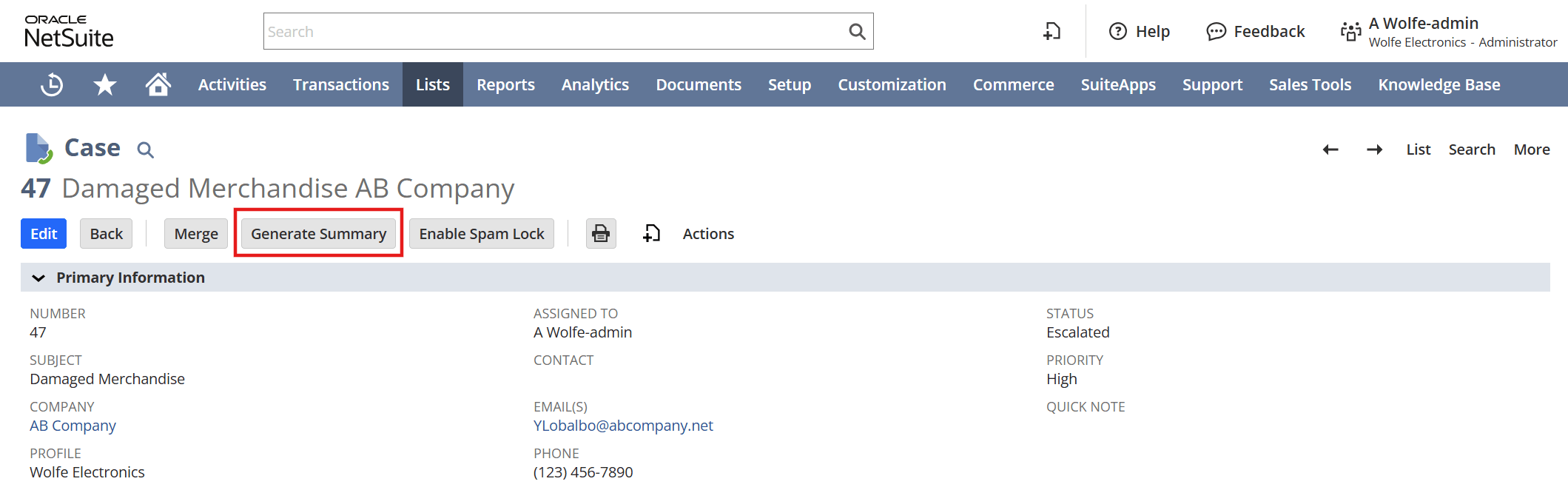
On the case record, click Generate Insight.
-
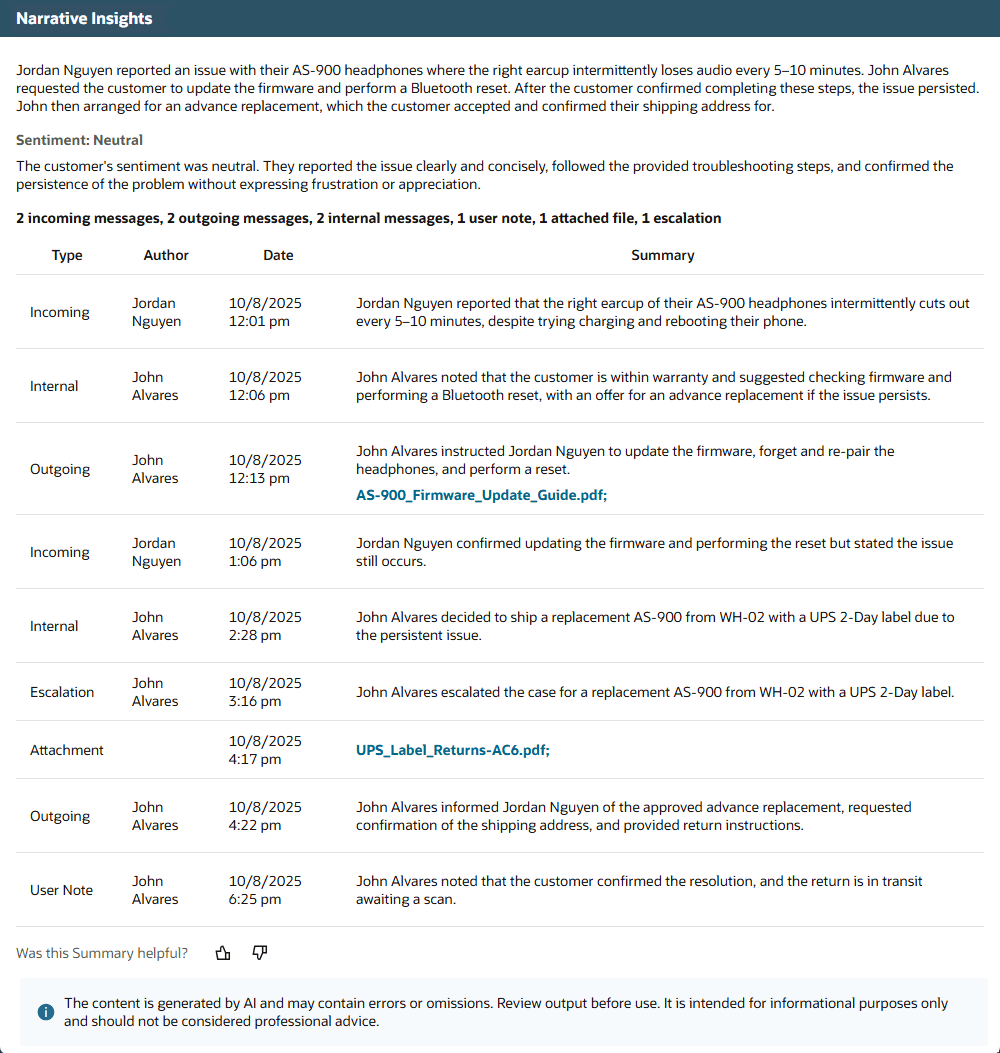
In the popup window, review the AI-generated overview, which includes:
-
Summary - overview of the entire case
-
Sentiment - assessment of the tone of the customer's messages
-
Timeline - a table with the following columns:
-
Type: incoming and outgoing messages, internal messages, case attachments, user notes, or escalations
-
Author: who performed the activity, including System for automated actions
-
Date: when the activity occurred
-
Summary: overview of the specific activity, with links to attachments if available
-
-
To use Case Summary, your account must have the Customer Relationship Management feature enabled. To enable this feature, a user with the Administrator role should go to Setup > Company > Enable Features. On the CRM subtab, check the Customer Relationship Management box.
Each summary is unique. If you close the popup window and click Generate Insight again, you may see a different version.
You have the option to provide feedback on your experience using Case Summary. To provide feedback about the specific Case Summary you're viewing, use the thumbs up or thumbs down buttons at the bottom of the popup window.
Because the content of the Case Summary overview is AI-generated, it may contain inaccuracies or omissions. This overview is intended for informational purposes only and shouldn't be considered professional advice. You should always review AI-generated content for accuracy and quality.