Add, Edit, or Delete New Task Screen for the Current Case
This screen lets you add, edit and delete new tasks.
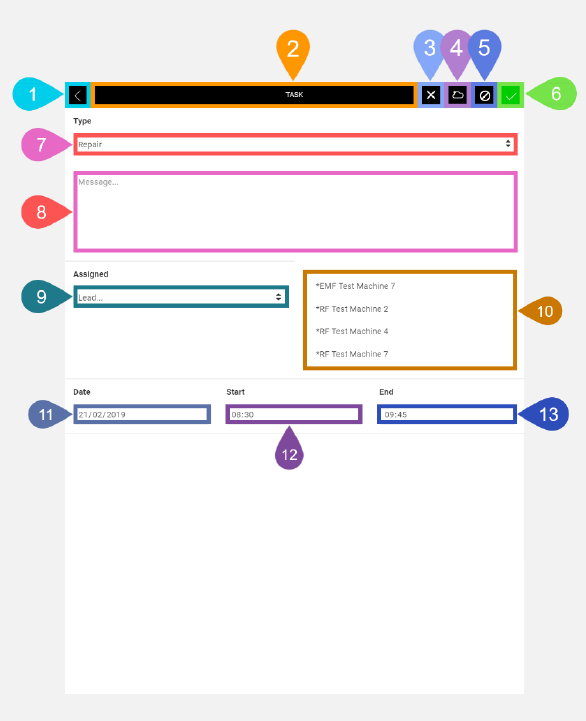
|
Section |
Task |
Effect |
Availability |
Errors/Alerts Shown |
Highlighted in Screenshot |
|---|---|---|---|---|---|
|
Back button |
Lets you go to the New Task List For Current Case screen. |
Displays the New Task List For Current Case screen. |
Always visible. However, if there are no saved new tasks for the current case to display, then tapping the button has no effect. |
None |
1 |
|
Toggle Selected Task Details Screen Visibility button |
Lets you access functions on the Selected Task Details screen. This button, positioned in the Control Bar, spans the entire width of the screen except where other buttons are placed. When you save the task, you'll see the new task number inside this button. |
Shows the Selected Task Details screen. |
Always |
None |
2 |
|
Delete Task button |
Lets you delete a previously saved new task. |
Shows the alert below. If you tap OK, then the current new task for the current case is deleted and all values on the Add/ If you tap Cancel, then the alert is hidden, and no changes are made. |
If you have recently saved the data for a new task or has opened Add/Edit/Delete New Task For Current Case screen by tapping on a Task List entry in the Task list and haven't changed the data entry fields on the Add/Edit/Delete New Task For Current Case screen. |
Shows the alert 'Are you sure you want to Delete? OK. Cancel'. |
3 |
|
Saving To Cloud indicator |
Lets you know that the new task details are being saved to the cloud. |
None |
After you tap the Save button until the data has been saved to the cloud. |
None |
4 |
|
Discard Changes button |
Lets you clear any changes made in the Add/ |
Shows the alert below. If you tap OK on the alert, then Field Service Mobile reverts the contents of all data entry fields to the previous values. If no new task data has been saved previously for the selected task, then all data entry items will be set to default values. If new task data has been saved previously for the selected task, then all values revert to their previous values when the new task data was last saved. If you tap Cancel on alert, then the alert is hidden, and no changes are made. |
As soon as changes are made to any of the data entry items in the Add/Edit/Delete New Task For Current Case screen. |
Shows the alert 'Are you sure you want to discard your changes? OK. Cancel'. |
5 |
|
Save button |
Les you save any changes made in the Add/ |
Saves all the data entered in the Add/ |
As soon as changes are made to any of the data entry items in the Add/Edit/Delete New Task For Current Case screen. |
None |
6 |
|
Type dropdown list |
Lets you record the task type for the new task. |
None |
Always |
None |
7 |
|
Message text box |
Lets you record text notes for the new task. |
None |
Always |
None |
8 |
|
Assigned dropdown list |
Lets you assign a primary technician for the new task by selecting one entry from the dropdown list. |
None |
Always |
None |
9 |
|
Assigned multiselect list |
Lets you assign one or more technicians to the task by selecting in the Assigned multiselect list. |
None |
None |
None |
10 |
|
Task Date selection field |
Lets you enter a date for the new task. |
If all of the field sections do not form a valid combination of values, then the alert below prompts. |
Always |
Shows the alert 'Please enter a valid value. The field is incomplete or has an invalid date.'
Note:
This field only lets you enter numbers. Depending on the configuration of your mobile device's operating system, the date format will either be DD/MM/YYYY or MM/DD/YYYY. You can only enter a valid date in each section. For the DD section: if you enter a value above 31, the value changes to 31 when you leave the field. For the MM section: if you enter a value above 12, the value changes to 12 when you leave the field. For the YYYY section: if you enter value 0000, then the value in the field section becomes 0001. All other values are accepted as valid. However, even if you enter values within the valid range for all field sections, all the sections combined should form a valid date. Otherwise, the alert 'Please enter a valid value. The field is incomplete or has an invalid date.' will prompt. |
11 |
|
Task Start Time selection field |
Lets you enter the start time for the new task. |
None |
Always |
None
Note:
Only accepts entry of a valid 24-hour time value in the format HH:MM. Only accepts entry of numbers in either the HH or MM section. For the HH section: if you enter a value above 23, the value changes to 23 when you leave the field. For the MM section: if you enter a value above 59, the value changes to 59 when you leave the field. |
12 |
|
Task End Time selection field |
Lets you enter the end time for the new task. |
None |
Always |
None
Note:
Only accepts entry of a valid 24-hour time value in the format HH:MM. Only accepts entry of numbers in either the HH or MM section. For the HH section: if you enter a value above 23, the value changes to 23 when you leave the field. For the MM section: if you enter a value above 59, the value changes to 59 when you leave the field. |
13 |