Forms Use Case
This topic provides an example use case for forms. For general information about forms, see Forms.
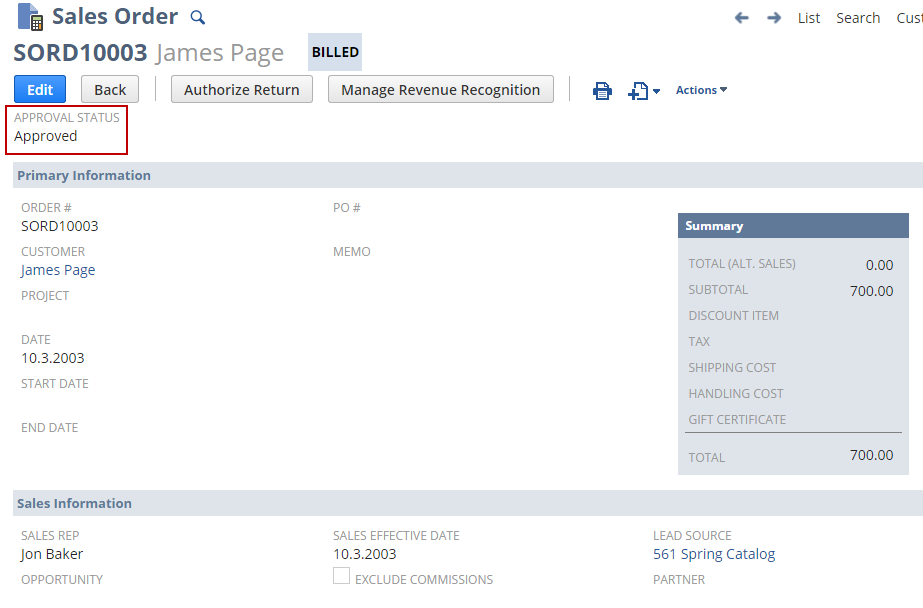
A custom field has been added to this sales order form to show the approval status.
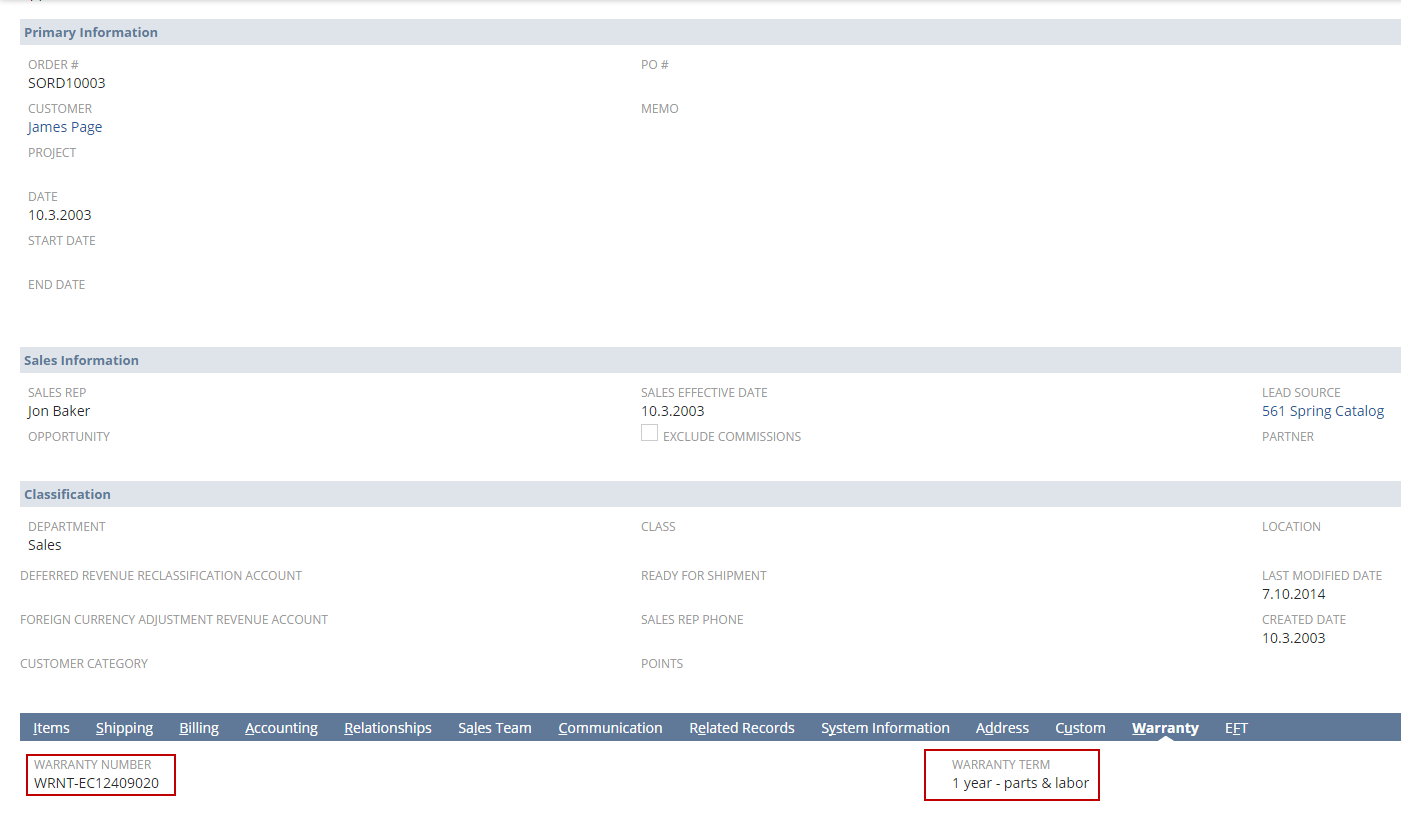
Forms are often organized into subtabs, which group similar fields together. Subtabs bring together fields with similar information, making it easier to find what you need. For example, the Address subtab is where shipping and billing addresses are entered. In addition to using standard subtabs, you can create subtabs for custom fields.
A custom Warranty subtab has been added to this sales order form to track warranty details through the Warranty Number and Warranty Term custom fields.
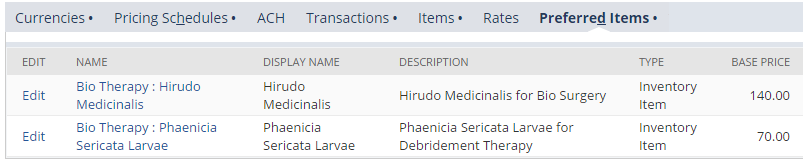
Forms can also include custom sublists, which display relevant information. Sublists show saved search results that are relevant to the current record. For instance, a custom sublist on a vendor form can display frequently purchased items.
To get started, create a saved search for items. On the Results subtab, select the columns you want to appear on the sublist. On the Available Filters subtab, select Vendor: Name/ID. The filter enables the sublist to show only items purchased from the vendor. For more information about saved search filters, see Selecting Available Filters for Saved Searches.
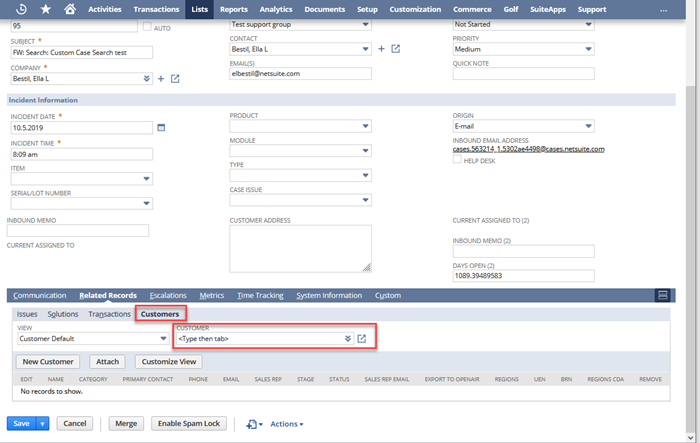
You can also create a sublist that displays child record instances using the Parent is Child relationship field. For example, you can create a custom field and assign the parent record and child record so that the parent record pulls in the child record information through the custom field. The following example shows a list of customers associated with case records. In this example, the parent record is Case, the child record is Customer, and the parent subtab where the sublist appears is Related Records.
First, you create an entity custom field called Customer Records. For Type, select List/Record. For List/Record, select Case. Check the Record is Parent box. On the Applies to subtab, check Customer. On the Display subtab, for Parent Subtab, select Related Records.
Now, when you view a Case record, a Customers sublist appears with a Customer field that displays a list of customers associated with the case.