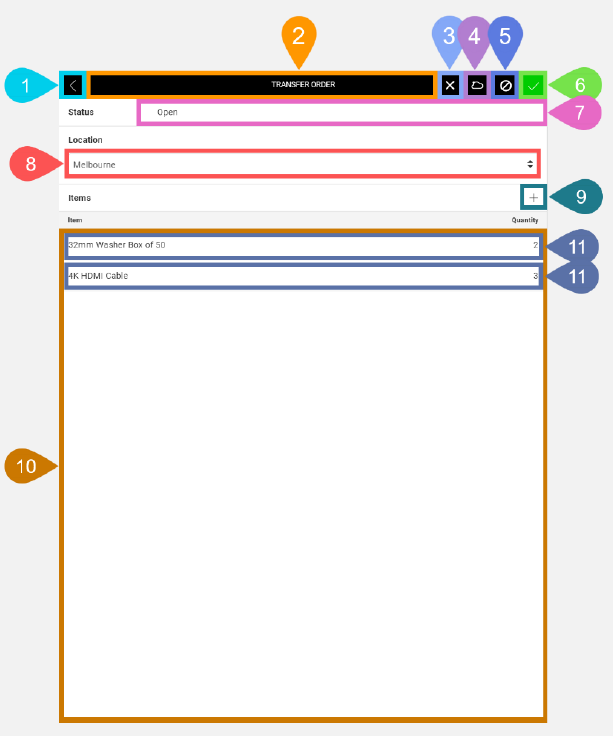
Transfer Order Details Screen in Detail
This screen lets you collect all the details for a new transfer order or edit the details for an existing transfer order.
|
Section |
Task |
Effect |
Availability |
Errors/ |
Highlighted in Screenshot |
|---|---|---|---|---|---|
|
Back button |
Lets you go to the Transfer Order List screen. |
If there's one or more saved transfer orders for this task, then Field Service Mobile shows Transfer Order List screen. If there are no saved transfer orders for this task, then this button has no effect. |
Always |
None |
1 |
|
Toggle Selected Task Details Screen Visibility button |
Lets you access functions on the Selected Task Details screen. |
Shows the Selected Task Details screen. |
Always |
None |
2 |
|
Delete Current Transfer Order button |
Lets you delete a transfer order that has already been saved to the cloud and has a status of Open. |
Deletes the current transfer order from the cloud. If there are still transfer orders saved after you delete one, Field Service Mobile shows the Transfer Order List. If there aren't any transfer orders saved after you delete one, Field Service Mobile shows the Transfer Order Details screen with all data entry fields set to default values. |
When viewing a transfer order that has been saved and the status for that transfer order is Open. |
None |
3 |
|
Saving To Cloud indicator |
Lets you know that the transfer order is being saved to the cloud. |
None |
After you tap the Save until the data has been saved to the cloud. |
None |
4 |
|
Discard Changes button |
Lets you clear any changes made in the Transfer Order Details screen. |
Shows the alert below. If you tap OK on the alert, then Field Service Mobile reverts the contents of all data entry fields to the previous values. If you haven't saved any data to the cloud for the current transfer order, all data entry items will be set to default values. If you have previously saved data for the current transfer order, then all values revert to their previous values when the note data was last saved. If you tap Cancel on alert, then the alert is hidden, and no changes are made. |
As soon as changes are made to any of the data entry items in the screen. |
Shows the alert 'Are you sure you want to discard your changes? OK. Cancel'. |
5 |
|
Save button |
Lets you save any changes made in the Transfer Order Details screen. |
Saves all the data entered in the Transfer Order Details screen for the selected task. |
When the Transfer Order Item list contains one or more Transfer Order Item List entry instances and the Location dropdown box has a value other than Select. |
None |
6 |
|
Status display text field |
Displays the status of the current transfer order. |
None |
When the status of the current transfer order is set to Open. |
None |
7 |
|
Location dropdown list |
Displays all available locations to request items from. |
None |
Always |
None |
8 |
|
Add Transfer Order Item button |
Lets you go to the Add/ |
Shows the Add/ |
When the status of the current transfer order is set to Open and the Save To Cloud indicator is not visible. |
None |
9 |
|
Transfer Order item list |
Displays all transfer order items for the current transfer order. |
None |
Always |
None |
10 |
|
Transfer Order Item list entry |
Displays the Item and Quantity fields of a particular transfer order item. This also functions as a button that displays Add/ |
Shows the Add/ |
If there is one or more files transfer order items added for the current transfer order. |
None |
11 |