Return Item List Screen in Detail
This screen lets you view all returned items for the selected task.
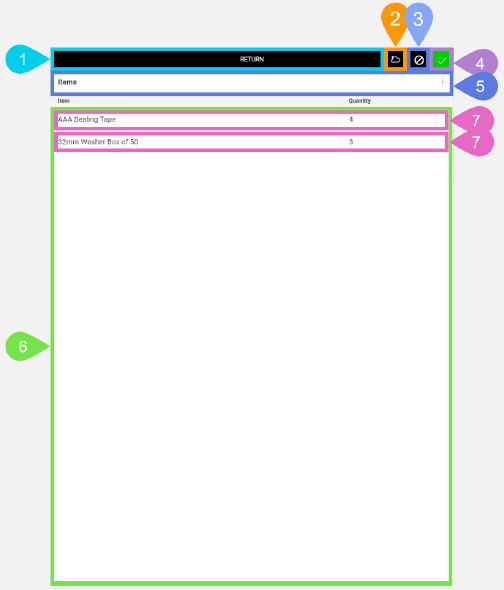
|
Section |
Task |
Effect |
Availability |
Errors/Alerts Shown |
Highlighted in Screenshot |
|---|---|---|---|---|---|
|
Toggle Selected Task Details Screen Visibility button |
Lets you access functions on the Selected Task Details screen. |
Shows the Selected Task Details screen. |
Always |
None |
1 |
|
Saving To Cloud indicator |
Lets you know that the return item is being saved to the cloud. |
None |
After you tap the Save button until the data has been saved to the cloud. |
None |
2 |
|
Discard Changes button |
Lets you clear any changes made in the Return Item screen. |
Shows the alert below. If you tap OK on the alert, then Field Service Mobile reverts the contents of all data entry fields to the previous values. If no data has been saved to the cloud for the current return item, then all data entry items will be set to default. If data has been saved previously for the current return item, then all values revert to their previous values when the return data was last saved. If you tap Cancel on alert, then the alert is hidden, and no changes are made. |
When there are unsaved changes in the Return Item list. |
Shows the alert 'Are you sure you want to discard your changes? OK. Cancel.' |
3 |
|
Save button |
Lets you save changes that have been made in the Return Item List screen. |
Saves all the data entered in the Return Item List screen for the selected task. |
When there are unsaved changes in the Return Item list. |
None |
4 |
|
Add New Return Item button |
Lets you go to the Add/Edit/Delete Return Item screen to add a new return item. |
Shows the Add/Edit/Delete Return Item screen with the data entry items set to default values. |
Always viewable but not active when the Saving To Cloud indicator is not visible. |
None |
5 |
|
Return Items list |
Lets you see all return items that have been added for the selected task. |
None |
Always |
None |
6 |
|
Return Item List entry |
Shows the basic information for each return item that has been added. This also functions as a button that displays Add/Edit/Delete Return Item screen when you tap it to view more detailed information about the return item. |
Shows the Add/Edit/Delete Return Item screen. |
When there's one or more return items added for the selected task. |
None |
7 |