Assign goals and view consolidated actions and page properties in Team Activity Center
Managers can assign a goal to multiple direct and indirect reports selected through Team Activity Center filters. This helps managers cascade the same goal to the appropriate employees without repeatedly assigning it one person at a time.
Applications and quick actions are consolidated into one list under the Quick actions section.
Administrators can also select a default set of pinned quick actions decided at an organization level for all users. If users haven’t selected their own pinned quick actions, these default pins will be available for them.
Page properties in Visual Builder Studio are now organized into categories, making it easier to locate them and write conditional rules.
When managers access a worker’s person activity center, they can browse page-level banners using a dotted carousel instead of the Next and Previous buttons.
Try it out:
- In the Workers view, select a worker to whom you want to assign a performance or development goal.
- From the Team Actions menu, select the goal type. This menu is disabled by default. See the Steps to Enable section to enable it.
- Enter the goal details and assign the goal.
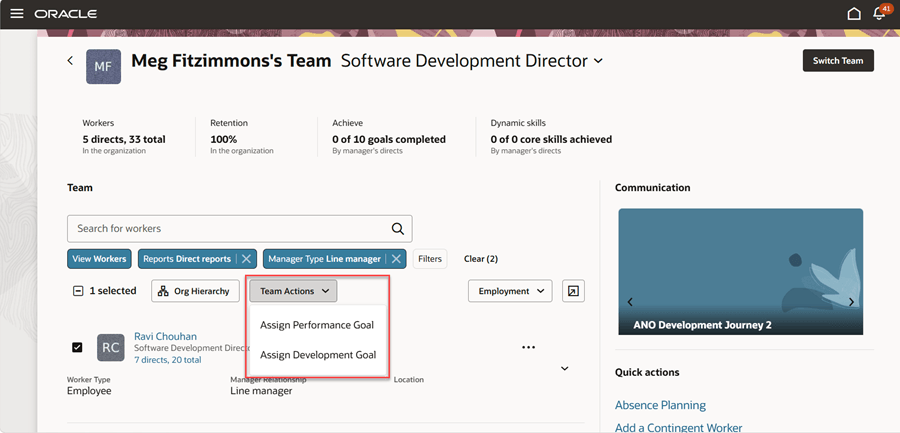
Assign performance or development goals to selected workers
- To view the list of applications, select View More in the Quick actions section. Pinned quick actions appear first, followed by other quick actions and the list of applications.
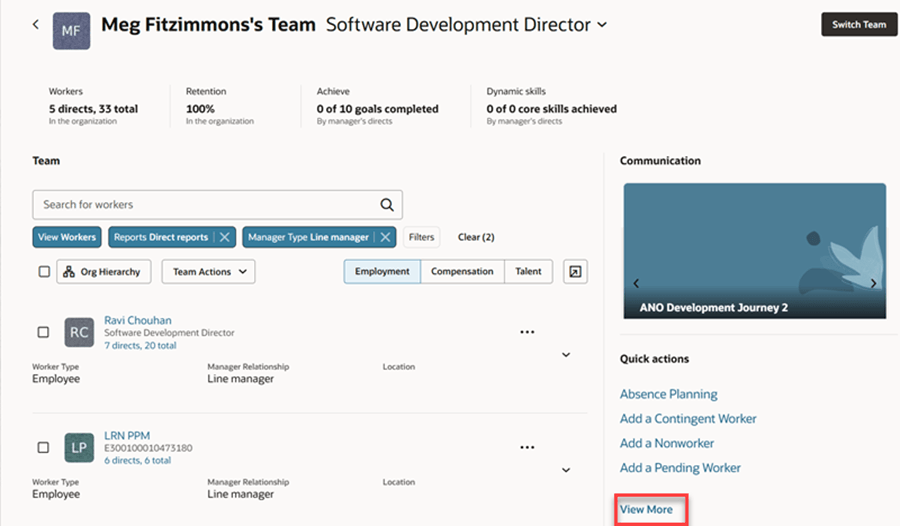
Access applications using the View More link
- Go to the Settings and Actions menu and select Edit Page in Visual Builder Studio.
- Select Configure Page Properties and note that the page properties are now grouped into section heads such as Common Properties, Analytic Cards, Communication, Quick Actions, Search, Workers View and more.
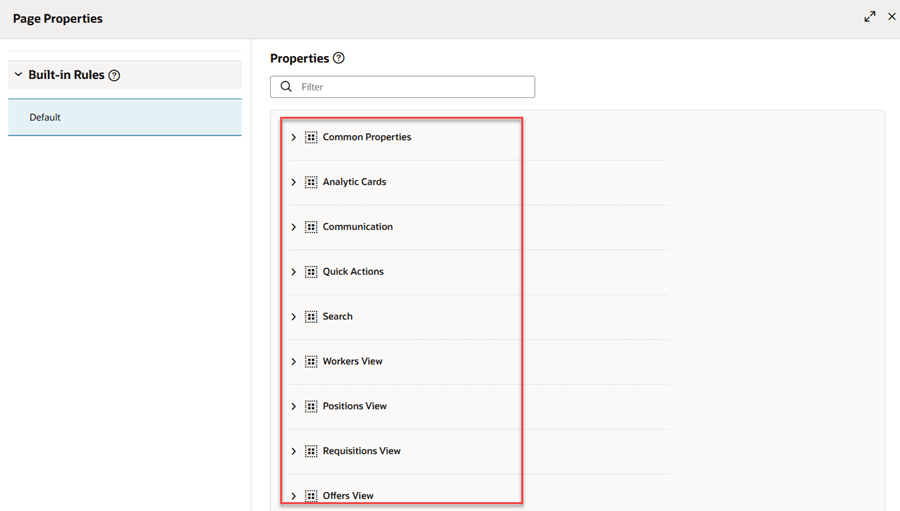
Page properties grouped into sections
- Unpin all quick actions and refresh the page. If your administrator has set a default list of pinned quick actions, you’ll see them. If you’ve already set some pinned quick actions, they remain as is and won’t be replaced by the default pins.
Unpin all quick actions and refresh the page. If your administrator has set a default list of pinned quick actions, you’ll see them. If you’ve already set some pinned quick actions, they remain as is and won’t be replaced by the default pins.
Business benefit: Managers can assign goals to multiple team members more efficiently, reducing repetitive work. Consolidated quick actions and applications and organized page properties also make Team Activity Center easier to use and configure.
Steps to enable and configure
To enable the Team Actions button:
- Go to Settings and Actions > Edit Page in Visual Builder Studio.
- Select Configure Page Properties.
- Expand the Workers View category.
- In the Select the display and order of team actions page property, add these actions:
- Assign Performance Goal
- Assign Development Goal
To set the default set of pinned actions for all users, use the Structure tool. For details, see Manage the Display of Quick Actions in Activity Centers.
The remaining features are delivered by default.
Key resources
For details on assigning goals, see these What's New features:
- Redwood - Introducing Team Goals Center
- Redwood: Managers Assign and View Goals for Indirect Reports
For details on using page properties, see Work with page properties in Visual Builder.