Redwood: Create Purchase Agreement Changes as a Buyer
Modify an approved purchase agreement using a Redwood page as a buyer. A change order is created when you edit an approved purchase agreement. You can create a change order using the Edit action on the on Purchase Agreement Redwood pages.
Here are some of the key features and considerations:
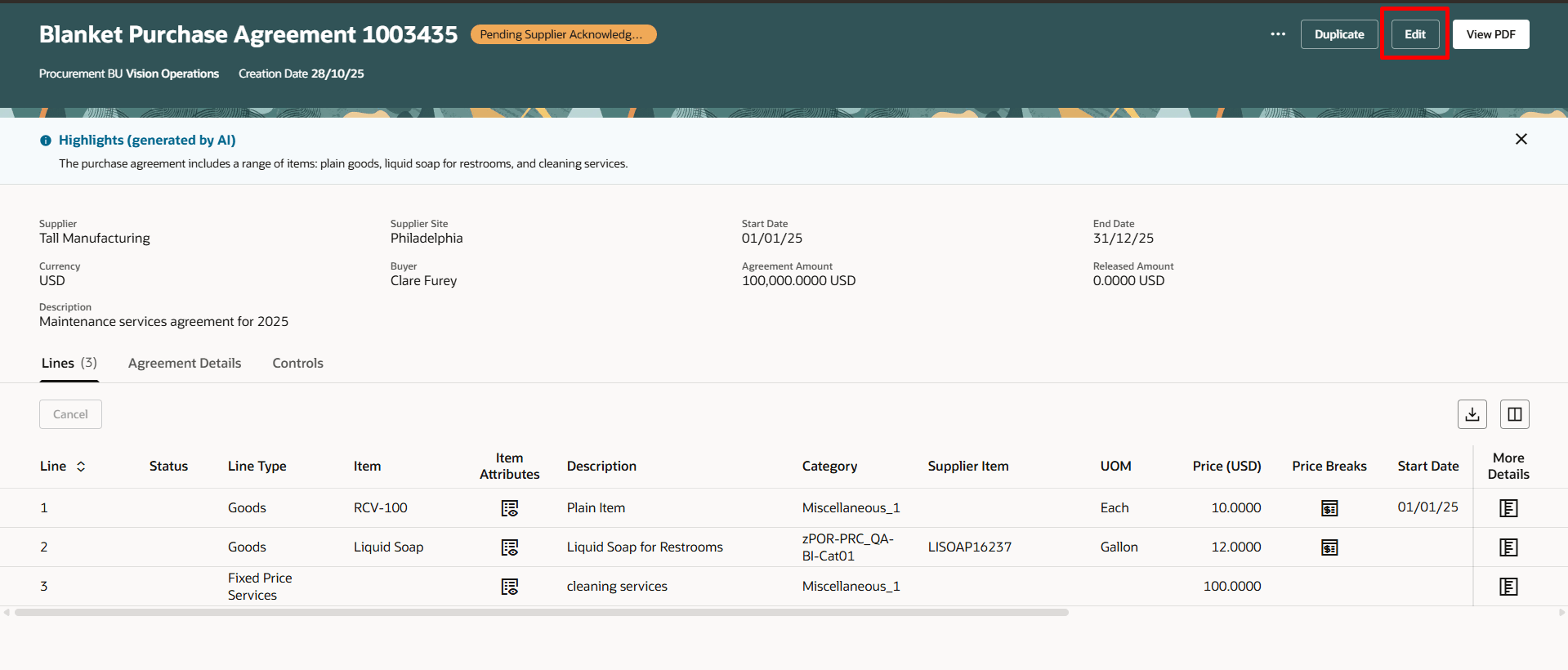
Create Change Order Using the Edit Option on a Purchase Agreement
Lines
Use the Lines tab to update key attributes such as price, agreement quantity, supplier item, change reason, and expiration date on a change order for a blanket purchase agreement. .
You can add new lines, duplicate existing lines, cancel approved lines, or delete newly added lines on a blanket purchase agreement change order.
To add new lines, use the Add icon on the Lines tab. To delete lines newly added on a change order, use the Delete action on the Lines tab.
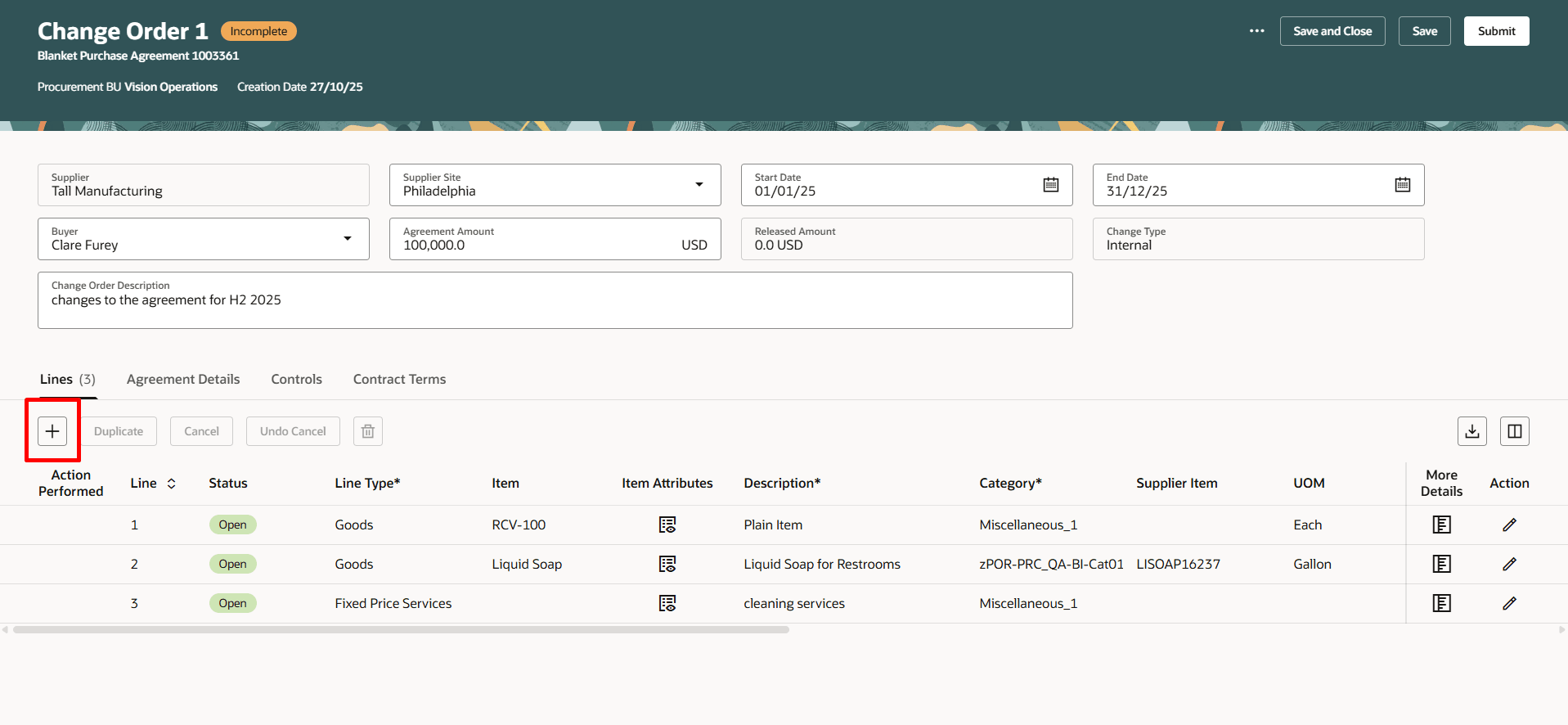
Add New Line to Blanket Purchase Agreement Change Order Using Add Icon
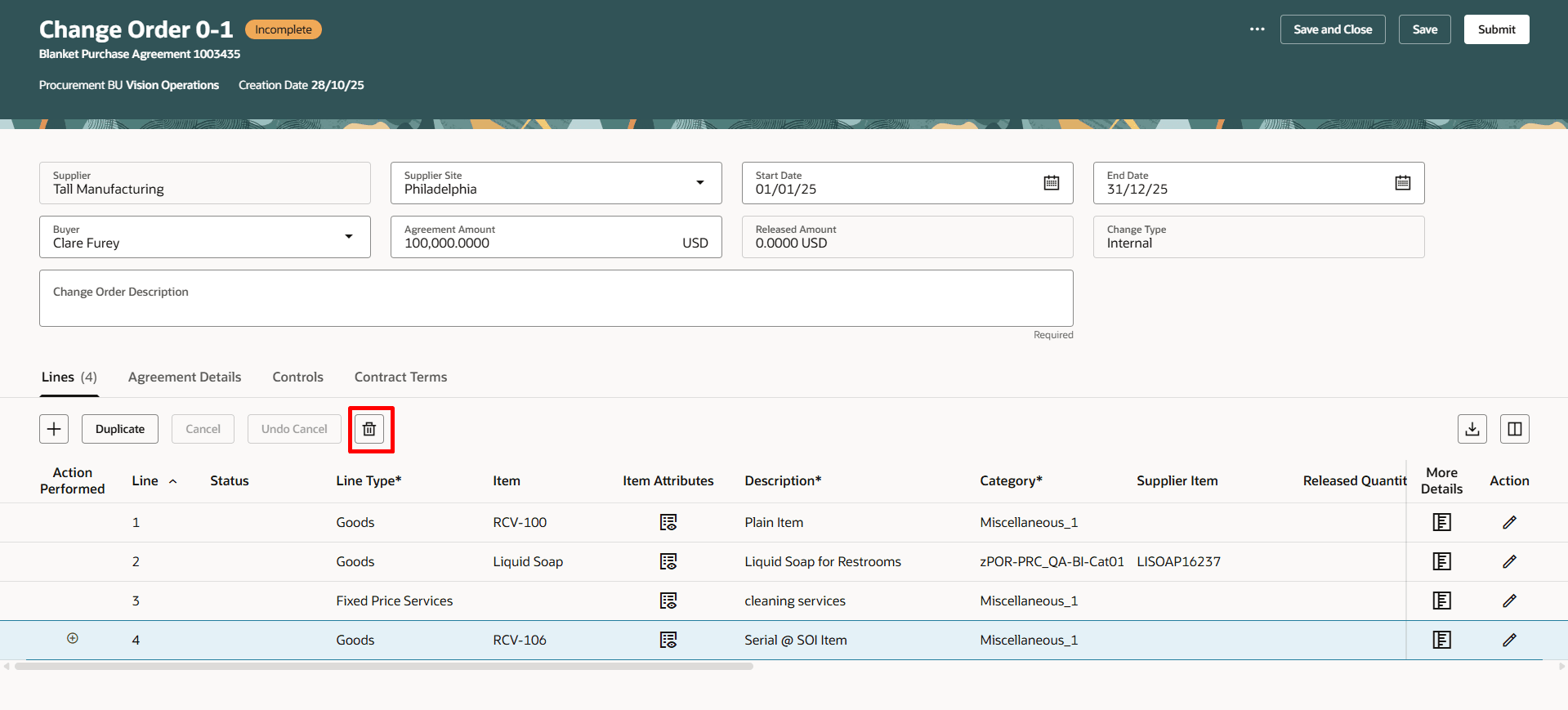
Delete Button on a Blanket Purchase Agreement Change Order
To duplicate an existing blanket agreement line, you can use the Duplicate action on the Lines tab. It will create a new line, copying all attributes from the source line except status, attachments, and price break details.
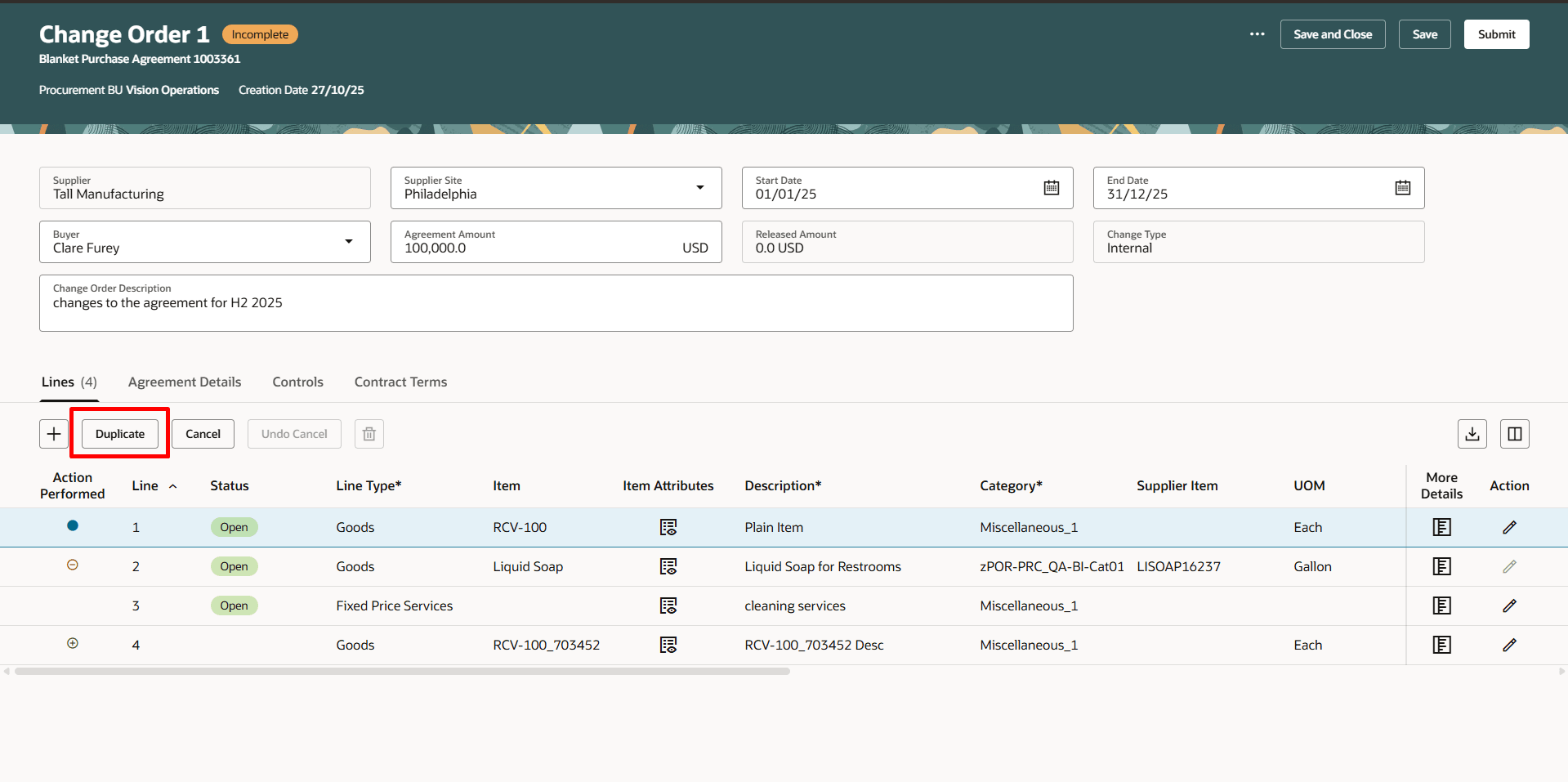
Duplicate Button on a Blanket Purchase Agreement Change Order
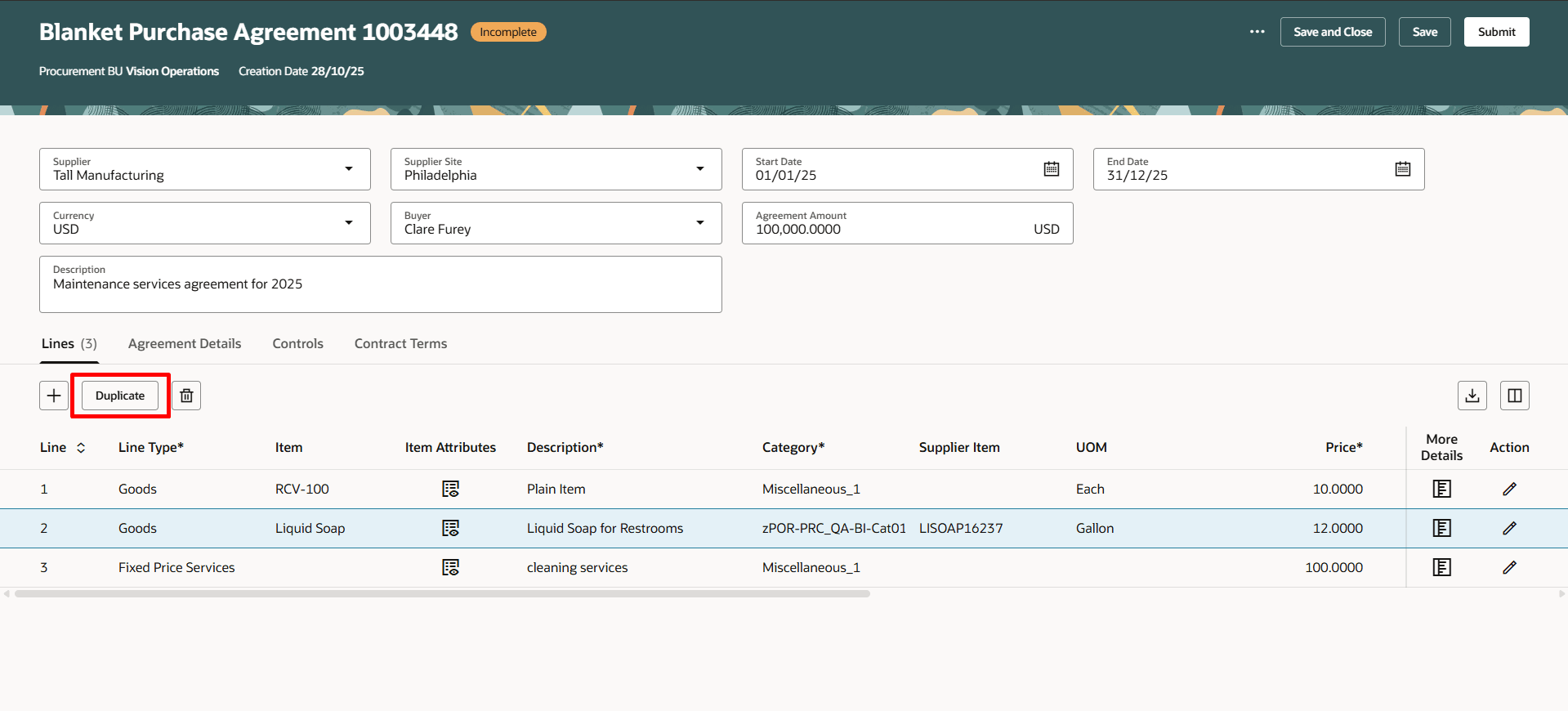
Duplicate Button on an Incomplete Blanket Purchase Agreement
You can cancel an approved blanket agreement line using the Cancel action on the Lines tab. You can now cancel a blanket purchase agreement line even if there are saved changes on the line. When you perform the cancel action, the changes on the line will revert to the last approved value, and the line will be marked for cancellation. You can use the Undo Cancel action to reverse the line cancellation.
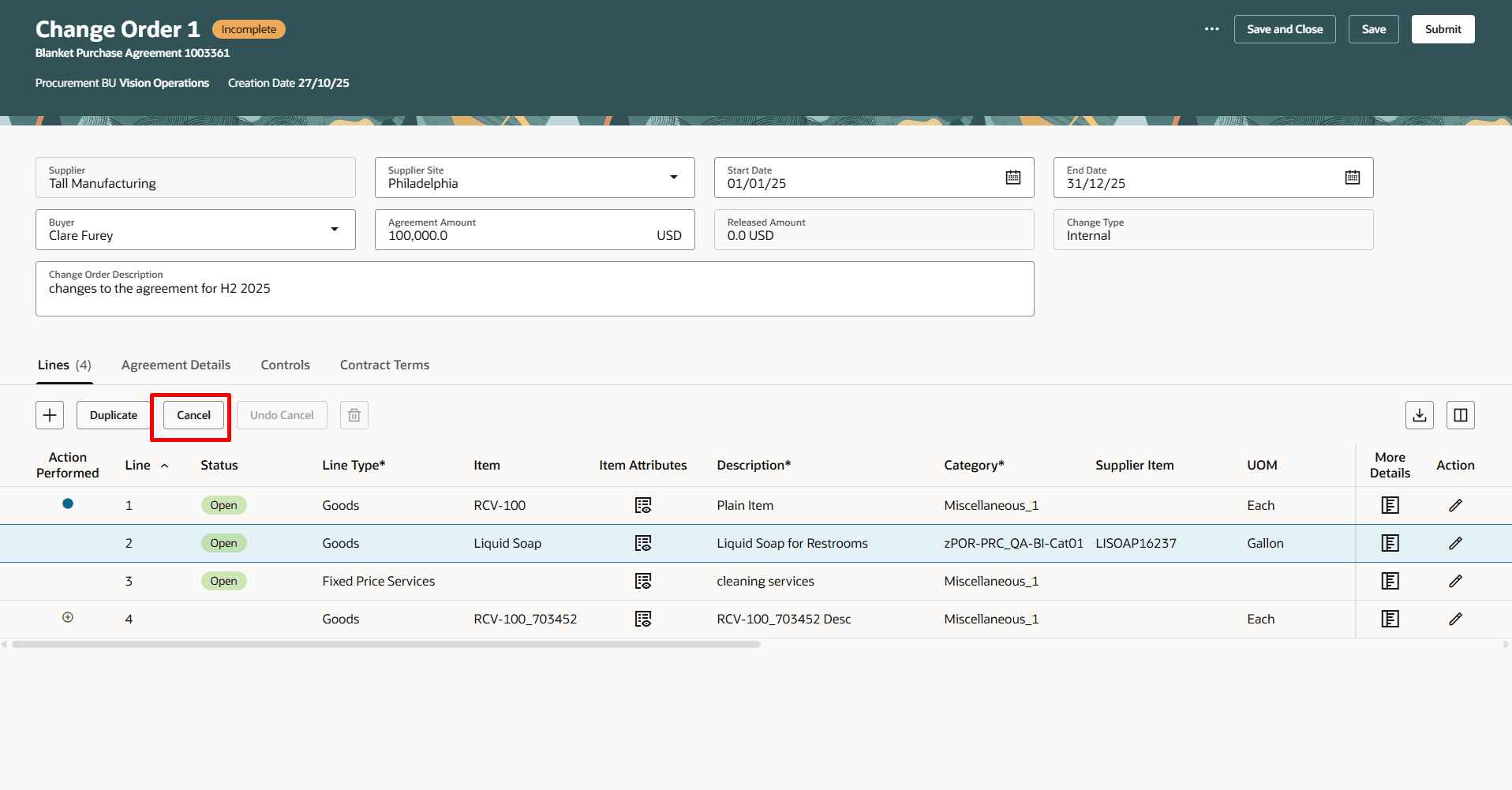
Use the Cancel Action to Mark the Change Order Line for Cancellation
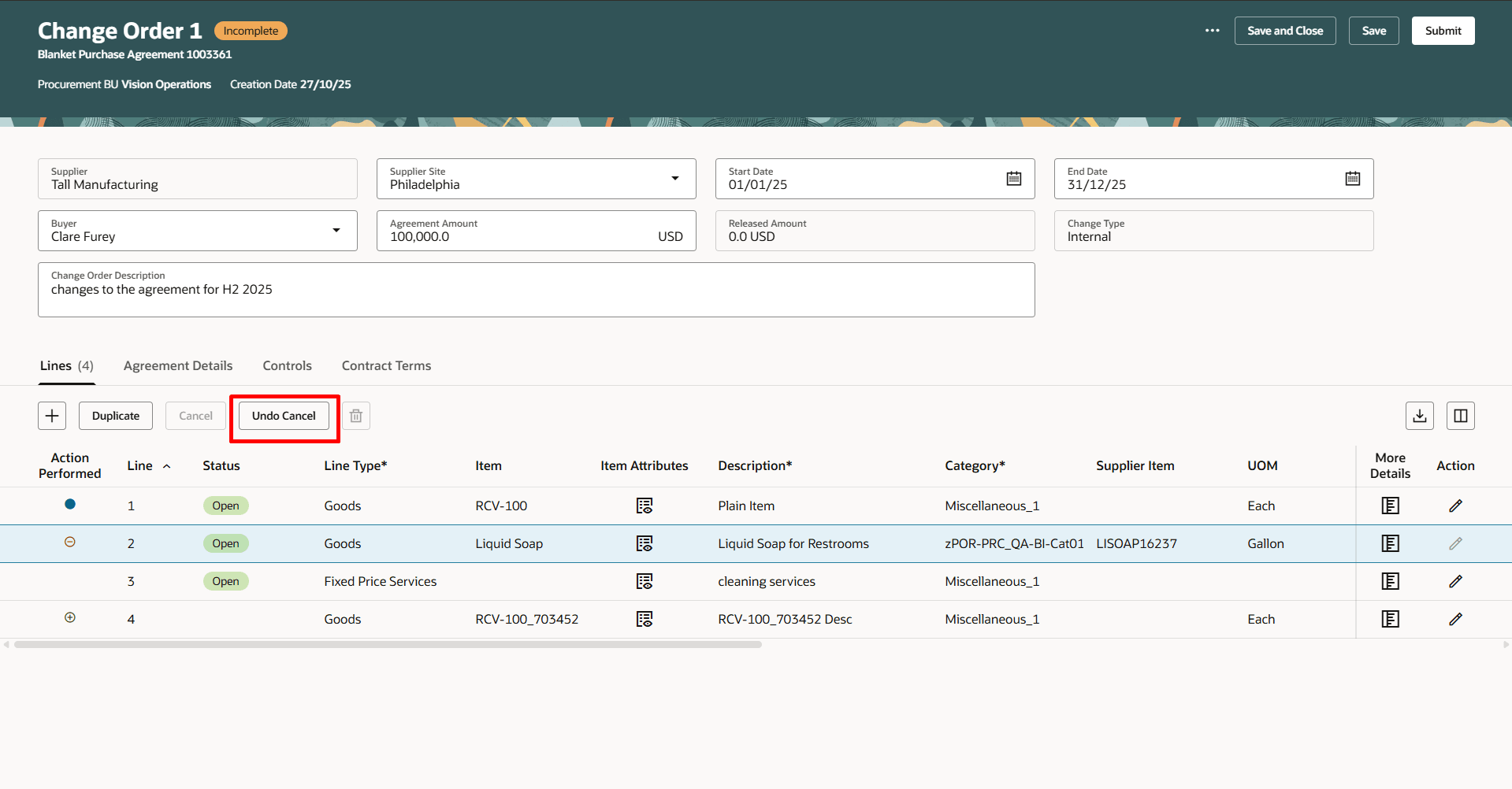
Use the Undo Cancel Button to Revert Cancelation on Change Order Line
The Action Performed attribute reflects the type of change made to the line:
- Newly added lines are marked with a green plus icon.
- Modified lines are marked with a blue dot icon.
- Canceled lines are marked with a red canceled icon.
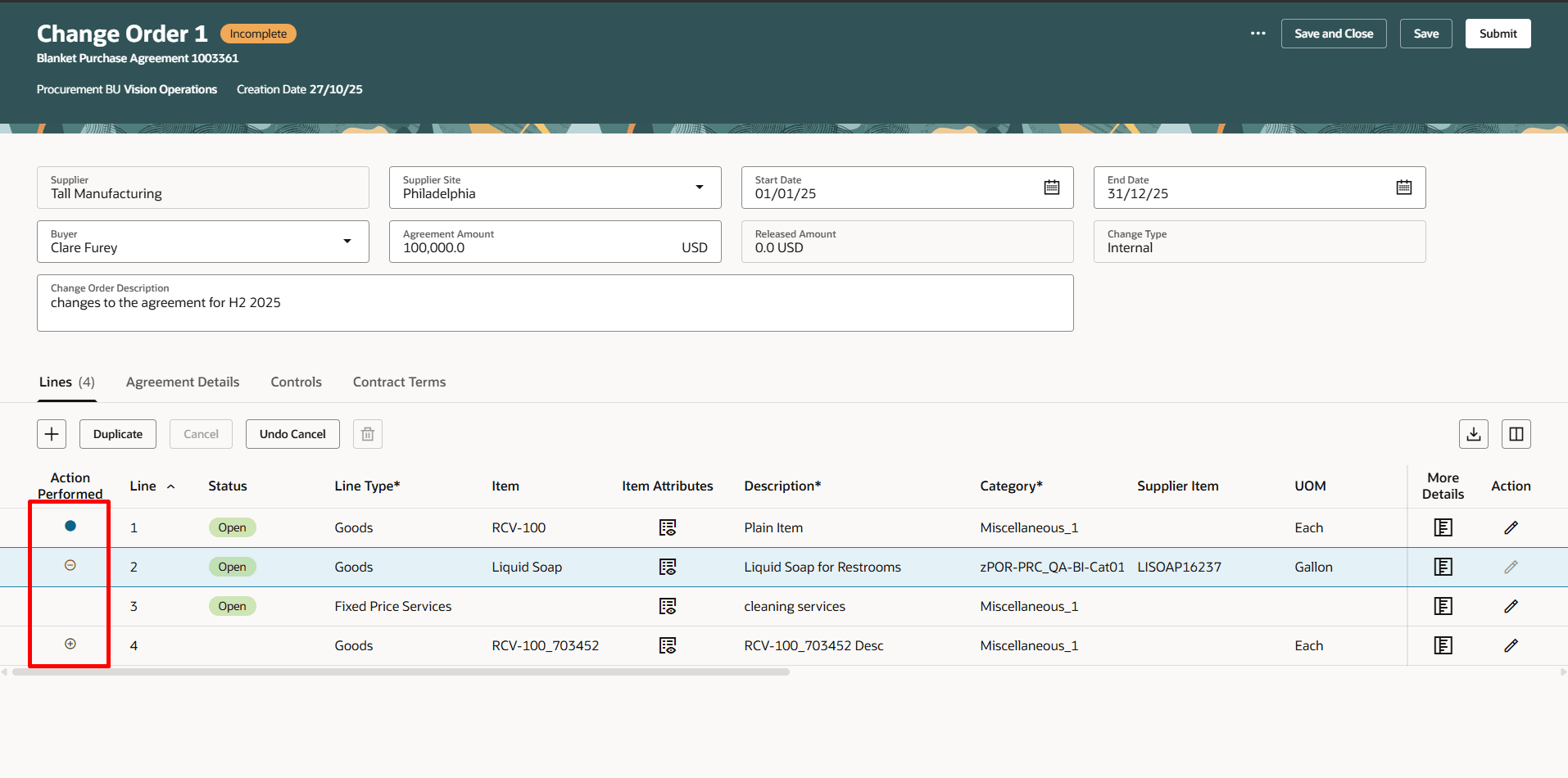
Action Performed Icons in the Change Order Lines Section
Price Breaks
Use the row-level icon on the Price Break column to open a drawer to modify an existing price break.
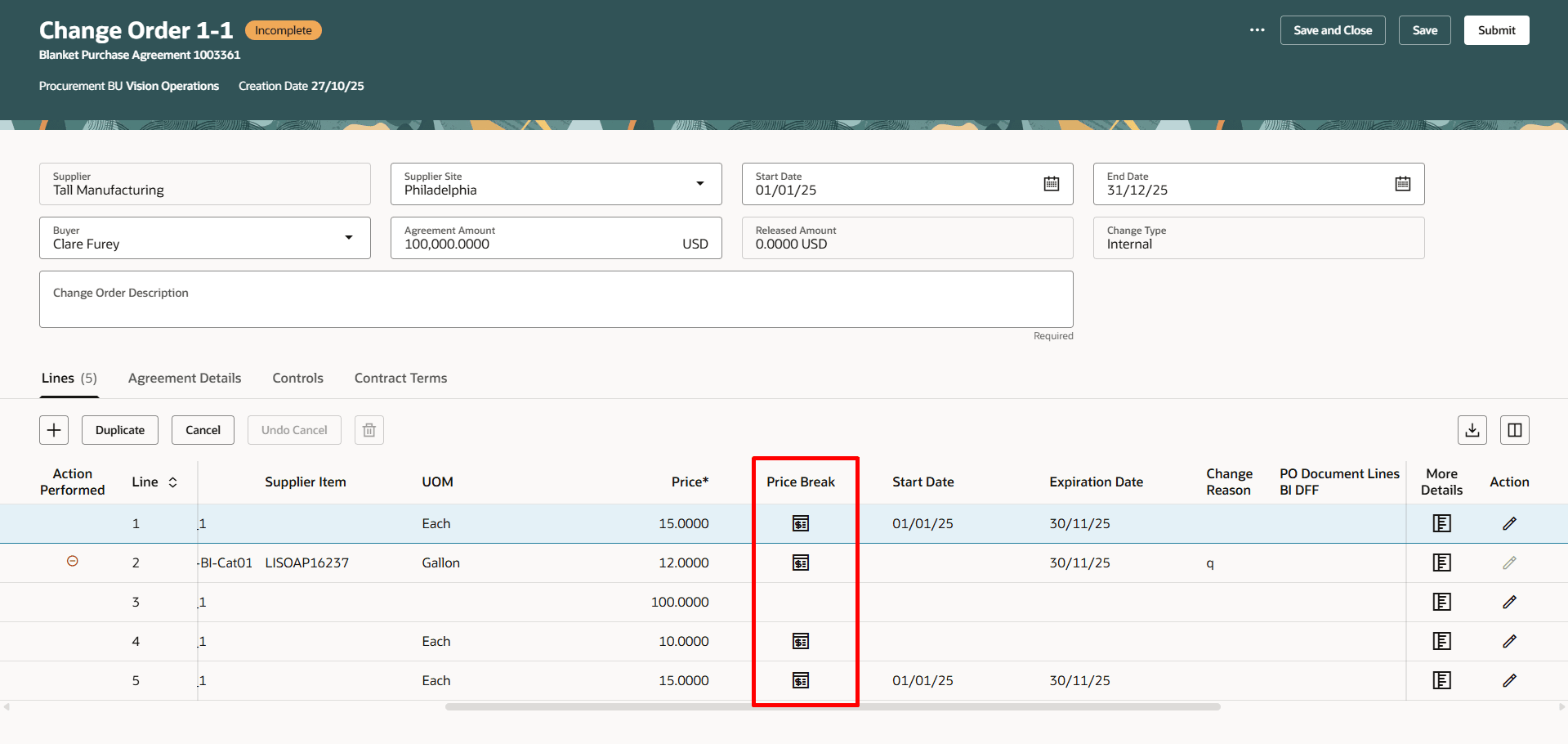
Use the Icon to Open the Price Break for Change Order Lines
In the Price breaks drawer, you can use the Add action to add a new price break. You can use the Delete action to delete a newly added price break. To view price break attachments, click the attachment count.
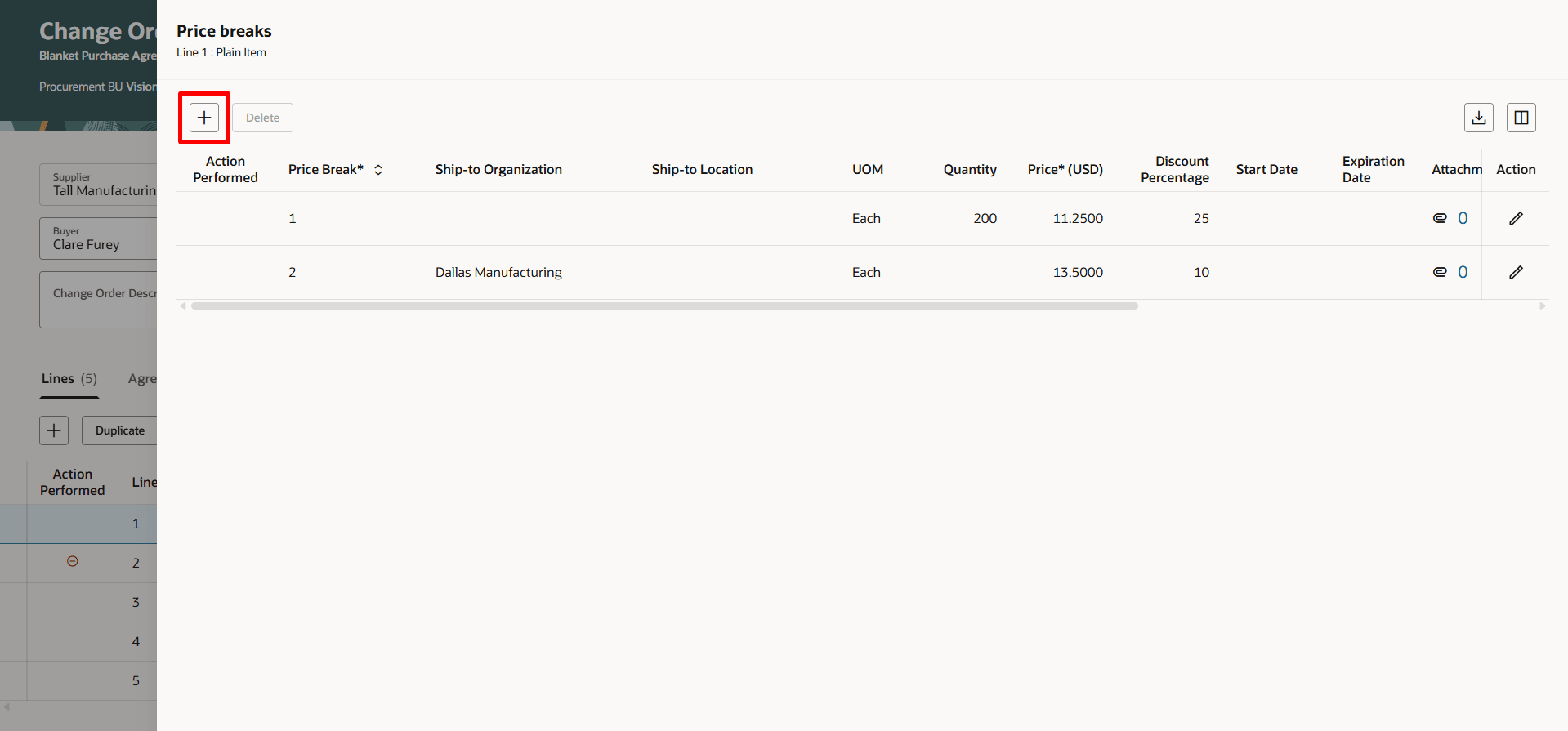
Add a New Row to Price Break Using the Add Icon
The Action Performed attribute reflects the type of change made to the price break:
- Newly added price breaks are marked with a green plus icon.
- Modified price breaks are marked with a blue dot icon.
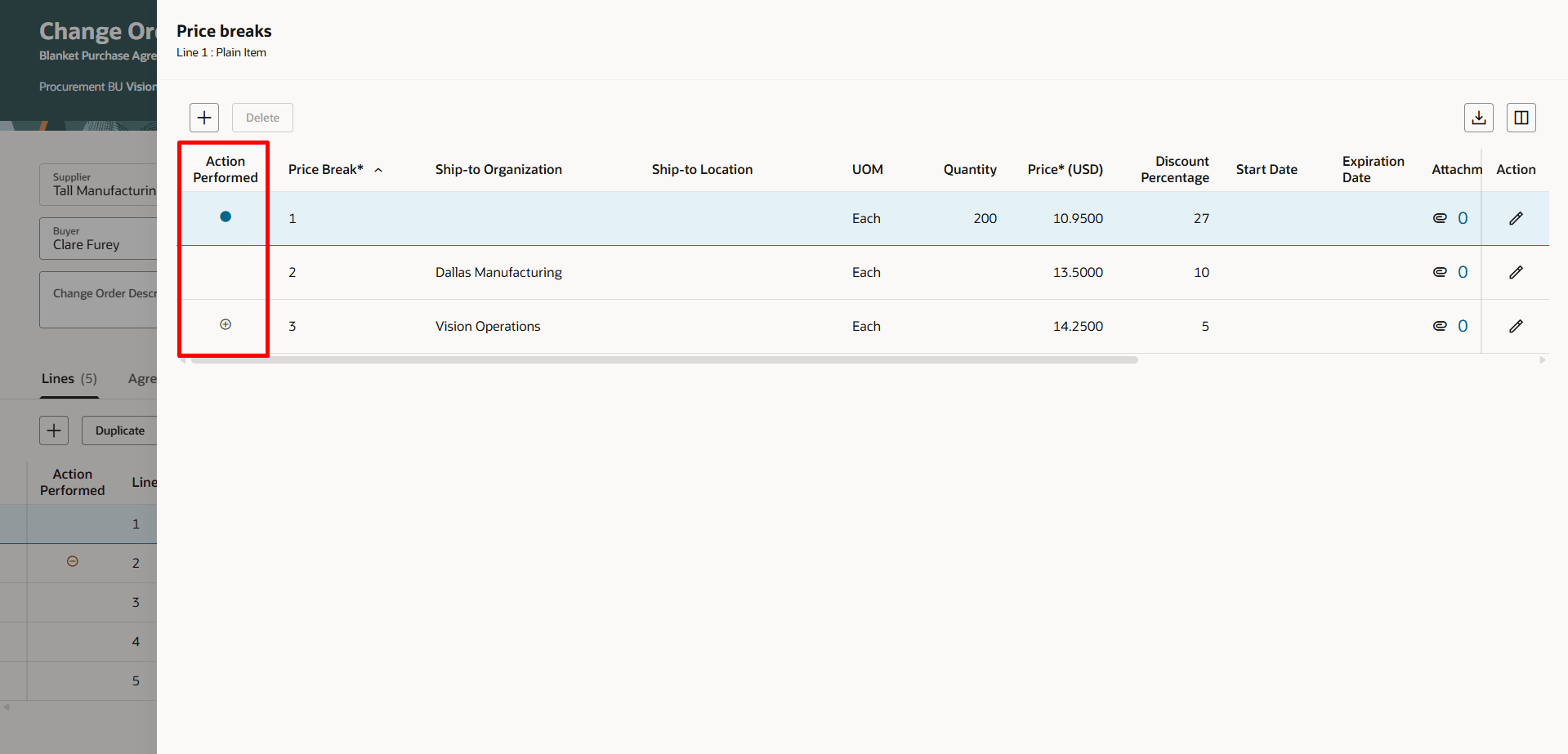
Action Performed Icons in the Price breaks for Change Order Lines
Item Attributes
Use the row-level icon on the Item Attributes column to open a drawer to modify item attributes such as supplier item auxiliary identifier, supplier URL, and packaging string on a change order for a blanket purchase agreement.
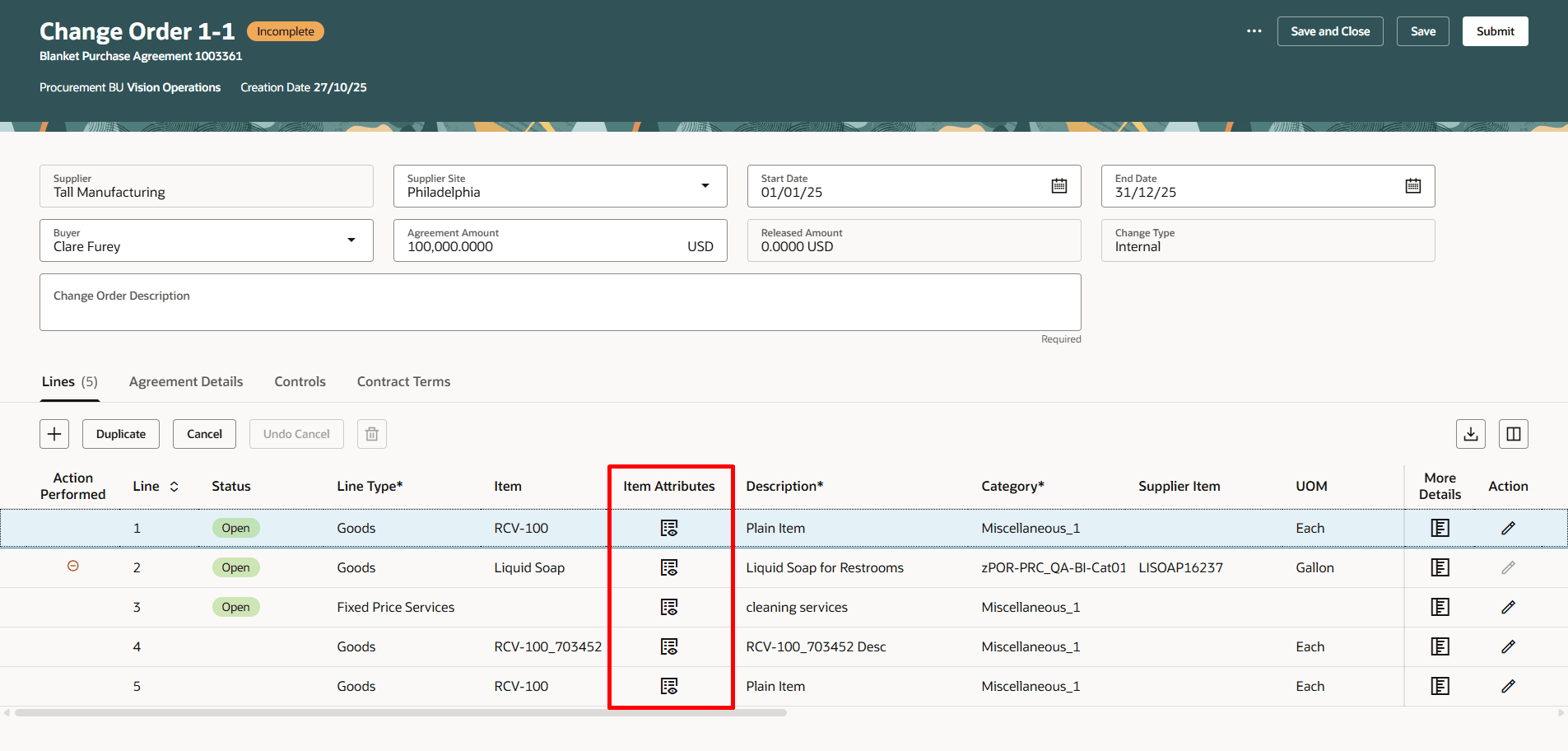
Use the Icon to Update the Item Attributes for Change Order Lines
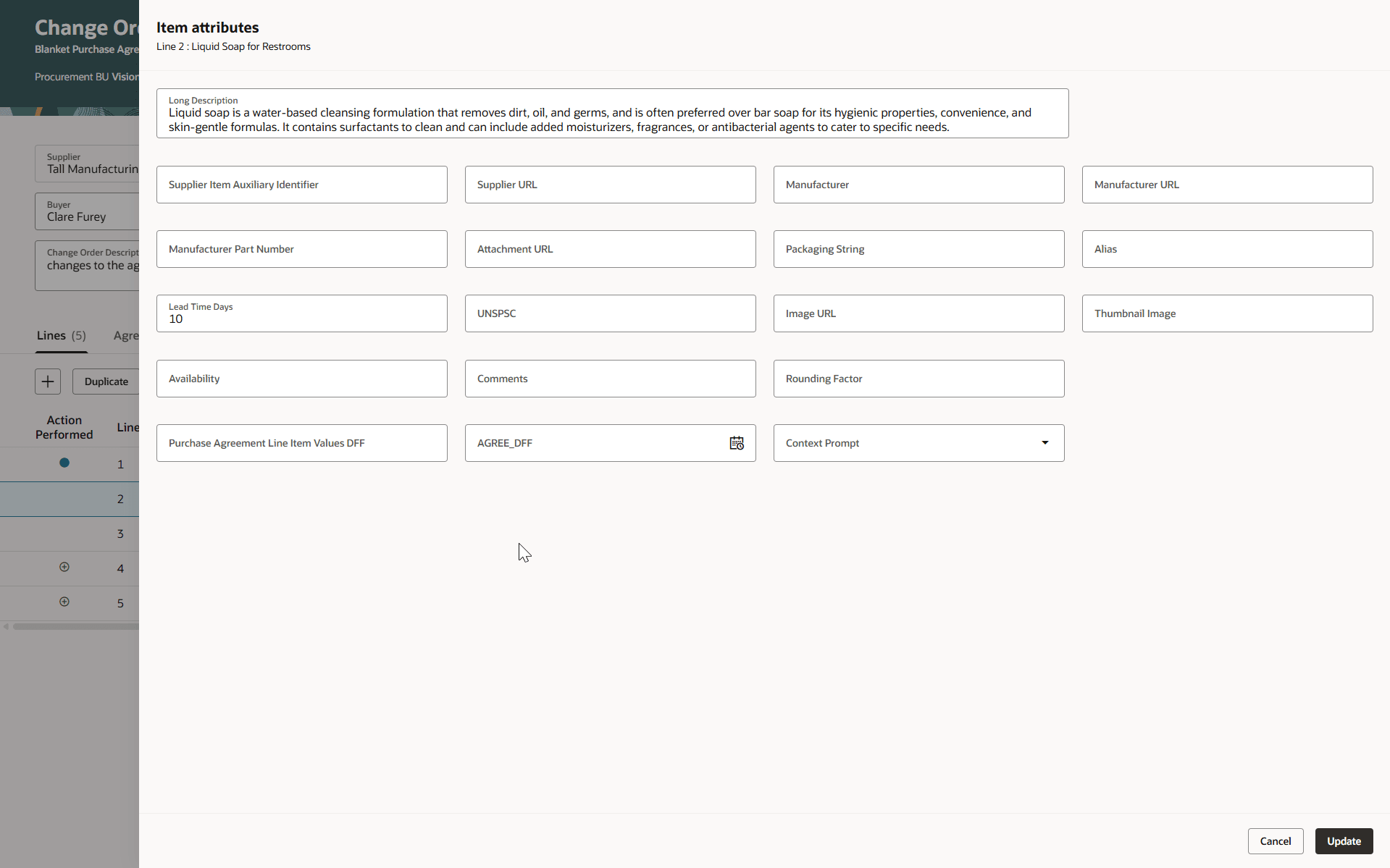
Update Item Attributes for Change Order Lines
More Details
Use the More details drawer in the Lines tab to update additional information specific to your change order and to add notes and attachments.
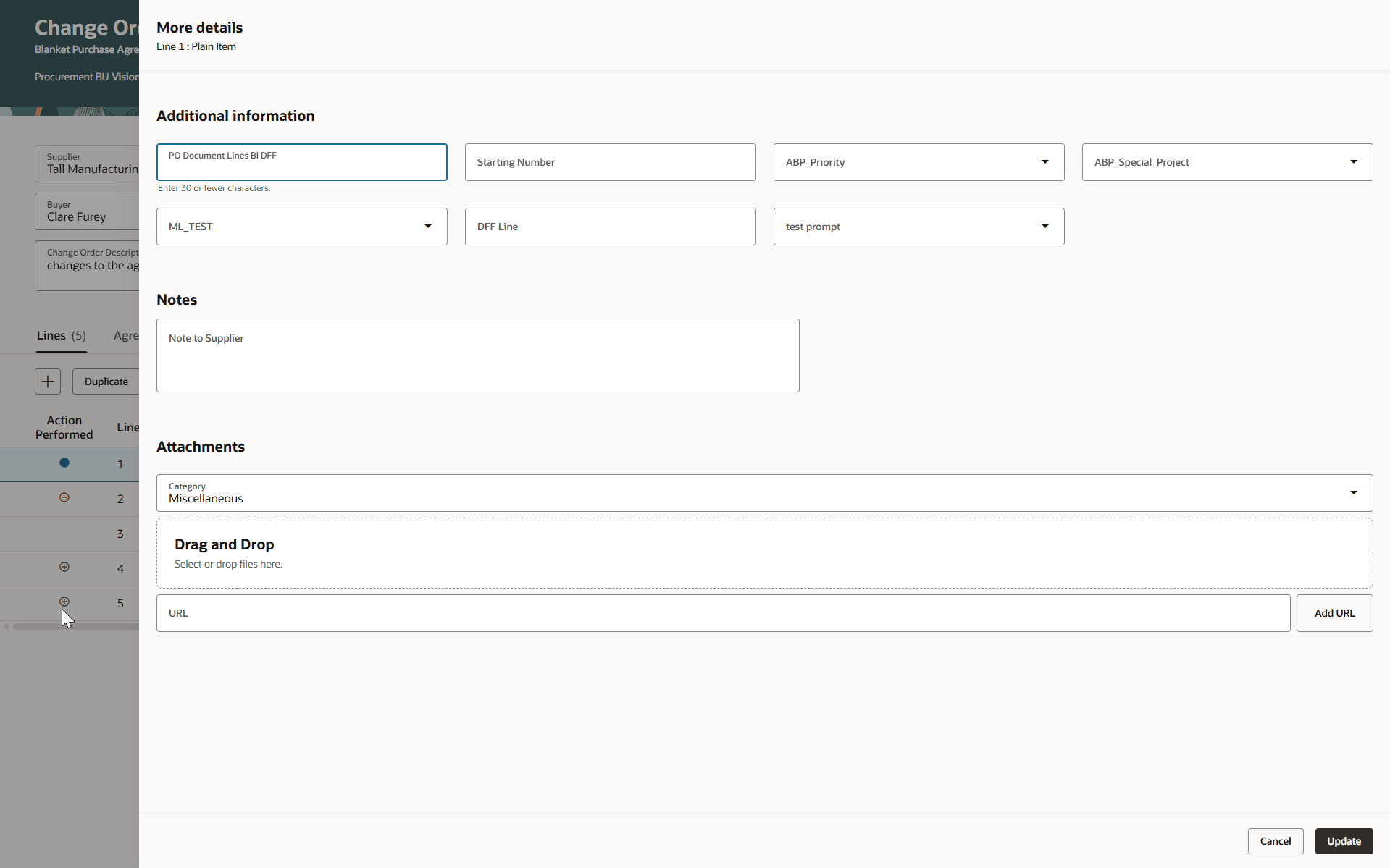
More details Drawer on the Change Order Line
Agreement Details
Use the Agreement Details tab to update the terms and conditions, communication method, and communication email on a change order. This tab also allows you to add additional information to the change order header, including descriptive flexfields, notes, and attachments.
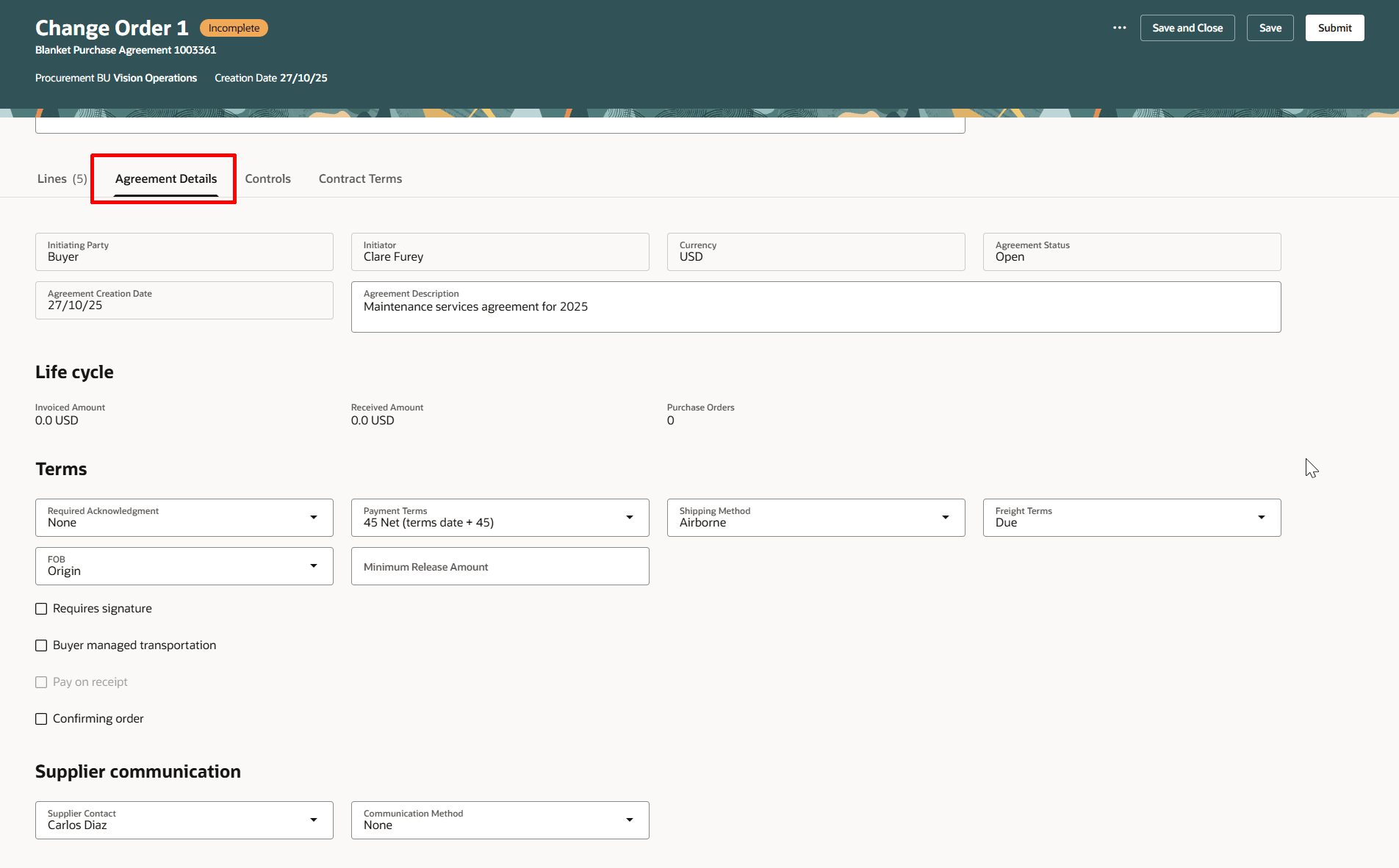
Edit Change Order Header Attributes by Navigating to the Agreement Details Tab
Agreement Controls
Use the Controls tab to add or update business unit access records, order processing options, and alerts.
The Action Performed attribute reflects the type of change made to a business unit access record or an alert:
- Newly added rows are marked with a green plus icon.
- Modified rows are marked with a blue dot icon.
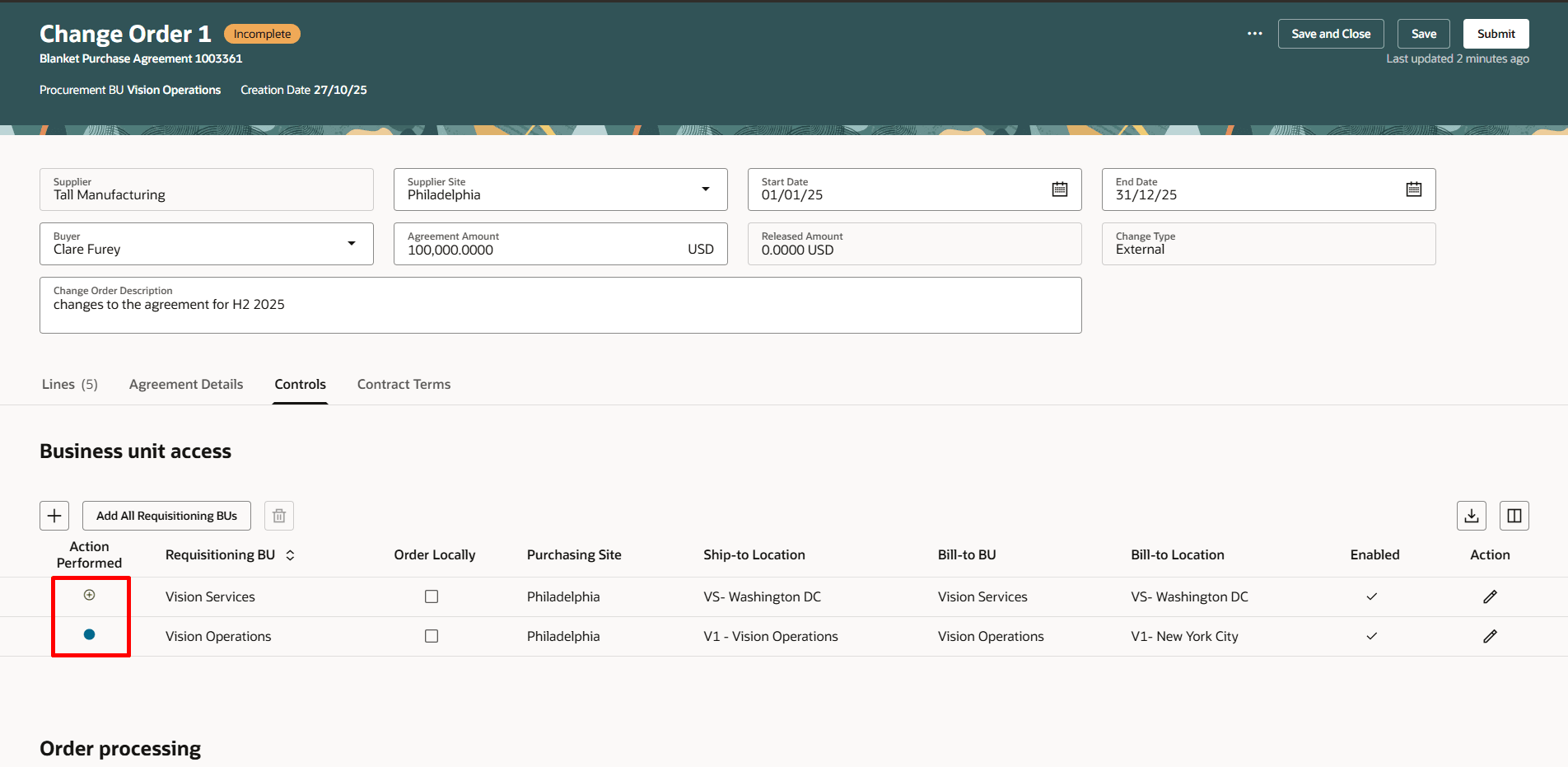
Action Performed Icons in the Business Unit Access for a Change Order
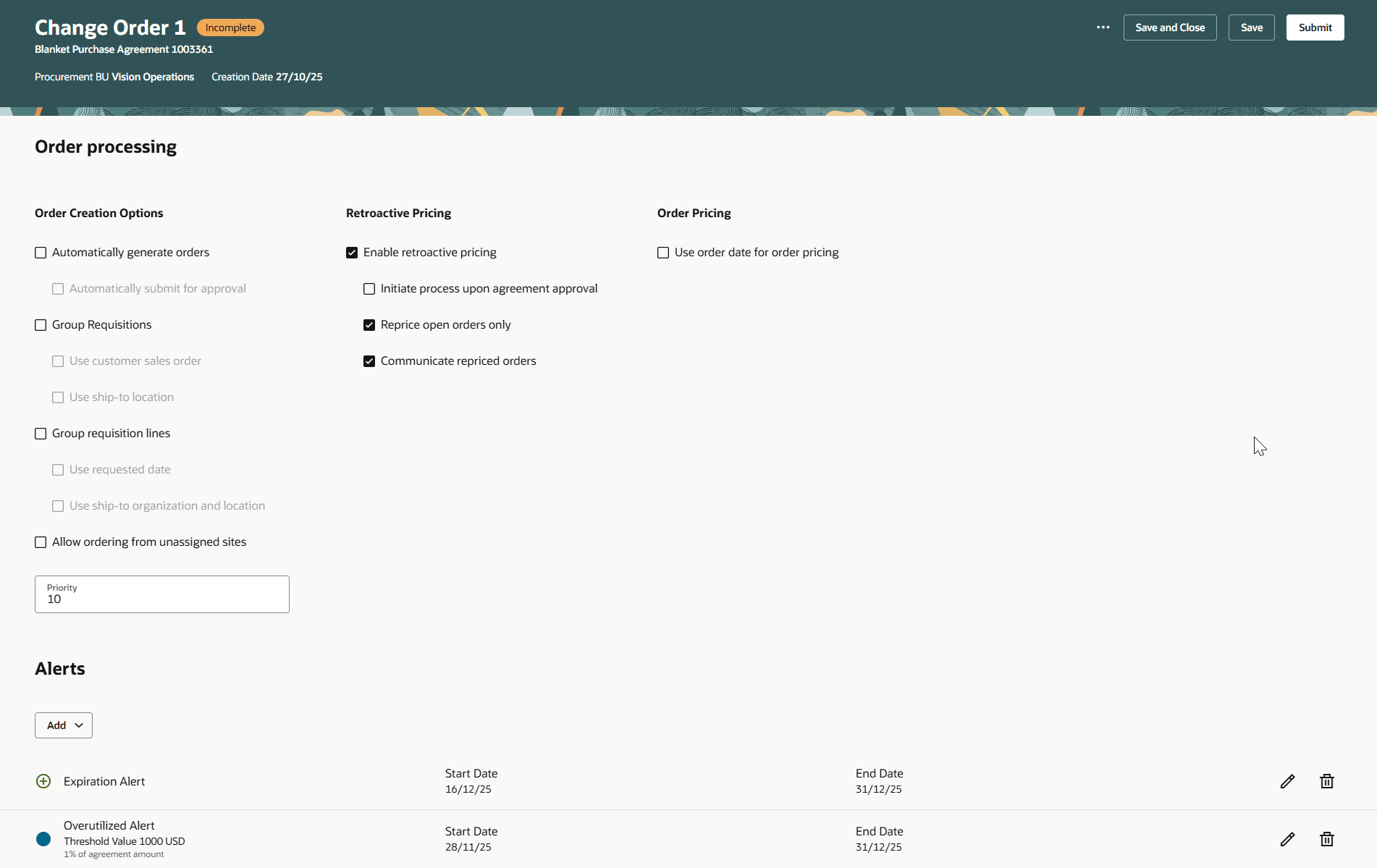
Action Performed Icons in the Alerts Section of the Change Order
Contract Terms
Use the Contract Terms tab to manage contract terms while editing a change order.
You can manage contract terms using these actions:
- Add Contract Terms: You can add contract terms if they aren't already present, either by using a Terms Template or by attaching a document.
- Change Contract Source: Use this action to change the source of the contract terms, such as switching from one template to another, from a template to an attached document, or vice versa.
- Remove Contract Source: Use this action to remove all contract terms from the contract. This will also remove any contract documents and supporting documents.
- Apply Latest Terms: This action is applicable only with a Terms Template. It allows you to apply the most recent version of the terms template to the purchasing agreement.
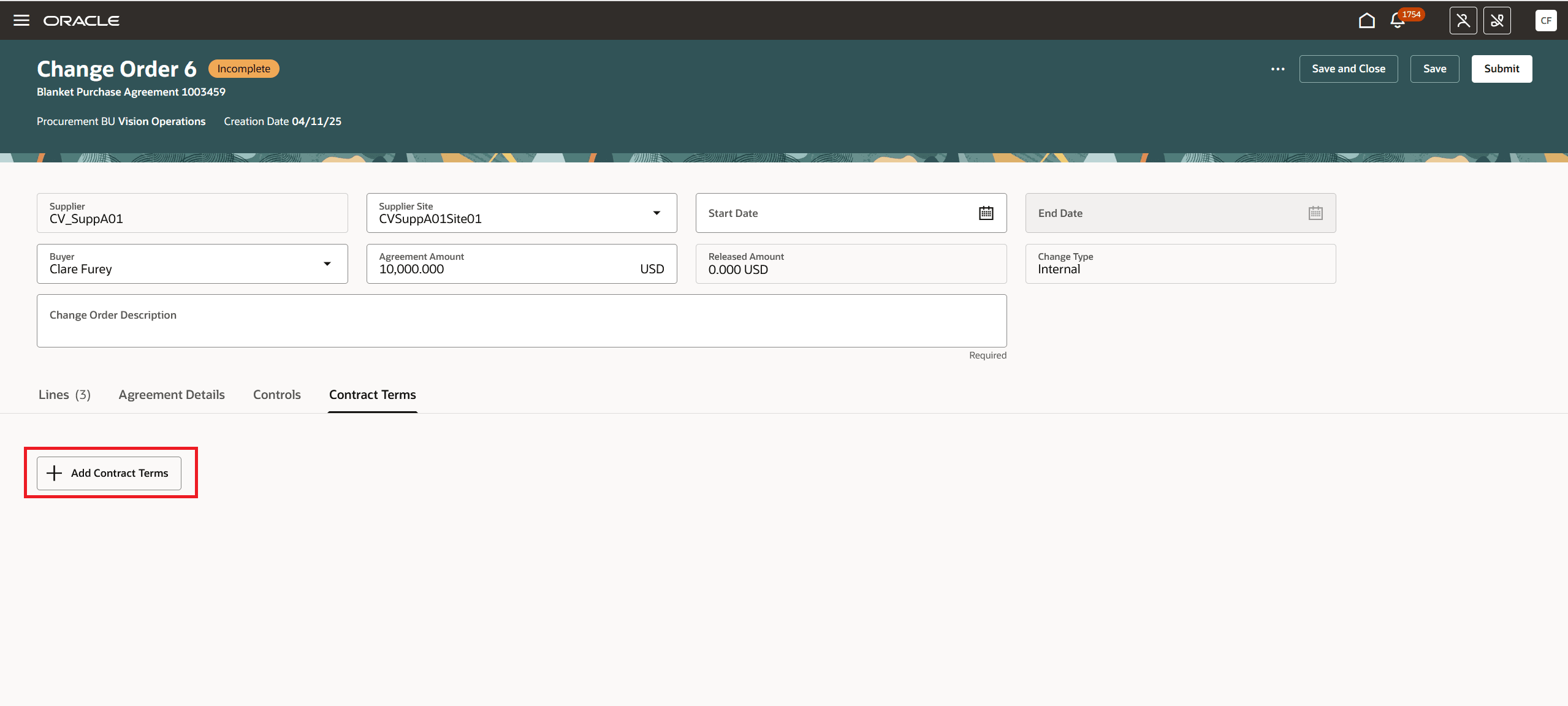
Add Contract Terms by Using a Terms Template or by Attaching a Document
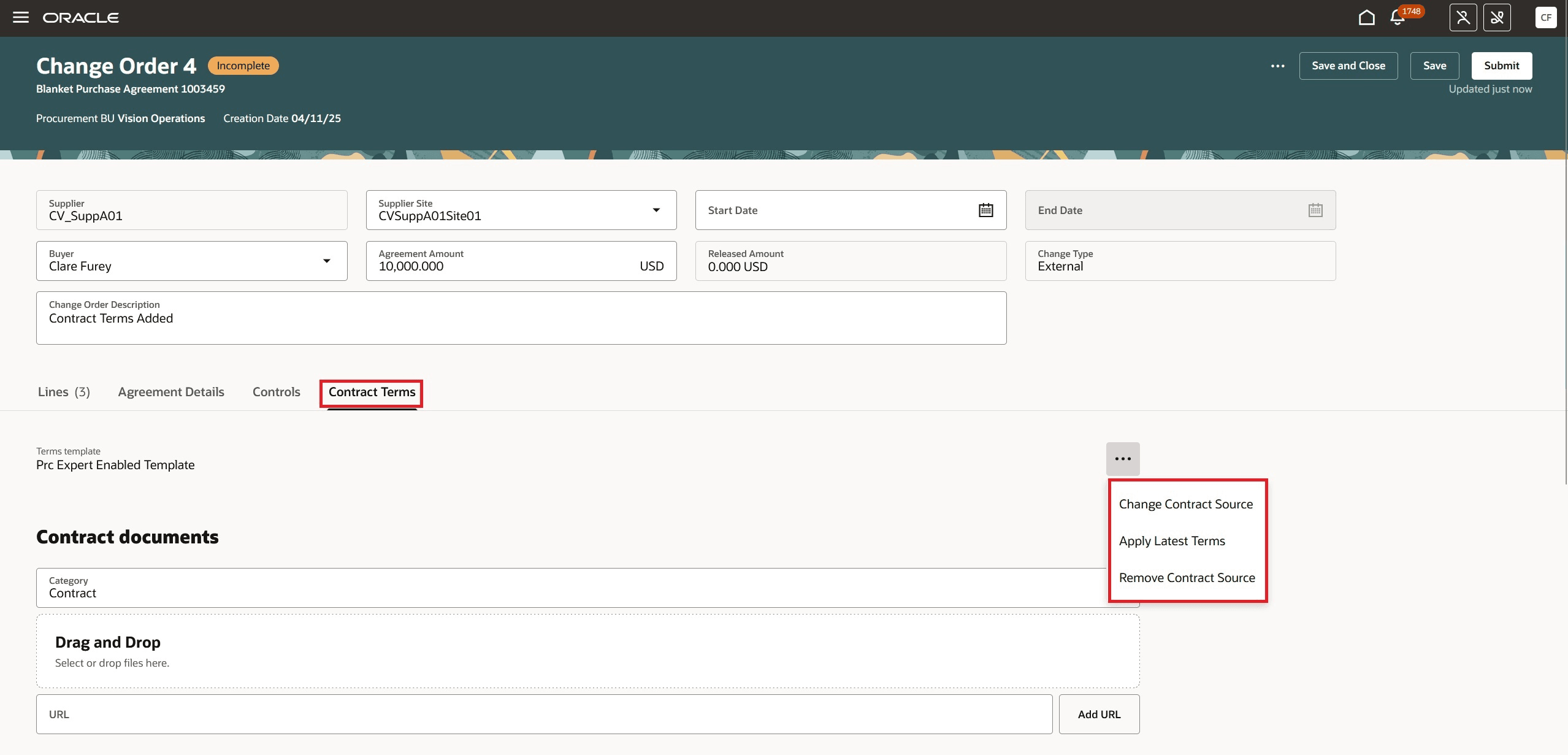
Actions in Contract Terms on Purchase Agreement Change Order Page
You can add or remove contract documents and supporting documents as needed in the respective sections.
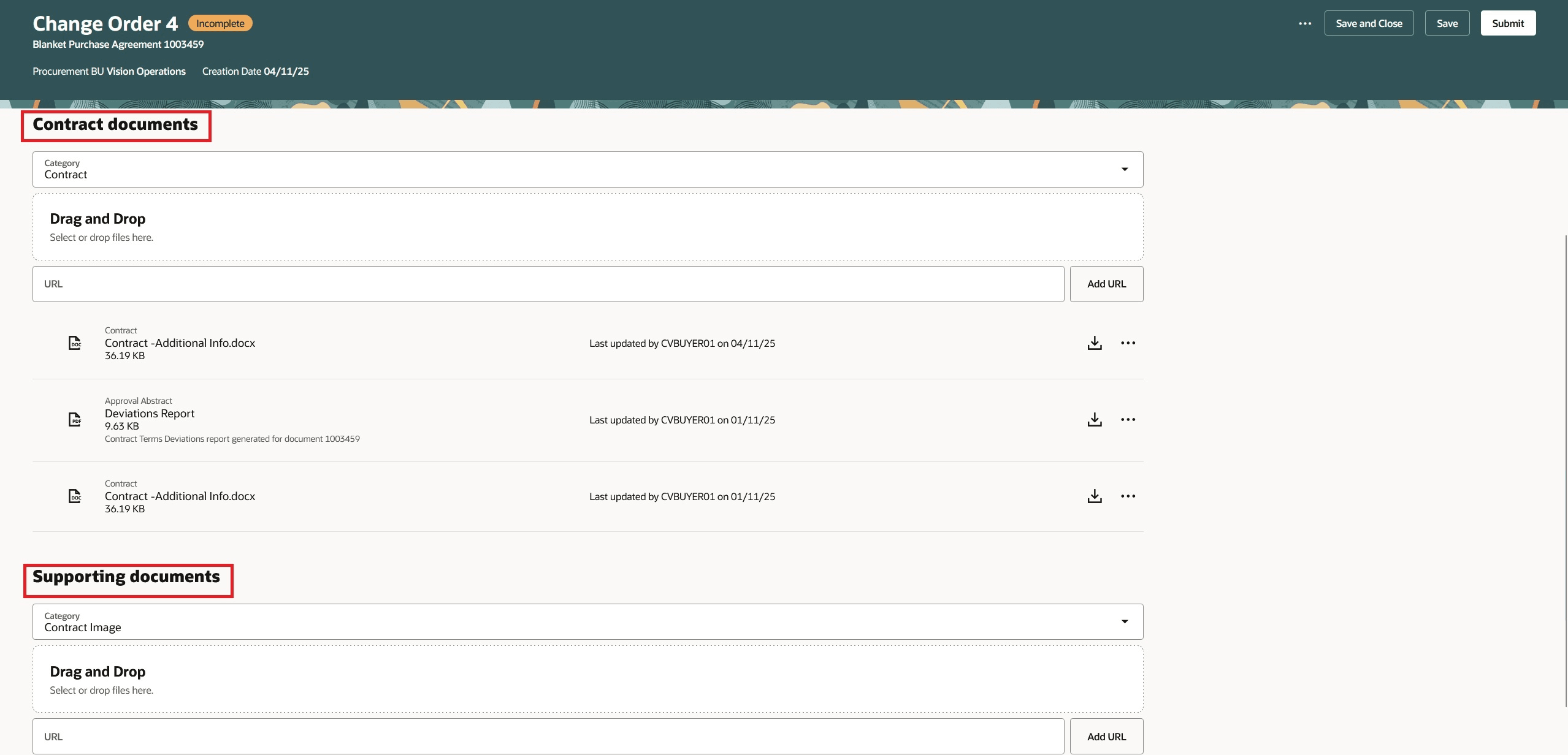
Use Contract and Supporting Documents to Add, Update,or Remove Documents in the Contract Terms
You can also review changes proposed to the contract terms.
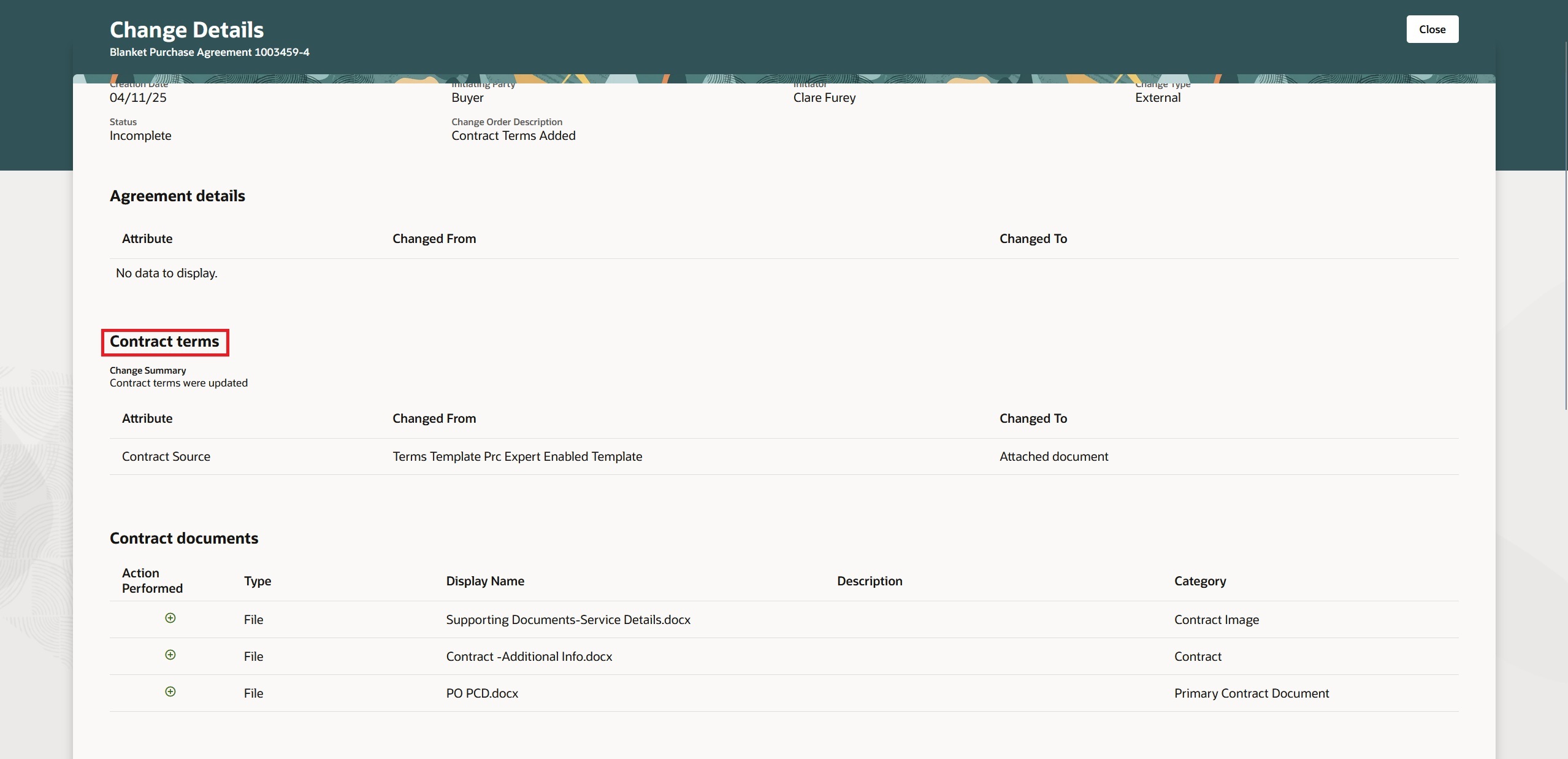
Review Changes Proposed to the Contract Terms
Consignment Agreement
For blanket purchase agreements with consignment terms enabled, you can update attributes such as Aging Period Days, Billing Cycle Closing Date, and Pay on use from the Agreement Details tab on a change order. You can also update attributes such as Consignment Line and Aging Period Days on a change order line. The consignment Line will be editable only if no PO line referencing the agreement line, else it will be read-only.
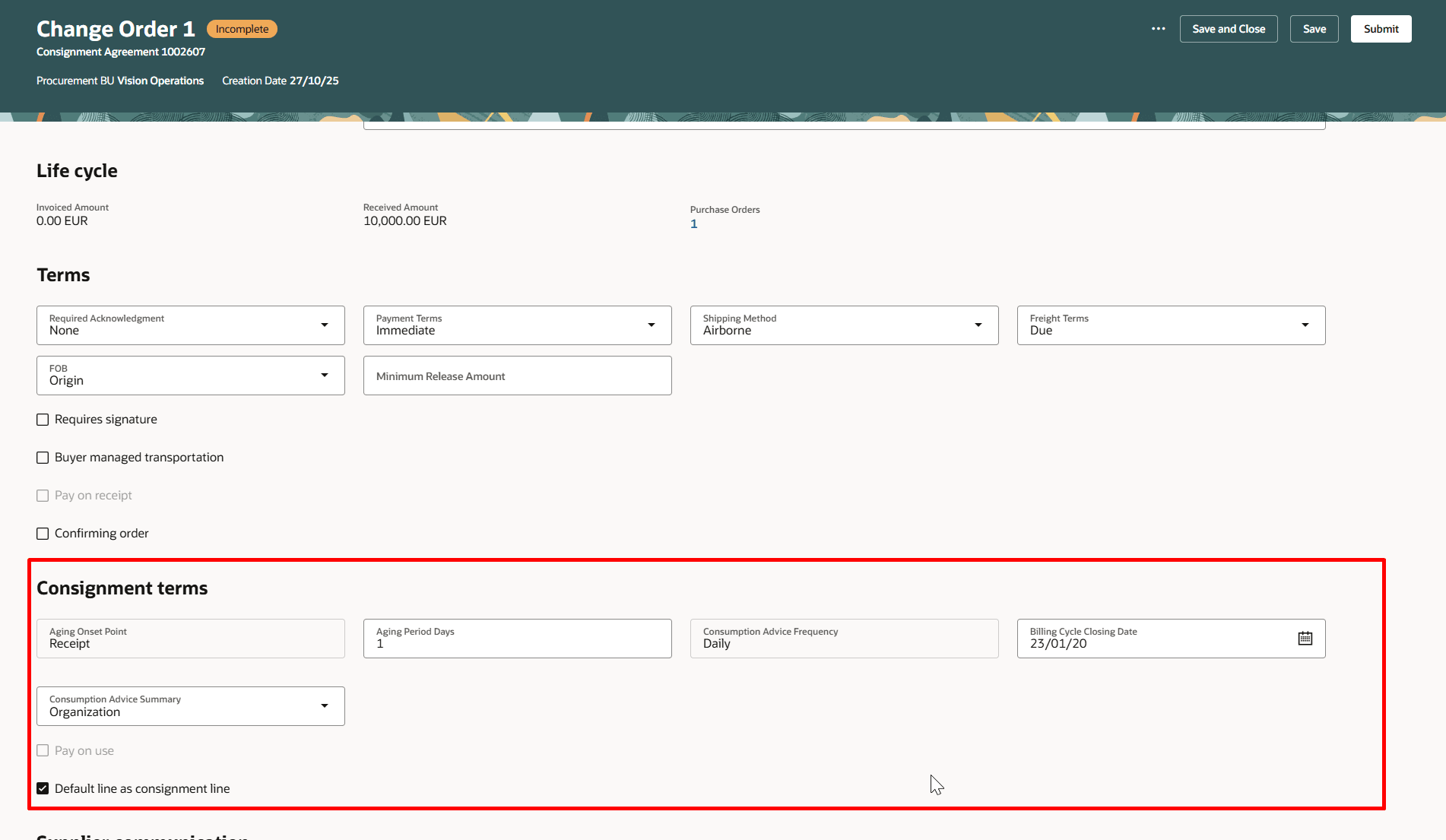
Update Consignment Terms in the Agreement Details
Configure to Order Agreements
For blanket purchase agreements with configuration ordering enabled, you can update attributes such as Parent Item, Top Model, Supplier Parent Item and Supplier Top Model. If a blanket purchase agreement line has been referenced on a purchase order line or on any of the component lines on the purchase order, then these attributes will be read-only.
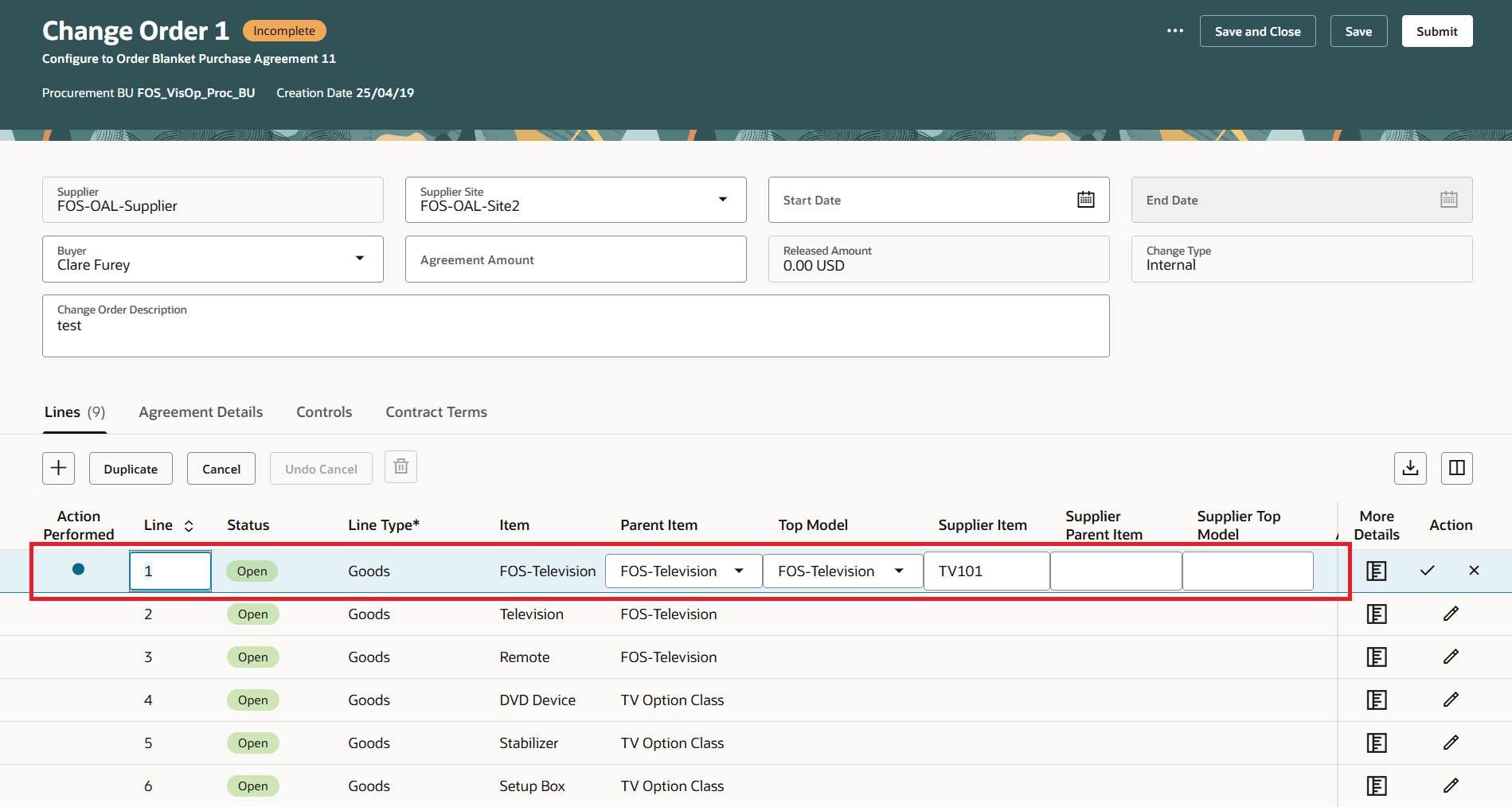
Update Parent Item and Top Model to Specify Attributes for Configure to Order Agreements on the Change Order
Depending on the change order status, you can perform these actions while editing a change order:
- Submit
- Save
- Save and Close
- Validate
- View Approvers
- View Change Details
- View PDF
- Delete
- Cancel Change Order
- View Checklist
- Cancel
View Change Order
When you view a purchase agreement that has a pending change order, you'll see an information banner on the page. If you have the required permission, you can click the View change order link to see the details of the change order.
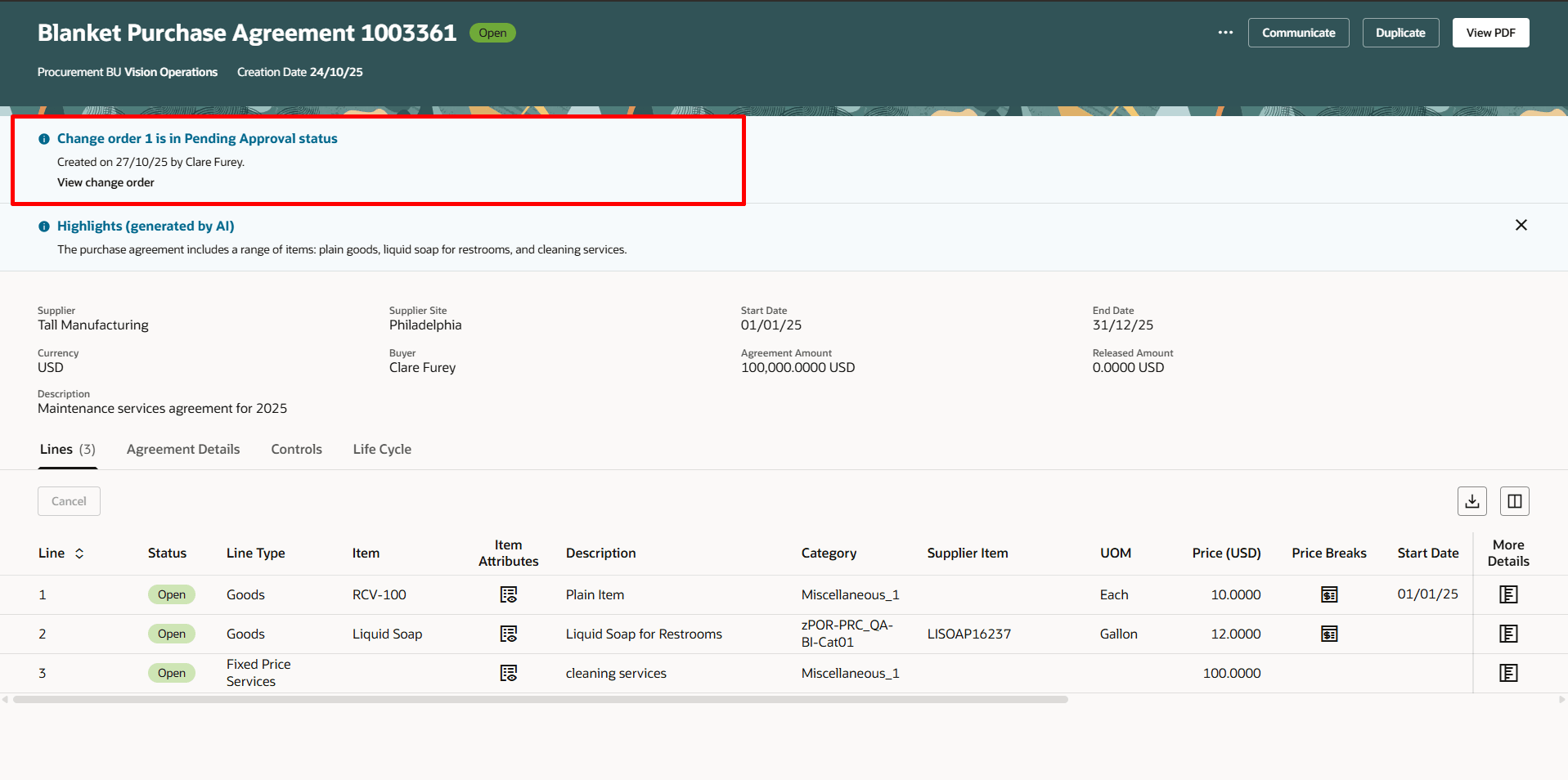
View Change Order from the Redwood View Purchase Agreement Page
You can also drill down to view a purchase agreement change order by clicking on the change order number hyperlink on Purchase Agreement work bench.
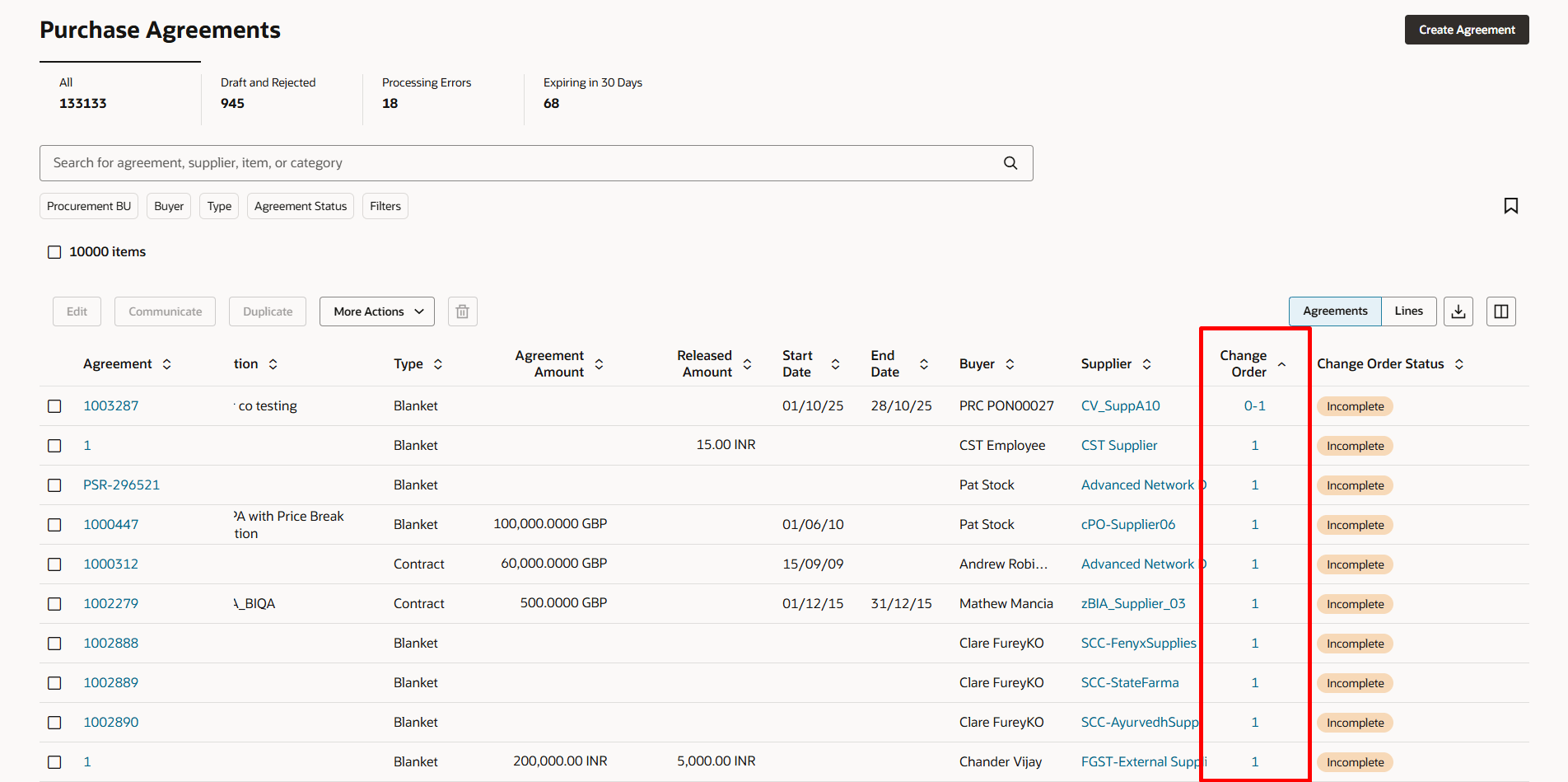
Navigate to the Purchase Agreement Change Order by Clicking the Change Order Link
When viewing a change order, you can seamlessly access line details, controls, and agreement details by switching between the tabs.
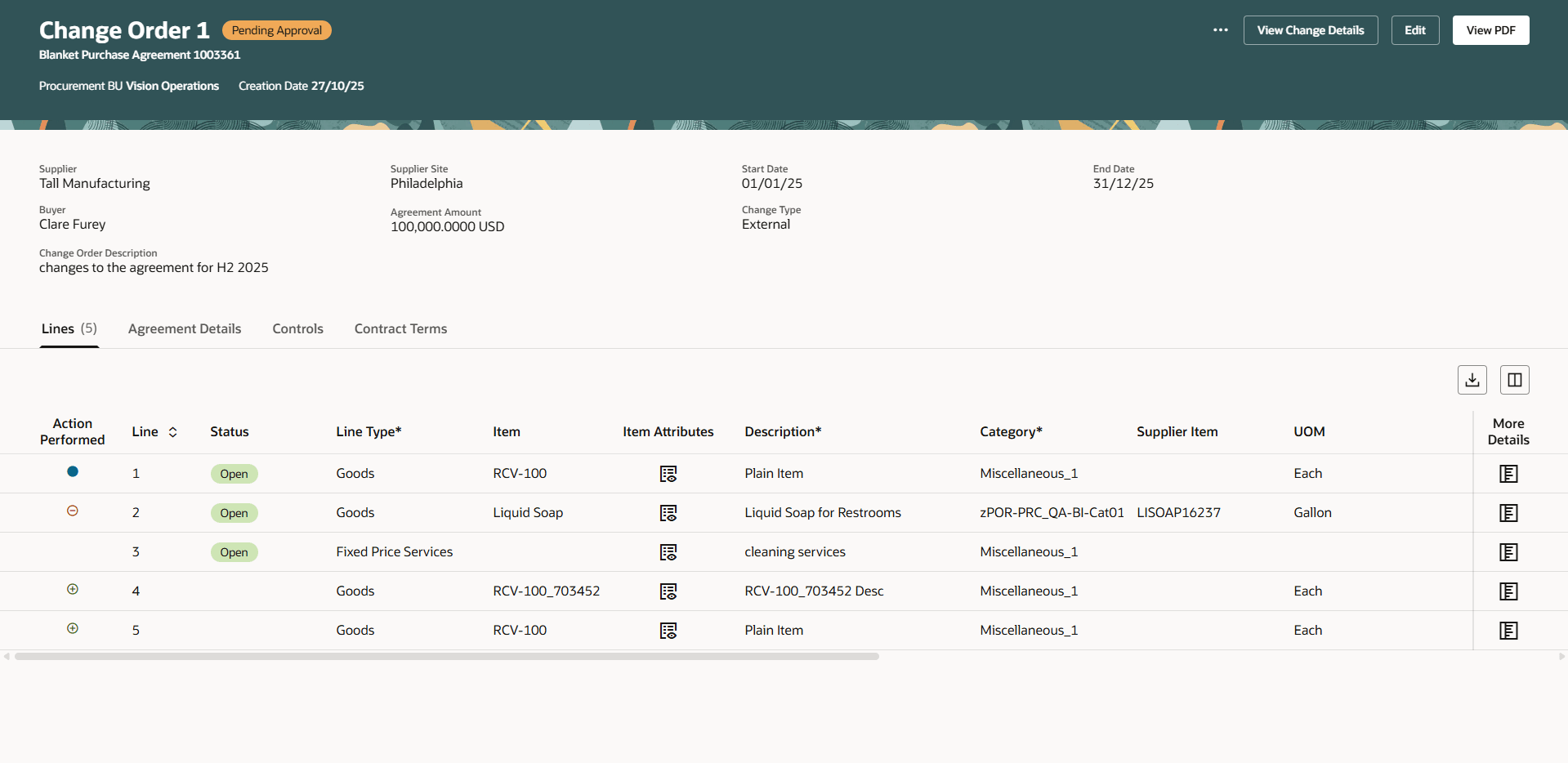
Purchase Agreement Header and Line Details on the View Change Order Page
Depending on change order status, you can perform these actions on the Redwood Change Order page:
- View PDF
- Edit
- View Change Details
- Acknowledgement
- Delete
- Prepare for Signature
- Manage Signature
- Communicate
- Cancel Change Order
- View Approvers
View Change Details
You can review the changes proposed to the currently approved version of the purchase agreement while editing or viewing the change order. The Change Details page indicates the modifications you've made to the approved version of the purchase agreement. You can access the Change Details page by selecting the View Change Details action on the Redwood Purchase Agreement pages.
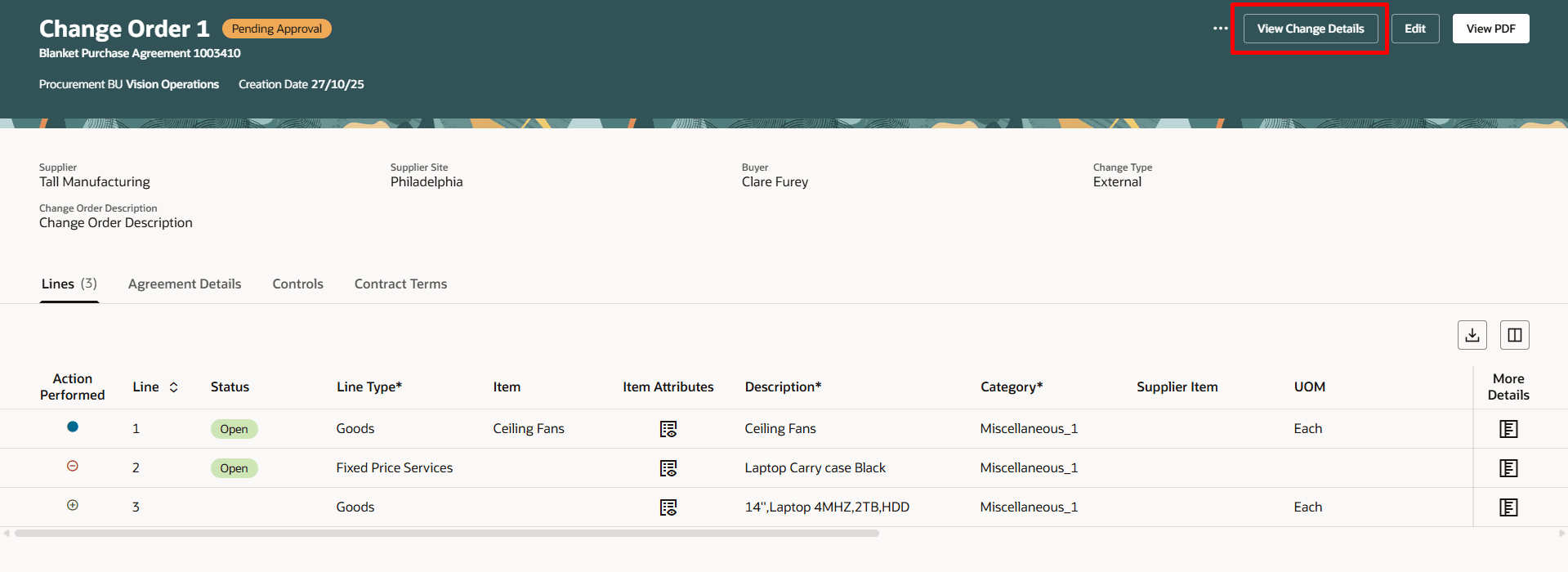
Use View Change Details Action to View Change Order Changes
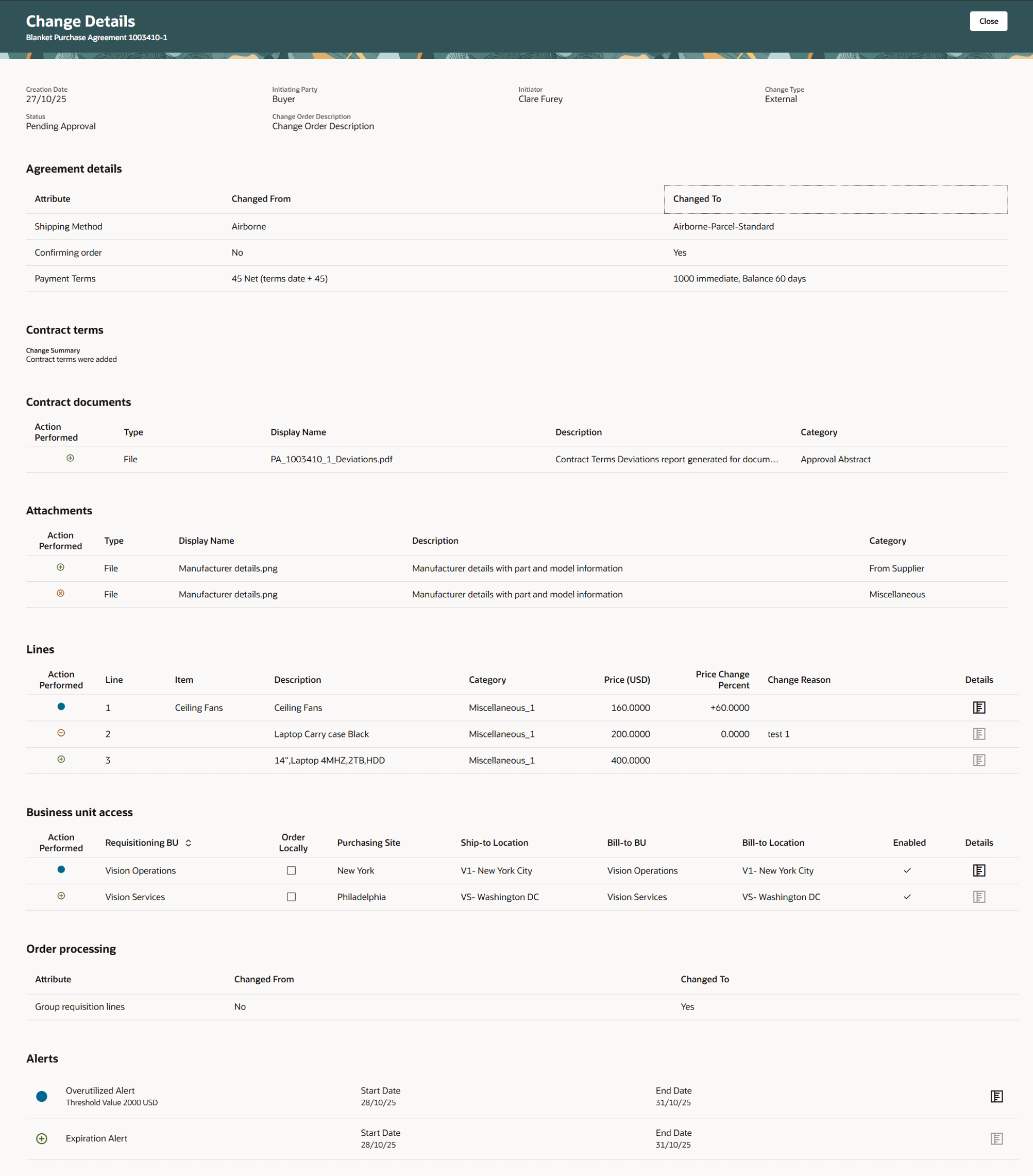
Change Details Page Indicating the Changes Proposed to an Active Purchase Agreement Version
You can use the More details drawer to view additional attributes you've modified on the header, lines, and price breaks.
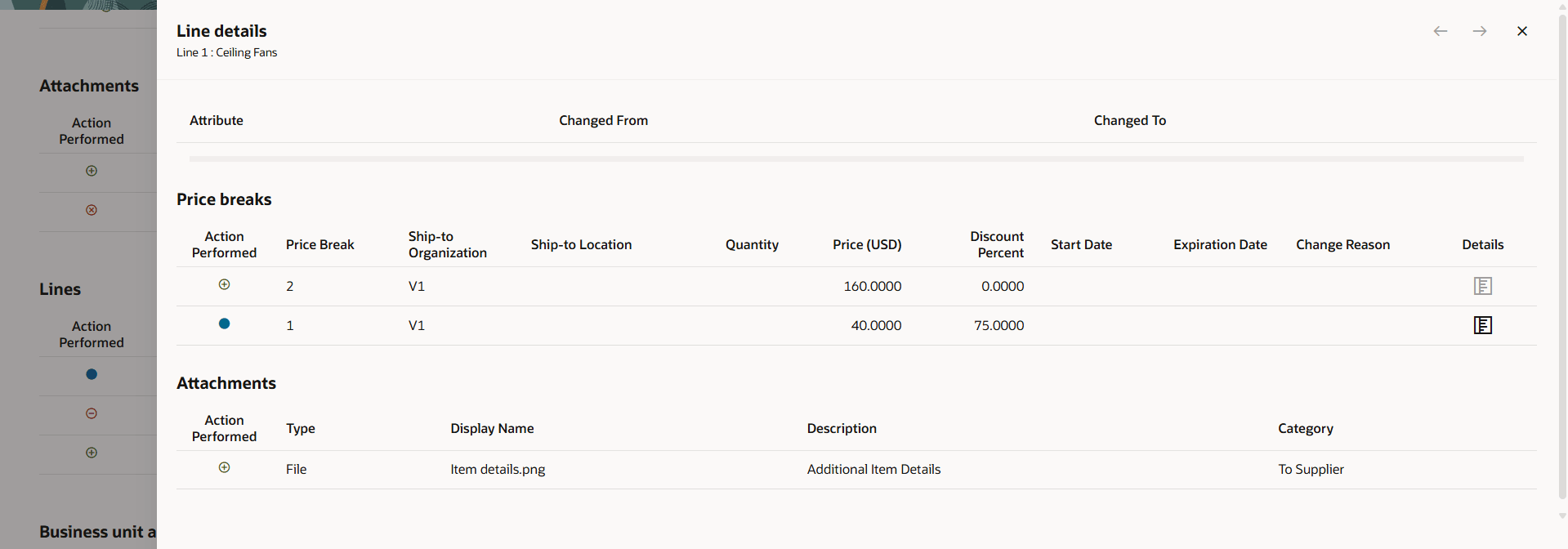
Line details Drawer for Blanket Purchase Agreement Line Changes
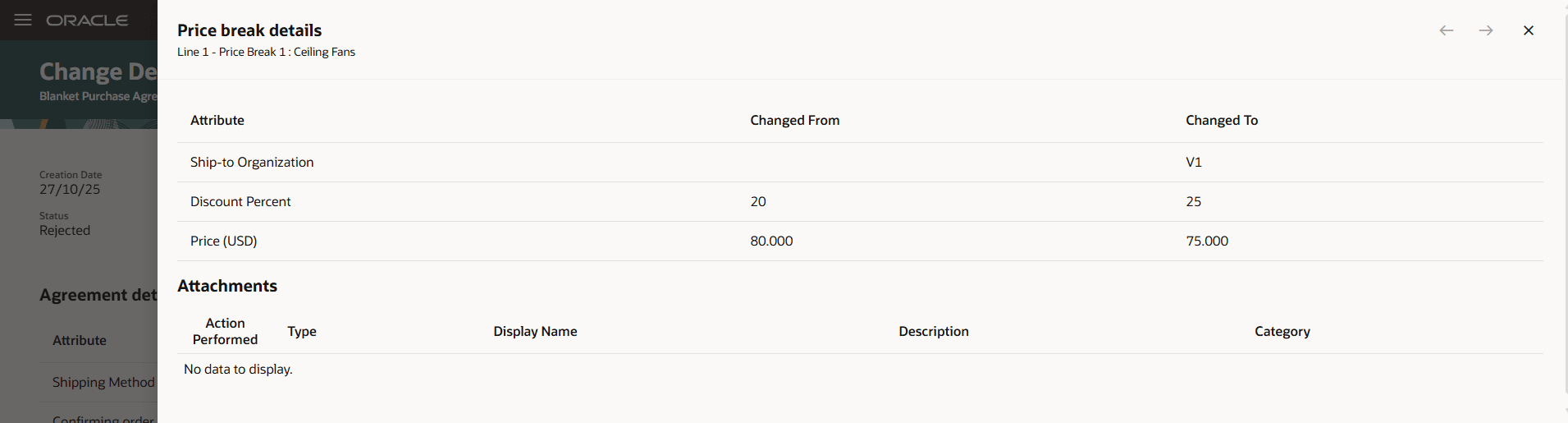
Price break details Drawer for Blanket Purchase Agreement Line Price Break Changes
Withdraw and Edit a Purchase Agreement and Change Order
You can now use the Edit action to withdraw a change order that is in Pending Approval, Pending Supplier Acknowledgement, Pending Signature Preparation, or Sent for Signature statuses.
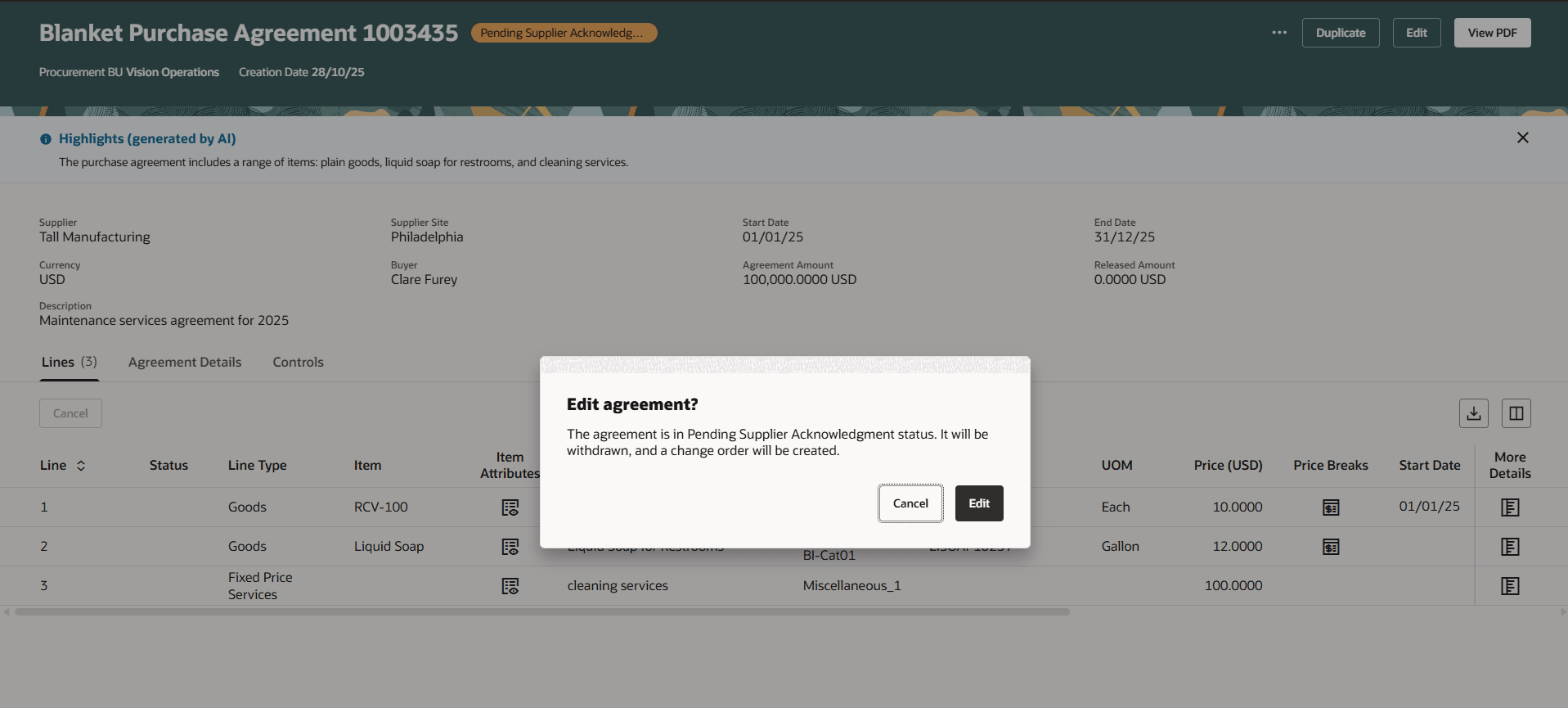
Dialog Message When You Edit a Purchase Agreement in Pending Supplier Acknowledgement Status
View Rejection Reason
You can now conveniently review the rejection comments provided by an approver or a supplier when a purchase agreement or a change order is rejected. You can click the Status link to view the rejection comments.
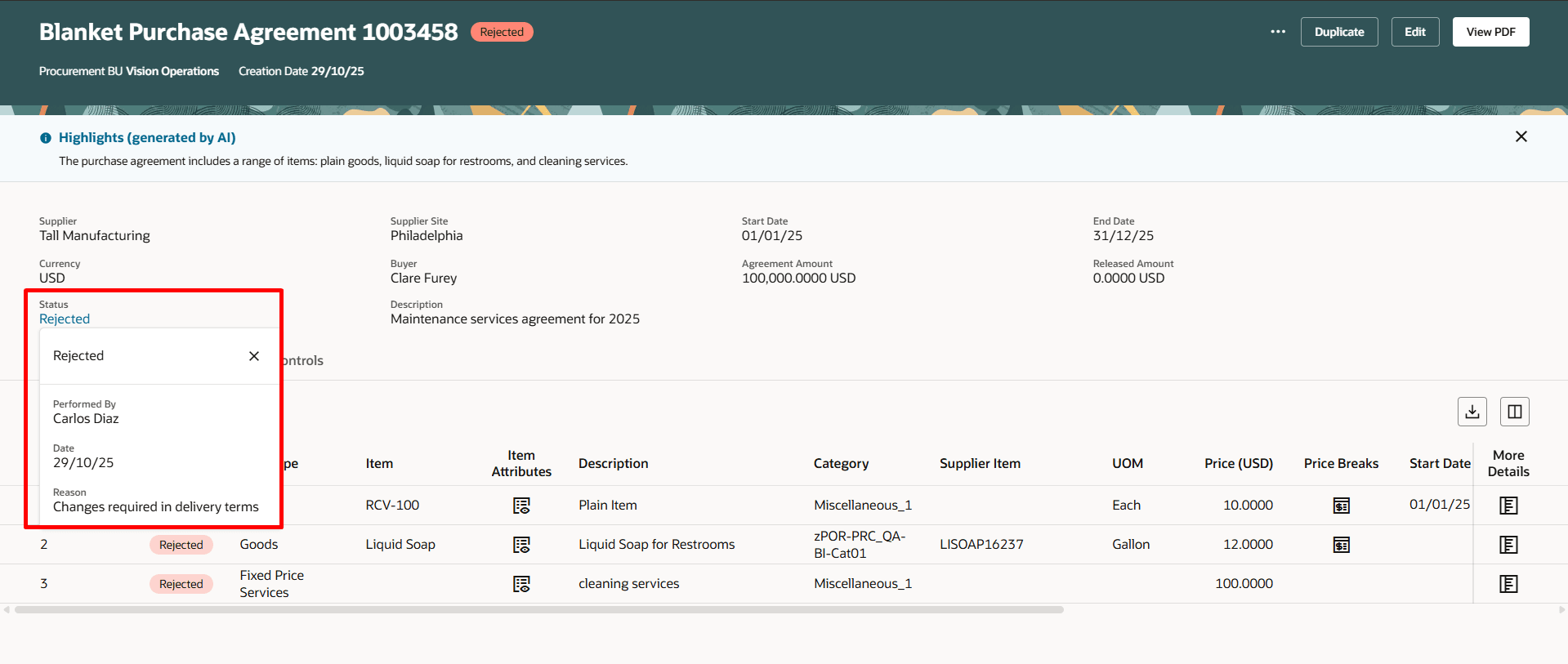
Use the Status Link to View the Rejection Comments for a Rejected Purchase Agreement
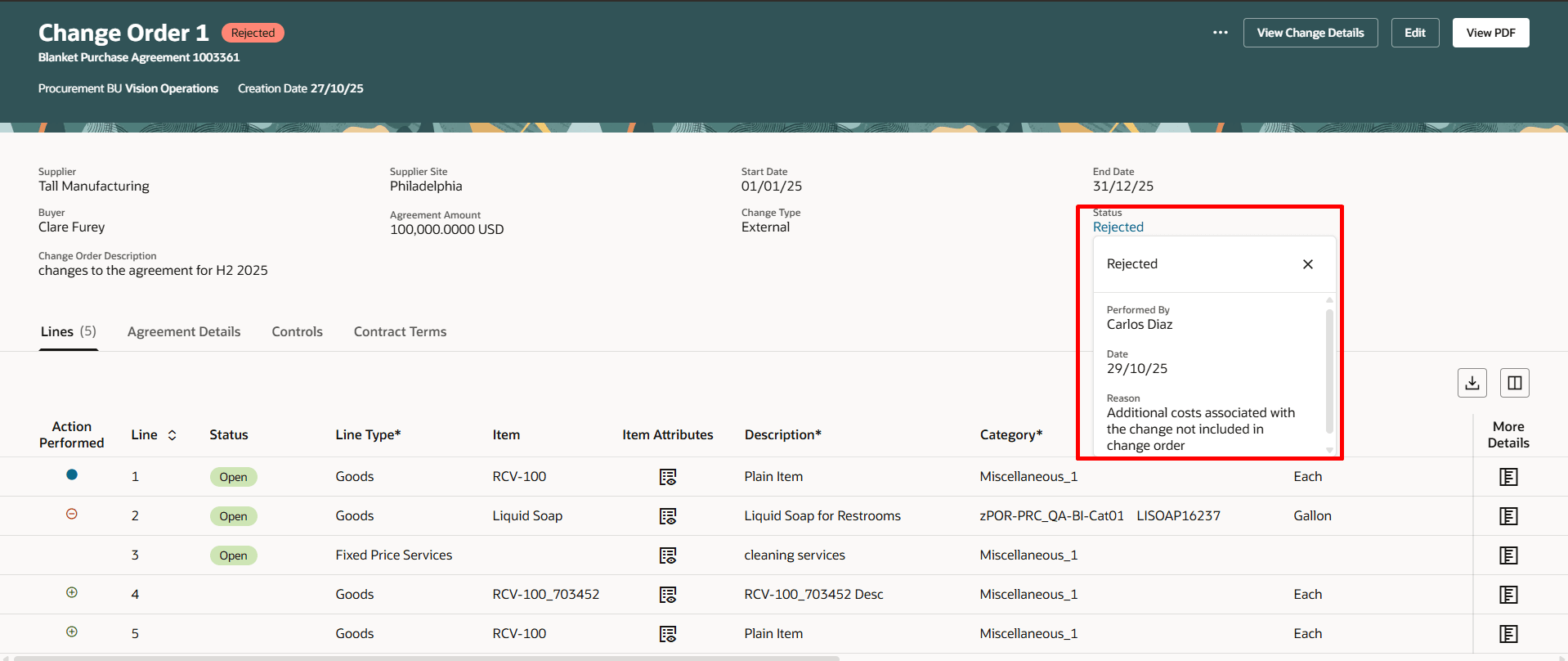
Use the Status Link to View the Rejection Comments for a Rejected Change Order
The change order warning banner now displays the comments from a rejected change order.
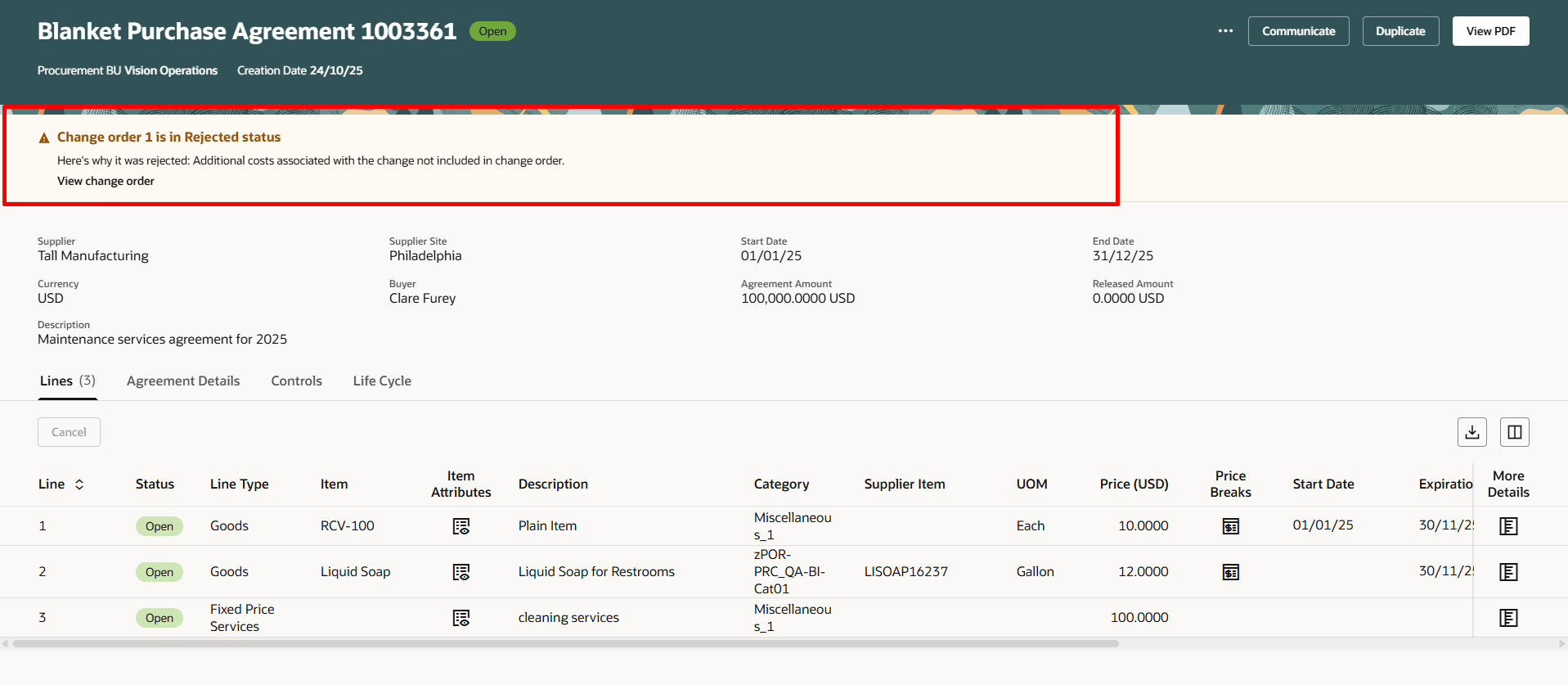
Change Order Banner Showing the Rejection Reason for a Change Order
Additionally, when a supplier rejects a change order in the Acknowledgement flow, the Acknowledgement Response field on the lines will be linked to view the rejection reason the supplier entered while rejecting the line.
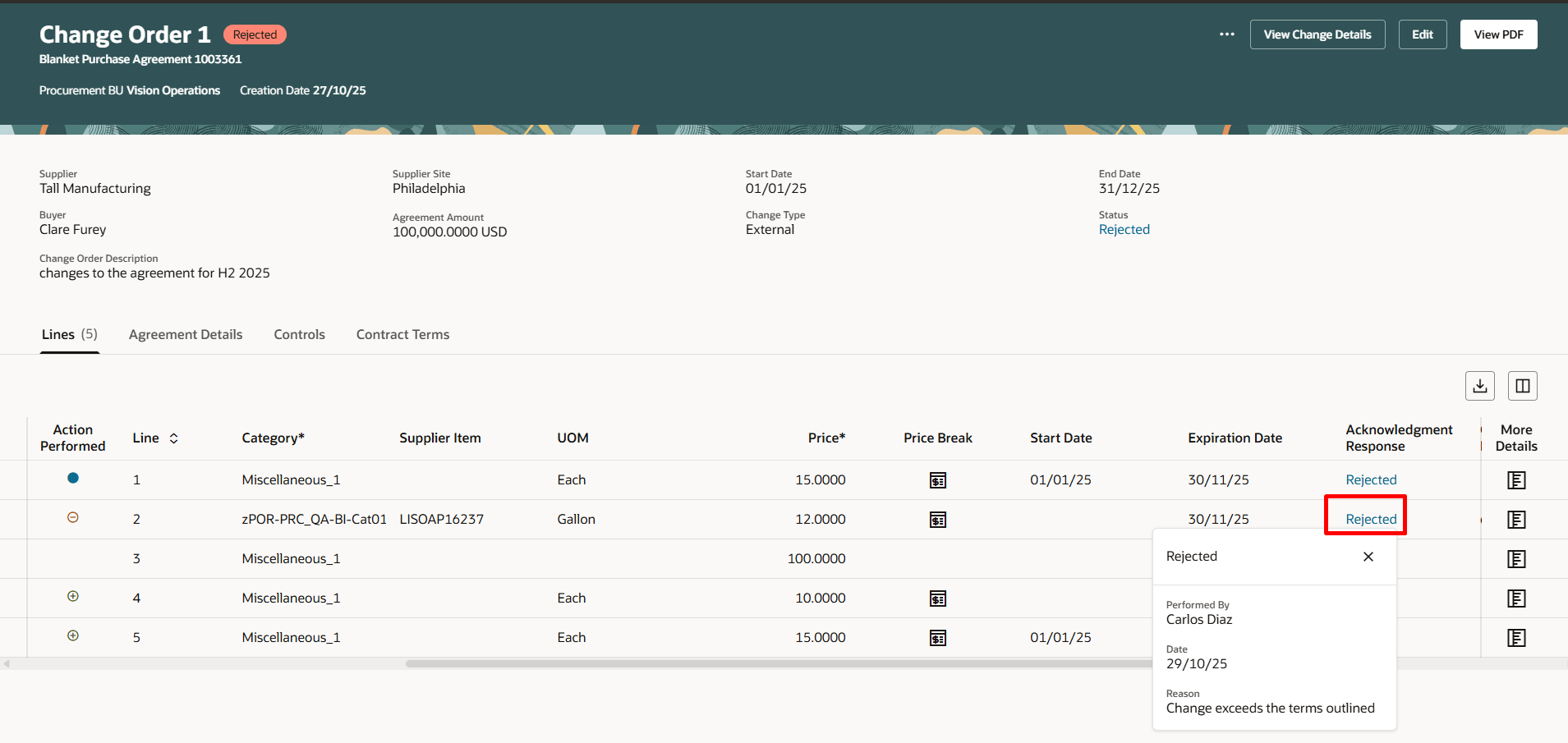
Use the Acknowledgement Response Link to View the Supplier Comments for a Rejected Change Order Line
Steps to enable and configure
You don't need to do anything to enable this feature.
Tips and considerations
- When you navigate to the Edit Purchase Agreement page for the very first time, a default empty row appears in the Lines tab with attribute values defaulted. You can add a purchase agreement line by updating key information on this row, such as line type, description category, and price, and then clicking the row-level check mark icon. Subsequently, use the Add button to add a new line.
- Always use the Add button to add a new price break.
- When you cancel a change order line after modifying the line, the changes are reverted to the last approved state after saving the change order.
- You can view the translations for item attributes, such as long description, manufacturer, alias and comments, on an agreement line depending on the value of the Profile: Load items in all languages (PO_LOAD_ITEMS_IN_ALL_LANGUAGES) profile option.
- The details icon on the Change Details page is only enabled for modified lines. It is disabled for canceled lines and for lines newly added to a change order.
- Clicking the View Change Details action will implicitly save the changes and take you to the Change Details page.
- To access contract terms on purchase agreements, you must enable the Enable Contract Terms in Oracle Fusion Procurement opt in available under the Procurement Contracts functional area within the Procurement offering if it's not already enabled.
- Extensibility support has been added to all the attributes on change order related Redwood pages.
- These features aren't supported in this release:
- Add from Catalog
- Upload Lines
- Transfer to Catalog Administrator
- Transfer to Supplier
- Update All Lines for Consignment Agreement
- Create Negotiation
Key resources
- To enable Redwood for Purchasing, see the Getting Started with Redwood in Purchasing topic on the SCM Resource Center in Customer Connect.
- For an overview of product management search, refer to the Overview of Product Management Search topic.
- To know how to set up data security for item classes, refer to the Set Up Data Security for Item Classes topic.
- For details on acknowledging purchase agreements and change orders using a Redwood page, refer to the Redwood: Acknowledge Purchase Agreements and Change Orders feature, available in Oracle Fusion Cloud Procurement What's New, update 26A.
- For details on searching purchase agreements and agreement line as buyer using a Redwood page, refer to the Redwood: Search Purchase Agreements and Agreement Lines feature, available in Oracle Fusion Cloud Procurement What's New, update 25D.
- For details on viewing purchase agreements as buyer using a Redwood page, refer to the Redwood: View Purchase Agreements as a Buyer feature, available in Oracle Fusion Cloud Procurement What's New, update 25D.
- For details on create and editing purchase agreements as buyer using a Redwood page, refer to the Redwood: Create and Edit Purchase Agreements feature, available in Oracle Fusion Cloud Procurement What's New, update 25D.
- For details on managing purchase agreement contract terms using a Redwood page, refer to the Redwood: Manage Contract Terms on Purchasing Documents feature, available in Oracle Fusion Cloud Procurement What's New, update 25D.
- For details on considerations for translating agreement lines, refer to the Considerations for Translating Agreement Lines Through Agreement Loader feature, available in Oracle Fusion Cloud Procurement What's New, update 24B.
- For information about using Oracle Visual Builder Studio to extend your Redwood application pages, see Oracle Fusion Cloud HCM and SCM: Extending Redwood Applications for HCM and SCM Using Visual Builder Studio.
Access requirements
Users who are assigned a configured job role that contains this duty role can access this feature:
- Purchasing List of Values and Attribute Defaulting REST (ORA_PO_LOV_DEFAULTING_REST_DUTY)
Users who are assigned a configured job role that contains these existing privileges can access this feature:
- Change Purchase Agreement (PO_CHANGE_PURCHASE_AGREEMENT_PRIV)
- Cancel Purchase Agreement (PO_CANCEL_PURCHASE_AGREEMENT_PRIV)
- Create Blanket Purchase Agreement Line (PO_CREATE_BLANKET_PURCHASE_LINE_PRIV)
- Retroactively Price Purchase Order (PO_RETROACTIVELY_PRICE_PURCHASE_ORDER_PRIV)
- View Product Management Search (EGP_VIEW_PRODUCT_MGT_SEARCH_PRIV)
- Get Search View REST (EGP_GET_SEARCH_VIEW_REST_PRIV)
- GET Product Management Index REST (EGP_GET_PM_INDEX_REST_PRIV)
Users who are assigned a configured job role that contains this existing privilege can drill down on the purchase order link under the Life Cycle header:
- Search Purchase Order (PO_SEARCH_PURCHASE_ORDER_PRIV)