Redwood: Process Requisition Lines into Supplier Contracts
Convert requisitions into comprehensive enterprise contracts that enforce corporate policies, manage risk, and ensure compliance with contractual and regulatory requirements. When you select requisition lines on the Redwood Process Requisitions page and stage them into a new document, the new Initiate Contract option is available as a sourcing method.
Depending on the chosen contract type, you can create either an Enterprise contract or an Agreement class contract with buy intent. Supplier Enterprise class contracts can later be converted into purchase orders, while Supplier Agreement class contracts can be fulfilled as blanket purchase agreements.
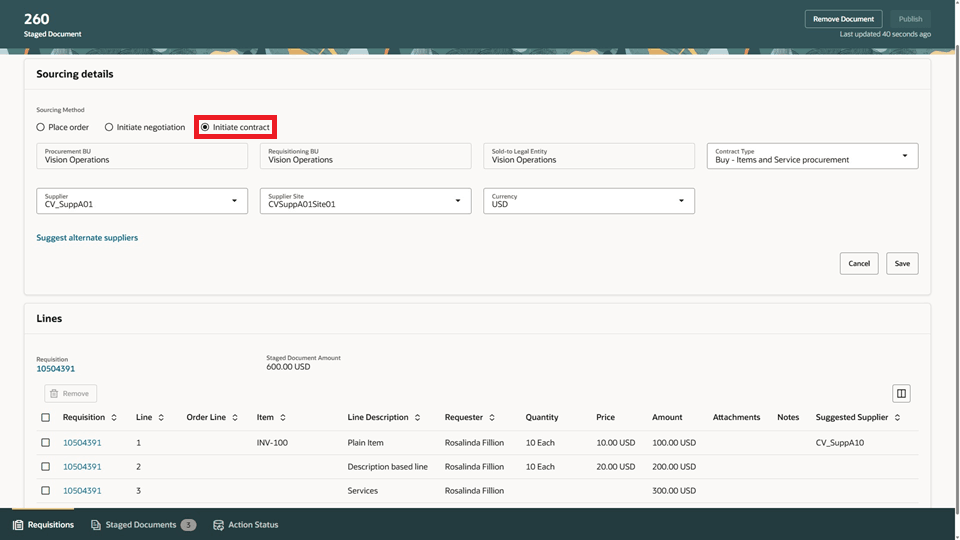
Staged Document Sourcing Details for Initiate Contract
Publishing the staged document shows a banner with contract information. Clicking the View contract link opens the contract in Redwood Enterprise Contracts.
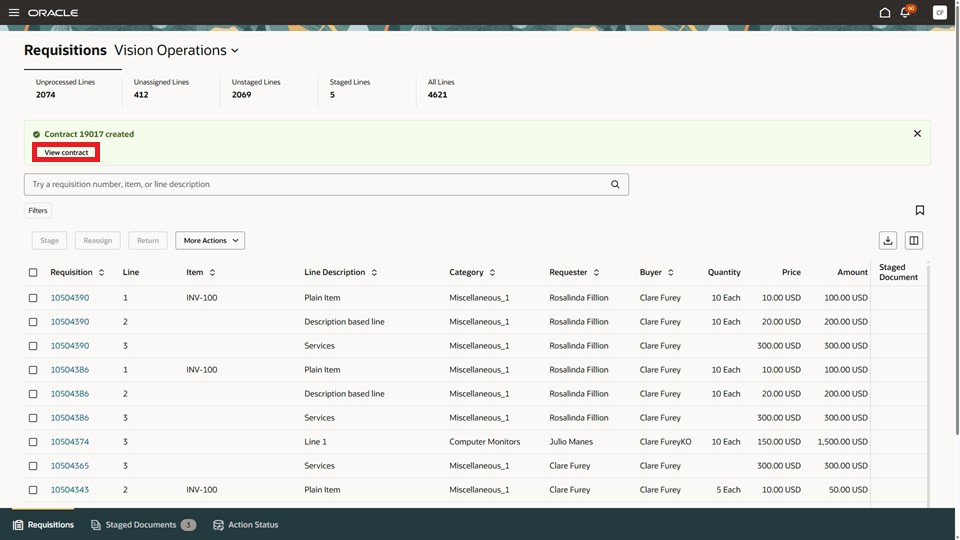
Publish Staged Document to Create Contract
The contract description in Redwood Enterprise Contracts is populated from the requisition description, and the contract terms correspond to the supplier site. The requisition source application and source document number are also populated in the Contract Overview section.
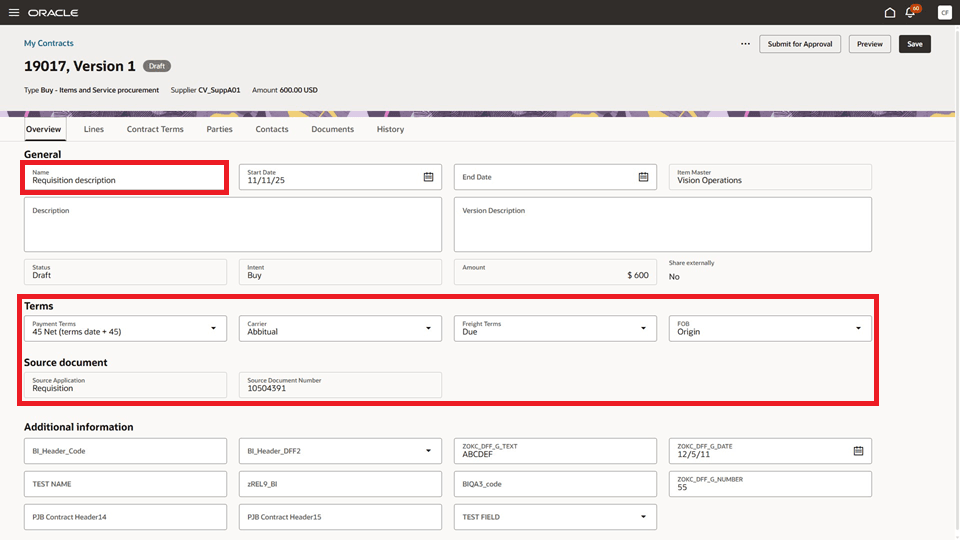
Contract Overview with Requisition Source Details
For Supplier Enterprise class contracts generated from requisition lines, the Item contract line type is designed for items that are tracked in inventory, while the free-form line type is intended for items that are not tracked by inventory. The Quantity, Line Amount, and Need-by Date from the requisition lines will be displayed on the Contract Lines tab.
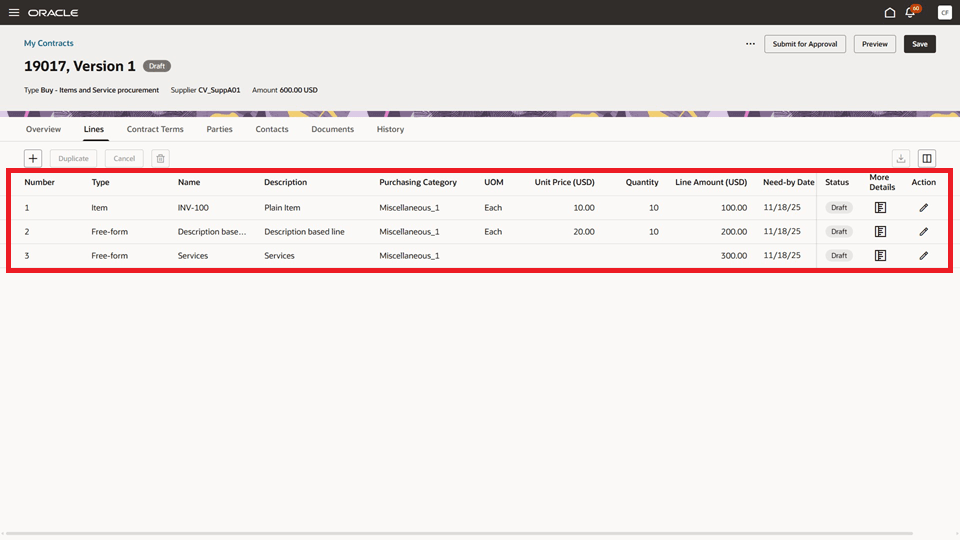
Enterprise Contract Lines from Requisition Lines
For Supplier Agreement class contracts created from requisition lines, the Committed Quantity and Agreed Amount from the requisition lines appear on the Contract Lines tab.
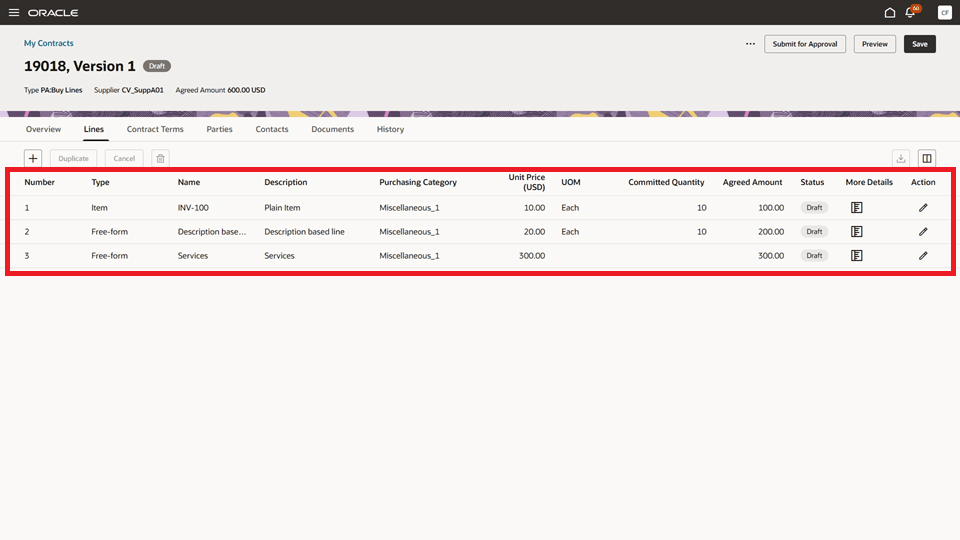
Agreement Contract Lines from Requisition Lines
The contract’s party roles are determined by the selected supplier sourcing details in the staged document and the Procurement Business Unit where the requisition is being processed.
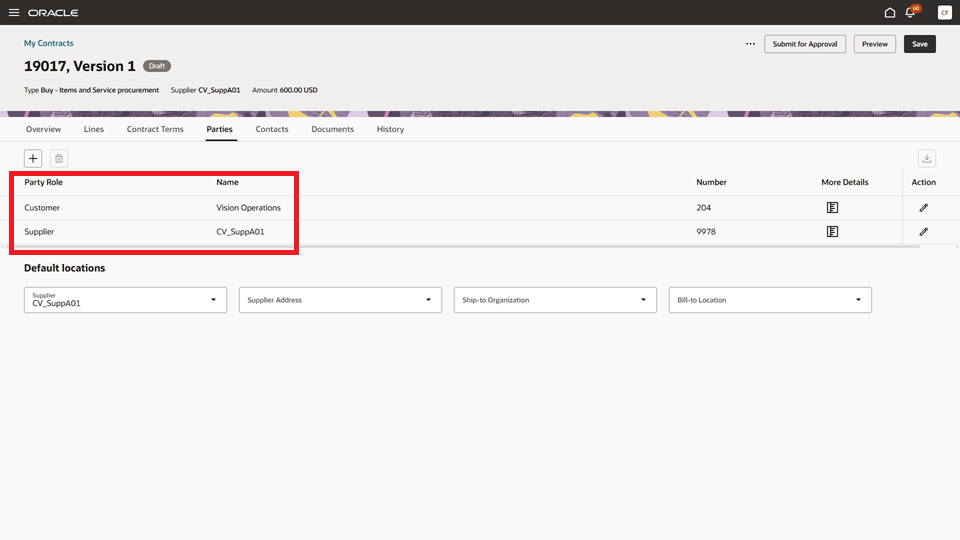
The Parties Tab of the New Contract, Populated with the Customer and Supplier Information
In the Contacts tab, the buyer is listed as a contact with the role of Contract Owner, based on the selected contract type.
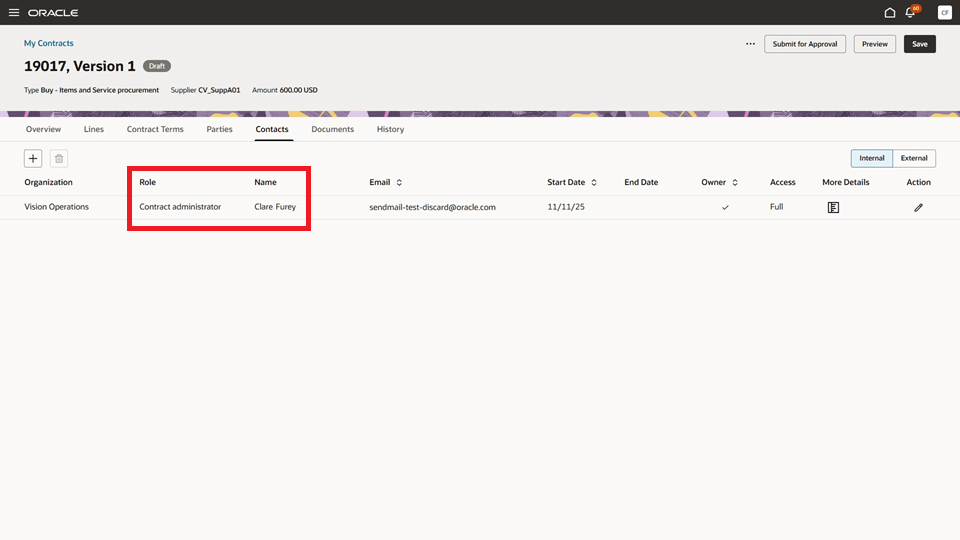
The Contacts tab of the new contract, showing the buyer listed as the Contract Administrator
Requisition lines that have been processed into an Enterprise class contract will appear with an On contract status on the All Lines tab of the Redwood Process Requisitions page. These lines aren't available for further requisition processing. In contrast, requisition lines processed into Agreement class contracts remain available for additional processing.
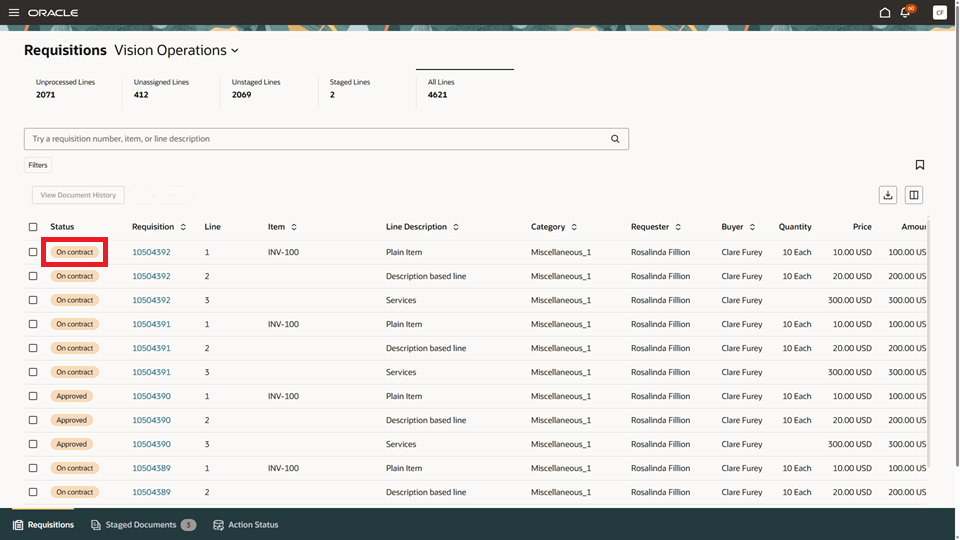
All Lines Tab Showing Requisition Lines with On contract Status After Processing into an Enterprise Class Contract
Steps to enable and configure
To use this feature, enable the Procurement Contracts feature within the Enterprise Contracts offering.
The buyer must be designated as a resource to create or edit a contract. Map the buyer to a resource organization with the Contracts Organization usage and associate that organization with the Procurement BU.
Note: If the desired Resource Organization already exists, skip Step 1 and use the existing organization in Steps 2 and 3.
- Create a Resource Organization:
- Setup and Maintenance > Search for Manage Internal Resource Organizations.
- Create New Organization > Next.
- Enter a unique Name.
- In Organization Usages, add Contracts Organization.
- Click Finish.
- Associate the Contracts Organization with the required BU(s):
- Navigator > Others > Resource Directory.
- Tasks panel > View Organizations.
- Open the Contracts Organization you created (or the existing one).
- Business Units tab > Add Row > select the Procurement BU used by the requisition.
- If needed, add additional BUs and set the primary BU.
- Save and Close.
- Designate the buyer as a resource and map to the Contracts Organization:
- Navigator > Others > Resource Directory.
- Tasks panel > Identify Resources.
- Search for the user.
- Select Add as Resource.
- In the resource details, set Organization to the Contracts Organization from Step 1 or the existing Contracts Organization. .
- Done.
Tips and considerations
- The Contract Type list of values includes only Enterprise contracts and Agreement class contracts that allow for contract lines, have a Buy intent and an Automatic Contract Numbering method.
- The Initiate Contract action doesn't support grouping requisition lines. Instead, each requisition line in the staged document generates a separate contract line in the new contract.
- Processing requisition lines with global locations (locations not tied to an inventory organization) or one-time addresses into contracts isn't supported.
- If the selected contract type is set to automatically include structured terms using contract terms templates, contracts created from the Redwood Process Requisitions page will open in ADF Enterprise Contracts rather than Redwood Enterprise Contracts. Currently, Redwood Enterprise Contracts are unable to display structured terms.
- The processing of requisition lines into contracts is not supported when the sold to legal entity does not roll up to the primary ledger of the procurement business unit if there is a ledger associated to it. This may happen when the requisitioning BU and the procurement BU roll up to different ledgers.
Key resources
- For details on processing requisition lines using a Redwood page, refer to the Redwood: Search and Process Requisition Lines Using a Redwood Page feature, available in Oracle Fusion Cloud Procurement What's New, update 25B.
- For details on additional capabilities available while processing requisition lines using a Redwood page, refer to the Redwood: Use Additional Capabilities When Processing Requisition Lines as a Buyer feature, available in Oracle Fusion Cloud Procurement What's New, update 25C.
- For details on processing requisition lines in real time refer to the Redwood: Process Requisition Lines into Purchase Orders and Negotiation Documents in Real Time feature, available in Oracle Fusion Cloud Procurement What’s New, update 25D.
- For details on creating purchasing documents from a contract to fulfill requisition demand, refer to the Redwood: Release a Purchase Order from a Contract That Fulfills Requisition Demand feature, available in Oracle Fusion Cloud Procurement What’s New, update 26A.
- For information about defining a user as a resource, defining contract users, and setting up contract types, see How do I configure Enterprise Contracts?
Access requirements
Users who are assigned a configured job role that contains this privilege can access this feature:
- Create Contract (OKC_CREATE_CONTRACT_PRIV)
This privilege was available before this update.