Use survey qualifications to evaluate supplier performance
Gather and aggregate internal stakeholder feedback on supplier performance using a new user experience to transform qualitative survey responses into a consistent, consensus-based supplier qualification that support informed evaluation and sourcing decisions. Begin by creating initiatives that launch surveys resulting in supplier qualifications that are evaluated based on the aggregated survey responses.
Create Survey Initiatives
The Initiatives page now lets you search for survey initiatives by name or number. You can also use the Survey filter to refine your search results and quickly identify survey initiatives.
Use the Initiatives page to create survey initiatives. New survey initiatives are created in Draft status and can be configured before launch.
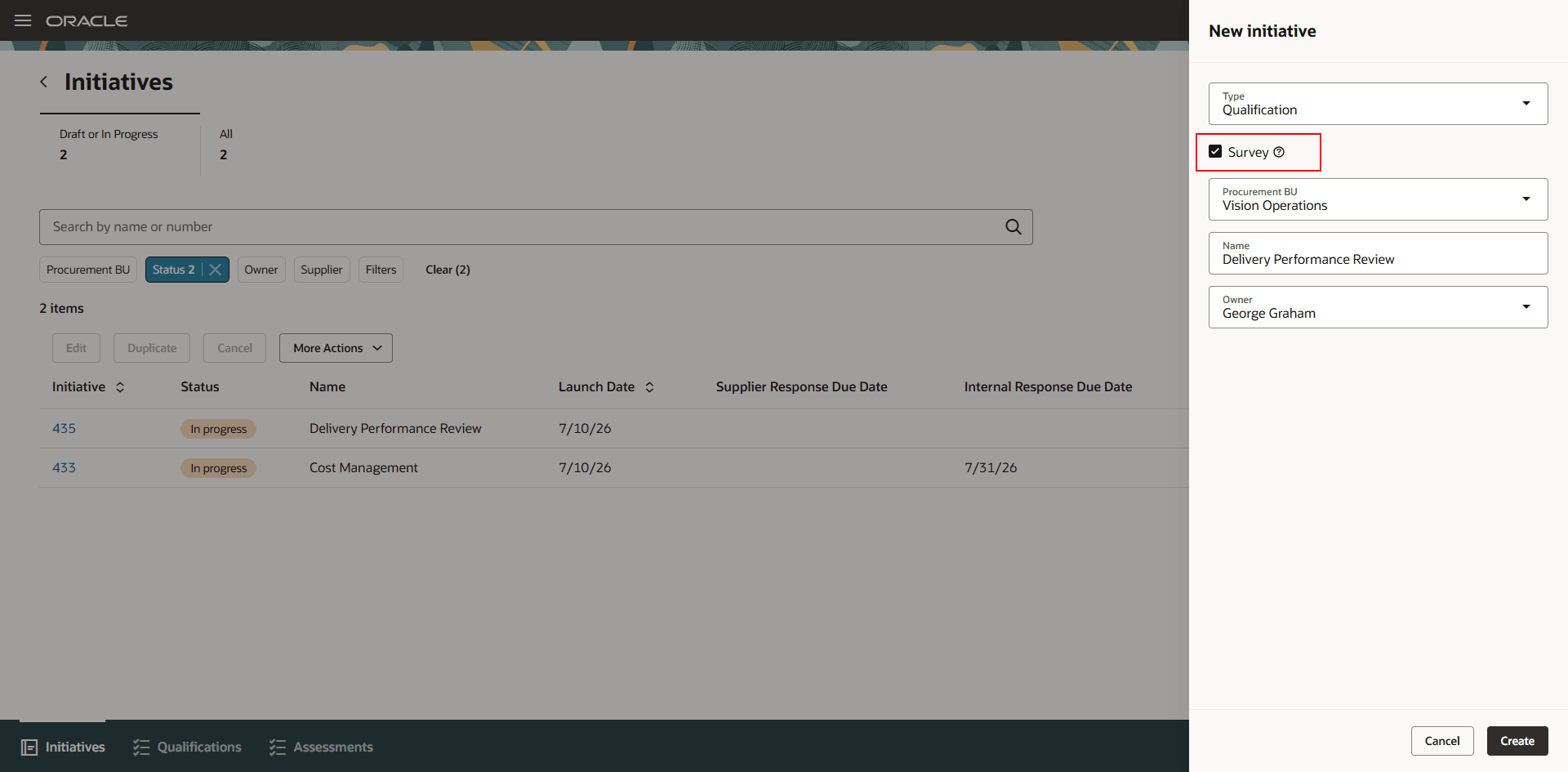
Create survey initiative
As with a standard initiative, use the Overview tab to specify the evaluation team, qualification areas, and suppliers. Define the default list of internal responders by selecting Default Responders. These responders are automatically assigned to all suppliers and can be customized for individual suppliers.
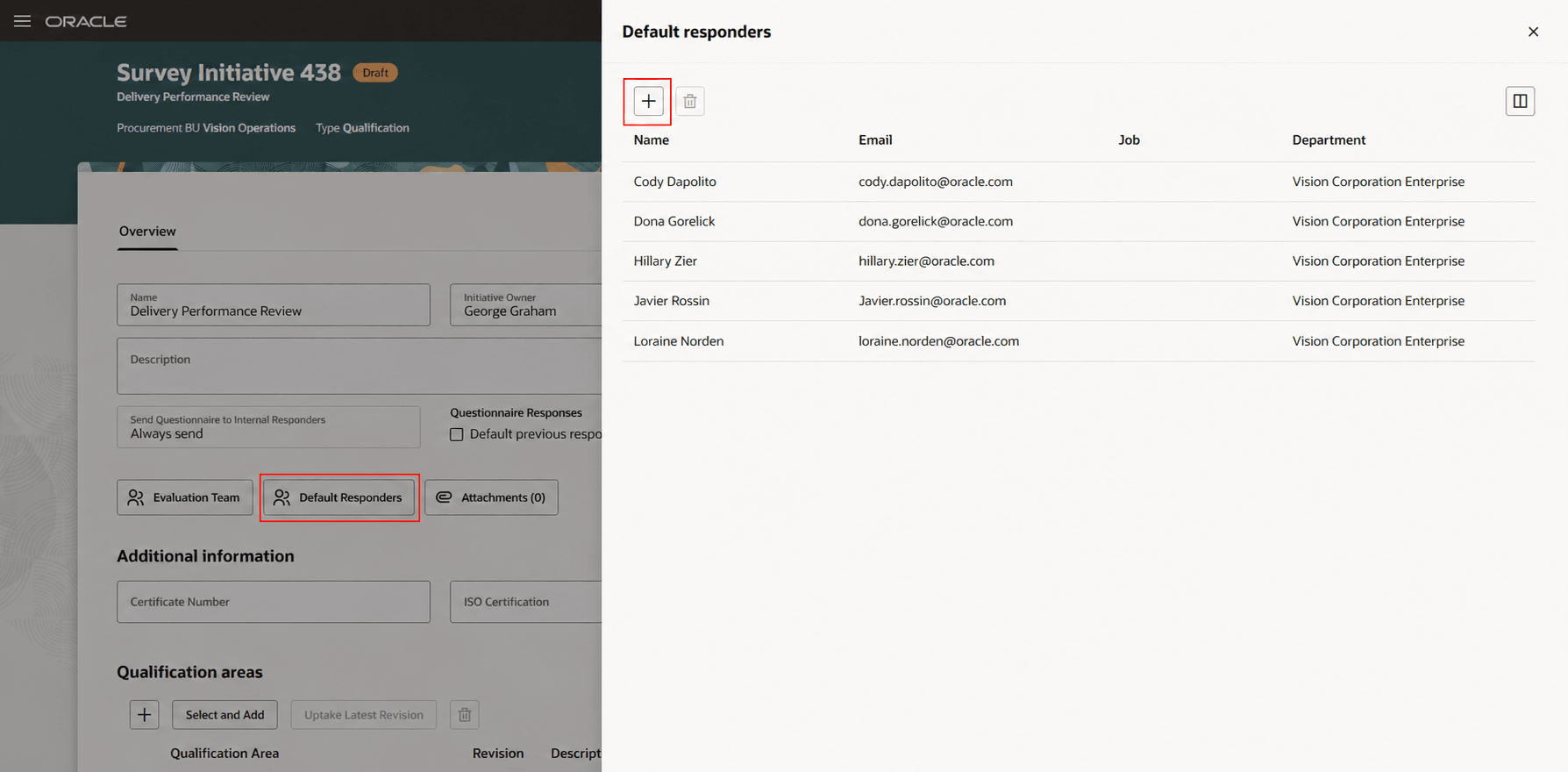
Default responders list
On the Questionnaires tab, configure due dates, reminders, questionnaire introductions, and section instructions. You can also configure optional close date and close threshold settings to automatically close questionnaires on a specified date or after the due date when the required response threshold is reached.
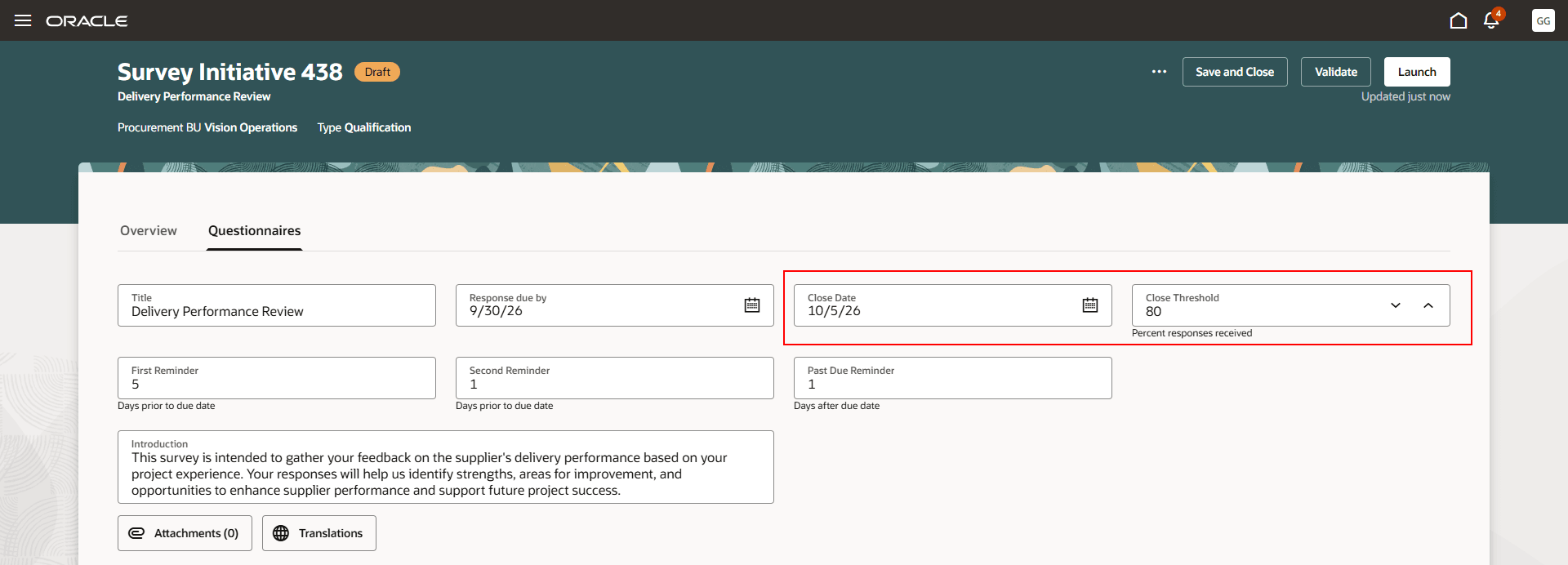
Survey questionnaire controls
After you validate and launch the initiative, questionnaires are sent to all assigned responders, regardless of whether responses from previous survey initiatives exist. You can also view and edit survey initiatives from the Search Initiatives page.
Monitor Survey Initiatives
Monitor the progress of a survey initiative from the Monitor Survey Initiative page, which you can access in one of the following ways:
- On the Initiatives page, select Monitor in the row corresponding to the initiative that you want to monitor.
- View the details of the initiative to monitor by clicking the number in the Initiative column. Then, from the More Actions menu, select Monitor.
The survey details include key information such as response status, close date, and close threshold. You can also view scheduled reminders and send reminder notifications to responders with pending or overdue questionnaires.
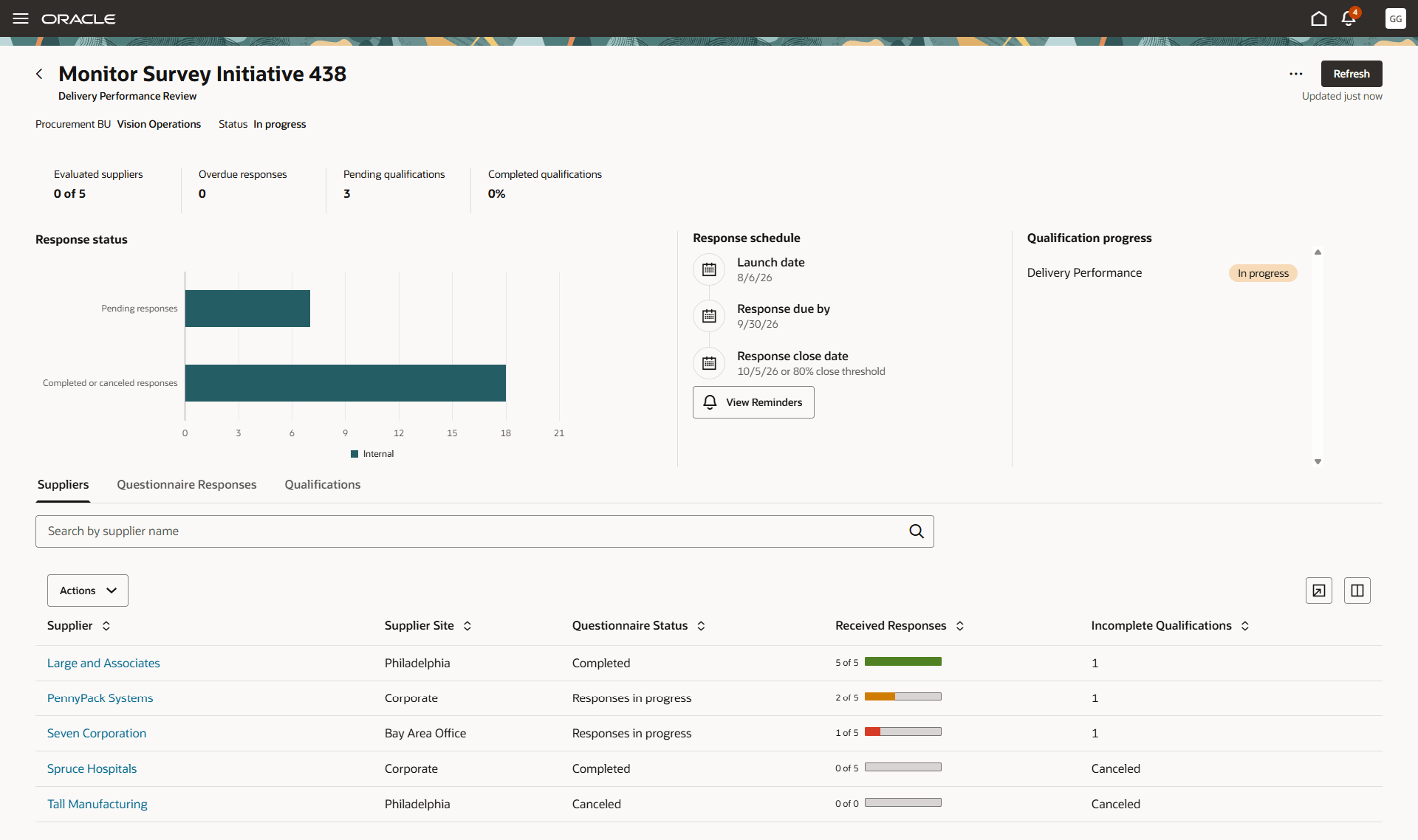
Monitor Survey Initiative page
The Suppliers tab provides a consolidated view of all suppliers included in the survey initiative. You can monitor questionnaire progress, review response status, and perform the following actions:
-
Close for Responding to stop accepting additional responses for a supplier or the entire initiative when sufficient responses have been received, allowing the qualification to proceed to evaluation.
-
Cancel Qualification to cancel the qualification process and any associated survey questionnaires for a supplier.
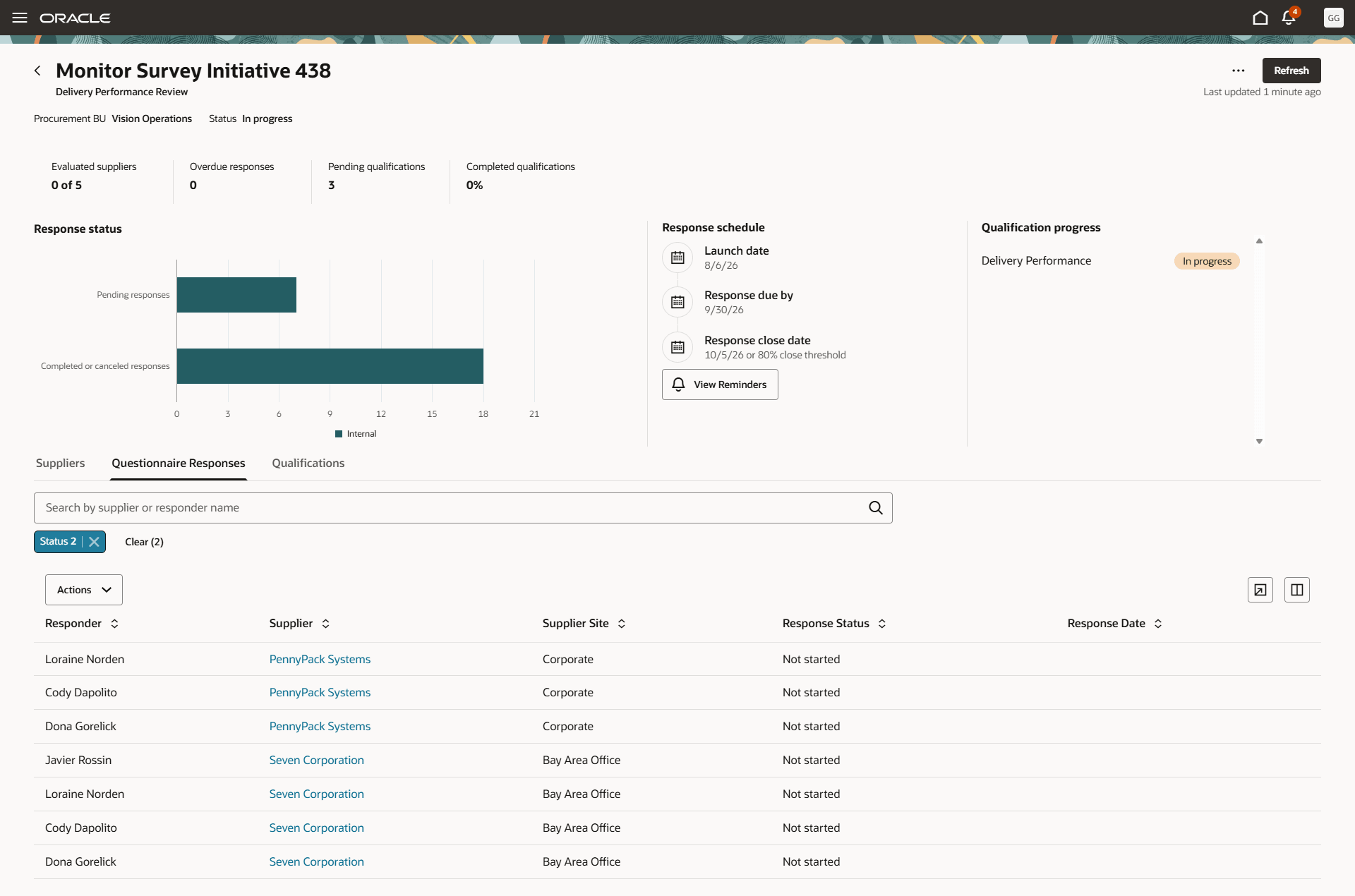
Questionnaire Responses tab
The Questionnaire Responses tab provides a consolidated view of all assigned responders and their questionnaire response status across suppliers. You can search by supplier or responder name and use filters to identify pending responses. You can perform the following actions:
- View Questionnaire Responses directly in the application or download them as PDF files.
- Reassign Responder to assign a pending questionnaire to a different internal responder.
- Cancel Questionnaire to cancel questionnaires that are no longer required.
The Qualifications tab displays all qualifications created as part of the survey initiative. You can search for and filter qualifications by supplier or qualification name, review qualification details, and evaluate qualifications that are ready for evaluation.
You can also view, edit, duplicate, or cancel the survey initiative from the Monitor Survey Initiative page. If additional time is needed, you can extend the response close date to allow responders more time to complete their questionnaires.
Evaluate Survey Qualification
After all the required responses are received, the qualification reaches the Ready for Evaluation status. The evaluators can review and evaluate the survey qualification.
You can evaluate a qualification either from the Monitor Survey Initiative page or directly from the Search Qualifications page. On the Search Qualifications page, search by qualification name, qualification number, or supplier, and use the Survey filter to narrow the search results.
The Evaluate Survey Qualification page provides a consolidated view of the qualification and its response details.
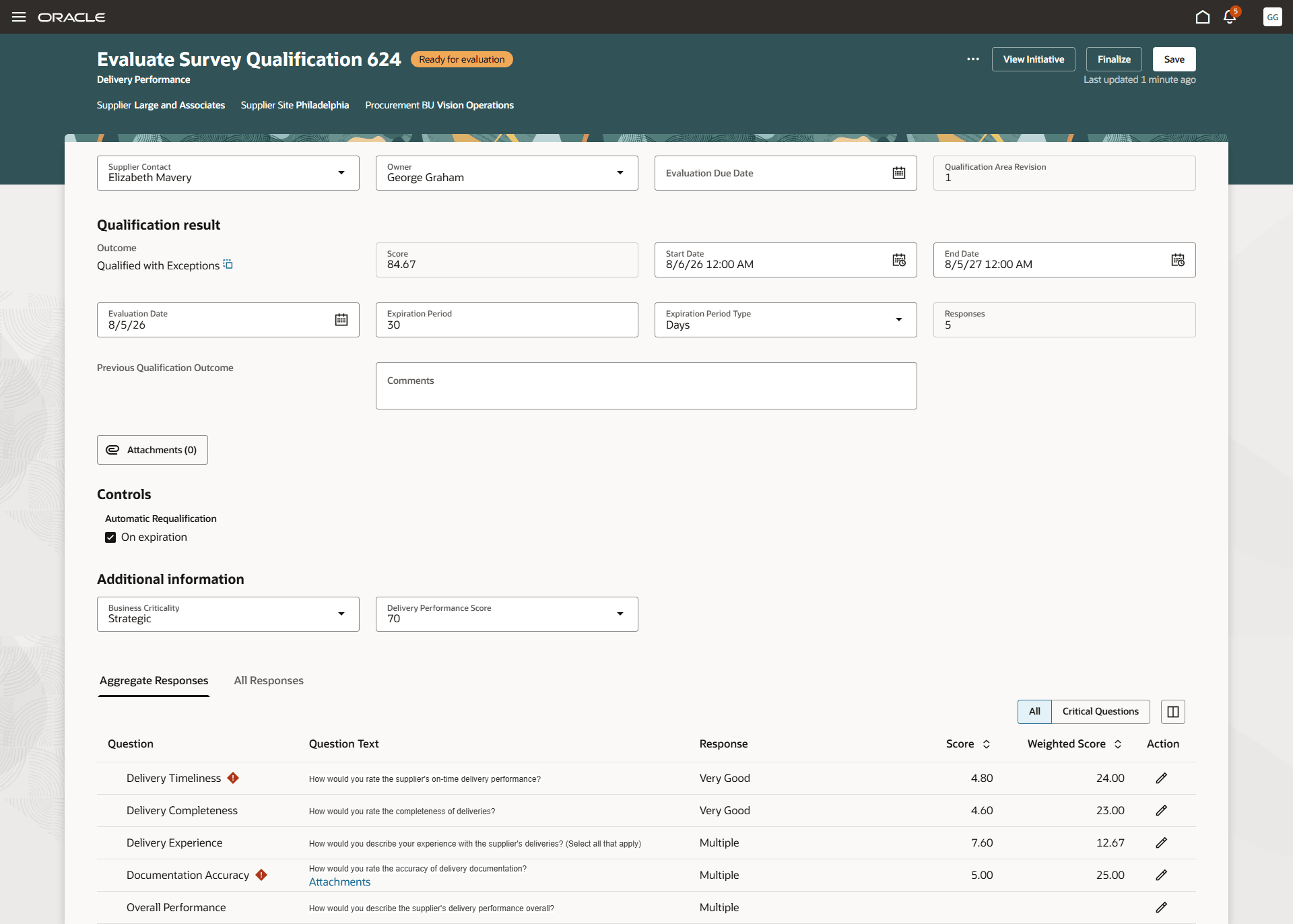
Aggregate Responses tab
The Aggregate Responses tab lets you:
- Review all questions, aggregate responses, attachments, and scores in a single view.
- Open the response details for a particular question to review both aggregate and individual responses.
- Filter the list to display only critical questions that require additional attention.
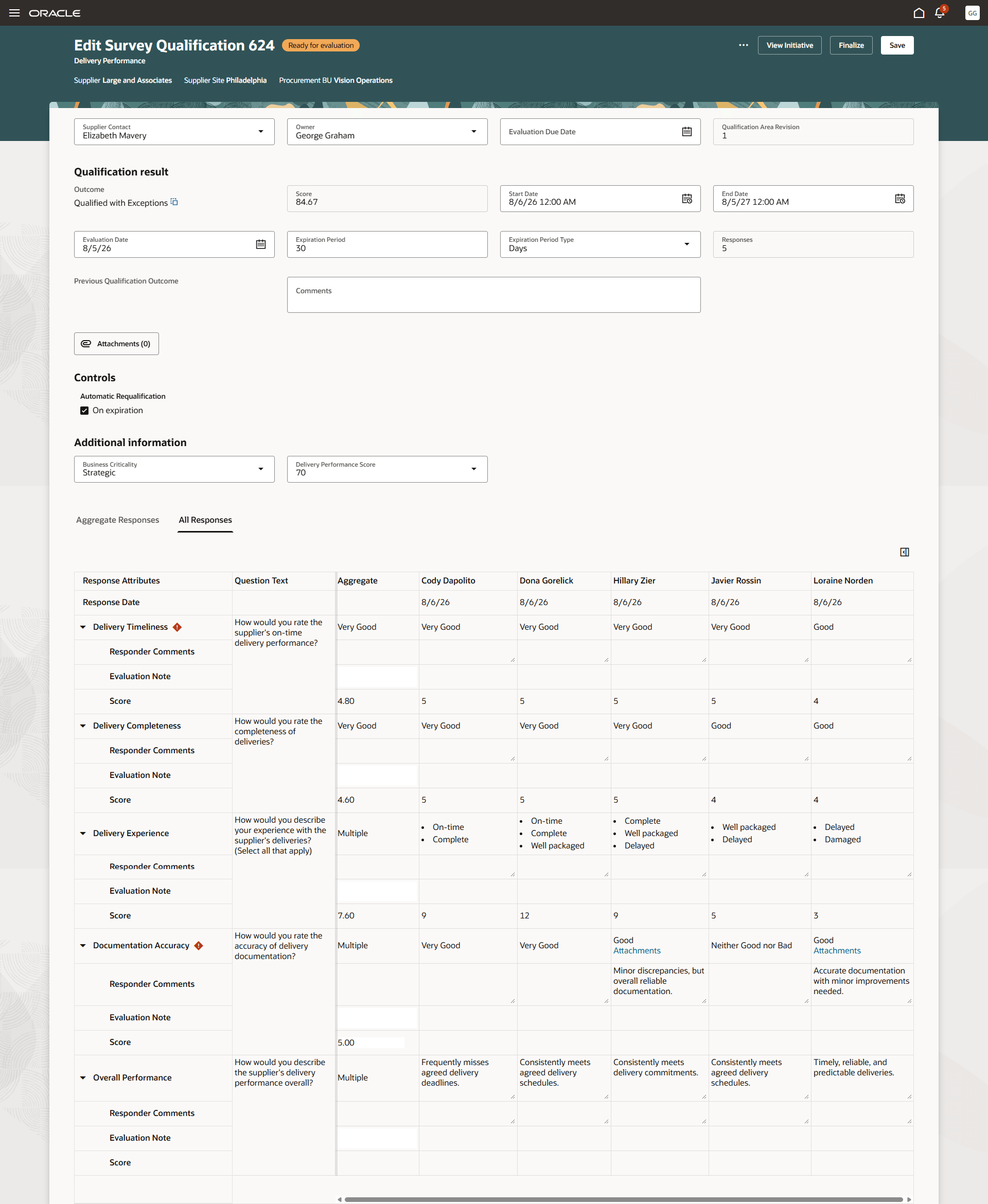
All Responses tab
The All Responses tab lets you:
- Review individual responses submitted by each responder.
- Customize the view to display responses from selected responders and response attributes you want to review.
- Enter evaluation notes and assign scores for manually scored questions.
After completing the evaluation, update the qualification results by specifying the qualification outcome, evaluation dates, qualification validity period, and any supporting attachments. Select Finalize to complete the evaluation.
Steps to enable and configure
- To use this feature, you must enable the following existing profile options if you haven't already:
- Redwood Supplier Qualification Page Enabled (ORA_POQ_SUPPLIER_QUALIFICATION_REDWOOD_ENABLED)
- Redwood Qualification Initiatives Pages Enabled (ORA_POQ_QUALIFICATION_INITIATIVES_REDWOOD_ENABLED)
- Redwood Qualifications Pages Enabled (ORA_POQ_QUALIFICATIONS_REDWOOD_ENABLED)
For instructions on enabling a profile option, refer to the Set Profile Option Values topic.
- Set up elastic search for initiatives by running the ESS job to create index definition and perform initial ingest to OSCS scheduled process with the Reingest parameter set to
fa-prc-poq-initiatives. - Set up elastic search for qualifications by running the ESS job to create index definition and perform initial ingest to OSCS scheduled process with the Reingest parameter set to
fa-prc-poq-qualifications. - Create Questions and Qualification Areas designated for use in surveys.
Key resources
- Refer to the What's new for Update 26B: Redwood: Create Qualification Initiatives and Redwood: Monitor Qualification Initiatives for more information on managing initiatives using a new user experience.
- Refer to the What's new for Update 25D: Redwood: Qualifications for more information on managing qualifications using a new user experience.
- For information about using Oracle Visual Builder Studio to extend your Redwood application pages, see Oracle Fusion Cloud HCM and SCM: Extending Redwood Applications for HCM and SCM Using Visual Builder Studio.
- Refer to Overview of Guided Journeys in the Oracle Fusion Cloud Human Resources: Implementing and Using Journeys guide, available on the Oracle Help Center.
- For details about adding your own key performance indicators (KPIs) and visualizations to your page, see Flexible Reporting in Redwood Dashboards.
Access requirements
If you are using custom job roles, then you need to validate that you have these previously delivered privileges to create a survey initiative.
| Privilege status | Privilege name and code |
|---|---|
| Previously delivered | Search Supplier Qualification Initiative (POQ_SEARCH_SUPPLIER_QUALIFICATION_INITIATIVE_PRIV) |
| Previously delivered | View Supplier Qualification Initiative (POQ_VIEW_SUPPLIER_QUALIFICATION_INITIATIVE_PRIV) |
| Previously delivered |
Create Supplier Qualification Initiative (POQ_CREATE_SUPPLIER_QUALIFICATION_INITIATIVE_PRIV) |
| Previously delivered | Edit Supplier Qualification Initiative (POQ_EDIT_SUPPLIER_QUALIFICATION_INITIATIVE_PRIV) |
| Previously delivered |
Launch Supplier Qualification Initiative (POQ_LAUNCH_SUPPLIER_QUALIFICATION_INITIATIVE_PRIV) |
| Previously delivered | Cancel Supplier Qualification Initiative (POQ_CANCEL_SUPPLIER_QUALIFICATION_INITIATIVE_PRIV) |
| Previously delivered | Delete Supplier Qualification Initiative (POQ_DELETE_SUPPLIER_QUALIFICATION_INITIATIVE_PRIV) |
| Previously delivered | Research Suppliers (PON_ANALYZE_NEGOTIATION_SUPPLIER_PRIV) |
If you are using custom job roles, then you need to validate that you have these previously delivered privileges to monitor survey initiatives.
| Privilege status | Privilege name and code |
|---|---|
| Previously delivered | Monitor Supplier Qualification Initiative (POQ_MONITOR_SUPPLIER_QUALIFICATION_INITIATIVE_PRIV) |
| Previously delivered | Create Supplier Qualification Questionnaire Response as Surrogate for Internal (POQ_CREATE_SUPP_QUAL_QUESTIONNAIRE_RESPONSE_AS_SURROGATE_FOR_INTERNAL_PRIV) |
| Previously delivered | Review Supplier Qualification Questionnaire Response (POQ_REVIEW_SUPP_QUAL_QUESTIONNAIRE_RESPONSE_PRIV) |
| Previously delivered | View Supplier Qualification Questionnaire Response (POQ_VIEW_SUPP_QUAL_QUESTIONNAIRE_RESPONSE_PRIV) |
| Previously delivered | Cancel Supplier Qualification (POQ_CANCEL_SUPPLIER_QUALIFICATION_PRIV) |
| Previously delivered | Cancel Supplier Qualification Questionnaire (POQ_CANCEL_SUPPLIER_QUALIFICATION_QUESTIONNAIRE_PRIV) |
| Previously delivered | Close Supplier Qualification Questionnaire for Response (POQ_CLOSE_SUPP_QUAL_QUESTIONNAIRE_FOR_RESPONSE_PRIV) |
If you are using custom job roles, then you need to validate that you have these previously delivered privileges to evaluate survey qualifications.
| Privilege status | Privilege name and code |
|---|---|
| Previously delivered | Search Supplier Qualification (POQ_SEARCH_SUPPLIER_QUALIFICATION_PRIV) |
| Previously delivered | View Supplier Qualification (POQ_VIEW_SUPPLIER_QUALIFICATION_PRIV) |
| Previously delivered | Edit Supplier Qualification (POQ_EDIT_SUPPLIER_QUALIFICATION_PRIV) |
| Previously delivered | Evaluate Supplier Qualification (POQ_EVALUATE_SUPPLIER_QUALIFICATION_PRIV) |
| Previously delivered | Finalize Qualification (POQ_FINALIZE_SUPPLIER_QUALIFICATION_PRIV) |
| Previously delivered | Requalify Supplier Qualification (POQ_REQUALIFY_SUPPLIER_QUALIFICATION_PRIV) |
If you are using custom job roles, then you need to validate that you have this previously delivered privilege to edit the page layout to add custom KPI and visualizations.
| Privilege status | Privilege name and code |
|---|---|
| Previously delivered | Edit Page Layout of the Supplier Qualification Page (POQ_EDIT_SUPPLIER_QUALIFICATION_LANDING_PAGE_LAYOUT_PRIV) |