Add a Deployment
Follow the instructions on this page to add a deployment using the OGGCA wizard.
Before Adding a Deployment
If you need a secure deployment (recommended for production databases, or unsecured networks) make sure to check the Enable Security option in the Select Service Manager Options screen of the OGGCA wizard.
Start the OGGCA Wizard
Adding deployments is the first task in the process of setting up a data replication environment. Deployments are managed from the Service Manager.
After completing the Oracle GoldenGate Microservices Architecture installation, you can add initial and subsequent deployments using the Oracle GoldenGate Configuration Assistant (OGGCA) wizard.
You can also run OGGCA in silent mode. For steps to run OGGCA in silent mode, see Add a Deployment in Silent Mode using OGGCA.
Note: Oracle recommends that you maintain a single Service Manager per host, to avoid redundant upgrade and maintenance tasks with Oracle GoldenGate releases.
To start the OGGCA wizard:
-
Navigate to the
$OGG_HOME/bindirectory to access the Oracle GoldenGate Configuration Assistant (oggca) utility. -
On Linux, run the
oggca.shprogram.or,
On Windows, right-click the
oggca.batprogram.
The Oracle GoldenGate Configuration Assistant (oggca) wizard is displayed.
The following topics provide details on the configuration that you can set on each of the OGGCA wizard screens.
Select Service Manager Options
-
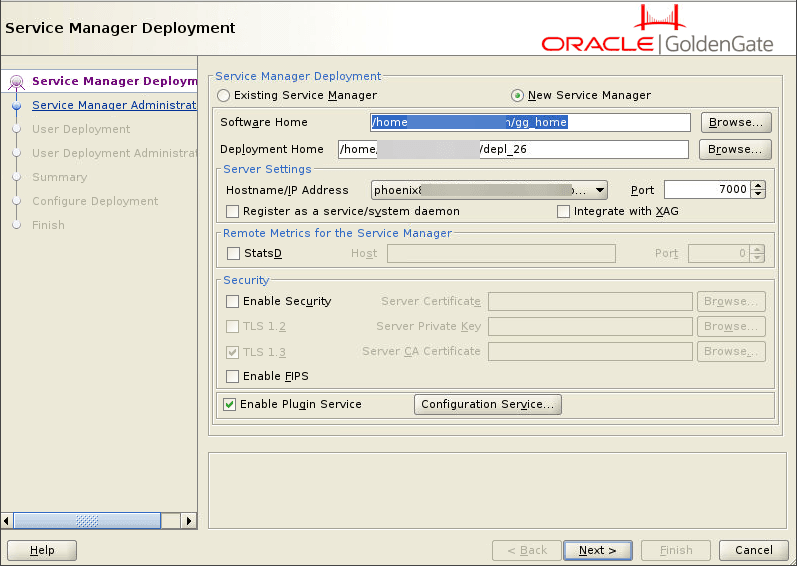
Select the Create a New Service Manager option if you are running OGGCA for the first time. When you run OGGCA for the first time, the Existing Service Manager option is disabled. If it’s not the first time, then you can choose the Existing Service Manager option, which would load the port and other settings as configured for the existing Service Manager. The deployment would be added to this Service Manager.
-
For new Service Manager deployment, configure the options as described in the following table:
Option Description Create New Service Manager This option is preselected when you start OGGCA for the first time, and no other Service Manager instance is running. Software Home Browse and select the Oracle GoldenGate software location. This is the OGG_HOMEenvironment variable.Deployment Home For a new Service Manager deployment, browse and enter the directory that you want to use for storing the deployment directories. Oracle recommends that you create a
ServiceManagerdirectory within the deployment sub-directory structure to store the Service Manager files.The deployment home should never be a subdirectory of the Software Home (or
OGG_HOME).Hostname/IP address Enter the server details for the Oracle GoldenGate instance. This field allows you to provide the values in different formats, as required.
The available formats for adding hostname/IP address are:
Hostname/IP Address is 127.0.0.1: This address format refers to the local machine and is commonly used to represent the localhost. This option is ideal for testing or development environments where all services are hosted locally on the machine.
With this address, you can connect to all microservices that are running on the local machine. Connections will work using both options,
127.0.0.1andlocalhostin the URL.Hostname/IP Address as the actual IP address: This address format allows you to connect to the microservices using
localhost,127.0.0.1, or as the actual IP address. This is useful in scenarios where the system needs to be accessed both locally and externally, for example, from other machines in the same network.Hostname as a Properly Resolved Hostname: This address format uses a resolvable hostname to, which is associated with a corresponding IP address, allowing connections through the resolved IP. You can connect to the services using
localhost, the selectedhostname, or the actual IP address associated with the hostname. This option is recommended for environments where the machine is part of a larger network and its hostname is properly configured for name resolution.
Listening Port Enter the port number where Service Manager would be listening to service calls. Register Service Manager as a system service/daemon Select this check box to avoid manually starting and stopping it if the machine is rebooted. This ensure that Service Manager automatically starts with a server boot or restarts after a reboot of the server. Integrate with XAG Select this option to integrate your deployment with an Oracle Grid Infrastructure for Oracle. This option is only applicable when using clustered environments managed by Oracle Grid Infrastructure. StatsD Enable the StatsD check box to enable the recording the metrics for the Service Manager.
Also see Configuration Service to know more about considerations for StatsD usage.
StatsD Host Enter the hostname or IP address of the StatsD server. This information would be used by the Service Manager to connect to the StatsD host. StatsD Port Enter the port number for the StatsD host. The default port number is 8125. Enable Security Selected by default. Specify the security options to be configured with the Service Manager. Using the security options, you can add server, client, and trusted rootCA certificates and also set the protocol options for TLS.
There are various ways to set up security in a deployment. See Secure Deployments to know more.
To set up server, client certificates, see Manage Certificates for Deployments.
TLS 1.2 Select this check box to use the TLS 1.2 protocol. TLS 1.3 Select this check box to use the TLS 1.3 protocol. Server Certificate Browse and select the server certificate file (`.pem`) that you want to associate with the Service Manager.
See [Create RootCA and Server Certificates](add-rootca-server-certs_ov.html##GUID-D7A6A455-7481-43B7-A518-16EFA7D772B6) to know about generating these type of certificates.
Server Private Key Browse and select the server certificate private key file ( .key) for the server certificate.Server CA Certificate Browse and select the trusted RootCA certificate for the Service Manager. If the Server Certificate is signed by one or more intermediate certificates, use the combined intermediate certificates and root certificate as the Server CA Certificate. The certificate location is defined by the OGG_CLIENT_TLS_CAPATHenvironment variable.Plugin Service Select this check box to enable the Plugin Service, which allows using third-party software with Oracle GoldenGate such as the database password plugin service. Enable FIPS Enable Oracle GoldenGate services to be compliant with the Federal Information Processing Standards (FIPS). Configuration Service
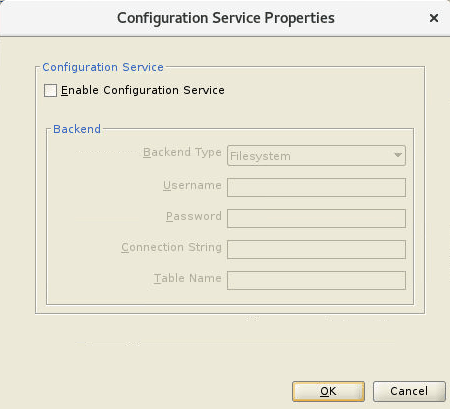
Enable this service to store the Oracle GoldenGate configuration files on a different location such as a high available filesystem or database.
Click the Configuration Service button on the Service Manager Deployment Options screen. The Configuration Service dialog appears.
Select the Enable Configuration Service check box and set up the back end options. The default option is Filesystem.
If you choose the Oracle AI Database option, you can either use the source/target database or a different database outside the replication.
Here are the details you need to specify for the database:
Username: The username of the database user.
Password: Password for the database user credential.
Connection String: The URL used to connect to the database. This is the backend connection string. The connection string can use the data source in the format:
host [:port]/service_nameor aTNS_ALIAS.For example: localhost:1521/cdb1_pdb1.rdbms.oracle.com is an example of hostname, port number, and service name format.
Table Name: Database backend table name where the configuration files would be stored. The backend table might be in any schema. In this example, the Oracle GoldenGate Admin schema (ggadmin) is used.
Example:
ggadmin.ggs_backendtable.
Service Manager Administrator Account
On this screen, enter the login credentials for the Service Manager. Make sure to enable the strong password policy for better security. The criteria for a strong password includes:
-
1 uppercase letter (A - Z)
-
1 lowercase letter (a -z)
-
1 digit (0 - 9)
-
1 special character (- ! @ % & * . # _)
-
Length of the password must be between 8 and 30 characters
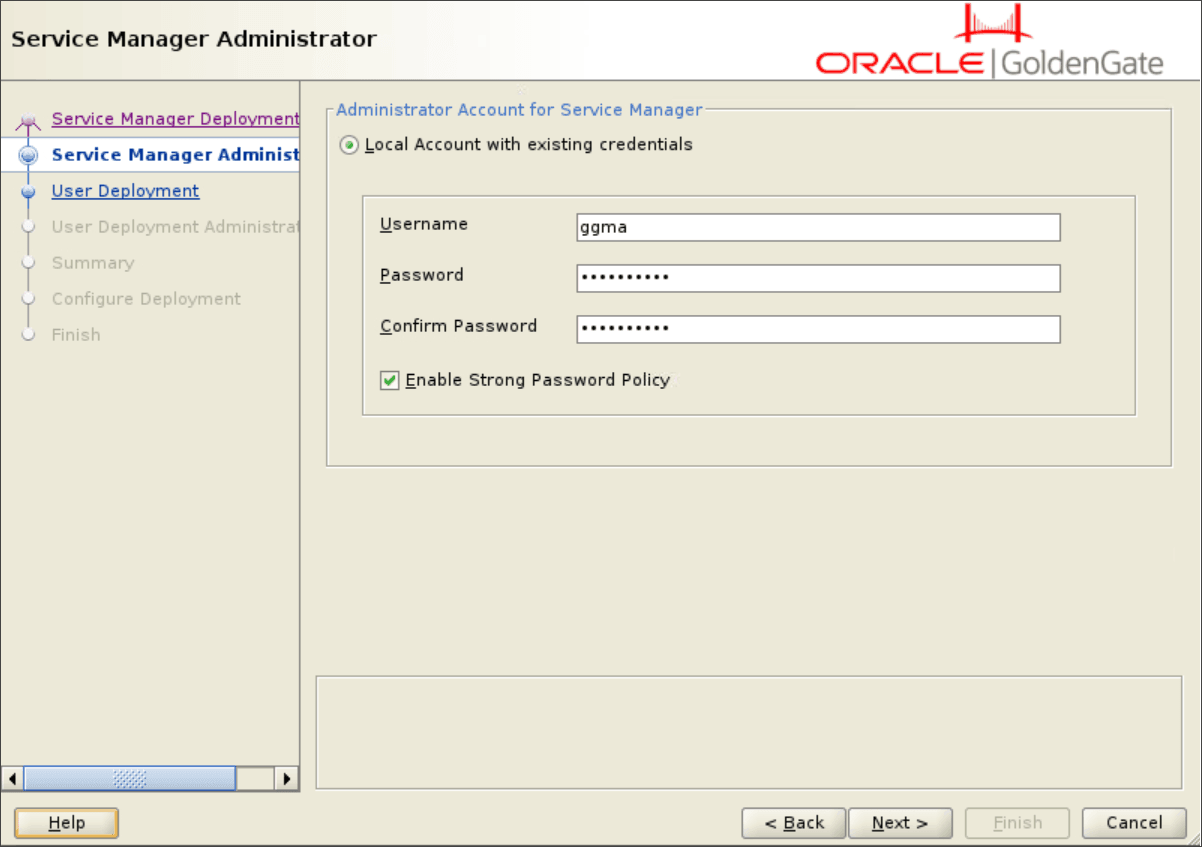
For details on the different types of users, see Add New Users to the Deployment.
User Deployment
Configure the deployment options from the User Deployment screen, as described in the following steps:
-
Use the following table to configure the deployment options.
Option Description Deployment Name Specify a deployment name. Deployment Home <p>Browse and select the location of your deployment.</p>The deployment home should never be a subdirectory of the Software Home (or OGG_HOME).Customize Click the Customize button to specify a different location for the configuration directories:
OGG_ETC_HOME: Deploymentetchome.OGG_CONF_HOME: Deployment Configuration Home.OGG_SSL_HOME: Deployment Security Home.OGG_VAR_HOME: Deployment variable directory home.OGG_DATA_HOME: Deployment data home.OGG_ARCHIVE_HOMEPerformance Metrics DataStore Home.Ports Enter the port numbers to be used by each of the Microservices:
Administration Service
Distribution Service
Receiver Service
Performance Metrics Service.
Data Store Type Select the type of data store you need for storing Performance Metrics data. Options include BDB, and LMDB. Data Store Home Browse and select a location for the data store home directory. StatsD Enable this check box to specify the connection details of the StatsD server, which needs to be connected to the deployment. You need to specify the host name and a unique port number of the StatsD server using the options that get enabled after you select the StatsD enable checkbox.
Also see Configuration Service to know more about considerations for StatsD usage.
StatsD Host Enter the hostname or IP address of the StatsD server. This information would be used by the Service Manager to connect to the StatsD host. The StatsD server can be located on the same host machine where Oracle GoldenGate deployment exists, or it could be a remote host. StatsD Port Enter the port number for the StatsD host. The default port number is 8125. Server Certificates This box is disabled as the server certificate file (.pem) is already selected while configuring the Service Manager options. Server Private Key The server certificate private key file (.key) is preselected. Server CA Certificate The trusted RootCA certificate is also preselected. Client Certificates Browse and select the client certificate file (.pem) if required.
To know how to add certificates after the deployment has been created, see Manage Certificates for Deployments.
Client Private Key Browse and select the client certificate private key file (.key) for the associated client certificate. Client CA Certificate Browse and select the trusted rootCA certificate that would verify the associated client certificate.
To know more about how to generate certificates for distribution client (DIST_CLIENT) and general client certificates, see [Add External Trusted RootCA and Distribution Client Certificates](add-external-rootca-and-distclient-certs_ov.html#GUID-6824CB9A-2E33-478B-9D8D-EA47823C2161)
TNS_ADMIN (Oracle only) Enter the value for this environment variable based on the location of the
tnsnames.oraandsqlnet.orafiles.The
TNS_ADMINparameter specifies the directory path of Oracle Net Services in which files such as thetnsnames.oraandsqlnet.orareside. Thetnsnames.orafile is the configuration file that contains the net service names that are mapped to the connect descriptors of the database services.Replication Schema Set the GGSCHEMAparameter for deployment. For more information about this setting, see[GGSCHEMA](/pls/topic/lookup?ctx=en/database/goldengate/core/26/coredoc&id=GWURF-GUID-57C44851-38B8-41F3-9C05-F2B1838CDDC7)in Parameters and Functions Reference for Oracle GoldenGate.Environment Variables Click this button to open the Environment Variables dialog box. It includes the paths for the preset environment variables,
$OGG_HOME, and$LD_LIBRARY_PATH.Some variables are fixed, others can be extended, and you can add additional variables.
For Db2 z/OS, make sure to set up the
IBMCLIDRIVERandLD_LIBRARY_PATHbefore you start creating the deployment. To set up these environment variables, see Set Environment Variables for Oracle GoldenGate for Db2 z/OS.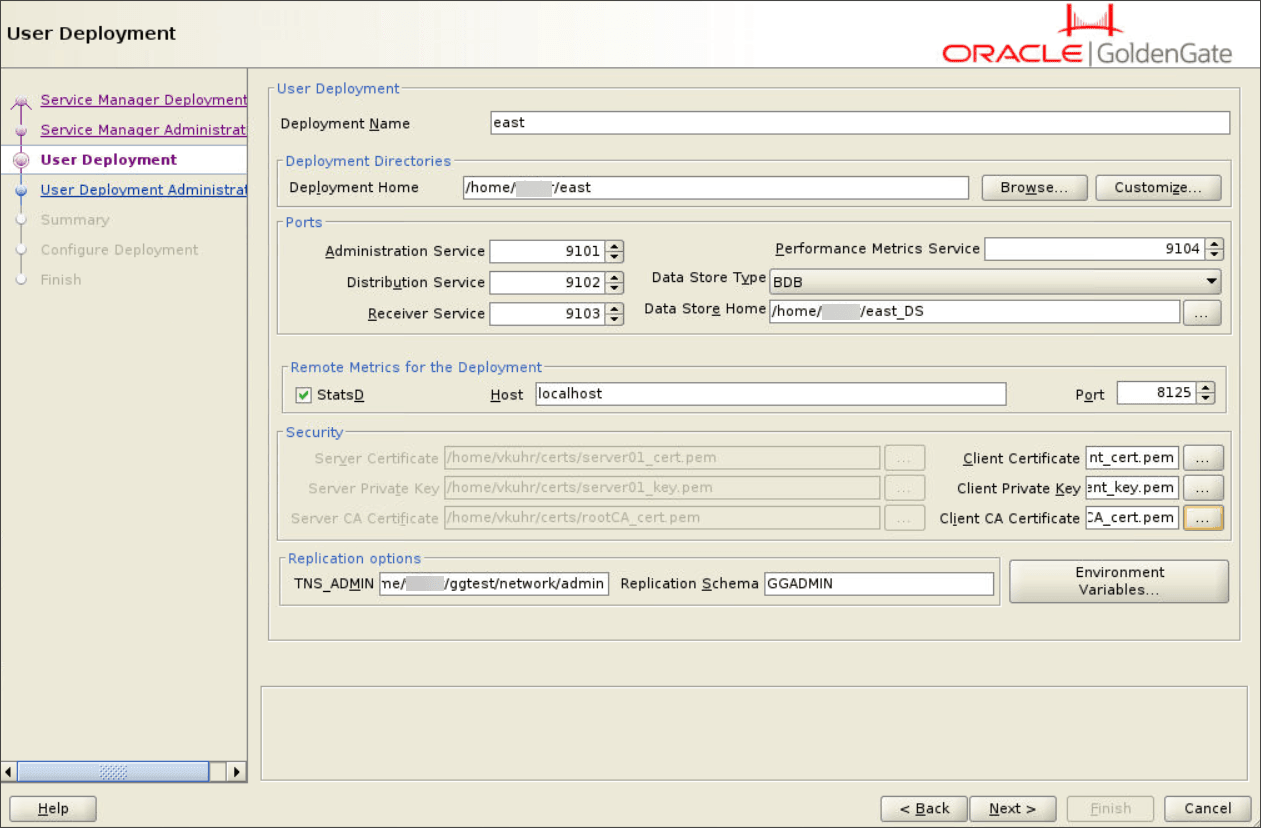
-
Click Next to move to the User Deployment Administrator screen.
User Deployment Administrator
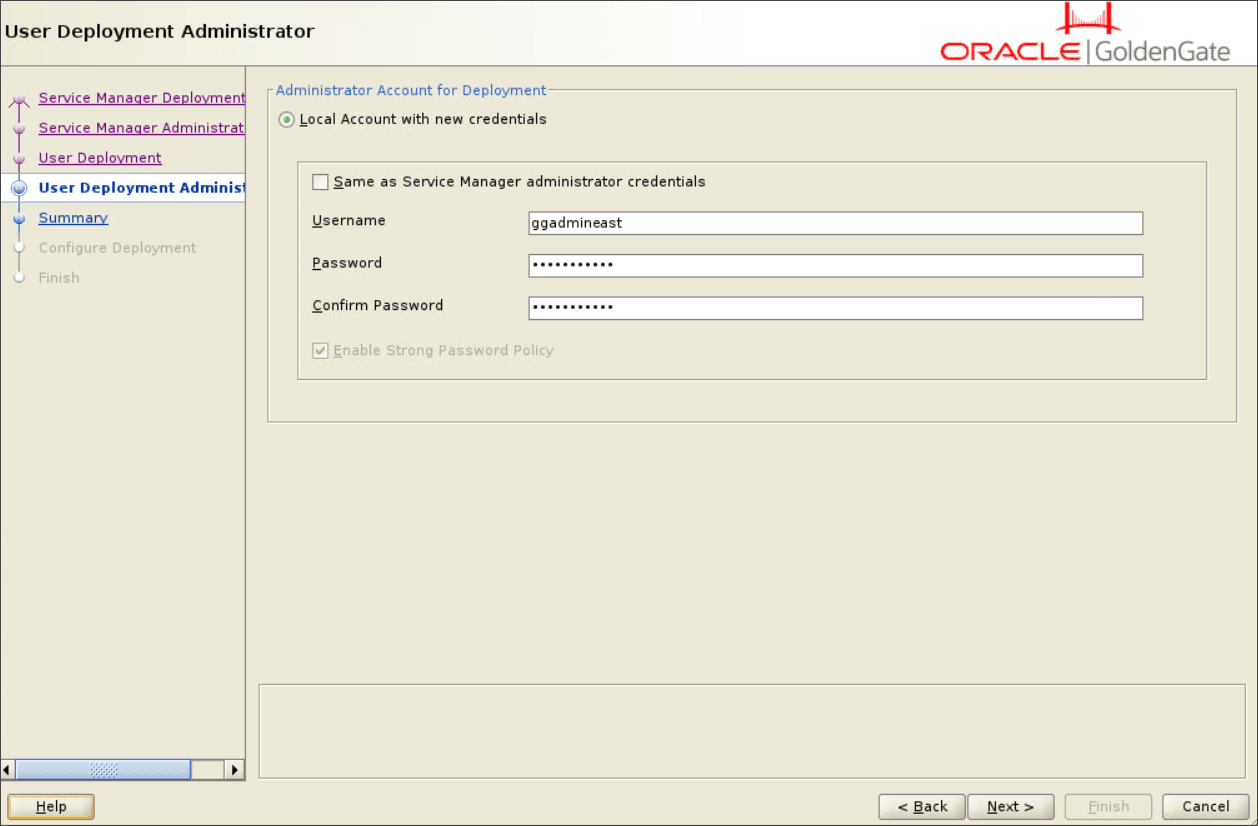
On this screen, you can create another local administrator user specifically for the deployment. This user can be the same the Service Manager administrator also.
If you select the Same as Service Manager administrator credentials option, then you do not need to specify a different set of login credentials for the user deployment administrator. You will be able to log in to the Administration Service and other microservices using the same login credentials that are used to log in to the Service Manager.
Deselect the Same as Service Manager administrator credentials option to create a new administrator user for the deployment, specifically. Specify the username and password for the deployment administrator and use the strong password policy to ensure security.
This user would be able to log in to the Administration Service and other microservices. However, the Service Manger administrator log in credentials would be required to log in to the Service Manger.
Summary
-
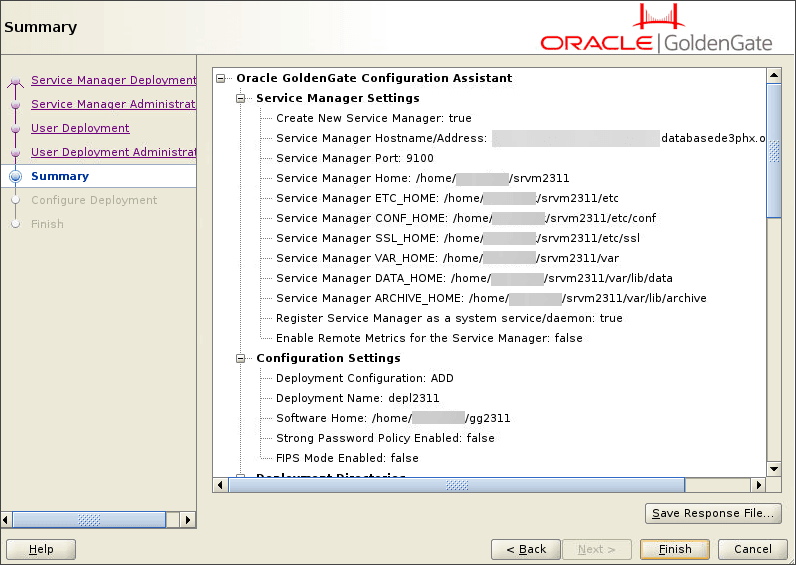
Review the detailed configuration settings of the deployment before you continue, as shown in the following image.
-
(Optional) You can save the configuration information to a response file. Oracle recommends that you save the response file. You can run the installer from the command line using this file as an input to duplicate the results of a successful configuration on other systems. You can edit this file or a new one from the provided template.
Note: When saving to a response file, the administrator password is not saved for security reasons. You must edit the response file and enter the password if you want to reuse the response file for use on other systems.
-
Click Finish and then click Next.
Configure Deployment
This screen displays the progress of the deployment creation and configuration.
If you had selected the Register Service Manager as a servicecheck box in the Service Manager Deployment screen, then a pop-up box appears while the deployment is being created. Click OK.
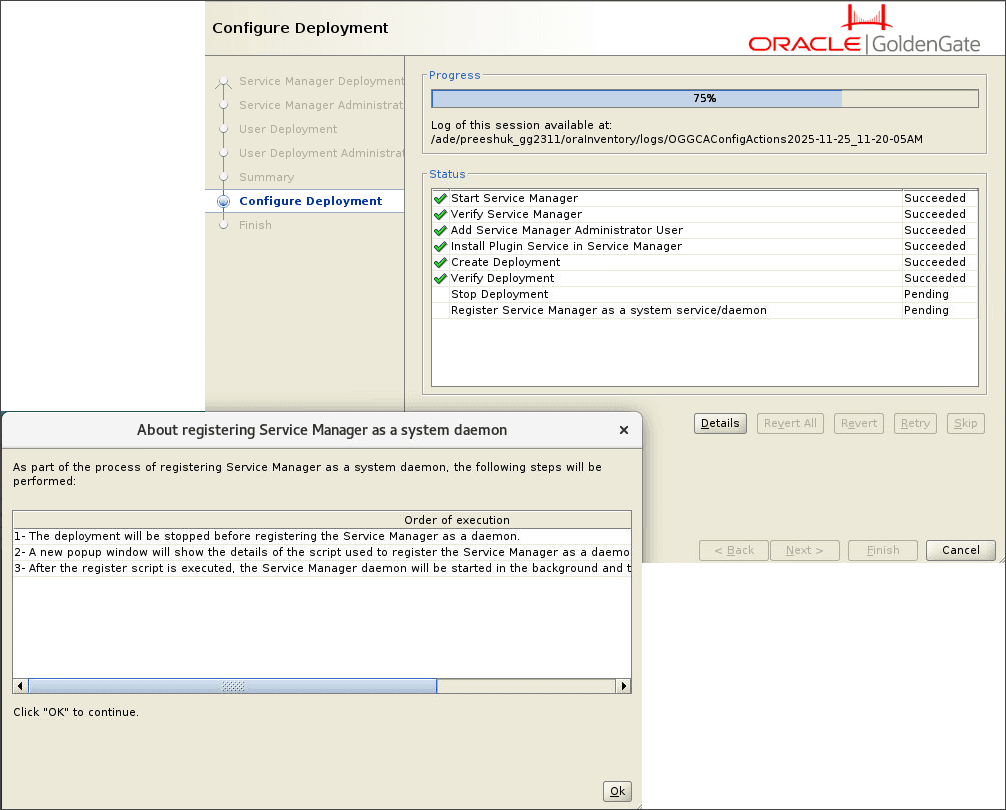
At this stage the deployment is stopped and another pop-up box appears. Now, run the registerservicemanager.sh utility located in the $SM_HOME/bin directory as root user.
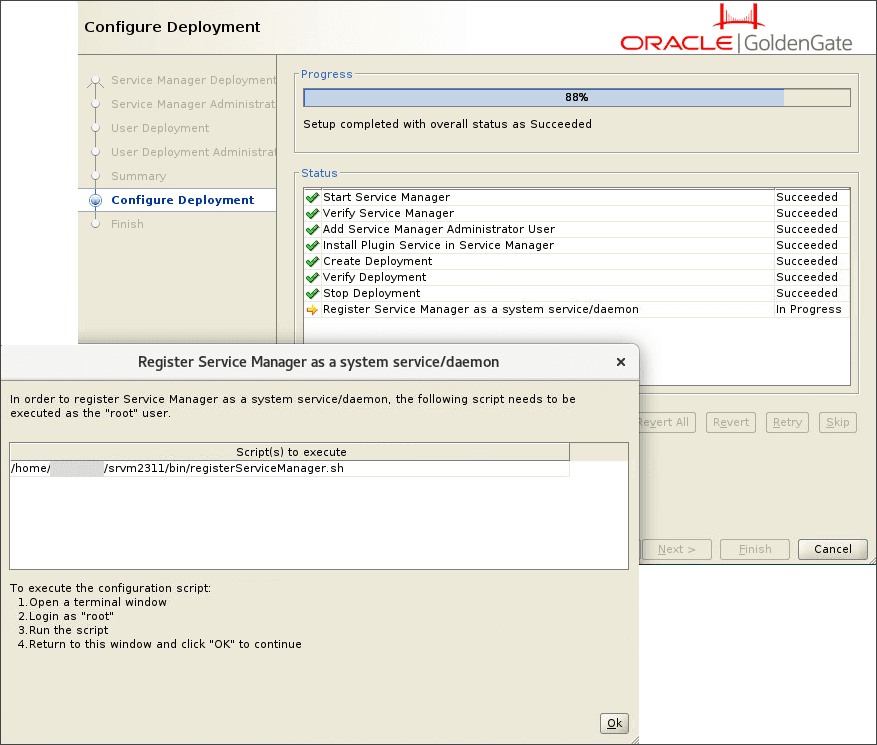
This script creates an inventory folder for the Service Manager. After the script run successfully, return to the Register Service Manager as a system service/daemon pop-up box and click OK. The OGGCA Configure Deployment screen displays that the deployment creation completed successfully.
After the creation and configuration process completes, you’ll see a message that the deployment is added successfully. Click Next.
Finish
On the Finish screen, click Close to exist OGGCA.