Cloud Across Regions: Configuring Oracle GoldenGate Hub
Configure and deploy MAA Oracle GoldenGate Hub architecture across regions on Oracle Cloud using the provided planning considerations, tasks, management, and troubleshooting information.
Overview of MAA GoldenGate Hub
To achieve the highest levels of availability, resulting in zero or near-zero downtime for both unplanned outages and planned maintenance activities, you can use the combination of Oracle Real Application Clusters (Oracle RAC), Oracle Active Data Guard, and Oracle GoldenGate.
This architecture, typically referred as MAA Platinum, or Never Down Architecture, delivers near zero Recovery Time Objective (RTO–downtime incurred during outage) and potentially zero or near zero Recovery Point Objective (RPO–data loss potential).
Traditionally, Oracle GoldenGate is installed and run locally on the database server that the GoldenGate processes connect to. When used with Oracle Grid Infrastructure Standalone Agent (XAG), Oracle GoldenGate processes can be configured to seamlessly relocate or failover between Oracle RAC nodes and follow Oracle Active Data Guard switchover and failovers.
Using MAA Oracle GoldenGate Hub (MAA GGHub) moves the GoldenGate software and processes off of the Exadata database servers, reducing complexity and system resource utilization. MAA GGHub centralizes Oracle GoldenGate management and offloads the majority of the Oracle GoldenGate processing and associated CPU and storage resource utilization from Exadata system resources. Connectivity between the GoldenGate processes and the databases they operate against is managed with Oracle Net Services.
To achieve an MAA Platinum solution in the Oracle Cloud, you follow these high level steps:
- Review MAA Platinum and MAA Diamond: Oracle RAC and Exadata to understand Platinum MAA benefits and use cases.
- Deploy or migrate your database onto Exadata Cloud Service, Base Database Service, or Autonomous Database on Dedicated Infrastructure Service.
- Add symmetric standby databases in the Oracle Cloud using Oracle Cloud Control Plan or Cloud automation.
- Configure and deploy Oracle Data Guard Fast Start Failover using the Oracle MAA best practice recommendations in Configure Fast Start Failover. For Exadata Cloud Service and Base Database Service, this is manual step.
- Set up MAA GGHub across different OCI regions, which is detailed in the topics that follow. For an MAA GGHub within one OCI region, see Cloud Within Region: Configuring Oracle GoldenGate Hub.
- Configure Bidirectional Replication and Automatic Conflict Detection and Resolution. See Oracle Cloud Infrastructure GoldenGate documentation for information.
- Decide on Application Failover Options such as Global Data Services (see Oracle Global Data Services Best Practices), or use your own customized application failover.
Task 1: Configure the Source and Target Databases for Oracle GoldenGate
The source and target Oracle GoldenGate databases should be configured using the recommendations that follow.
Step 1.1 - Configure the Databases
For Oracle Autonomous Database (ADB-D), Oracle Database 19c (19.20) or a later release is required to support parallel integrated Replicat and conflict resolution. For Oracle Exadata Database Service (ExaDB) or BaseDB, you can use any supported Oracle Database release available in the Oracle cloud.
The database configuration steps that follow are applicable for each Database Cloud Service that supports Platinum MAA solution.
The source and target Oracle GoldenGate databases should be configured using the following recommendations:
For Oracle Autonomous Database (ADB-D), you only need to add supplemental logging:
PDB: ALTER PLUGGABLE DATABASE ADD SUPPLEMENTAL LOG DATA;
For Oracle Exadata Database Service (ExaDB) or BaseDB do the following steps:
- Enable Archivelog Mode.
SQL> ARCHIVE LOG LIST Database log mode Archive Mode Automatic archival Enabled Archive destination USE_DB_RECOVERY_FILE_DEST Oldest online log sequence 110 Next log sequence to archive 113 Current log sequence 113 - Enable Force Logging.
ALTER DATABASE FORCE LOGGING; - Enable GoldenGate replication.
ALTER SYSTEM SET ENABLE_GOLDENGATE_REPLICATION=TRUE SCOPE=BOTH SID='*' - Add supplemental logging.
ALTER DATABASE ADD SUPPLEMENTAL LOG DATA; - Configure
STREAMS_POOL_SIZElarger to accommodate GoldenGate. Use this formula to calculate the appropriateSTREAMS_POOL_SIZEvalue:STREAMS_POOL_SIZE = (((#Extracts + #Integrated Replicats) * 1GB) * 1.25)For example, in a database with 2 Extracts and 2 integrated Replicats:STREAMS_POOL_SIZE = 4GB * 1.25 = 5GBAnd the parameter is set:ALTER SYSTEM SET STREAMS_POOL_SIZE=5G SCOPE=BOTH SID='*';
For the steps to prepare the database for Oracle GoldenGate, see Preparing the Database for Oracle GoldenGate.
Step 1.2 - Create a GoldenGate Database Administrator User
For ADB-D
For ADB-D deployments, you only need to issue
ALTER USER ggadmin IDENTIFIED BY <password> ACCOUNT UNLOCK;
For Oracle Exadata Database Service (ExaDB) or BaseDB
The following steps are only applicable for Oracle Exadata Database Service (ExaDB) or BaseDB.
The source and target databases need a GoldenGate administrator user created, with appropriate privileges assigned as follows:
- For the multitenant container database (CDB):
- Source database - GoldenGate Extract must be configured to connect to a user in the root container database, using a c##
- Target database - a separate GoldenGate administrator user is needed for each pluggable database (PDB).
- For details about creating a GoldenGate administrator in an Oracle Multitenant Database, see Configuring Oracle GoldenGate in a Multitenant Container Database.
- For non-CDB databases, see Establishing Oracle GoldenGate Credentials
- As the
oracleOS user on the source database system, execute the following SQL instructions to create the database user for Oracle GoldenGate and assign the required privileges:[opc@exadb1_node1 ~]$ sudo su - oracle [oracle@exadb1_node1 ~]$ source dbName.env [oracle@exadb1_node1 ~]$ sqlplus / as sysdba # Source CDB SQL> alter session set container=cdb$root; create user c##ggadmin identified by "ggadmin_password" container=all default tablespace USERS temporary tablespace temp; alter user c##ggadmin quota unlimited on users; grant set container to c##ggadmin container=all; grant alter system to c##ggadmin container=all; grant create session to c##ggadmin container=all; grant alter any table to c##ggadmin container=all; grant resource to c##ggadmin container=all; exec dbms_goldengate_auth.grant_admin_privilege('c##ggadmin',container=>'all'); # Source PDB SQL> alter session set container=pdbName; create user ggadmin identified by "ggadmin_password" container=current; grant create session to ggadmin container=current; grant alter any table to ggadmin container=current; grant resource to ggadmin container=current; exec dbms_goldengate_auth.grant_admin_privilege('ggadmin'); - As the
oracleOS user on the target system, execute the following SQL instructions to create the database user for Oracle GoldenGate and assign the required privileges:[opc@exadb2_node1 ~]$ sudo su - oracle [oracle@exadb2_node1 ~]$ source dbName.env [oracle@exadb2_node1 ~]$ sqlplus / as sysdba # Target PDB SQL> alter session set container=pdbName; create user ggadmin identified by "ggadmin_password" container=current; grant alter system to ggadmin container=current; grant create session to ggadmin container=current; grant alter any table to ggadmin container=current; grant resource to ggadmin container=current; grant dv_goldengate_admin, dv_goldengate_redo_access to ggadmin container=current; exec dbms_goldengate_auth.grant_admin_privilege('ggadmin');
Step 1.3 - Create the Database Services
Note: This step is not required for ADB-D deployments.
If the source and target databases are running the recommended configuration on an Oracle RAC cluster with Oracle Data Guard, a role-based service must be created that allows the Extract or Replicat processes to connect to the correct Data Guard primary database instance.
When using a source multitenant database, a separate service is required for the root container database (CDB) and the pluggable database (PDB) that contains the schema being replicated. For a target multitenant database, a single service is required for the PDB.
- As the
oracleOS user on the primary database system, usedbaasclito find the CDB and PDB name, as shown here:[opc@exadb1_node1 ~]$ sudo su - oracle [oracle@exadb1_node1 ~]$ source dbName.env [oracle@exadb1_node1 ~]$ dbaascli database getDetails --dbname dbName |egrep 'dbName|pdbName' "dbName" : "dbName", "pdbName" : "pdbName", - As the
oracleOS user on the primary and standby database systems, create and start the CDB database service using the following command:[opc@exadb1_node1 ~]$ sudo su - oracle [oracle@exadb1_node1 ~]$ source dbName.env [oracle@exadb1_node1 ~]$ srvctl add service -db $ORACLE_UNQNAME -service dbName.goldengate.com -preferred ORACLE_SID1 -available ORACLE_SID2 -role PRIMARY - As the
oracleOS user on the primary and standby database systems, create and start the PDB database service using the following command:[oracle@exadb1_node1 ~]$ srvctl add service -db $ORACLE_UNQNAME -service dbName.pdbName.goldengate.com -preferred ORACLE_SID1 -available ORACLE_SID2 -pdb pdbName -role PRIMARY - As the
oracleOS user on the primary and standby database systems, start and verify that the services are running, as shown here:[oracle@exadb1_node1 ~]$ srvctl start service -db $ORACLE_UNQNAME -role [oracle@exadb1_node1 ~]$ srvctl status service -d $ORACLE_UNQNAME |grep goldengate Service dbName.goldengate.com is running on instance(s) SID1 Service dbName.pdbName.goldengate.com is running on instance(s) SID1
Note: Repeat Step 1.3 in the source and target database system.
Task 2: Prepare a Primary and Standby Base System for GGHub
Step 2.1 - Deploy an Oracle RAC 2-Node Cluster System
Deploy a minimum of two GGHubs (primary and standby). Each GGHub must be deployed as a 2-node Oracle RAC database system as described in Oracle Base Database Service.
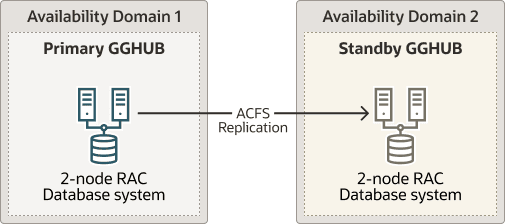
Description of the illustration gghub-hardware.png
Step 2.2 - Remove the Standard Database and Rearrange the Disk Group Layout
- As the
oracleOS user on the first GGHub node, remove the standard database:[opc@gghub_prim1 ~]$ sudo su - oracle [oracle@gghubN-node1 ~]$ dbca -deleteDatabase -silent -sourceDB $ORACLE_UNQNAME Enter SYS user password: ############## [WARNING] [DBT-19202] The Database Configuration Assistant will delete the Oracle instances and datafiles for your database. All information in the database will be destroyed. Prepare for db operation 32% complete Connecting to database 39% complete ... 100% complete Database deletion completed. Look at the log file "/u01/app/oracle/cfgtoollogs/dbca/DB0502_fra2pr/DB0502_fra2pr.log" for further details. - As the
gridOS user on the second GGHub node, dismount the RECO diskgroup:[opc@gghub_prim2 ~]$ sudo su - grid [grid@gghub_prim2 ~]$ sqlplus / as sysasm SQL> alter diskgroup RECO dismount; - As the
gridOS user on the first gghub node, drop the RECO diskgroup and assign the disks to the DATA diskgroup:[opc@gghub_prim1 ~]$ sudo su - grid [grid@gghub_prim1 ~]$ sqlplus / as sysasm SQL> drop diskgroup RECO INCLUDING CONTENTS; alter diskgroup DATA add disk '/dev/RECODISK1'; alter diskgroup DATA add disk '/dev/RECODISK2'; alter diskgroup DATA add disk '/dev/RECODISK3'; alter diskgroup DATA add disk '/dev/RECODISK4'; - As the
rootOS user on all GGhub nodes, reboot the node:[opc@gghub_prim1 ~]$ sudo rebootNote: Repeat this step in the primary and standby GGHubs.
Step 2.3 - Download the Required Software
- As the
opcOS user on all GGHub nodes, create the staging and scripts directories:[opc@gghub_prim1 ~]$ sudo mkdir -p /u01/oracle/stage sudo mkdir /u01/oracle/scripts sudo chown -R oracle:oinstall /u01/oracle sudo chmod -R g+w /u01/oracle sudo chmod -R o+w /u01/oracle/stage - As the
opcOS user on all GGHub nodes, download the following software in the directory /u01/oracle/stage:- Download the latest Oracle GoldenGate 21c (or later release) Microservices software from Oracle GoldenGate Downloads.
- Download subsequent patches to the base release from the Patches and Updates tab of My Oracle Support.
- See Installing Patches for Oracle GoldenGate Microservices Architecture for more information.
- Minimum required version is Patch 35214851: Oracle GoldenGate 21.9.0.0.2 Microservices for Oracle
- Download the latest OPatch release, Patch 6880880, for Oracle Database 21c (21.0.0.0.0) from My Oracle Support Document 2542082.1.
- Download the Oracle Grid Infrastructure Standalone Agents for Oracle Clusterware 19c, release 10.2 or later, from Oracle Grid Infrastructure Standalone Agents for Oracle Clusterware.
- Download the python script (
secureServices.py) from My Oracle Support Document 2826001.1 - Download the Oracle GGHUB Scripts from My Oracle Support Document 2951572.1
- As the
gridOS user on all GGHub nodes, unzip the GGhub scripts file downloaded from My Oracle Support Document 2951572.1 into the directory/u01/oracle/scripts. Place the script in the same location on all primary and standby GGhub nodes[opc@gghub_prim1 ~]$ sudo su - grid [grid@gghub_prim1 ~]$ unzip -q /u01/oracle/stage/gghub_scripts_YYYYYMMDD.zip -d /u01/oracle/scripts/
Step 2.4 - Configure Oracle Linux To Use the Oracle Public YUM Repository
The Oracle Linux yum server hosts software for Oracle Linux and compatible distributions. These instructions help you get started configuring your Linux system for Oracle Linux yum server and installing software through yum.
- As the
rootOS user in all GGHub systems, create the file/etc/yum.repos.d/oracle-public-yum-ol7.repowith the following contents:[opc@gghub_prim1 ~]$ sudo su - [root@gghub_prim1 ~]# cat > /etc/yum.repos.d/oracle-public-yum-ol7.repo <<EOF [ol7_latest] name=Oracle Linux $releasever Latest ($basearch) baseurl=http://yum$ociregion.oracle.com/repo/OracleLinux/OL7/latest/$basearch/ gpgkey=file:///etc/pki/rpm-gpg/RPM-GPG-KEY-oracle gpgcheck=1 enabled=1 EOF
Task 3: Configure Oracle GoldenGate for the Primary and Standby GGHub
Step 3.1 - Install Oracle GoldenGate Software
Install Oracle GoldenGate software locally on all nodes of the primary and standby GGHub configuration that will be part of the GoldenGate configuration. Make sure the installation directory is identical on all nodes.
Step 3.1.1 Unzip the Software and Create the Response File for the Installation
As the oracle OS user on all GGHub nodes, unzip the Oracle GoldenGate software:
[opc@gghub_prim1 ~]$ sudo su - oracle
[oracle@gghub_prim1 ~]$ unzip -q
 /u01/oracle/stage/p36175132_2113000OGGRU_Linux-x86-64.zip -d
 /u01/oracle/stage
The software includes an example response file for Oracle Database 21c and earlier supported versions. Copy the response file to a shared file system, so the same file can be used to install Oracle GoldenGate on all database nodes, and edit the following parameters:
-
INSTALL_OPTION=ora21c -
SOFTWARE_LOCATION=/u01/app/oracle/goldengate/gg21c (recommended location)
As the oracle OS user on all GGHub nodes, copy and edit the response file for the installation:
[oracle@gghub_prim1 ~]$ cp
 /u01/oracle/stage/fbo_ggs_Linux_x64_Oracle_services_shiphome/Disk1/response/oggcore.rsp
 /u01/oracle/stage
[oracle@gghub_prim1 ~]$ vi /u01/oracle/stage/oggcore.rsp

# Before
INSTALL_OPTION=
SOFTWARE_LOCATION=

# After
INSTALL_OPTION=ora21c
SOFTWARE_LOCATION=/u01/app/oracle/goldengate/gg21c
Step 3.1.2 Install Oracle GoldenGate Software
As the oracle OS user on all GGHub nodes, run runInstaller to install Oracle GoldenGate:
[oracle@gghub_prim1 ~]$ cd
 /u01/oracle/stage/fbo_ggs_Linux_x64_Oracle_services_shiphome/Disk1/
[oracle@gghub_prim1 ~]$ ./runInstaller -silent -nowait
 -responseFile /u01/oracle/stage/oggcore.rsp

Starting Oracle Universal Installer...

Checking Temp space: must be greater than 120 MB.   Actual 32755 MB    Passed
Checking swap space: must be greater than 150 MB.   Actual 16383 MB    Passed
Preparing to launch Oracle Universal Installer from
 /tmp/OraInstall2022-07-08_02-54-51PM.
 Please wait ...
You can find the log of this install session at:
 /u01/app/oraInventory/logs/installActions2022-07-08_02-54-51PM.log
Successfully Setup Software.
The installation of Oracle GoldenGate Services was successful.
Please check
 '/u01/app/oraInventory/logs/silentInstall2022-07-08_02-54-51PM.log'
 for more details.

[oracle@gghub_prim1 ~]$ cat
 /u01/app/oraInventory/logs/silentInstall2022-07-08_02-54-51PM.log

The installation of Oracle GoldenGate Services was successful.
Step 3.1.3 Installing Patches for Oracle GoldenGate Microservices Architecture
As the oracle OS user on all GGHub nodes, install the latest OPatch:
[oracle@gghub_prim1 ~]$ unzip -oq -d
 /u01/app/oracle/goldengate/gg21c
 /u01/oracle/stage/p6880880_210000_Linux-x86-64.zip
[oracle@gghub_prim1 ~]$ cat >> ~/.bashrc <<EOF
export ORACLE_HOME=/u01/app/oracle/goldengate/gg21c
export PATH=$ORACLE_HOME/OPatch:$PATH
EOF
[oracle@gghub_prim1 ~]$ . ~/.bashrc
[oracle@gghub_prim1 ~]$ opatch lsinventory |grep
 'Oracle GoldenGate Services'

Oracle GoldenGate Services                                      21.1.0.0.0


[oracle@gghub_prim1 Disk1]$ opatch version
OPatch Version: 12.2.0.1.37

OPatch succeeded.
As the oracle OS user on all GGHub nodes, run OPatch prereq to validate any conflict before applying the patch:
[oracle@gghub_prim1 ~]$ unzip -oq -d /u01/oracle/stage/
 /u01/oracle/stage/p35214851_219000OGGRU_Linux-x86-64.zip
[oracle@gghub_prim1 ~]$ cd /u01/oracle/stage/35214851/
[oracle@gghub_prim1 35214851]$ opatch prereq
 CheckConflictAgainstOHWithDetail -ph ./

Oracle Interim Patch Installer version 12.2.0.1.26
Copyright (c) 2023, Oracle Corporation.  All rights reserved.

PREREQ session

Oracle Home       : /u01/app/oracle/goldengate/gg21c
Central Inventory : /u01/app/oraInventory
   from           : /u01/app/oracle/goldengate/gg21c/oraInst.loc
OPatch version    : 12.2.0.1.26
OUI version       : 12.2.0.9.0
Log file location :
 /u01/app/oracle/goldengate/gg21c/cfgtoollogs/opatch/opatch2023-04-21_13-44-16PM_1.log

Invoking prereq "checkconflictagainstohwithdetail"

Prereq "checkConflictAgainstOHWithDetail" passed.

OPatch succeeded.
As the oracle OS user on all GGHub nodes, patch Oracle GoldenGate Microservices Architecture using OPatch:
[oracle@gghub_prim1 35214851]$ opatch apply

Oracle Interim Patch Installer version 12.2.0.1.37
Copyright (c) 2023, Oracle Corporation.  All rights reserved.

Oracle Home       : /u01/app/oracle/goldengate/gg21c
Central Inventory : /u01/app/oraInventory
   from           : /u01/app/oracle/goldengate/gg21c/oraInst.loc
OPatch version    : 12.2.0.1.37
OUI version       : 12.2.0.9.0
Log file location :
 /u01/app/oracle/goldengate/gg21c/cfgtoollogs/opatch/opatch2023-04-21_19-40-41PM_1.log
Verifying environment and performing prerequisite checks...
OPatch continues with these patches:   35214851

Do you want to proceed? [y|n]
y
User Responded with: Y
All checks passed.

Please shutdown Oracle instances running out of this ORACLE_HOME on
 the local system.
(Oracle Home = '/u01/app/oracle/goldengate/gg21c'

Is the local system ready for patching? [y|n]
y
User Responded with: Y
Backing up files...
Applying interim patch '35214851' to OH '/u01/app/oracle/goldengate/gg21c'

Patching component oracle.oggcore.services.ora21c, 21.1.0.0.0...
Patch 35214851 successfully applied.
Log file location:
 /u01/app/oracle/goldengate/gg21c/cfgtoollogs/opatch/opatch2023-04-21_19-40-41PM_1.log

OPatch succeeded.

[oracle@gghub_prim1 35214851]$ opatch lspatches
35214851;

OPatch succeeded.
Note: Repeat all of the steps in step 3.1 for the primary and standby GGHub systems.
Step 3.2 - Configure the Cloud Network
You must configure virtual cloud network (VCN) components such as private DNS zones, VIP, bastion, security lists, and firewalls for Oracle GoldenGate to function correctly.
To learn more about VCNs and security lists, including instructions for creating them, see the Oracle Cloud Infrastructure Networking documentation.
Step 3.2.1 - Create an Application Virtual IP Address (VIP) for GGhub
A dedicated application VIP is required to allow access to the GoldenGate Microservices using the same host name, regardless of which node of the cluster is hosting the services. The VIP is assigned to the GGHUB system and is automatically migrated to another node in the event of a node failure. Two VIPs are required, one for the primary and another one for the standby GGHUBs.
As the grid OS user on all GGhub nodes, run the following commands to get the vnicId of the Private Endpoint in the same subnet at resource ora.net1.network:
[opc@gghub_prim1 ~]$ sudo su - grid
[grid@gghub_prim1 ~]$ crsctl status resource -p -attr NAME,USR_ORA_SUBNET
 -w "TYPE = ora.network.type" |sort | uniq

NAME=ora.net1.network
USR_ORA_SUBNET=10.60.2.0

[grid@gghub_prim1 ~]$ curl 169.254.169.254/opc/v1/vnics

[
  {
    "macAddr": "02:00:17:04:70:AF",
    "privateIp": "10.60.2.120",
    "subnetCidrBlock": "10.60.2.0/24",
    "virtualRouterIp": "10.60.2.1",
    "vlanTag": 3085,
    "vnicId": **"ocid1.vnic.oc1.eu-frankfurt-1.ocid_value"**
  },
  {
    "macAddr": "02:00:17:08:69:6E",
    "privateIp": "192.168.16.18",
    "subnetCidrBlock": "192.168.16.16/28",
    "virtualRouterIp": "192.168.16.17",
    "vlanTag": 879,
    "vnicId": "ocid1.vnic.oc1.eu-frankfurt-1.ocid_value"
  }
[grid@gghub_prim2 ~]$ curl 169.254.169.254/opc/v1/vnics
[
  {
    "macAddr": "00:00:17:00:C9:19",
    "privateIp": "10.60.2.148",
    "subnetCidrBlock": "10.60.2.0/24",
    "virtualRouterIp": "10.60.2.1",
    "vlanTag": 572,
    "vnicId": **"ocid1.vnic.oc1.eu-frankfurt-1.ocid_value"**
  },
  {
    "macAddr": "02:00:17:00:84:B5",
    "privateIp": "192.168.16.19",
    "subnetCidrBlock": "192.168.16.16/28",
    "virtualRouterIp": "192.168.16.17",
    "vlanTag": 3352,
    "vnicId": "ocid1.vnic.oc1.eu-frankfurt-1.ocid_value"
  }
Note: For the next step, you will need to use the Cloud Shell to assign the private IP to the GGHUB nodes. See Using Cloud Shell for more information.
As your user on the cloud shell, run the following commands to assign the private IP to the GGHUB nodes:
username@cloudshell:~ (eu-frankfurt-1)$ export node1_vnic=
'ocid
1.vnic.oc1.eu-frankfurt-1.abtheljrl5udtgryrscypy5btmlfncawqkjlcql3kkpj64e2lb5xbmbrehkq'
username@cloudshell:~ (eu-frankfurt-1)$ export node2_vnic=
'ocid1.vnic.oc1.eu-frankfurt-1.abtheljre6rf3xoxtgl2gam3lav4vcyftz5fppm2ciin4wzjxucalzj7b2bq'
username@cloudshell:~ (eu-frankfurt-1)$ export ip_address='10.60.2.65'
username@cloudshell:~ (eu-frankfurt-1)$ oci network vnic assign-private-ip
 --unassign-if-already-assigned --vnic-id $node1_vnic --ip-address $ip_address
username@cloudshell:~ (eu-frankfurt-1)$ oci network vnic assign-private-ip
 --unassign-if-already-assigned --vnic-id $node2_vnic --ip-address $ip_address

Example of the output:
{
  "data": {
    "availability-domain": null,
    "compartment-id": "ocid1.compartment.oc1..ocid_value",
    "defined-tags": {},
    "display-name": "privateip20230292502117",
    "freeform-tags": {},
    "hostname-label": null,
    "id": "ocid1.privateip.oc1.eu-frankfurt-1.ocid_value",
    "ip-address": "10.60.2.65",
    "is-primary": false,
    "subnet-id": "ocid1.subnet.oc1.eu-frankfurt-1.ocid_value",
    "time-created": "2023-07-27T10:21:17.851000+00:00",
    "vlan-id": null,
    "vnic-id": "ocid1.vnic.oc1.eu-frankfurt-1.ocid_value"
  },
  "etag": "da972988"
}
As the root OS user on the first GGhub node, run the following command to create the application VIP managed by Oracle Clusterware:
[opc@gghub_prim1 ~]$ sudo su - [root@gghub_prim1 ~]# sh /u01/oracle/scripts/add_appvip.sh

Application VIP Name: gghub_prim_vip
Application VIP Address: 10.60.2.65
Using configuration parameter file:
 /u01/app/19.0.0.0/grid/crs/install/crsconfig_params
The log of current session can be found at:
  /u01/app/grid/crsdata/gghublb1/scripts/appvipcfg.log
Note: Repeat all the steps in step 3.2.1 for the primary and standby GGHUB systems.
Step 3.2.2 - Add the Ingress Security List Rules
Using the Cloud Console, add two ingress security list rules in the Virtual Cloud Network (VCN) assigned to the GGhub.
One ingress rule is for TCP traffic on destination port 443 from authorized source IP addresses and any source port to connect to the Oracle GoldenGate service using NGINX as a reverse proxy, and the other is for allowing ICMP TYPE 8 (ECHO) between the primary and standby GGhubs required to enable ACFS replication. For more information, see Working with Security Lists and My Oracle Support Document 2584309.1.
After you update the security list, it will have an entry with values similar to the following ones:
- NGINX - TCP 443
- Source Type: CIDR
- Source CIDR: 0.0.0.0/0
- IP Protocol: TCP
- Source Port Range: All
- Destination Port Range: 443
- Allows: TCP traffic for ports: 443 HTTPS
- Description: Oracle GoldenGate 443
- ACFS - ICMP TYPE 8 (ECHO)
- Source Type: CIDR
- Source CIDR: 0.0.0.0/0
- IP Protocol: ICMP
- Allows: ICMP traffic for: 8 Echo
- Description: Required for ACFS replication
Step 3.2.3 - Open Port 443 in the GGhub Firewall
As the opc OS user on all GGhub nodes of the primary and standby system, add the required rules to IPTables:
[opc@gghub_prim1 ~]$ sudo vi /etc/sysconfig/iptables

-A INPUT -p tcp -m state --state NEW -m tcp --dport 443 -j ACCEPT
 -m comment --comment "Required for access to GoldenGate, Do not remove
 or modify. "
-A INPUT -p tcp -m state --state NEW -m tcp --match multiport
 --dports 9100:9105 -j ACCEPT -m comment --comment "Required for access
 to GoldenGate, Do not remove or modify. "

[opc@gghub_prim1 ~]$ sudo systemctl restart iptables
Note: See Implementing Oracle Linux Security for more information.
Step 3.2.4 - Configure Network Connectivity Between the Primary and Standby GGHUB Systems
Oracle ACFS snapshot-based replication uses ssh as the transport between the primary and standby clusters. To support ACFS replication, ssh must be usable in either direction between the clusters â from the primary cluster to the standby cluster and from the standby to the primary. See Configuring ssh for Use With Oracle ACFS Replication in Oracle Automatic Storage Management Administrator’s Guide.
To learn more about whether subnets are public or private, including instructions for creating the connection, see section Connectivity Choices in the Oracle Cloud Infrastructure Networking documentation.
Step 3.2.5 - Configure Private DNS Zones Views and Resolvers
You must create a private DNS zone view and records for each application VIP. This is required for the primary GGHUB to reach the standby GGHUB deployment VIP host name.
Follow the steps in Configure private DNS zones views and resolvers to create your private DNS zone and a record entry for each dedicated GGHUB application virtual IP address (VIP) created in Step 3.2.1.
As the opc OS user on any GGhub node, validate that all application VIPs can be resolved:
[opc@gghub_prim1 ~]$ nslookup
 gghub_prim_vip.frankfurt.goldengate.com |tail -2

Address: 10.60.2.120

[opc@gghub_prim1 ~]$ nslookup
 gghub_stby_vip.frankfurt.goldengate.com |tail -2

Address: 10.60.0.185
Step 3.3 - Configure ACFS File System Replication Between GGHubs in the Same Region
Oracle GoldenGate Microservices Architecture is designed with a simplified installation and deployment directory structure. The installation directory: should be placed on local storage on each database node to minimize downtime during software patching. The deployment directory: which is created during deployment creation using the Oracle GoldenGate Configuration Assistant (oggca.sh), must be placed on a shared file system. The deployment directory contains configuration, security, log, parameter, trail, and checkpoint files. Placing the deployment in Oracle Automatic Storage Management Cluster File system (ACFS) provides the best recoverability and failover capabilities in the event of a system failure. Ensuring the availability of the checkpoint files cluster-wide is essential so that the GoldenGate processes can continue running from their last known position after a failure occurs.
It is recommended that you allocate enough trail file disk space for a minimum of 12 hours of trail files. Doing this will give sufficient space for trail file generation should a problem occur with the target environment that prevents it from receiving new trail files. The amount of space needed for 12 hours can only be determined by testing trail file generation rates with real production data. If you want to build contingency for a long planned maintenance event of one of the GoldenGate Primary Database or systems, you can allocate sufficient ACFS space for 2 days. Monitoring space utilization is always recommended regardless of how much space is allocated. Note: If the GoldenGate hub will support multiple service manager deployments using separate ACFS file systems, the following steps should be repeated for each file ACFS file system.
Step 3.3.1 - Create the ASM File system
As the grid OS user on the first GGHUB node, use asmcmd to create the ACFS volume:
[opc@gghub_prim1 ~]$ sudo su - grid
[grid@gghub_prim1 ~]$ asmcmd volcreate -G DATA -s 120G ACFS_GG1
Note: Modify the file system size according to the determined size requirements.
As the grid OS user on the first GGHUB node, use asmcmd to confirm the âVolume Deviceâ:
[grid@gghub_prim1 ~]$ asmcmd volinfo -G DATA ACFS_GG1

Diskgroup Name: DATA
         Volume Name: ACFS_GG1
         Volume Device: /dev/asm/acfs_gg1-256
         State: ENABLED
         Size (MB): 1228800
         Resize Unit (MB): 64
         Redundancy: UNPROT
         Stripe Columns: 8
         Stripe Width (K): 1024
         Usage:
         Mountpath:
As the grid OS user on the first GGHUB node, format the partition with the following mkfs command:
[grid@gghub_prim1 ~]$ /sbin/mkfs -t acfs /dev/asm/acfs_gg1-256

mkfs.acfs: version                   =19.0.0.0.0
mkfs.acfs: on-disk version           = 46.0
mkfs.acfs: volume                    = /dev/asm/acfs_gg1-256
mkfs.acfs: volume size               = 128849018880  ( 120.00 GB )
mkfs.acfs: Format complete.
Step 3.3.2 - Create the Cluster Ready Services (CRS) Resource
As the opc OS user on all GGHUB nodes, create the ACFS mount point:
[opc@gghub_prim1 ~]$ sudo mkdir -p /mnt/acfs_gg1
[opc@gghub_prim1 ~]$ sudo chown oracle:oinstall /mnt/acfs_gg1
Create the file system resource as the root user. Due to the implementation of distributed file locking on ACFS, unlike DBFS, it is acceptable to mount ACFS on more than one GGhub node at any one time.
As the root OS user on the first GGHUB node, create the CRS resource for the new ACFS file system:
[opc@gghub_prim1 ~]$ sudo su - [root@gghub_prim1 ~]#

cat > /u01/oracle/scripts/add_asm_filesystem.sh <<EOF
# Run as ROOT
$(grep ^crs_home /etc/oracle/olr.loc | cut -d= -f2)/bin/srvctl
 add filesystem \
-device /dev/asm/<acfs_volume> \
-volume ACFS_GG1 \
-diskgroup DATA \
-path /mnt/acfs_gg1 -user oracle \
-node gghub_prim1,gghub_prim2 \
-autostart NEVER \
-mountowner oracle \
-mountgroup oinstall \
-mountperm 755
EOF
[root@gghub_prim1 ~]# sh /u01/oracle/scripts/add_asm_filesystem.sh
Step 3.3.3 - Verify the Currently Configured ACFS File System
As the grid OS user on the first GGHUB node, use the following command to validate the file system details:
[opc@gghub_prim1 ~]$ sudo su - grid
[grid@gghub_prim1 ~]$ srvctl config filesystem -volume ACFS_GG1
 -diskgroup DATA


Volume device: /dev/asm/acfs_gg1-256
Diskgroup name: data
Volume name: acfs_gg1
Canonical volume device: /dev/asm/acfs_gg1-256
Accelerator volume devices:Mountpoint path: /mnt/acfs_gg1
Mount point owner: oracle
Mount point group: oinstall
Mount permissions: owner:oracle:rwx,pgrp:oinstall:r-x,other::r-x
Mount users: grid
Type: ACFS
Mount options:Description:Nodes: gghub_prim1 gghub_prim2
Server pools: *
Application ID:ACFS file system is enabled
ACFS file system is individually enabled on nodes:ACFS file system is individually disabled on nodes:
Step 3.3.4 - Start and Check the Status of the ACFS Resource
As the grid OS user on the first gghub node, use the following command to start and check the file system:
[grid@gghub_prim1 ~]$ srvctl start  filesystem -volume ACFS_GG1
 -diskgroup DATA -node `hostname`
[grid@gghub_prim1 ~]$ srvctl status filesystem -volume ACFS_GG1
 -diskgroup DATA
ACFS file system /mnt/acfs_gg1 is mounted on nodes gghub_prim1
The CRS resource created is named using the format ora.diskgroup_name.volume_name.acfs. Using the above file system example, the CRS resource is called ora.data.acfs_gg.acfs.
As the grid OS user on the first gghub node, use the following command to see the ACFS resource in CRS:
[grid@gghub_prim1 ~]$ crsctl stat res ora.data.acfs_gg1.acfs

NAME=ora.data.acfs_gg1.acfs
TYPE=ora.acfs_cluster.type
TARGET=ONLINE
STATE=ONLINE on gghub_prim1
Step 3.3.5 - Create CRS Dependencies Between ACFS and an Application VIP
To ensure that the file system is mounted on the same Oracle GGHub node as the VIP, add the VIP CRS resource as a dependency to the ACFS resource, using the following example commands. Each separate replicated ACFS file system will have its own dedicated VIP.
- As the
rootOS user on the first GGHub node, use the following command to determine the current start and stop dependencies of the VIP resource:[opc@gghub_prim1 ~]$ sudo su - [root@gghub_prim1 ~]# $(grep ^crs_home /etc/oracle/olr.loc | cut -d= -f2)/bin/crsctl stat res -w "TYPE co appvip" |grep NAME | cut -f2 -d"=" gghub_prim_vip1 [root@gghub_prim1 ~]# export APPVIP=gghub_prim_vip1 [root@gghub_prim1 ~]# $(grep ^crs_home /etc/oracle/olr.loc | cut -d= -f2)/bin/crsctl stat res $APPVIP -f|grep _DEPENDENCIES START_DEPENDENCIES=hard(ora.net1.network) pullup(ora.net1.network) STOP_DEPENDENCIES=hard(intermediate:ora.net1.network) - As the
rootOS user on the first GGHub node, determine the ACFS file system name:[root@gghub_prim1 ~]# $(grep ^crs_home /etc/oracle/olr.loc | cut -d= -f2)/bin/crsctl stat res -w "NAME co acfs_gg1" |grep NAME NAME=ora.data.acfs_gg.acfs [root@gghub_prim1 ~]# export ACFS_NAME='ora.data.acfs_gg1.acfs' - As the
rootOS user on the first GGHub node, modify the start and stop dependencies of the VIP resource:[root@gghub_prim1 ~]# $(grep ^crs_home /etc/oracle/olr.loc | cut -d= -f2)/bin/crsctl modify res $APPVIP -attr "START_DEPENDENCIES='hard(ora.net1.network,$ACFS_NAME) pullup(ora.net1.network) pullup:always($ACFS_NAME)',STOP_DEPENDENCIES='hard(intermediate:ora.net1.network,$ACFS_NAME)',HOSTING_MEMBERS=,PLACEMENT=balanced" - As the
gridOS user on the first GGHub node, start the VIP resource:[grid@gghub_prim1 ~]$ $(grep ^crs_home /etc/oracle/olr.loc | cut -d= -f2)/bin/crsctl stat res -w "TYPE co appvip" |grep NAME | cut -f2 -d"=" gghub_prim_vip1 [grid@gghub_prim1 ~]$ export APPVIP=gghub_prim_vip1 [grid@gghub_prim1 ~]$ crsctl start resource $APPVIP CRS-2672: Attempting to start 'gghub_prim_vip1' on 'gghub_prim1' CRS-2676: Start of 'gghub_prim_vip1' on 'gghub_prim1' succeededNote: Before moving to the next step, it is important to ensure the VIP can be mounted on both GGHub nodes.
- As the
gridOS user on the first GGHub node, relocate the VIP resource:[grid@gghub_prim1 ~]$ crsctl relocate resource $APPVIP -f CRS-2673: Attempting to stop 'gghub_prim_vip1' on 'gghub_prim1' CRS-2677: Stop of 'gghub_prim_vip1' on 'gghub_prim1' succeeded CRS-2673: Attempting to stop 'ora.data.acfs_gg1.acfs' on 'gghub_prim1' CRS-2677: Stop of 'ora.data.acfs_gg1.acfs' on 'gghub_prim1' succeeded CRS-2672: Attempting to start 'ora.data.acfs_gg1.acfs' on 'gghub_prim2' CRS-2676: Start of 'ora.data.acfs_gg1.acfs' on 'gghub_prim2' succeeded CRS-2672: Attempting to start 'gghub_prim_vip1' on 'gghub_prim2' CRS-2676: Start of 'gghub_prim_vip1' on 'gghub_prim2' succeeded [grid@gghub_prim1 ~]$ crsctl status resource $APPVIP NAME=gghub_prim_vip1 TYPE=app.appviptypex2.type TARGET=ONLINE STATE=ONLINE on gghub_prim2 [grid@gghub_prim1 ~]$ crsctl relocate resource $APPVIP -f CRS-2673: Attempting to stop 'gghub_prim_vip1' on 'gghub_prim2' CRS-2677: Stop of 'gghub_prim_vip1' on 'gghub_prim2' succeeded CRS-2673: Attempting to stop 'ora.data.acfs_gg1.acfs' on 'gghub_prim2' CRS-2677: Stop of 'ora.data.acfs_gg1.acfs' on 'gghub_prim2' succeeded CRS-2672: Attempting to start 'ora.data.acfs_gg1.acfs' on 'gghub_prim1' CRS-2676: Start of 'ora.data.acfs_gg1.acfs' on 'gghub_prim1' succeeded CRS-2672: Attempting to start 'gghub_prim_vip1' on 'gghub_prim1' CRS-2676: Start of 'gghub_prim_vip1' on 'gghub_prim1' succeeded - As the
gridOS user on the first GGHub node, check the status of the ACFS file system:[grid@gghub_prim1 ~]$ srvctl status filesystem -volume ACFS_GG1 -diskgroup DATA ACFS file system /mnt/acfs_gg1 is mounted on nodes gghub_prim1
Step 3.3.6 - Create the SSH Daemon CRS Resource
ACFS replication uses secure shell (ssh) to communicate between the primary and standby file systems using the virtual IP addresses that were previously created. When a server is rebooted, the ssh daemon is started before the VIP CRS resource, preventing access to the cluster using VIP. The following instructions create an ssh restart CRS resource that will restart the ssh daemon after the virtual IP resource is started. A separate ssh restart CRS resource is needed for each replicated file system.
As the grid OS user on all GGHUB nodes, copy the CRS action script to restart the ssh daemon. Place the script in the same location on all primary and standby GGHUB nodes:
[opc@gghub_prim1 ~]$ sudo su - grid
[grid@gghub_prim1 ~]$ unzip /u01/oracle/stage/gghub_scripts_<YYYYMMDD>.zip
-d /u01/oracle/scripts/
Archive: /u01/oracle/stage/gghub_scripts_<YYYYMMDD>.zip
inflating: /u01/oracle/scripts/acfs_primary.scr inflating: /u01/oracle/scripts/acfs_standby.scr inflating: /u01/oracle/scripts/sshd_restart.scr inflating: /u01/oracle/scripts/add_acfs_primary.sh inflating: /u01/oracle/scripts/add_acfs_standby.sh inflating: /u01/oracle/scripts/add_nginx.sh inflating: /u01/oracle/scripts/add_sshd_restart.sh
inflating: /u01/oracle/scripts/reverse_proxy_settings.sh inflating: /u01/oracle/scripts/secureServices.pyAs the root OS user on the first GGHUB node, create the CRS resource using the following command:
[opc@gghub_prim1 ~]$ sudo su - [root@gghub_prim1 ~]# sh /u01/oracle/scripts/add_sshd_restart.sh
Application VIP Name: gghub_prim_vipAs the grid OS user on the first GGHUB node, start and test the CRS resource:
[opc@gghub_prim1 ~]$ sudo su - grid
[grid@gghub_prim1 ~]$ crsctl stat res sshd_restart
NAME=sshd_restart
TYPE=cluster_resource
TARGET=OFFLINE
STATE=OFFLINE
[grid@gghub_prim1 ~]$ crsctl start res sshd_restart
CRS-2672: Attempting to start 'sshd_restart' on 'gghub_prim1'
CRS-2676: Start of 'sshd_restart' on 'gghub_prim1' succeeded
[grid@gghub_prim1 ~]$ cat /tmp/sshd_restarted
STARTED
[grid@gghubtest1 ~]$ crsctl stop res sshd_restart
CRS-2673: Attempting to stop 'sshd_restart' on 'gghub_prim1'
CRS-2677: Stop of 'sshd_restart' on 'gghub_prim1' succeeded
[grid@gghub1 ~]$ cat /tmp/sshd_restarted
STOPPED
[grid@gghub1 ~]$ crsctl start res sshd_restart
CRS-2672: Attempting to start 'sshd_restart' on 'gghub_prim1'
CRS-2676: Start of 'sshd_restart' on 'gghub_prim1' succeeded
[grid@gghub1 ~]$ crsctl stat res sshd_restart
NAME=sshd_restart
TYPE=cluster_resource
TARGET=ONLINE
STATE=ONLINE on gghub_prim1Step 3.3.7 - Enable ACFS Replication
ACFS snapshot-based replication uses openssh to transfer the snapshots from between the primary and standby hosts using the designated replication user, which is commonly the grid user.
- As the
gridOS user in the primary and standby hub systems, follow the instructions provided in Configuring ssh for Use With Oracle ACFS Replication to configure the ssh connectivity between the primary and standby nodes. - As the
gridOS user on all primary and standby GGHub nodes, usesshto test connectivity between all primary to standby nodes, and in the reverse direction using ssh as the replication user:# On the Primary GGhub [grid@gghub_prim1 ~]$ ssh gghub_stby_vip1.frankfurt.goldengate.com hostname gghub_stby1 [grid@gghub_prim2 ~]$ ssh gghub_stby_vip1.frankfurt.goldengate.com hostname gghub_stby1 # On the Standby GGhub [grid@gghub_stby1 ~]$ ssh gghub_prim_vip1.frankfurt.goldengate.com hostname gghub_prim1 [grid@gghub_stby2 ~]$ ssh gghub_prim_vip1.frankfurt.goldengate.com hostname gghub_prim1 - As the
gridOS user on the primary and standby GGHub nodes where ACFS is mounted, useacfsutilto test connectivity between the primary and the standby nodes:# On the Primary GGhub [grid@gghub_prim1 ~]$ srvctl status filesystem -volume ACFS_GG1 -diskgroup DATA ACFS file system /mnt/acfs_gg1 is mounted on nodes gghub_prim1 [grid@gghub_prim1 ~]$ acfsutil repl info -c -u grid gghub_prim_vip1.frankfurt.goldengate.com gghub_stby_vip1.frankfurt.goldengate.com /mnt/acfs_gg1 A valid 'ssh' connection was detected for standby node gghub_prim_vip1.frankfurt.goldengate.com as user grid. A valid 'ssh' connection was detected for standby node gghub_stby_vip1.frankfurt.goldengate.com as user grid. # On the Standby GGhub [grid@gghub_stby1 ~]$ srvctl status filesystem -volume ACFS_GG1 -diskgroup DATA ACFS file system /mnt/acfs_gg1 is mounted on nodes gghub_stby1 [grid@gghub_stby1 ~]$ acfsutil repl info -c -u grid gghub_prim_vip1.frankfurt.goldengate.com gghub_stby_vip1.frankfurt.goldengate.com /mnt/acfs_gg A valid 'ssh' connection was detected for standby node gghub_prim_vip1.frankfurt.goldengate.com as user grid. A valid 'ssh' connection was detected for standby node gghub_stby_vip1.frankfurt.goldengate.com as user grid. - If the
acfsutilcommand is executed from a GGHub node where ACFS is not mounted, the error ACFS-05518 will be shown as expected. Usesrvctl status filesytemto find the GGHub where ACFS is mounted and re-execute the command:[grid@gghub_prim1 ~]$ acfsutil repl info -c -u grid gghub_stby_vip1.frankfurt.goldengate.com gghub_stby_vip1.frankfurt.goldengate.com /mnt/acfs_gg1 acfsutil repl info: ACFS-05518: /mnt/acfs_gg1 is not an ACFS mount point [grid@gghub_prim1 ~]$ srvctl status filesystem -volume ACFS_GG1 -diskgroup DATA ACFS file system /mnt/acfs_gg1 is mounted on nodes gghub_prim2 [grid@gghub_prim1 ~]$ ssh gghub_prim2 [grid@gghub_prim2 ~]$ acfsutil repl info -c -u grid gghub_prim_vip1.frankfurt.goldengate.com gghub_stby_vip1.frankfurt.goldengate.com /mnt/acfs_gg1 A valid 'ssh' connection was detected for standby node gghub_prim_vip1.frankfurt.goldengate.com as user grid. A valid 'ssh' connection was detected for standby node gghub_stby_vip1.frankfurt.goldengate.com as user grid.Note: Make sure the connectivity is verified between all primary nodes to all standby nodes, as well as in the opposite direction. Only continue when there are no errors with any of the connection tests.
- As the
gridOS user on the standby GGHub node where ACFS is currently mounted, initialize ACFS replication:[grid@gghub_stby1 ~]$ srvctl status filesystem -volume ACFS_GG1 -diskgroup DATA ACFS file system /mnt/acfs_gg1 is mounted on nodes gghub_stby1 [grid@gghub_stby1 ~]$ /sbin/acfsutil repl init standby -u grid /mnt/acfs_gg1 - As the
gridOS user on the primary GGHub node where ACFS is currently mounted, initialize ACFS replication:[grid@gghub_prim1 ~]$ srvctl status filesystem -volume ACFS_GG1 -diskgroup DATA ACFS file system /mnt/acfs_gg is mounted on nodes gghub_prim1 [grid@gghub_prim1 ~]$ /sbin/acfsutil repl init primary -C -p grid@gghub_prim_vip1.frankfurt.goldengate.com -s grid@gghub_stby_vip1.frankfurt.goldengate.com -m /mnt/acfs_gg1 /mnt/acfs_gg1 - As the
gridOS user on the primary and standby GGHub nodes, monitor the initialization progress, when the status changes to “Send Completed� it means the initial primary file system copy has finished and the primary file system is now being replicated to the standby host:# On the Primary GGhub [grid@gghub_prim1 ~]$ /sbin/acfsutil repl info -c -v /mnt/acfs_gg1 | grep -i Status Status: Send Completed # On the Standby GGhub [grid@gghub_prim1 ~]$ /sbin/acfsutil repl info -c -v /mnt/acfs_gg1 | grep -i Status Status: Receive Completed - As the
gridOS user on the primary and standby GGHub nodes, verify and monitor the ACFS replicated file system:# On the Primary GGhub [grid@gghub_prim1 ~]$ acfsutil repl util verifystandby /mnt/acfs_gg1 verifystandby returned: 0 # On the Standby GGhub [grid@gghubtest31 ~]$ acfsutil repl util verifyprimary /mnt/acfs_gg1 verifyprimary returned: 0Note: Both commands will return a value of 0 (zero) if there are no problems detected. If a non-zero value is returned, refer to Troubleshooting ACFS Replication for monitoring, diagnosing, and resolving common issues with ACFS Replication before continuing.
- As the
gridOS user on the primary GGHub node, use the following command to monitor the status of the ACFS replication:[grid@gghub_prim1 ~]$ /sbin/acfsutil repl info -c -v /mnt/acfs_gg1 Site: Primary Primary hostname: gghub_prim_vip1.frankfurt.goldengate.com Primary path: /mnt/acfs_gg1 Primary status: Running Background Resources: Active Standby connect string: grid@gghub_stby_vip1.frankfurt.goldengate.com Standby path: /mnt/acfs_gg1 Replication interval: 0 days, 0 hours, 0 minutes, 0 seconds Sending primary as of: Fri May 05 12:37:02 2023 Status: Send Completed Lag Time: 00:00:00 Retries made: 0 Last send started at: Fri May 05 12:37:02 2023 Last send completed at: Fri May 05 12:37:12 2023 Elapsed time for last send: 0 days, 0 hours, 0 minutes, 10 seconds Next send starts at: now Replicated tags: Data transfer compression: Off ssh strict host key checking: On Debug log level: 3 Replication ID: 0x4d7d34a - As the
gridOS user on the standby GGHub node where ACFS is currently mounted, use the following command to monitor the status of the ACFS replication:[grid@gghub_stby1 ~]$ /sbin/acfsutil repl info -c -v /mnt/acfs_gg1 Site: Standby Primary hostname: gghub_prim_vip1.frankfurt.goldengate.com Primary path: /mnt/acfs_gg1 Standby connect string: grid@gghub_stby_vip1.frankfurt.goldengate.com Standby path: /mnt/acfs_gg1 Replication interval: 0 days, 0 hours, 0 minutes, 0 seconds Last sync time with primary: Fri May 05 12:37:02 2023 Receiving primary as of: Fri May 05 12:37:02 2023 Status: Receive Completed Last receive started at: Fri May 05 12:37:02 2023 Last receive completed at: Fri May 05 12:37:07 2023 Elapsed time for last receive: 0 days, 0 hours, 0 minutes, 5 seconds Data transfer compression: Off ssh strict host key checking: On Debug log level: 3 Replication ID: 0x4d7d34a
Step 3.3.8 - Create the ACFS Replication CRS Action Scripts
To determine the health of the ACFS primary and standby file systems, CRS action scripts are used. At predefined intervals the action scripts report the health of the file systems into the CRS trace file crsd_scriptagent_grid.trc, located in the Grid Infrastructure trace file directory /u01/app/grid/diag/crs/<node_name>/crs/trace on each of the primary and standby file system of the GGhub nodes.
On both, the primary and standby file system clusters, there are two scripts required. One to monitor the local primary file system, and if the remote standby file system is available, and one to monitor the local standby file system and check remote primary file systemsâ availability. Example scripts are provided to implement the ACFS monitoring, but you must edit them to suit your environment.
Each replicated file system will need its own acfs_primary and acfs_standby action scripts.
Step 3.3.8.1 - Action Script acfs_primary.scr
The acfs_primary CRS resource checks whether the current ACFS mount is a primary file system and confirms that the standby file system is accessible and receiving replicated data. The resource is used to automatically determine if Oracle GoldenGate can start processes on the primary Oracle GoldenGate hub. If the standby file system is not accessible by the primary, the example script makes multiple attempts to verify the standby file system.
The acfs_primary CRS resource runs on both, the primary and standby hosts, but only returns success when the current file system is the primary file system, and the standby file system is accessible. The script must be placed in the same location on all primary and standby file system nodes.
The following parameters use suggested default settings, which should be tested before changing their values:
MOUNT_POINT=/mnt/acfs_gg1 # The replicated ACFS mount pointPATH_NAME=$MOUNT_POINT/status/acfs_primary # Must be unique from other mount filesATTEMPTS=3 # Number of attempts to check the remote standby file systemINTERVAL=10 # Number of seconds between each attempt
As the grid OS user on all primary and standby GGHUB nodes, edit the acfs_primary.scr script to match the environment:
[opc@gghub_prim1 ~]$ sudo su - grid
[grid@gghub_prim1 ~]$ vi /u01/oracle/scripts/acfs_primary.scrAs the oracle OS user on the primary GGhub node where ACFS is currently mounted, run the following commands to create the status directory:
[opc@gghub_prim1 ~]$ sudo su - oracle
[oracle@gghub_prim1 ~]$ mkdir /mnt/acfs_gg1/status
[oracle@gghub_prim1 ~]$ chmod g+w /mnt/acfs_gg1/statusAs the grid OS user on the primary and standby GGHub node where ACFS is currently mounted, run the following command to register the acfs_primary action script for monitoring the primary and standby file system:
[opc@gghub_prim1 ~]$ sudo su - grid
[grid@gghub_prim1 ~]$ sh /u01/oracle/scripts/add_acfs_primary.sh
################################################################################
List of ACFS resources:
ora.data.acfs_gg1.acfs
################################################################################
ACFS resource name: <ora.data.acfs_gg1.acfs>As the grid OS user on the primary GGHub node where ACFS is currently mounted, start and check the status of the acfs_primary resource:
[grid@gghub_prim1 ~]$ crsctl start resource acfs_primary
CRS-2672: Attempting to start 'acfs_primary' on 'gghub_prim1'
CRS-2676: Start of 'acfs_primary' on 'gghub_prim1' succeeded
[grid@gghub_prim1 ~]$ crsctl stat resource acfs_primary
NAME=acfs_primary
TYPE=cluster_resource
TARGET=ONLINE
STATE=ONLINE on gghub_prim1
[grid@gghub_prim1 ~]$ grep acfs_primary
/u01/app/grid/diag/crs/`hostname`/crs/trace/crsd_scriptagent_grid.trc
|grep check
2023-05-05 12:57:40.372 :CLSDYNAM:2725328640: [acfs_primary]{1:33562:34377}
[check] Executing action script:
/u01/oracle/scripts/acfs_primary.scr[check]
2023-05-05 12:57:42.376 :CLSDYNAM:2725328640: [acfs_primary]{1:33562:34377}
[check] SUCCESS: STANDBY file system /mnt/acfs_gg1 is ONLINEAs the grid OS user on the standby GGHub node where ACFS is currently mounted, start and check the status of the acfs_primary resource. This step should fail because acfs_primary should ONLY be online on the primary GGhub:
[grid@gghub_stby1 ~]$ crsctl start res acfs_primary -n `hostname`
CRS-2672: Attempting to start 'acfs_primary' on 'gghub_stby1'
CRS-2674: Start of 'acfs_primary' on 'gghub_stby1' succeeded
CRS-2679: Attempting to clean 'acfs_primary' on 'gghub_stby1'
CRS-2681: Clean of 'acfs_primary' on 'gghub_stby1' succeeded
CRS-4000: Command Start failed, or completed with errors.
[grid@gghub_stby1 ~]$ crsctl stat res acfs_primary
NAME=acfs_primary
TYPE=cluster_resource
TARGET=ONLINE
STATE=OFFLINE
[grid@gghub_stby1 trace]$ grep acfs_primary
/u01/app/grid/diag/crs/`hostname`/crs/trace/crsd_scriptagent_grid.trc
|grep check
2023-05-05 13:09:53.343 :CLSDYNAM:3598239488: [acfs_primary]{1:8532:2106}
[check] Executing action script: /u01/oracle/scripts/acfs_primary.scr[check]
2023-05-05 13:09:53.394 :CLSDYNAM:3598239488: [acfs_primary]{1:8532:2106}
[check] Detected local standby file system
2023-05-05 13:09:53.493 :CLSDYNAM:1626130176: [acfs_primary]{1:8532:2106}
[clean] Clean/Abort -- Stopping ACFS file system type checking...Note: The status of the acfs_primary resources will only be ONLINE if the ACFS file system is the primary file system. When starting the resource on a node which is not currently on the primary cluster an error will be reported because the resource fails due to being the standby file system. This error can be ignored. The resource will be in OFFLINE status on the ACFS standby cluster.
Step 3.3.8.2 - Action Script acfs_standby.scr
The acfs_standby resource checks that the local file system is a standby file system and verifies the remote primary file system status. If the primary file system fails verification multiple times (controlled by the action script variables), a warning is output to the CRS trace file crsd_scriptagent_grid.trc located in the Grid Infrastructure trace file directory /u01/app/grid/diag/crs/<node_name>/crs/trace.
This resource runs on both the primary and standby hosts, but only returns success when the current file system is the standby file system, and the primary file system is accessible.
The following parameters use suggested default settings, which should be tested before changing their values.
MOUNT_POINT=/mnt/acfs_gg # This is the replicated ACFS mount pointATTEMPTS=3 # Number of tries to check the remote primary file systemINTERVAL=10 # Number of seconds between each attempt
As the grid OS user on all primary and standby GGHUB nodes, edit theacfs_standby.scr script to match the environment:
[opc@gghub_prim1 ~]$ sudo su - grid
[grid@gghub_prim1 ~]$ vi /u01/oracle/scripts/acfs_standby.scrAs the grid OS user on the primary GGHUB node where ACFS is currently mounted, run the following command to register the acfs_standby action script for monitoring the primary and standby file system:
[grid@gghub_prim1 ~]$ crsctl stat res -w "TYPE co appvip"
|grep NAME
NAME=gghub_prim_vip
[grid@gghub_prim1 ~]$ vi /u01/oracle/scripts/add_acfs_standby.sh
crsctl add resource acfs_standby \
-type cluster_resource \
-attr "ACTION_SCRIPT=/u01/oracle/scripts/acfs_standby.scr, \
CHECK_INTERVAL=150, \
CHECK_TIMEOUT=140, \
START_DEPENDENCIES='hard(ora.data.acfs_gg1.acfs,gghub_prim_vip)
pullup:always(ora.data.acfs_gg1.acfs,gghub_prim_vip)', \
STOP_DEPENDENCIES='hard(ora.data.acfs_gg1.acfs,gghub_prim_vip)' \
OFFLINE_CHECK_INTERVAL=300, \
RESTART_ATTEMPTS=0, \
INSTANCE_FAILOVER=0"
[grid@gghub_prim1 ~]$ sh /u01/oracle/scripts/add_acfs_standby.shAs the grid OS user on the primary GGHUB node where ACFS is currently mounted, start and check the status of the acfs_standby resource:
[grid@gghub_prim1 ~]$ crsctl start res acfs_standby
CRS-2672: Attempting to start 'acfs_standby' on 'gghub_prim1'
CRS-2676: Start of 'acfs_standby' on 'gghub_prim1' succeeded
[grid@gghub_prim1 ~]$ grep acfs_standby
/u01/app/grid/diag/crs/`hostname`/crs/trace/crsd_scriptagent_grid.trc
|egrep 'check|INFO'
2023-05-05 13:22:09.612 :CLSDYNAM:2725328640: [acfs_standby]{1:33562:34709}
[start] acfs_standby.scr starting to check ACFS remote primary at
/mnt/acfs_gg1
2023-05-05 13:22:09.612 :CLSDYNAM:2725328640: [acfs_standby]{1:33562:34709}
[check] Executing action script: /u01/oracle/scripts/acfs_standby.scr[check]
2023-05-05 13:22:09.663 :CLSDYNAM:2725328640: [acfs_standby]{1:33562:34709}
[check] Local PRIMARY file system /mnt/acfs_gg1As the grid OS user on the standby GGHUB node where ACFS is currently mounted, run the following command to register the acfs_standby action script for monitoring the primary and standby file system:
[grid@gghub_stby1 ~]$ crsctl stat res -w "TYPE co appvip"
|grep NAME
NAME=gghub_stby_vip
[grid@gghub_stby1 ~]$ vi /u01/oracle/scripts/add_acfs_standby.sh
crsctl add resource acfs_standby \
-type cluster_resource \
-attr "ACTION_SCRIPT=/u01/oracle/scripts/acfs_standby.scr, \
CHECK_INTERVAL=150, \
CHECK_TIMEOUT=140, \
START_DEPENDENCIES='hard(ora.data.acfs_gg1.acfs,gghub_stby_vip)
pullup:always(ora.data.acfs_gg1.acfs,gghub_stby_vip)', \
STOP_DEPENDENCIES='hard(ora.data.acfs_gg1.acfs,gghub_stby_vip)' \
OFFLINE_CHECK_INTERVAL=300, \
RESTART_ATTEMPTS=0, \
INSTANCE_FAILOVER=0"
[grid@gghub_stby1 ~]$ sh /u01/oracle/scripts/add_acfs_standby.shAs the grid OS user on the primary GGHUB node where ACFS is currently mounted, start and check the status of the acfs_standby resource:
[grid@gghub_stby1 ~]$ crsctl start res acfs_standby
CRS-2672: Attempting to start 'acfs_standby' on 'gghub_stby1'
CRS-2676: Start of 'acfs_standby' on 'gghub_stby1' succeeded
[grid@gghub_stby1 ~]$ grep acfs_standby
/u01/app/grid/diag/crs/`hostname`/crs/trace/crsd_scriptagent_grid.trc
|egrep 'check|INFO'
2023-05-05 13:25:20.699 :CLSDYNAM:1427187456: [acfs_standby]{1:8532:2281}
[check] SUCCESS: PRIMARY file system /mnt/acfs_gg1 is ONLINE
2023-05-05 13:25:20.699 : AGFW:1425086208: [ INFO] {1:8532:2281}
acfs_standby 1 1 state changed from: STARTING to: ONLINE
2023-05-05 13:25:20.699 : AGFW:1425086208: [ INFO] {1:8532:2281}
Started implicit monitor for [acfs_standby 1 1]
interval=150000 delay=150000
2023-05-05 13:25:20.699 : AGFW:1425086208: [ INFO] {1:8532:2281}
Agent sending last reply for: RESOURCE_START[acfs_standby 1 1]
ID 4098:8346Step 3.3.9 - Test ACFS GGhub Node Relocation
It is very important to test planned and unplanned ACFS GGhub node relocations and server role transitions before configuring Oracle GoldenGate.
As the grid OS user on the primary and standby GGHUB nodes, run the following command to relocate ACFS between the GGhub nodes:
[grid@gghub_prim1 ~]$ srvctl status filesystem -volume ACFS_GG1 -diskgroup DATA

ACFS file system /mnt/acfs_gg1 is mounted on nodes gghub_prim1
[grid@gghub_prim1 ~]$ srvctl relocate filesystem -diskgroup DATA
-volume acfs_gg1 -force
[grid@gghub_prim1 ~]$ srvctl status filesystem -volume ACFS_GG1
-diskgroup DATA
ACFS file system /mnt/acfs_gg1 is mounted on nodes gghub_prim2As the grid OS user on the primary and standby GGHUB nodes, verify that the file system is mounted on another node, along with the VIP, sshd_restart, and the two ACFS resources (acfs_primary and acfs_standby) using the following example command:
[grid@gghub_prim1 ~]$ crsctl stat res sshd_restart acfs_primary
 acfs_standby ora.data.acfs_gg1.acfs sshd_restart -t

----------------------------------------------------------------------------------------------------------------
Name                Target   State                Server                   State details   Cluster Resources
----------------------------------------------------------------------------------------------------------------
acfs_primary             1        ONLINE  ONLINE       gghub_prim2               STABLE
acfs_standby             1        ONLINE  ONLINE                                 STABLE
gghubfad2                1        ONLINE  ONLINE       gghub_prim2               STABLE
ora.data.acfs_gg1.acfs   1        ONLINE  ONLINE       gghub_prim2               mounted on /mnt/acfs_gg1,STABLE
sshd_restart             1        ONLINE  ONLINE       gghub_prim2               STABLE
----------------------------------------------------------------------------------------------------------------

[grid@gghub_stby1 ~]$ crsctl stat res sshd_restart acfs_primary acfs_standby
 ora.data.acfs_gg1.acfs sshd_restart -t


----------------------------------------------------------------------------------------------------------------
Name                Target   State                Server                   State details   Cluster Resources
----------------------------------------------------------------------------------------------------------------
acfs_primary             1        ONLINE  OFFLINE                               STABLE
acfs_standby             1        ONLINE  ONLINE       gghub_stby2              STABLE
ora.data.acfs_gg1.acfs   1        ONLINE  ONLINE       gghub_stby2              mounted on /mnt/acfs_gg1,STABLE
sshd_restart             1        ONLINE  ONLINE       gghub_stby2              STABLE
----------------------------------------------------------------------------------------------------------------
Step 3.3.10 - Test ACFS Switchover Between the Primary and Standby GGhub
As the grid OS user on the standby GGHUB node, run the following command to issue an ACFS switchover (role reversal) between the primary and standby GGhub:
[grid@gghub_stby2 ~]$ crsctl stat res ora.data.acfs_gg1.acfs

NAME=ora.data.acfs_gg.acfs
TYPE=ora.acfs_cluster.type
TARGET=ONLINE
STATE=ONLINE on gghub_stby2

[grid@gghub_stby2 ~]$ acfsutil repl failover /mnt/acfs_gg1


[grid@gghub_stby2 ~]$ /sbin/acfsutil repl info -c -v /mnt/acfs_gg1


Site:                                Primary
Primary hostname:                    gghub_stby_vip.frankfurt.goldengate.com
Primary path:                        /mnt/acfs_gg1
Primary status:                      Running
Background Resources:                Active

Standby connect string:              gghub_prim_vip.frankfurt.goldengate.com
Standby path:                        /mnt/acfs_gg1
Replication interval:                0 days, 0 hours, 0 minutes, 0 seconds
Sending primary as of:               Fri May 05 13:51:37 2023
Status:                              Send Completed
Lag Time:                            00:00:00
Retries made:                        0
Last send started at:                Fri May 05 13:51:37 2023
Last send completed at:              Fri May 05 13:51:48 2023
Elapsed time for last send:          0 days, 0 hours, 0 minutes, 11 seconds
Next send starts at:                 now
Replicated tags:                 Data transfer compression:           Off
ssh strict host key checking:        On
Debug log level:                     3
Replication ID:                      0x4d7d34a
As the grid OS user on the new standby GGHUB node (old primary), run the following command to issue an ACFS switchover (role reversal) between the primary and standby GGhub. This step is optional but recommended to return the sites to the original role:
[grid@gghub_prim2 ~]$ crsctl stat res ora.data.acfs_gg1.acfs

NAME=ora.data.acfs_gg1.acfs
TYPE=ora.acfs_cluster.type
TARGET=ONLINE
STATE=ONLINE on gghub_prim2


[grid@gghub_prim2 ~]$ /sbin/acfsutil repl info -c -v /mnt/acfs_gg1 |grep Site
Site:                                Standby

[grid@gghub_prim2 ~]$ acfsutil repl failover /mnt/acfs_gg1


[grid@gghub_prim2 ~]$ /sbin/acfsutil repl info -c -v /mnt/acfs_gg1 |grep Site

Site:                                Primary
Step 3.4 - Create the Oracle GoldenGate Deployment
Once the Oracle GoldenGate software has been installed in GGHub, the next step is to create a response file to create the GoldenGate deployment using the Oracle GoldenGate Configuration Assistant.
Due the unified build feature introduced in Oracle GoldenGate 21c, a single deployment can now manage Extract and Replicat processes that attach to different Oracle Database versions. Each deployment is created with an Administration Server and (optionally) Performance Metrics Server. If the GoldenGate trail files donât need to be transferred to another hub or GoldenGate environment, there is no need to create a Distribution or Receiver Server.
There are two limitations that currently exist with Oracle GoldenGate and XAG:
-
A Service Manager that is registered with XAG can only manage a single deployment. If multiple deployments are required, each deployment must use their own Service Manager. Oracle GoldenGate release 21c simplifies this requirement because it uses a single deployment to support Extract and Replicat processes connecting to different versions of the Oracle Database.
-
Each Service Manager registered with XAG must belong to separate
OGG_HOMEsoftware installation directories. Instead of installing Oracle GoldenGate multiple times, the recommended approach is to install Oracle GoldenGate one time, and then create a symbolic link for each Service ManagerOGG_HOME. The symbolic link andOGG_HOMEenvironment variable must be configured before running the Oracle GoldenGate Configuration Assistant on all Oracle RAC nodes.
- Create a Response File
For a silent configuration, please copy the following example file and paste it into any location the oracle user can access. Edit the following values appropriately:
CONFIGURATION_OPTIONDEPLOYMENT_NAMEADMINISTRATOR_USERSERVICEMANAGER_DEPLOYMENT_HOMEOGG_SOFTWARE_HOMEOGG_DEPLOYMENT_HOMEENV_TNS_ADMINOGG_SCHEMAExample Response File (oggca.rsp): As theoracleOS user on the primary GGHUB node where ACFS is currently mounted, create and edit the response fileoggca.rspto create the Oracle GoldenGate deployment:
[opc@gghub_prim1 ~]$ sudo su - oracle [oracle@gghub_prim1 ~]$ vi /u01/oracle/stage/oggca.rsp oracle.install.responseFileVersion=/oracle/install/rspfmt_oggca_response_schema_v21_1_0 CONFIGURATION_OPTION=ADD DEPLOYMENT_NAME=gghub1 ADMINISTRATOR_USER=oggadmin ADMINISTRATOR_PASSWORD=<password_for_oggadmin> SERVICEMANAGER_DEPLOYMENT_HOME=/mnt/acfs_gg1/deployments/ggsm01 HOST_SERVICEMANAGER=localhost PORT_SERVICEMANAGER=9100 SECURITY_ENABLED=false STRONG_PWD_POLICY_ENABLED=true CREATE_NEW_SERVICEMANAGER=true REGISTER_SERVICEMANAGER_AS_A_SERVICE=false INTEGRATE_SERVICEMANAGER_WITH_XAG=true EXISTING_SERVICEMANAGER_IS_XAG_ENABLED=false OGG_SOFTWARE_HOME=/u01/app/oracle/goldengate/gg21c OGG_DEPLOYMENT_HOME=/mnt/acfs_gg1/deployments/gg01 ENV_LD_LIBRARY_PATH=${OGG_HOME}/lib/instantclient:${OGG_HOME}/lib ENV_TNS_ADMIN=/u01/app/oracle/goldengate/network/admin FIPS_ENABLED=false SHARDING_ENABLED=false ADMINISTRATION_SERVER_ENABLED=true PORT_ADMINSRVR=9101 DISTRIBUTION_SERVER_ENABLED=true PORT_DISTSRVR=9102 NON_SECURE_DISTSRVR_CONNECTS_TO_SECURE_RCVRSRVR=false RECEIVER_SERVER_ENABLED=true PORT_RCVRSRVR=9103 METRICS_SERVER_ENABLED=true METRICS_SERVER_IS_CRITICAL=false PORT_PMSRVR=9104 UDP_PORT_PMSRVR=9105 PMSRVR_DATASTORE_TYPE=BDB PMSRVR_DATASTORE_HOME=/u01/app/oracle/goldengate/datastores/gghub1 OGG_SCHEMA=ggadmin - Create the Oracle GoldenGate Deployment
As the
oracleOS user on the primary GGHUB node where ACFS is currently mounted, runoggca.shto create the GoldenGate deployment:[opc@gghub_prim1 ~]$ sudo su - oracle [oracle@gghub_prim1 ~]$ export OGG_HOME=/u01/app/oracle/goldengate/gg21c [oracle@gghub_prim1 ~]$ $OGG_HOME/bin/oggca.sh -silent -responseFile /u01/oracle/stage/oggca.rsp Successfully Setup Software. - Create the Oracle GoldenGate Datastores and TNS_ADMIN Directories
As the
oracleOS user on all GGHUB nodes of the primary and standby systems, run the following commands to create the Oracle GoldenGate Datastores andTNS_ADMINdirectories:[opc@gghub_prim1 ~]$ sudo su - oracle [oracle@gghub_prim1 ~]$ mkdir -p /u01/app/oracle/goldengate/network/admin [oracle@gghub_prim1 ~]$ mkdir -p /u01/app/oracle/goldengate/datastores/gghub1
Step 3.5 - Configure Oracle Grid Infrastructure Agent (XAG)
The following step-by-step procedure shows how to configure Oracle Clusterware to manage GoldenGate using the Oracle Grid Infrastructure Standalone Agent (XAG). Using XAG automates the ACFS file system mounting, as well as the stopping and starting of the GoldenGate deployment when relocating between Oracle GGhub nodes.
Step 3.5.1 - Install the Oracle Grid Infrastructure Standalone Agent
It is recommended to install the XAG software as a standalone agent outside the Grid Infrastructure ORACLE_HOME. This way, you can use the latest XAG release available, and the software can be updated without impact to the Grid Infrastructure.
Install the XAG standalone agent outside of the Oracle Grid Infrastructure home directory. XAG must be installed in the same directory on all GGhub nodes in the system where GoldenGate is installed.
As the grid OS user on the first GGHub node of the primary and standby systems, unzip the software and run xagsetup.sh:
[opc@gghub_prim1 ~]$ sudo su - grid
[grid@gghub_prim1 ~]$ unzip /u01/oracle/stage/p31215432_190000_Generic.zip
 -d /u01/oracle/stage
[grid@gghub_prim1 ~]$ /u01/oracle/stage/xag/xagsetup.sh --install
 --directory /u01/app/grid/xag --all_nodes

Installing Oracle Grid Infrastructure Agents on: gghub_prim1
Installing Oracle Grid Infrastructure Agents on: gghub_prim2
Updating XAG resources.
Successfully updated XAG resources.
As the grid OS user on all GGHUB nodes of the primary and standby systems, add the location of the newly installed XAG software to the PATH variable so that the location of agctl is known when the grid user logs on to the machine.
[grid@gghub_prim1 ~]$ vi ~/.bashrc

PATH=/u01/app/grid/xag/bin:$PATH:/u01/app/19.0.0.0/grid/bin; export PATH
Note: It is essential to ensure that the XAG bin directory is specified BEFORE the Grid Infrastructure bin directory to ensure the correct agctl binary is found. This should be set in the grid user environment to take effect when logging on, such as in the .bashrc file when the Bash shell is in use.
Step 3.5.2 - Register Oracle Grid Infrastructure Agent on the Primary and Standby GGhubs
The following procedure shows how to configure Oracle Clusterware to manage Oracle GoldenGate using the Oracle Grid Infrastructure Standalone Agent (XAG). Using XAG automates the mounting of the shared file system as well as the stopping and starting of the Oracle GoldenGate deployment when relocating between Oracle GGhub nodes.
Oracle GoldenGate must be registered with XAG so that the deployment is started and stopped automatically when the database is started, and the file system is mounted.
To register Oracle GoldenGate Microservices Architecture with XAG, use the following command format.
agctl add goldengate <instance_name>
--gg_home <GoldenGate_Home>
--service_manager
--config_home <GoldenGate_SvcMgr_Config>
--var_home <GoldenGate_SvcMgr_Var Dir>
--port <port number>
--oracle_home <$OGG_HOME/lib/instantclient>
--adminuser <OGG admin user>
--user <GG instance user>
--group <GG instance group>
--file systems <CRS_resource_name>
--db_services <service_name>
--use_local_services
--attribute START_TIMEOUT=60
Where:
--gg_homespecifies the location of the GoldenGate software.--service_managerindicates this is an GoldenGate Microservices instance.--config_homespecifies the GoldenGate deployment configuration home directory.--var_homespecifies the GoldenGate deployment variable home directory.--oracle_homespecifies the Oracle Instant Client home--portspecifies the deployment Service Manager port number.--adminuserspecifies the GoldenGate Microservices administrator account name.--userspecifies the name of the operating system user that owns the GoldenGate deployment.--groupspecifies the name of the operating system group that owns the GoldenGate deployment.--filesystemsspecifies the CRS file system resource that must be ONLINE before the deployment is started. This will be the acfs_primary resource created in a previous step.--filesystem_verifyspecifies if XAG should check the existence of the directories specified by theconfig_homeandvar_homeparameters. This should be set toyesfor the active ACFS primary file system. When adding the GoldenGate instance on the standby cluster, specifyno.--filesystems_alwaysspecifies that XAG will start the GoldenGate Service Manager on the same GGhub node as the file system CRS resources, specified by the--filesystemsparameter.--attributesspecifies that the target status of the resource is online. This is required to automatically start the GoldenGate deployment when theacfs_primaryresource starts.
The GoldenGate deployment must be registered on the primary and standby GGHUBs where ACFS is mounted in either read-write or read-only mode.
As the grid OS user on the first GGHUB node of the primary and standby systems, run the following command to determine which node of the cluster the file system is mounted on:
[opc@gghub_prim1 ~]$ sudo su - grid
[grid@gghub_prim1 ~]$ crsctl stat res acfs_standby |grep STATE
STATE=ONLINE on gghub_prim1
Step 3.5.2.1 - Register the Primary Oracle GoldenGate Microservices Architecture with XAG
As the root OS user on the first node of the primary GGHUB, register Oracle GoldenGate Microservices Architecture with XAG using the following command format:
[opc@gghub_prim1 ~]$ sudo su - root
[root@gghub_prim1 ~]# vi /u01/oracle/scripts/add_xag_goldengate.sh

# Run as ROOT:
/u01/app/grid/xag/bin/agctl add goldengate gghub1 \
--gg_home /u01/app/oracle/goldengate/gg21c \
--service_manager \
--config_home /mnt/acfs_gg1/deployments/ggsm01/etc/conf \
--var_home /mnt/acfs_gg1/deployments/ggsm01/var \
--oracle_home /u01/app/oracle/goldengate/gg21c/lib/instantclient \
--port 9100 \
--adminuser oggadmin \
--user oracle \
--group oinstall \
--filesystems acfs_primary \
--filesystems_always yes \
--filesystem_verify yes \
--attribute TARGET_DEFAULT=online

[root@gghub_prim1 ~]# sh /u01/oracle/scripts/add_xag_goldengate.sh
Enter password for 'oggadmin' : ##########
As the grid OS user on the first node of the primary GGHUB, verify that Oracle GoldenGate Microservices Architecture is registered with XAG:
[opc@gghub_prim1 ~]$ sudo su - grid
[grid@gghub_prim1 ~]$ agctl status goldengate

Goldengate  instance 'gghub1' is not running
Step 3.5.2.2 - Register the Standby Oracle GoldenGate Microservices Architecture with XAG
As the root OS user on the first node of the standby GGHUB, register Oracle GoldenGate Microservices Architecture with XAG using the following command format:
[opc@gghub_stby1 ~]$ sudo su - root
[root@gghub_stby1 ~]# vi /u01/oracle/scripts/add_xag_goldengate.sh

# Run as ROOT:
/u01/app/grid/xag/bin/agctl add goldengate gghub1 \
--gg_home /u01/app/oracle/goldengate/gg21c \
--service_manager \
--config_home /mnt/acfs_gg1/deployments/ggsm01/etc/conf \
--var_home /mnt/acfs_gg1/deployments/ggsm01/var \
--oracle_home /u01/app/oracle/goldengate/gg21c/lib/instantclient \
--port 9100 --adminuser oggadmin --user oracle --group oinstall \
--filesystems acfs_primary \
--filesystems_always yes \
--filesystem_verify no \
--attribute TARGET_DEFAULT=online

[root@gghub_stby1 ~]# sh /u01/oracle/scripts/add_xag_goldengate.sh
Enter password for 'oggadmin' : ##########
Note: When adding the GoldenGate instance on the standby cluster, specify --filesystem_verify no.
As the grid OS user on the first node of the standby GGHUB, verify that Oracle GoldenGate Microservices Architecture is registered with XAG:
[opc@gghub_stby1 ~]$ sudo su - grid
[grid@gghub_stby1 ~]$ agctl status goldengate

Goldengate  instance 'gghub1' is not running
Step 3.5.3 - Start the Oracle GoldenGate Deployment
Below is some example agctl commands used to manage the GoldenGate deployment with XAG.
As the grid OS user on the first node of the primary GGHUB, run the following command to start and check Oracle GoldenGate deployment:
[opc@gghub_prim1 ~]$ sudo su - grid

[grid@gghub_prim1 ~]$ agctl start goldengate gghub1

[grid@gghub_prim1 ~]$ agctl status goldengate
Goldengate  instance 'gghub1' is running on gghub_prim1
As the grid OS user on the first GGHUB node, run the following command to validate the configuration parameters for the Oracle GoldenGate resource:
[grid@gghub_prim1 ~]$ agctl config goldengate gghub1

Instance name: gghub1
Application GoldenGate location is: /u01/app/oracle/goldengate/gg21c
Goldengate MicroServices Architecture environment: yes
Goldengate Service Manager configuration directory:
 /mnt/acfs_gg1/deployments/ggsm01/etc/conf
Goldengate Service Manager var directory:
 /mnt/acfs_gg1/deployments/ggsm01/var
Service Manager Port: 9100
Goldengate Administration User: oggadmin
Autostart on DataGuard role transition to PRIMARY: no
ORACLE_HOME location is:
 /u01/app/oracle/goldengate/gg21c/lib/instantclient
File System resources needed: acfs_primary
CRS additional attributes set: TARGET_DEFAULT=online
For more information see Oracle Grid Infrastructure Bundled Agent.
Step 3.6 - Configure NGINX Reverse Proxy
The GoldenGate reverse proxy feature allows a single point of contact for all the GoldenGate microservices associated with a GoldenGate deployment. Without a reverse proxy, the GoldenGate deployment microservices are contacted using a URL consisting of a hostname or IP address and separate port numbers, one for each of the services. For example, to contact the Service Manager, you could use http://gghub.example.com:9100, then the Administration Server is http://gghub.example.com:9101, the second Service Manager may be accessed using http://gghub.example.com:9110, and so on.
When running Oracle GoldenGate in a High Availability (HA) configuration on Oracle Exadata Database Service with the Grid Infrastructure agent (XAG), there is a limitation preventing more than one deployment from being managed by a GoldenGate Service Manager. Because of this limitation, creating a separate virtual IP address (VIP) for each Service Manager/deployment pair is recommended. This way, the microservices can be accessed directly using the VIP.
With a reverse proxy, port numbers are not required to connect to the microservices because they are replaced with the deployment name and the host nameâs VIP. For example, to connect to the console via a web browser, use the URLs:
| GoldenGate Services | URL |
|---|---|
| Service Manager | https://localhost:localPort |
| Administration Server | https://localhost:localPort/instance_name/adminsrvr |
| Distribution Server | https://localhost:localPort/instance_name/distsrvr |
| Performance Metric Server | https://localhost:localPort/instance_name/pmsrvr |
| Receiver Server | https://localhost:localPort/instance_name/recvsrvr |
Note: To connect to Oracle GoldenGate in OCI, you must create a bastion (see Step 3.2) and an SSH port forwarding session (see Step 4.1). After this, you can connect to the Oracle GoldenGate Services using https://locahost:localPort.
A reverse proxy is mandatory to ensure easy access to microservices and enhance security and manageability.
When running multiple Service Managers, the following instructions will provide configuration using a separate VIP for each Service Manager. NGINX uses the VIP to determine which Service Manager an HTTPS connection request is routed to.
An SSL certificate is required for clients to authenticate the server they connect to through NGINX. Contact your systems administrator to follow your corporate standards to create or obtain the server certificate before proceeding. A separate certificate is required for each VIP and Service Manager pair.
Note: The common name in the CA-signed certificate must match the target hostname/VIP used by NGINX.
Follow the instructions to install and configure NGINX Reverse Proxy with an SSL connection and ensure all external communication is secure.
Step 3.6.1 - Secure Deployments Requirements (Certificates)
A secure deployment involves making RESTful API calls and conveying trail data between the Distribution Server and Receiver Server, over SSL/TLS. You can use your own existing business certificate from your Certificate Authority (CA) or you might create your own certificates. Contact your systems administrator to follow your corporate standards to create or obtain the server certificate before proceeding. A separate certificate is required for each VIP and Service Manager pair.
Step 3.6.2 - Install NGINX Reverse Proxy Server
As the root OS user on all GGHUB nodes, set up the yum repository by creating the file /etc/yum.repos.d/nginx.repo with the following contents:
[opc@gghub_prim1 ~]$ sudo su - [root@gghub_prim1 ~]# cat > /etc/yum.repos.d/nginx.repo <<EOF
[nginx-stable]
name=nginx stable repo
baseurl=http://nginx.org/packages/rhel/7/\$basearch/
gpgcheck=1
enabled=1
gpgkey=https://nginx.org/keys/nginx_signing.key
module_hotfixes=true
EOF
As the root OS user on all GGHUB nodes, run the following commands to install, enable, and start NGINX:
[root@gghub_prim1 ~]# yum install -y python-requests python-urllib3 nginx
[root@gghub_prim1 ~]# systemctl enable nginx
As the root OS user on all GGHUB node, disable the NGINX repository after the software has been installed:
[root@gghub_prim1 ~]# yum-config-manager --disable nginx-stableStep 3.6.3 - Create the NGINX Configuration File
You can configure Oracle GoldenGate Microservices Architecture to use a reverse proxy. Oracle GoldenGate MA includes a script called ReverseProxySettings that generates a configuration file for only the NGINX reverse proxy server.
The script requires the following parameters:
-
The –user parameter should mirror the GoldenGate administrator account specified with the initial deployment creation.
-
The GoldenGate administrator password will be prompted.
-
The reverse proxy port number specified by the –port parameter should be the default HTTPS port number (443) unless you are running multiple GoldenGate Service Managers using the same –host. In this case, specify an HTTPS port number that does not conflict with previous Service Manager reverse proxy configurations. For example, if running two Service Managers using the same hostname/VIP, the first reverse proxy configuration is created with ‘–port 443 –host hostvip01’, and the second is created with ‘–port 444 –host hostvip01’. If using separate hostnames/VIPs, the two Service Manager reverse proxy configurations would be created with ‘–port 443 –host hostvip01’ and ‘–port 443 –host hostvip02’.
-
Lastly, the HTTP port number (9100) should match the Service Manager port number specified during the deployment creation.
Repeat this step for each additional GoldenGate Service Manager.
As the oracle OS user on the first GGHUB node, use the following command to create the Oracle GoldenGate NGINX configuration file:
[opc@gghub_prim1 ~]$ sudo su - oracle
[oracle@gghub_prim1 ~]$ export OGG_HOME=/u01/app/oracle/goldengate/gg21c
[oracle@gghub_prim1 ~]$ export PATH=$PATH:$OGG_HOME/bin
[oracle@gghub_prim1 ~]$ cd /u01/oracle/scripts
[oracle@gghub_prim1 ~]$ $OGG_HOME/lib/utl/reverseproxy/ReverseProxySettings
 --user oggadmin --port 443 --output ogg_<gghub1>.conf http://localhost:9100
 --host <VIP hostname>
Password: <oggadmin_password>
Step 3.6.4 - Modify NGINX Configuration Files
When multiple GoldenGate Service Managers are configured to use their IP/VIPs with the same HTTPS 443 port, some small changes are required to the NGINX reverse proxy configuration files generated in the previous step. With all Service Managers sharing the same port number, they are independently accessed using their VIP/IP specified by the --host parameter.
As the oracle OS user on the first GGHUB node, determine the deployment name managed by this Service Manager listed in the reverse proxy configuration file and change all occurrences of â_ServiceManagerâ by prepending the deployment name before the underscore:
[oracle@gghub_prim1 ~]$ cd /u01/oracle/scripts

[oracle@gghub_prim1 ~]$ grep "Upstream Servers" ogg_<gghub1>.conf

## Upstream Servers for Deployment 'gghub1'

[oracle@gghub_prim1 ~]$  sed -i 's/_ServiceManager/<gghub1>_ServiceManager/'
 ogg_<gghub1>.conf
Step 3.6.5 - Install the Server Certificates for NGINX
As the root OS user on the first GGHUB node, copy the server certificates and key files in the /etc/nginx/ssl directory, owned by root with file permissions 400 (-r——–):
[opc@gghub_prim1 ~]$ sudo su - [root@gghub_prim1 ~]# mkdir /etc/nginx/ssl
[root@gghub_prim1 ~]# cp <ssl_keys> /etc/nginx/ssl/.
[root@gghub_prim1 ~]# chmod 400 /etc/nginx/ssl
[root@gghub_prim1 ~]# ll /etc/nginx/ssl

-r-------- 1 root root 2750 May 17 06:12 gghub1.chained.crt
-r-------- 1 root root 1675 May 17 06:12 gghub1.key
As the oracle OS user on the first GGHUB node, set the correct file names for the certificate and key files for each reverse proxy configuration file:
[root@gghub_prim1 ~]$ vi /u01/oracle/scripts/ogg_<gghub1>.conf

# Before
    ssl_certificate         /etc/nginx/ogg.pem;
    ssl_certificate_key     /etc/nginx/ogg.pem;

# After
    ssl_certificate         /etc/nginx/ssl/gghub1.chained.crt;
    ssl_certificate_key     /etc/nginx/ssl/gghub1.key;
When using CA-signed certificates, the certificate named with the ssl_certificate NGINX parameter must include the 1) CA signed, 2) intermediate, and 3) root certificates in a single file. The order is significant; otherwise, NGINX fails to start and displays the error message:
(SSL: error:0B080074:x509 certificate routines:
  X509_check_private_key:key values mismatch)
The root and intermediate certificates can be downloaded from the CA-signed certificate provider.
As the root OS user on the first GGHUB node, generate the SSL certificate single file by using the following example command:
[root@gghub_prim1 ~]# cd /etc/nginx/ssl
[root@gghub_prim1 ~]# cat CA_signed_cert.crt
 intermediate.crt root.crt > gghub1.chained.crt
The ssl_certificate_key file is generated when creating the Certificate Signing Request (CSR), which is required when requesting a CA-signed certificate.
Step 3.6.6 - Install the NGINX Configuration File
As the root OS user on the first GGhub node, copy the deployment configuration file to /etc/nginx/conf.d directory and remove the default configuration file:
[root@gghub_prim1 ~]# cp /u01/oracle/scripts/ogg_<gghub1>.conf
 /etc/nginx/conf.d
[root@gghub_prim1 ~]# rm /etc/nginx/conf.d/default.conf
As the root OS user on the first GGHUB node, validate the NGINX configuration file. If there are errors in the file, they will be reported with the following command:
[root@gghub_prim1 ~]# nginx -t

nginx: the configuration file /etc/nginx/nginx.conf syntax is ok
nginx: configuration file /etc/nginx/nginxconf test is successful
As the root OS user on the first GGHUB node, restart NGINX to load the new configuration:
[root@gghub_prim1 ~]# systemctl restart nginxStep 3.6.7 - Test GoldenGate Microservices Connectivity
As the root OS user on the first GGHUB node, create a curl configuration file (access.cfg) that contains the deployment user name and password:
[root@gghub_prim1 ~]# vi access.cfg
user = "oggadmin:<password>"

[root@gghub_prim1 ~]# curl -svf
 -K access.cfg https://<VIP hostname>:<port#>/services/v2/config/health
 -XGET && echo -e "\n*** Success"

Sample output:
* About to connect() to gghub_prim_vip.frankfurt.goldengate.com port 443 (#0)
*   Trying 10.40.0.75...
* Connected to gghub_prim_vip.frankfurt.goldengate.com (10.40.0.75) port 443 (#0)
* Initializing NSS with certpath: sql:/etc/pki/nssdb
*   CAfile: /etc/pki/tls/certs/ca-bundle.crt
  CApath: none
* skipping SSL peer certificate verification
* NSS: client certificate not found (nickname not specified)
* SSL connection using TLS_ECDHE_RSA_WITH_AES_256_GCM_SHA384
* Server certificate:
*       subject: CN=gghub_prim_vip.frankfurt.goldengate.com,OU=Oracle MAA,
O=Oracle,L=Frankfurt,ST=Frankfurt,C=GE
*       start date: Jul 27 15:59:00 2023 GMT
*       expire date: Jul 26 15:59:00 2024 GMT
*       common name: gghub_prim_vip.frankfurt.goldengate.com
*       issuer: OID.2.5.29.19=CA:true,
CN=gghub_prim_vip.frankfurt.goldengate.com,OU=Oracle MAA,O=Oracle,L=Frankfurt,C=EU
* Server auth using Basic with user 'oggadmin'
> GET /services/v2/config/health HTTP/1.1
> Authorization: Basic b2dnYWRtaW46V0VsY29tZTEyM19fXw==
> User-Agent: curl/7.29.0
> Host: gghub_prim_vip.frankfurt.goldengate.com
> Accept: */*
>< HTTP/1.1 200 OK
< Server: nginx/1.24.0
< Date: Thu, 27 Jul 2023 16:25:26 GMT
< Content-Type: application/json
< Content-Length: 941
< Connection: keep-alive
< Set-Cookie:
 ogg.sca.mS+pRfBERzqE+RTFZPPoVw=eyJ0eXAiOiJKV1QiLCJhbGciOiJIUzI1NiJ9.eyJpc3MiOiJv
Z2cuc2NhIiwiZXhwIjozNjAwLCJ0eXAiOiJ4LVNDQS1BdXRob3JpemF0aW9uIiwic3ViIjoib2dnYWRta
W4iLCJhdWQiOiJvZ2cuc2NhIiwiaWF0IjoxNjkwNDc1MTI2LCJob3N0IjoiZ2dodWJsYV92aXAubG9uZG
9uLmdvbGRlbmdhdGUuY29tIiwicm9sZSI6IlNlY3VyaXR5IiwiYXV0aFR5cGUiOiJCYXNpYyIsImNyZWQ
iOiJFd3VqV0hOdzlGWDNHai9FN1RYU3A1N1dVRjBheUd4OFpCUTdiZDlKOU9RPSIsInNlcnZlcklEIjoi
ZmFkNWVkN2MtZThlYi00YmE2LTg4Y2EtNmQxYjk3ZjdiMGQ3IiwiZGVwbG95bWVudElEIjoiOTkyZmE5N
DUtZjA0NC00NzNhLTg0ZjktMTRjNTY0ZjNlODU3In0=.knACABXPmZE4BEyux7lZQ5GnrSCCh4x1zBVBL
aX3Flo=; Domain=gghub_prim_vip.frankfurt.goldengate.com; Path=/; HttpOnly; Secure;
 SameSite=strict
< Set-Cookie:
 ogg.csrf.mS+pRfBERzqE+RTFZPPoVw=1ae439e625798ee02f8f7498438f27c7bad036b270d6bfc9
5aee60fcee111d35ea7e8dc5fb5d61a38d49cac51ca53ed9307f9cbe08fab812181cf163a743bfc7;
 Domain=gghub_prim_vip.frankfurt.goldengate.com; Path=/; Secure; SameSite=strict
< Cache-Control: max-age=0, no-cache, no-store, must-revalidate
< Expires: 0
< Pragma: no-cache
< Content-Security-Policy: default-src 'self' 'unsafe-eval'
 'unsafe-inline';img-src 'self' data:;frame-ancestors
 https://gghub_prim_vip.frankfurt.goldengate.com;child-src
 https://gghub_prim_vip.frankfurt.goldengate.com blob:;
< X-Content-Type-Options: nosniff
< X-XSS-Protection: 1; mode=block
< X-OGG-Proxy-Version: v1
< Strict-Transport-Security: max-age=31536000 ; includeSubDomains
<* Connection #0 to host gghub_prim_vip.frankfurt.goldengate.com left intact
{"$schema":"api:standardResponse","links":[{"rel":"canonical",
"href":"https://gghub_prim_vip.frankfurt.goldengate.com/services/v2/config/health",
"mediaType":"application/json"},{"rel":"self",
"href":"https://gghub_prim_vip.frankfurt.goldengate.com/services/v2/config/health",
"mediaType":"application/json"},{"rel":"describedby",
"href":"https://gghub_prim_vip.frankfurt.goldengate.com/services/ServiceManager/v2/metadata-catalog/health",
"mediaType":"application/schema+json"}],"messages":[],
"response":{"$schema":"ogg:health","deploymentName":"ServiceManager",
"serviceName":"ServiceManager","started":"2023-07-27T15:39:41.867Z","healthy":true,
"criticalResources":[{"deploymentName":"gghubl1","name":"adminsrvr","type":"service",
"status":"running","healthy":true},{"deploymentName":"gghub1","name":"distsrvr",
"type":"service","status":"running","healthy":true},{"deploymentName":"gghub1",
"name":"recvsrvr","type":"service","status":"running","healthy":true}]}}
*** Success

[root@gghub_prim1 ~]# rm access.cfg
Note: If the environment is using self-signed SSL certificates, add the flag –insecure to the curl command to avoid the error “NSS error -8172 (SEC_ERROR_UNTRUSTED_ISSUER)”.
Step 3.6.8 - Remove NGINX default.conf Configuration File
As the root OS user on all GGhub GGHUB, remove the default configuration file (default.conf) created in /etc/nginx/conf.d:
[opc@gghub_prim1 ~]$ sudo rm -f /etc/nginx/conf.d/default.conf
[opc@gghub_prim1 ~]$ sudo nginx -s reload
Step 3.6.9 - Distribute the GoldenGate NGINX Configuration Files
Once all the reverse proxy configuration files have been created for the GoldenGate Service Managers, they must be copied to the second GoldenGate Hub node.
As the opc OS user on the first GGHUB node, distribute the NGINX configuration files to all database nodes:
[opc@gghub_prim1 ~]$ sudo tar fczP /tmp/nginx_conf.tar /etc/nginx/conf.d/
 /etc/nginx/ssl/
[opc@gghub_prim1 ~]$ sudo su - grid
[grid@gghub_prim1 ~]$ scp /tmp/nginx_conf.tar gghub_prim2:/tmp/.
As the opc OS user on the second GGHUB node, extract the NGINX configuration files and remove the default configuration file:
[opc@gghub_prim2 ~]$ sudo tar fxzP /tmp/nginx_conf.tar
[opc@gghub_prim2 ~]$ sudo rm /etc/nginx/conf.d/default.conf
As the opc OS user on the second GGHUB node, restart NGINX:
[opc@gghub_prim2 ~]$ sudo nginx -t


nginx: the configuration file /etc/nginx/nginx.conf syntax is ok
nginx: configuration file /etc/nginx/nginx.conf test is successful

[root@gghub_prim2 ~]$ sudo systemctl restart nginx
Note: Repeat all the steps in section 3.6 for the primary and standby GGHUB systems.
Step 3.7 - Securing Oracle GoldenGate Microservices to Restrict Non-Secure Direct Access
After configuring the NGINX reverse proxy with an unsecured Oracle GoldenGate Microservices deployment, the microservices can continue accessing HTTP (non-secure) using the configured microservices port numbers. For example, the following non-secure URL could be used to access the Administration Server: http://vip-name:9101.
Oracle GoldenGate Microservices’ default behavior for each server (Service Manager, adminserver, pmsrvr. distsrvr, and recsrvr) is to listen using a configured port number on all network interfaces. This is undesirable for more secure installations, where direct access using HTTP to the Microservices needs to be disabled and only permitted using NGINX HTTPS.
Use the following commands to alter the Service Manager and deployment services listener address to use only the localhost address. Access to the Oracle GoldenGate Microservices will only be permitted from the localhost, and any access outside of the localhost will only succeed using the NGINX HTTPS port.
Step 3.7.1 - Stop the Service Manager
As the grid OS user on the first GGHUB node, stop the GoldenGate deployment:
[opc@gghub_prim1 ~]$ sudo su - grid
[grid@gghub_prim1 ~]$ agctl stop goldengate gghub1
[grid@gghub_prim1 ~]$ agctl status goldengate

Goldengate  instance 'gghub1' is not running
Step 3.7.2 - Modify the Service Manager Listener Address
As the oracle OS user on the first GGHUB node, modify the listener address with the following commands. Use the correct port number for the Service Manager being altered:
[opc@gghub_prim1 ~]$ sudo su - oracle
[oracle@gghub_prim1 ~]$ export OGG_HOME=/u01/app/oracle/goldengate/gg21c
[oracle@gghub_prim1 ~]$ export OGG_VAR_HOME=/mnt/acfs_gg1/deployments/ggsm01/var
[oracle@gghub_prim1 ~]$ export OGG_ETC_HOME=/mnt/acfs_gg1/deployments/ggsm01/etc
[oracle@gghub_prim1 ~]$ $OGG_HOME/bin/ServiceManager
 --prop=/config/network/serviceListeningPort
 --value='{"port":9100,"address":"127.0.0.1"}' --type=array --persist --exit
Step 3.7.3 - Restart the Service Manager and Deployment
As the grid OS user on the first GGHUB node, restart the GoldenGate deployment:
[opc@gghub_prim1 ~]$ sudo su - grid
[grid@gghub_prim1 ~]$ agctl start goldengate gghub1
[grid@gghub_prim1 ~]$ agctl status goldengate

Goldengate instance 'gghub1' is running on exadb-node1
Step 3.7.4 - Modify the GoldenGate Microservices listener address
As the oracle OS user on the first GGHUB node, modify all the GoldenGate microservices (adminsrvr, pmsrvr, distsrvr, recvsrvr) listening address to localhost for the deployments managed by the Service Manager using the following command:
[opc@gghub_prim1 ~]$ sudo chmod g+x /u01/oracle/scripts/secureServices.py
[opc@gghub_prim1 ~]$ sudo su - oracle
[oracle@gghub_prim1 ~]$ /u01/oracle/scripts/secureServices.py http://localhost:9100
 --user oggadmin

Password for 'oggadmin': <oggadmin_password>

*** Securing deployment - gghub1
Current value of "/network/serviceListeningPort" for "gghub1/adminsrvr" is 9101
Setting new value and restarting service.
New value of "/network/serviceListeningPort" for "gghub1/adminsrvr" is
{
    "address": "127.0.0.1",    "port": 9101
}.
Current value of "/network/serviceListeningPort" for "gghub1/distsrvr" is 9102
Setting new value and restarting service.
New value of "/network/serviceListeningPort" for "gghub1/distsrvr" is
{
    "address": "127.0.0.1",    "port": 9102
}.
Current value of "/network/serviceListeningPort" for "gghub1/pmsrvr" is 9104
Setting new value and restarting service.
New value of "/network/serviceListeningPort" for "gghub1/pmsrvr" is
{
    "address": "127.0.0.1",    "port": 9104
}.
Current value of "/network/serviceListeningPort" for "gghub1/recvsrvr" is 9103
Setting new value and restarting service.
New value of "/network/serviceListeningPort" for "gghub1/recvsrvr" is
{
    "address": "127.0.0.1",    "port": 9103
}.
Note: To modify a single deployment (adminsrvr, pmsrvr, distsrvr, recvsrvr), add the flag --deploymentinstance_name
Step 3.8 - Create a Clusterware Resource to Manage NGINX
Oracle Clusterware needs to have control over starting the NGINX reverse proxy so that it can be started automatically before the GoldenGate deployments are started.
As the grid OS user on the first GGHUB node, use the following command to get the application VIP resource name required to create the NGINX resource with a dependency on the underlying network CRS resource:
[opc@gghub_prim1 ~]$ sudo su - grid
[grid@gghub_prim1 ~]$ crsctl stat res -w "TYPE = app.appviptypex2.type" |grep NAME

NAME=gghub_prim_vip
As the root OS user on the first GGHUB node, use the following command to create a Clusterware resource to manage NGINX. Replace the HOSTING_MEMBERS and CARDINALITY values to match your environment:
[opc@gghub_prim1 ~]$ sudo su - [root@gghub_prim1 ~]# vi /u01/oracle/scripts/add_nginx.sh

# Run as ROOT
$(grep ^crs_home /etc/oracle/olr.loc | cut -d= -f2)/bin/crsctl add resource nginx
 -type generic_application
 -attr "ACL='owner:root:rwx,pgrp:root:rwx,other::r--,group:oinstall:r-x,
user:oracle:rwx',EXECUTABLE_NAMES=nginx,START_PROGRAM='/bin/systemctl
 start -f nginx',STOP_PROGRAM='/bin/systemctl stop
 -f nginx',CHECK_PROGRAMS='/bin/systemctl status nginx'
 ,START_DEPENDENCIES='hard(<gghub_prim_vip>)
 pullup(<gghub_prim_vip>)', STOP_DEPENDENCIES='hard(intermediate:<gghub_prim_vip>)',
 RESTART_ATTEMPTS=0, HOSTING_MEMBERS='<gghub_prim1>,<gghub_prim2>', CARDINALITY=2"

[root@gghub_prim1 ~]# sh /u01/oracle/scripts/add_nginx.sh
The NGINX resource created in this example will run on the named database nodes simultaneously, specified by HOSTING_MEMBERS. This is recommended when multiple GoldenGate Service Manager deployments are configured and can independently move between database nodes.
Once the NGINX Clusterware resource is created, the GoldenGate XAG resources need to be altered so that NGINX must be started before the GoldenGate deployments are started.
As the root OS user on the first GGHUB node, modify the XAG resources using the following example commands.
# Determine the current --file systems parameter:

[opc@gghub_prim1 ~]$ sudo su - grid
[grid@gghub_prim1 ~]$ agctl config goldengate gghub1 |grep -i "file system"

File System resources needed: acfs_primary

# Modify the --file systems parameter:

[opc@gghub_prim1 ~]$ sudo su - [root@gghub_prim1 ~]# /u01/app/grid/xag/bin/agctl modify goldengate gghub1
 --filesystems acfs_primary,nginx

[opc@gghub_prim1 ~]$ sudo su - grid
[grid@gghub_prim1 ~]$ agctl config goldengate gghub1 |grep -i "File system"

File System resources needed: acfs_primary,nginx
Note: Repeat the above commands for each XAG GoldenGate registration relying on NGINX. Repeat all the steps in section 3.8 for the primary and standby GGHUB systems.
Step 3.9 - Create an Oracle Net TNS Alias for Oracle GoldenGate Database Connections
To provide local database connections for the Oracle GoldenGate processes when switching between nodes, create a TNS alias on all nodes of the cluster where Oracle GoldenGate may be started. Create the TNS alias in the tnsnames.ora file in the TNS_ADMIN directory specified in the deployment creation.
If the source database is a multitenant database, two TNS alias entries are required, one for the container database (CDB) and one for the pluggable database (PDB) that is being replicated. For a target Multitenant database, the TNS alias connects the PDB to where replicated data is being applied. The pluggable database SERVICE_NAME should be set to the database service created in an earlier step (refer to Step 2.3: Create the Database Services in Task 2: Prepare a Primary and Standby Base System for GGHub).
As the oracle OS user on any database node of the primary and the standby database systems, use dbaascli to find the database domain name and the SCAN name:
# Primary DB
[opc@exadb1_node1]$ sudo su - oracle
[oracle@exadb1_node1]$ source db_name.env
[oracle@exadb1_node1]$ dbaascli database getDetails --dbname <db_name>
 |grep 'connectString'

        "connectString" : "<primary_scan_name>:1521/<service_name>"

# Standby DB
[opc@exadb2_node1]$ sudo su - oracle
[oracle@exadb2_node1]$ source db_name.env
[oracle@exadb2_node1]$ dbaascli database getDetails --dbname <db_name>
 |grep 'connectString'

      "connectString" : "<standby_scan_name>:1521/<service_name>"
As the oracle OS user on all nodes of the primary and standby GGHUB, add the recommended parameters for Oracle GoldenGate in the sqlnet.ora file:
[opc@gghub_prim1]$ sudo su - oracle
[oracle@gghub_prim1]$ mkdir -p /u01/app/oracle/goldengate/network/admin
[oracle@gghub_prim1]$
cat > /u01/app/oracle/goldengate/network/admin/sqlnet.ora <<EOF
DEFAULT_SDU_SIZE = 2097152
EOF
As the oracle OS user on all nodes of the primary and standby GGHUB, follow the steps to create the TNS alias definitions:
[opc@gghub_prim1 ~]$ sudo su - oracle
[oracle@gghub_prim1 ~]$

cat > /u01/app/oracle/goldengate/network/admin/tnsnames.ora <<EOF

# Source
<source_cbd_service_name>=
 	(DESCRIPTION =
 		(CONNECT_TIMEOUT=3)(RETRY_COUNT=2)(LOAD_BALANCE=off)(FAILOVER=on)(RECV_TIMEOUT=30)
 		(ADDRESS_LIST =
 			(ADDRESS = (PROTOCOL = TCP)(HOST=<primary_scan_name>)(PORT=1521)))
 		(ADDRESS_LIST =
 			(ADDRESS = (PROTOCOL = TCP)(HOST=<standby_scan_name>)(PORT=1521)))
 		(CONNECT_DATA=(SERVICE_NAME = <source_cbd_service_name>.goldengate.com)))

<source_pdb_service_name>=
	(DESCRIPTION =
		(CONNECT_TIMEOUT=3)(RETRY_COUNT=2)(LOAD_BALANCE=off)(FAILOVER=on)(RECV_TIMEOUT=30)
		(ADDRESS_LIST =
			(ADDRESS = (PROTOCOL = TCP)(HOST=<primary_scan_name>)(PORT=1521)))
		(ADDRESS_LIST =
			(ADDRESS = (PROTOCOL = TCP)(HOST=<standby_scan_name>)(PORT=1521)))
		(CONNECT_DATA=(SERVICE_NAME = <source_pdb_service_name>.goldengate.com)))

# Target
<target_pdb_service_name>=
	(DESCRIPTION =
		(CONNECT_TIMEOUT=3)(RETRY_COUNT=2)(LOAD_BALANCE=off)(FAILOVER=on)(RECV_TIMEOUT=30)
		(ADDRESS_LIST =
			(ADDRESS = (PROTOCOL = TCP)(HOST=<primary_scan_name>)(PORT=1521)))
		(ADDRESS_LIST =
			(ADDRESS = (PROTOCOL = TCP)(HOST=<standby_scan_name>)(PORT=1521)))
		(CONNECT_DATA=(SERVICE_NAME = <target_pdb_service_name>.goldengate.com)))

EOF

[oracle@gghub_prim1 ~]$ scp /u01/app/oracle/goldengate/network/admin/*.ora
 gghub_prim2:/u01/app/oracle/goldengate/network/admin
Note: When the tnsnames.ora or sqlnet.ora (located in the TNS_ADMIN directory for the Oracle GoldenGate deployment) are modified, the deployment needs to be restarted to pick up the changes.
Task 4: Configure the Oracle GoldenGate Environment
Step 4.1 - Create Database Credentials
With the Oracle GoldenGate deployment created, use the Oracle GoldenGate Administration Service home page to create the database credentials using the above TNS alias names. See figure 4 below for an example of the database credential creation using the TNS alias.
From a client machine with access to the GGHUB, create a ssh tunnel to connect to the Oracle GoldenGate Administration Service:
$ ssh -N -L <local_port>:<vip>:443 -p 22 <gghub-node>As the oggadmin user, create the database credentials:
- Log in into the Administration Service: https://localhost:<localPort>/<instance_name>/adminsrvr.
- Click Configuration under Administration Service.
- Click the plus button to Add Credentials under the Database tab.
- Add the required information for the source and target CDB and PDB as shown in the table:
| Region | Container | Domain | Alias | User ID |
| — | — | — | — | — |
| Region 1 | CDB | GoldenGate | Reg1_CDB | c##ggadmin@
| | Region 1 | PDB | GoldenGate | Reg1_PDB | ggadmin@ | | Region 2 | CDB | GoldenGate | Reg2_CDB | c##ggadmin@ | | Region 2 | PDB | GoldenGate | Reg2_PDB | ggadmin@ |
Step 4.2 - Set Up Schema Supplemental Logging
- Log in to the Oracle GoldenGate Administration Server.
- Click Configuration under Administration Service.
- Click the Connect to database button under Actions for the Source Database (Reg_CDB).
- Click the plus button (Add TRANDATA) to Add TRANDATA for the Schema or Tables.
Step 4.3 - Create the Autostart Profile
Create a new profile to automatically start the Extract and Replicat processes when the Oracle GoldenGate Administration Server is started. Then, restart if any Extract or Replicat processes are abandoned. With GoldenGate Microservices, auto start and restart is managed by Profiles.
Using the Oracle GoldenGate Administration Server GUI, create a new profile that can be assigned to each of the Oracle GoldenGate processes:
- Log in to the Administration Service on the Source and Target GoldenGate.
- Click on Profile under Administration Service.
- Click the plus (+) sign next to Profiles on the Managed Process Settings home page.
- Enter the details as follows:
- Profile Name: Start_Default
- Description: Default auto-start/resteart profile
- Default Profile: Yes
- Auto Start: Yes
- Auto Start Options
- Startup Delay: 1 min
- Auto Restart: Yes
- Auto Restart Options
- Max Retries: 5
- Retry Delay: 30 sec
- Retries Window: 30 min
- Restart on Failure only: Yes
- Disable Task After Retries Exhausted: Yes
- Click Submit
Step 4.4 - Configure Oracle GoldenGate Processes
When creating Extract, Distribution Paths, and Replicat processes with Oracle GoldenGate Microservices Architecture, all files that need to be shared between the GGHub nodes are already shared with the deployment files stored on a shared file system.
Listed below are essential configuration details recommended for running Oracle GoldenGate Microservices on GGhub for Extract, Distribution Paths, and Replicat processes.
The main goal is to prevent data divergence between GoldenGate replicas and their associated standby databases. This section focuses on configuring Extract so that GoldenGate Extract never gets ahead of the standby database which can result in data divergence.
| GoldenGate Parameter | Description | Recommendations |
|---|---|---|
TRANLOGOPTIONS HANDLEDLFAILOVER |
This is mandatory setting for Data Guard configurations that have Oracle GoldenGate to ensure GoldenGate Extract never extract data that has not been received by standby database. The HANDLEDLFAILOVER stands for handle DATA LOSS for Data Guard failover. The following parameter must be added to the Extract process parameter fileto avoid losing transactions and resulting in logical data inconsistencies after data loss Data Guard failover event. When the two primary tried to reconcile, this parameter ensures that all transactions can be reconciled since the new primary (old standby) is not further behind as expected. Prevents Extract from extracting redo data from the source database, and writing to the trail file data that has not yet been applied to the Oracle Data Guard standby database. If this parameter is not specified, after a data loss failover, it is possible to have data in the target database that is not present in the source database, leading to data divergence and logical data inconsistencies. |
MANDATORY when the source database is configured with Data Guard in Max Availaibility or Max Performance mode. |
TRANLOGOPTIONS FAILOVERTARGETDESTID n |
For multiple standby configurations or cases when Data Guard Fast-Start failover is not enabled, set When not using Data Guard Fast Start Failover (FSFO) in the source database, this parameter Identifies which standby database the Extract process must remain behind, with regard to not extracting redo data that has not yet been applied to the Oracle Data Guard standby database. |
MANDATORY when not using FSFO in the source database. To determine the correct value for |
TRANLOGOPTIONS HANDLEDLFAILOVER STANDBY_WARNING value |
The amount of time before a warning message is written to the Extract report file, if Extract is stalled, due to being unable to query the source database standby apply progress. This can occur after a Data Guard failover when the old primary database is not currently available. The default is 60 seconds. | OPTIONAL if want to adjust the timing of when the warning message is written to the Extract report file. Add |
TRANLOGOPTIONS HANDLEDLFAILOVER STANDBY_ABEND value |
The amount of time before Extract abends, if Extract is stalled, due to being unable to query the standby apply progress. The default is 30 minutes. | OPTIONAL if want to adjust the amount of time it takes Extract to abend, when the source database standby is not accessible to enforce the Add |
TRANLOGOPTIONS DLFAILOVER_TIMEOUT value |
The amount of time Extract will run on the new source primary database, after a Data Guard role transition, before it will check the status of the standby database. If standby database is not available after the DLFAILOVER_TIMEOUT, Extract will abend. The default is 300 seconds. NOTE: If during normal operations of the source Oracle Data Guard configuration, the standby database becomes unavailable, Extract will stop extracting data from the source database to prevent possible data divergence with the GoldenGate target database due to the HANDLEDLFAILOVER parameter. The DLFAILOVER_TIMEOUT parameter does not take effect when a Data Guard failover has not occurred, and there are no messages output to the Extract report file. |
OPTIONAL. if you want to adjust the amount of time an Extract can run on a new primary source database, after a role transition, when the standby is not yet available to honor the TRANLOGOPTIONS HANDLEDLFAILOVER parameter. |
Refer to the Oracle GoldenGate Parameters and Functions Reference Guide for more information about the Extract TRANLOGOPTIONS parameters.
When creating an Extract using the Oracle GoldenGate Administration Service GUI interface, leave the Trail SubDirectory parameter blank so that the trail files are automatically created in the deployment directories stored on the shared file system. The default location for trail files is the /
Note: To capture from a multitenant database, you must use an Extract configured at the root level using a c## account. To apply data into a multitenant database, a separate Replicat is needed for each PDB because a Replicat connects at the PDB level and doesn’t have access to objects outside of that PDB.
Step 4.4.1 - Extract Configuration
Create the Extract:
- Log in to the Oracle GoldenGate Administration Server.
- Click Overview under Administration Service.
- Click the plus button to Add Extract.
- Select Integrated Extract.
- Add the required information as follows:
- Process Name: EXT_1
- Description: Extract for Region 1 CDB
- Intent: Unidirection
- Begin: Now
- Trail Name: aa
- Credential Domain: GoldenGate
- Credential Alias: Reg1_CDB
- Register to PDBs: PDB Name
- Click Next and set parameters.
EXTRACT ext_1 USERIDALIAS Reg1_CDB DOMAIN GoldenGate EXTTRAIL aaTRANLOGOPTIONS HANDLEDLFAILOVER TRANLOGOPTIONS FAILOVERTARGETDESTID 2 SOURCECATALOG PDB_NAME TABLE OWNER.*; - Click Next.
- If using CDB Root Capture from PDB, add the
SOURCECATALOGparameter with the PDB Name. - Click Create and Run. Note: For ADB-D deployments, the extract requires a connection to the PDB rather than the CDB.
See Oracle GoldenGate Extract Failure or Error Conditions Considerations for more information.
Step 4.4.2 - Replicat Configuration
Oracle generally recommends using integrated parallel Replicat which offers better apply performance for most workloads when the GGHub is in the same region as the target Oracle GoldenGate database.
The best apply performance can be achieved when the network latency between the GGHub and the target database is as low as possible. The following configuration is recommended for the remote Replicat running on the Oracle GGHub.
APPLY_PARALLELISM– Disables automatic parallelism, instead of usingMAX_APPLY_PARALLELISMandMIN_APPLY_PARALLELISM, and allows the highest amount of concurrency to the target database. It is recommended to set this as high as possible based on available CPU of the hub and the target database server.MAP_PARALLELISM– Should be set with a value of 2 to 5. With a larger number of appliers, increasing the Mappers increases the ability to hand work to the appliers.BATCHSQL– applies DML using array processing which reduces the amount network overheads with a higher latency network. Be aware that if there are many data conflicts, BATCHSQL results in reduced performance, as rollback of the batch operations followed by a re-read from trail file to apply in non-batch mode.
Add a Replicat:
After youâve set up your database connections and verified them, you can add a Replicat for the deployment by following these steps:
- Log in to the Oracle GoldenGate Administration Server.
- Click theplus (+) sign next toReplicatson the Administration Service home page. The Add Replicat page is displayed.
- Select a Replicat type and click Next.
- Enter the details as follows:
- Process Name: REP_1
- Description: Replicat for Region 2 PDB
- Intent: Unidirectional
- Credential Domain: GoldenGate
- Credential Alias: Reg2_PDB
- Source: Trail
- Trail Name: aa
- Begin: Position in Log
- Checkpoint Table: “GGADMIN”.”CHKP_TABLE”
- ClickNext.
- From the Action Menu, click Details to edit the Replicat Parameters:
REPLICAT REP_1 USERIDALIAS Reg2_PDB DOMAIN GoldenGate MAP <SOURCE_PDB_NAME>.<OWNER>.*, TARGET <OWNER>.*; - From the Action Menu, click Start.
Step 4.4.3 - Distribution Path Configuration
Distribution paths are only necessary when trail files need to be sent to an additional Oracle GoldenGate Hub in a different, or even the same, region as described in the following figure.
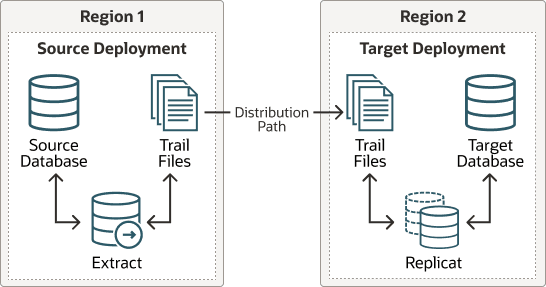
Description of the illustration gghub-trail-distribution-path.png
When using Oracle GoldenGate Distribution paths with the NGINX Reverse Proxy, additional steps must be carried out to ensure the path client and server certificates are configured.
More instructions about creating distribution paths are available in Add a Distribution Path. A step-by-step example is in the following video, âConnect an on-premises Oracle GoldenGate to OCI GoldenGate using NGINX,â to correctly configure the certificates.
Step 4.4.3.1 - Download the Target Serverâs Root Certificate, and then upload it to the source Oracle GoldenGate
Download the target deployment serverâs root certificate and add the CA certificate to the source deployment Service Manager.
- Log in to the Administration Service on the Target GoldenGate.
- Follow Step 2 - Download the target server root certificate? in the video Connect an on-premises Oracle GoldenGate to OCI GoldenGate using NGINX.
Step 4.4.3.2 - Create a user in the Target Deployment for the Source Oracle GoldenGate to use
Create a user in the target deployment for the distribution path to connect to:
- Log in to the Administration Service on the Target GoldenGate.
- Click on Administrator under Administration Service.
- Click the plus (+) sign next to Users.
- Enter the details as follows:
- Username: ggnet
- Role: Operator
- Type: Password
- Click Submit
Step 4.4.3.3 - Create a Credential in the Source Oracle GoldenGate
Create a credential in the source deployment connecting the target deployment with the user created in the previous step. For example, a domain of OP2C and an alias of WSSNET.
- Log in to the Administration Service on the Source Oracle GoldenGate.
- Click in Configuration under Administration Service.
- Click the plus (+)sign next to Credentials on the Database home page.
- Enter the details as follows:
- Credential Domain: OP2C
- Credential Alias: wssnet
- User ID: ggnet
- Click Submit
Step 4.4.3.4 - Create a Distribution Path on the Source Oracle GoldenGate to the Target Deployment
A path is created to send trail files from the Distribution Server to the Receiver Server. You can create a path from the Distribution Service. To add a path for the source deployment:
- Log in to the Distribution Service on the Source Oracle Goldengate.
- Click the plus (+) sign next to Path on the Distribution Service home page. The Add Path page is displayed.
- Enter the details as follows: | Option | Description | | — | — | | Path Name | Select a name for the path. | | Source: Trail Name | Select the Extract name from the drop-down list, which populates the trail name automatically. If it doesnât, enter the trail name you provided while adding the Extract. | | Generated Source URI | Specify localhost for the serverâs name; this allows the distribution path to be started on any of the Oracle RAC nodes. | | Target Authentication Method | Use âUserID Aliasâ | | Target | Set the Target transfer protocol to wss (secure web socket). Set the Target Host to the target hostname/VIP that will be used for connecting to the target system along with the Port Number that NGINX was configured with (default is 443). | | Domain | Set the Domain to the credential domain created above in Step 11.3.3, for example, OP2C. | | Alias | The Alias is set to the credential alias wssnet, also created in Step 11.3.3. | | Auto Restart Options | Set the distribution path to restart when the Distribution Server starts automatically. This is required, so that manual intervention is not required after a RAC node relocation of the Distribution Server. It is recommended to set the number of Retries to 10. Set the Delay, which is the time in minutes to pause between restart attempts, to 1. |
- Click Create Path.
- From the Action Menu, click Start.
Step 4.4.4 - Set up a Heartbeat Table to Monitor Lag Times
Follow Steps to add Heartbeat Table in OCI GoldenGate to implement the best practices for creating a heartbeat process that can be used to determine where and when lag are developing between a source and target system.
This document walks you through the step-by-step process of creating the necessary tables and added table mapping statements needed to keep track of processing times between a source and target database. Once the information is added into the data flow, the information is then stored in a target table that can be analyzed to determine when and where the lag is being introduced between the source and target systems.