Graph Explorer User Interface
The Graph Explorer user interface lets you query property graphs in the database and graphs loaded into the graph server (PGX), and view results as either a graph visualization or a table.
The following shows the user interface for Graph Explorer:
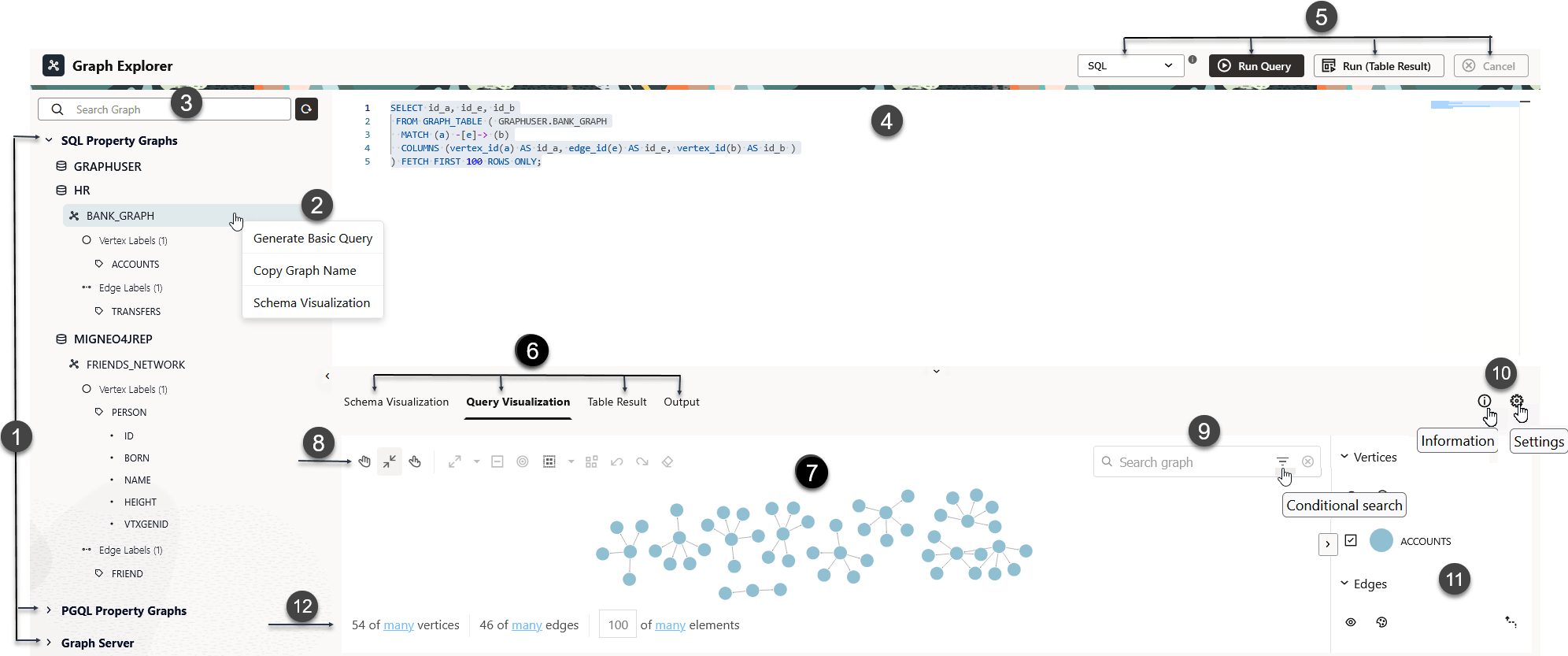
Description of the illustration graph_explorer_ui.png
-
Tree view: Displays all the available property graphs (to which you have access), grouped by type:
-
SQL Property Graphs (supported only on Oracle AI Database 26ai)
-
PGQL Property Graphs
-
Graph Server
Within each type, the graphs are grouped by database schema. Expand a graph to view its labels and expand a label to view its properties.
-
-
Context menu: Right-click on a specific graph to open a context menu with these options:
-
Generate Basic Query: Generates a basic query in the query editor for the selected graph type.
-
Copy Graph Name: Copies the graph name for reuse in queries.
-
Schema Visualization: Opens a visualization of the graph’s underlying schema.
-
-
Search: Use the search box to filter the list of available graphs in the tree view.
-
Query editor: Enter SQL graph queries, SQL statements, or PGQL graph queries.
If you used Generate Basic Query, you can edit the generated query or replace it with your own.
-
Query actions: An action panel at the top of the query editor to:
-
Driver selector: Select the driver for the query you are running.
-
SQL: Select to run SQL graph queries on SQL property graphs or to execute any SQL statements.
-
PGQL: Select to run PGQL queries on PGQL property graphs.
-
Graph Server: Select to run PGQL queries on graphs loaded into the graph server (PGX).
-
-
Run Query: Click to run the latest query in the query editor and visualize the results.
-
Run (Table Result): Click to run the latest query and view the output in tabular format.
-
Cancel: Click to cancel an in-progress visualization query or a table-only query.
-
-
Query result tabs: Displays the output in one of the following tabs:
-
Schema Visualization: Visualization of the underlying database schema for a property graph. See Visualizing the Schema of a SQL Property Graph in Graph Explorer and Visualizing the Schema of a PGQL Property Graph in Graph Explorer for more information.
-
Query Visualization: Graph visualization for:
-
SQL property graphs: See Example: Visualizing a SQL Property Graph Query.
-
PGQL property graphs: See Example: Querying a PGQL Property Graph.
-
Graph Server: See Example: Querying a PGQL Property Graph in the Graph Server (PGX).
-
-
Table Result: Tabular output for SQL statements, SQL graph queries, or PGQL graph queries. See Viewing Query Results in a Table for more information.
-
Output: Text output for statements such as
CREATE PROPERY GRAPH,INSERT,UPDATE,DELETE, orDROP PROPERTY GRAPHstatements. See Querying and Visualizing PGQL Property Graphs for examples.
-
-
Query visualization panel: The main canvas where graph query results are visualized.
-
Graph visualization toolbar: Controls graph visualization modes and the different graph interaction options in the Query Visualization tab. See About the Graph Visualization Toolbar and Visualization Modes for more information.
-
Search: Search within the visualization results; includes support for keyword or conditional search. See Using Search in a Graph Visualization for more information.
-
Additional result controls:
-
Information: Shows the executed query (available in Query Visualization and Table Result tabs).
-
Settings: View and edit graph visualization settings in Query Visualization tab. See Query Visualization Settings for more information.
-
-
Legend panel: Displays legend items for the graph visualization. See About the Graph Visualization Legend Panel for more information.
-
Display size: Controls the display size of the graph. See Managing the Display Size of the Graph for more information.