Sites Page Display and Operations
The Oracle® Intelligent Communications Orchestration Network cloud service Sites page displays a map of your sites and a table listing attributes for each one. You can add new sites and edit existing sites from the page. On the linked Sites Details page, you can perform management actions.
The sites map shows all your sites, but you may need to move the map with your mouse or scroll in or out to see some sites when there are many. A pin represents each site on the map. Hover over the pin to view the name of the site.
The following screen capture shows an example of the Sites page with pins on the map.
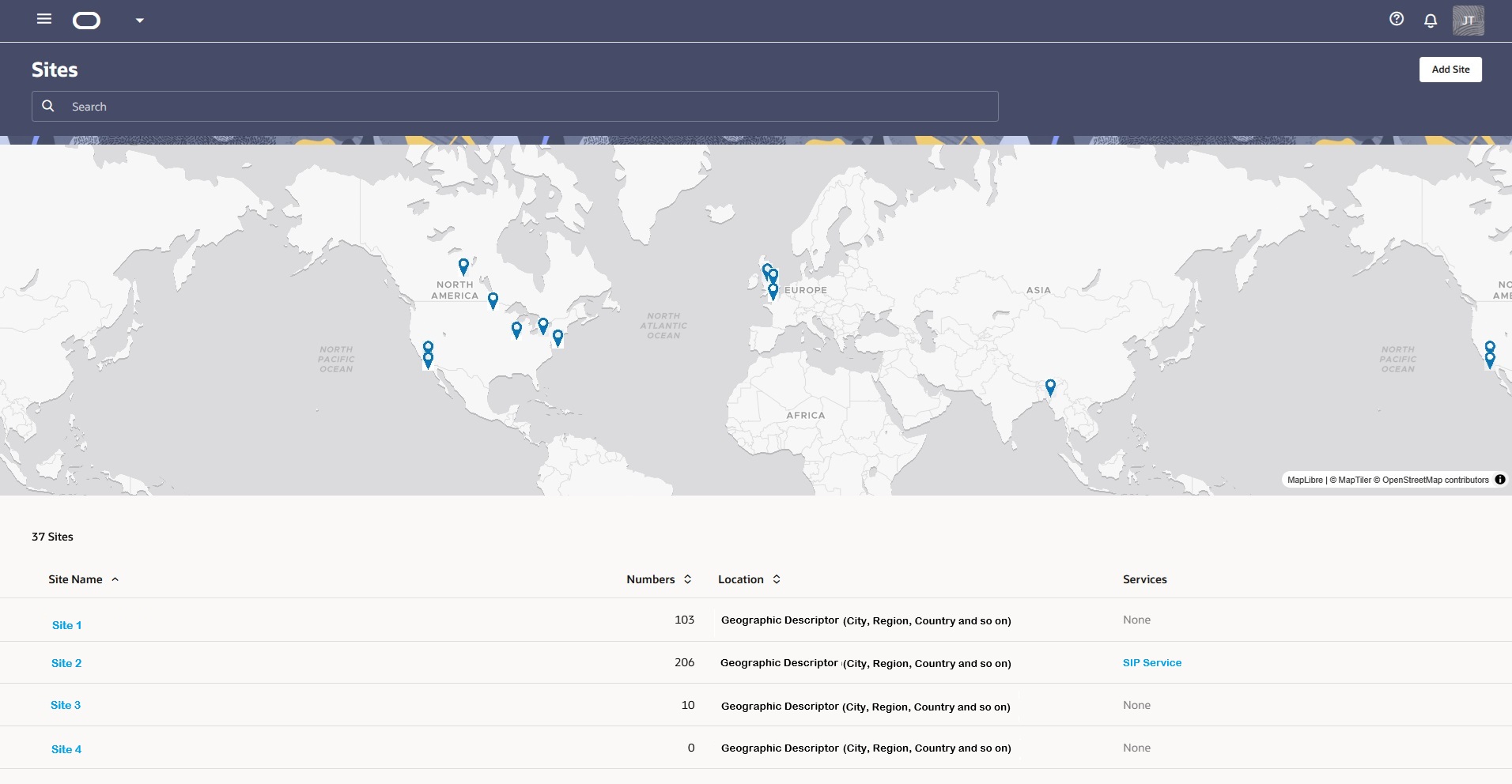
Table Columns
| Column | Description |
|---|---|
| Site Name | The name of the site as a link. Click the link to view the Site Details page. |
| Numbers | The count of numbers assigned to the site. |
| Location | The physical location of the site. |
| Services | The services associated with numbers for the site. |
Below the map, the page lists the sites you created with information about each one. To see the more details about a site or to edit the details, click the Site Name in the table to display the Site Details Page.
Note:
You cannot delete the Inventory site.You can move number blocks to and from the Inventory site. To move an assigned number to the Inventory site, you must first remove it from the Service it is assigned to because numbers in Inventory cannot be assigned to a Service. Note that you do not need to move number blocks that are out-of-service on another site to the Inventory site for storage. Such number blocks can remain assigned to another site while out-of-service.
- Menu Icon—Click to display the navigation menu. Click the X to close the menu.
- Add Site—- Click to display the New Site drawer where you specify a new site name, description, address, and primary contact. You can either find the address in the table or enter it manually. When the address is in the list, Oracle® Intelligent Communications Orchestration Network cloud service completes the individual address fields with the selected address. Either way, all address fields are always displayed.
Site Details Page
Oracle® Intelligent Communications Orchestration Network cloud service displays the Site Details page when you click a Site Name on the Sites page. On the Site Details page you can view site information, edit site attributes, take actions on the numbers assigned to the site, add number blocks, link to Services, and perform actions on number blocks.
The following screen capture shows an example of the Site Details page.
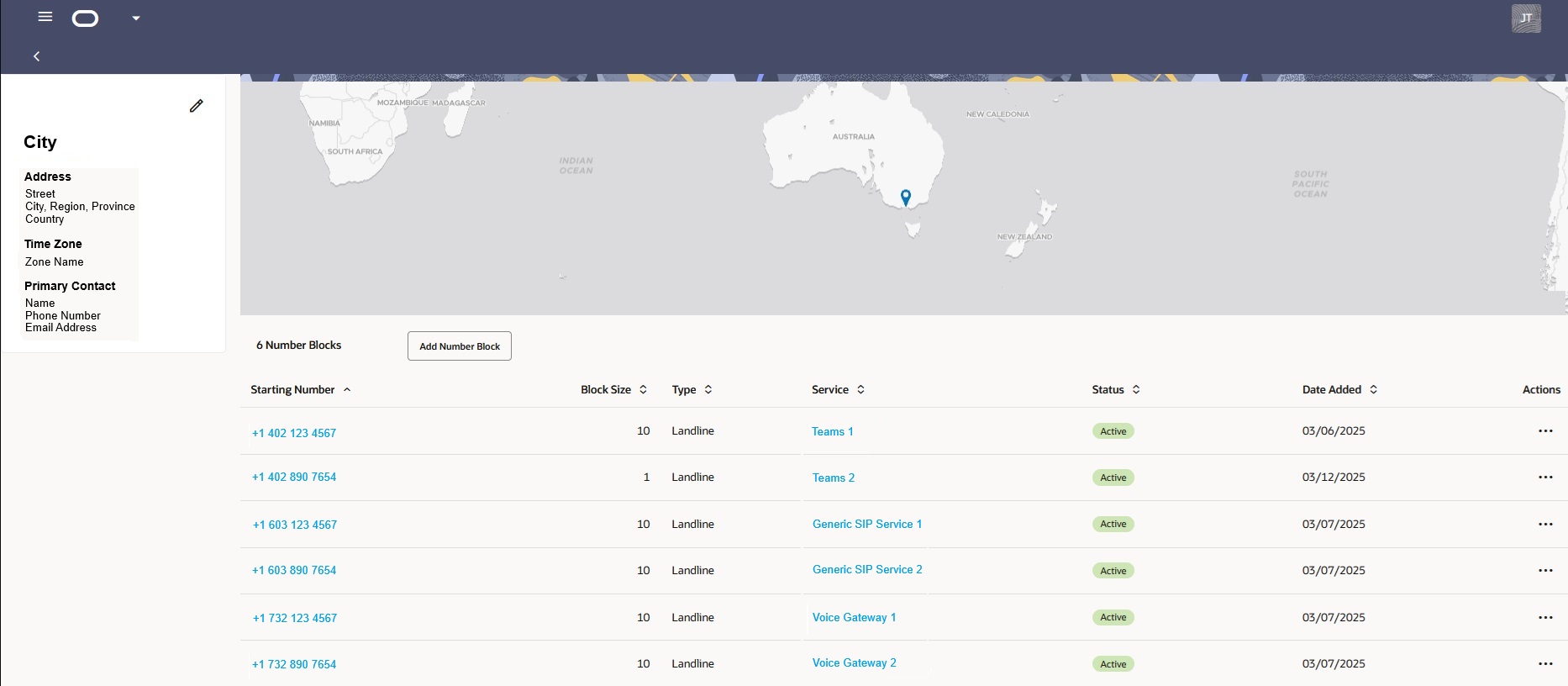
The left pane displays the geographic and contact information, plus the edit icon. Click the edit icon to open the Site Details drawer where you can edit the site attributes.
The right pane displays the Add Number Block button, links to the details of each Starting Number listed on the site, links to each Service listed on the site, and Actions you can perform on each number block.