Getting Started with Web Workspace
The Web Workspace is a real-time application that provides the tool sets and views that are the foundation of the Oracle Utilities Network Management System user environment. The common features and platform provided by the Web Workspace provide a cohesive user experience for Oracle Utilities Network Management System modules. This section provides information on common Web Workspace features, including the following topics:
Understanding the Web Workspace Window
Web Workspace features and functionality are accessed through menus and toolbar buttons. A particular configuration of a user type's environment determines whether a tool is displayed as a window when you first log in to the system.
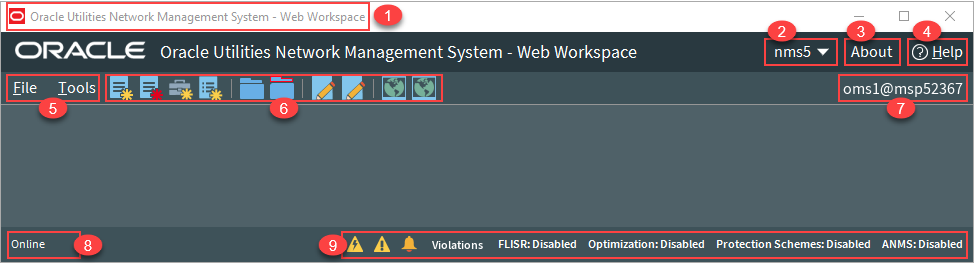
Web Workspace without any tools displayed.
Annotations:
Annotations:
1. Title Bar 2. User Menu 3. About Link 4. Help Link 5. File and Tools Menus | 6. Toolbar 7. Environment Information 8. System Status Indicator 9. Annunciators |
The Web Workspace window contain the following components:
• Title Bars display the name of the tool or dialog box.
• Menus provide access to tools and user actions in the Web Workspace. See
• Annunciators (or indicators) provide visual cues to system state or something that needs your attention.
Understanding the Web Workspace Menus and Toolbar
This section describes the menu and toolbar options. In the tables below, each menu item is listed along with submenu options, if available, and the default toolbar icon, if applicable; menu items without a default toolbar icon are indicated with a double dash(--) in the toolbar icon cell.
Note: Menu and toolbar options vary depending on your user type, your system configuration, and licensed products.
File Menu
Menu Option | Submenu Option | Description | Toolbar Icon |
|---|---|---|---|
New | Switching Sheet... | Opens the New Switching Sheet tool that allows you to create a new switching sheet based on switching event type (for example, planned or emergency). | |
Safety Document... | Opens the New Safety Document tool that allows you to create a new safety document from a set of predefined types. | ||
Event... | Opens the Create Event tool that allows you to create a new outage, new stable outage, non-outage, or restored real outage event. | ||
Damage Assessment... | Opens a new Damage Assessment document window. See Creating Fuzzy Damage Assessments for information. | ||
Open | Switching Sheet... | Allows you to open a switching sheet. | |
Switching Sheet Search... | Allows you to search for a switching sheet. By default, the search field searches against the switching sheet number and description fields. See Open Switching Sheet using Switching Sheet Search. | -- | |
Safety Document... | Allows you to open a safety document. | ||
Safety Document Search... | Allows you to search for a safety document. By default, the search field searches against the safety document number and description fields. See From the Web Workspace Search Safety Document Dialog. | -- |
Tools Menu
Menu Option | Submenu Option | Description | Toolbar Icon |
|---|---|---|---|
Work Agenda 1... | Opens the Work Agenda. See Using the Work Agenda. | ||
Work Agenda 2... | Opens a second Work Agenda. | ||
Viewer 1... | Opens the Viewer. See Using the Viewer. | ||
Viewer 2... | Opens a second Viewer. | ||
Authority... | Opens the Authority tool, which grants control authority to users subscribing to discrete operations zones. See Taking Authority for Control Zones. | -- | |
Crews... | Opens the Crew Actions tool, which shows the crews available in the subscribed control zone. See Using Crew Actions. | -- | |
User Log... | Opens the User Log, which displays a list of all single-user actions within a certain time period. See Using the User Log. | ||
Manage Documents... | Opens the Manage Documents window, which allows you to associate documents to objects. See Associating Documents with Devices. | ||
Topology Validation Viewer... | Opens the Topology Validation Viewer, which displays reports of a number of different common problem areas with a data model, such as de-energized supply points, loops, and faulted areas. See Topology Validation Viewer for more information. | -- | |
Switching Overlaps... | Opens the Global Overlaps tool. See Viewing Global Overlaps. | ||
Miscellaneous Log... | Opens the Miscellaneous Log. See Using the Miscellaneous Log. | ||
Trouble Summary... | Opens the Trouble Summary. See Using the Trouble Summary on page 3-60. | -- | |
Condition Summaries... | Opens the Condition Summaries. Predefined filters include: • All Conditions • FLISR Actions • FLISR Disabled • Notes • Pending Construction • Pending Decommission • Tags See Understanding Condition Summaries for details. | ||
SCADA Summary... | Displays the SCADA Summary. See Using the SCADA Summary for more information. | -- | |
SCADA Trends... | Displays the SCADA Trend Graph tool. See SCADA Measurements Trend Graph on page 11-12 for more information. | ||
SCADA Status... | Displays the SCADA Status window. | -- | |
SCADA Commissioning... | Displays the SCADA Commissioning window. See Using the SCADA Commissioning Tool. | -- | |
Calculation Engine... | Displays the Calculation Engine. Note: The Calculation Engine is an optional feature under the Flex SCADA license. Understanding the Calculation Engine. | -- | |
Alarms Displays | Alarms... | Display all current alarms in the subscribed authority zones. See Understanding the Alarms List | -- |
Abnormal Alarms... | Display a list of off-nominal devices in the subscribed authority zones. See Understanding the Abnormal Devices List. | -- | |
Alarm History | Display the alarm history for the subscribed authority zones See Understanding the Alarm History List. | -- | |
AMI Request List... | Opens the AMI Request List. See Displaying the AMI Requests List on page 3-55. | -- | |
DMS Summary... | Opens the DMS Summary tool to view the status of distribution management system (DMS) functions and devices. See Using the DMS Summary. | ||
Feeder Load Summary... | Opens the Feeder Load Summary, which displays a list of the current feeder loads. See Using the Feeder Load Summary. | -- | |
Suggested Switching Solutions... | Opens the SS Solutions tool. See Using the Suggested Switching Solutions Tool. | ||
Load Shed and Restoration... | Opens the Load Shed and Restoration tool. See Understanding the Load Shed and Restoration Tool. Note: By default, this option is only available for Administration and Trainer user types. | ||
DERMS Dashboard... | Opens the DERMS Dashboard, which provides information related to distributed energy resources (DERs) connected to an electric distribution system. See Chapter 17, DERMS Dashboard, for information. | ||
Conductor Impedance Mismatch Tool... | Opens the Conductor Impedance Mismatch tool, which performs an analysis to locate conductor data anomalies within the Power Flow Data Model and displays the report. See Using the Conductor Impedance Mismatch Tool for information. | ||
FLM Islands Statistics... | Opens the FLM Islands Statistics tool. See Using the FLM Island Statistics Window. Note: By default, this option is only available for Administration and Trainer user types. | ||
Protection Scheme Analysis... | Opens the Protection Scheme Background Check dialog box, which allows you to start a protection scheme background check. See Dynamic Protection Schemes for information. | ||
DMS Settings | FLISR Mode Disabled Manual Automatic | Allows you to set the Fault Location, Isolation, and Service Restoration (FLISR) mode. See Setting the System FLISR Mode. | |
FLA Mode • Disabled • Sustained • Momentary and Sustained | Allows Administrators to set the global FLA mode. • Disabled: FLA is disabled for all feeders. • Sustained: FLA is enabled for sustained faults only. • Momentary and Sustained: FLA is enabled for both momentary and sustained faults. Note: The FLA behavior depends on the FLA configuration for that feeder and the FLA mode. See Global FLA Versus Individual Feeder FLA Configuration for more information. | ||
Optimization Mode • Disabled • Manual • Automatic | Allows you to set the Optimization mode. See Setting the Optimization Mode. | ||
Protection Schemes • Disabled • Manual • Automatic | Allows you to set the Protection Scheme global mode. | ||
FLM Status • Disabled • Enabled | Allows Administrators to set the Feeder Load Management status. See Feeder Load Management Overview. • Disabled: FLM forecasts have been disabled, usually due to a model build. Only real-time information will be displayed. • Enabled: FLM forecasts are currently enabled. | ||
ANMS Status • Disabled • Manual • Automatic | Allows Administrators to set the Active Network Management Schemes (ANMS) global mode. See Understanding ANMS Modes for more information. Note: you must be logged in as an Administration user to see this option. |
Understanding the Web Workspace User Menu
The User Menu provides submenus with options to change the appearance and functionality of user interface elements, transfer control of the session to another user, and log out of the Web Workspace.
Understanding the User Interface Settings Menu
The User Interface Settings submenu allows you to set how Web Workspace windows appear to you.
• Theme Selection Radio Buttons: The theme selection section provides two radio buttons that allow you to choose whether the Web Workspace uses a Dark Theme or a Light Theme.
• Dark Theme may be better for users in low light environments.
• Light Theme may be better for users in brighter environments.
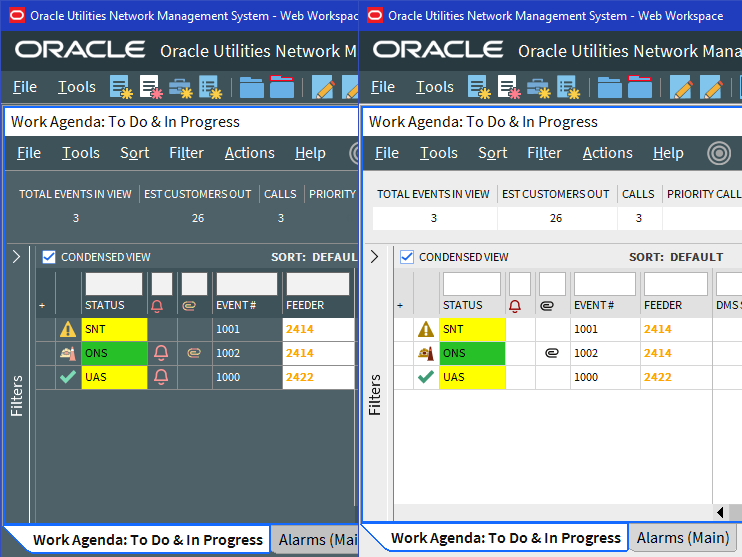
Note: Unlike other user preferences, your Theme selection is saved to your workstation user settings since they are more likely influenced by the light in a location. See Understanding the Manage Preferences Menu for information about saving other preferences to the database.
• Capitalize Field Labels: If selected, field labels will be displayed in All Caps (for example, NAME). If not selected, field labels will be displayed in title case (for example, Name).
• Toggle Accessible Mode: Changes settings to enable use with screen readers. Note: There are prerequisites to enabling accessible mode. Please see Appendix A‑Accessibility Features for information on enabling Accessible mode.
• Show Messages at Mouse Location: Sets the system to display popup confirmation and warning dialog boxes at your mouse pointer position.
Note: This can be very useful when using multi-monitor configurations so you don’t have to search for confirmation messages and dialog boxes across multiple screens.
• Audio Enabled: Allows you to turn Work Agenda audible alerts on or off.
• Alarms Audio Enabled: Allows you to turn NMS Alarms audible alerts on or off.
• Smaller Font: Decreases the font size in text and icons. Repeat to further decrease the font size.
• Bigger Font: Increases the font size in text and icons. Repeat to further increase the font size.
• Reset Font: The application will reset the text and icons to use their default font size.
• Darken Watermarks: Make the watermarks more opaque.
• Lighten Watermarks: Make the watermarks more transparent.
• Show Watermarks: Allows you to toggle watermarks on or off.
Understanding the Change Time Zone Dialog Box
By default, dates and times are displayed in the time zone where the application server is located. The Change Time Zone option allows you to change the time zone for your user, if your application is hosted in a different time zone, or for any other reason. The current time zone is preselected, and is also visible on the About dialog box for confirmation.
Choose a time zone from the list and click OK for this to take effect for all of your applications launched from your Oracle Utilities Network Management System Web Start page. You will need to restart your applications for this to take effect.
Understanding the Table Settings Menu
The Table Settings submenu allows you to configure how tables will appear.
• Alternate Row Coloring: When selected, displays data table rows in alternating colors.
• Capitalize Column Headings: allows you to select whether column labels should be displayed in all capital letters (for example, STATUS) or in title case (for example, Status).
• Table Color Formatting Mode: Determines whether and how tables will display background coloring.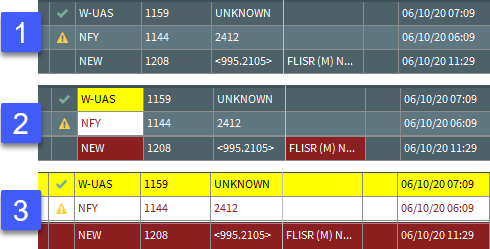
1. None: Tables will not contain color indicators for statuses.
2. Cells: Table cells will contain background colors based on the cell statuses.
3. Row: All cells in a table row will have the background color.
• Table Font Formatting Mode: Determines whether and how tables will display font formatting.
• None: Conditional formatting related to font formatting are never shown
• Cells: Conditional formatting related to font formatting are applied only to the cells they were configured for.
• Row: Conditional formatting related to font formatting are applied across the whole row. Where more than one formatting rule is applied, the highest priority rule is displayed.
Understanding the Manage Preferences Menu
• Manage Workspace Layouts...: Opens the Manage Workspace Layouts dialog box, which allows you to save, rename, update, or delete Workspace Layouts. See Managing Your Workspace Layout for details.
• Save Preferences: Saves your preferences to the database so your settings are available wherever you log in. See Saving Your Preferences for more information.
Note: Theme selection is saved to your user settings on the workstation since they are more likely influenced by the light in a location. See Understanding the User Interface Settings Menu for information.
• Restore Preferences: Opens a dialog box that allows you to select the preferences to restore. See Saving and Restoring Workspace Preferences.
• Manage Site-wide Settings:
• Update Site-wide Default Layout: Users who have Administration permissions (having access to the Configuration Assistant) may log in as a different user type, configure, and save the window layout preferences for all users of the log in type.
• Restore Site-wide Default Layout: Returns the client to the default window positioning, sizing
• Update Site-wide Preferences: Users who have Administration permissions (having access to the Configuration Assistant) may log in as a different user type, configure, and save the default preferences for all users of the log in type.
• Restore Site-wide Preferences: Users who have Administration permissions (having access to the Configuration Assistant) may restore the default preferences for the logged in user type to the original configuration. See Saving and Restoring Workspace Preferences for more information.
• Transfer...: Logs you out of the system without shutting down the client so another user may log in.
• User Logout: Logs you out of the system and shuts down the client.
Help Menu
Menu Option | Description |
|---|---|
Web Workspace Help | Launches the online help system and loads the Web Workspace content. |
Calculate Network Latency... | Runs a network diagnostic utility and returns the results in the Network connectivity results window. |
Email Log Files... | Gathers the environment's log files and attaches them to a new email message using your default email client. The log files can then be sent to your support team or contact for further analysis. |
Set Debug... | Launches the Set Debug dialog box allowing you to set debug on or off within your current environment. This is used for debugging and analysis purposes. See Setting Debug for more information. |
About Web Workspace | Opens a window with environment and software information. |
Understanding Annunciators
Annunciators, located in the bottom right corner of the Web Workspace window, are a combination of symbolic and text-based notifications of system statuses. In the base environment, annunciator alerts are displayed for the statuses listed below.
• Unacknowledged Outage Events (). See Acknowledging Events for details on responding to new events.
• Unacknowledged Non-Outage Events (). See Acknowledging Events for details on responding to new events.
• Unacknowledged System or Crew Emergency Alarms (). See Using the Alarm Displays for information on viewing and acknowledging system alarms.
• Quarantines. The Quarantine alert is displayed when there are quarantined areas. Click the Quarantine annunciator button to display the Quarantine conditions in the Condition Summaries tool. For information on Quarantines, see the following:
• The Viewer's Options menu allows you to set the Quarantine condition on a selected feeder. See Assessment... for information on Viewer interactions.
• The Control Tool's Assessment... option allows you to set the Quarantine work queue from the Assessment... context menu. See Assessment... for information.
• The Condition Summaries Filter menu allows you to show only Quarantine conditions. See Condition Summaries Actions Menu.
• Violations. The Violations alert is displayed when there are devices or feeders in a violation or warning state. Click Violations to open the Feeder Load Summary window in Present Load view. See Using the Feeder Load Summary for information.
• FLISR Mode Status. FLISR mode is displayed when FLISR is set to Manual or Automatic. See DMS Settings and Fault Location, Isolation, and Service Restoration for more details on using FLISR.
Notes:
• Setting FLISR Mode and/or Optimization Mode determines the system-wide behavior, which may override the feeder level configuration, which is set using the Configuration Assistant. The following rules apply.
• If the system or feeder is disabled, then Optimization/FLISR is disabled, next
• If the system or feeder is manual, then Optimization/FLISR is manual, next
• If the system and feeder are automatic, then Optimization/FLISR is automatic
• ANMS Mode Status. Global ANMS mode is displayed. See the DMS Settings menu’s description of ANMS Status for more information and the ANMS chapter’s Global ANMS mode section.
Note: Additional annunciators may be added on a per implementation basis.
Understanding Windows, Frames, and Dock Panes
Some Web Workspace tools display as dock panes within the Web Workspace, and others display as standalone windows. Dock panes may be moved within the Web Workspace, dragged out of the Web Workspace window where they may float or be docked in a window frame (see Creating Window Frames).
Web Workspace tool windows may be moved and sized in many ways. Initially, window positioning is determined by the product or project configuration, but you may move and size windows to support your workflow and preferences. You can save your window configuration for future sessions by using Manage Workspace Layouts (see Managing Your Workspace Layout for information).
Creating Window Frames
A frame is a user-defined container that can be used to organize Web Workspace tools. The frame (and the tools that you place within it) can then be stored as part of a Workspace Layout (see Managing Your Workspace Layout for information).
To create a frame:
1. From the Web Workspace File menu, select New Frame… to open the New Frame dialog box.
2. In the Frame Name field, enter a name for the frame.
3. Add dock pane tools to the frame, as described in Understanding Dock Panes.
4. Create other frames, as required.
Notes:
• Once a frame has been created, its name is displayed at the bottom of the Web Workspace Tools menu. If you close a frame you can redisplay it from this menu.
• Any frames that you have configured are stored when you save your Workspace Layouts (see Managing Your Workspace Layout for information).
Understanding Docked Panes and Standalone Window Tools
Understanding Dock Panes
Dock panes can be arranged within the Web Workspace, added to frames, or allowed to float outside of windows.
Use a dock pane's title bar or right-click menu options to re-arrange it:
• To separate a dock pane from its parent container, click and hold the title bar and drag it out.
• To re-attach it, right-click the title bar and deselect Floating from the options menu.
When the Web Workspace or a frame already contains a dock pane tool, you can arrange other dock pane tools in it:
• To place a dock pane alongside (tile) another dock pane, click and hold the floating panel title bar, then drag it toward the edge, top, or bottom of the docked tool, until an outline appears, then release the mouse button. Repeat as necessary.
• To maximize a tiled dock panel, double-click on its title bar. To restore it, double-click again.
• To minimize a tiled dock panel, right-click on its title bar then select Autohide. Mouse over the minimized tab to reveal the dock panel.
• To arrange dock panels in tabs, click and hold the floating panel title bar, then drag it over the title bar of the docked tool, until an outline appears, then release the mouse button. Repeat as necessary.
Understanding Standalone Windows
Standalone windows differ from dock panels in that they can be minimized and maximized.
You can toggle tools to behave as standalone windows or as dock panels. To turn a dock panel tool into a Standalone Window, from the dock panel tool's File menu, select Toggle Dockable Window. Note that the window has a thicker title bar that allows you to maximize and minimize the window.
To toggle a Standalone Window into a dock panel:
1. From the tool's File menu, select Toggle Dockable Window. Upon doing this, note that the tool now displays as dock panel inside the standalone window.
2. Drag the dock panel title bar to another container. When placed in the new container the standalone window disappears.
Adjusting Window Size
Windows and dock panel can be resized by dragging the corners or edges to the desired width or height.
Switching Between Tools Using the Keyboard
You can switch between open tools by pressing Ctrl+Tab, which will display a list of open applications. The list is ordered so the most recently used tools are at the top. You can cycle through the applications by continuing to hold the Ctrl key and pressing Tab until the tool you wish to switch to is highlighted; the highlighted tool will become active when you release the Ctrl key. You can go backwards in the list by pressing Ctrl+Shift+Tab. You can also hold the Tab key to quickly cycle through the entries in the list, which may be useful when you have many tools open.
Saving and Restoring Workspace Preferences
Web Workspace starts with a standard configuration for font sizes and tool settings, such as column size and order. You can make adjustment to the workspace and then save those changes for future sessions. Window placement and visibility are controlled by Workspace Layouts instead of these preferences.
Preferences are saved for the following features:
General Accessible Mode selection Table Attributes • Column widths • Column ordering • Locked columns • Current sort • Current filter • Default copy action | Viewer Settings • Unload on Focus • Fixed Size • Search Type • Search Case • Search Max Results • Spatial Landbase • Declutter • Predicted Highlight Enable • Conductor State Highlight • Warnings Highlight • Violations Highlight Filters • Size and collapsed state of the Filter side panes • Filter folder collapsed/expanded state • Selected filter |
Note: Ensure that only one switch plan is displayed when you save preferences (the system will not allow preferences to be saved if multiple sheets are open). The preferences for that sheet will be applied to all sheet types to the extent possible.
Saving Your Preferences
When you have your environment set up the way you want (for example, larger font size and table column selection), select Save Preferences from the User menu's Manage Preferences submenu.
Restoring to Default Preferences
To restore to the default environment settings, select Restore Preferences from the User menu's Manage Preferences submenu, which will open a dialog box with a list of user preference categories that may be restored:
• Table Sort Definitions
• Table Layouts
• Font Size
• All Other Preferences
Select the categories that you want to restore and click OK. The restored environment settings will take effect when you next log in.
If you have Administration permissions (having access to the Configuration Assistant), you can use the Restore Site‑wide Preferences option in the Manage Preferences submenu to restore preferences for all users of the user type that you logged in as (for example, Full Operations).
Managing Your Workspace Layout
You can save and reload the layout of NMS tools as a Workspace Layout. Each Workspace Layout stores the size and position of your open windows and frames (see Creating Window Frames for information on Frames).
You can save multiple workspace layouts. This is useful when logging in at desks with different screen configurations. When you log in to Web Workspace, you have the option of choosing a workspace layout to load.
The tools visible on startup, and the tool placement are controlled by this feature (not as part of preferences), to allow different settings for different display configurations.
Understanding the Manage Workspace Layouts Dialog Box
The Manage Workspace Layouts window allows you to create and manage your workspace layouts.
Understanding the Layout Name Pane
The Layout Name pane lists any workspace layouts associated with your user name.
Understanding Button Actions
• Help: Launches online help for the Manage Workspace Layouts topic.
• New: Enables you to create a new workspace layout.
• Rename: Allows you to rename the selected workspace layout.
• Update: Updates (overwrites) the selected workspace layout with the current window and frame layout.
• Delete: Deletes the selected workspace layout.
Working with Workspace Layouts
The following procedures describe how to manage workspace layouts.
Adding a New Workspace Layout
1. Arrange your windows and frames as desired.
2. From the Web Workspace User menu, select Manage Preferences, then Manage Workspace Layouts. The Manage Workspace Layouts window is displayed.
3. Click New to open the New Workspace dialog box. Enter a name in the Workspace Name field and then click OK.
Note: Click Cancel to close the dialog box without creating a new layout.
4. Click Close to close the Manage Workspace Layouts window.
Loading a Workspace Layout
1. Begin a new Web Workspace session. At the Login screen, after validating your User ID and Password and then selecting your User Type, if applicable, select the Workspace Layout that best suits your monitors and work flow.
2. Click the Login button. The windows and frames (if applicable) are then displayed in the same configuration as when you saved the workspace layout.
Renaming a Workspace Layout
1. From the Web Workspace User menu, select Manage Preferences, and then select Manage Workspace Layouts.
2. In the Manage Workspace Layouts' Layout Name pane, select the workspace that you want to rename.
3. Click Rename and then enter the new name in the Workspace Name field.
4. Click OK. The Layout Name pane will update with the renamed layout
Updating a Workspace Layout
You have the ability to modify a layout by changing your working environment and then updating the previously created layout with the new configuration.
1. Arrange your windows and frames as desired.
2. From the Web Workspace User menu, select Manage Preferences, and then select Manage Workspace Layouts. The Manage Workspace Layouts window is displayed.
3. In the Layout Name pane, select the workspace that you want to update.
4. Click Update. The new layout is saved as the selected Workspace Layout name.
5. The Workspace Layout Saved dialog box will notify you that the workspace layout has been saved. Click OK to dismiss the dialog box.
Deleting a Workspace Layout
1. From the Web Workspace User menu, select Manage Preferences, and then select Manage Workspace Layouts.
2. In the Layout Name pane, select the workspace that you want to delete.
3. Click Delete. The Delete Workspace dialog box will open for you to confirm that you want to delete the workspace layout.
4. Click OK to delete the workspace layout; if you do not want to delete the workspace layout, click Cancel.
Understanding Conditional Formatting
Conditional formatting can be applied to every data grid in NMS, making it a powerful way of configuring the system to draw your attention to important changes of state in the system.
Note: Conditional formatting can be applied to tables by suitably authorized users.
Global and Personal Conditional Formatting
NMS supports Global and Personal Conditional Formatting.
• Global conditional formatting is applied to all users of the system. Users see the formatting the next time they log in. Global conditional formatting rules are usually applied by Administrators.
• Personal conditional formatting takes precedence over any global formatting. Only user types with the appropriate roles can apply personal conditional formatting.
The order of global and personal formatting rules are applied is defined in Conditional Formatting Precedence Rules.
Applying Conditional Formatting to a Table
To apply conditional formatting to a table, right-click any column heading, and then select either Edit Global Conditional Formatting or Edit Personal Conditional Formatting.
Adding a conditional formatting rule requires you to add a rule and then configure the formatting for the rule. These tasks are accomplished using the Conditional Formatting Dialog and the Edit Rule Dialog.
Conditional Formatting Dialog Box
The Conditional Formatting dialog box allows you to add and manage the conditional formatting rules associated with a table:
The fields and buttons are described below:
• List of Rules: Displays a list of the formatting rules applied to the table. Each rule displays:
• Rule Name: The name of the rule.
• Row: A check‑box that indicates if the rule is configured to format the row (selected) or just the cell (deselected).
• Conditions: The conditions that must be met if the formatting is to be applied. Defining the conditions is equivalent to creating a filter; see Creating and Editing Filters Using the Edit Filter Dialog Box for more information.
• Column: The name of the column(s) to highlight with the formatting.
• Format: The formatting associated with the rule
Note that the position of the rule in the list determines its precedence. See Understanding Conditional Formatting Precedence Rules for details.
• Actions that can be performed on each rule:
• Move Up: Moves the selected rule up the list.
• Move Down: Moves the selected rule down the list.
• Edit: Displays the Edit Rule Dialog, which allows you to specify the formatting rule. (You can also double‑click the rule to open it for editing.)
• Remove: Removes the selected rule.
• Duplicate: Creates a copy of the rule and allows you to edit it.
• Insert: Inserts a new rule above the selected rule and allows you to edit it.
• Add: appends a new rule to the bottom of the list and allows you to edit it.
• Actions that can be applied to the dialog:
• Help…: Displays Help for the Conditional Formatting dialog
• OK: Applies any changes and closes the dialog.
• Apply: Applies any changes but leaves the dialog open.
• Cancel: Closes the dialog without applying any changes.
Understanding the Edit Rule Dialog Box
The Edit Rule dialog box allows you to configure a conditional formatting rule. Configuring a conditional formatting rule is a 3-step process:
1. Enter a name in the Name field.
2. On the Conditions tab, define the conditions (filters).
3. On the Formatting tab, specify the formatting to apply when the condition(s) are met.
Each of the fields and buttons in the Edit Rule Dialog is described below:
Using the Conditions Tab
The Conditions tab allows you to define the filter criteria to be met for the formatting rule to be applied. See Creating and Editing Filters Using the Edit Filter Dialog Box for more information on filters.
Using the Formatting Tab
The Formatting tab allows you to specify the type of formatting to be displayed if the conditions are met.
Fields and Buttons
• Format Full Row: Specifies whether this rule will apply to the whole row of the table when font or color conditional formatting modes are set to Row.
• Format Columns: Allows you to select the column(s) to apply the formatting to.
Note: If no columns are chosen, then the formatting will apply to the first column of the table when the conditional formatting modes are set to Cells.
• Check‑Boxes: The check‑boxes to the left of the following fields control whether a particular field is enabled for the rule. These are automatically enabled when a field is set, but can also be enabled manually. For example, if you wanted a rule to override an earlier rule you could revert the colors or font settings to defaults by checking the box, but leaving the field at its default setting.
• Color: Allows you to select the Foreground (font) and Background (cell/row) colors.
• Cells Mode (Color): is enabled when Format Full Row check‑box is selected. Allows you to specify which columns the formatting rule will be applied to when the User has set Table Color Formatting mode to Cells:
• Disabled in cells mode: formatting will not be seen by Users who have Table Color Formatting Mode set to Cells or None.
• Apply to format columns only: Formatting will be applied to all columns you specified in the Format Columns field. Users will see this formatting when they have Table Color Formatting Mode set to "Cells" or "Row".
• Apply to Locked columns only: formatting will be applied to all locked columns.
• Apply to full row always: Formatting will be applied across the whole row, even if the User has Table Color Formatting mode set to Cells.
• Font: Allows you to select the font.
• Cells Mode (Font): Enabled when Format Full Row check‑box is selected. Allows you to specify which columns the formatting rule will be applied to when Table Font Formatting mode is set to Cells:
• Disabled in cells mode: Formatting will not be seen by users who have Table Font Formatting Mode set to Cells or None.
• Apply to format columns only: Formatting will be applied to all columns you specified in the Format Columns field. Users will see this formatting when they have Table Font Formatting Mode set to Cells or None.
• Apply to locked columns only: Formatting will be applied to all locked columns.
• Apply to full row always: Formatting will be applied across the whole row, even if the Table Font Formatting mode has been set to Cells.
• Bold: Enables to apply bold font formatting.
• Italic: Enables you to apply italic font formatting.
• Underline: Enables you to apply underline font formatting.
• Strikethrough: Enables you to apply strikethrough font formatting.
• Cell Tooltip: Enables you to enter a descriptive tooltip for the rule. The tooltip is displayed when a user holds the mouse pointer over any cells highlighted with the formatting.
• Preview: The Preview pane shows what the formatting rule will look like for users under different formatting modes: None, Cells, or Row. Conditional formatting modes are set by each user from the Web Workspace User menu's Table Settings sub-menu. The preview table shows two example locked columns and two example not locked columns.
Understanding Conditional Formatting Precedence Rules
The order that formatting rules are displayed in the List of Rules determines which formatting takes precedence.
If only global conditional formatting is used on your system, then cell formatting takes precedence over row formatting:
Cell Formatting | Global cell based formatting rules. |
Row Formatting | Global row based formatting rules. |
If both Global and Personal conditional formatting are used on your system, then the order of precedence is organized like this:
Cell Formatting | Personal cell based formatting rules. Note: The ability to place personal rules before global rules is role based. |
Global cell based formatting rules. | |
Personal cell based formatting rules. | |
Row Formatting | Personal row based formatting rules. Note: The ability to place personal rules before global rules is role based. |
Global row based formatting rules. | |
Personal row based formatting rules. |
Quick Start for Effective Conditional Formatting
There is a lot of flexibility in how you apply conditional formatting. The following topics provide a selection of common conditional formatting tasks. It is not an exhaustive list, but designed to get you started with conditional formatting.
Conditional Formatting Best Practice
• Use conditional formatting sparingly.
• Try to avoid background coloring of entire rows. Instead use cell-based formatting where possible and encourage Users to set their Table Settings to Cells mode.
• Where the whole row does needs to be formatted, try changing the font color or other font attributes.
Quickly Apply a Formatting Rule
This procedure summarizes the process of adding a global formatting rule to a table.
1. Right-click on the table column heading, then select Edit Global Conditional Formatting. The Conditional Formatting dialog box is displayed.
2. Click Add. The Edit Rule dialog box is displayed.
3. Add the condition(s) to be met for the formatting rule to be applied.
a. Select the Column, Operator, and Value(s), then click Add to List.
b. Repeat this step if the formatting rule requires more than one condition to be met.
4. Click the Formatting tab.
5. Specify the formatting to be applied to the rule. See Understanding the Edit Rule Dialog Box for a description the fields in this dialog box.
6. Click OK. The dialog box closes and the rule is added to the List of Rules.
7. Click OK to close the Conditional Formatting dialog box.
Apply a Formatting Rule to More than One Cell
It is possible to apply a formatting rule to more than one cell. To do this:
1. In the Conditional Formatting dialog box, double-click a rule to open the Edit Rule dialog box.
2. In the Formatting tab, click on the Format Columns field, and select any additional columns you want to apply the formatting rule to.
3. On applying the change, the additional columns are also highlighted.
Apply a Formatting Rule Based on Multiple Matching Conditions
You can apply formatting to a cell or row where multiple conditions need to be matched. For example, you can highlight outage events in a New state where the number of customers off supply is more than 50 customers.
To do this, you need to create a rule, then in the Edit Rule dialog box, simply add two conditions:
• Status is in NEW
• #Out >=50
Add Personal Conditional Formatting
Applying Personal conditional formatting allows users, such as Administrators, to overlay conditional formatting on top of the globally applied formatting. This might be done to check how a new formatting rule looks before applying it as a Global formatting rule or by an individual to highlight things important to their role or current activities.
To create a personal conditional formatting rule:
1. Right-click on a column heading, the choose Edit Personal Conditional Formatting.
2. On displaying the Conditional Formatting dialog box, note that any globally applied formatting rules are displayed, but they are not editable.
3. Add your personal formatting rule.
4. After adding it, note that you can move it up or down in the list, within the constraints of the Conditional Formatting Precedence Rules, using the Move Up and Move Down buttons.
Note: The ability to place personal conditional formatting before global conditional formatting is role based.
5. After applying your changes and closing the dialog box, the table displays the personal and global formatting, but only you can see the personal formatting.
Promoting Personal Conditional Formatting to Global Formatting
If you have applied some personal conditional formatting to a table to test what it looks like, and you permissions to do so, you can promote the personal formatting to be a global rule.
To do this:
1. Right-click the table heading and choose Edit Global Conditional Formatting.
2. At the dialog prompt, click Yes to assimilate the personal formatting into the global formatting. The personal formatting rule is now promoted to a global formatting rule.