1 Feature Summary
Column Definitions
| SMALL SCALE: These UI or process-based features are typically comprised of minor field, validation, or program changes. Therefore, the potential impact to users is minimal. |
| LARGER SCALE: These UI or process-based features have more complex designs. Therefore, the potential impact to users is higher. |
| CUSTOMER ACTION REQUIRED: You must take action before these features can be used. These features are delivered disabled, and you choose if and when to enable them. |
Features that are specific to:
Oracle Hospitality OPERA Cloud Service, Sales and Event Management
Premium Edition are marked with the Premium badge. 
Oracle Hospitality OPERA Cloud Service, Casino and Gaming Management
Add-on are marked with the Gaming badge. 
Oracle Hospitality OPERA Cloud Service, Loyalty are marked with
the Loyalty badge. 
Oracle Hospitality OPERA Cloud Central Management Services are marked with the Central
badge.
Oracle Hospitality OPERA Distribution Channel Cloud Services subscription
are marked with the Distribution badge. 
BLOCK MANAGEMENT
Block Cancellation Summary Report Updated
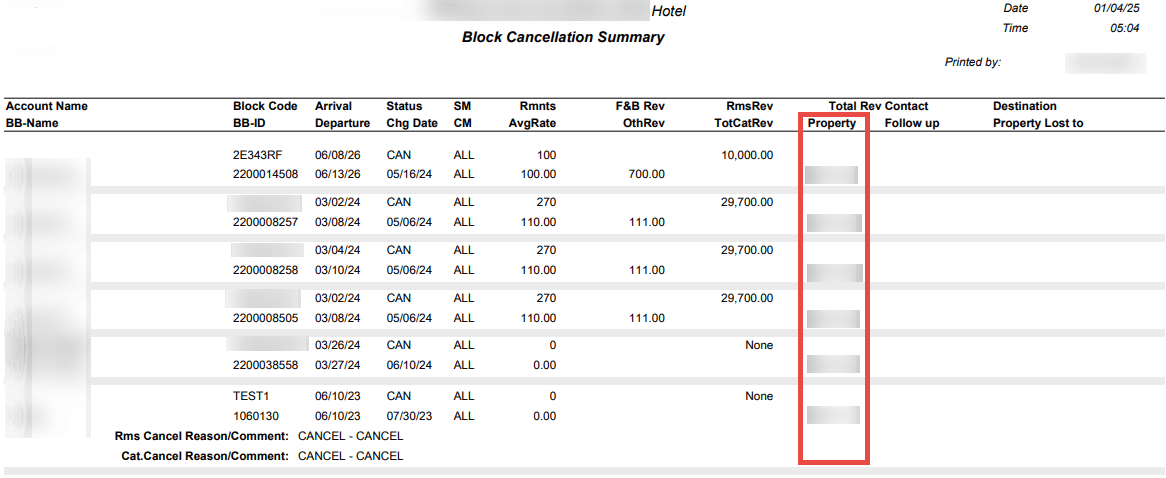
A Property column is added to the Block Cancellation Summary (rep_cancel_summary) report. The Sort By report parameter is updated to include Property as an option. See Block Cancellation Summary Report.
OPERATIONAL BENEFITS
When generating this report for multiple properties users can quickly identify the property to which each block belongs.
Parent topic: BLOCK MANAGEMENT
Deep Link to Blocks Added
A Deep Link is added to launch and display the Block Presentation screen by passing the Block ID with the Property Code in the OPERA Cloud URL:
https://{Hostname}}/bookmarks/block?blockId=<Param value>&resort=<Hotel id>
- blockId (required) = Block Id
- resort (required) = Property Code or Hotel Id
See Using Deep Links to Presentations Pages.
OPERATIONAL BENEFITS
You can bookmark or save links to important blocks for repeated quick access, leading to a more efficient and personalized workflow.
Parent topic: BLOCK MANAGEMENT
CASHIERING AND FINANCIALS
- Accounts Receivables - Delete Same Day Transaction Task Added
- Apply Hurdle for Yieldable Advance Dynamic Rate with Apply BAR Added
- Auto Check Out Fiscal Folios Added
- Automatic Payment Status Check Interval Time Added for Pay By Link
- Automatic Pseudo Room Creation and Repost the Original Postings for Full Credit Bill OPERA Control Added
- Custom Charges Updated
- Download Archive Added for Folios and End Of Day Reports
- Effective Date Added to Generates
- Final Reports and Finalize End of Day Added to Automatic End of Day
- Folio History Updated for Batch Folio Printing
- Folio Merge Codes Updated for Reference Currency EUR
- Internal OPI Token Service OPERA Control Added for Non-tokenized Properties
- Quick Check Out Updated to Support Fiscal Workflow for Zero Balance Departures
- Reservation Wallet Added for Credit Card Token Storage
- Scheduled End of Day Updated
- Transaction Diversion Rules Report Added to R+A
- Update Folio Number Prefix Added
Parent topic: Feature Summary
Accounts Receivables - Delete Same Day Transaction Task Added
A Delete Same Day Transactiontask is added to the Financial > Manage Account Receivables > Invoices for Chain and Property Roles, enabling you to delete same-day transactions by providing a deletion reason. You cannot delete finalized transactions.
STEPS TO ENABLE
- From the Side menu select Role Manager, select either Manage Chain Roles or Manage Property Roles according to your needs.
- Enter search criteria and click Search.
- Select the role to update, click the vertical ellipsis Actions menu, and select Edit.
- Select the Financials group and grant the task Delete Same Day Transaction from Manage Account Receivables Parent task.
- Click Save.
Parent topic: CASHIERING AND FINANCIALS
Apply Hurdle for Yieldable Advance Dynamic Rate with Apply BAR Added
For properties with the Advanced Dynamic Base Rates OPERA Control active, when Best Available Rate Type is set to Best BAR by Day and the BAR Details Display Option is enabled, your yieldable Advanced Dynamic Rates that use Apply BAR calculate correctly against the best BAR, and when Compare with rate details is not selected, are not displayed in Rate Availability, Look To Book, or booking flows whenever a hurdle applies.
OPERATIONAL BENEFITS
Ensure that the Rate Code configuration you're reviewing and the pricing logic aligns with your Hurdle configuration.
Parent topic: CASHIERING AND FINANCIALS
Auto Check Out Fiscal Folios Added
1. The Fiscal Folio Printing OPERA Control and Auto Check Out OPERA Control are updated so that you can configure both to be active simultaneously.
2. The Auto Check Out Fiscal Folios OPERA Control (see OPERA Controls - Front Desk) is added as a child parameter of the Auto Check Out OPERA Control so that you can activate it to perform Auto Check Out from the Quick Check Out screen when the Fiscal Folio Printing OPERA Control is active.
3. When the Auto Check Out Fiscal Folios OPERA Control is active, and you select Auto Check Out from the Quick Check Out screen (see Using Quick Check Out), the fiscal workflow is engaged without any user interaction required.
OPERATIONAL BENEFITS
Properties with Fiscal Folio Printing functionality active are now able to use Auto Check Out functionality.
IMPACT OR OTHER CONSIDERATIONS
Note: The Auto Check Out Fiscal Folios OPERA Control cannot be activated when the Information Collection OPERA Control is active, and the Information Collection OPERA Control cannot be activated when the Auto Check Out Fiscal Folios OPERA Control is active.
Note:
The Auto Check Out Fiscal Folios OPERA Control is hidden for Latin American properties, because it is incompatible with the USE_FISCAL_QUEUES internal parameter that is on by default for Latin American properties.Note:
Properties with Country Mode IT (Italy) or RO (Romania) should not activate Auto Check Out Fiscal Folios OPERA Control due to the required user interaction to choose a Folio Type prior to folio settlement in those countries.
Refer to Italy - Oracle Hospitality OPERA Cloud Fiscal Reference Guide.
Refer to Romania - Oracle Hospitality OPERA Cloud Fiscal Reference Guide.
Parent topic: CASHIERING AND FINANCIALS
Automatic Payment Status Check Interval Time Added for Pay By Link
An Automatic Payment Status Check Interval Time OPERA Control setting is added for the Pay By Link OPERA Control, allowing configuration of the payment status check interval with a minimum value of 60 minutes. When enabled, this setting ensures that the automatic process regularly checks the payment status for all outstanding Pay By Link (PBL) requests and updates the payment status for each reservation according to the configured interval time. If it's left blank, it defaults to 24 hours (1440 minutes), and the automatic payment check will process during End of Day.
OPERATIONAL BENEFITS
- Eliminates manual payment status checks, saving time and reducing the risk of errors.
- Automatic batch processes ensure up-to-date payment status across all reservations, improving visibility for staff and management.
- The interval time setting allows organizations to tailor the process according to operational requirements and business volumes.
STEPS TO ENABLE
- From the side menu, select Administration, select Enterprise, and then select OPERA Controls.
- Select or confirm the Property.
- Select the Credit card group.
- Locate the Pay By Link OPERA Control and set a value for the Automatic Payment Status Check Interval Time setting.
Parent topic: CASHIERING AND FINANCIALS
Automatic Pseudo Room Creation and Repost the Original Postings for Full Credit Bill OPERA Control Added
Note:
This functionality is not available for properties in Portugal or Greece.For properties with Credit Bill OPERA Control active:
An Automatic Pseudo Room creation and repost the original postings for Full Credit Bill OPERA Control OPERA Control is added to theCashiering group along with Automatic Pseudo Room creation and repost the original postings for Full Credit Bill task in the Financial group. If the task is not assigned, the functionality is not displayed to the user when a Full Credit Bill (All Transactions) is successfully generated.
When the Automatic Pseudo Room creation and repost the original postings for Full Credit Bill OPERA Control is active, the following OPERA Controls are displayed:
- Default Rate Code for Automatic Pseudo Room creation OPERA Control. The Default Rate Code used for the Pseudo Room generated during the Automatic Pseudo Room creation and repost the original postings for Full Credit Bill process must be defined. The Rate Code must contain a Market Code, Source Code, and a valid zero amount Pricing Schedule for all Pseudo room types. Only one rate code can be selected. If no default Rate Code is defined the Automatic Pseudo Room cannot be created and an error is displayed to the user.
- Display Original Posting Information for Automatic Pseudo Room postings OPERA Control. Define whether to include the original posting information for the automatically reposted item in the Reference field, Supplement field, or no reference to the original posting for the Automatic Pseudo Room posting. Values available are NONE, REFERENCE, or SUPPLEMENT. Only one value can be selected. If no value is selected, the same functionality as value NONE is displayed
FUNCTIONALITY
When Automatic Pseudo Room creation and repost the original postings for Full Credit Bill OPERA Control is active and a credit bill is generated for All Transactions, you can automatically create and check in a Pseudo Room with same payee profile and all charges reposted the same as the original folio where All Transactions were credited. The ability to include the original posting information for the automatically reposted item in the Reference field, Supplement field, or no reference to the original posting is available by selecting the required value in the Display Original Posting Information for Automatic Pseudo Room posting OPERA Control.
OPERATIONAL BENEFITS
The functionality allows incorrect folios to be credited and a new folio with the original postings to be created and the reservation checked in. You can then update the folio to correct mistakes made on the original folio.
STEPS TO ENABLE
From the side menu, select Administration, select Enterprise, and then select OPERA Controls.
- Select or confirm the Property.
- Select the Cashiering group.
- Locate the Credit Bill OPERA Control.
- Activate the Automatic Pseudo Room creation and repost the original postings for Full Credit Billparameter.
- Enter the required value for Default Rate Code for Automatic Pseudo Room creation parameter.
- Enter the required value for Display Original Posting Information for Automatic Pseudo Room postingsparameter.
- From the side menu, select Role Manager, select either Manage Chain Roles or Manage Property Roles according to your needs.
- Enter search criteria and click Search.
- Select the required role to update, click the vertical ellipsis Actions menu, and select Edit.
- Select the Financials group and grant the task: Automatic Pseudo Room creation and repost the original postings for Full Credit Bill.
- Click Save.
Parent topic: CASHIERING AND FINANCIALS
Custom Charges Updated
For properties with the Custom Charges OPERA Control active, the following update is available generically, but should be reviewed by properties in Italy.
Custom Charges functionality is updated to prevent the removal of the main guest profile from the reservation (see Managing Reservation Linked Profiles) and the removal of an Accompanying Profile from the reservation (See Managing Accompanying Guests) when a Custom Charge Exemption is associated with the profile. In that case, the message "The profile cannot be removed from the reservation while a Custom Charge Exemption is attached." appears. After removing the Custom Charge Exemption from the profile, you will be able to remove the profile from the reservation.
OPERATIONAL BENEFITS
Properties are informed that an attached Custom Charge Exemption must be removed before the profile can be removed from the reservation.
Note:
Prior to this change, you could remove the profile from a reservation when it had a Custom Charge Exemption attached, but afterward you could not access the Custom Charge Exemption screen for that reservation due to an error.
Parent topic: CASHIERING AND FINANCIALS
Download Archive Added for Folios and End Of Day Reports
PREREQUISITE: Oracle Hospitality OPERA Cloud Archive Solution (OCAS). See IMPACT OR OTHER CONSIDERATIONS below for more information.
Download Archive for Folios Added
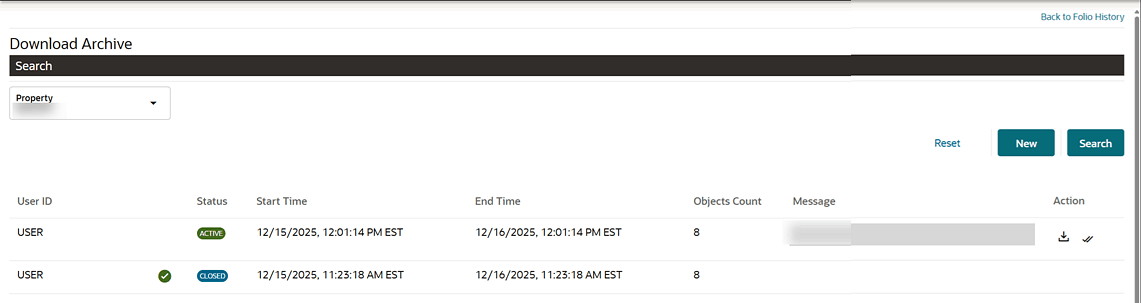
1. The link for Download Archive is added to the I Want To menu on the Folio History screen (see Managing Historical Folios), so that you can access the Download Archive screen to download archived folios.
Path: From Financials select Cashiering, then Folio History, then I Want To..., and then select Download Archive.
2. In the Download Archive screen, select the Property, and then you can create a new task or search for an existing task, and download the Archive Downloader Utility.
Use the Archive Downloader Utility to download the Folios from the archive location.
Note:
When you select the Down Arrow icon to download the Archive Downloader Utility, the utility downloads as a zipped folder with the property in the filename: ArchiveDownloaderUtility_RESORT_FOLIOS.zip. Extract the zipped files where you'll find a Quick Start Guide with instructions to download folios from Windows, Linux, or macOS operating systems.
Download Archive for End of Day Reports Added
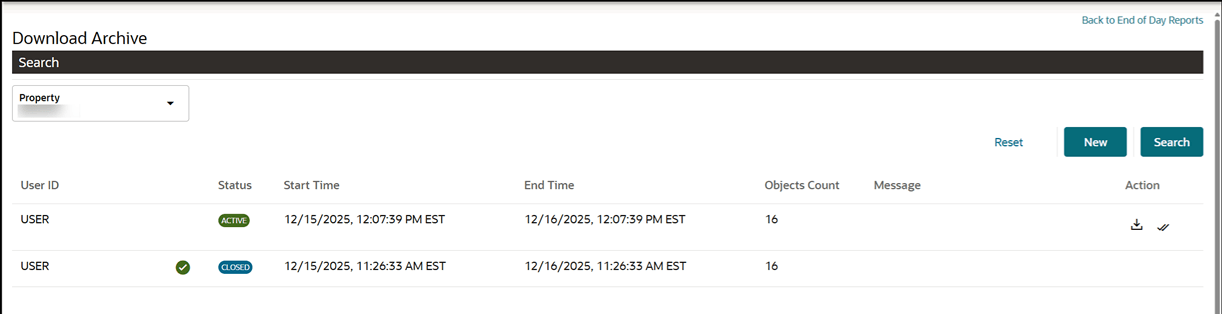
1. The link for Download Archive is added to the I Want To... menu on the End of Day Reports screen (see Managing End of Day Reports) so that you can access the Download Archive screen to download archived End of Day reports.
From the Financials menu, select End Of Day, then End of Day Reports, then I Want To..., and then select Download Archive.
2. In the Download Archive screen, select the Property to create a new task or search for an existing task, and download the Archive Downloader Utility.
Use the Archive Downloader Utility to download the End of Day Reports from the archive location.
Path: From Financials select End Of Day, then End of Day Reports, then I Want To..., select the field list of values (LOV) for Property, select a Property, then Search, then New.
Changes Log Updated
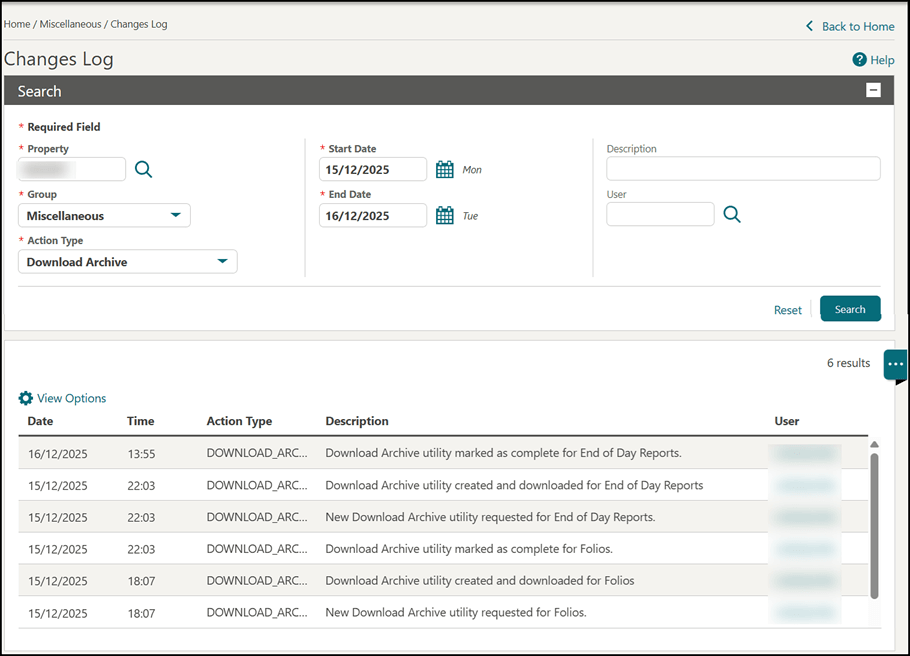
1. The Download Archive Action Type is available under the Miscellaneous Group in the Changes Log screen (see View Changes Log Details), so that the actions of downloading the Download Archive Utility are recorded.
Path: From Miscellaneous select Changes Log, select the field list of values (LOV) for Group, select Miscellaneous,select the field list of values (LOV) for Action Type, select Download Archive, select Search.
Folios
- New Download Archive utility requested for Folios.
- Download Archive utility created and downloaded for Folios.
- Download Archive utility marked as complete for Folios.
End of Day Reports
- New Download Archive utility requested for End of Day Reports.
- Download Archive utility created and downloaded for End of Day Reports.
- Download Archive utility marked as complete for End of Day Reports.
OPERATIONAL BENEFITS
You can generate Folios and End of Day Reports for specific properties through OPERA 5 Property Management System and then move them to OPERA Cloud. As part of the routine, the ability exists to select a date range against which the Folios or Reports will be created as PDF files and stored in readiness to upload to the Cloud Storage area so they can be easily accessed through the OPERA Cloud User Interface (shown above). If properties have the Permanent Folio Storage OPERA Control active, or are already storing End of Day reports, the archiving tool will also “lift and shift” these existing PDF files to the Cloud Storage.
IMPACT OR OTHER CONSIDERATIONS
Oracle Hospitality OPERA Cloud Archive Solution (OCAS) is for OPERA 5 Hosted and On-Premise customers who are transitioning to OPERA Cloud. The archiving tool requires the OPERA 5 environment to be online and available, and the customer must be a former or current subscriber to an Oracle Hospitality Cloud service (either OPERA 5 Hosted or OPERA Cloud).
Parent topic: CASHIERING AND FINANCIALS
Effective Date Added to Generates
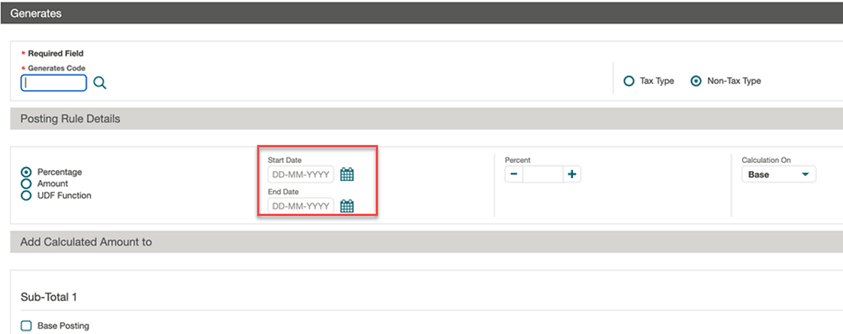
Start Date and End Date fields are added to Generates configuration for Non Tax Type rules, to support entry of an effective date period when the generate rule applies for charges posted. See About Transaction Generates.
OPERATIONAL BENEFITS
You can configure tax generate changes for effective dates in the future when the Tax Type OPERA Control is inactive.
Parent topic: CASHIERING AND FINANCIALS
Final Reports and Finalize End of Day Added to Automatic End of Day
For properties with the Automatic End of Day OPERA Control active, the Automatic End of Day process includes the Final Reports and Finalize End of Day steps as part of its automatic execution. See About End of Day.
OPERATIONAL BENEFITS
Automates routine End Of Day tasks, reducing the time spent on manual interventions and freeing up staff for other activities.
Parent topic: CASHIERING AND FINANCIALS
Folio History Updated for Batch Folio Printing
Folio History search is updated with a date range, limited to a 30-day range. The search result paginates, and multiple folios can be selected to print in a batch process. See Managing Historical Folios.
OPERATIONAL BENEFITS
This enhancement streamlines folio management by enabling faster and more targeted searches, reducing the time staff spends locating and processing records. Paginated results and batch printing further improve efficiency, allowing teams to handle larger volumes of folios with greater accuracy and minimal effort.
Parent topic: CASHIERING AND FINANCIALS
Folio Merge Codes Updated for Reference Currency EUR
For properties with the Ability to Quote Rates in Foreign Currencies OPERA Control active, the merge codes for Reference Currency EUR are updated to display the expected value in EUR on the folio.
To ensure the correct values are displayed on the folio, ensure Exchange Rates are set up for all types (Cash, Check, Settlement, Posting, and so on.).
Values for Reference Currency EUR are displayed according to the Reference Currency Calculation OPERA Control value of ACTUAL or CURRENT.
The following folio merge codes display the expected values for Reference Currency EUR:
- POSTED_AMOUNT_CHAR
- DETAIL_CURRENCY_DEBIT
- DETAIL_CURRENCY_CREDIT
- EURO_DEBIT
- EURO_CREDIT
- EURO_GROSS_AMOUNT
- EURO_NET_AMOUNT
- DIRECT_EURO_DEBIT
- DIRECT_EURO_CREDIT
- DIRECT_EURO_NET
- DIRECT_EURO_GROSS
- TOTAL_EURO_DEBIT
- TOTAL_EURO_CREDIT
- TOTAL_EURO_BALANCE
- TOTAL_EURO_GROSS
- TOTAL_EURO_NET
- VAT1_AMTEURO > VAT20_AMTEURO
- DIRECT_DETAIL_CURRENCY_DEBIT
- DIRECT_TOTAL_EURO_DEBIT
- DIRECT_TOTAL_EURO_CREDIT
- DIRECT_SUMMARY_EURO_BALANCE
- VAT1_EUR > VAT20_EUR
- NET1_EUR > NET20_EUR
- GROSS1_EUR > GROSS20_EUR
- SUMMARY_CURRENCY_EXCHANGE_RT
The Merge Codes are available on the following customizable reports:
- sample_folio
- sample_folio_hungary
- sample_folio_india_buckets
- sample_folio_philippines
- sample_folio_poland
- sample_folio_portugal
- sample_credit_portugal
sample_folio_portugal
The following merge codes are named differently on the sample_credit_portugal to the merge codes on the sample_folio, sample_folio_hungary, sample_folio_india_buckets, sample_folio_philippines and sample_folio_portugal.
| Merge Code name on sample_credit_portugal | Equivalent Merge Code on other sample_folios |
|---|---|
| REF_CURR_DEBIT_DETAIL | EURO_DEBIT |
| REF_CURR_CREDIT_DETAIL | EURO_CREDIT |
| REF_CURR_GROSS_AMOUNT | EURO_GROSS_AMOUNT |
| REF_CURR_NET_AMOUNT | EURO_NET_AMOUNT |
| DIRECT_REF_CURR_DEBIT_DETAIL | DIRECT_EURO_DEBIT |
| DIRECT_REF_CURR_CREDIT_DETAIL | DIRECT_EURO_CREDIT |
| DIRECT_REF_CURR_NET | DIRECT_EURO_NET |
| DIRECT_REF_CURR_GROSS | DIRECT_EURO_GROSS |
| TOTAL_REF_CURR_DEBIT | TOTAL_EURO_DEBIT |
| TOTAL_REF_CURR_CREDIT | TOTAL_EURO_CREDIT |
| TOTAL_REF_CURR_BALANCE | TOTAL_EURO_BALANCE |
| TOTAL_REF_CURR_NET | TOTAL_EURO_NET |
| TOTAL_REF_CURR_GROSS | TOTAL_EURO_GROSS |
Note:
The following merge codes are not available on sample_credit_portugal- VAT11_AMTEURO to VAT20_AMTEURO
sample_folio_poland
The following merge codes are named differently on the sample_folio_poland to the merge codes on the sample_folio, sample_folio_hungary, sample_folio_india_buckets, sample_folio_philippines and sample_folio_portugal.
| Merge Code name on sample_folio_poland | Equivalent Merge Code on other sample_folios |
|---|---|
| REF_CURR_DEBIT_DETAIL | EURO_DEBIT |
| REF_CURR_CREDIT_DETAIL | EURO_CREDIT |
| DIRECT_REF_CURR_DEBIT_DETAIL | DIRECT_EURO_DEBIT |
| DIRECT_REF_CURR_CREDIT_DETAIL | DIRECT_EURO_CREDIT |
| DIRECT_REF_CURR_NET | DIRECT_EURO_NET |
| DIRECT_REF_CURR_GROSS | DIRECT_EURO_GROSS |
| REF_CURR_NET_AMOUNT | EURO_NET_AMOUNT |
| REF_CURR_GROSS_AMOUNT | EURO_GROSS_AMOUNT |
| TOTAL_REF_CURR_DEBIT | TOTAL_EURO_DEBIT |
| TOTAL_REF_CURR_CREDIT | TOTAL_EURO_CREDIT |
| TOTAL_REF_CURR_BALANCE | TOTAL_EURO_BALANCE |
| TOTAL_REF_CURR_NET | TOTAL_EURO_NET |
| TOTAL_REF_CURR_GROSS | TOTAL_EURO_GROSS |
Note:
The following merge codes are not available on sample_folio_poland- VAT11_AMTEURO to VAT20_AMTEURO
OPERATIONAL BENEFITS
Properties wishing to display Reference Currency EUR amounts on Folios have a number of folio merge codes available. These are updated to ensure the correct values are displayed on the folio.
Parent topic: CASHIERING AND FINANCIALS
Internal OPI Token Service OPERA Control Added for Non-tokenized Properties
An OPI Cloud Internal Token for Non-Vaulted Properties OPERA Control is added to the Credit Card group for non-tokenized properties. When enabled, the property is onboarded with OPI Cloud configuration. Users assigned the CCTRANS role granted can access the OPERA Pay widget to enter credit card numbers and obtain an OPI token.
Refer to Managing Reservation Payment Instructions.
OPERATIONAL BENEFITS
The OPI Token Service integration provides enhanced security and compliance by tokenizing credit card data for hotels without an integrated EFT solution, reducing the risk of storing sensitive information and minimizing the potential impact of data breaches, thereby improving customer trust and simplifying PCI compliance.
STEPS TO ENABLE
- From the Side Menu, select Administration, select Enterprise, and then select OPERA Controls.
- Select or confirm the Property.
- Select the Credit Card group.
- Locate and activate the OPI Cloud Internal Token for Non-Vaulted Properties parameter.
Important:
The OPI Cloud Internal Token for Non Vaulted Properties OPERA Control cannot be deactivated once it is active.
Parent topic: CASHIERING AND FINANCIALS
Quick Check Out Updated to Support Fiscal Workflow for Zero Balance Departures
The following functionality is generically available.
For properties with the Fiscal Folio Printing OPERA Control active, Quick Check Out for Check Out Zero Balance Departures generates the Fiscal payload, which is then sent to the Fiscal Partner.
Note:
Check Out Zero Balance Departures for Fiscal is not available when Folio Type selection or Folio Print Queue selection is required during the Folio Generation process.
Fiscal Terminals
For Properties with Fiscal Service Terminals OPERA Control active, one Fiscal Terminal must be set as Primary by selecting the Primary checkbox on the Fiscal Terminal screen.
If no Fiscal terminals are set up or no Fiscal Terminal is set as Primary, the Check Out Zero Balance Departures functionality is not available and an Error is displayed to the user.
The Zero Balance Departures must be checked out manually through the billing screen.
Information Collection
For Properties with the Information Collection OPERA Control active, if one or more OPERA Control Information Collection Methods are selected which are BEFORE_SETTLEMENT, the Check Out Zero Balance Departures functionality is not available and an Error is displayed to the user. The Zero Balance Departures must be checked out manually through the billing screen.
Functionality
When Zero Balance Departures exist, and the Fiscal Folio Printing OPERA Control is active, the following is available in Quick Check Out:
- No interaction is required by the user to initiate the Fiscal process.
- Selecting the Check out Zero Balance Departures button checks out the zero balance departures as a batch, generates the folios, and sends the Fiscal Payload to the Fiscal Partner.
- Data returned by the Fiscal Partner such as Fiscal Bill Number, Fiscal Response for inclusion on the folio is stored in OPERA Cloud and shown on the folio when printed or emailed. The same process is used when the folio is checked out in the billing screen.
- If Folios are required to be printed/emailed or not printed, the preference can be set in Batch folio printing for Zero Balance Check Outs OPERA Control. If not required to be printed after the process has finished, the folios can be printed from the Folio History when required.
- When the Fiscal Service is not available, the Check Out Zero Balance Departures process will stop and the Error 'No response from fiscal service' shows in the status column of the Check Out Status screen. If Offline Folio functionality is active, the Zero Balance Departures can be checked out manually through the billing screen.
OPERATIONAL BENEFITS
Properties with limited staff, or who take full prepayment for reservations and have no outlets in the property, do not require guests to come to the guest to check out in person. The functionality enables properties with Fiscal functionality active to check out the zero balance departures as a batch process, saving time for the users.
Parent topic: CASHIERING AND FINANCIALS
Reservation Wallet Added for Credit Card Token Storage
A Reservation value is added to the Credit Card Wallet OPERA Control setting. When enabled, credit card tokens are securely stored in the reservation wallet. You can access the reservation wallet and use the stored credit card tokens from the Payment Instructions, Deposit Payment, Billing Payments, Routing Instructions, Look to Book, and Check-In screens.
When the Payment Services Directive (PSD2) OPERA Control is active, the Card Present flag is stored in the credit card wallet, and its status is maintained when the token is used.
The user task Delete Credit Card from the CC Wallet allows you to delete the credit card token from the reservation wallet.
Copying a reservation will not transfer the reservation wallet to the new reservation. When merging reservations, the reservation wallets are also merged.
OPERATIONAL BENEFITS
Streamlined Payment Processing: Easy access to stored credit card tokens from key screens (Payment Instructions, Deposit Payment, Billing Payments, Routing Instructions, Look to Book, and Check-In) reduces time spent on payment-related tasks and improves operational efficiency.
STEPS TO ENABLE
- From the side menu, select Administration, select Enterprise, and then select OPERA Controls.
- Select or confirm the Property.
- Select the Cashiering group and scroll to the parameters section.
- Update the Credit Card Wallet setting to RESERVATION.
- From the Side menu select Role Manager, select either Manage Chain Roles or Manage Property Roles according to your needs.
- Enter search criteria and click Search.
- Select the role to update, click the vertical ellipsis Actions menu, and select Edit.
- Select the Financials group and grant the task Delete Credit Card from the CC Wallet.
- Click Save.
Parent topic: CASHIERING AND FINANCIALS
Scheduled End of Day Updated
For properties with the Automatic End of Day OPERA Control active, the End Date and Time as well as the Next Run Date and Time can be edited and updated for existing Automatic End of Day scheduled jobs. See Managing Automatic End of Day Schedules.
OPERATIONAL BENEFITS
Provides flexibility in scheduling the time for End of Day execution based on operational requirements.
STEPS TO ENABLE
- From the Side menu select Role Manager, select either Manage Chain Roles or Manage Property Roles according to your needs.
- Enter search criteria and click Search.
- Select the role to update, click the vertical ellipsis Actions menu, and select Edit.
- Select the Financials group and grant the Edit End of Day Scheduler task.
- Click Save.
Parent topic: CASHIERING AND FINANCIALS
Transaction Diversion Rules Report Added to R+A
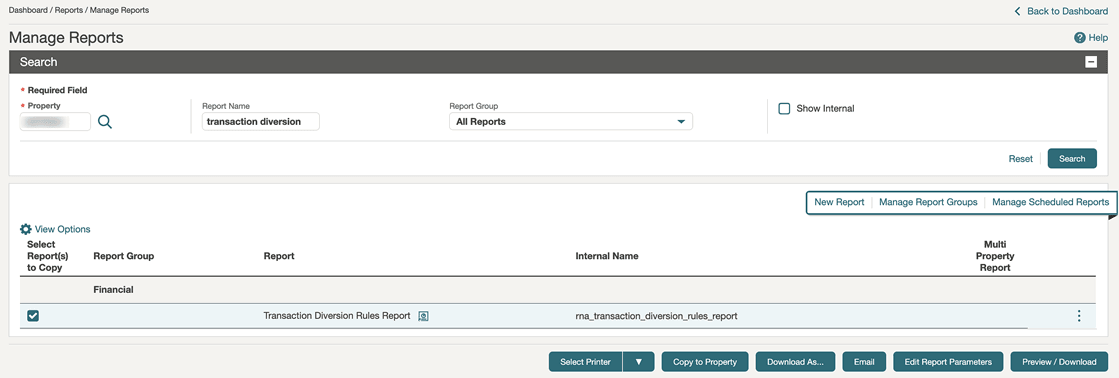
For properties with the Transaction Diversion OPERA Control active, the Transaction Diversion Rules report template is under the Financials group in OPERA Cloud and added to the Financial Subject Area and Financial folder in R&A.
Parent topic: CASHIERING AND FINANCIALS
Update Folio Number Prefix Added
For properties where the Folio Number Prefix Value OPERA Control is configured, the prefix value can be updated. All newly generated folios after the change show the updated folio number prefix.
OPERATIONAL BENEFITS
You can update the Folio Number prefix as needed without submitting a support request, enabling greater flexibility and reducing administrative overhead.
Parent topic: CASHIERING AND FINANCIALS
CLIENT RELATIONS
- Anonymize Purged Profiles Procedure Added
- Auto Merge Updated for Future Reservations
- Country Code Configuration Updated
- Customizable Profile Identification Fields Added
- Profile Enrollment Updated
- Profile Lookup Updated
- Profile Merge Updated
- SMART Profiles Updated
Parent topic: Feature Summary
Anonymize Purged Profiles Procedure Added
When profiles are purged, some residual data referencing the profile (for example, the profile name on a reservation) may still remain. An Anonymize Purged Profiles procedure is added to the OPERA Chain Scheduler to handle such residual data and strengthen guest privacy controls. This procedure ensures the systematic anonymization of residual data associated with previously purged profiles of all types, including surviving child records in the database. This process can be scheduled to run at regular intervals, in line with your profile purge configuration, ensuring that all residual data for all profile types is thoroughly anonymized.
OPERATIONAL BENEFITS
This update ensures that residual data in the database related to purged profiles is thoroughly anonymized, thereby enhancing data privacy and security across all profile types.
Parent topic: CLIENT RELATIONS
Auto Merge Updated for Future Reservations
For properties with Profile Auto Merge OPERA Control active you can select the configuration checkbox Include profiles with Future Reservations. When selected, this allows automatic merging of profiles even if they have current or future reservations, aligning auto-merge functionality with manual merge capabilities. See Configuring Profile Merge Rules.
OPERATIONAL BENEFITS
- Improved Data Accuracy: Profiles with future reservations can be merged promptly, ensuring a single, consolidated guest record before arrival and reducing duplicate data.
- Increased Efficiency: Reduces manual intervention required post-checkout, saving staff time and minimizing operational delays related to profile management.
- Consistent Business Processes: Aligns auto-merge capabilities with manual merge processes for greater consistency in profile management workflows.
Parent topic: CLIENT RELATIONS
Country Code Configuration Updated
A read-only ISO 3 Code field is auto-populated in Countries configuration and is included in the getCountries & getTemplateCountries API response, resulting in improved address validation and overall data quality.

OPERATIONAL BENEFITS
-
Improved Data Consistency: The automatic population and synchronization of ISO Code 3 based on ISO Code 2 ensure that there are no manual entry errors.
-
Enhanced Integration and Interoperability: External systems, including OPERA Cloud Mobile and Oracle Hospitality Integration Platform (OHIP) partners, can easily map and match countries using the global ISO 3-letter standard, reducing integration effort and errors.
-
Streamlined User Experience: Users no longer need to manually configure or verify ISO Code 3, as it is always kept up to date automatically, saving time and preventing configuration mismatches.
Parent topic: CLIENT RELATIONS
Customizable Profile Identification Fields Added
The ability to customize profile identification fields (see Managing Profile Identification and Personal Details) is added, allowing you to mark fields as mandatory to ensure required identification data is captured when updating a profile.
OPERATIONAL BENEFITS
This enhancement provides greater flexibility and control over identification data capture, promoting data consistency and integrity. This enhancement builds upon the previous capability to add multiple identification document records simultaneously, further improving operational flexibility and compliance with property-specific or region-specific requirements.
STEPS TO ENABLE
Steps to update page using Page Composer:
- Enable Page Composer at property/hub or chain level, as required.
- From the OPERA Cloud menu, select Client relations, select Profiles, and then select Manage Profiles.
- Enter search criteria, then click Search.
- Click I Want To... and select Identifications or open the profile and click Identifications in the Profile Presentation.
- Select the gear icon to customize the Identification Document panel.
- Click the pencil icon to customize fields.
- Select the gear icon to customize the Personal Details panel.
- Click the pencil icon to customize fields.
- Click Save.
- Disable Page Composer from the settings menu. See Managing Application Settings.
Parent topic: CLIENT RELATIONS
Profile Enrollment Updated
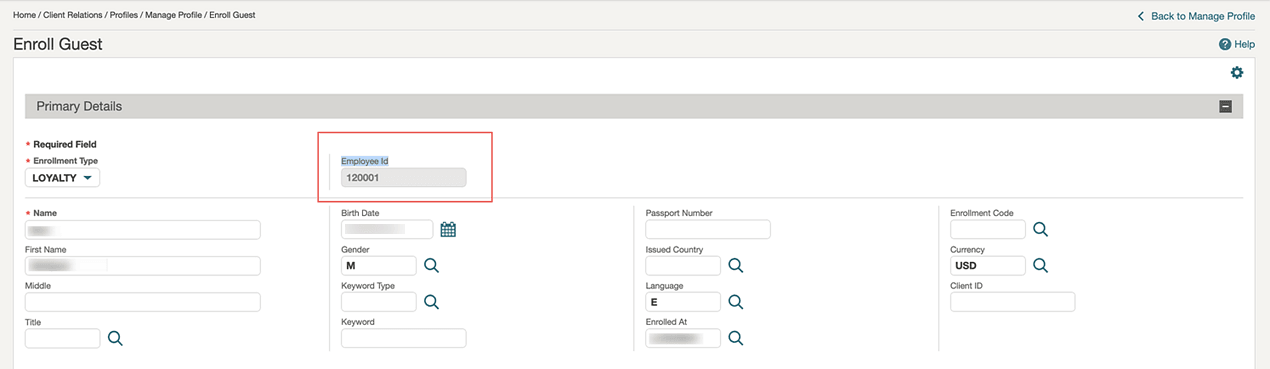
For properties with the Enrollment OPERA Control Active (see OPERA Controls - Membership), the profile enrollment screen displays the Employee ID as a read-only field when enrolling guests in integrated loyalty or gaming integrated solutions, providing visual confirmation of the correct employee association.
OPERATIONAL BENEFITS
Showing the Employee ID during guest enrollment provides clear visual confirmation of the correct employee association, enabling hotels to track enrollment targets and incentivize staff to promote programs and personalize guest experiences. This boosts employee engagement, drives revenue, fosters brand advocacy, and leads to improved guest satisfaction, repeat business, and overall hospitality success.
Parent topic: CLIENT RELATIONS
Profile Lookup Updated
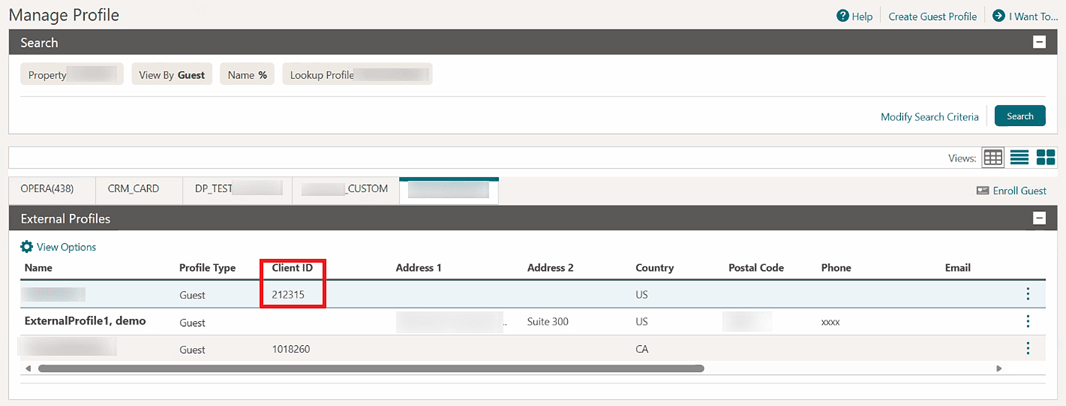
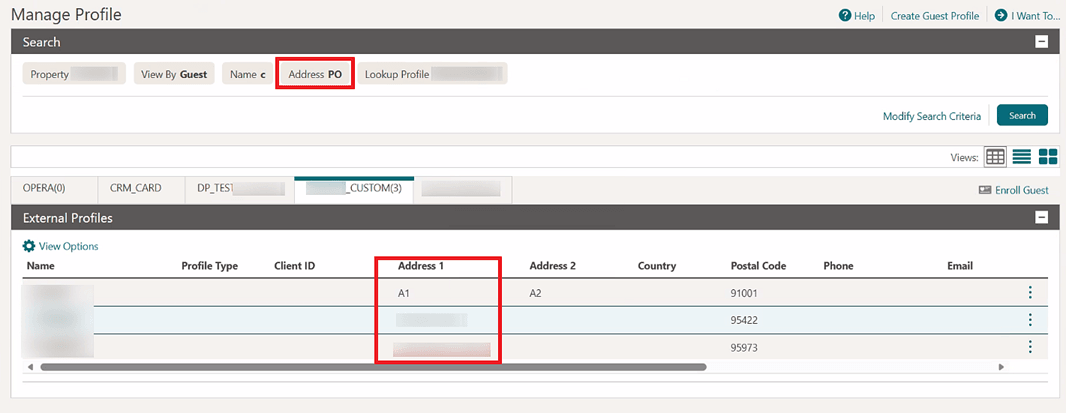
For properties with the Profile Lookup OPERA Control active, profile lookup supports searching by Address 1in Advanced Search.
The profile lookup results show a Client ID column for quick reference.
OPERATIONAL BENEFITS
-
Faster Profile Identification:
Being able to search by Address 1 helps staff quickly locate the correct external profile without relying solely on name-based searches.
-
Reduced Errors:
The Client ID column provides a unique, reliable identifier, reducing the chances of selecting the wrong profile—especially when guests have similar names.
-
Improved Efficiency for Frontline Teams:
Staff spends less time scrolling through long lists or running multiple searches, improving overall workflow and guest service time.
Parent topic: CLIENT RELATIONS
Profile Merge Updated
The profile merge process is updated to allow profiles merging with incomplete or inconsistent membership details, including Membership Level, Enrollment Code, Expiration Date, or Membership Number.
OPERATIONAL BENEFITS
Enabling merging of profiles that have inconsistent or inaccurate membership data helps to eliminate duplicate membership profiles.
Parent topic: CLIENT RELATIONS
SMART Profiles Updated
Central
The Smart Profiles (see About Smart Profiles) functionality is updated with the following changes:
- Title and Alternate Language fields are available for the Property and Central Profile when managing Suspended Profiles - Multiple Match.
- Hover text Select at least 2 profiles to Merge is added to the Merge button while merging Central Profiles when managing Suspended Profiles - Multiple Match.
- The following search filter chips and results column names are updated to support
all profile types when Reviewing Smart Profiles.
- Last name is updated to Last Name / Account Name
- First name is updated to First Name / Account Name 2
- Client ID is updated to Client ID / Corporate ID / IATA
- The Match percentage field is updated to show the match reason as a hover text when managing Matches Found Suspended Profiles.
OPERATIONAL BENEFITS
The enhancements to the Smart Profiles functionality improve the overall user experience and efficiency when managing suspended profiles, particularly in the Matches Found workflow, enabling users to more effectively resolve profile matches.
Parent topic: CLIENT RELATIONS
COUNTRY SPECIFIC
- Country Specific - France - Multiple Updates
- Country Specific - India - GSTR Country Export Updated
- Country Specific - Japan - City Tax Ranges Updated
- Country Specific - Maldives - Green Tax Report Added to R+A
- Country Specific - Philippines - R+A Reports Added
- Country Specific - Poland - Multiple Updates
- Country Specific - Poland - R+A Reports Added
- Country Specific - Portugal - Negative Rate Amounts Not Allowed for Package Split
Parent topic: Feature Summary
Country Specific - France - Multiple Updates
Generic - Multiple Updates
The following updates are available generically, but should be reviewed by properties in France.
1. The Sample Folio data model (sample_folio.xml) is updated with a new merge code, so that Tax ID of the payee profile can show on folios and Credit Bills.
Note:
The Sample Folio template (sample_folio.rtf) remains the same. These changes must be made through customization.
| Merge Code | Description |
|---|---|
| PAYEE_TAX1_NO | Tax ID |
2. The Folio Settlement workflow is updated so that when you generate an original folio (for example, Deposit Folio, Advance Folio, Interim Folio, Early Check Out Folio, Check Out Folio, Passerby Folio), the Tax ID, Business ID, and Business Registration Code values from the payee profile are stored with the folio details.
3. The Folio History screen is updated so that when you generate a folio copy, the report shows the Tax ID, Business ID, and Business Registration Code values from the original folio.
France - Country Specific - Daily Archive Export Updated
The following updates are available for properties in France.
1. The Daily Archive Exports (DAILY_ARCHIVE, DAILY_ARCHIVE_DAY) are updated to populate the fields for VatIdentifier, Siret, and NafCode, located in the Invoice section, with values from the original folio.
Note:
The Exports must be recreated from the template for this change to take effect.
| Export Field | OPERA Cloud Field |
|---|---|
| VatIdentifier | Tax ID |
| Siret | Business ID |
| NafCode | Business Registration Code |
OPERATIONAL BENEFITS
Properties in France maintain fiscal/legal compliance, because
(1) copies of an original folio maintain the original values for Tax ID, Business ID, and Business Registration Code, and
(2) the Daily Archive includes the original values for Tax ID, Business ID, and Business Registration Code with corresponding folio records.
STEPS TO ENABLE
- From the side menu, select OPERA Cloud, select Miscellaneous, select Exports, and then select Country.
- Enter search criteria then click Search.
- Select the DAILY_ARCHIVE Export, click the vertical ellipsis Actions menu, and select Delete.
- Click New from Template.
- Search and select DAILY_ARCHIVE.
- Click Create and Continue.
- Enter search criteria then click Search.
- Select the DAILY_ARCHIVE_DAY Export, click the vertical ellipsis Actions menu, and select Delete.
- Click New from Template.
- Search and select DAILY_ARCHIVE_DAY.
- Click Create and Continue.
See Updating Customized Stationery with Current Data Model.
Refer to France - Oracle Hospitality OPERA Cloud Fiscal Reference Guide.
Parent topic: COUNTRY SPECIFIC
Country Specific - India - GSTR Country Export Updated
The Filter Conditions for the following India GSTR Country Exports are updated to include all Pseudo Room Types included in the Export Definitions PSEUDO_ROOMTYPES_TO_INCLUDE Value field:
- GSTR1-4A
- GSTR1-4C
- GSTR1-5A
- GSTR1-5B
- GSTR1-6B
- GSTR1-7A-1
- GSTR1-7A-2
- GSTR1-7B-1
- GSTR1-7B-2
- GSTR1-8
- GSTR1-9B
- GSTR1-12
- GSTR1-13
- GSTR1-DAILY_DETAILS
- GSTR1-DETAILS
Note:
The updated Filter Condition exists for new exports created using the New From Template option. India GSTR Country Exports already existing in properties are not updated.
The Filter Conditions for the following India GSTR Country Exports are not updated, and no changes are made to the exports:
- GSTR1-11A
- GSTR1-11B
- GSTR1-OUTSTANDING
- GSTR1-OUTSTAND_HSN
OPERATIONAL BENEFITS
India GSTR Country Exports are legally required. The ability to include records for multiple Pseudo Room Types is required, and the change to the Filter Condition ensures this can be achieved with the minimum configuration changes by the property.
STEPS TO ENABLE
- From the side menu, select OPERA Cloud, select Miscellaneous, select Exports, and then select Country.
- Enter search criteria then click Search.
- Click New from Template.
- Search and select GSTR Export required.
- Click Create and Continue.
- Select the GSTR Export created > click the vertical ellipsis Actions menu, and select Definitions.
- Select Edit and then in the PSEUDO_ROOMTYPES_TO_INCLUDE Value field enter the Pseudo Room Types required as comma separated values.
- Click Save.
Refer to India - Oracle Hospitality OPERA Cloud Fiscal Reference Guide.
Parent topic: COUNTRY SPECIFIC
Country Specific - Japan - City Tax Ranges Updated
The City Tax Ranges screen for Japan Tax Ranges is updated with the option to set up the tax range by Tax Percentage or by Tax Amount.
The External API packageFormulaRanges is updated with the Tax Percentage and added to the Package Formula Range type.
OPERATIONAL BENEFITS
Specific prefectures/cities in Japan have recently changed to charge Accommodation Tax as a percentage of the Room Rate, rather than charge an amount based on the amount of the Room Rate.
This functionality exists in OPERA 5, but was not available in OPERA Cloud.
Refer to the Japan - Oracle Hospitality OPERA Cloud Fiscal Reference Guide.
Parent topic: COUNTRY SPECIFIC
Country Specific - Maldives - Green Tax Report Added to R+A
The following is generically available in Reporting and Analytics (R&A), but should be reviewed by properties in Maldives.
The Maldives Green Tax report is available in OPERA Reporting and Analytics (R&A) using MAL-Green_Tax xml located in /Shared Folders/Templates/Fiscal/Maldives (Folder).
The report contains the Birth Date column between the Category and Identification Number columns.
Note:
Full details showing how to configure and run the MAL-Green_Tax xml to provide the required data is available in the Maldives - Oracle Hospitality OPERA Cloud Fiscal Reference Guide.
OPERATIONAL BENEFITS
The Maldives Green Tax Report is legally required for properties in Maldives. A recent change was required to add Birth Date of the guest to the report.
Refer to the Maldives - Oracle Hospitality OPERA Cloud Fiscal Reference Guide.
Parent topic: COUNTRY SPECIFIC
Country Specific - Philippines - R+A Reports Added
The following is generically available in Reporting and Analytics (R&A), but should be reviewed by properties in Philippines.
The BIR Invoice Register report (previously the BIR Folio Register report) is available in R&A using Bir_Invoice_register xml located in /Shared Folders/Templates/Fiscal/Philippines (Folder).
The BIR Collection Receipt Details report (previously the BIR Official Receipt Register report) is available in R&A using Bir_collection_receipt_details xml located in /Shared Folders/Templates/Fiscal/Philippines (Folder).
The BIR Collection Receipt Summary report (previously the BIR Official Receipt Summary report) is available in R&A using Bir_collection_receipt_summary xml located in /Shared Folders/Templates/Fiscal/Philippines (Folder).
The Acknowledgement Receipt Report is available in R&A using Bir_acknowledgement_receipt_details xml located in /Shared Folders/Templates/Fiscal/Philippines (Folder).
The reports contain the required updates for BIR requirements.
OPERATIONAL BENEFITS
The BIR Reports are legally required for properties in Philippines. Recent changes to the BIR Regulations mean many of the reports required updating with the updated document references and updated data columns.
For full details showing how to configure and run the Bir_Invoice_register xml,Bir_collection_receipt_details xml, Bir_collection_receipt_summary xml, and Bir_acknowledgement_receipt_details xml to provide the required data, refer to the Philippines - Oracle Hospitality OPERA Cloud Fiscal Reference Guide.
Parent topic: COUNTRY SPECIFIC
Country Specific - Poland - Multiple Updates
The following update is available generically, and should be reviewed by properties in Poland.
1. The field for Long Account Name is available for Company, Travel Agent, and Source profiles, so that you can add the field to the Profile Details screen (see Managing Sales Account Profiles) through customization, and enter a maximum of 512 characters for the Long Account Name.
2. The Universal Payload is updated to include the attribute for LongAccountName in the <AdditionalAddresseeInfo> section, so that the Long Account Name of the Addressee profile is transmitted with electronic invoices.
3. The Universal Payload is updated to include the attribute for LongAccountName in the <PayeeInfo> section, so that the Long Account Name of the payee profile is transmitted with electronic invoices.
4. The Universal Payload is updated to include the attribute for LongAccountName in the <GuestInfo> section, so that the Long Account Name of the main reservation profile is transmitted with electronic invoices.
Poland - Country Specific - Multiple Updates
The following updates are available for properties in Poland.
1. The field for Parent Account is available for Company, Travel Agent, and Source profiles in Poland properties, so that you can add the field to the Financials screen (see Managing Sales Account Profiles) through customization, and select a Company, Travel Agent, or Source profile as a parent company/organization to the current profile.
2. When the Reservation Addressee OPERA Control is active in a Poland property, and you attach a profile with a Parent Account to the reservation (for example, as the main guest profile, payee profile for a window, or Accompanying Profile), OPERA Cloud automatically attaches the Parent Account profile to the reservation as the Addressee.
3. The Information Collection Methods OPERA Control is updated to include a new value for PL_FOLIO_COMMENTS, so that you can enter supplemental information into the optional fields during folio settlements.
4. The Information Collection Methods OPERA Control is updated to allow Poland properties to select the value for TAXABLE_DATE, so that you can enter a Taxable Date during folio settlements.
5. The Sample Folio Poland data model (sample_folio_poland.xml) is updated with new merge codes, so that Long Account Name, Poland Folio Comments, and Taxable Date can display on folios and Credit Bills.
Note:
The Sample Folio Poland template (sample_folio_poland.rtf) remains the same. These changes must be made through customization.Example:
The following merge codes can be added to the header section of the report.
| Merge Code | Field Name |
|---|---|
| LONG_ACCOUNT_NAME | Long Account Name |
| VEHICLE_REGISTRATION | Vehicle Registration |
| PROJECT_NO | Project Number |
| PROJECT_DTLS1 | Project Details 1 |
| PROJECT_DTLS2 | Project Details 2 |
| ADDTL_COMMENTS1 | Additional Comments 1 |
| ADDTL_COMMENTS2 | Additional Comments 2 |
| ADDTL_COMMENTS3 | Additional Comments 3 |
| TAXABLE_DATE | Taxable Date |
Example:
The following merge codes can be added to the footer section of the report.
| Merge Code | Field Name |
|---|---|
| VEHICLE_REGISTRATION_FOOTER | Vehicle Registration |
| PROJECT_NO_FOOTER | Project Number |
| PROJECT_DTLS1_FOOTER | Project Details 1 |
| PROJECT_DTLS2_FOOTER | Project Details 2 |
| ADDTL_COMMENTS1_FOOTER | Additional Comments 1 |
| ADDTL_COMMENTS2_FOOTER | Additional Comments 2 |
| ADDTL_COMMENTS3_FOOTER | Additional Comments 3 |
| TAXABLE_DATE_FOOTER | Taxable Date |
6. The Universal Payload is updated to include elements for the Poland Folio Comments fields in the <BeforeSettlement> section, so that the Poland Folio Comments are transmitted with electronic invoices.
7. The Universal Payload is updated to include an element for the Taxable Date field in the <BeforeSettlement> section, so that the Taxable Date is transmitted with electronic invoices.
OPERATIONAL BENEFITS
The addition of the Long Account Name, Parent Account, Poland Folio Comments, and Taxable Date allow OPERA Cloud properties in Poland to communicate successfully with Poland's national e-invoicing system - KSeF (Krajowy System e-Faktur).
Note:
KSeF is a centralized platform for issuing and exchanging electronic invoices, and it is mandatory for businesses in Poland, requiring them to submit all e-invoices to KSeF for processing and storage.
STEPS TO ENABLE
- From the side menu, select Administration, select Enterprise, and then select OPERA Controls.
- Select or confirm the Property.
- Select the Reservations group.
- Locate and activate the Reservation Addressee parameter.
- Select the General group.
- Locate and activate the Information Collection parameter.
- Locate and update the Information Collection Methods setting to include the PL_FOLIO_COMMENTS and TAXABLE_DATE values.
See Updating Customized Stationery with Current Data Model.
Refer to Poland - Oracle Hospitality OPERA Cloud Fiscal Reference Guide.
Parent topic: COUNTRY SPECIFIC
Country Specific - Poland - R+A Reports Added
The following is generically available in Reporting and Analytics (R&A), but should be reviewed by properties in Poland.
- The Folio Tax Style 02 report (foliotax_02) is available in R&A using POL-Folio_tax02 xml, located in /Shared Folders/Templates/Fiscal/Poland (Folder).
- The Folio Tax Style 06 report (foliotax_06) is available in R&A using POL-Folio_tax06 xml, located in /Shared Folders/Templates/Fiscal/Poland (Folder).
The reports contain the Addressee Name column and data.
OPERATIONAL BENEFITS
The Folio Tax Reports are legally required in Poland. A recent change to the requirements was the addition of an Addressee Name column and data to be displayed on the Folio Tax 2 and Folio Tax 6 reports.
The reports are created with the updates in R&A.
For full details showing how to configure and run the POL-Folio_tax02 xml, and POL-Folio_tax06 xml to provide the required data, refer to the Poland - Oracle Hospitality OPERA Cloud Fiscal Reference Guide.
Parent topic: COUNTRY SPECIFIC
Country Specific - Portugal - Negative Rate Amounts Not Allowed for Package Split
In a scenario where a package included in a rate causes a negative amount to be posted to the room revenue, either by the package amount being more than the room revenue, or due to a rate discount or fixed rate being used, an error appears to the user indicating a negative amount is not allowed for properties in Portugal, and the changes are not saved.
OPERATIONAL BENEFITS
Portugal is not legally allowed to post negative amounts. Restrictions are implemented to prevent this; however, a particular scenario still allowed a negative rate amount to be posted during End of Day processing. As a result, the folio contained a negative value, which prevented it from being checked out.
Parent topic: COUNTRY SPECIFIC
DISTRIBUTION
Parent topic: Feature Summary
Channel Configuration Added at HUB Location
Distribution
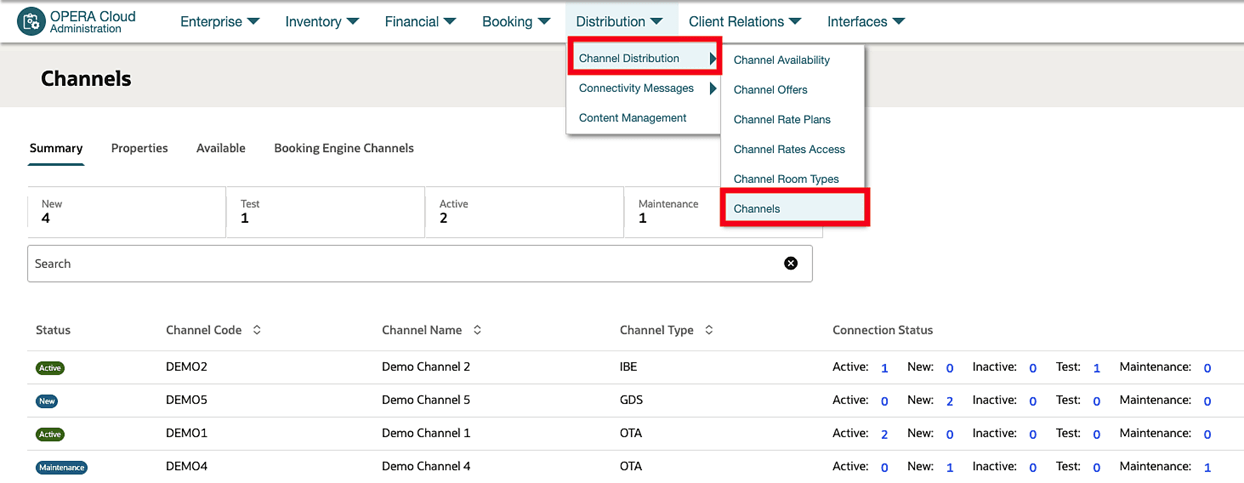
A Channels option is added under the Channel Distribution menu in OPERA Cloud Administration on the HUB Location. You can view and manage Channel Provisioning configuration for any channel across multiple properties from the same screen.
Distribution Central
Manage Booking Engine Channels
You can create and configure up to 3 additional channels for your booking engine from this screen. After a channel is created it can be provisioned to properties from the Available tab.
Note:
The availability of channels to provision is based on OPERA Cloud Central subscription, or OPERA Cloud Distribution subscription covering Direct booking channels.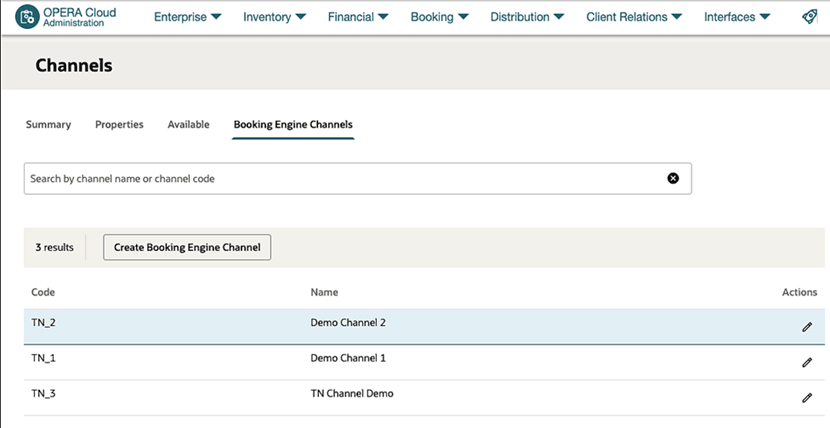
OPERATIONAL BENEFITS
The Channels screen is introduced in OPERA Cloud Administration in HUB locations.
You can view a summary of all channels provisioned across multiple properties in the chain.
You can provision a new channel for any property, or modify an existing channel provisioning configuration from the same screen.
Note:
The availability of channels to provision is based on your active subscriptions. Some channels may require assistance from the Oracle Distribution Services team to enable them.You can view and manage Booking Engine Channels as well. This feature is only available for OPERA Cloud Central subscription, or OPERA Cloud Distribution subscription covering Direct booking channels.
IMPACT OR OTHER CONSIDERATIONS
Ensure you have the necessary Channel Management tasks at the HUB level assigned in OPERA Cloud Distribution.
Parent topic: DISTRIBUTION
Distribution Content Management Options Added
Distribution
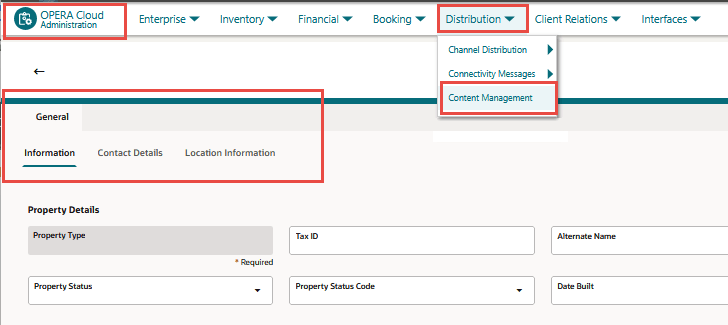
A Content Management Menu is added under the Distribution menu, optimized for Distribution channels using global Distribution standards. You can view and manage property general Information, Contact Details, and Location Information content for multiple properties from the same screen.
OPERATIONAL BENEFITS
Distribution Content Management screen is introduced in OPERA Cloud Administration in both HUB and Property locations.
You can manage property general Information, Contact Details, and Location Information for distribution channels such as GDS , OTA, and Boooking engines from OPERA Cloud HUB and Property Mode.
IMPACT OR OTHER CONSIDERATIONS
Ensure you have the necessary Channel Management tasks at the HUB level assigned in OPERA Cloud Distribution.
Parent topic: DISTRIBUTION
EVENTS
-
Oracle Hospitality OPERA Cloud Service, Sales and Event Management Essentials Edition.
-
Oracle Hospitality OPERA Cloud Service, Sales and Event Management Standard Edition.
-
Oracle Hospitality OPERA Cloud Service, Sales and Event Management Premium Edition.
Features that are specific to the Sales and Event Management Premium
Edition are marked with the Premium badge.
- Deep Link to Events Added
- Defaults Added for Stationery Custom Report Texts
- Function Space Configuration Updated
Parent topic: Feature Summary
Deep Link to Events Added
A Deep Link is added to launch and display the Event Presentation by passing the Event ID with the Property Code in the OPERA Cloud URL:
https://{Hostname}}/bookmarks/event?eventId=<Param value>&resort=<Hotel id>- eventId (required) = Event Id
- resort (required) = Property Code or Hotel Id
See Using Deep Links to Presentations Pages.
OPERATIONAL BENEFITS
Deep linking minimizes the risk of accessing the wrong event, which is especially important in environments with multiple or overlapping events.
Parent topic: EVENTS
Defaults Added for Stationery Custom Report Texts
For newly provisioned properties, the following Report Text values are defaulted in Custom Report Text.
| Name | Report Text |
|---|---|
| REP_GUEST_ROOMS | Guest Room |
| REP_ROOM_GENERATES | Room Generates |
| SC_BB_ID | BB ID |
| SC_BILLING_INSTRUCTIONS | Billing Instructions |
| SC_BUSINESS_BLOCK_NAME | Business Block Name |
| SC_DEPOSIT_COMMENTS | Comments |
| SC_POSTING_ACCOUNT | Posting Account |
| SC_REP_BEO_BC | BC |
OPERATIONAL BENEFITS
Replacing the Report Text eliminates the need for properties to manually override the labels and ensures clear, professional reports by default.
Parent topic: EVENTS
Function Space Configuration Updated
For properties with the Catering Events Opera Control active, an Inactive checkbox is added to Function Space configuration. See Configuring Function Space Primary Details.
- The Inactive checkbox is accessible for all function spaces configured as a pseudo room type. Updating a space to inactive immediately hides it from the Function Diary and removes its availability when assigning spaces to events. If the space is part of a Combo Room, Catering Package, and Catering Template, it is automatically removed from those configurations. If it is associated with a Revenue Type Mapping record, the record is deleted. To see Inactive codes in search results, click the page level vertical ellipsis on the search screen and select Show Inactive.
- The deletion rules for Function Spaces are updated. Spaces with no active future or past events are eligible for deletion. Upon deletion, the space is removed from Combo Room, Catering Package, and Catering Template configuration. If it is associated with a Revenue Type Mapping record, the record is deleted.
OPERATIONAL BENEFITS
These updates provide greater control when managing function space configuration and help maintain a clean, efficient property.
Parent topic: EVENTS
FRONT DESK
- Create Room Keys for Multiple Interfaces
- Enhanced Room Assignment Updated
- Hold Rooms Updated
- In-Path Auto-Display Nor1 Upgrade Print Form
- In-Path Nor1 Upgrade Commission Banner Added
- Log It and Guest Locators OPERA Controls Updated to Complimentary
- Reservation Membership Description Added for Registration Cards
- Room Feature Suggestion Updated
- Share Check In Process Updated
Parent topic: Feature Summary
Create Room Keys for Multiple Interfaces
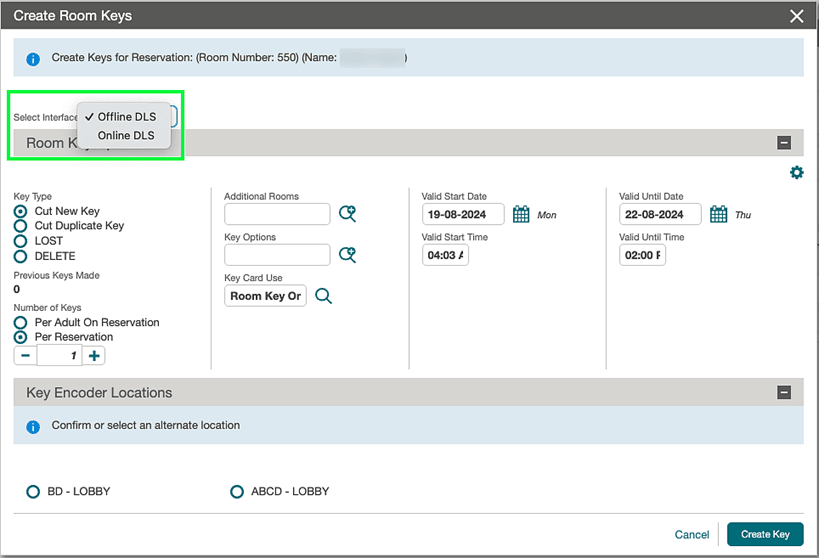
In properties where there are multiple Door Locking System (DLS) interfaces configured, the Create Room Keys screen in reservations is enhanced to allow selecting a different DLS interface to create keys for a room that is configured in more than one interface. See Property Interfaces - Managing Keys (Door Lock System).
Upon selection of an interface the following will default based on the configuration or room keys activity for the selected DLS interface:
- Key Type options
- Key Encoder Locations
- Last Selected Encoder
- Previous Keys Made
A Sequence field is added to the Primary Information panel for DLS interfaces. The sequence determines the order in which DLS interfaces appear in the Create Room Keys screen. Setting a sequence is ideal when there is a DLS interface that is more commonly used than others, for example prioritizing guest room key interface over a gym, parking, or park interface. (See Configuring Property Interface.)
OPERATIONAL BENEFITS
This new feature allows you to create room keys for different DLS interfaces from the same screen in OPERA Cloud without the need to use other applications.
Parent topic: FRONT DESK
Enhanced Room Assignment Updated
For properties where the Enhanced Room Assignment OPERA Control is active, the Enhanced Room Assignment Membership Types OPERA Control child setting is added in the Front Desk group. The Membership Levels configured for the selected Membership Types in this setting are then available on the Membership Levels tab of the Room Assignment Ratings screen, where different ratings can be assigned to different Membership Levels. See Configuring Room Assignment Ratings.
OPERATIONAL BENEFITS
Selecting the Membership Types in the added setting makes Room Assignment Ratings configuration more efficient, as it only shows the desired Membership Levels,
STEPS TO ENABLE
- From the Side Menu, select Administration, then Enterprise, and then OPERA Controls.
- Select or confirm the Property.
- Select the Front Desk group.
- Locate and define the Enhanced Room Assignment Membership Types setting.
Parent topic: FRONT DESK
Hold Rooms Updated
The Hold Rooms OPERA Control is updated to a complimentary function and added as a child control of the Room Conditions OPERA Control.
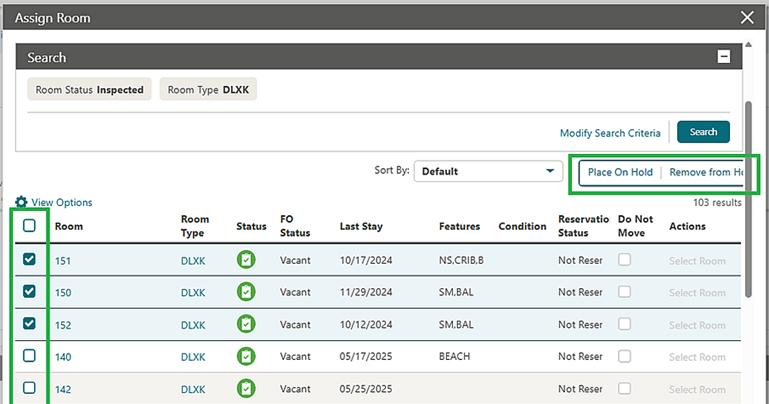
For properties with the Hold Rooms OPERA Control active, the existing Hold Rooms functionality is updated to be available directly from the Available Room Search and Assign Room screens. From either screen's Search results you can place rooms on hold or remove them from hold by selecting the rooms and then selecting the Place On Hold or Remove from Hold link. While rooms are selected in the screen, other options such as the Do Not Move and Actions columns are disabled. (See Managing Rooms on Hold.)
OPERATIONAL BENEFITS
You can activate the Hold Rooms OPERA Control without increasing the function count toward your OPERA Cloud subscription.
Adding the Hold Room options to the Available Room Search and Assign Room screens directly eliminates the need to go to two separate screens, and streamlines the process.
Parent topic: FRONT DESK
In-Path Auto-Display Nor1 Upgrade Print Form
Nor1
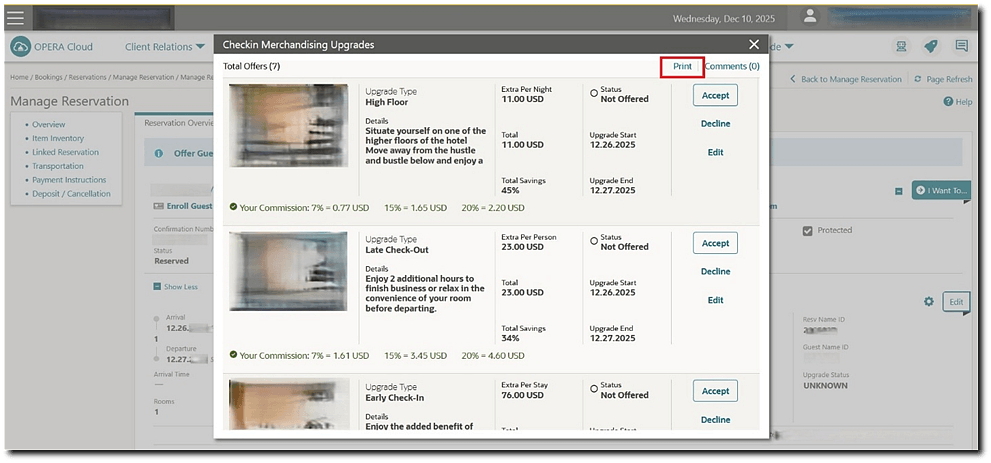
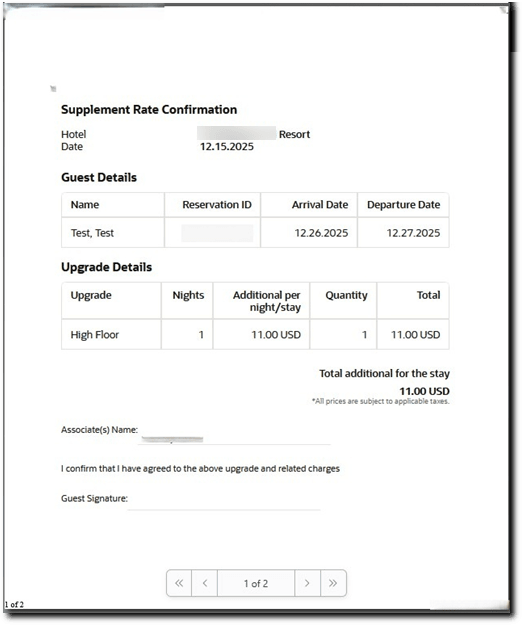
For properties with a Nor1 Cloud Service, CheckIn Merchandising Room-Upgrade and Non-Room Upgrade subscription, the Nor1 Print Form provides guest service agents with a consolidated, printable PDF that summarizes upsell offers accepted during In-Path Upselling (e.g., room upgrades, amenities, late checkout). This form is designed to support properties that require a documented summary of additional charges.
OPERATIONAL BENEFITS
- Provides a clear, consolidated summary of all accepted upgrades for guest review.
- Helps reduce billing disputes by ensuring transparency of additional charges.
- Supports properties that require printed documentation during their internal check-in workflows.
- Eliminates the need for agents to gather upgrade information from multiple screens.
- Always reflects the most up-to-date accepted offers in a single form.
- Provides a printed document a guest can sign.
Parent topic: FRONT DESK
In-Path Nor1 Upgrade Commission Banner Added
Nor1
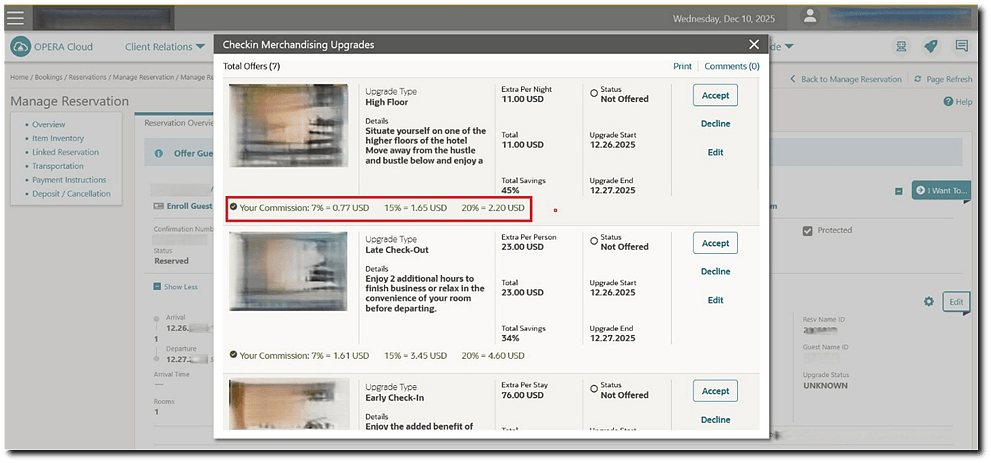
For properties with a Nor1 Cloud Service, CheckIn Merchandising Room-Upgrade and Non-Room Upgrade subscription, this feature displays your Nor1 front desk agent commission percentage for each upsell offer directly on the In-Path Upsell banner. Viewing this information during check-in helps front desk agents understand the earning potential for each upgrade and add-on, serving as a motivational tool to increase upsell performance.
OPERATIONAL BENEFITS
Parent topic: FRONT DESK
Log It and Guest Locators OPERA Controls Updated to Complimentary
Log It and Guest Locators OPERA Controls are updated to Complimentary functions. See OPERA Controls - Front Desk.
OPERATIONAL BENEFITS
Activating the Log It and/or Guest Locators OPERA Controls do not impact your subscription-based function count.
Parent topic: FRONT DESK
Reservation Membership Description Added for Registration Cards
A <RESV_MEMBERSHIP_LEVEL_DESC> XML element is added to the Sample Registration Card RTF template and data model (XML), to output the membership level descriptions of all memberships selected for the reservation.
OPERATIONAL BENEFITS
The full Membership Level Description makes the registration card clearer for guests and staff, and enables more accurate recognition of loyalty benefits.
STEPS TO ENABLE
See Updating Customized Stationery with Current Data Model to update your customized registration cards.
Parent topic: FRONT DESK
Room Feature Suggestion Updated
AI-powered Room Feature Suggestions are available when the AI Room Search OPERA Control is enabled. The capability is added to the following processes:
- Auto Assign (Batch Room Assignment)
- Suggested Rooms during Check-In
- Auto Assign at Check-In (available when the Auto Assign at Check In OPERA Control is active)
In these flows, the application analyzes Reservation Notes to extract room feature preferences and incorporates them into the room assignment process alongside standard eligibility rules such as inventory, room status, and rate or room type constraints.
OPERATIONAL BENEFITS
This enhancement improves alignment with guest preferences and reduces manual effort by eliminating the need to read the Reservation Notes during room assignment and check in.
Parent topic: FRONT DESK
Share Check In Process Updated
When the Shares and Prompt to Automatically Check In Share Reservations OPERA Controls are active, the system can automatically check in other arriving reservations that are shared with the reservation you are currently checking in.
To learn more about Shares, see Managing Reservation Shares.
OPERATIONAL BENEFITS
This enhancement streamlines the check in process for multiple share reservations, reducing manual steps and improving efficiency.
Parent topic: FRONT DESK
INTEGRATIONS
- Back to Back Reservations Room Keys for Outbound DLS Added
- Channel Property Mappings Marketing Text Updates
- Edit Action Added to Update Exchange Capabilities
- Fiscal Integration Updated
- New Business Events for Data Value Mappings Added
- Rate Code Name Added to Channel Rate Mapping
Parent topic: Feature Summary
Back to Back Reservations Room Keys for Outbound DLS Added
In properties where an Outbound Door Lock System (DLS) is set up using the Outbound Type GUESTKEY_GENERIC to integrate OPERA Cloud room keys functionality with an external system through OHIP, and the Use All Linked Back to Back Reservations for Room Key Start and End Dates OPERA Control is active, you can manage keys following the existing functionality for Back to Back reservations. See Property Interfaces - Managing Keys (Door Lock System).
OPERATIONAL BENEFITS
You are able to manage room keys for back to back reservations using a DLS integrated with OPERA Cloud through OHIP.
Parent topic: INTEGRATIONS
Channel Property Mappings Marketing Text Updates
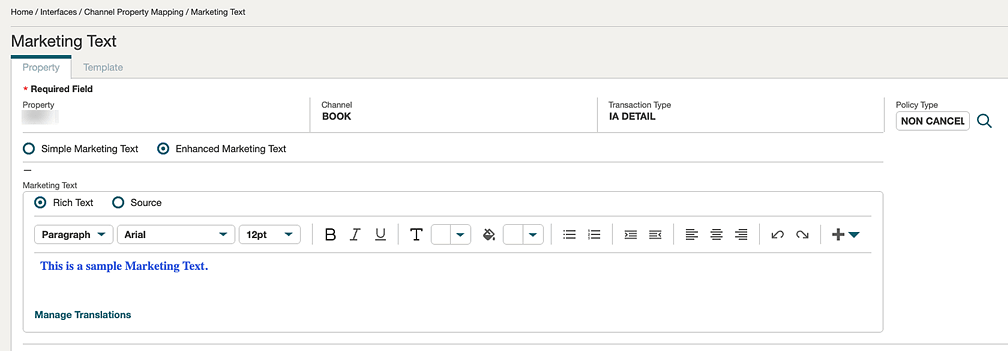
The Marketing Text under Channel Property Mappings screen which is Part of Interfaces section of OPERA Cloud Administration is enhanced to allow you to add and manage translations for Channel Marketing Text. In addition, for channels that support it, you will be able to use an HTML text editor for Enhanced Marketing Text when the option is enabled through channel controls, providing greater flexibility in formatting and presentation.
OPERATIONAL BENEFITS
-
You can manage translated marketing content directly within OPERA Cloud without relying on external tools or manual processes.
-
Improved consistency and accuracy of marketing text across supported channels and languages.
-
Enhanced usability through HTML formatting options, enabling clearer and more visually structured marketing content where supported.
STEPS TO ENABLE
To enable HTML Text Editor:
-
Navigate to Administration > Interfaces > Channel Controls.
-
Select the relevant property and channel.
-
Select Group - Rates.
-
Enable the HTML Text Editor parameter.
-
Save the changes and update Enhanced Marketing Text as needed.
Parent topic: INTEGRATIONS
Edit Action Added to Update Exchange Capabilities
Central
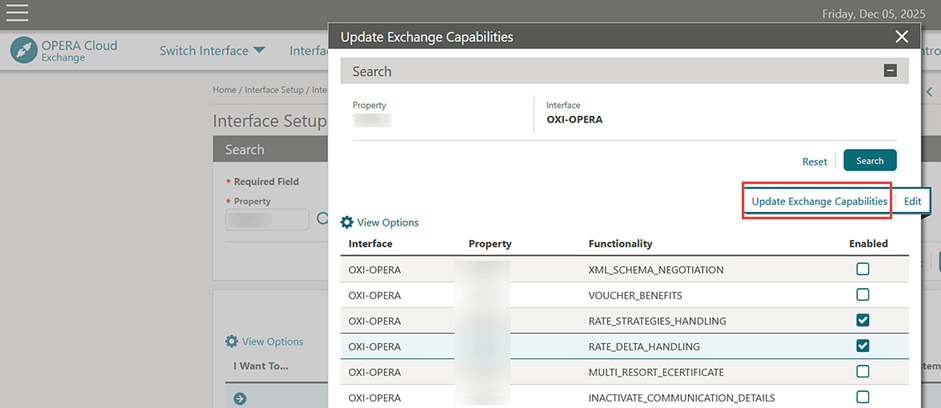
Exchange Interface Capabilities allows you to Edit and Enable/Disable the required capabilities and then update the Exchange Capabilities action to sync between OPERA Cloud Central/CloudHub and OPERA Cloud PMS/OXI systems. See Exchange Interface Capabilities.
OPERATIONAL BENEFITS
You can edit and Update Exchange Capabilities to sync the capabilities with OPERA Cloud property.
IMPACT OR OTHER CONSIDERATIONS
OPERA Cloud Central / Cloud Hub recommends and expects only rate delta changes from properties.
Hence, it is recommended that the Central user Edit and Enable the Rate Delta Handling under Update Exchange Capabilities and sync with OPERA Cloud property, so that the property can send delta rate changes.
Parent topic: INTEGRATIONS
Fiscal Integration Updated
OPERA Cloud Generic JSON: Direct Inclusion of New PII/Sensitive Fields
OPERA Cloud introduces enhanced Personal Identifiable Information (PII) metadata visibility within Universal Payload and Fiscal Business Event integrations for OFIS. The new release adds:
- A <SensitiveDataElements> structure in the Universal Payload holding XPaths for all designated PII data fields.
- A SENSITIVE_DATA_ELEMENTS entry in each batch of Fiscal Business Event payloads listing PII fields by name, provided as a comma-separated list.
-
For batch BE requests, this PII metadata entry is included only in the first event of each batch.
This enhancement applies to both OFIS On-premises and OFIS Cloud integrations and ensures consistent reporting based on Oracle’s defined list of PII fields.
OFIS Cloud Configuration UI: Enhance Required Field Indicators and Error Messages
The Manage OFIS Cloud Configuration UI is upgraded to clearly identify all mandatory fields and provide immediate, accessible feedback when required information is missing. Enhancements include:
- A '* Required Fields" indicator at the top of the form.
- A consistent asterisk (‘*’) marker before all required field labels.
-
Instant field-level error messages with a red 'X' icon and explicit guidance if a required value is omitted.
All updates follow OPERA Cloud’s UX standards and accessibility best practices.
OPERATIONAL BENEFITS
OC Generic JSON: Direct Inclusion of New PII/Sensitive Fields
- Supports regulatory compliance and strengthens privacy controls by transparently communicating PII data structures.
- Enables OFIS to efficiently identify and mask sensitive information in logs, reducing manual data mapping and risk of exposure.
- Reduces operational complexity for downstream systems, which receive PII field mapping without extra parsing or lookup requirements.
- Facilitates standardized, auditable handling of PII across global deployments.
OFIS Cloud Configuration UI: Enhance Required Field Indicators and Error Messages
- Minimizes user errors by visually and textually highlighting required fields and missing information in real time.
- Accelerates and streamlines configuration, reducing operational friction and form completion time.
- Consistently aligns the UI with Oracle’s enterprise-wide usability and accessibility standards, improving user confidence and productivity.
- Decreases support and remediation workload by ensuring accurate data entry from the outset.
Parent topic: INTEGRATIONS
New Business Events for Data Value Mappings Added
New business events are introduced to enhance integration capabilities for External Systems by supporting Data Value Mapping configurations.
Three new business events are available:
- NEW DATA VALUE MAPPING
- UPDATE DATA VALUE MAPPING
- DELETE DATA VALUE MAPPING
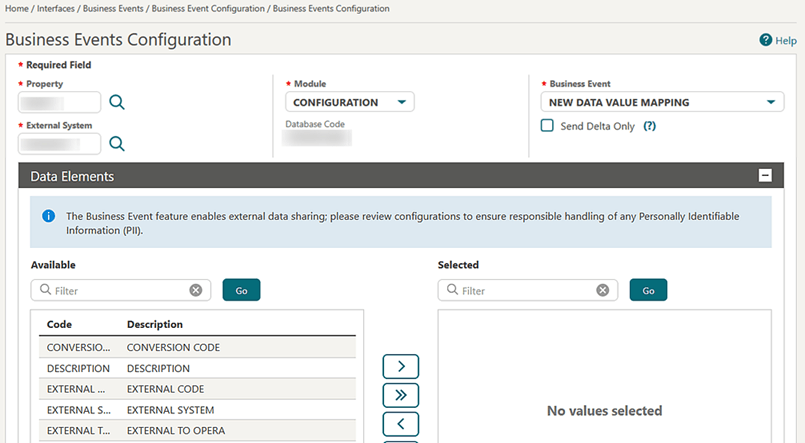
When configured, these business events allow External Systems to receive real-time notifications whenever a Data Value Mapping is created, updated, or deleted. External Systems can poll or stream these events, ensuring timely updates and improved synchronization with OPERA Cloud configurations.
OPERATIONAL BENEFITS
These events provide better event-driven integration options for External Systems, ensuring seamless and up-to-date Data Value Mapping information across connected solutions.
IMPACT OR OTHER CONSIDERATIONS
Business Events are generated only for the configured External System. Other External Systems cannot retrieve the DVM Business Events of another External System.
DVM Business Events are supported only for the External Systems created in OPERA Cloud and the Applications registered on Oracle Hospitality Integration Platform (OHIP) and subscribed for the Business Events.
STEPS TO ENABLE
- From the Side menu select Administration, select Interfaces, select Business Events, Select Business Events Configuration.
- Click New.
- Select Property, select External System, select Module CONFIGURATION, select Action Type: NEW / UPDATE / DELETE DATA VALUE MAPPING.
- Select Code from Available window list, click Add or Add All to the selected window list.
- click Save.
Parent topic: INTEGRATIONS
Rate Code Name Added to Channel Rate Mapping
The Channel Rate Mapping screen in OPERA Cloud is enhanced to include the Rate Code Name field. You can enter and view the Rate Code Name when managing channel rate mappings, improving clarity when working with channel rate codes mapping.
OPERATIONAL BENEFITS
Improves accuracy and completeness of channel rate mappings, helping prevent configuration errors caused by missing descriptive information.
Parent topic: INTEGRATIONS
INVENTORY
- Arrival Expected Rooms Added to Property Availability
- Attach-Detach in Room Type Configuration Enhanced
- Rooms Configuration Search Updated
Parent topic: Feature Summary
Arrival Expected Rooms Added to Property Availability
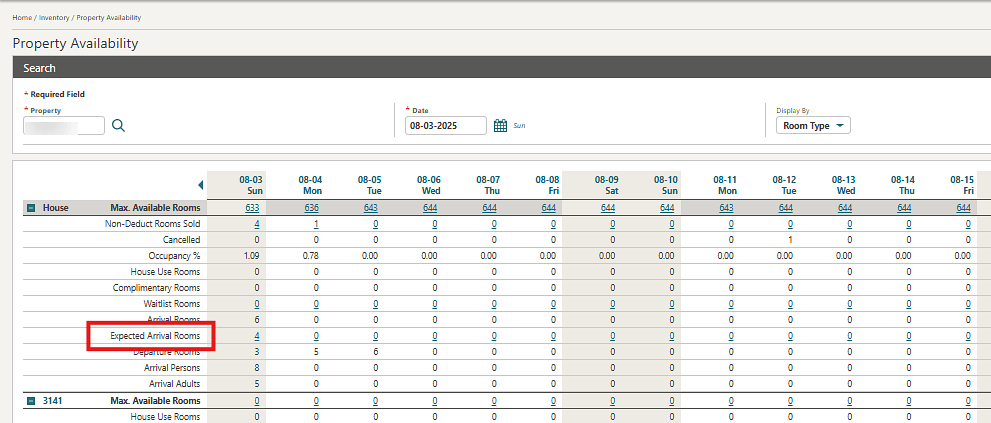
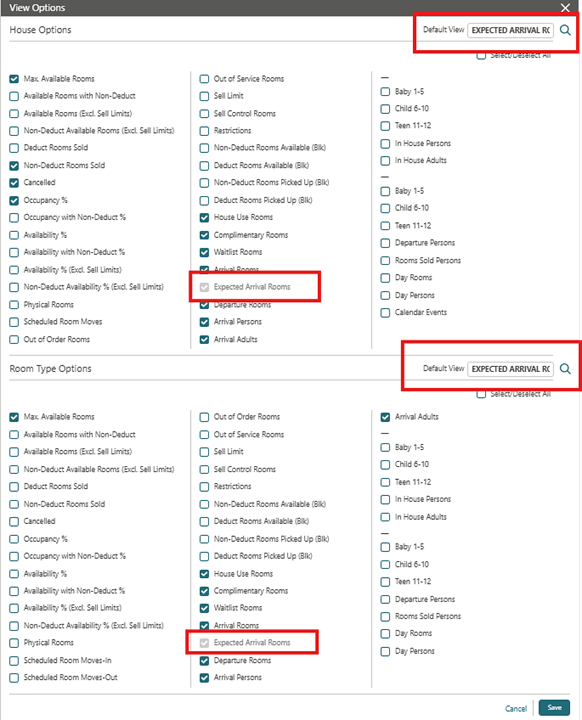
Property Availability is updated with an Arrival Expected Rooms value, showing the number of expected arrival rooms at House level and Room Type/Room Class level through a hyperlink. See Property Availability.
You can define Arrival Expected Rooms as the Default View from View Options at the House level or Room Type level.
OPERATIONAL BENEFITS
Helping you plan housekeeping and front desk operations more accurately.
Parent topic: INVENTORY
Attach-Detach in Room Type Configuration Enhanced
The functionality for attaching and detaching room types is enhanced. All inactive rate codes are now visible in the Rate Code LOV, and room types can be attached to or detached from inactive rate codes. After the process is completed, any failures can be filtered using the "Failure First" option in the process completion dialogue box. Room types can now be detached from derived rate codes, regardless of whether a base rate is provided in the selection.
OPERATIONAL BENEFITS
Simplifies rate maintenance by allowing easy room type detachment from inactive rate codes and from derived or base rate codes, saving time and reducing errors.
Parent topic: INVENTORY
Rooms Configuration Search Updated
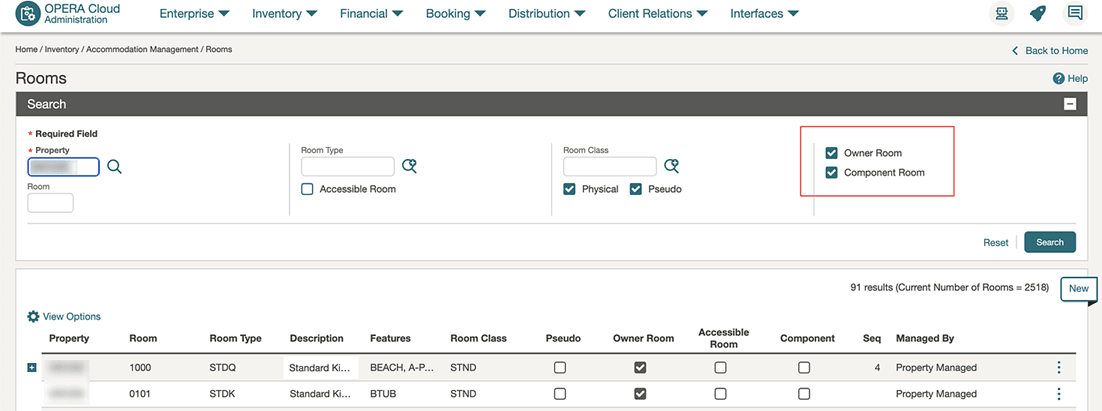
Rooms configuration is updated with search options for Owner Rooms (Room Rotation OPERA Control active) and Component Rooms (Component Suite OPERA Control active). The View Options includes column options for Owner and Component Rooms.
OPERATIONAL BENEFITS
Improves room configuration by adding additional search criteria.
Parent topic: INVENTORY
MEMBERSHIP
Stay Revenue Records by Transaction Codes Added
Loyalty
For properties with the Stay Revenue Records by Transaction Code OPERA Control active, you can define which transaction codes are eligible to earn loyalty points, enabling point calculations at the transaction code level. This functionality is an alternate to the existing Revenue by Revenue /Type/Group functionality.
Note:
This functionality is only available for new properties that are integrated and have Loyalty Cloud Services active. If this Control is not active, Stay records and Loyalty Membership Transactions Revenue will remain based on Revenue Groups and Revenue type.
Configuration:
- Membership administrators are able to configure point rules by including, excluding, or qualifying specific transaction codes within membership management.
- You are able to configure the Qualifying transaction codes.
- A new control Stay Revenue Records by Transaction Code allows you to activate these features, providing flexibility and precision in managing loyalty program earnings.
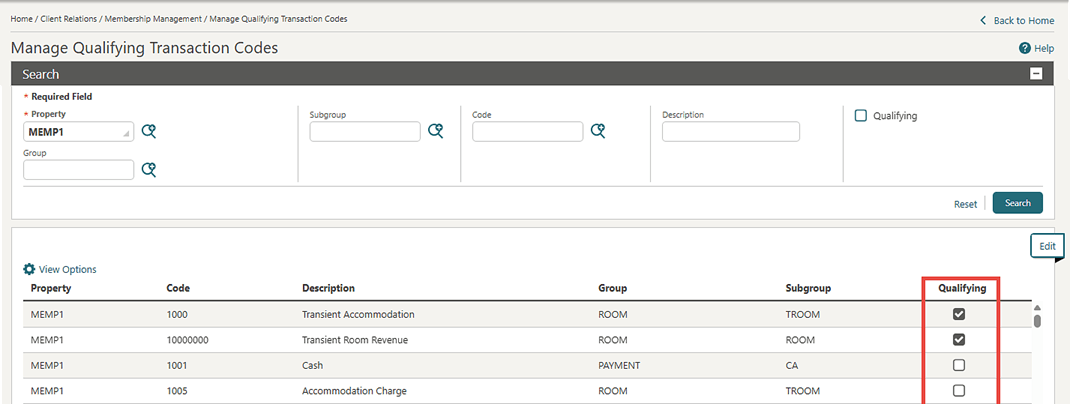
Front End:
-
The Stay Statistics panel shows detailed revenue broken down by transaction code. You can view annual guest stay statistics summarized by transaction code, with codes grouped according to the selected transaction type. If no transaction type is specified, revenue appears under Transaction Type [None Selected]. (This functionality is available when the Stay Revenue Records by Transaction Code OPERA Control is enabled.)
Please note: This feature is intended for newly integrated properties with no prior stay statistics.
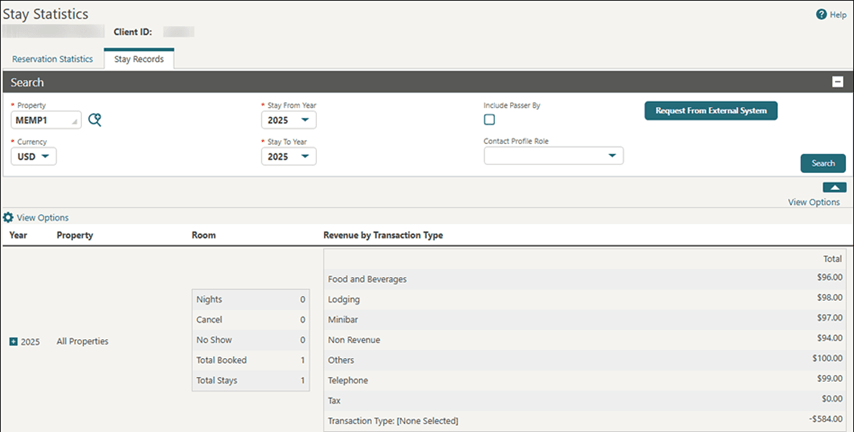
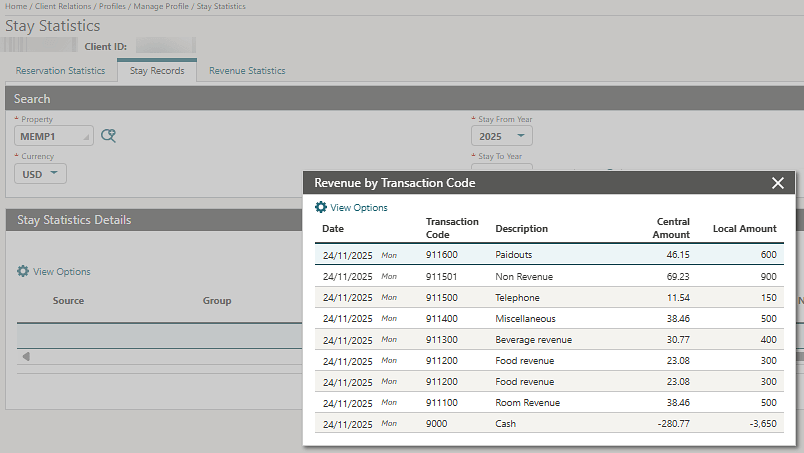
Member transaction details and summaries are available by transaction code.
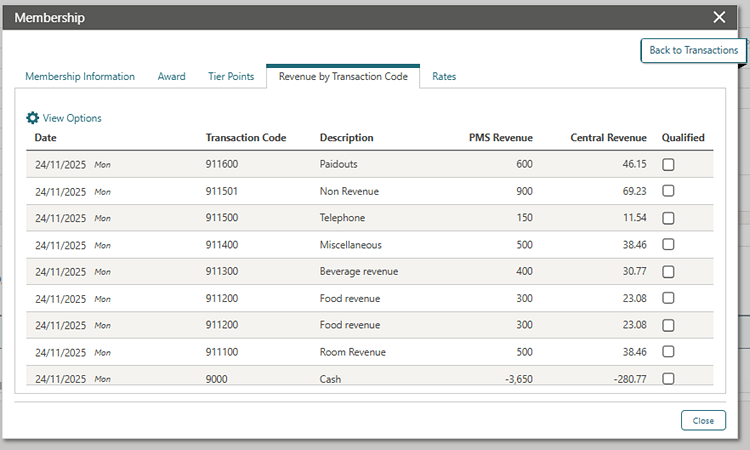
OPERATIONAL BENEFITS
- Increased Precision: Enables accurate calculation of loyalty points based on specific revenue items, reducing errors and improving program integrity.
- Enhanced Flexibility: Allows administrators to tailor loyalty programs by including or excluding individual transaction codes and groups, supporting a wider variety of promotional and operational strategies.
- Optimized Program Design: Helps identify which services or products drive loyalty engagement, enabling more effective program adjustments and targeted campaigns.
- Consistency Across Channels: Ensures that loyalty points are awarded consistently regardless of how transactions are posted, supporting guest satisfaction and program trust.
Parent topic: MEMBERSHIP
MISCELLANEOUS
- Central Indicator Added to Property Overview
- Default Home Page Option Added
- Promotion Codes Added to Changes Log
Parent topic: Feature Summary
Central Indicator Added to Property Overview
Central
A (read only) Central checkbox is added to Property Overview indicating if the property has Central features enabled or disabled. See Configuring Properties.
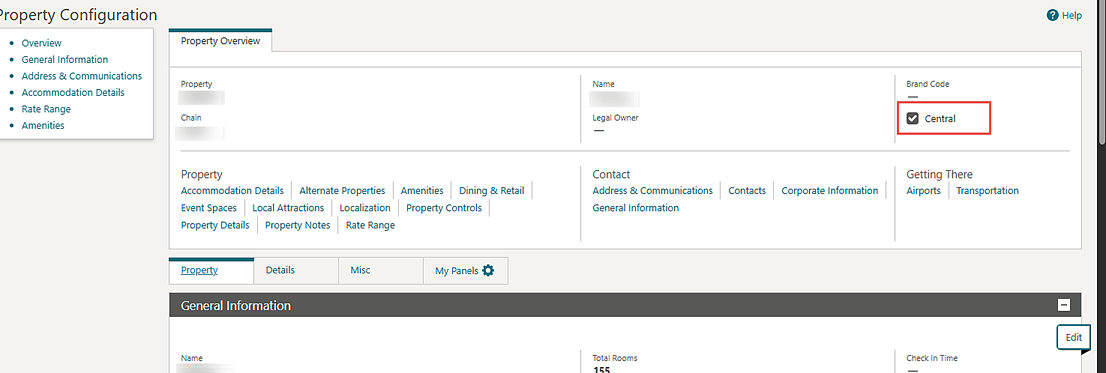
Parent topic: MISCELLANEOUS
Default Home Page Option Added
The ability to set a default "home page" to launch on login or when selecting 'back to home' (bypassing display of the dashboard) is added. You can select any page that can be accessed from the main menu, then select the Set <page> as my Home Page action link in the user / location panel. See About Home Page Selection.
A dashboard icon is added to the menu bar to launch the dashboard at any time, see Application Navigation.
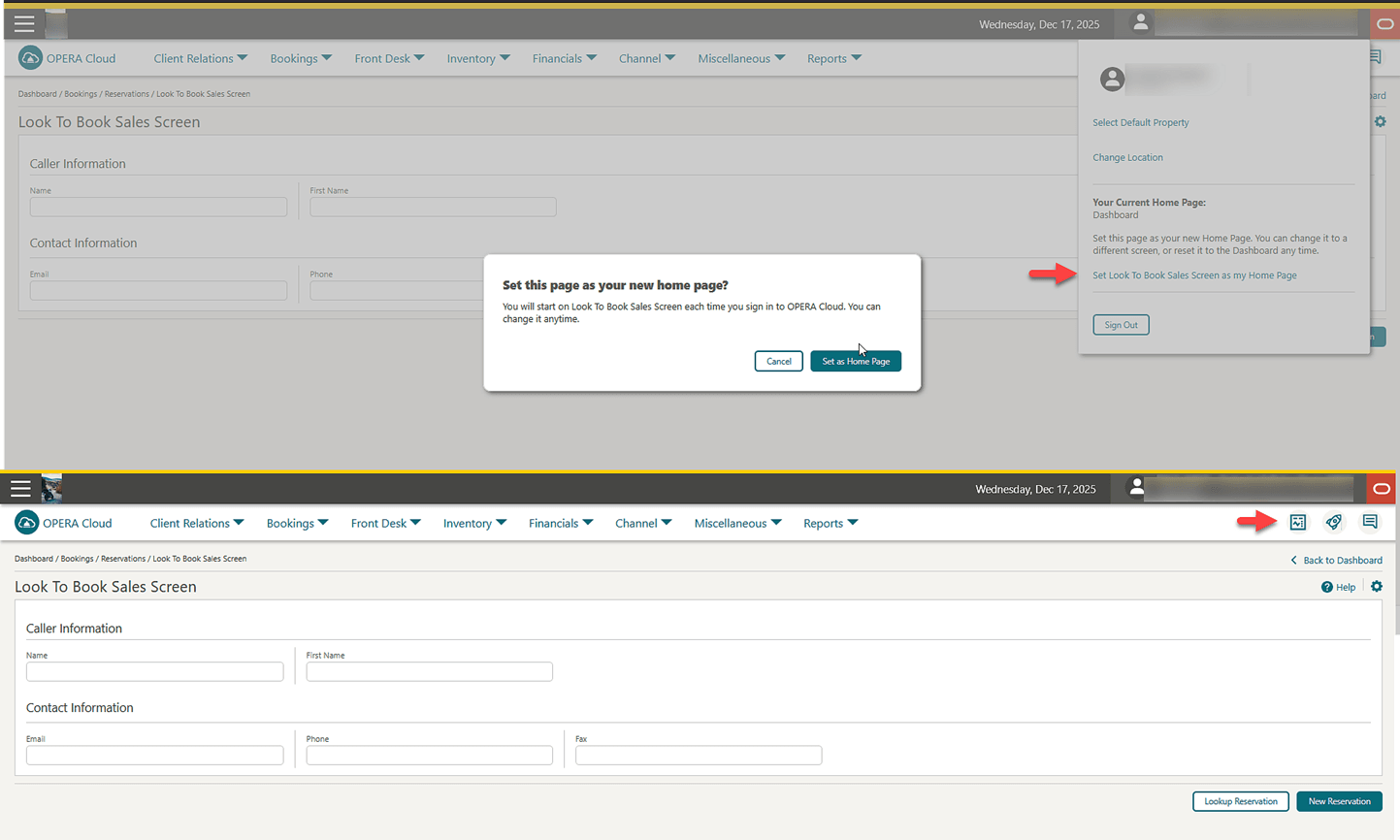
OPERATIONAL BENEFITS
Improved navigation and usability for users in departments that commonly work in a specific area of the solution (example: Reservations: Look to Book or Reservation Sales Screen)
Parent topic: MISCELLANEOUS
Promotion Codes Added to Changes Log
The Changes Log is updated to capture user activity related to new and updated promotion codes. See Viewing Changes Log Details.
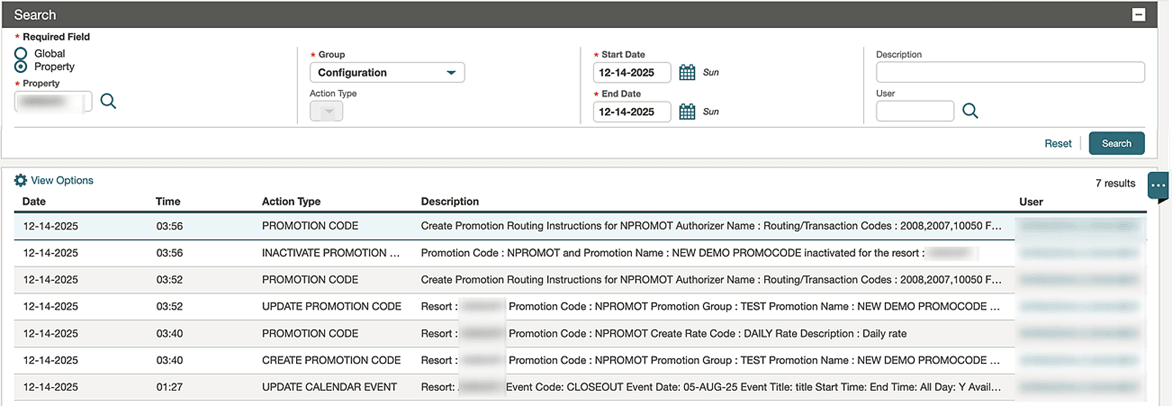
OPERATIONAL BENEFITS
Comprehensive promotion code change history improves auditability, control, and troubleshooting.
Parent topic: MISCELLANEOUS
MOBILE
- Advanced Profile Updates Added
- Cashier Login Added to Post-it
- Refresh My Roles Option Removed
- Reservation and Check-in Improvements
- Task Companion Improvements
Parent topic: Feature Summary
Advanced Profile Updates Added
Access Primary and Accompanying Guest Profile Details
You can access the Guest Detail screen from Reservation Details by either selecting Profiles or Accompanying Guests from the More Actions menu.
Edit Guest Profile Summary
Update primary information of the Guest Profile by selecting the Pencil icon. You can update information such as the Guest Name, Alternate Name, upload profile images and primary details such as the Guest Language, contact information and address.
View, Add, and Modify Addresses
You can view the list of addresses associated with the current profile by tapping or clicking on Addresses (on small form factor resolutions) or Manage in the Addresses section of the profile (in large form factor resolutions).
Swipe an entry to the right to edit or delete the address. When creating or editing an address you can use the Address Search feature to look up an address online and update the address fields automatically.
View, Add, and Modify Communications
To view the list of available communications, such as phone numbers and email addresses, select Communications or Manage in the Communications section of the profile.
The Primary Communications are listed at the top of the screen, additional ones are listed below. Swipe an entry to the right to edit or delete the communication detail.
View, Add, and Modify Identification Documents
You can access the Identification Documents related to the profile by either selecting Identifications or Manage in the Identifications section of the profile.
For properties with a third party Mobile ID Document Scanning integration active, you can add ID Documents by taking a photo of the document and submitting it to the third party for analysis.
View, Add, and Modify Membership Information
Membership Information, such as Loyalty, Gaming, or Frequent Flyer cards can be accessed by selecting either Memberships or Manage from the Memberships section of the profile.
For properties with the Mask Membership Numbers OPERA Control active, the Membership Number is partially masked.
View, Add, and Modify Profile Notes
Select the Notes or Manage in the Notes section of the Profile to view a list of existing Notes. You can add, modify, or delete Notes by swiping right or tapping/clicking on a note.
You can mark Profile Notes as Global to make them visible to all properties that share this profile, or Property specific or Internal for Notes that include property internal information.
View, Add, and Remove Selected Profile Preferences
Guest Profile Preferences can be viewed, added and removed by selecting Preferences or Manage in the Preferences section of the profile.
Selected Preferences are listed. To add or remove Preferences, tap or click on Manage Preferences.
Update Profile Privacy Options
For properties with the Profile Mailing Privacy OPERA Control active, the Privacy Options can be accessed by selecting Privacy in the Profile More Actions menu.
Properties can select to automatically opt into specific Privacy Options by setting the Privacy Default OPERA Control.
View Profile Relationships
For properties with the Relationships OPERA Control active, you can view relationships from the Relationships More Actions menu.
OPERATIONAL BENEFITS
You can collect and update Profile information from mobile devices, allowing you to work efficiently and accurately wherever you meet or check-in your guests.
Parent topic: MOBILE
Cashier Login Added to Post-it
For properties with the POST IT and FORCE CASHIER LOGIN OPERA Controls active, users of Post-it are required to authenticate using their Cashier PIN and a Cashier Number.
Properties can allow their users to bypass the Cashier Login by deactivating the FORCE CASHIER LOGIN OPERA Control. See PWA - Post It.
OPERATIONAL BENEFITS
Prompting for Cashier Login in Post-it and other financial impacting areas of the application adds another layer of security and accountability.
Parent topic: MOBILE
Refresh My Roles Option Removed
The Refresh My Roles option from the Ask Oracle User Menu is removed. To ensure Roles added or removed to/from your user or to update your access based on changes to the roles assigned to your user, please log out of the application and login again.
OPERATIONAL BENEFITS
Requiring users to logout and login rather than offering the "Refresh My Roles" option aligns with best practices in most other applications.
See Deprecated Features for OPERA Cloud Services.
Parent topic: MOBILE
Reservation and Check-in Improvements
Access Primary Guest Profile
You can access the Primary Guest Profile from the Reservation Detail page - More Actions - Profiles. You also have the option to select another profile to replace the associated Primary Guest Profile with an existing or new profile by manually searching for the profile. For properties with an active Mobile ID Document Scanning integration, you can search or create profiles by scanning an ID Document.
Protected Profile Indicator Added to Quick Edit
For properties with the Profile Protection OPERA Control active, you can identify Protected Profiles by their indicator in the Quick Edit drawer. Fields that are protected can only be updated with the Override Profile Protection Task.
Automatically Assign a Room Number at Check In
For properties with the Auto Assign Room at Check In OPERA Control active, an available room number is automatically assigned when you initiate the Check In.
Manage Accompanying Guest Profiles
For properties with the Accompanying Guest OPERA Control active, you can view, add, and remove Accompanying Guest Profiles from the Reservation Detail page - More Actions - Accompanying Guests.
For properties with an active Mobile ID Document scanning integration, you can search for an appropriate profile by scanning an ID Document (see Mobile ID Document Scanning), you can manually search the profile, or you can create a new profile.
For properties with the Relationships OPERA Control active, you can assign a Relationship between the Primary Guest Profile and the Accompanying Guest Profile from the Accompanying Guest drawer.
For properties with the Attach and Detach for Accompanying Guests OPERA Control active, you can attach and detach Accompanying Guest Profiles.
Update Basic Reservation Details
In the Quick Edit drawer, you can update basic reservation details, such as the Arrival and Departure Date, Arrival and Departure Time, Number of Adults and Children (for properties with the Child Rates by Defined Buckets OPERA Control active also the child ages), Purpose of Stay, and Room Type to Charge.
Advanced Payment at Check In Handling
For properties with the Check In Prepay Rules OPERA Control set to Advance Folio Payment, you can take pre-payments during the check-in process.
Advanced Posting at Check In Handling
For properties with the Check In Prepay Rules OPERA Control set to Advanced Folio Posting, you can post revenues and payments during the check-in process.
Reservation Membership Handling
You can manage the Memberships associated with the reservation from the Reservation Detail page - More Actions - Memberships.
To attach or remove a Profile Membership, select the Manage Membership button. For properties with the Enrollment OPERA Control active, you can enroll a guest in an external Loyalty or CRM solution from the Manage Membership drawer.
Add, Modify, and Remove Reservation Packages
You can manage reservation packages from the Reservation Detail page - Manage link in the Packages section. For packages associated with the Rate Code of the Reservation, you can modify the Excluded Quantity. You can add, remove, and modify packages associated directly with the reservation.
When adding packages, you can quickly filter available packages by their Package Category. See Configuring Package Categories.
Add, Modify, and Remove Routing Instructions
You can add, modify, and remove Routing Instructions from the Reservation Detail page - More Actions - Billing Instructions. Choose between Window or Room Routing Instructions when adding new Routing Instructions.
eSign Registration Card During Check In
For properties with the eSign Registration Card OPERA Control active, you can generate an eSign Registration Card prior to or during the guest Check In. Hand the device to the guest to review the Registration Form details and ask them to sign or initial as applicable.
For added privacy and security, you need to provide your Cashier PIN when saving or cancelling out of the eSign Registration Card.
OPERATIONAL BENEFITS
The OPERA Cloud Mobile solution provides additional functionalities that support a variety of operational processes and policies for managing the check-in process.
Parent topic: MOBILE
Task Companion Improvements
Child Ages Added to Task Companion Reservation
For properties with the Child Rates By Defined Buckets OPERA Control active, you can view the child ages for a reservation in the Task Companion Reservation screen.
Guest Names Masked in Task Companion
For users with the Show Guest Name in Task Sheets and Housekeeping Board Role Task, you can view the guest name for a reservation in the Task Companion Reservation screen.
Without this task, the Guest Name is masked.
Refer to PWA - Task Companion.
OPERATIONAL BENEFITS
Viewing the child ages of a reservation provides an opportunity to offer more personalized services while attending to the rooms. The ability to hide or display the guest name based on a user task allows implementation privacy and personalization processes based on your property policies.
Parent topic: MOBILE
PROPERTY APIs
- BLK - getBlockAvailability and BLK - getBlocks Operations Updated
- BLK - getCentralSalesHotels Operation Added
- CMS_FOF_FOFOUTBOUND_INtCFG_RSV - Timezone Descriptions Updated
- CRM - getExternalProfiles Updated
- CRM - getMembershipTransactionRevenue Operation Updated
- CRM - getProfileStatistics Operation Updated
- CRM - getTransactionCodes Operation Enhanced
- CRM - putQualifyingTransactionCodes Operation Added
- CRMCFG - includeFutureReservations Checkbox Added to Profile Match Rules APIs
- CSH - DepositFolioAssocCode Added
- ENTCFG - getCountries and getTemplateCountries Operations Updated
- EVMCFG - Catering Operations Updated and Added
- FOF - getHotelRooms updated with query for availablePseudoRoomsOnly
- FOF - postRoomKey, postRoomKeysExternal, and getRoomKeys API Operations Updated
- FOF_HSK - Timezone Descriptions Updated
- INV - getInventoryStatistics Operation Updated
- RSV - getBlockAvailability Updated
- RSV - getGuestMessages Updated
- RSV - getHotelReservations Updated
- RSV - getReservation and getReservations Updated
- RTP - getRatePlanMetrics and ASYNC startCopyRatePlansProcess APIs Added
- RTP - packageFormulaRanges Updated
- RTP - put{packages} and post{packages} Added
Parent topic: Feature Summary
BLK - getBlockAvailability and BLK - getBlocks Operations Updated
BLK - getBlockAvailability Operation Updated
ChildAge, bucket1Count, bucket2Count, bucket3Count, bucket4Count and bucket5Count are added as query parameters to the getBlockAvailability operation for the BLK (Block) API. The external system sends back the full rate amount based on the children numbers and age buckets sent as parameters.
BLK - getBlocks Operation Updated
excludeMasterBlocks query parameter is added to the getBlocks operation for the BLK (Block) API. When excludeMasterBlocks is added to the getBlocks request all master blocks are excluded from the results (master blocks, master allocations, master tours, and master itineraries).
OPERATIONAL BENEFITS
Including the number of children and their ages when searching for room rates retrieves more accurate room rate quotes since room rates may vary depending on the ages of accompanying children.
Parent topic: PROPERTY APIs
BLK - getCentralSalesHotels Operation Added
BLK-getCentralSalesHotels Operation Added
The getCentralSalesHotels operation is added to the Block (BLK) API. The getCentralSalesHotels operation returns central sales properties based on search criteria such as country, marketing region, marketing city, property types, amenities and attractions.
OPERATIONAL BENEFITS
You can quickly find hotels that match their specific criteria (such as location, amenities, availability) in a single, centralized search, saving time compared to manual lookups or searching across multiple sources.
Parent topic: PROPERTY APIs
CMS_FOF_FOFOUTBOUND_INtCFG_RSV - Timezone Descriptions Updated
The following REST APIs time zone descriptions are updated to inform consumers what the time zone of operationIds represents:
Module FOF
- getRoomKeys, postRoomKeysExternal, getRoomKeyInterfaceDetails, getWakeUpCalls, getServiceRequests, getDailyDocket
Module FOFOUTBOUND
- postRoomKeysOutbound
Module INTCFG
- postHotelInterface, putHotelInterface, getHotelInterfaceDetails
Module RSV
- getRoomCalendar, getReservationLocators, postReservationLocators, getGuestMessages, postGuestMessages, putResvGuestMessages, putGuestMessages
Module CMS
- getTrackItItems, postTrackItItems, putTrackItItems
OPERATIONAL BENEFITS
Clear time zone definitions for date/time fields in REST APIs ensure consistent and reliable integration between systems.
Parent topic: PROPERTY APIs
CRM - getExternalProfiles Updated
The getExternalProfiles API operation in the Customer Relationship Management API (CRM) is enhanced with the addition of the streetAddress query parameter. This optional field enables users to search and retrieve profiles by the first line of a profile's street address, allowing external systems to conduct more targeted and precise profile searches. This is a non-breaking change; no updates are required for existing integrations.
OPERATIONAL BENEFITS
-
Improved profile matching accuracy
Searching by street address helps narrow down results, reducing duplicate or incorrect profile matches when names or emails are similar.
-
Faster issue resolution for support teams
Customer service agents can locate the correct customer profile more quickly, especially when other identifiers (email, phone) are missing or incorrect.
-
Reduced manual investigation and rework
Operations teams spend less time manually cross-checking multiple profiles, improving overall
Parent topic: PROPERTY APIs
CRM - getMembershipTransactionRevenue Operation Updated
The getMembershipTransactionRevenue API operation in the Customer Relationship Management API (CRM) is enhanced with new attributes—transactionCode and transactionCodeDescription—within the membershipTransactionRevenueType object. These fields, mutually exclusive with revenueType, provide additional detail for transaction-level revenue when the Stay Revenue Record by Transaction Codes control is active, helping users identify and report on qualifying revenue more effectively. No changes are needed to existing integrations.
OPERATIONAL BENEFITS
-
Enhanced Transaction-Level Detail:
The addition of transactionCode and transactionCodeDescription enables more granular tracking and reporting of revenue at the transaction code level, improving accuracy for loyalty and revenue analyses.
-
Improved Revenue Qualification and Reporting:
Users can easily identify and report on qualifying revenue for loyalty programs, aligning reporting with business rules and program requirements.
-
Seamless Backward Compatibility:
The enhancement is non-disruptive to existing integrations, allowing immediate adoption of new insights without requiring changes to current processes.
Parent topic: PROPERTY APIs
CRM - getProfileStatistics Operation Updated
Loyalty
The getProfileStatistics API operation in the Customer Relationship Management API (CRM) is updated to support revenue grouping by transaction type, transaction group, and transaction subgroup. New response objects—stayStatisticsRevenueType, groupRevenueType, and subGroupRevenueType—enable enhanced granularity in stay record reporting, allowing users to see detailed revenue breakdowns in line with updated business requirements.
Data is populated when the Stay records Revenue by Transaction Code OPERA Control is Active.
OPERATIONAL BENEFITS
-
Greater Reporting Granularity:
Enables detailed breakdowns of revenue by transaction type, group, and subgroup, providing deeper business insights and supporting more sophisticated analytics.
-
Enhanced Alignment with Business Requirements:
Offers reporting capabilities that reflect evolving business needs, particularly for loyalty programs and revenue management, through flexible and customizable data groupings.
-
Improved Data-Driven Decision Making:
Facilitates more accurate and actionable reporting for hotel operations, marketing, and finance teams when the appropriate controls are active, driving better strategic planning.
In addition, the getProfileStatistics API operation in the Customer Relationship Management API (CRM) is enhanced to provide detailed revenue insights by transaction code. New structures—including revenueTransactionCodes in revenueStatisticsSummaryType, the supporting revenueTransactionCodeListType and revenueTransactionCode objects, and the netRevenueByTransactionType array in both profileStatisticsbyYearSummaryType and profileHotelStatisticsbyYearSummaryType—enable consumers to access transaction code-level revenue and qualification details. These enhancements allow for more granular reporting and analysis while maintaining compatibility with existing integrations.
OPERATIONAL BENEFITS
-
Increased Granularity in Revenue Reporting:
Provides transaction code-level revenue and qualification details, enabling more precise analysis and reporting for loyalty programs and business operations.
-
Enhanced Analytical Capabilities:
Supports deeper insights into revenue streams by allowing users to break down and understand revenue contributions by specific transaction codes.
-
Backward-Compatible Integration:
Enhancements are introduced without disrupting existing integrations, allowing organizations to leverage new data structures immediately and seamlessly.
Parent topic: PROPERTY APIs
CRM - getTransactionCodes Operation Enhanced
Loyalty
The getTransactionCodes API operation in the Customer Relationship Management API (CRM) is enhanced with the addition of the earnMembershipPoints query parameter. This optional flag allows users to filter and retrieve transaction codes that are eligible for earning points, simplifying the process for identifying qualifying codes for loyalty programs. No changes are required to existing integrations.
OPERATIONAL BENEFITS
- Streamlined Identification: The new parameter allows direct filtering for transaction codes eligible for earning loyalty points, simplifying integration with loyalty programs.
- Increased Efficiency: Reduces manual post-processing for clients, enabling faster and more efficient data retrieval.
- No Impact on Existing Integrations: The enhancement is fully backward-compatible, so current workflows and integrations remain unaffected.
Parent topic: PROPERTY APIs
CRM - putQualifyingTransactionCodes Operation Added
Loyalty
The new putQualifyingTransactionCodes API operation is introduced in the Customer Relationship Management API (CRM) as part of loyalty program enhancements. This API allows users to qualify or disqualify transaction codes at the hotel level by specifying the hotel code, transaction code, and qualifying status, enabling accurate capture of transaction-level revenue for stay records. No changes are required to existing integrations.
OPERATIONAL BENEFITS
-
Enhanced Control at the Hotel Level:
Enables hotels to precisely qualify or disqualify transaction codes, ensuring that only relevant revenues are counted toward loyalty benefits.
-
Improved Revenue Accuracy for Loyalty Programs:
Facilitates accurate mapping of transactions to loyalty stay records, resulting in more precise member rewards and reporting.
-
Seamless Integration with No Disruption:
The addition is non-intrusive—existing integrations are unaffected, enabling immediate benefit adoption without retrofit effort.
Parent topic: PROPERTY APIs
CRMCFG - includeFutureReservations Checkbox Added to Profile Match Rules APIs
A new checkbox, includeFutureReservations, is added to the
matchRuleType API Operation within the Profile Match
Rules configuration. This flag indicates whether profiles should be allowed to merge
when they have current or future reservations.
CRMCFG Operations Affected:
-
getProfileMatchRules -
putProfileMatchRules -
postProfileMatchRules
OPERATIONAL BENEFITS
-
Improved Data Accuracy and Guest Experience:
Allows precise control over profile merging, helping prevent unintentional merges of profiles with active or future reservations, thereby safeguarding accurate guest records and future booking assignments.
-
Enhanced Compliance and Operational Flexibility:
Enables hotels and organizations to configure profile merges to align with internal business policies and compliance requirements regarding reservation handling.
-
Minimized Risk of Operational Errors:
Reduces the likelihood of disruptions or confusion surrounding active bookings by preventing merges that would affect profiles with ongoing or upcoming reservations.
Parent topic: PROPERTY APIs
CSH - DepositFolioAssocCode Added
A new REST API DepositFolioAssocCode is available. The API allows automatic creation of Deposit Folios, posting the related payments, retrieving transaction codes that can be associated to a deposit transaction code, with the deposit amount expected based on a set calculation of the First Night rate amount, Entire Stay, or specific number of nights.
When deposit folio functionality is active (OPERA Control - Parameter - Advanced Deposit Handling has a value 3, 4, 5, 6, 8, 9, 10, 11, 12, 13, 14, 15 or 16), the OPERA Control - Parameter - Allow Deposit Folio creation based on rate amount and stay dates is available.
When Parameter - Allow Deposit Folio creation based on rate amount and stay dates is active, child Parameter - Deposit Folio Calculation Rule is available. Values available for the Parameter are ENTIRE STAY, FIRST NIGHT, NUMBER NIGHTS.
When the value NUMBER NIGHTS is selected, an additional Child Parameter - Deposit Folio Maximum Nights to Charge is available.
NOTE: OPERA Control - Parameter - Allow Deposit Folio creation based on rate amount and stay dates cannot be active when OPERA Control - Parameter - Allow Composite Deposit Handling is ON.
TRANSACTION CODES
NOTE: Only tax inclusive transaction codes are valid for linking to the deposit posting transaction code for this new functionality.
When Cashiering - Parameter - Use Deposit Posting Transaction Codes is ON, the transaction codes used to automatically generate the Deposit Folios through the API can be mapped to the Deposit Posting Transaction Code with the same tax generate amount.
If no transaction codes are mapped, or OPERA Control - Parameter - Use Deposit Posting Transaction Codes is not active, the posting breakdown for the Deposit Folio is based on the transaction codes in the rate Info.
The Associated Codes for Automatic Deposit Folio field is displayed on Transaction Codes marked as Deposit Posting.
Editing the Deposit transaction code allows you to select the Associated Codes for Automatic Deposit Folio list of values and to link the related transaction codes with the same tax amount as the Deposit Posting Transaction Code.
The following validations exist for the Associated Codes for Automatic Deposit Folio list of values:
- A transaction code can only be attached to one Deposit Posting transaction code.
- Associated transaction codes must have the same generate amount as the Deposit transaction code (generates could be set up as a Percentage, Amount or Tax function). For example: Deposit Posting transaction code has 10% Tax (transaction code 8050), the associated transaction codes must also have 10% Tax (this could be set up with a different transaction code to generate the 10% Tax such as Tax 1, Tax 4, Tax 5 which exist on different transaction codes to generate 10% Tax)
- Only transaction codes with the same generates as the Deposit Posting transaction codes are displayed in the multi-select list of values.
- Tax transaction codes are not available for selection.
- Payment transaction codes are not available for selection.
- Internal transaction codes are not available for selection (such as Package Profit, Package Loss, Package Wrapper, Deposit Transfer, Deposit Tax Transfer, Paid out, Cash Drop, Check Drop).
If a Transaction Code is linked to a Deposit Posting transaction code in the Associated Codes for Automatic Deposit Folio list of values, you'll receive the Error ‘Generates cannot be updated. Transaction code is linked to Associated Codes for Automatic Deposit Folio.’
To update the Transaction Code - Generates, unlink the transaction code from the Deposit Posting transaction code, make the required changes, and link to the Deposit Posting transaction code with the update generates.
CHANGES LOG
When a Transaction Code is attached or removed from the Deposit Posting transaction code record, a record is entered into the Changes Log - Configuration group.
Action Type:
- NEW ASSOCIATED DEPOSIT CODE
- UPDATE ASSOCIATED DEPOSIT CODE
- DELETE ASSOCIATED DEPOSIT CODE
FUNCTIONALITY
- OXI sends the prepayment message to OPERA Cloud.
- The payment method used to settle the deposit folio is the payment method sent in the OXI message for the deposit/prepayment.
- OPERA Cloud creates an automatic deposit folio, posting to the Automatic Deposit Folio Transaction Codes, based on the reservation rate individual elements (charges per night) for the mapped transaction codes.
- The Deposit Amount is automatically calculated based on the OPERA Controls - Deposit Calculation Rule set for the property.
- When the Deposit Folio is generated the Deposit Folio revenue is posted based on the rate individual elements breakdown (charges per night) and the mapped transaction codes for the Deposit Folio.
- If no transaction codes are mapped to the Deposit Posting transaction code or the Cashiering - Parameter - Use Deposit Posting Transaction Codes is OFF, the Deposit Folio review is posted based on the individual transaction codes for the charges per night.
- The deposit folio can be reprinted from Folio History.
- If Routing is set on the reservation to one specific window, this is considered when posting the Deposit Folio.
- The routing must include all the individual elements (charges per night) included in the prepopulated Deposit Amount paid.
- Generating a Deposit Folio for a Package Rate posts revenue based on the individual elements (charges per night) and is not posted to the Package Wrapper transaction code.
- Payment methods for non-credit card (Online Payments) and Credit Cards (including properties with CC IFC/OPI) are valid.
- Payment Methods for Cash, Check are not valid.
- No validation is done on prior deposits posted to the reservation.
- More than one deposit can be posted to a reservation.
- If the amount sent by OXI is less or more than the deposit folio amount automatically calculated, the transaction will fail, an Error message is returned to OXI, and no deposit folio is generated.
The following scenarios are considered by Automatic Deposit Folio creation:
- Rate with Room and Tax
- Rate with Room, Tax and Service charge
- Package Rate
- Deposit postings using the individual elements (charges per night)
- Include in Rate, Add to Rate - Separate Line, Add to Rate - Combine Line packages
- Reservation with routing to another window
- Deposit should be routed according to the set Routing Instructions
- Reservation with rate change (charges per night) during stay
- Reservation with sell separate packages attached: Include in Rate, Add to Rate - Separate Line, Add to Rate - Combine Line packages
- Reservation with city tax calculated (Package Formula CITY_TAX)
FISCAL FUNCTIONALITY
- The Fiscal Workflow is triggered when applicable.
- When Parameter Fiscal Service Terminals is ON, a Primary Fiscal Terminal must be set at the property. If no Fiscal Terminal is set as Primary, an Error message is returned to OXI, and no Deposit Folio is generated.
- If the Fiscal Service fails, the transaction is rolled back, an Error message is returned to OXI, and no Deposit Folio is generated.
- When transactions go through the Fiscal Workflow the automatic deposit folio process may take longer to complete, as there is an overhead for the fiscal service to reply.
- This is dependent on the speed of the fiscal service/fiscal partner to reply to OPERA Cloud.
PORTUGAL FUNCTIONALITY
For Country Mode = Portugal when a Deposit Folio is generated:
- The Deposit Folio amount is validated against the OPERA Controls for Simple Folio (Amount and valid payment method), if valid for Simple Folio then Folio Type = FS is generated.
- Otherwise a Regular Folio (Folio Type FR) is generated.
CALCULATION EXAMPLE
Charges per Night:
- Room Revenue = 800.00
- Room Tax 10% = 80.00
- Breakfast package = 16.67
- Breakfast Tax 20% = 3.33
- Total = 900.00
Deposit Calculation Rule = ENTIRE STAY
Deposit Posting Transaction Codes exist for:
- Code 6100 = Deposit 10% Tax Inclusive
- Code 6110 = Deposit 20% Tax Inclusive
Code 6100 = Deposit 10% Tax Inclusive
- Generates attached for transaction code 8100 Deposit 10% Tax calculating 10% on base amount
- Transaction Code 1000 (Room Revenue 10% Tax Inclusive) is mapped to this deposit transaction code
Code 6110 = Deposit 20% Tax Inclusive
- Generates attached for transaction code 8110 Deposit 20% Tax calculating 20% on base amount
- Transaction Code 2000 (breakfast food 20% Tax Inclusive – linked to the package code) is mapped to this deposit transaction code
Automatic Deposit Folio Amount = 900.00
Breakdown of postings generated for the Automatic Deposit Folio:
- Deposit Transaction Code 6100 = 800.00 (Deposit 10% Tax)
- Deposit Transaction Code 8100 = 80.00 (Deposit Tax 10%)
- Deposit Transaction Code 6110 = 16.67 (Deposit 20% Tax)
- Deposit Transaction Code 8110= 3.33 (Deposit Tax 20%)
- Total Posted = 900.00
ERROR MESSAGES
The following Error Messages are returned to OXI for the listed scenarios:
| Scenario | Error Message to OXI |
|---|---|
| Deposit Amount does not match the Rate Amount expected based on the value of Setting ‘Deposit Folio Calculation Rule’ | Incorrect prepayment amount. Deposit Folio cannot be created. Please post the Deposit Folio manually. |
| If Payment method is cash/cheque | Payment method <payment_method> is not valid. Deposit Folio cannot be created. Please post the Deposit Folio manually. |
| Deposit Folio functionality is not active in the Property. Cashiering > Setting > Advanced Deposit Handling = 0, 1, 2, or 7 | Invalid Advanced Deposit Handling setting <ADH setting value> for Deposit Folio creation. Valid values are 3,4,5,6,8,9,10,11,12,13,14, and 15. Deposit Folio cannot be created. |
| Cashiering > Setting > Advanced Deposit Handling = Null/Blank | Advanced Deposit Handling setting is not set. Valid values to create a Deposit Folio are 3,4,5,6,8,9,10,11,12,13,14, and 15. Deposit Folio cannot be created. |
| Deposit Amount is Zero | Deposit Folio cannot be created when deposit amount is zero. |
| Property Country Mode = PT, and the Deposit Amount is a negative amount | Negative values are not allowed for properties in Portugal. Deposit Folio cannot be created. |
| Reservation has routing set to another room | Reservation has charges routed to another Room. Deposit Folio cannot be created. Please post the Deposit Folio manually. |
| Reservation has routing set to a window, but routing does not contain all the transaction codes | Routing instructions are set which do not contain all the required transaction codes. Deposit Folio cannot be created. Please post the Deposit Folio manually. |
| Parameter > Fiscal Service Terminals = ON. Fiscal Terminals exist, but no Fiscal Terminal is set as Primary | Primary Fiscal Terminal is not configured. Deposit Folio cannot be created. Please post the Deposit Folio manually. |
| Folio Type required for selection when generating Deposit Folio | Folio Type selection is required during Deposit Folio creation. Deposit Folio cannot be created. Please post the Deposit Folio manually. |
| Property has Folio Print Queue functionality active | Folio Print Queue is active. Deposit Folio cannot be created. Please post the Deposit Folio manually. |
| Reservation rate code and/or attached package codes contain transaction codes with exclusive generates | Exclusive Generates exist on the reservation rate. Deposit Folio cannot be created. Please post the Deposit Folio manually. |
| Cashiering > Parameter > Allow Deposit Folio creation based on rate amount and stay dates = OFF in the property | Deposit Folio cannot be posted when the OPERA Control 'Allow Deposit Folio creation based on rate amount and stay dates' is not enabled. Please post the Deposit Folio manually. |
| Cashiering > Parameter > Fiscal Folio Printing = ON and no response is received from OFIS, the folio will be voided | No response from fiscal service. Deposit Folio cannot be created. Please post the Deposit Folio manually. |
|
Cashiering > Parameter > ‘Allow Deposit Folio creation based on rate amount and stay dates’ is set from ON to OFF OR Cashiering > Parameter > Parameter > Use Deposit Posting Transaction Codes is set from ON to OFF If Transaction Codes are linked to any Deposit Posting transaction codes in the 'Associated Codes for Automatic Deposit Folio' list of values (LOV). |
Transaction codes are linked to 'Associated Codes for Automatic Deposit Folio' on Deposit Posting transaction codes <deposit posting transaction code numbers>. Please unlink transaction codes before setting Parameter to OFF. |
OPERATIONAL BENEFITS
This functionality is required by the customer as they take prepayment for all reservations and these are handled at a central level for properties. The customer does not have the resources to manually post prepayments manually to each reservation in each of their hotels.
This allows properties to post Deposit Folios through OXI to OPERA Cloud.
Parent topic: PROPERTY APIs
ENTCFG - getCountries and getTemplateCountries Operations Updated
The getCountries and getTemplateCountries API operations in the ENTCFG module are enhanced to include the iso3Code attribute. This new field, present in both countryType and templateCountryType objects, provides the ISO standard 3-letter country code as part of the response and as a lookup value. These changes are additive and non-breaking, enabling more robust and standardized country identification for external consumers. No modifications are required for existing integrations.
OPERATIONAL BENEFITS
-
Standardized Country Identification:
Including the ISO 3-letter country code (iso3Code) provides a widely recognized standard, improving the accuracy and consistency of country identification across global integrations.
-
Improved Interoperability:
External consumers and partner systems can more easily map and align country data with other applications, regulatory requirements, and datasets that rely on the ISO standard.
-
Non-Disruptive Enhancement:
The change is backward-compatible and additive, allowing organizations to take immediate advantage of the enhancement without any impact on existing integrations or workflows.
Parent topic: PROPERTY APIs
EVMCFG - Catering Operations Updated and Added
EVMCFG - Catering Operations Updated and Added
New cateringMenuClassInfoType and cateringMenuItemClassInfoType elements are added to the getCateringMenuClasses, postCateringMenuClasses, putCateringMenuClasses, getCateringMenuItemClasses, postCateringMenuItemClasses and putCateringMenuItemClasses operations for the Event Configuration (EVMCFG) API. The new fields hold the unique code identifiers for menu class and menu item class.
EVMCFG - putUpsertCateringMenuClasses, putUpsertCateringMenuItemClasses Operations Added
New putUpsertCateringMenuClasses and putUpsertCateringMenuItemClasses operations are added to the Event Management Configuration (EVM) APIs. These operations are used to create or update ("upsert") one or more catering menu classes and/or menu item classes records. If a catering menu class and/or menu item class with the specified identifier already exists, its information is updated; otherwise, a new catering menu class and/or menu item class is created. This endpoint ensures that menu class and/or menu item class data remains current and synchronized across connected applications.
OPERATIONAL BENEFITS
The code field acts as a unique identifier for each menu class and menu item class, reducing ambiguity and ensuring that each class can be referenced precisely in system operations. Also with the addition of the upsert APIs, you can both create new records or update existing ones with a single API call, eliminating the need to check for the existence of data first. This streamlines workflows and reduces code complexity.
Parent topic: PROPERTY APIs
FOF - getHotelRooms updated with query for availablePseudoRoomsOnly
The FOF getHotelRooms API is updated with the new query parameter availablePseudoRoomsOnly which enables API consumers to efficiently filter and retrieve only eligible (such as unoccupied and assignable) pseudo rooms for automated assignment.
This capability underpins new user functionality that allows users to automatically create and check in a pseudo room, repost original charges, and meet all configuration and compliance requirements linked to the functionality available with Automatic Pseudo Room creation and repost the original postings for Full Credit Bill OPERA Control.
Note:
Automatic Pseudo Room creation and repost the original postings for Full Credit Bill OPERA Control and functionality is not available for properties in Portugal.
Parent topic: PROPERTY APIs
FOF - postRoomKey, postRoomKeysExternal, and getRoomKeys API Operations Updated
A new non-mandatory query parameter interfaceId is added in getRoomKeys.
A new element interfaceId is added in the postRoomKey and postRoomKeysExternal request body.
"interfaceId": {
"description": "Unique DB internal number of a Hotel Interface record.",
"type": "string",
"maxLength": 80
}
OPERATIONAL BENEFITS
The new interfaceId attribute allows consumers to retrieve and create room keys for a selected DLS interface.
Parent topic: PROPERTY APIs
FOF_HSK - Timezone Descriptions Updated
The following REST APIs time zone descriptions are updated to inform consumers what the time zone of operationIds represents:
Module FOF
- getHotelRooms, autoAssignRoom, verifyCheckinReservation, postCheckIn
Module HSK
- getHousekeepingOverview, completeOutOfOrderRooms, completeOutOfServiceRooms, getHouseKeepingTasks, postTaskSheet, getTaskCompanion, startServiceBreak, getRoomMaintenance
OPERATIONAL BENEFITS
Clear time zone definitions for date/time fields in REST APIs ensure consistent and reliable integration between systems.
Parent topic: PROPERTY APIs
INV - getInventoryStatistics Operation Updated
The following new elements are added to the getInventoryStatistics operation in the Inventory (INV) API:
GET:InventoryStatistics
inventoryStatistics?dateRangeStart={dateRangeStart}&dateRangeEnd={dateRangeEnd}&reportCode=RoomsAvailabilitySummary¶meterName=HouseExpectedArrRooms¶meterValue=Y¶meterName=RoomExpectedArrRooms¶meterValue=Y
OperationId:inventoryStatistics
ParameterName: HouseExpectedArrRooms, RoomExpectedArrRooms
ParameterValue: Y
The expected arrival rooms is the number of room in RESERVED or PROSPECT status, but excluding CHECKED_IN. This represents the number of rooms that are to be filled on a given date, but which are currently empty because the guests have not yet checked in.
OPERATIONAL BENEFITS
These new elements help plan housekeeping and front desk operations more accurately.
Parent topic: PROPERTY APIs
RSV - getBlockAvailability Updated
The getBlockAvailability request generated when searching for availability for a block reservation includes the following new elements:
- numberOfChildren
- childrenAges
OPERATIONAL BENEFITS
Adding the numberOfChildren and childrenAges to getBlockAvailability request allows the system to include children’s information from the block availability search. This enables accurate block rate retrieval based on the ages of children on the reservation, ensuring pricing is calculated correctly according to the system’s pricing module.
Parent topic: PROPERTY APIs
RSV - getGuestMessages Updated
A new language attribute is added to the getGuestMessages response to retreive the language from guest profile.
OPERATIONAL BENEFITS
The new language attribute in the getGuestMessages response can be used to generate a report based on the guest language.
Parent topic: PROPERTY APIs
RSV - getHotelReservations Updated
- The getHotelReservations operation (RSV) is enhanced with a new similaritySearch query parameter that can be used with query parameter searchType = Arrival, allowing you to retrieve arrival reservations results by using similarity search algorithms, improving the performance and user experience compared to existing exact match approach.
- When set to True, this parameter enables the use of similarity search algorithms to retrieve arrival reservations based on surname, givenName, and email query parameters, resulting in improved performance and user experience compared to the existing exact match method.
- The response includes a similaritySearchResults field, which provides the total count of results returned by the similarity search, but only when the similaritySearch parameter is True.
OPERATIONAL BENEFITS
With this enhancement, API users can retrieve arrival reservations using similarity-based pattern matching on names. This capability reduces search errors caused by misspellings or variations, resulting in greater integration reliability and an improved user experience.
Example:
When the similaritySearch parameter is set to True and the query parameter for the last name is provided with searchType = Arrival:
- The API retrieves all reservations where the last name closely matches the provided value.
- Results may include reservations with last names that are similar in spelling, such as minor variations or common typographical differences.
This feature enables users to find relevant reservations even when there are slight differences or errors in the spelling of a last name.
Parent topic: PROPERTY APIs
RSV - getReservation and getReservations Updated
The getReservation and getReservations operations (RSV) include the idExtension element in the externalReferences array for reservation external references, returning the reservation leg number in the response.
OPERATIONAL BENEFITS
With the idExtension element in getReservation and getReservations APIs you can retrieve reservations by confirmation number and leg number.
Parent topic: PROPERTY APIs
RTP - getRatePlanMetrics and ASYNC startCopyRatePlansProcess APIs Added
RTP API Operations Added
The startCopyRatePlansProcess Async API can be called when a rate code has 1,000+ pricing schedules and you need to copy that rate code into the target properties.
The getRatePlanMetrics API provides the count of a) dependent base rates b) number of rate code pricing schedules . By calling this API you can plan to start calling the Async API additionally when the below threshold exceeds:
1. Base Rate Code Created/Updated for Parent Standard Rate with 1000+ Pricing Schedules:
-
-
Use postRatePlan/putRatePlan for the header.
-
Use startRatePlanSchedulesSyncProcess, headRatePlanSchedulesSyncProcessStatus, getRatePlanSchedulesSyncProcessSummary to synchronize pricing schedules.
-
2. Pricing Schedules Created or Updated for Standard Rate linked to 75+ Base Rate Codes:
- Use postRatePlanSchedules/putRatePlanSchedules to create/update pricing schedules for the Standard Rate (Parent Rate code).
- Then, use startRatePlanSchedulesSyncProcess, headRatePlanSchedulesSyncProcessStatus, and getRatePlanSchedulesSyncProcessSummary to synchronize pricing schedules to the derived rate.
API Information:
RTP ASYNC POST startCopyRatePlansProcess
| Path | /rtp/async/v1/hotels/{hotelId}/ratePlans/copy |
|---|---|
| Method | POST |
| Summary | Copy rate plans. |
| Description | This asynchronous API allows you to copy one or more rate codes from a single source property to multiple target properties. After submitting the copy request, the operation is processed in the background and a job identifier is returned for tracking progress and completion status. |
| Operation Id | startCopyRatePlansProcess |
| Path | /rtp/async/v1/hotels/{hotelId}/ratePlans/copy/{requestId} |
| Method | HEAD |
| Summary | Check status of rate plans copy process. |
| Description | Check status of rate plans copy process. |
| Operation Id | headCopyRatePlansProcessStatus |
| Path | /rtp/async/v1/hotels/{hotelId}/ratePlans/copy/{requestId} |
| Method | GET |
| Summary | Get result of rate plans copy async process |
| Description | API to fetch result of rate plans copy process. |
| Operation Id | getCopyRatePlansProcessSummary |
RTP GET- getRatePlanMetrics
| Path | /rtp/async/v1/hotels/{hotelId}/ratePlans/{ratePlanCode}/metrics |
|---|---|
| Method | GET |
| Summary | Get rate plan metrics |
| Description | Provides counts for dependent base rates and rate code pricing schedules for a given rate plan. If no 'fields' are specified, all supported metrics are returned. |
| Operation Id | getRatePlanMetrics |
OPERATIONAL BENEFITS
Prevents timeouts when copying rate plans with many pricing schedules, improving reliability, reducing retries, and accelerating rate rollouts.
Parent topic: PROPERTY APIs
RTP - packageFormulaRanges Updated
The RTP packageFormulaRanges External API is updated.
Tax Percentage is added to the Package Formula Range type, which allows Japan City Tax Ranges to set calculation using a Tax Percentage.
OPERATIONAL BENEFITS
Specific prefectures/cities in Japan have recently changed to charge Accommodation Tax as a percentage of the Room Rate, rather than charge an amount based on the amount of the Room Rate.
Parent topic: PROPERTY APIs
RTP - put{packages} and post{packages} Added
New API payload put{packages} and post{packages} are added to create and update package code pricing schedules with a dedicated payload without using the full Package Codes payload.
Parent topic: PROPERTY APIs
RESERVATIONS
- Advanced Property Calendar Updated
- Automatic Redistribution of Rate and Maximum Share Reservations Restriction Added
- Block Restrictions Validation Added When Modifying Block Reservations
- Book Now Card Expiry Warning Added
- Configure Advance Alert Messages for Global Alerts
- Hide Display Set OPERA Control and View Hidden Display Sets Task Added
- Leg Number Added to the Additional and Linked Reservations Panels
- Loyalty Qualified Indicator Added to Daily Details and Stay Details
- Reservation Arrival Search Updated with SMART Search
- Reservation Protection Updated
- Reservation Sales Screen Updated
- SAMPLE_GUEST_CONFIRMATION Updated for Scheduled Activities
- Sorting By Arrival Date and ETA Updated to Consider Next Day Arrivals
Parent topic: Feature Summary
Advanced Property Calendar Updated
For properties with the Advanced Property Calendar OPERA Control active, property calendar events created while the OPERA Control Advanced Property Calendar was inactive can be modified or deleted. Additionally, Calendar Events can be set as the default view in Property Availability, with the overall calendar count visible in the default view. For properties with the Advanced Property Calendar OPERA Control active, admins can upload one image per event during the create/edit flow, which can be replaced during editing. Change Logs for create, edit, and delete actions are visible when the Configuration group is selected in the Changes Logs screen, with actions captured when the control is enabled.
OPERATIONAL BENEFITS
This enhancement improves flexibility in managing property calendar events, simplifies calendar views, and ensures better tracking of changes with detailed logs.
Parent topic: RESERVATIONS
Automatic Redistribution of Rate and Maximum Share Reservations Restriction Added
Automatic Redistribution of Rate to Remaining Sharers Added
For properties with the Shares OPERA Control active, when a sharing reservation is updated to no-show or cancelled status, the rate amount automatically redistributes across the remaining sharing reservations with the following criteria:
Maximum Share Reservations Restriction Added
For properties with the Shares OPERA Control active, a limitation is added to allow a maximum of 10 Share Reservations for actual and pseudo room types, including any reservation status for any of these sharers such as reserved, cancelled, no show, or checked in. When more than 10 shares are attempted to be added to a reservation, the following message is displayed - "Maximum number of Share Reservations cannot exceed 10."
OPERATIONAL BENEFITS
This enhancement makes redistributing the rates on the remaining shares automatic so a user doesn't have to remember this task. This is especially useful when a sharer that was designated as paying the Entire rate no-shows during the end of day process. In the past that left the remaining checked in sharers assigned $0.00 rate amount and no one assigned the actual rate amount for the stay. This enhancement ensures the rate is distributed correctly amongst any remaining sharers.
This enhancement improves performance for certain long stay reservations and posting masters. It limits the "ongoing" sharers where many sharers would be added to the same reservation over time and checked out, but new sharers were added to the same reservation, causing performance lags when attempting to query these reservations.
Parent topic: RESERVATIONS
Block Restrictions Validation Added When Modifying Block Reservations
When modifying an existing block reservation, any Block Restrictions configured on the block are validated against the changes being made to the reservation. If a modification violates an existing block restriction, you are presented with a warning message displaying the applicable restriction plus the option to override (available with the user task 'Override Block and Transient Restrictions'), cancel the modification, or navigate to the Look to Book Sales screen where you can view available block inventory for the reservation's stay dates.
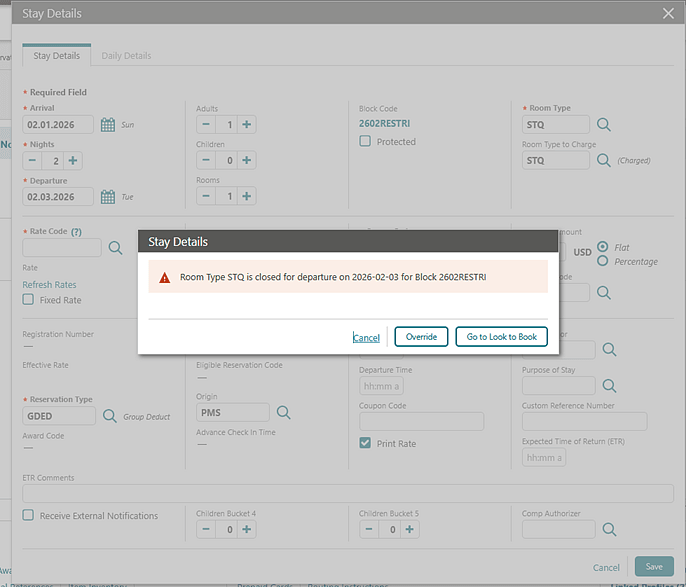
The existing OPERA Cloud Task Booking - Reservation Management - Look to Book Sales Screen - Override Rate Restriction is renamed to Override Block and Transient Restrictions to more accurately describe the functionality this user task controls. Existing OPERA Cloud roles with the user task Override Rate Restriction will continue to have the renamed user task. Note that this user task previously allowed users to override Rate restrictions in addition to block, house, and room type restrictions on the Look to Book Sales Screen as well as rate, house, and room type restrictions when modifying existing (non block) reservations.
See OPERA Cloud Tasks - Bookings.
OPERATIONAL BENEFITS
By validating against block restrictions when modifying an existing block reservation properties can more easily honor the booking restrictions applicable for reservations made against a group block.
Parent topic: RESERVATIONS
Book Now Card Expiry Warning Added
When booking a reservation in the Look to Book Sales Screen, a warning banner appears on Book Now if the validated credit card expires before the reservation arrival date, prompting to verify card details. This warning disappears if updated credit card information is entered and does not prevent booking completion.
OPERATIONAL BENEFITS
This feature notifies the users that the provided credit card expires before the guest's arrival date.
Parent topic: RESERVATIONS
Configure Advance Alert Messages for Global Alerts
The Advance Alert OPERA Control parameter is updated to configure an Alert Message as an advance alert to be used with Global Alert Definitions. Advance Alerts allows you to create rich text alert messages with custom formatting as well as the ability to insert reservation and profile merge codes, conditional blocks, and repeating groups into the message body of the alert message.
See Configuring Reservation Alert Messages.
Alerts Advanced Alert Message Editor:
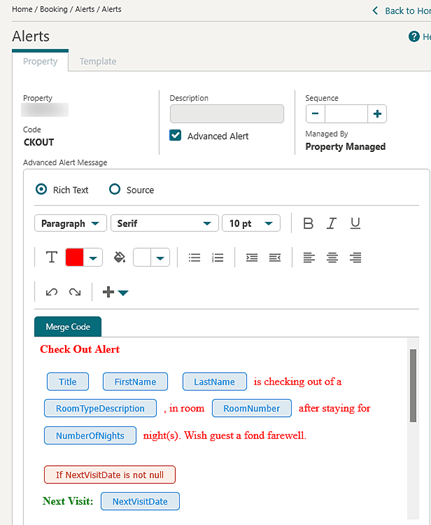
Alert:
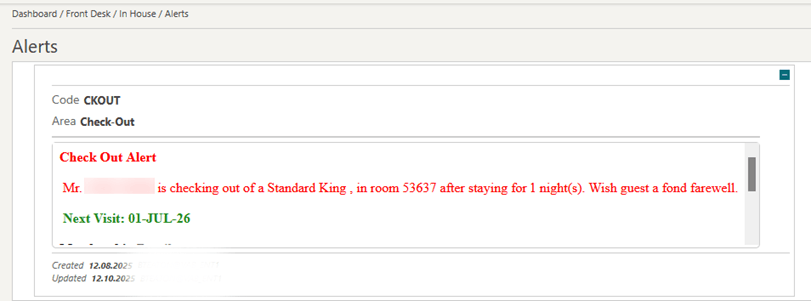
OPERATIONAL BENEFITS
The use of Advance Alert Messages with Global Alerts allows for personalized alert messages to be auto-attached to a reservation using reservation attributes to build the message itself. Examples of merge codes which can be used to deliver personalized service in Alert messages include, guest name, next visit date, membership level, UDF Flex Fields and many more!
STEPS TO ENABLE
- From the Side Menu, select Administration, select Enterprise and then select OPERA Controls.
- Select or confirm the Property.
- Select the Reservations group.
- Locate and activate the Advance Alerts parameter.
Parent topic: RESERVATIONS
Hide Display Set OPERA Control and View Hidden Display Sets Task Added
A Hide Display Set OPERA Control (see OPERA Controls — Look To Book Sales Screen) is added to the Look To Book Sales Screen group and a View Hidden Display Sets task is added to the Rate Management group. See OPERA Cloud Tasks — Financial Admin.
Users with the View Hidden Display Sets task granted to their role(s) can view the Hidden Display Set (indicated with red borders and hover message) in the Look To Book Sales Screen availability search results. Users without the View Hidden Display Sets task cannot view the Hidden Display Set in Look To Book Sales Screen.
Note:
Default Display Sets cannot be set as a Hidden Display Set or a Hidden Display Set as a Default Display Set in OPERA Controls. Partners and consumers of our API are not subject to this functionality.See Using Look To Book Sales Screen.
Example of hidden display sets bordered in red with hover message for those users with the View Hidden Display Sets task:
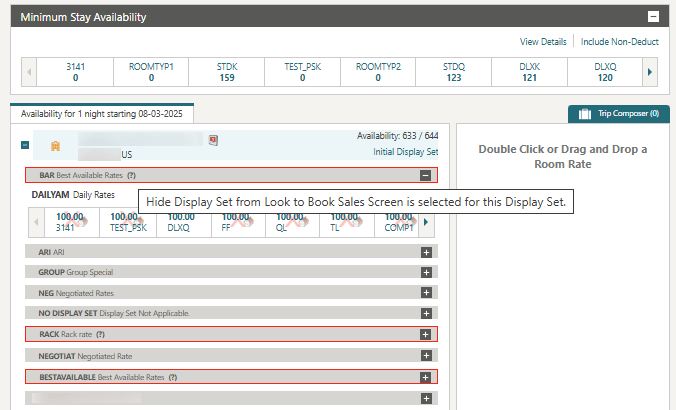
OPERATIONAL BENEFITS
Restrict the Rate Code availability from Look To Book Sales Screen by hiding its Display Set.
STEPS TO ENABLE
To Hide display sets:
- From the Side Menu, select Administration, select Enterprise, and then select OPERA Controls.
- Select either Property or HUB according to your needs.
- Select the Look To Book Sales Screen group.
- Search and select the display set(s) from the list in the Hide Display Set setting.
- Click Save.
To grant the View Hidden Display Sets task:
- From the Side menu select Role Manager, select either Manage Chain Roles or Manage Property Roles according to your needs.
- Enter search criteria and click Search.
- Select the role to update, click the vertical ellipsis Actions menu, and select Edit.
- Select Rate Management group and grant the tasks View Hidden Display Sets.
- Click Save.
Parent topic: RESERVATIONS
Leg Number Added to the Additional and Linked Reservations Panels
A Leg Number column is added to the Additional Reservations and Linked Reservations panels to easily identify the individual legs of itinerary reservations, particularly when the Unique Confirmation Number for Linked Reservations OPERA Control is inactive.
The External Reference panel displays an OPERA type record for each leg, including Leg Number 1.
Additionally, Room and Departure columns are available on the Additional Reservations tab and Linked Reservations panels.
OPERATIONAL BENEFITS
This enhancement enables users to easily identify the individual legs of itinerary reservations, particularly when the Unique Confirmation Number for Linked Reservations OPERA Control is inactive.
STEPS TO ENABLE
- Navigate to the reservation presentation screen for a linked reservation.
- Open the Additional Reservations panel or select Linked Reservations.
- Click View Options, then Columns, and then select Leg Number.
Parent topic: RESERVATIONS
Loyalty Qualified Indicator Added to Daily Details and Stay Details
A new Loyalty Qualified field is introduced to improve visibility of rate qualification for loyalty programs within OPERA Cloud.
Daily Details Panel:
The Loyalty Qualified field now displays in the Daily Details panel for guest stays. This field indicates whether a rate qualifies for loyalty benefits.
Stay Details Screen:
A corresponding Loyalty Qualified field also appears next to the rate code in the Stay Details screen, providing at-a-glance information about qualification status.
See Configuring Rate Code Financial Details.
OPERATIONAL BENEFITS
These enhancements clearly identify if the rate assigned to a guest’s stay qualifies for loyalty points or miles accrual, providing immediate visibility.
Parent topic: RESERVATIONS
Reservation Arrival Search Updated with SMART Search
A SMART Search OPERA Control is added to the Reservations group, enabling SMART Search in the Reservations Arrival search to identify similar matches in arrival reservations. This feature performs a similarity search based on key guest information, including Last Name, First Name, and Email Address, allowing users to quickly locate relevant reservations even when exact details are not available.
Example:
- It can correctly identify a reservation for FIRSTNAME LASTNAME even if the search query is entered as LASTNAME FIRSTNAME, demonstrating its ability to handle reversed names.
- The feature is tolerant of minor spelling errors, so a search for a name with a misspelling (whether the first name or the last name is misspelled) still retrieves the correct reservation.
Note:
The SMART Search feature is applicable when searching for reservations based on Last Name, First Name, and Email Address. If other search criteria are provided along with these three, only records that match the given search criteria are retrieved.
OPERATIONAL BENEFITS
The SMART Search feature in the Reservations Arrival screen provides several operational benefits to customers, including:
- Improved Guest Experience: By allowing staff to quickly and accurately locate reservations despite minor errors or variations in guest information, SMART Search helps to reduce wait times and improve the overall check-in experience for guests.
- Increased Efficiency: The feature saves staff time by reducing the number of searches required to find a reservation, allowing them to focus on more critical tasks and improving overall operational efficiency.
- Reduced Errors: SMART Search minimizes the likelihood of errors caused by misspelled or incorrect guest information, ensuring that guests are correctly identified and their reservations are accurately retrieved.
- Enhanced Customer Service: By providing staff with the ability to quickly and accurately locate reservations, SMART Search enables them to deliver more personalized and responsive service to guests, enhancing the overall customer experience.
Overall, the SMART Search feature helps to streamline front desk operations, improve guest satisfaction, and increase the overall efficiency of hotel operations.
STEPS TO ENABLE
Steps to enable new OPERA Controls
- From the Side Menu, select Administration , select Enterprise and then select OPERA Controls.
- Select or confirm the Property.
- Select the Reservations group.
- Locate and activate the SMART Search function.
Parent topic: RESERVATIONS
Reservation Protection Updated
For properties with the Reservation Protection OPERA Control active, the following improvements have been added:
- Linked profiles can be protected and cannot be edited or removed
- A new child parameter to unprotect a reservation at or after check-in
- Go to Look to Book button is disabled in other areas
- Additional fields, including packages, are added to be protected
- When all rate-affecting fields are protected, Refresh Rate is disabled
- Protect checkbox (read-only) can be seen on the Reservation Overview and Daily Details for easy identification whether the reservation is protected
OPERATIONAL BENEFITS
The new protection enhancements in OPERA Cloud simplify and secure reservation management by preventing unauthorized edits to critical profiles and sensitive reservation details. These features increase data integrity, reduce operational risks, and ensure compliance with privacy and audit requirements. Front-line and back-office teams benefit from improved workflow efficiency, greater visibility into protection status, and enhanced control over when and how protected reservations may be updated, resulting in a more secure and reliable hospitality operation.
IMPACT OR OTHER CONSIDERATIONS
When a reservation spans multiple days, OPERA Cloud assesses each day of the reservation against defined protection conditions (such as rate code, market code, etc.). If the protection condition is satisfied for any single day within the reservation period, then the entire reservation must be flagged as protected. This means that protection status is not isolated to only those specific days, but rather applies comprehensively to all days covered by that reservation.
STEPS TO ENABLE
- From the Side Menu, select Administration, select Enterprise, and then select OPERA Controls.
- Select or confirm the Property.
- Select the Reservations group.
- Locate and configure the Automatic Removal of Reservation Protection setting. If left blank the reservation is always protected.
Parent topic: RESERVATIONS
Reservation Sales Screen Updated
Central
The Reservation Sales Screen (see Using the Reservation Sales Screen) is updated with the following:
Availability Screen:
Smart search improvements in the New Reservation screen:
- Mandatory filter chips Arrival/Nights/Departure, Adults/Children, and Rooms are always displayed first in the Smart Search bar, followed by any other filters selected in the form.
- Additional filters added through Smart Search appear at the end of the selected filter chip list, in the order they were added.
- Search functionality allows you to type in the search bar to find available filter chips. Matching filters are shown in a drop-down menu, and selecting one adds it to the search bar.
OPERATIONAL BENEFITS: This enhancement enables users to quickly locate, review, and update selected filter chips, as well as easily add new ones.
You can view an Event Image by clicking on the events link in the property card and then clicking on a specific event within your stay dates.
OPERATIONAL BENEFITS:This provides a visual image that could aid in describing the event to the caller.
The availability results remain displayed in the view you have selected, whether it be detailed view, list view, or map view, when you update search criteria and the rate availability refreshes.
OPERATIONAL BENEFITS:This saves the user clicks as they do not have to repeatedly select their preferred view every time they update search criteria with in the availability screen.
You can book reservations for a property's room numbers by entering a specific room number in the room number field or room number filter chip, or by searching for a room number in the Find Room screen launched from the room number field, where you find filter chips to assist you in finding a specific room number based off of a specified room type or room features.
OPERATIONAL BENEFITS: This feature allows you to easily search for and book specific room numbers. For example, you might use it if you are a room owner checking the availability of your room, a returning guest who prefers the same room as a previous stay, or if you need a room with a certain feature—such as pet-friendly accommodations—and want to see which room numbers with that feature are available for your stay.
For properties where the Advanced Daily Details OPERA Control is active, you can create multi-segment reservations where each segment can have different room types and/or blocks as well as a different Origin Code and Purpose of Stay.
OPERATIONAL BENEFITS: This feature makes it easier for you to create and add more specific information for each segment.
Block booking improvements:
- Added a Group column to the Block search drop-down.
- Closed and restricted room types are now hidden in the Block Availability results when Include Restricted is not selected.
- The block card is moved to the left side, providing more space for block availability results.
- Visual improvements include a darker background and larger fonts for enhanced clarity.
OPERATIONAL BENEFITS: These enhancements enable call center agents to more easily view and identify available room types for booking.
Overview Screen:
You can create a new guest profile directly from the In Progress Reservation screen by clicking the Create Profile link in the profile panel.
OPERATIONAL BENEFITS: This feature streamlines the process for call center agents by reducing the number of clicks and steps required to create a new guest profile from the In Progress Reservation screen.
A Send Confirmation Letter at Booking in Reservation Sales Screen OPERA Control (Default Active) is added to the Look To Book Sales Screen group, to show the Confirmation Letter drawer as the final step after confirming a booking using the Reservation Sales Screen.
OPERATIONAL BENEFITS: This control allows the customers to customize the booking flow using the Reservation Sales Screen (RSS) to display or skip the Send Confirmation Letter step.
A warning banner appears on the In Progress screen if the validated credit card expires before the guest's arrival date, prompting to verify card details. This warning disappears if updated credit card information is entered, and does not prevent booking completion.
OPERATIONAL BENEFITS: This feature notifies the users that the provided credit card expires before the guest's arrival date.
On the Packages tab you can view both the Description and Short Description for each package.
- The package listing screen displays the Short Description. Clicking on the description text opens a screen showing both the Short Description and Description.
- The Add Packages screen displays the Short Description. Clicking on the description text opens a screen showing both the Short Description and Description. An Add button is provided for quick package selection.
- The Add Package and Edit Package drawers include the Short Description and Description, and any configured package images.
OPERATIONAL BENEFITS: This enhancement allows the customers to quickly view details in both short and long descriptions and to share these details during the call.
Find Reservation Screen:
- You can Edit and Resend the existing confirmation letters from the Confirmation Letters drawer.
Find Property Screen:
The Property Brochure screen is updated with:
- An Event Image is shown in the property brochure and can be seen when clicking the Calendar link and then clicking any date where an event exists with an uploaded event image.
- You can configure a Website URL address in the Dining and Retail section. The description appears as a blue, clickable link that opens the configured website when selected.
- An Onsite checkbox is added to the Dining and Retail section of the property brochure to indicate that when selected, it is an on-site establishment. If unselected, it is offsite (not located on the property).
- The order of the dining and retail section is governed by the configured Sequence.
- Driving Time and Driving Directions fields are added to the Attractions section.
OPERATIONAL BENEFITS: These updates to the Property Brochure make it quick and easy to access important information and provides visual cues that aid in describing the property and events to the caller.
STEPS TO ENABLE
Uploading Event Images:
- From the Side Menu, go to Administration, select Financial, then Rate Management, and then select Property Calendar.
- Select the Property.
- Create NEW (or Edit) property event.
- Add or edit details for property event, upload image, and then save.
Configuring Dining and Retail for Property Brochure:
- From the Side Menu, go to Administration, select Enterprise, select Chain and Property Management, and then select Properties.
- Select the Property and Edit.
- Click Dining and Retail.
- Select a row and click Edit.
- Enter Web URL address into the Website Configuration field.
- Select Onsite checkbox for onsite establishment. Leave Onsite checkbox blank to indicate offsite establishment.
- Select a number in the Sequence field for each establishment to order the dining and retail section display in the property brochure.
Parent topic: RESERVATIONS
SAMPLE_GUEST_CONFIRMATION Updated for Scheduled Activities
For properties with the Scheduled Activities OPERA Control active, the Sample Confirmation Letter (sample_guest_confirmation) data model (XML) is updated with elements for Scheduled Activities (External Leisure). The following XML elements can be added to the 'G_ACTIVITIES' repeating group:
- ACTIVITY_ID - The OPERA Cloud unique id for the activity booking.
- ACTIVITY_EXTERNAL_SYSTEM - The external system making the activity booking.
- ACTIVITY_EXTERNAL_ID - The unique identifier for the activity booking from the external system.
- ACTIVITY_AMOUNT - The price of the activity booking.
- ACTIVITY_DEPOSIT_AMOUNT - The deposit amount for the activity booking.
- ACTIVITY_CURRENCY_CODE - The currency code for the activity booking (for the activity amount and deposit amount).
- ACTIVITY_LOCATION - The Activity location (code) for the activity booking.
- ACTIVITY_DESCRIPTION - The configured description of the activity type.
- ACTIVITY_STATUS_DESCRIPTION - the configured description of the activity status code.
- ACTIVITY_URL - The URL provided by the external system for the activity booking.
See Managing Reservation Scheduled Activities (External Leisure).
OPERATIONAL BENEFITS
These added XML elements provide additional details of guest activity itineraries for inclusion on reservation confirmation letters.
STEPS TO ENABLE
See Updating Customized Stationery with Current Data Model.
Parent topic: RESERVATIONS
Sorting By Arrival Date and ETA Updated to Consider Next Day Arrivals
When viewing arrival reservations, Estimated Time of Arrival (ETA) marked as 'Next Day' status shows in the ETA field on reservation search screens. Additionally, when reservations are sorted by Arrival Date and ETA (either ascending or descending), the 'Next Day' indicator is included in the sort order. Reservations marked as ETA 'Next Day' display before (when in descending order) or after (when in ascending order) reservations with an ETA that is not marked as 'Next Day' and in their corresponding chronological order.
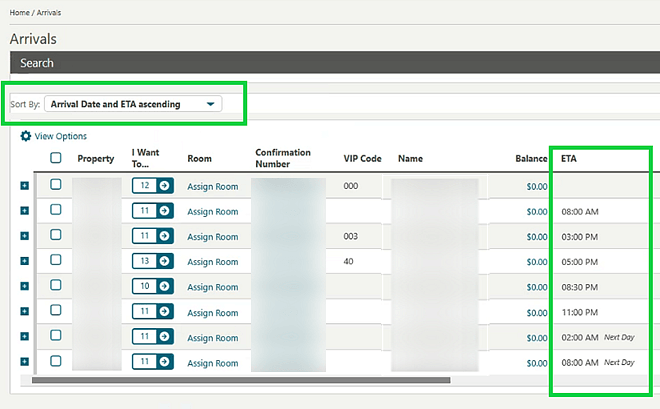
OPERATIONAL BENEFITS
By Considering the 'Next Day' attribute, arrivals can be correctly sorted based on their Estimated Time of Arrival in chronological order, considering those arrivals expected to arrive after midnight.
Parent topic: RESERVATIONS
SALES
-
Oracle Hospitality OPERA Cloud Service, Sales and Event Management Essentials Edition.
-
Oracle Hospitality OPERA Cloud Service, Sales and Event Management Standard Edition.
-
Oracle Hospitality OPERA Cloud Service, Sales and Event Management Premium Edition.
Features that are specific to the Sales and Event Management Premium
Edition are marked with the Premium badge.
- Activity Listing Report Updated
- Deep Link to Activities Added
- Property Leads Search Updated
- Sales Account Forecast OPERA Control Updated
Parent topic: Feature Summary
Activity Listing Report Updated
A Property column is added to the Activity Listing (rep_activity) report. The Group By report parameter is updated to include Property as an option. See Activity Report (rep_activity_rep with rep_activity.fmx).
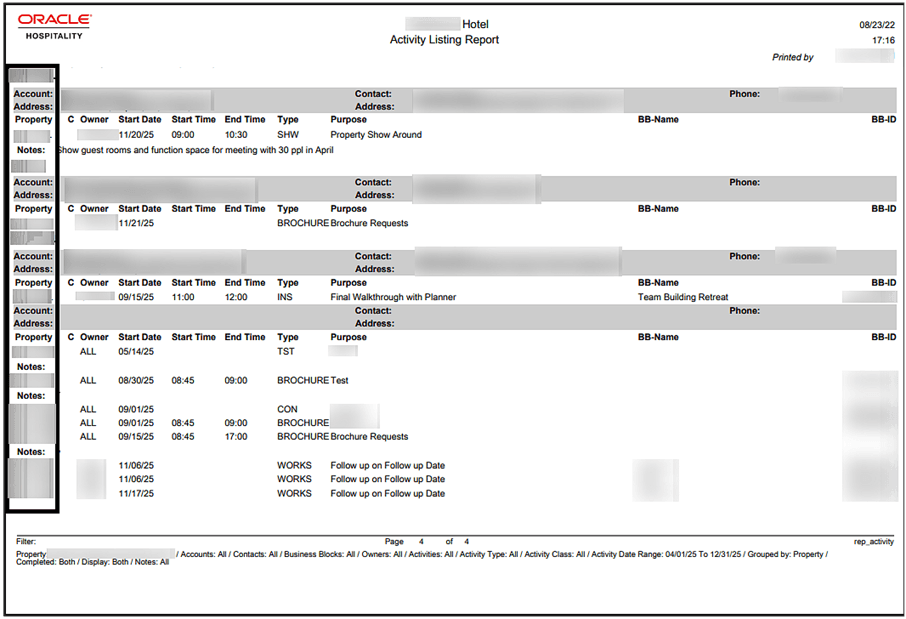
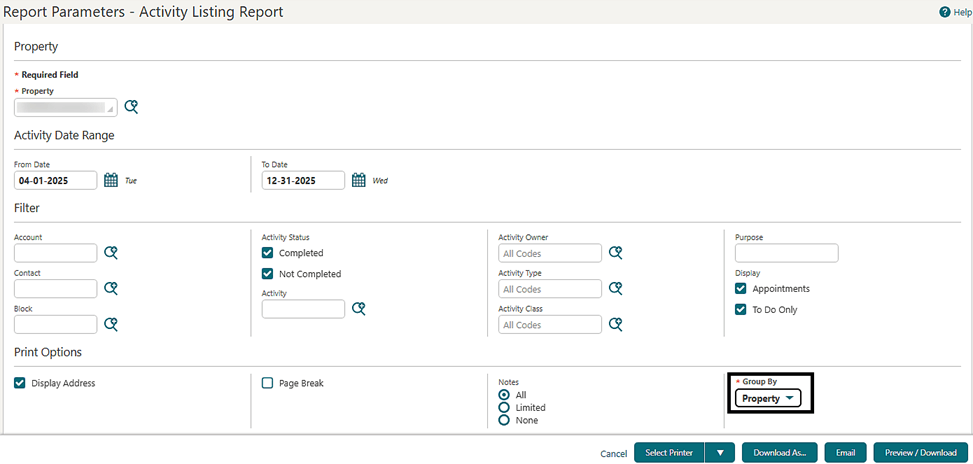
OPERATIONAL BENEFITS
When generating this report for multiple properties users can quickly identify the property that each activity belongs to.
Parent topic: SALES
Deep Link to Activities Added
A Deep Link is added to launch and display the Activity Presentation screen by passing the Activity ID in the OPERA Cloud URL:
https://{Hostname}}/bookmarks/activity?activityId=<Param value>
- activityId (required) = Activity Id
See Using Deep Links to Presentations Pages.
OPERATIONAL BENEFITS
You can navigate directly to a specific opportunity, lead, account, or activity (such as a meeting or call log) with a single click, saving time and reducing the number of steps needed to retrieve critical data.
Parent topic: SALES
Property Leads Search Updated
Central
For properties with the Central Sales OPERA Control active, you have the option to perform an Advanced Property Search to select properties when creating property leads. Properties can be filtered by Country/Region, Marketing Region, Marketing City, Property Type, Amenities, and/or Local Attractions.
See Managing Central Sales Leads.
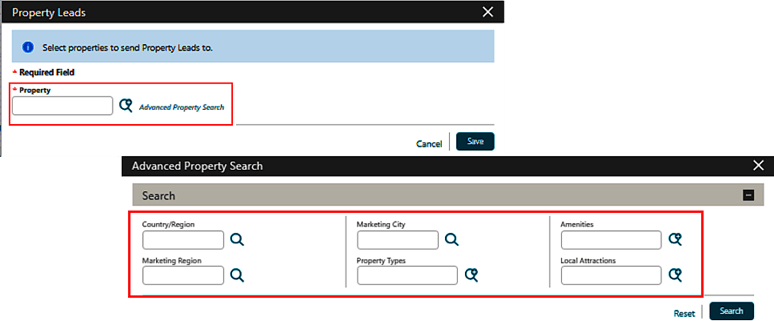
OPERATIONAL BENEFITS
Advanced search capabilities are integrated directly into the lead creation process, helping you move seamlessly from prospecting to property selection without switching between systems or manual lists.
Parent topic: SALES
Sales Account Forecast OPERA Control Updated
Central
The Account Forecast OPERA Control is available for properties with an OPERA Central Oracle Hospitality OPERA Cloud Central Management Services subscription even if an OPERA Cloud Sales and Event Management Premium subscription is not active.
If an Oracle Hospitality OPERA Cloud Central Management Services subscription is active, the Account Forecast OPERA Control can be activated for the Central Sales property enabling the use of the sales account forecast to set up expected revenue and room nights on sales account profiles.
See Managing Sales Account Forecast.
OPERATIONAL BENEFITS
By enabling the Sales Forecast on the Central Sales property, the regional sales teams can input and manage expected revenue and room nights directly on sales account profiles without having to go to each individual property.
Parent topic: SALES