Trials list
The Trials list serves as the central navigation hub for all the trials you have access to, and provides easy navigation between the Trials list and trial details. You can use the Trials list as a convenient and organized way to access and navigate through the trials you can access.
If you have access to a single trial or a subset of trials, the Trials list serves as your Home page, which opens by default when you sign in to Life Sciences AI Agents. However, you can select the Trials tab at any time to view the complete list of trials you can access.
You can filter the list by the operational lifecycle stage: All Trials, Ongoing Trials, Other Trials (trials that are completed, suspended, or terminated), and if you have access, to Trials in Planning. You can switch between the list views as often as you like. Each Trial list view provides the same filters and columns.
The first time you open the Trials list it defaults to the All Trials view. For example:
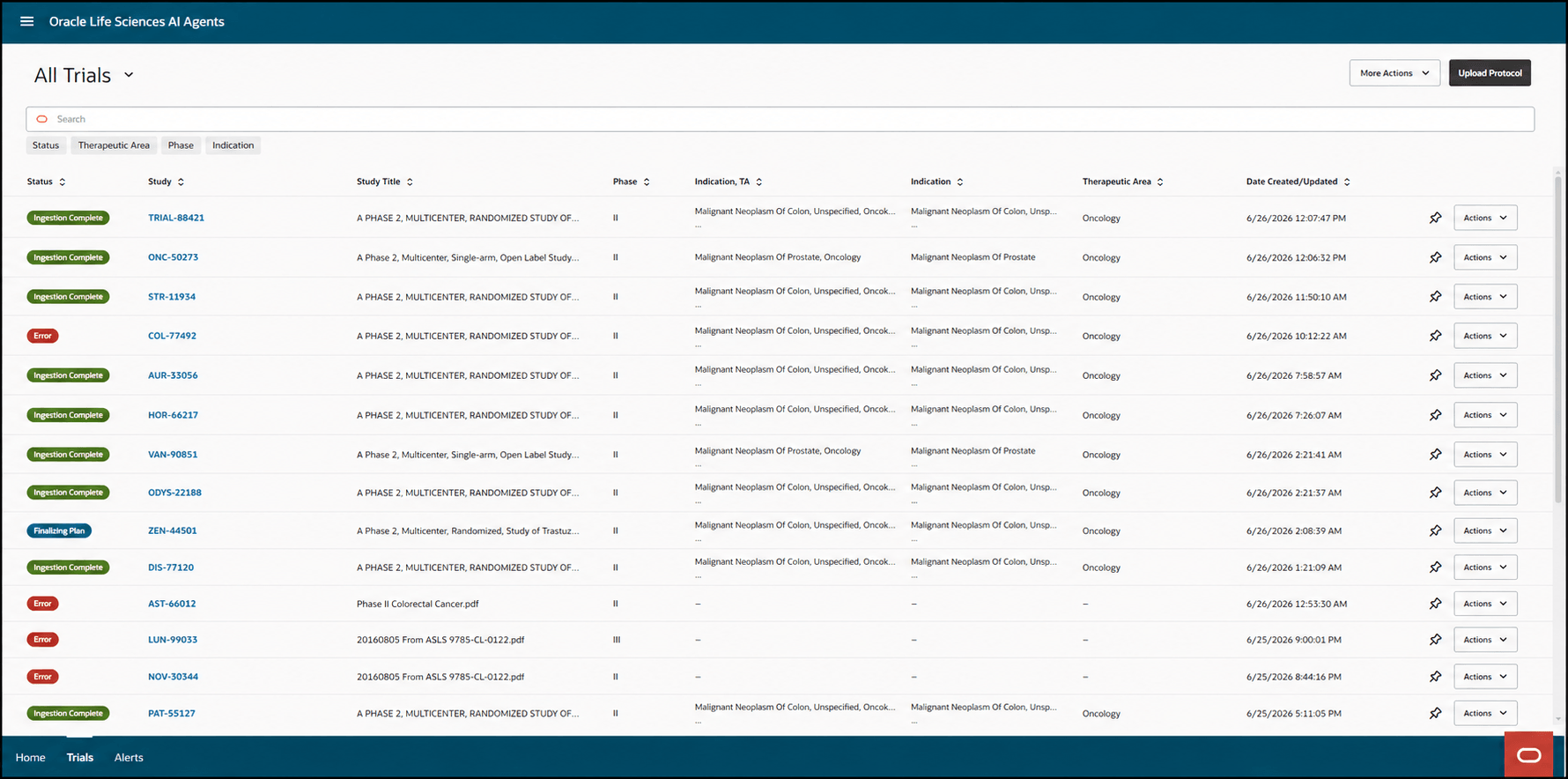
Note:
- To resize a column, move your pointer to the border between two column headers. When the pointer changes to the resize cursor
 , select and drag the border left or right to decrease or increase the column width.
- You can also customize the columns that appear on the page and rearrange their order to optimize your view. For more information, see Customize the columns in the Trials list.
You use the drop-down menu at the top of the page to filter the list by the operational lifecycle stage (All Trials, Ongoing Trials, Other Trials, or Trials in Planning). For example:
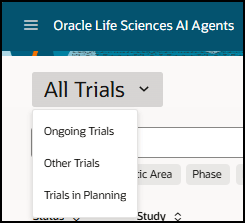
Note:
If you do not have access to Trials in Planning, it does not appear as an option in the drop-down menu. The next time you sign in or select the Trials tab, the last view you selected will open (All Trials, Ongoing Trials, Other Trials, or Trials in Planning).- View the status, study name, study title, phase, indication and therapeutic area, and the dates the trials were created or last updated.
- Search for and sort the trials in the list.
- Filter the list based on Status, Therapeutic Area, Phase, and Indication to easily locate the list of relevant trials for your role.
- Status—Filters the alerts by status. Enter text or select one or more options from the drop-down menu. The status options vary by the type of trials you are viewing (ongoing or in planning).
- Therapeutic Area—Select an option from the drop-down menu to show only the trials for one or more therapeutic areas.
- Phase—Select an option from the drop-down menu to show only the trials for one or more clinical trial phase.
- Indication—Select an option from the drop-down menu to show only the trials for one or more indication.
- Navigate to a trial details page to view details of a specific trial and then return to the Trials list while keeping the Trials list filters in place. For more information, see View the details of an Ongoing Trial or View the details of a Trial in Planning.
- Export all trial data (filtered for All Trials, Ongoing Trials, Other Trials, or Trials in Planning) to a CSV file. For more information, see Export trial data.
- Add a new trial. For more information, see Add a trial for planning and monitoring.
- Use the Actions drop-down menus to initiate the following tasks:
For Ongoing Trials:
- Navigate to the study details. When you open the study details, a new tab with the study name appears at the bottom of the Trials interface page. For more information, see View the details of an Ongoing Trial.
For Trials in Planning:- Upload another version of the same study protocol and regenerate the trial plan. For more information, see Upload a different version of a trial protocol.
- Navigate to the study details. When you open the study details, a new tab with the study name appears at the bottom of the Trials interface page. For more information, see View the details of a Trial in Planning.
Note:
For more information, see Manage all trials.Parent topic: Trials interface