Alerts list
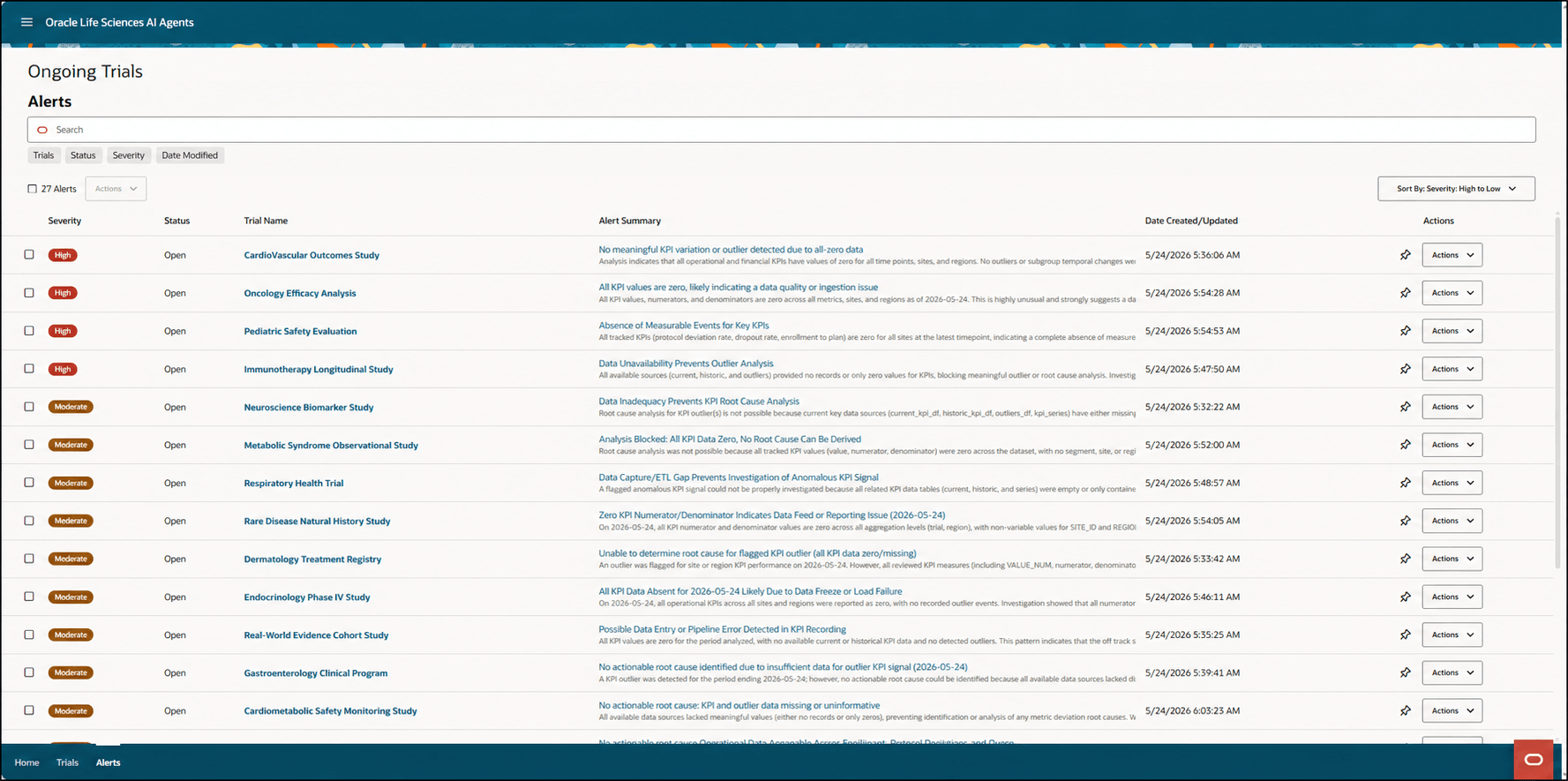
The Alerts list serves as a central repository for all the alerts in the Ongoing Trials you have access to, and provides easy navigation between the Alerts list and alert details. Alerts are AI-generated notifications that provide important information or identify potential issues for the Ongoing Trials you can access.
You can use the Alerts list to efficiently manage and respond to alerts across multiple trials, streamlining your workflow and improving your ability to address potential issues or opportunities. By default, the alerts are prioritized based on risk severity (Critical, High, Moderate, or Low).
You can view alerts details and provide feedback on every alert. You can also view the AI reasoning steps for an alert, view the history of the alert, snooze or dismiss alerts, and view details for the study where the alert originated.
When you select the Alerts tab at the bottom of the Trials interface window, the Alerts list opens. For example:
Note:
The Alerts list and associated pages provide information for Ongoing Trials only.- View the risk severity (Critical, High, Moderate, or Low), study name, alert name, alert summary, and the dates the alerts were created or last updated.
- Search for an alert.
- Sort the alerts in the list. Use the Sort By drop-down menu on the right to sort the alerts by:
- Severity: High to Low
- Severity: Low to High
- Date: Most Recent Updated
- Trial Name: A-Z
- Trial Name: Z-A
- Filter the list based on:
- Trials—Filters the alerts by trial name(s).
- Status—Filters the alerts by status. Enter text or select an option from the drop-down menu:
- Snoozed—Shows only the alerts that you snoozed.
- Dismissed—Shows only the alerts that you dismissed.
- Completed—Shows only the alerts that you acted on that resolved the issue.
- Open—Shows all your active alerts (this filtered list shows the alerts that do not have any other status).
- Severity—Filters the alerts by severity risk. Enter text or select an option from the drop-down menu:
- Critical—Imminent or ongoing serious risk to patient safety or trial integrity that may warrant immediate trial halt, enrollment hold, or urgent regulatory notification.
- High—Credible and significant risk to patient safety, primary endpoint integrity, or critical milestones if not addressed promptly.
- Moderate—No immediate safety risk, but material risk to timelines or quality; major (non-critical) protocol deviations; secondary or operational data degradation; sustained under-enrollment likely to delay non-critical milestones.
- Low—Minor, localized, or transient issue with limited impact; generally reversible with routine follow-up and unlikely to affect safety or milestones.
- Date Modified—Filters the alerts by the date modified. Use the Calendar icon to select a Start Date and End Date, or enter a date for each in MM/DD/YYYY format.
- Navigate to an Alert details page to view details of a specific alert and then return to the Alerts list while keeping the Alerts list filters in place. For more information, see View the details of an alert and provide feedback.
- Navigate to the study details. When you open the study details, a new tab with the study name appears at the bottom of the Trials interface page. For more information, see View the details of an Ongoing Trial.
- Use the Actions drop-down menu to initiate the following tasks:
Note:
For more information, see Manage the alerts for all Ongoing Trials.Parent topic: Trials interface