Introduction to Building Portals with WebCenter Portal
Before building a portal, become familiar with the basic concepts of WebCenter Portal and the tasks involved in building a portal.
Topics
About This Guide
This guide is aimed at the application specialist or an advanced knowledge worker, who uses WebCenter Portal to create, edit, and administer portals. It provides instructions for tasks such as creating, customizing, and administering portals; managing and developing portal templates; creating and editing portal pages and the content they expose; defining the assets and tools available to portals; setting portal and page security through membership, roles, and permissions; and more
Where Do I Start?
If you already have a concept of what you want your portal to look like and the content you want to include in it, you probably want to dive in and create your portal without reading a lot of background conceptual information. To help get you started quickly, this chapter provides a brief overview of the basic concepts that are necessary knowledge before you begin. Read Building Portals Concepts, then review Building Portals Tasks for an overview of the range of tasks available to you in the development of a portal.
When you feel you have an understanding of the basic concepts and tasks available to you, go to Creating and Building a New Portal to follow the steps to use the portal creation wizard to create your new portal.
When your initial portal is created, you will probably have questions about where to go next to build out the portal you envision. While this guide contains all the information you need, you will find a summary to guide you in What’s Next?
Building Portals Concepts
This section introduces the concepts involved in building portals to give you a general overview before you begin to build a portal with WebCenter Portal:
Note:
For a general overview of WebCenter Portal, and how to work in a portal after it is built, see Using Portals in Oracle WebCenter Portal, which provides information for the knowledge worker who wants to contribute content, share data, collaborate with co-workers, and view profiles.
What Is a Portal?
A portal is an online gateway to a wide variety of purposes. It offers secure access to data, content, business applications, and services from multiple back-end sources in a web browser that is easy to navigate and use. A portal can provide tools to connect employees within an organization, actively sharing both profile and project information across teams; another portal may be directed towards customers, allowing them to explore and purchase products. Some portals are focus areas for small teams, others are loaded with functionality for use by thousands of users.
Much of a portal’s inherent value lies in the way it aggregates data, content, business applications, and services into a unified user experience, whether viewed in a browser, smart phone, or tablet. Figure 1-1 depicts several sources of information, exposed to a user on a single page in a portal.
Figure: Integrating Multiple Sources of Information
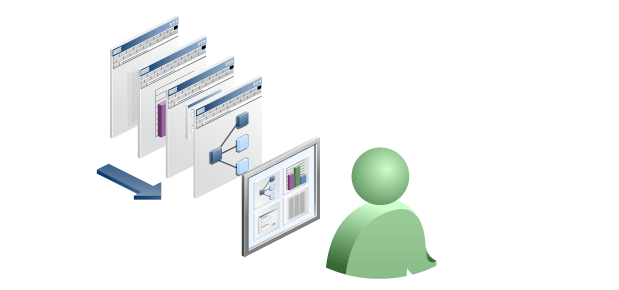
Description of the illustration pywcp_solution.gif
WebCenter Portal provides all the tools you need to quickly create a robust portal through an intuitive user interface and a selection of out-of-the-box portal templates (see What Is a Portal Template?) to help you get started with built-in functionality appropriate for the portal you want to create. After creating a portal, you can easily develop it by adding pages, components, and more. You can customize the look and feel of a portal, define security and membership in the portal, and continually add new features and functionality as the needs and demands of your portal change.
When you publish your portal, it is available for others to access through a URL allowing them to perform actions in the portal as allowable by their permissions. A user may have defined permissions given to their assigned role, or may be granted ad hoc permissions to certain areas of the portal, such as editing permissions on a particular page in the portal. Portal users may be unaware that the data, content, and applications surfaced in a portal often come from entirely different back-end sources. Furthermore, through portal-driven events, these aggregated components can interact with each other within the browser. To the user, everything is presented in a seamless, integrated interface.
Portals falls into two basic categories: - Intranet portals are used for collaboration, employee self-service, and company communication.
- Extranet portals are used by customers and partners for self-service and support.
What kind of portal do you want to build? Let’s look at some of the basic requirements for these kinds of portals in more detail.
Internal Company Portals (Intranet)
Intranet portals allow users within an organization to collaborate, access critical information, and obtain self-service securely.
There are many applications for an intranet portal, such as: - A self-service portal that enables employees to update time cards, request vacation, complete performance appraisals, and view benefit information.
-
Company-wide information that are made available to all users of the portal.
-
Collaborative team workspaces, as described in Team Collaboration Portals.
Team Collaboration Portals
A team collaboration portal is typically used by a group within a company who wish to share and collaborate on documents and other information.
You can make a team portal publicly available to users within the company or restricted to authorized users only, typically the members of the team or other invited individuals. Typical purposes for team collaboration portals include: - Collaboration around a specific project.
-
Training content for all employees.
-
Post, view, and edit documents.
-
Track activities, so users can see when a document was added or changed, among other activities.
Key features of team collaboration portals include:
-
Team portals do not require any IT effort for creating, provisioning, and maintaining them. They are maintained primarily by knowledge workers and application specialists.
-
Portal users can share documents and use social components like activity streams, wikis, blogs, and so on.
-
The system administrator delegates administration rights so that team leaders and other individuals can manage their own team portals, reducing the cost to the IT department and enabling them to serve large numbers of users with minimal support overhead.
External Portals (Extranet)
Extranet portals extend outside the organization and provides services targeted to customers and vendors.
Some extranet use cases include:
-
Allowing authorized users to log in and access the portal's features. For example, vendors might access the site to learn about bidding opportunities or status. Customers can purchase products, view billing histories, or request support.
-
Delivering custom features to the portal as portlets, business mashups, or task flows.
-
Presenting a consistent look and feel to users and emphasize corporate branding. Customer-specific branding may be required.
What Is the Home Portal?
The Home portal is the area where users have access to their profile, available portals, portal templates, and documents, and can customize certain elements of their own view of the Home portal. Users can create their own personal pages in the Home portal, and system administrators can expose system pages and business role pages to selected audiences. A system administrator may also choose to hide the Home portal from view by modifying the security settings on user roles.
For more information, see Exploring WebCenter Portal in Using Portals in Oracle WebCenter Portal.
What Is Portal Composer?
PortalComposer comprises the portal creating, editing, and administration areas of WebCenter Portal. In Portal Composer, you can create a portal, edit a portal in the portal editor, add and edit the pages of a portal in the page editor, and administer a single portal as the portal creator. The system administrator has access to the Portal Composer administration area (also referred to as WebCenter Portal Administration) that allows for administering all portals.
All aspects of using Portal Composer to build, edit, and administer a portal are covered by the chapters in this guide, Building Portals with Oracle WebCenter Portal. For application-level administration tasks performed by the system administrator in Portal Composer to apply settings to all portals, see the chapters in Administering Portals in WebCenter Portal in Administering Oracle WebCenter Portal.
What Is a Portal Template?
A portaltemplate is the starting point for building a new portal. When you first create a new portal, you select a portal template on which to base the new portal. The portal template can be the built-in template provided with WebCenter Portal, or a custom template developed for a specific use. Subsequently, you can modify and customize the portal to add more features to those initially provided by the template.
For more information, see Working with Portal Templates.
What Is the Portal Server?
In terms of developing portals, the portal server allows portal creators to publish portals available for others to use.
For more information, see Publishing a Portal.
What Are Pages?
You will encounter several types of pages in WebCenter Portal. Pages in WebCenter Portal may be out-of-the-box or user-created.
The out-of-the-box pages in WebCenter Portal are:
-
System pages, which offer a ready-to-use set of customizable, utilitarian pages, such as the Login page and the Self Registration page. Additionally, the tools offered by WebCenter Portal each have an associated system page to provide a user interface to the tool (called a tool console), such as the Document page. System pages are prepopulated with relevant input fields and boilerplate text. System administrators can customize system pages to reflect a company brand, provide useful hints, or provide additional functionality (such as task flows and portlets). Once customized, a system page displays the customizations along with an updated WebCenter Portal look and feel. Before customization, WebCenter Portal displays the generic version of the system page with the look and feel used in prior releases of WebCenter Portal. For more information, see Customizing System Pages in Administering Oracle WebCenter Portal.
-
Business role pages, which can be populated with information of relevance to a particular business role, such as salesperson, accountant, or marketing associate, and then pushed into the Home portal views of all users who are assigned that role. Business role pages are customizable only by the system administrator at the application level, as described in Managing Business Role Pages in Administering Oracle WebCenter Portal.
No matter how you structure your portal, there is always a need for new pages in addition to those that are available out-of-the-box. You can create new pages to meet the needs of your portal:
-
Custom business role pages, created by the system administrator to add to those provided out-of-the-box. For information about creating new business role pages, see Managing Business Role Page in Administering Oracle WebCenter Portal.
-
Personal pages, which you can create for your own exclusive use in the Home portal. By default, personal pages can be seen in the Home portal only by the user who created them, but users can also allow other users to see their personal pages. For more information about personal pages, see Creating and Managing Personal Pages in Using Portals in Oracle WebCenter Portal. While individuals are primarily responsible for managing the content of their personal pages, a system administrator has the authority to administer all personal pages in WebCenter Portal administration, as described in Managing Personal Pages in Administering Oracle WebCenter Portal.
-
Portalpages, which can be created by anyone with permissions to create pages in a portal, and may serve different purposes:
-
Pages created by the portal manager, designed to contribute to the knowledge base of the portal, and typically made available to all members of the portal.
-
Pages created by a portal member, selectively exposed in the portal either for their own use, or shared with other selected portal members. While such portal pages may not be exposed to all portal members, a portal manager has the authority to administer all portal pages.
To ensure that all pages in a portal look and behave consistently, they all use the same page template, set as the default by the portal manager (see Setting the Default Page Template). When you create a portal page, you choose a page style for the initial content and layout of the page (see Creating a Page or Subpage When Editing a Portal). In other words, all pages in a portal use the same page template, but pages can have different page styles for their content areas. Once you create a page and select its page style, you cannot change the page style. If the portal template includes a page style called Default Page Style, then that is the page style used for the Home page and all pages created in the Create Portal wizard. Otherwise, the built-in Blank page style is applied to the pages. Page templates and page styles are portal assets (see What Are Portal Assets?).
Portal pages can have any number of subpages, as well as page variants, which are optimized for display on other devices, such as tablets or mobile phones.
For more information, see Working with Portal Pages.
-
What Are Portal Components?
As you develop a portal, you will add elements to the pages of your portal. These elements are many and varied, and are collectively referred to as portalcomponents. Portal components include task flows, portlets, content containers, and other types of resources such as images and links.
For more information, see:
What Are Portal Assets?
Assets are the objects that define the structure, look and feel, and the content of portals. A portal manager or member with appropriate permissions manages the assets available to an individual portal, and the application specialist manages shared assets, which are available to all portals.
For more information about assets available to individual portals, see Creating, Editing, and Managing Portal Assets. For information specific to shared assets, see Working with Shared Assets.
What Are Portal Tools and Services?
WebCenter Portal offers many tools and services that allow portal members to collaborate and communicate. If WebCenter Portal is installed and configured correctly and your system administrator has set up valid connections to the required external back-end servers, tools and services are available for use in a portal.
Tools and services can be exposed on their own page (console) in a portal with a separately addressable URL, or as one of many components on a page. Tools and services available for use in your portals include: documents, portal events, lists, search, tags, links, mail, notes, and notifications.
For more information, see Introduction to Portal Tools and Services.
Building Portals Tasks
This section introduces the tasks involved in building portals to give you a general overview before you begin to build a portal. These tasks are described step-by-step in the chapters of this guide:
Creating and Publishing a New Portal
The basics of developing a new portal begin with creating the portal using a portal template for the initial design and layout, and publishing the portal for others to use.
For more information, see Creating and Building a New Portal.
Editing, Administering, and Customizing a Portal
After creating a portal, the tasks associated with building and maintaining the portal include editing the portal to add content, administering the portal settings and security, and managing device groups to display the portal on various devices.
For more information, see Working with a Portal.
Creating, Editing, and Managing Portal Pages
The portal pages that you create, populate, and manage present the substance of what users see in a portal.
For more information, see Working with Portal Pages.
Creating, Editing, and Managing Portal Assets
WebCenter Portal includes a variety of assets that you can use to define the structure, look and feel, and content of your portals.
For more information, see Working with Portal Assets.
Managing Portal Security and Membership
Portal managers are responsible for managing the roles, permissions, and members in a portal, which provide the security for the portal.
For more information, see Working with Portal Roles, Permissions, and Members.
Adding and Managing Portal Content
One of the most important portal requirements is content integration. Portal creators and managers need to add and update content, manage content creation, workflows, archiving, and so on.
A content repository stores content such as documents and images. Typically, a connection to a back-end content repository (Content Server) is configured when WebCenter Portal is installed. Once this connection is available, portal manager can enable the Documents tool in their portals. They can then add document components to portal pages, and end users can work with the documents in the portal.
Working with content in a portal includes using Content Presenter to present content in custom or built-in display templates, adding and configuring Content Manager to work with documents, establishing workflow on documents, and enabling wiki and blog functionality in a portal.
For more information, see Working with Content in a Portal.
Adding and Managing Portal Tools and Services
WebCenter Portal offers many tools and services that allow portal members to collaborate and communicate. If WebCenter Portal is installed and configured correctly and your system administrator has set up valid connections to the required external back-end servers, tools and services are available for use in a portal.
For more information, see Working with WebCenter Portal Tools and Services.
Managing Portal Templates and Shared Assets for All Portals
Resources that are available to all portals are administered by the application specialist. These resources include portal templates and shared assets.
For more information, see Managing Shared Resources for All Portals.
Changing the Look and Language in a Portal
Portals can be extended to offer portal members and end users design and language choices.
For more information, see Enhancing Portals Through Design and Language.