Explore the Spatial Studio User Interface
Explore and learn about the interactive Spatial Studio user interface.
Using the main Spatial Studio user interface, you can create one or more projects, each of which can define one or more spatial datasets on which you can perform various spatial operations.
The main landing page for Spatial Studio is as shown:
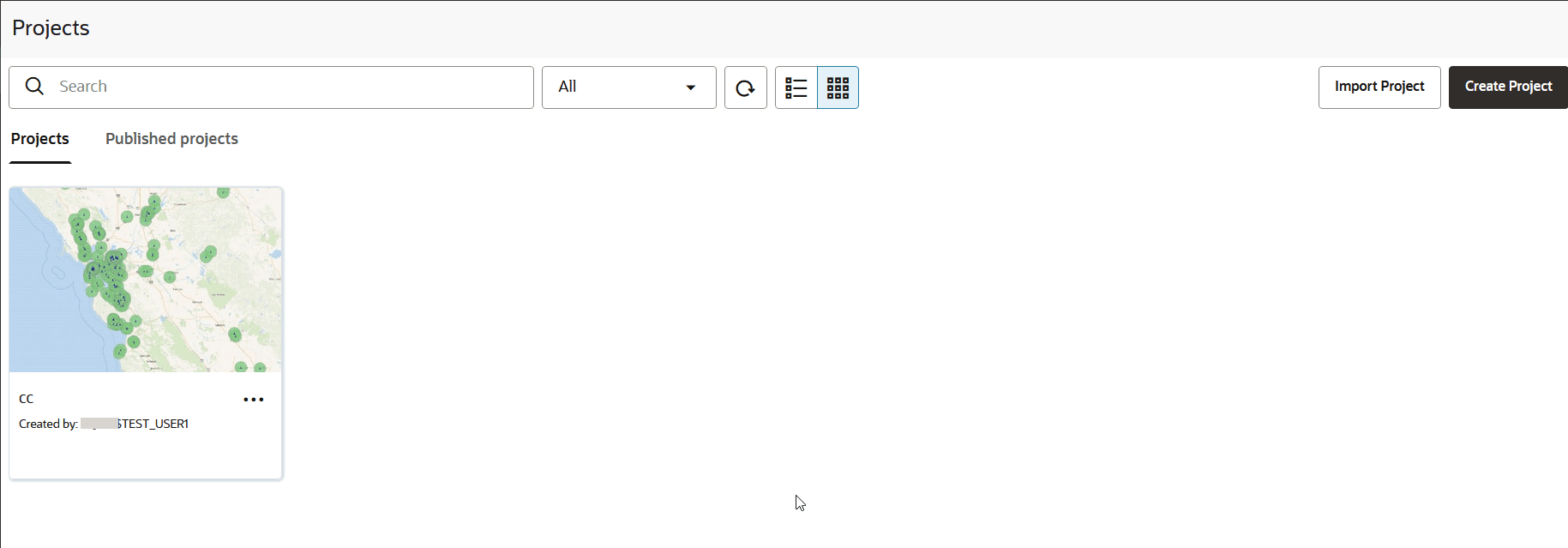
Description of the illustration projects_page.png
The overall layout of the Spatial Studio user interface comprises the following:
-
Header: The header at the top of the page contains the following buttons:
-
 : To display or hide the side navigation menu.
 -
 : Displays the status of the compute environment.
 -
 : To help you get started on Spatial Studio by providing an overview of the tool and links to other tutorial resources.
 -
 : Displays the user profile details.
-
-
Side Navigation Menu: A navigation panel on the left displays the menu items. You can expand or collapse the navigation drawer.
The navigation menu consists of the following options:
-
Active Project: Directs you to the Active Project page where your recent working project is displayed. See Overview of Active Project Page for more information.
-
Projects: Directs you to the Projects page where you can view your existing projects (and published projects) or create a new project. See Overview of Projects Page for more information.
-
AI Labeling: Directs you the AI Labeling page where you can define and add labels to AI labeling projects. See Overview of AI Labeling Page for more information.
-
Datasets: Directs you to the Datasets page where you can view the existing datasets or create a new dataset. See Overview of Datasets Page for more information.
-
Connections: Directs you to the Connections page where you can view the existing connections (data sources) or create a new connection. See Overview of Connections Page for more information.
-
Jobs: Directs you to the Jobs page where the various background jobs started by Spatial Studio to process various requests are listed. See Overview Jobs Page for more information.
-
Console: Directs you to the Console page where the Spatial Studio administrator can monitor the status and activity of Spatial Studio. It contains tabs for Settings, Maintenance, and Monitoring. See Overview of Console Page for more information.
-
-
User Workspace: The page specific details for the selected menu option is displayed on the right.