FSM Mobile Sales Order Management
The Sales Order tab in FSM Mobile lets you create sales orders and record items for CRM tasks and project tasks. When a sales order synchronizes with NetSuite, FSM saves the sales order and, by default, processes eligible items for fulfillment.
The behavior described in this topic applies to the default Sales Order tab configuration. Custom configuration can change the behaviors identified as defaults, subject to the supported configuration boundaries.
For help choosing between recording items on a sales order and recording consumables, see Deciding Between the Consumables and Sales Order Tabs.
How It Works
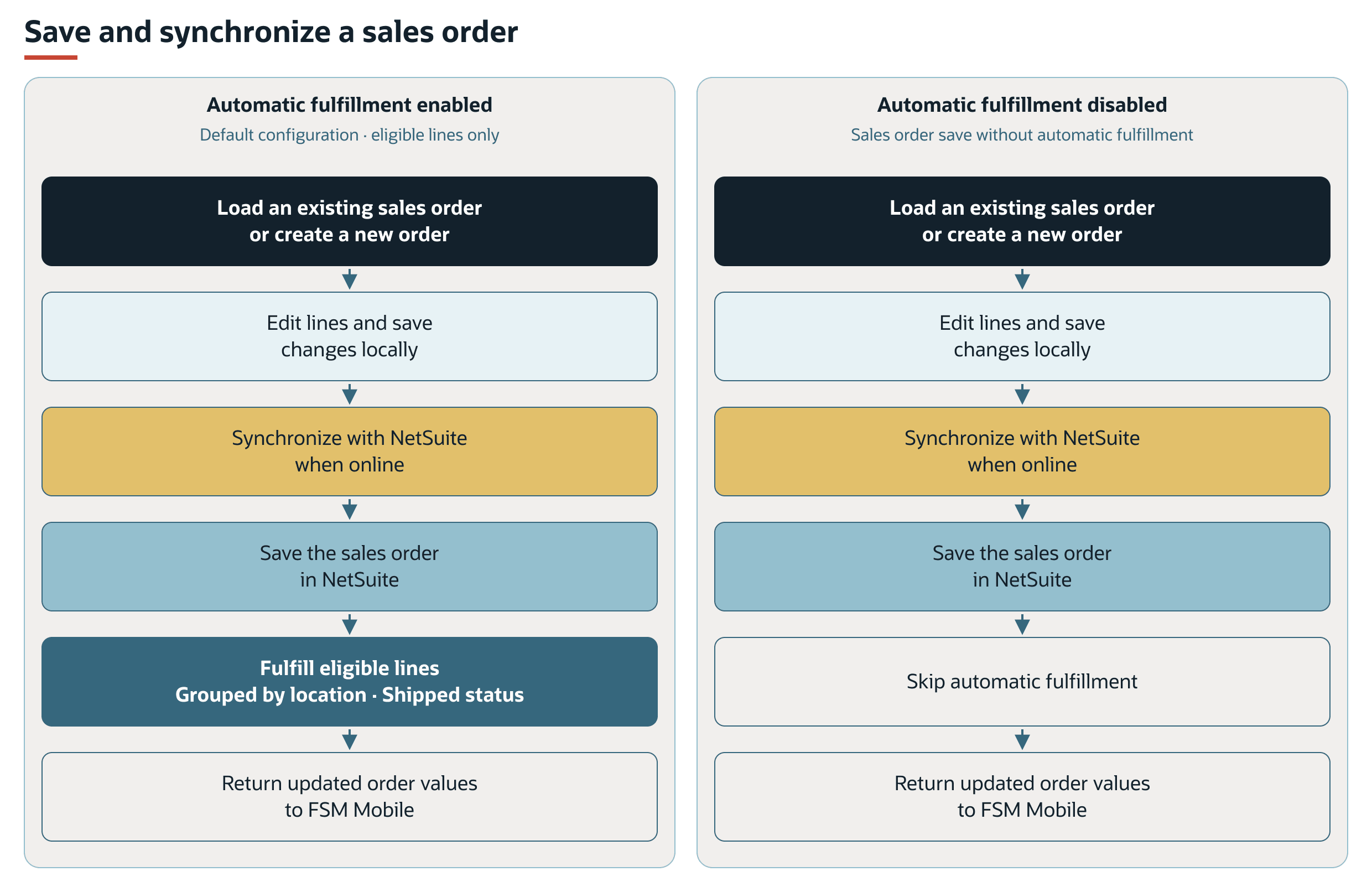
The following flows summarize a successful save and synchronization with automatic fulfillment enabled or disabled. Automatic fulfillment is enabled by default and applies only to eligible lines. These successful flows assume that NetSuite permits fulfillment. Approval and other account processes can block it. Update replacement steps and partial failures are explained in Sales Order Synchronization and Fulfillment in this topic. Order deletion is explained in Deleting Sales Orders in this topic.
By default, the tab identifies matching sales orders by project. For a CRM task without a project, it identifies sales orders linked to that task. You can configure the search filters that determine which sales orders load in the tab.
By default, you can create a sales order when no sales order is already loaded in the tab. The default creation limit controls whether you can add another order. It does not limit the matching existing orders that can load.
When you save a sales order, FSM Mobile stores the changes locally and attempts to synchronize the sales order with NetSuite. If you're offline, the saved changes remain local until synchronization succeeds. A local save doesn't confirm that NetSuite has saved or fulfilled the sales order.
The Sales Order tab does not require an order for task completion by default. Task completion uses the configured local resource requirements and does not confirm that sales order synchronization or fulfillment succeeded.
With automatic fulfillment enabled, FSM saves the sales order and processes eligible line items for fulfillment. FSM groups eligible lines by location and creates item fulfillments with Shipped status. FSM then reads the sales order again and returns the updated result to FSM Mobile.
Key Behaviors
This section describes how the feature responds to different conditions and actions.
Editing Sales Order Lines
An existing sales order can contain both editable and read-only lines. In the default configuration, whether you can edit a line depends on its task relationship and item type.
The following table explains the default editing rules.
|
Sales Order Line |
Editing Behavior |
|---|---|
|
Line item linked to the current CRM task or project task, excluding item group headers and footers |
You can edit the line item. |
|
Existing line item that isn't linked to the current CRM task or project task |
You can't edit the line item. |
|
Item group header or footer |
You can't edit the line item. |
Under the default editing rules, a shared project doesn't make every line editable. The line must be linked to the current CRM task or project task to meet the task-based editing rule.
For existing lines included in the submitted order, read-only protection also prevents the server from updating those lines. Keep their line identities and protection in the submitted data. This protection does not prevent deletion of lines omitted from the submitted order.
Changes to the line-level read-only rules are not supported. For the risks and supported configuration boundaries, see Configuring FSM Mobile Sales Order Management.
Excluding existing line items from the data submitted when saving a sales order can remove those lines from the sales order.
Sales Order Items and Pricing
The default item list uses the shared inventory and kit data configured for FSM Mobile. Inventory item availability depends on the applicable inventory searches, available stock, and location settings. The default bin, lot, and serial number controls use the selected item and the applicable location and bin context.
The shared inventory choices are cached until FSM Mobile is refreshed. Saving a sales order does not automatically refresh those choices. Selecting an item doesn't confirm that the requested quantity is still available when synchronization occurs.
For information about item selection and availability, see Inventory Section in FSM Mobile.
By default, item entries require an item and a quantity. The default quantity field starts at 1 and accepts whole numbers of 1 or more. You can configure the quantity field's initial value and input rules.
For serialized items, each selected serial number supplies one unit of inventory assignment. If more serial numbers are selected than the entered quantity, the default synchronization logic increases the submitted quantity to the serial count. Confirm the returned order quantity and the quantity fulfilled separately.
The default tab doesn't include a rate entry field. In the default configuration, line amounts and the sales order total are read from the sales order in NetSuite. The default item table excludes tax and shipping item rows. The NetSuite total can include charges that are not shown in that table.
Record Interactions
This section describes the default record relationships and related billing and case invoicing behavior.
Record Relationships and Defaults
The default configuration uses available task information to set initial values when you create a sales order or add item entries. You can configure these defaults.
The following table summarizes the default relationships and record interactions.
|
Record or Context |
Default Use |
|---|---|
|
Sales order |
Created or updated during synchronization. The order can be saved even if subsequent fulfillment processing fails. |
|
CRM task or project task |
Supplies the task relationship on the sales order and its item entries. |
|
Customer and project |
Supply customer and project defaults. When no project value applies, the project default is empty. |
|
Case |
Supplies the case relationship on the sales order when a case is available. |
|
Asset |
Supplies the asset default on the sales order and its item entries when an asset is available. |
|
Transaction date |
Uses the task date when a new order is created by default. |
|
Initial order status |
The default status when creating an order is Pending Fulfillment. Account processes can change the saved status. The returned status reflects the order in NetSuite. |
|
Subsidiary |
Supplies an explicit subsidiary default when the Multi-Subsidiary Customer feature is enabled. |
|
Item fulfillment |
Records fulfillment of eligible sales order items using the applicable location and inventory details. |
By default, item entries use the asset on the task. For a task involving child assets, this does not allocate each line to the relevant child asset. See Configuring FSM Mobile Sales Order Management for the supported configuration boundaries.
For record information, see Sales Orders and Item Fulfillments.
For related asset creation and updates, see FSM Asset Processing from Item Fulfillments. An FSM Mobile synchronization result does not confirm completion of that separate processing.
Billing and Case Invoicing
The direct Sales Order tab does not apply FSM Billing Rule processing. See FSM Billing Rules for the separate billing capability.
Setting the case relationship on a sales order does not automatically set that order in the case's Field Service Case Transaction field. Automatically writing the sales order back to that case field currently requires an additional custom script outside the FSM product. Where an account uses such a configurable script, its selection, timing, and saved result must be verified separately. Case invoice processing uses the transaction linked on the case and its invoicing eligibility. See FSM Case Invoicing.
Processing Model and Lifecycle
This section explains when processing occurs and what can affect its progress and results.
Sales Order Synchronization and Fulfillment
This section describes fulfillment eligibility, account process restrictions, replacement of related item fulfillments, and synchronization results.
Fulfillment Eligibility
With automatic fulfillment enabled, FSM selects line items for fulfillment based on the item's fulfillment setting, the line's location, and its editing restrictions.
The following table explains the selection conditions.
|
Line Item |
Fulfillment Conditions |
|---|---|
|
Existing line |
The item allows fulfillment, the line has a location, and the line is editable. |
|
Line added when the sales order is saved |
The item allows fulfillment and the line has a location. |
For items that require bin, lot, or serial number details, FSM calculates the fulfillment quantity from assignments that meet those requirements. FSM skips a line if no quantity remains after these checks. If no lines qualify for an item fulfillment, FSM doesn't save that record.
Partial fulfillment of a sales order line is not supported by the Sales Order tab. Passing the eligibility checks doesn't confirm support for editing a line that is already partially fulfilled.
Approval and Account Processes
Automatic fulfillment requires NetSuite to permit fulfillment of the saved order. If an account process leaves or returns the sales order in Pending Approval, approval is required before fulfillment can proceed. FSM's immediate automatic fulfillment attempt fails when that approval requirement blocks it, even if the sales order has already saved. The default Pending Fulfillment value does not guarantee that account rules, workflows, or scripts retain that status.
Approval requirements and other account business processes are managed outside the FSM product. Test FSM Mobile order creation and updates together with the other sales order processes used by the business. Include flows that require approval and flows intended for immediate FSM Mobile fulfillment. Agree and verify the approval and fulfillment timing for each flow. See Approving Sales Orders.
During an update, FSM can delete matching item fulfillments before a later approval requirement or another account restriction blocks replacement fulfillment. Check the saved order and related fulfillments separately after such a failure.
Updating Related Item Fulfillments
With automatic fulfillment enabled (the default), synchronizing an update to an existing sales order replaces its matching item fulfillments. FSM selects fulfillment records linked to both that sales order and the current CRM task. When no CRM task applies, FSM uses the current project task relationship instead. The lookup uses the task relationship on the fulfillment record. It does not restrict selection by transaction date, fulfillment status, or creating user.
FSM deletes the matching fulfillment records before saving the sales order changes. After the order saves, FSM groups eligible lines by location and creates replacement item fulfillments with Shipped status. This processing uses the rules in Fulfillment Eligibility.
This replacement runs for each update synchronized through this FSM Mobile save path. FSM does not first compare quantities, locations, or inventory details to decide whether replacement is needed. Deletion applies to the entire matching fulfillment record, and replacement can include eligible lines whose values have not changed.
If no lines qualify for replacement, no new fulfillment is saved, even though earlier matching fulfillments have already been deleted. A failure during the order save or replacement processing can also leave earlier deletions in place. A synchronization error does not confirm that the earlier fulfillments were restored.
The same replacement sequence applies when a new-order creation request is repeated and FSM identifies a sales order already created by that request. On an initial creation with no previously created order, there are no existing fulfillments for this operation to delete.
When automatic fulfillment is disabled, this FSM Mobile save operation does not delete or create item fulfillments.
Saving and Fulfillment Results
After successful synchronization with NetSuite, FSM Mobile uses the returned sales order values. Saving the sales order and fulfilling its items are separate results.
Sales order saving and automatic fulfillment processing occur before FSM returns the synchronization response to FSM Mobile. If fulfillment fails after the sales order saves successfully, FSM Mobile receives a synchronization error. The sales order has already been created or updated in NetSuite. The error doesn't provide separate confirmation of which processing step succeeded.
For an existing order, the unchanged sales order title doesn't indicate whether the update was saved. A displayed sales order number also doesn't confirm successful fulfillment. Check the sales order and related item fulfillments in NetSuite to establish the result. An error doesn't establish that earlier changes were reversed.
If later processing fails, a new order can exist in NetSuite even though FSM Mobile hasn't received its NetSuite ID. Removing an entry that still has a temporary FSM Mobile ID can remove only the local entry. Check the NetSuite result before treating local deletion as cancellation or creating a replacement order.
The following table describes the results shown on each record.
|
Result |
Record Details |
|---|---|
|
Sales order saved |
The sales order in NetSuite reflects the saved items and quantities. |
|
Items fulfilled |
Related item fulfillment records show the items and quantities fulfilled. |
|
Sales order saved, fulfillment failed |
The sales order can contain the saved changes even though FSM Mobile shows a synchronization error. Check related item fulfillments separately. |
Shipped status applies to the items and quantities included in an item fulfillment. It doesn't mean that every line on the sales order has been fulfilled.
Deleting Sales Orders
FSM Mobile makes deletion available only when the resource and record allow it. An order containing read-only item rows cannot be deleted through the default FSM Mobile action. Other configured restrictions and the record's current editing or synchronization state can also prevent deletion.
Deleting a saved order first removes it locally and attempts to synchronize the deletion. Its disappearance from FSM Mobile does not confirm that NetSuite has deleted it.
With automatic fulfillment enabled, synchronizing deletion of an order with a NetSuite ID first attempts to delete all item fulfillments linked to that order. FSM then attempts to delete the sales order. This fulfillment lookup is not restricted to the current task. A later failure can leave the order in NetSuite after related fulfillments have been deleted.
With automatic fulfillment disabled, this deletion path does not first delete item fulfillments. Record deletion restrictions in NetSuite still apply.
Configuration Effects and Dependencies
The Sales Order tab configuration affects record selection, creation availability, default values, and automatic fulfillment.
The following table summarizes the default behavior and the effect of selected configuration controls.
|
Configuration Area |
Default Behavior |
Effect of Configuration |
|---|---|---|
|
Sales order selection |
Uses the task's project or CRM task relationship to identify matching sales orders. |
Configurable search filters determine which sales orders load in the tab. |
|
Creation limit |
You can't create another sales order when at least one sales order is loaded. |
The configured maximum controls whether sales order creation is available. |
|
Item and inventory-detail choices |
Use shared inventory and kit data, with location, bin, lot, and serial number selection as applicable. |
Searches and item controls determine the available choices and inventory details. |
|
Line editing |
Allows editing of lines linked to the current CRM task or project task, excluding item group headers and footers. |
Changing the line-level read-only rules is not supported. |
|
Quantity input |
Starts at 1 and accepts whole numbers of 1 or more. |
Quantity field configuration controls its initial value and input rules. |
|
Sales order and item defaults |
Use the available task context. |
Supply initial values when creating a sales order or adding item entries. |
|
Automatic fulfillment |
Enabled by default. |
Controls whether synchronization also processes eligible lines for item fulfillment. |
Configuration Dependencies
In the default configuration, shared inventory and kit data provide the available item and inventory-detail choices. The Sales Order resource handles fulfillment and inventory details during synchronization and returns the updated sales order. Matching field maps or the same record type doesn't confirm that a separate resource retains this processing.
For configuration settings and supported boundaries, see Configuring FSM Mobile Sales Order Management.
Configuration Risks
Sales Order tab configuration is a high-risk area because changes can affect saved transactions, pricing, inventory processing, and related item fulfillments. For detailed risks, unsupported changes, and verification checks, see Configuring FSM Mobile Sales Order Management.
Limitations and Constraints
Keep the following constraints in mind:
-
Concurrent editing - Only one person should manage a sales order at a time. Concurrent changes can overwrite changes. Lines added after an order was loaded can be removed if those lines are absent from the later submitted order. Read-only protection does not protect an omitted line.
-
Inventory Status - The default Sales Order tab doesn't support Inventory Status. Using it requires a configuration override.
-
Item types and loaded line validation - Only supported item types can be used. Existing read-only rows still participate in the default item and quantity validation. An item-group footer with an empty required quantity can prevent saving further changes to the order. Loaded quantities outside the default input rules can also prevent saving. Item groups are partially supported and have editing constraints. See Supported Item Types for the Sales Order Tab.
-
Inventory quantities - The default item controls don't enforce a maximum quantity based on available stock for sales order item entries.
-
Kit quantities - The default kit controls don't validate whether available component quantities cover the requested kit quantity.