Redwood Learning Catalog Management Enhancements
These Redwood catalog management enhancements let you manage courses, offerings, events, self-paced learning, learning paths, catalog security, and catalog administration more efficiently. These updates simplify common catalog management tasks and add configuration options for supported experiences.
Create and manage course offerings
- Create an event from the Offerings tab using the course title as the default event title.
- Add an existing event as a course offering using an enhanced offering selector that displays the event format, title, date and time, and item number.
- Open new offerings in a separate browser tab, making it easier to return to the learning catalog.
Find offerings more easily
- The Offerings tab now shows start and end dates, and learners see available offerings sorted chronologically.
- The Details tab no longer includes an Offerings section because offering information is available on the Offerings tab..
Review learning
- Preview evaluations for events and self-paced learning.
Configure the learning experience
- Specify whether View Content becomes available after successful completion or after any completion.
- Show or hide the Generate button for AI-generated summaries and descriptions.
- Specify how time zone information appears when creating and editing events.
Improve catalog administration
- Add a Pending Assignments column to the Learning Catalog listing. For details, see the release 25A What's New: Configure Learning Catalog Search Filters
- Catalog administration profiles now use consistent quick actions and hover text.
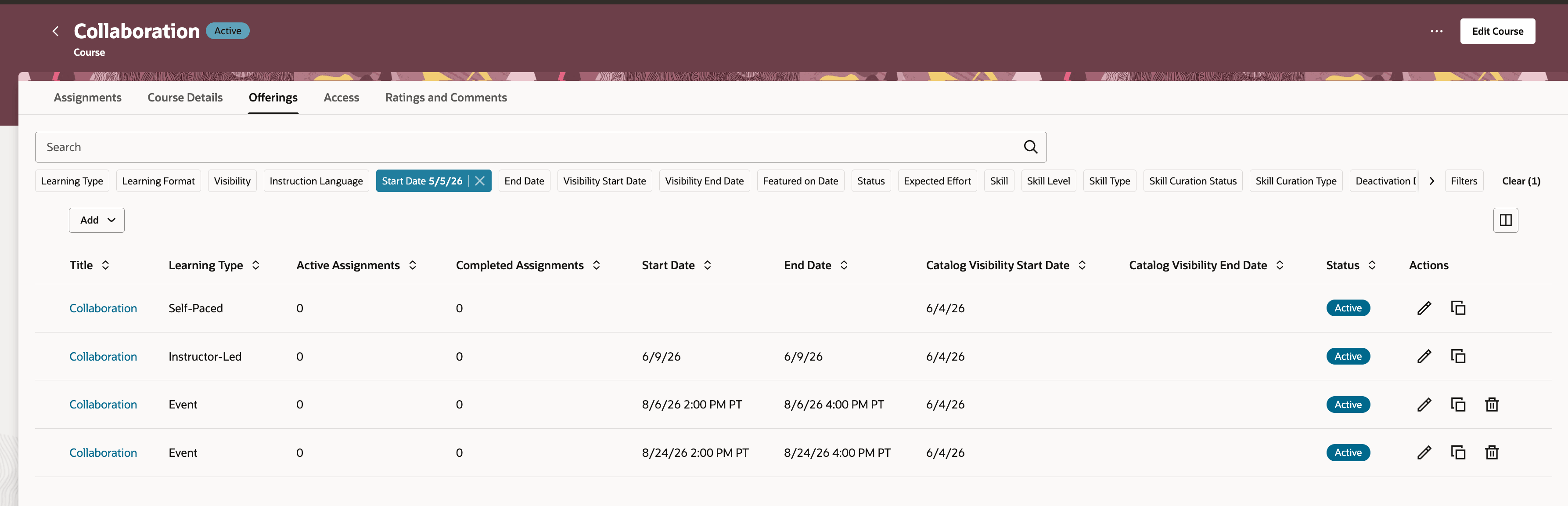
Course Offerings Page Showing Start and End Date Columns
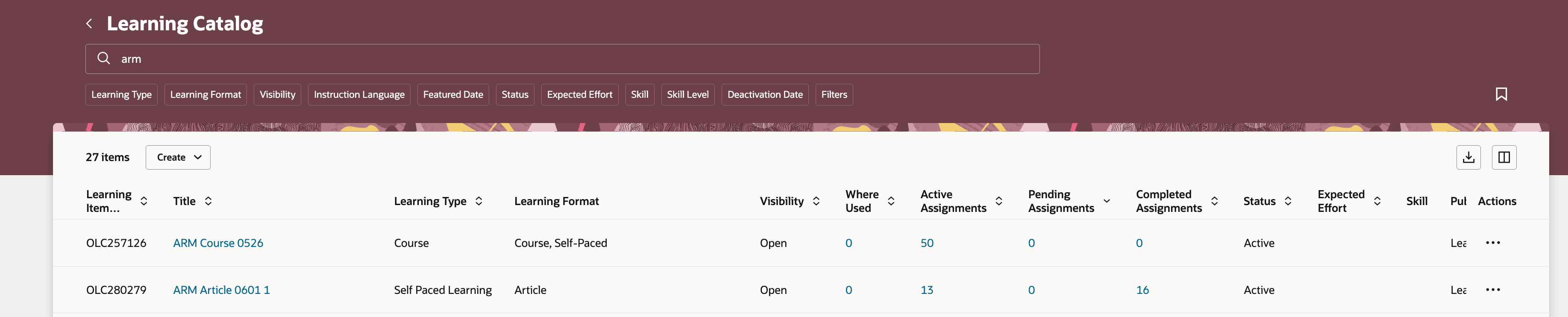
Learning Catalog Page Showing Pending Assignments
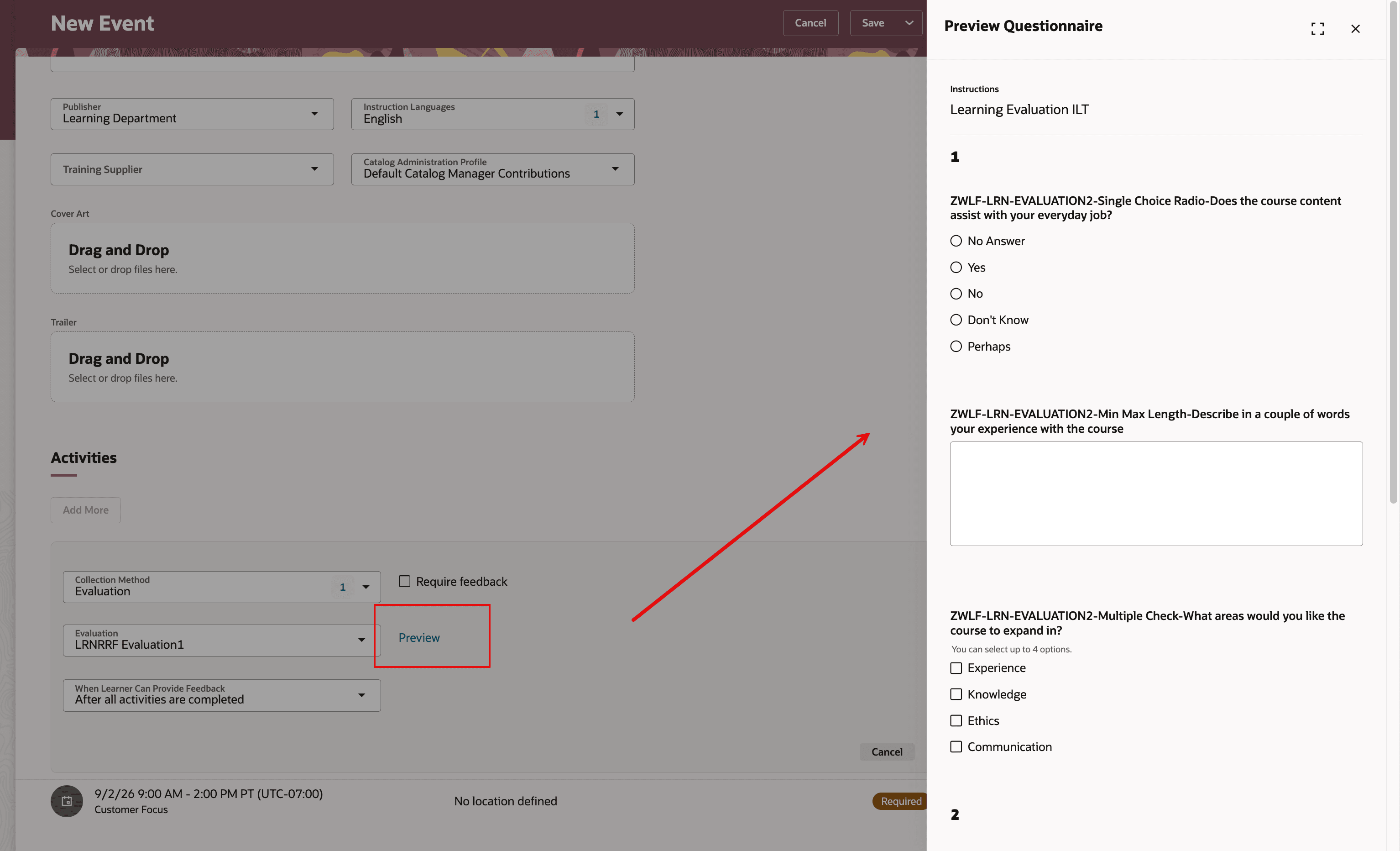
Previewing an Evaluation
Simplify catalog administration across courses, offerings, events, self-paced learning, and learning paths. These enhancements improve consistency and provide additional configuration options to help organizations tailor catalog management to their business needs.
Steps to enable and configure
No action is required to use the delivered default behavior. Optional configuration is available for these features:
- Course Offerings filtering: To change the number of days or disable this filtering, update the Filter Offerings by Start Date and Includes Offerings from the Last Number of Days page properties.
- View Content: To specify whether View Content becomes available after successful completion or after any completion, configure the applicable user experience rule.
- AI-generated summaries and descriptions: To show or hide the Generate button, configure the Show Generate Button page property for events, learning paths, and courses.
- Descriptive flexfields: Configure the applicable business rules for supported descriptive flexfields.
- Event time zone display: To display event time zones using one of these values, configure the Set Format of Event Activity Time Zone Values page property.
| Page property values | Example |
|---|---|
| shortname (default) |
(UTC-6:00) US Central Time (CT) |
| name | (UTC-6:00) US Central Time (US Central Time) |
| timezonecode |
(UTC-6:00) US Central Time (America/Chicago) |
| none | (UTC-6:00) US Central Time |
Tips and considerations
- By default, the course Offerings tab displays offerings that started within the previous 30 days
- The Pending Assignments column is clickable only when Redwood Assignments are enabled. If Redwood Assignments aren't enabled, the value is read-only.
- The availability of View Content depends on the completion rule configured for your organization.
Key resources
For more details, see these What's News:
- Release 26A: Redwood Course management and Event management
- Release 24D: Self-paced learning management
Access requirements
Learning specialists need these access updates to manage the various details pages:
| Learning Type | Previously needed privilege | Privilege needed now |
|---|---|---|
| Course |
or
and
or
|
or
|
| Learning path |
or
+
or
|
or
|
| Categories and Topic |
or
+
or
|
or
|